2011 BMW X3 steering wheel controls
[x] Cancel search: steering wheel controlsPage 89 of 262
It also varies the steering force required to turn
the wheels in accordance with the vehicle
speed.
This results in a sporty steering response. In ad‐
dition, it becomes easier to steer during parking
and maneuvering.
Dynamic Driving Control*
The concept
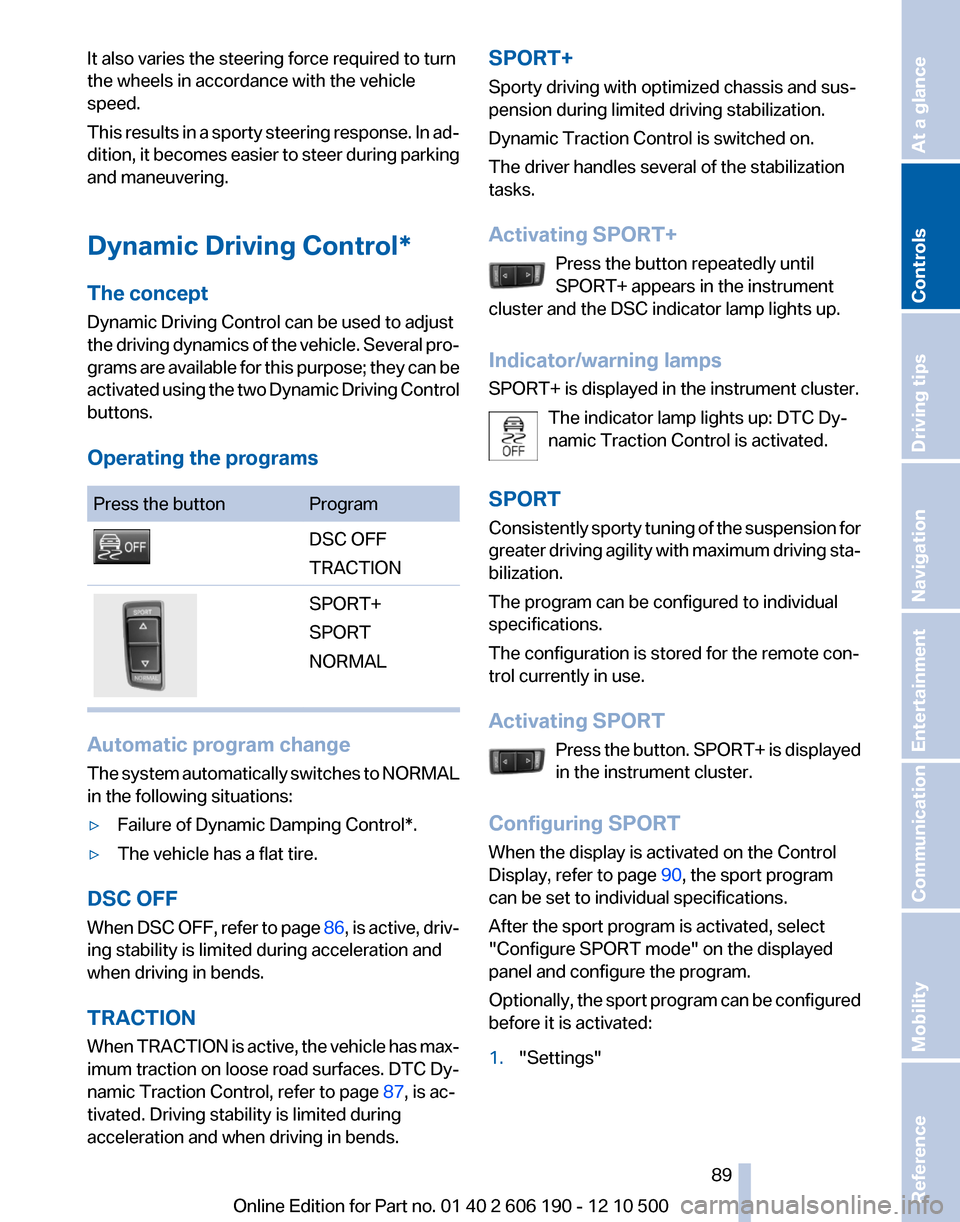
Dynamic Driving Control can be used to adjust
the driving dynamics of the vehicle. Several pro‐
grams are available for this purpose; they can be
activated using the two Dynamic Driving Control
buttons.
Operating the programsPress the buttonProgramDSC OFF
TRACTIONSPORT+
SPORT
NORMAL
Automatic program change
The system automatically switches to NORMAL
in the following situations:
▷Failure of Dynamic Damping Control*.▷The vehicle has a flat tire.
DSC OFF
When DSC OFF, refer to page 86, is active, driv‐
ing stability is limited during acceleration and
when driving in bends.
TRACTION
When TRACTION is active, the vehicle has max‐
imum traction on loose road surfaces. DTC Dy‐
namic Traction Control, refer to page 87, is ac‐
tivated. Driving stability is limited during
acceleration and when driving in bends.
SPORT+
Sporty driving with optimized chassis and sus‐
pension during limited driving stabilization.
Dynamic Traction Control is switched on.
The driver handles several of the stabilization
tasks.
Activating SPORT+ Press the button repeatedly until
SPORT+ appears in the instrument
cluster and the DSC indicator lamp lights up.
Indicator/warning lamps
SPORT+ is displayed in the instrument cluster.
The indicator lamp lights up: DTC Dy‐
namic Traction Control is activated.
SPORT
Consistently sporty tuning of the suspension for
greater driving agility with maximum driving sta‐
bilization.
The program can be configured to individual
specifications.
The configuration is stored for the remote con‐
trol currently in use.
Activating SPORT Press the button. SPORT+ is displayed
in the instrument cluster.
Configuring SPORT
When the display is activated on the Control
Display, refer to page 90, the sport program
can be set to individual specifications.
After the sport program is activated, select
"Configure SPORT mode" on the displayed
panel and configure the program.
Optionally, the sport program can be configured
before it is activated:1."Settings"Seite 8989
Online Edition for Part no. 01 40 2 606 190 - 12 10 500
ReferenceMobilityCommunicationEntertainmentNavigationDriving tipsControlsAt a glance
Page 91 of 262

Driving comfortCruise control
The concept
The system is functional at speeds beginning at
approx. 20 mph/30 km/h.
It maintains the speed that was set using the
control elements on the steering wheel.
The system brakes on downhill gradients if en‐
gine braking action is insufficient.
Unfavorable conditions
Do not use the system if unfavorable con‐
ditions make it impossible to drive at a constant
speed, for instance:▷On curvy roads.▷In heavy traffic.▷On slippery roads, in fog, snow or rain, or on
a loose road surface.
Otherwise, you could lose control of the vehicle
and cause an accident.◀
Controls
Buttons at a glance
1System on/off, interrupt2Resume speed3Store speed4Store, maintain/change speed
Switching on Press the button on the steering wheel.
The marking in the speedometer is set to the
current speed.
Cruise control can be used.
Switching off Deactivated or interrupted system
If the system is deactivated or interrupted,
actively intervene by braking and, if necessary,
with evasive maneuvers; otherwise, there is the
danger of an accident occurring.◀
Press the button.▷If active: press twice.▷If interrupted: press once.
The displays go out. The stored desired speed
is deleted.
Interrupting When active, press the button.
The system is automatically interrupted if:
▷The brakes are applied.▷Transmission position D is disengaged.▷DTC Dynamic Traction Control is activated
or DSC is deactivated.▷DSC is actively controlling stability.▷HDC is activated.
Maintaining/storing the current speed
Press the button.
Seite 9191
Online Edition for Part no. 01 40 2 606 190 - 12 10 500
ReferenceMobilityCommunicationEntertainmentNavigationDriving tipsControlsAt a glance
Page 99 of 262

Displaying the turning circle and
pathway lines▷The static, red turning circle line shows the
space needed to the side of the vehicle
when the steering wheel is turned all the
way.▷The variable, green pathway line assists you
in assessing the amount of space actually
needed to the side of the vehicle.
The pathway line is dependent on the cur‐
rent steering angle and is continuously ad‐
justed with the steering wheel movement.
"Parking aid lines"
Turning circle and pathway lines are displayed.
Cameras
The objectives of the Top View cameras are lo‐
cated at the bottom of the exterior mirror hous‐
ings. The image quality may be impaired by dirt.
Clean the lens, refer to page 235.
Head-up Display*
The concept
This system projects important information into
the driver's field of vision, e.g., the speed.
In this way, the driver can get information with‐
out averting his or her eyes from the road.
Display visibility
The visibility of the displays in the Head-up Dis‐
play is influenced by:▷Certain sitting positions.▷Objects on the cover of the Head-up Dis‐
play.▷Sunglasses with certain polarization filters.▷Wet roads.▷Unfavorable light conditions.
If the image is distorted, check the basic set‐
tings.
Switching on/off
1."Settings"2."Head-up display"3."Head-up display"
Switch the Head-up Display ON/OFF as re‐
quired.
Display
Selecting displays in the Head-up
Display
1."Settings"2."Head-up display"3."Displayed information"4.Select the desired displays in the Head-up
Display.
The settings are stored for the remote control
currently in use.
Setting the brightness
The brightness is automatically adjusted to the
ambient light.
The basic setting can be adjusted manually.
1."Settings"2."Head-up display"3."Brightness"4.Turn the controller.Seite 9999
Online Edition for Part no. 01 40 2 606 190 - 12 10 500
ReferenceMobilityCommunicationEntertainmentNavigationDriving tipsControlsAt a glance
Page 133 of 262

▷To change the scale: turn the controller.▷To shift the map: move the controller in
the required direction.▷To shift the map diagonally: move the
controller in the required direction and
turn it.
Specifying the street
If the system does not recognize a street, one of
the following is displayed:
▷The name of a street in the vicinity.▷The county.▷The coordinates of the destination.
Additional functions
Additional functions are available on the inter‐
active map after the controller is pressed.
▷ Select the symbol.
"Start guidance" or "Add as another
destination"
Add a destination as a further destination,
refer to page 134.▷"Exit interactive map": return to the map
view.▷"View in northern direction"▷"Display destination": the map section
around the destination is displayed.▷"Display current location": the map section
around your current location is displayed.▷" Find points of interest": the search for spe‐
cial destinations is started.Destination entry by voice*
General information▷Instructions for voice activation system, re‐
fer to page 25.▷When making a destination entry by voice,
you can change between voice operation
and iDrive.▷To have the available spoken instructions
read out loud: ›Voice commands‹
Saying the entries
▷the town/city, street, and house number can
be entered as a single command*.▷Countries, towns and cities, streets, and in‐
tersections can be said as whole words* or
spelled in the language of the system, refer
to page 73.
Example: to enter a town/city in a US state
as a whole word, the language of the system
must be English.▷Spell the entry if the spoken language and
the language of the system differ.▷Say the letters smoothly, and avoid exag‐
gerating the pronunciation and inserting
lengthy pauses between the letters.▷The options available for entering data de‐
pend on the navigation data and the country
and language settings.
entering an address using a command*
1. Press the button on the steering
wheel.2.›Enter address‹3.Wait for a request from the system.4.Say the address in the suggested order.5.Continue making the entry as prompted by
the system.
If necessary, individually name the separate
components of the address, e.g., the town/city.
Seite 133133
Online Edition for Part no. 01 40 2 606 190 - 12 10 500
ReferenceMobilityCommunicationEntertainmentNavigationDriving tipsControlsAt a glance
Page 259 of 262

Technical data 238
TeleService 195
Temperature, automatic cli‐ mate control 102, 104
Temperature display, external temperature 69
Temperature, engine oil 68
Terminal, starting aid 230
Text messages 187
Text messages, supplemen‐ tary 75
Theft alarm system, refer to Alarm system 42
Theft protection, lug bolts 226
Theft protection, refer to Cen‐ tral locking system 35
Thigh support 49
Tilt alarm sensor 43
Tilt, seats 47
Time of arrival 71
Tire age 212
Tire damage 211
Tire identification marks 210
Tire inflation pressure 207
Tire Pressure Monitor TPM 82
Tires, changing 212
Tires, everything on wheels and tires 207
Tires, run-flat tires 213
Tire tread 211
Toll roads, route 136
Tone 146
Tool kit 221
Tools 221
Top View 97
Torque, engine 240
Total vehicle weight 241
Tow fitting 231
Towing 230
Town/city, navigation 128
Tow-starting 230
TPM Tire Pressure Moni‐ tor 82
Traction control 86
TRACTION program, Dynamic Driving Control 87 Traffic bulletins, naviga‐
tion 139
Traffic situation/gray card 140
Transmission, automatic 64
Transporting children safely 55
Tread, tires 211
Treble, tone 146
Trip computer 71
Triple turn signal activa‐ tion 62
Trip odometer 68
Trunk cover 110
Trunk lid 39
Turning circle 240
Turning circle lines, backup camera 96
Turn signals, operation 61
U
Unintentional alarm 43
Units of measure 73
Universal remote control 107
Unlock button, automatic transmission 65
Unlocking/locking from in‐ side 38
Unlocking/locking via door lock 38
Unlocking/locking with remote control 36
Upholstery care 234
USB audio interface 167
USB interface 114
V
Variable sport steering 88
Vehicle battery 227
Vehicle battery, replacing 227
Vehicle, breaking in 120
Vehicle care 234
Vehicle identification number, refer to Identification number
in the engine compart‐
ment 215
Vehicle jack 226 Vehicle paint 234
Vehicle storage 235
Vehicle wash 233
Ventilation 106
Ventilation, refer to Parked-car ventilation 106
Version of the navigation data 142
Video playback 157
Voice activation, short com‐ mands 243
Voice activation system 25
Volume, setting 146
W
Warning lamps 14
Warning messages, refer to Check Control 74
Warning triangle 229
Washer fluid 64
Washer fluid reservoir, ca‐ pacity 242
Washer nozzles, wind‐ shield 63
Washer system 62
Washing, vehicle 233
Water on roads 121
Weather Band 149
Weights 241
Welcome lamps 76
Wheel base, vehicle 240
Wheel change 226
Wheels, changing 212
Wheels, everything on wheels and tires 207
Wheels, Tire Pressure Monitor TPM 82
Width, vehicle 238
Window defroster, rear 102, 105
Windows, powered 43
Windshield washer fluid 64
Windshield washer noz‐ zles 63
Windshield washer system 62
Windshield wiper 62 Seite 259259
Online Edition for Part no. 01 40 2 606 190 - 12 10 500
ReferenceMobilityCommunicationEntertainmentNavigationDriving tipsControlsAt a glance