2011 BMW X3 Driving
[x] Cancel search: DrivingPage 181 of 262

1."Telephone"2."Active calls"3. "Hold"
The existing call is put on hold.4.Dial the new phone number or select it from
a list.
"Return"
The call on hold is resumed.
Switching between two calls, hold call
The active call is displayed in color.
The call on hold is displayed in gray.
"Transfer"
The call on hold is resumed.
Establishing a conference call
Two calls can be connected to a single tele‐
phone conference call.
1.Establish two calls.2. "Conference call"
When terminating a conference call, both calls
are ended. If one call is terminated by another
party, the other call can be continued.
Switching the microphone to mute
When a call is active, the microphone can be
muted.
1."Telephone"2."Active calls"3. "Microphone muted"
A microphone that has been switched to mute
is automatically reactivated:
▷When a new connection is established.▷When switching between call parties.
DTMF suffix dialing
DTMF suffix dialing can be used for gaining ac‐
cess to network services or for controlling devi‐
ces, e.g., to make a remote inquiry of an answer‐
ing machine. The DTMF code is needed for this
purpose.
1."Telephone"2.Select the contact from a list or "Dial
number".3. "Keypad dialing"4.Enter the DTMF code via iDrive.
Phone book
Displays
The phone book accesses the contacts and
shows all contacts for which a phone number
has been stored. The entries can be selected to
make a call.
1."Telephone"2."Phone book"
A symbol indicates the storage location of the
contacts.
Calling a contact
SymbolMeaningContact with one stored phone num‐
ber.Contact with more than one stored
phone number.Call not possible; mobile phone with‐
out reception or network, or Service
Request* is active.
For contacts with one stored phone number: se‐
lect the required contact. The connection is be‐
ing established.
For contacts with more than one stored phone
number: select the required contact and the
Seite 181181
Online Edition for Part no. 01 40 2 606 190 - 12 10 500
ReferenceMobilityCommunicationEntertainmentNavigationDriving tipsControlsAt a glance
Page 183 of 262

Hands-free system
General information
Calls that are being made on the hands-free
system can be continued on the mobile phone
and vice versa.
From the mobile phone to the hands-
free system
Calls that were begun outside of the Bluetooth
range of the vehicle can be continued on the
hands-free system with the ignition switched
on.
Depending on the mobile phone, the system au‐
tomatically switches to the hands-free system.
If the system does not switch over automatically,
follow the instructions on the mobile phone dis‐
play; refer also to the mobile phone operating
instructions.
From the hands-free system to the
mobile phone
Calls that are made on the hands-free system
can in some cases be continued on the mobile
phone; this depends on the mobile phone.
Follow the instructions on the mobile phone dis‐
play; refer also to the mobile phone operating
instructions.
Snap-in adapter*
Installation position
In the center armrest.Inserting the snap-in adapter1.Press the button and remove the cover.2.Insert the snap-in adapter at the front, ar‐
row 1, and press down, arrow 2, until it en‐
gages.
Inserting the mobile phone
1.Depending on the mobile phone, remove
the protective cap from the antenna con‐
nector and from the USB connection of the
mobile phone.2.Slide the mobile phone with the buttons fac‐
ing up in the direction of the electrical con‐
nections, arrow 1, and push downward, ar‐
row 2 until it engages.Seite 183183
Online Edition for Part no. 01 40 2 606 190 - 12 10 500
ReferenceMobilityCommunicationEntertainmentNavigationDriving tipsControlsAt a glance
Page 185 of 262
Office*At a glance
General information
Contacts, appointments, tasks, notes, text mes‐
sages, and e-mails from the mobile phone can
be displayed on the Control Display if the mobile
phone provides compatible support of these
functions and the necessary Bluetooth stand‐
ards.
Information about which mobile phones support
the Office functions can be found at
www.bmwusa.com/bluetooth. A limited number
of compatible mobile phones is available for Of‐
fice.
Contents are only displayed in full length when
the vehicle is stationary.
The mobile phone has read-access only.
Data are updated regularly via the mobile phone.
Do not use Office while driving
To avoid becoming distracted and posing
an unnecessary hazard to your vehicle's occu‐
pants and to other road users, never attempt to
use the controls or enter information unless traf‐
fic and road conditions allow this.◀
Requirements▷A suitable mobile phone is paired with the
vehicle and connected. In some mobile
phones, data access must be confirmed on
the mobile phone.▷The time, time zone, and date, refer to
page 72, are correctly set on the Control
Display and on the mobile phone to correctly
display appointments, for example.▷Office is activated, refer to page 177.
Office information
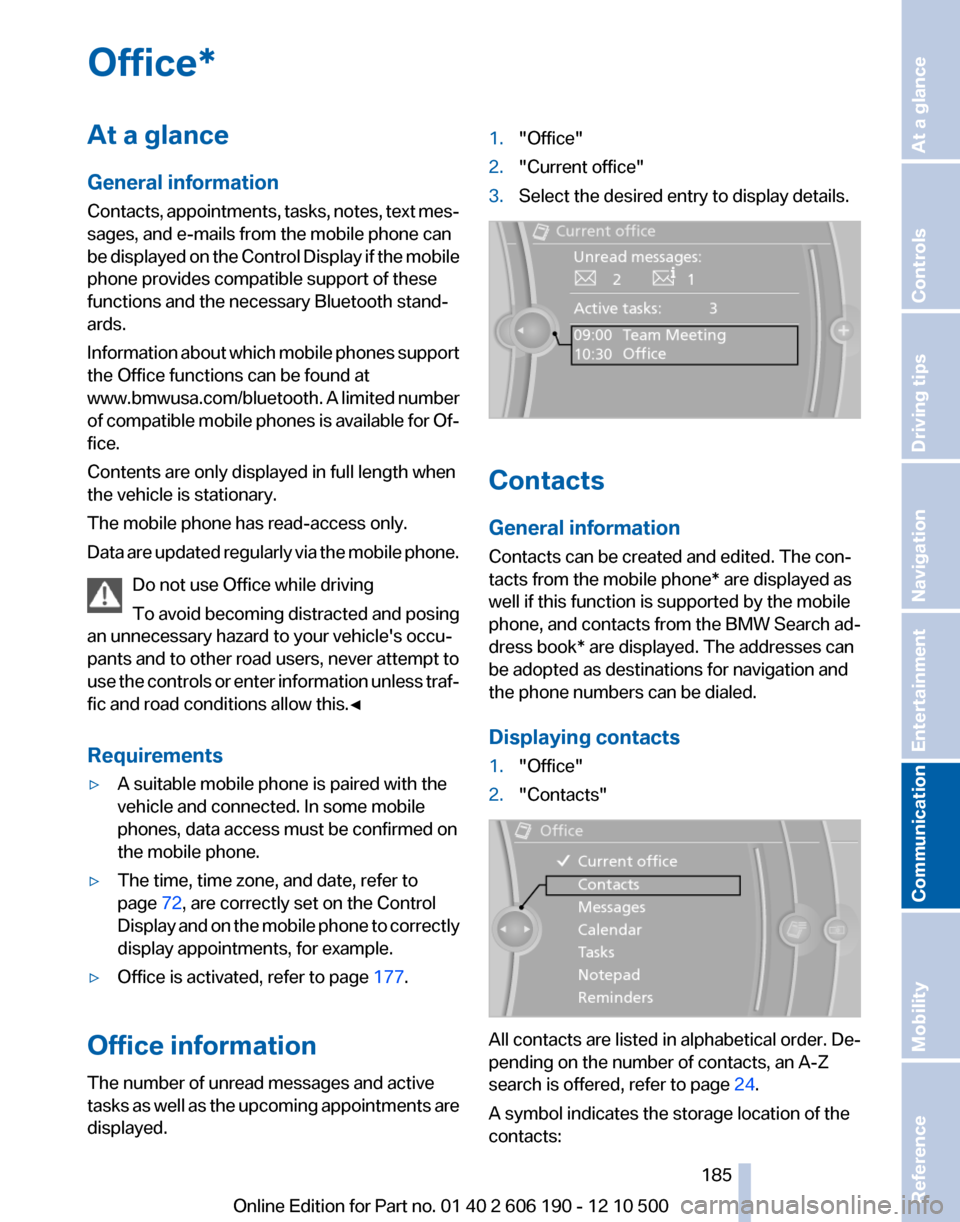
The number of unread messages and active
tasks as well as the upcoming appointments are
displayed.
1."Office"2."Current office"3.Select the desired entry to display details.
Contacts
General information
Contacts can be created and edited. The con‐
tacts from the mobile phone* are displayed as
well if this function is supported by the mobile
phone, and contacts from the BMW Search ad‐
dress book* are displayed. The addresses can
be adopted as destinations for navigation and
the phone numbers can be dialed.
Displaying contacts
1."Office"2."Contacts"
All contacts are listed in alphabetical order. De‐
pending on the number of contacts, an A-Z
search is offered, refer to page 24.
A symbol indicates the storage location of the
contacts:
Seite 185185
Online Edition for Part no. 01 40 2 606 190 - 12 10 500
ReferenceMobilityCommunicationEntertainmentNavigationDriving tipsControlsAt a glance
Page 187 of 262

6.Fill in the entry fields: select the symbol next
to the entry field.7.Enter the text and assign the contact type.8.If the vehicle is equipped with a navigation
system: Enter the address. Only addresses
contained in the navigation data in the vehi‐
cle can be entered. This ensures that desti‐
nation guidance is possible for all ad‐
dresses.
If necessary, "Accept address".9."Store contact in vehicle"
Contact types
Various contact types can be assigned to phone
numbers and addresses.
SymbolMeaning Home phone number. Business phone number. Mobile phone number. Other phone number. Home address. Business address.
Specifying the home address
A home address can be stored. It appears at the
top of the contact list.
1."Home"2.Create a contact.3."Store contact in vehicle"
Selecting the sorting order of the
names*
Names can be displayed in a different order.
1."Contacts"2.Open "Options".3."Display: last, first name" or "Display: first,
last name"
Depending on how the contacts were stored on
the mobile phone, the sorting order of the names
may differ from the selected sorting order.
Show contact pictures*
Pictures stored with the contacts are stored in
the vehicle when the mobile phone is connected
to the vehicle. The number of transmitted pic‐
tures depends on the mobile phone. The mobile
phone must support this function.1."Contacts"2.Open "Options".3."Show images"
Display of all contact pictures is activated or de‐
activated.
Exporting/importing contacts
Contacts can be exported and imported via the
Personal Profile, refer to page 33. The contacts
stored in the vehicle are exported, but not those
from the mobile phone or from BMW Search*.
Deleting contacts
Only contacts that are stored in the vehicle are
deleted. The contacts on the mobile phone*
cannot be deleted.
1."Contacts"2.Highlight the contact.3.Open "Options".4."Delete contact"or "Delete all contacts".
Messages
General information
Whether or not text messages and e-mails from
the mobile phone are displayed depends on
whether transmission from the mobile phone to
the vehicle is supported. Text messages and e-
mails may not be supported by the service pro‐
vider, or the function may need to be enabled
separately. After the mobile phone is first paired,
transmission may take several minutes. Mes‐
sages are only displayed in full length when the
vehicle is stationary. Messages from the addi‐
tional telephone are not transmitted.
Display of different messages:
▷Text messages.Seite 187187
Online Edition for Part no. 01 40 2 606 190 - 12 10 500
ReferenceMobilityCommunicationEntertainmentNavigationDriving tipsControlsAt a glance
Page 189 of 262

2. "Start guidance" or "Add as another
destination"3.Start destination guidance, if necessary.
Dialing the number in the message
Up to 4 phone numbers can be transmitted with
a message.
1.Select the desired message.2. "Call":
If the message contains a number, the con‐
nection is established.
"Select phone number":
If the message contains more than one num‐
ber, select the desired number from the list.
The connection is established.
Storing an address
1.Select the desired message.2.Open "Options".3."Store contact in vehicle"
Opening the Internet address
1.Select the desired message.2. "Open link in browser"
Displaying additional information
1.Select the desired message.2."Further information"
E-mail*
Displaying e-mails
1."Office"2."Messages"3.Select the desired e-mail.
Displaying e-mail contacts
If the sender and recipient of an e-mail are trans‐
mitted by the mobile phone, this information is
displayed in the e-mail.
"Sender/Recipient"
If the e-mail addresses are stored in the con‐
tacts, the contact is displayed. Select the con‐
tact to display details.
If the e-mail addresses are not stored in the con‐
tacts, only the e-mail address is displayed.
Using contact data
If phone numbers or e-mail addresses are in‐
cluded in the e-mail, they can be used directly
or stored under contacts.
Display the contact or select the phone number:
1. "Use contact data"▷Select the contact to display contact de‐
tails.▷Select the phone number to establish a
connection directly.
To save contact data:
1. "Use contact data"2.Highlight the phone number or e-mail ad‐
dress.3.Open "Options".4."Add to existing contact" or "Store as new
contact"
Reading the e-mail out loud
Read the e-mail out loud, refer to page 192.
Calendar
Display the calendar
Appointments during the last 20 and the next 50
days can be displayed.
1."Office"2."Calendar"Seite 189189
Online Edition for Part no. 01 40 2 606 190 - 12 10 500
ReferenceMobilityCommunicationEntertainmentNavigationDriving tipsControlsAt a glance
Page 191 of 262

Displaying the task1.Select the desired task.2.Scroll in the task if necessary:▷Turn the controller.▷ Select the symbol.
Using contact data
If phone numbers of e-mail addresses are in‐
cluded in the task, they can be used directly or
stored under contacts.
Display the contact or select the phone number:
1. "Use contact data"▷Select the contact to display contact de‐
tails.▷Select the phone number to establish a
connection directly.
To save contact data:
1. "Use contact data"2.Highlight the phone number or e-mail ad‐
dress.3.Open "Options".4."Add to existing contact" or "Store as new
contact"
Reading the task out loud
Read the task out loud, refer to page 192.
Notes
Displaying notes
1."Office"2."Notepad"
All notes are displayed.Displaying the note1.Select the desired note.2.Scroll in the note if necessary:▷Turn the controller.▷ Select the symbol.
Using contact data
If phone numbers of e-mail addresses are in‐
cluded in the note, they can be used directly or
stored under contacts.
Display the contact or select the phone number:
1. "Use contact data"▷Select the contact to display contact de‐
tails.▷Select the phone number to establish a
connection directly.
To save contact data:
1. "Use contact data"2.Highlight the phone number or e-mail ad‐
dress.3.Open "Options".4."Add to existing contact" or "Store as new
contact"
Reading the note out loud
Read the note out loud, refer to page 192.
Reminders
Displaying reminders
Reminders of pending appointments and tasks
are displayed. After an appointment or after a
task is due, the reminder is no longer displayed.
Seite 191191
Online Edition for Part no. 01 40 2 606 190 - 12 10 500
ReferenceMobilityCommunicationEntertainmentNavigationDriving tipsControlsAt a glance
Page 193 of 262

Contacts*General information
Contacts can be created and edited and the ad‐
dresses can be adopted as destinations for nav‐
igation.
New contact1."Contacts"2."New contact"3.The entry fields are still filled with the previ‐
ous entries: "Delete input fields"4.Fill in the entry fields: select the symbol next
to the entry field.5.Enter the text, refer to page 24.6.If the vehicle is equipped with a navigation
system: Enter the address. Only addresses
contained in the navigation data in the vehi‐
cle can be entered. This ensures that desti‐
nation guidance is possible for all ad‐
dresses.7.If necessary, "Store".8."Store contact in vehicle"Specifying the home address
A home address can be stored. It appears at the
top of the contact list.1."Home"2.Create a contact.3."Store contact in vehicle"
My contacts
General information
List of all contacts.
Displaying contacts
1."Contacts"2."My contacts"
All contacts are listed in alphabetical order. De‐
pending on the number of contacts, an A-Z
search is offered, refer to page 24.
A symbol indicates the storage location of the
contacts:
SymbolStorage locationNo symbolIn the vehicle; the address has not
been checked as a destination. In the vehicle; the address has
been checked as a destination.Seite 193193
Online Edition for Part no. 01 40 2 606 190 - 12 10 500
ReferenceMobilityCommunicationEntertainmentNavigationDriving tipsControlsAt a glance
Page 195 of 262

BMW AssistBMW Assist*
General information
BMW Assist provides you with certain services,
e.g., transmission of the position data of your
vehicle to the BMW Assist Response Center if
an Emergency Request* has been initiated.
Many BMW Assist services depend on the indi‐
vidually agreed upon contract.
After your contract has expired, the BMW Assist
system will be deactivated by the BMW Assist
Response Center without your having to visit a
service center. After the BMW Assist system
has been deactivated, no BMW Assist services
will be available. The BMW Assist system can be
reactivated by a service center after you sign a
new contract.
Requirements▷The installed BMW Assist system is logged
in to a wireless communications network.
This network must be capable of transmit‐
ting the services.▷To transmit position data, the vehicle must
be able to determine the current position.▷The BMW Assist service contract was
signed with your service center or with the
BMW Assist Response Center. Enabling
must have been completed.▷BMW Assist is activated.
Services offered
▷Emergency Request: when you press the
SOS button, a connection to the BMW As‐
sist Response Center is established. The
BMW Assist Response Center then speaks
with you and takes further steps to help you.▷Automatic Collision Notification: under cer‐
tain conditions, a connection is established
to the BMW Assist Response Center after a
serious accident. If possible, the BMW As‐sist Response Center then speaks with you
and takes further steps to help you.▷Enhanced Roadside Assistance: BMW
Roadside Assistance* can be contacted if
assistance is needed in the event of a break‐
down. If possible, the vehicle and position
data are transmitted in the process.▷Customer Relations: connection with Cus‐
tomer Relations for information on all as‐
pects of your vehicle.▷TeleService: data on your vehicle's service
status or required inspections are transmit‐
ted to your service center, either automati‐
cally before a service due date or when you
request a BMW service appointment.▷Remote Door Unlock: the BMW Assist Re‐
sponse Center provides assistance if, for ex‐
ample, the remote control is not available
and the vehicle needs to be opened.▷Stolen Vehicle Recovery: after you report
that your vehicle was stolen to the police, the
BMW Assist Response Center can deter‐
mine its position.▷In addition to these services, the optional
Convenience Plan offers the Concierge
service and information for route planning,
traffic, and weather. A limited number of
calls can be made via the BMW Assist Re‐
sponse Center with Critical Calling if, for ex‐
ample, the mobile phone is not available or
discharged.
Press the SOS button to contact the BMW
Assist Response Center.
BMW TeleService*
General information
TeleService supports communication with your
service center.
▷Data on the vehicle's service requirements
can be sent directly to the service center. In
this way, the service center can plan its workSeite 195195
Online Edition for Part no. 01 40 2 606 190 - 12 10 500
ReferenceMobilityCommunicationEntertainmentNavigationDriving tipsControlsAt a glance