2011 BMW 528I power
[x] Cancel search: powerPage 127 of 304

Temperature
Turn the wheel to set the desired
temperature.
The automatic climate control achieves this
temperature as quickly as possible, if necessary
with the maximum cooling or heating capacity,
and then keeps it constant.
Avoid rapidly switching between different tem‐
perature settings. The automatic climate control
will not have sufficient time to adjust the set
temperature.
AUTO program Press the button.
Air volume, air distribution, and tem‐
perature are controlled automatically.
Depending on the selected temperature, AUTO
intensity, and outside influences, the air is di‐
rected to the windshield, side windows, upper
body, and into the footwell.
The cooling function, refer to page 128, is
switched on automatically with the AUTO pro‐
gram.
At the same time, a condensation sensor con‐
trols the program so as to prevent window con‐
densation as much as possible.
Intensity of the AUTO program
With the AUTO program switched on, automatic
control of the air volume and air distribution can
be adjusted.
Press the left or right side of the button:
decrease or increase the intensity.
The selected intensity is shown on the display
of the automatic climate control.
Air volume, manual
To be able to manually adjust the air volume,
switch off the AUTO program first. Press the left or right side of the button:
decrease or increase air volume. The selected air volume is shown on the display
of the automatic climate control.
The air volume of the automatic climate control
may be reduced automatically to save battery
power.
Defrosting windows and removing
condensation
Press the button.
Ice and condensation are quickly re‐
moved from the windshield and the front side
windows.
The air volume can be adjusted when the pro‐
gram is active.
If the windows are fogged over, additionally
switch on the cooling function or press the
AUTO
button to utilize the condensation sensor.
Maximum cooling Press the button.
The system is set to the lowest tem‐
perature, maximum air volume and recirculated-
air mode.
Air flows out of the vents for the upper body re‐
gion. Open them for this purpose.
Air is cooled as quickly as possible:
▷ At an external temperature of approx. 32 ℉/
0 ℃.
▷ When the engine is running.
The air volume can be adjusted when the pro‐
gram is active.
Automatic recirculated-air control/
recirculated-air mode
You can respond to unpleasant odors or pollu‐
tants in the immediate environment by tempo‐
rarily suspending the supply of outside air. The
system
then recirculates the air currently within
the vehicle.
Press the button repeatedly to select
an operating mode:
▷ LEDs off: outside air flows in continuously. Seite 127
127Online Edition for Part no. 01 40 2 606 469 - 03 11 490
Reference Mobility Communication Entertainment Navigation Driving tips
Controls At a glance
Page 130 of 304

▷
Lever for changing the air flow direction, ar‐
row 2.
Rear automatic climate
control*
At a glance 1
Temperature
2 AUTO program
3 Vent settings
4 Air volume, AUTO intensity
5 Display
6 Maximum cooling
7 Seat heating* 47
Note
The air volume of the automatic climate control
may be reduced automatically to save battery
power.
Switching the rear automatic climate
control on/off
1. "Settings"
2. "Climate"
3. "Rear climate control"
The rear automatic climate control is not opera‐
tional if the automatic climate control is
switched off or if the function for defrosting or
defogging the windows is active.
AUTO program Press the button. Air volume, air distribution, and temperature are
controlled automatically:
Depending
on the selected temperature, AUTO
intensity, and outside influences, the air is di‐
rected to the upper body and into the footwell.
The cooling function is switched on automati‐
cally with the AUTO program.
Intensity of the AUTO program
With the AUTO program switched on, automatic
control of the air volume and air distribution can
be adjusted.
Press the left or right side of the button:
decrease or increase the intensity.
The selected intensity is shown on the display
of the automatic climate control.
Temperature Turn the wheel to set the desired
temperature.
The automatic climate control achieves this
temperature as quickly as possible, if necessary
with the maximum cooling or heating capacity,
and then keeps it constant.
Avoid rapidly switching between different tem‐
perature settings. The automatic climate control
will not have sufficient time to adjust the set
temperature.
Manual air distribution
The air distribution can be adjusted to individual
needs. Press the button repeatedly to select a
program:
▷ Upper body region.
▷ Upper body region and footwell.
▷ Footwell.
Air volume, manual
To be able to manually adjust the air volume,
switch off the AUTO program first. Seite 130
130 Online Edition for Part no. 01 40 2 606 469 - 03 11 490
Climate control
Page 180 of 304
Select one of the symbols to deactivate Traffic
Jump.
Automatic update
About
twice a year, Sirius performs an update of
the channel names and positions. The update
takes place automatically and may take several
minutes.
Notes
▷ Reception may not be available in some sit‐
uations, such as under certain environmen‐
tal or topographic conditions. The satellite
radio has no influence on this.
▷ The signal may not be available in tunnels or
underground garages next to tall buildings
or near trees, mountains or other powerful
sources of radio interference.
Stored stations
General information
It is possible to store up to 40 stations.
Calling up a station
1. "Radio"
2. "Presets"
3. Select the desired station.
Storing a station
The station currently selected is stored.
1. "Radio"
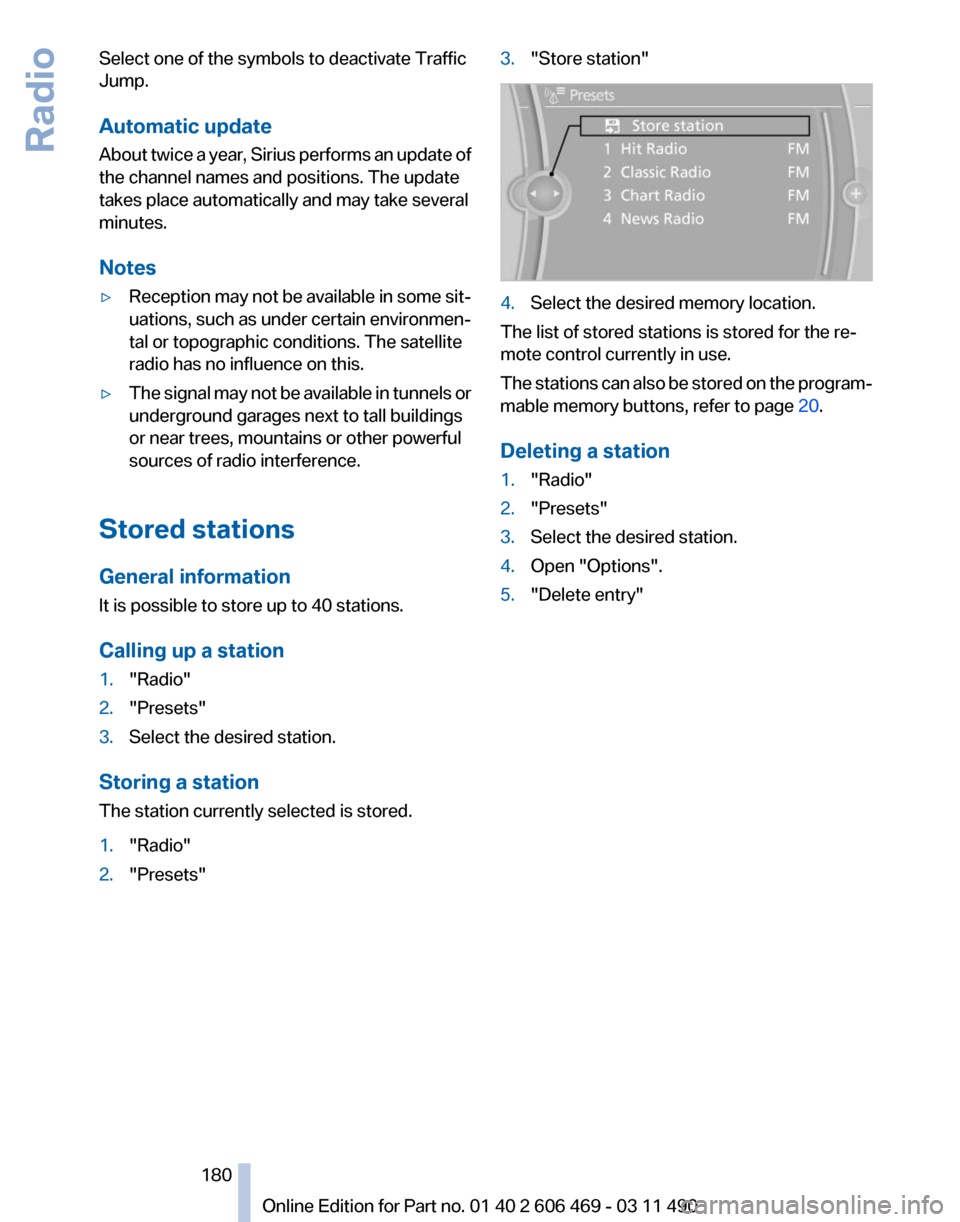
2. "Presets" 3.
"Store station" 4.
Select the desired memory location.
The list of stored stations is stored for the re‐
mote control currently in use.
The
stations can also be stored on the program‐
mable memory buttons, refer to page 20.
Deleting a station
1. "Radio"
2. "Presets"
3. Select the desired station.
4. Open "Options".
5. "Delete entry"
Seite 180
180 Online Edition for Part no. 01 40 2 606 469 - 03 11 490
Radio
Page 196 of 304

Depending on the configuration of the audio
files, e.g., bit rates greater than 256 kbit/s, the
files may not play back correctly in each case.
Information on connection
▷
The connected audio device is supplied with
a
max. power of 500 mA if supported by the
device. Therefore, do not additionally con‐
nect the device to a socket in the vehicle;
otherwise, playback may be compromised.
▷ Do not use force when plugging the con‐
nector into the USB interface.
▷ Do not connect devices such as fans or
lamps to the USB audio interface.
▷ Do not connect USB hard drives.
▷ Do not use the USB audio interface to re‐
charge external devices.
Bluetooth audio*
At a glance
▷ Music files on external devices such as audio
devices or mobile phones can be played
back via Bluetooth.
Use of a mobile phone as an audio source,
refer to page 211.
▷ The sound is output on the vehicle loud‐
speakers.
▷ The volume of the sound output is depend‐
ent on the device. If necessary, adjust the
volume on the device.
▷ Up to four external devices can be paired
with the vehicle.
Requirements
▷ The device is suitable. Information under
www.bmwusa.com/bluetooth.
▷ The device is ready for operation.
▷ The ignition is switched on.
▷ Bluetooth is activated on the vehicle, refer to
page 211, and on the device.
▷ Bluetooth presettings must be made on the
device, such as for a connection without confirmation or visibility; refer to the device
operating instructions.
▷ A number with at least four and a maximum
of
16 digits is defined as the Bluetooth pass‐
key. It is only required once for pairing.
Pairing and connecting Pairing a device
To
avoid becoming distracted and posing
an unnecessary hazard both to your own vehi‐
cle's occupants and to other road users, only
pair the device while the vehicle is stationary.◀
1. "CD/Multimedia"
2. "Bluetooth® (audio)"
3. If necessary, "Bluetooth® audio".
4. "Add new phone"
The Bluetooth name of the vehicle is dis‐
played. 5.
Perform additional steps on the device, refer
to the device operating instructions: for in‐
stance, search for or connect the Bluetooth
device or a new device.
The Bluetooth name of the vehicle appears
on the device display.
6. Select the Bluetooth name of the vehicle on
the device display.
Prompt via iDrive or the device to enter the
same Bluetooth passkey. Seite 196
196 Online Edition for Part no. 01 40 2 606 469 - 03 11 490
CD/multimedia
Page 198 of 304
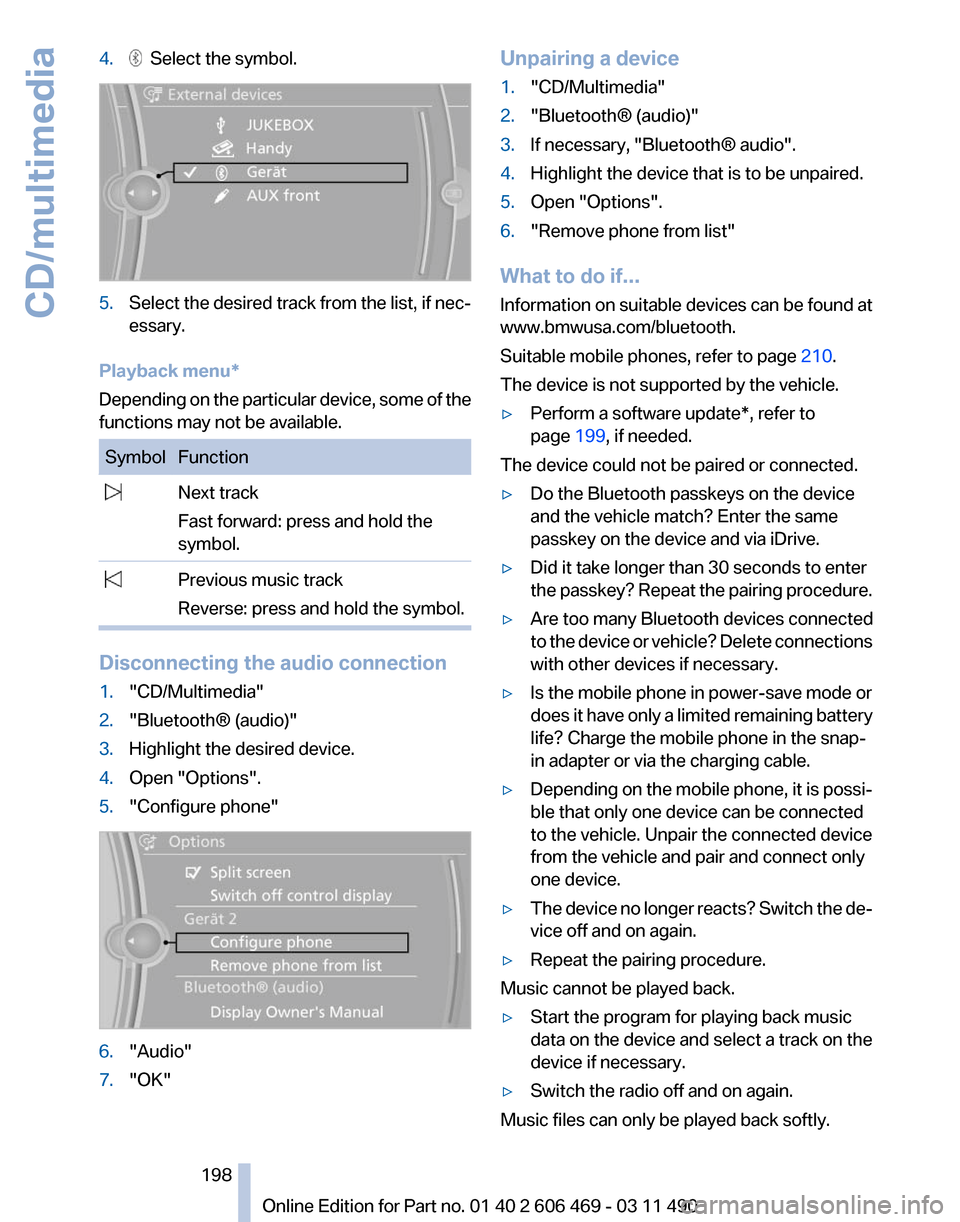
4. Select the symbol.
5.
Select the desired track from the list, if nec‐
essary.
Playback menu*
Depending on the particular device, some of the
functions may not be available. Symbol Function
Next track
Fast forward: press and hold the
symbol. Previous music track
Reverse: press and hold the symbol. Disconnecting the audio connection
1.
"CD/Multimedia"
2. "Bluetooth® (audio)"
3. Highlight the desired device.
4. Open "Options".
5. "Configure phone" 6.
"Audio"
7. "OK" Unpairing a device
1.
"CD/Multimedia"
2. "Bluetooth® (audio)"
3. If necessary, "Bluetooth® audio".
4. Highlight the device that is to be unpaired.
5. Open "Options".
6. "Remove phone from list"
What to do if...
Information
on suitable devices can be found at
www.bmwusa.com/bluetooth.
Suitable mobile phones, refer to page 210.
The device is not supported by the vehicle.
▷ Perform a software update*, refer to
page 199, if needed.
The device could not be paired or connected.
▷ Do the Bluetooth passkeys on the device
and the vehicle match? Enter the same
passkey on the device and via iDrive.
▷ Did it take longer than 30 seconds to enter
the
passkey? Repeat the pairing procedure.
▷ Are too many Bluetooth devices connected
to
the device or vehicle? Delete connections
with other devices if necessary.
▷ Is the mobile phone in power-save mode or
does
it have only a limited remaining battery
life? Charge the mobile phone in the snap-
in adapter or via the charging cable.
▷ Depending on the mobile phone, it is possi‐
ble that only one device can be connected
to the vehicle. Unpair the connected device
from the vehicle and pair and connect only
one device.
▷ The device no longer reacts? Switch the de‐
vice off and on again.
▷ Repeat the pairing procedure.
Music cannot be played back.
▷ Start the program for playing back music
data on the device and select a track on the
device if necessary.
▷ Switch the radio off and on again.
Music files can only be played back softly.
Seite 198
198 Online Edition for Part no. 01 40 2 606 469 - 03 11 490
CD/multimedia
Page 213 of 304
The mobile phone could not be paired or con‐
nected.
▷
Is Bluetooth activated in the vehicle and on
the
mobile phone? Activate Bluetooth in the
vehicle and on the mobile phone.
▷ Do the Bluetooth passkeys on the mobile
phone and the vehicle match? Enter the
same passkey on the mobile phone and via
iDrive.
▷ Did it take longer than 30 seconds to enter
the
passkey? Repeat the pairing procedure.
▷ Are too many Bluetooth devices connected
to
the mobile phone or vehicle? Delete con‐
nections with other devices if necessary.
▷ Is the audio connection activated? Deacti‐
vate the audio connection.
▷ Is the mobile phone in power-save mode or
does
it have only a limited remaining battery
life? Charge the mobile phone in the snap-
in adapter* or via the charging cable.
▷ Depending on the mobile phone, it is possi‐
ble that only one device can be connected
to the vehicle. Unpair the connected device
from the vehicle and pair and connect only
one device.
▷ The mobile phone no longer reacts? Switch
the mobile phone off and on again. Repeat
the pairing procedure.
The telephone functions are not available.
▷ Is the mobile phone paired as an additional
telephone and is the additional telephone
function
deactivated? Activate the function.
▷ Is an outgoing call not possible? Connect
the mobile phone as a telephone.
No or not all phone book entries are displayed,
or they are incomplete.
▷ Transmission of the phone book entries is
not yet complete.
▷ It is possible that only the phone book en‐
tries of the mobile phone or the
SIM card*
are transmitted.
▷ It may not be possible to display phone book
entries with special characters. ▷
The number of phone book entries being
stored is too high.
▷ Is the data volume of the contact too large,
e.g., due to stored information such as
notes? Reduce the data volume of the con‐
tact.
▷ Is the mobile phone connected as an audio
source
or additional telephone? The mobile
phone must be connected as a telephone.
The phone connection quality is poor.
▷ The strength of the Bluetooth signal on the
mobile phone can be adjusted, depending
on the mobile phone.
▷ Insert the mobile phone into the snap-in
adapter* or place it in the area of the center
console.
▷ Adjust the volume of the microphone and
loudspeakers separately.
If all points in this list have been checked and the
required function is still not available, please
contact the hotline or service center.
Controls
Adjusting the volume
Turn the knob until the desired volume is se‐
lected.
The setting is stored for the remote con‐
trol currently in use.
The vehicle automatically adjusts the volume of
the microphone on the telephone and the vol‐
ume of the called party. Depending on the mo‐
bile phone, the volumes may need to be ad‐
justed. The settings can only be created during
a call and must be adjusted separately for each
telephone. The settings are deleted when the
telephone is unpaired.
1. "Settings"
2. "Tone"
3. "Volume settings"
4. Select the desired setting: "Microphone" or
"Loudspeak."
5. To adjust: turn the controller.
6. To store: press the controller.
Seite 213
213Online Edition for Part no. 01 40 2 606 469 - 03 11 490
Reference Mobility
Communication Entertainment Navigation Driving tips Controls At a glance
Page 268 of 304

systems or functions may not be fully availa‐
ble.◀
After a battery replacement, have the battery
registered
on the vehicle by your service center
to ensure that all comfort functions are fully
available.
Charging the battery
In the vehicle, only charge the battery via the
terminals, refer to page 271, in the engine com‐
partment with the engine off.
Power failure
After a temporary power loss, some equipment
needs to be reinitialized.
Individual settings need to be reprogrammed:
▷ Seat, mirror, and steering wheel memory:
store the positions again.
▷ Time: update.
▷ Date: update.
▷ Radio station: save again.
▷ Navigation system: wait for the operability of
the navigation.
Disposing of old batteries Have old batteries disposed of by your
service center or bring them to a recy‐
cling center.
Maintain the battery in an upright position for
transport and storage. Secure the battery so
that it does not tip over during transport.
Fuses
Notes
Replacing fuses
Never attempt to repair a blown fuse and
do
not replace a defective fuse with a substitute
of another color or amperage rating; this could
lead to a circuit overload, ultimately resulting in
a fire in the vehicle.◀ Plastic tweezers and information on the fuse
types
and locations are stored in the fuse box in
the cargo area.
In the glove compartment Push the handle up, arrow 1, and open the lid,
arrow 2.
In the cargo area
Open the cover on the right side trim.
Information on the fuse types and locations is
found on a separate sheet.
Seite 268
268 Online Edition for Part no. 01 40 2 606 469 - 03 11 490
Replacing components
Page 270 of 304
Assist Response Center may still be able to
hear you.
Initiating an Emergency Request
automatically
Under certain conditions, an Emergency Re‐
quest is automatically initiated immediately after
a severe accident. Automatic Collision Notifica‐
tion is not affected by pressing the SOS button.
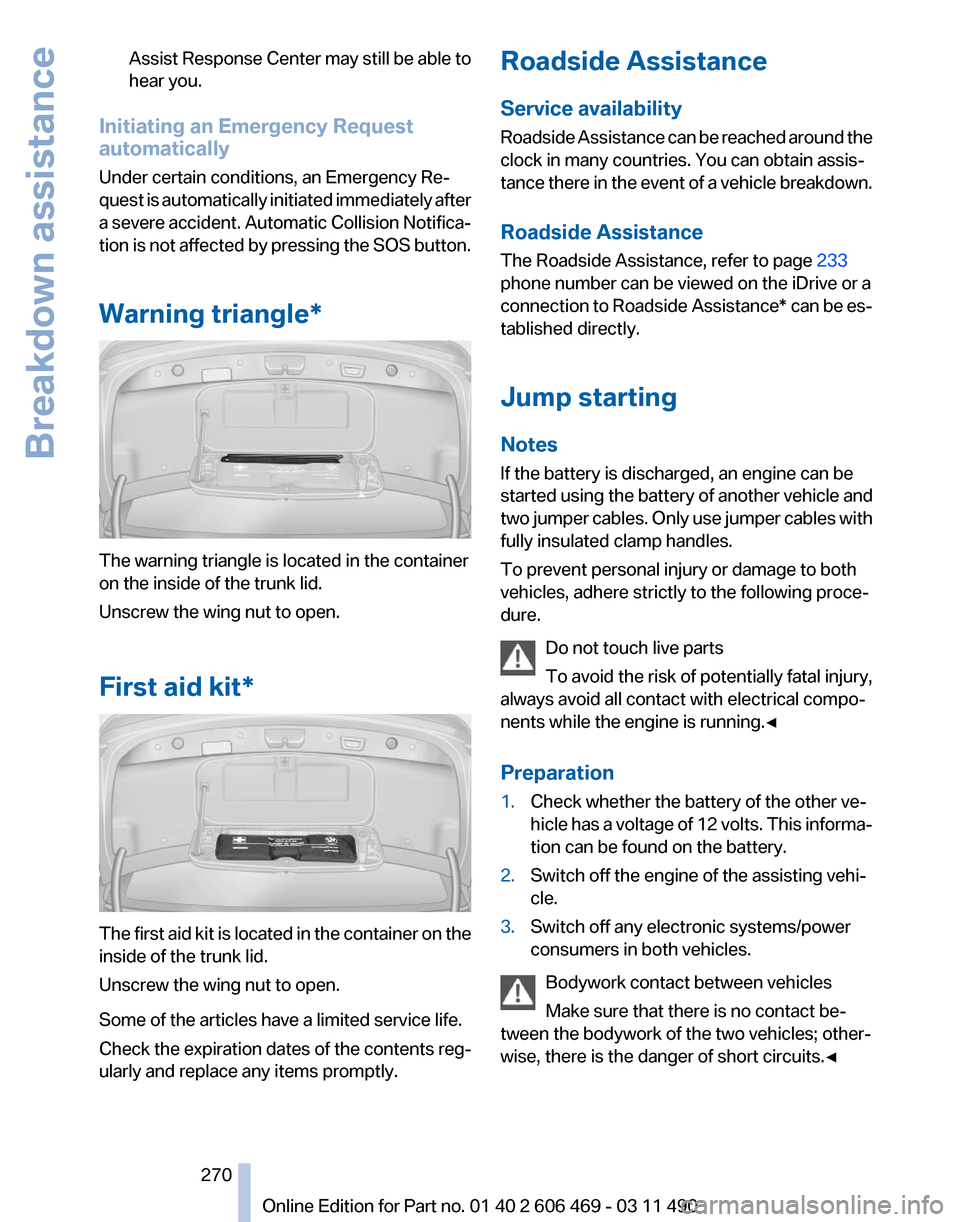
Warning triangle* The warning triangle is located in the container
on the inside of the trunk lid.
Unscrew the wing nut to open.
First aid kit*
The first aid kit is located in the container on the
inside of the trunk lid.
Unscrew the wing nut to open.
Some of the articles have a limited service life.
Check the expiration dates of the contents reg‐
ularly and replace any items promptly. Roadside Assistance
Service availability
Roadside Assistance can be reached around the
clock in many countries. You can obtain assis‐
tance there in the event of a vehicle breakdown.
Roadside Assistance
The Roadside Assistance, refer to page
233
phone number can be viewed on the iDrive or a
connection to Roadside Assistance* can be es‐
tablished directly.
Jump starting
Notes
If the battery is discharged, an engine can be
started using the battery of another vehicle and
two jumper cables. Only use jumper cables with
fully insulated clamp handles.
To prevent personal injury or damage to both
vehicles, adhere strictly to the following proce‐
dure.
Do not touch live parts
To avoid the risk of potentially fatal injury,
always avoid all contact with electrical compo‐
nents while the engine is running.◀
Preparation
1. Check whether the battery of the other ve‐
hicle has a voltage of 12 volts. This informa‐
tion can be found on the battery.
2. Switch off the engine of the assisting vehi‐
cle.
3. Switch off any electronic systems/power
consumers in both vehicles.
Bodywork contact between vehicles
Make sure that there is no contact be‐
tween the bodywork of the two vehicles; other‐
wise, there is the danger of short circuits.◀ Seite 270
270 Online Edition for Part no. 01 40 2 606 469 - 03 11 490Breakdown assistance