2011 BMW 528I vin
[x] Cancel search: vinPage 225 of 304
3.
Open "Options".
4. "Delete all messages" or "Delete service
messages"
Text messages
Calling the sender of a text message
1. Select the desired message.
2. Select the symbol.
Saving the sender in the contacts
1. Highlight the desired message.
2. Open "Options".
3. "Store as new contact" or "Add to existing
contact"
Reading the text message out loud*
Read the text messages out loud, refer to
page 228.
My Info
Starting destination guidance
1. Select the message.
2. "Start guidance" or "Add as another
destination"
Dialing the number in the message
Up to 4 phone numbers can be transmitted with
a message.
1. Select the desired message.
2. "Call":
If the message contains a number, the con‐
nection is established. "Select phone number":
If
the message contains more than one num‐
ber, select the desired number from the list.
The connection is established.
Message from the Concierge service
Starting destination guidance
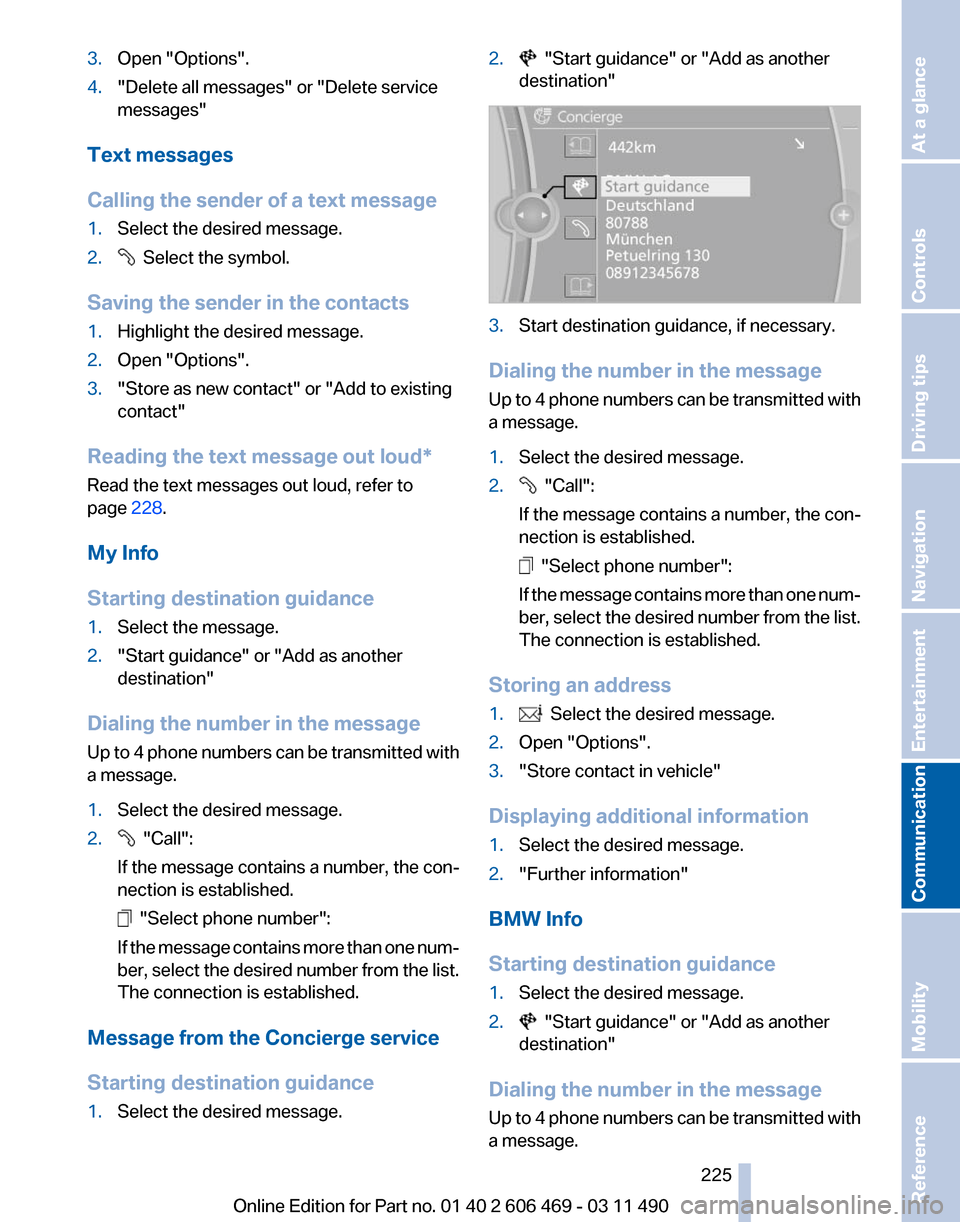
1. Select the desired message. 2. "Start guidance" or "Add as another
destination" 3.
Start destination guidance, if necessary.
Dialing the number in the message
Up
to 4 phone numbers can be transmitted with
a message.
1. Select the desired message.
2. "Call":
If the message contains a number, the con‐
nection is established. "Select phone number":
If
the message contains more than one num‐
ber, select the desired number from the list.
The connection is established.
Storing an address
1. Select the desired message.
2. Open "Options".
3. "Store contact in vehicle"
Displaying additional information
1. Select the desired message.
2. "Further information"
BMW Info
Starting destination guidance
1. Select the desired message.
2. "Start guidance" or "Add as another
destination"
Dialing the number in the message
Up
to 4 phone numbers can be transmitted with
a message.
Seite 225
225Online Edition for Part no. 01 40 2 606 469 - 03 11 490
Reference Mobility
Communication Entertainment Navigation Driving tips Controls At a glance
Page 227 of 304

Reading the appointment out loud*
Read the appointment out loud, refer to
page
228.
Tasks
Displaying the task list
Display tasks that are due within the next
90 days.
1. "Office"
2. "Tasks"
Sorting the task list
1. Select the header in the task list. 2.
Select the sorting criterion:
▷"Priority (!)"*
▷ "Subject"
▷ "Due date"
Displaying the task
1. Select the desired task.
2. Scroll in the task if necessary:
▷Turn the controller.
▷ Select the symbol.
Using contact data
Contact data from appointments, e-mails and
notes can be saved or selected*, refer to
page 228.
Reading the task out loud
*
Read the task out loud, refer to page 228.Notes
Displaying notes
1.
"Office"
2. "Notes"
All notes are displayed.
Displaying the note
1. Select the desired note. 2.
Scroll in the note if necessary:
▷Turn the controller.
▷ Select the symbol.
Using contact data
Contact data from appointments, e-mails and
notes can be saved or selected*, refer to
page 228.
Reading the note out loud
*
Read the note out loud, refer to page 228.
Reminders
Displaying reminders
Reminders of pending appointments and tasks
are displayed. After an appointment or after a
task is due, the reminder is no longer displayed.
1. "Office"
2. "Reminders"
3. Select the desired reminder.
The corresponding appointment or the task are
displayed.
Seite 227
227Online Edition for Part no. 01 40 2 606 469 - 03 11 490
Reference Mobility
Communication Entertainment Navigation Driving tips Controls At a glance
Page 229 of 304
▷
Check the e-mail settings on the telephone
and adjust if necessary.
If all points in this list have been checked and the
required function is still not available, please
contact the hotline or service center.
Seite 229
229Online Edition for Part no. 01 40 2 606 469 - 03 11 490
Reference Mobility
Communication Entertainment Navigation Driving tips Controls At a glance
Page 231 of 304

Editing a contact
1.
Select the desired contact.
2. "Edit contact" 3.
Change the entries.
4. Move the controller to the left.
5. "Yes"
Selecting the contact as a navigation
destination*
1. Select the desired contact.
2. Select the address.
3. "Start guidance" or "Add as another
destination"
Checking the address as a destination*
An address that is to be used for destination
guidance must match the navigation data con‐
tained in the vehicle. The address can be
checked for this purpose.
1. Select the desired contact and highlight the
address.
2. Open "Options".
3. "Check as destination"
4. Correct and store the address if necessary.
Selecting the sorting order of the
names
Names can be displayed in a different order.
1. "My contacts"
2. Highlight the contact.
3. Open "Options".
4. "Display: last, first name" or "Display: first,
last name" Exporting/importing contacts
Contacts can be exported and imported via the
Personal Profile, refer to page
29.
Deleting contacts
1. "My contacts"
2. Highlight the contact.
3. Open "Options".
4. "Delete contact" or "Delete all contacts"
Seite 231
231Online Edition for Part no. 01 40 2 606 469 - 03 11 490
Reference Mobility
Communication Entertainment Navigation Driving tips Controls At a glance
Page 232 of 304
BMW ConnectedDrive
BMW Assist*
General information
BMW
Assist provides you with certain services,
e.g., transmission of the position data of your
vehicle to the BMW Assist Response Center if
an Emergency Request* has been initiated.
Many BMW Assist services depend on the indi‐
vidually agreed upon contract.
After your contract has expired, the BMW Assist
system will be deactivated by the BMW Assist
Response Center without your having to visit a
service center. After the BMW Assist system
has been deactivated, no BMW Assist services
will be available. The BMW Assist system can be
reactivated by a service center after you sign a
new contract.
Requirements
▷ The installed BMW Assist system is logged
in to a wireless communications network.
This network must be capable of transmit‐
ting the services.
▷ To transmit position data, the vehicle must
be able to determine the current position.
▷ The BMW Assist service contract was
signed with your service center or with the
BMW Assist Response Center. Enabling
must have been completed.
▷ BMW Assist is activated.
Services offered
▷ Emergency Request: when you press the
SOS button, a connection to the BMW As‐
sist Response Center is established. The
BMW Assist Response Center then speaks
with
you and takes further steps to help you.
▷ Automatic Collision Notification: under cer‐
tain conditions, a connection is established
to
the BMW Assist Response Center after a
serious accident. If possible, the BMW As‐ sist Response Center then speaks with you
and takes further steps to help you.
▷ Enhanced Roadside Assistance: BMW
Roadside Assistance* can be contacted if
assistance
is needed in the event of a break‐
down. If possible, the vehicle and position
data are transmitted in the process.
▷ Customer Relations: connection with Cus‐
tomer Relations for information on all as‐
pects of your vehicle.
▷ TeleService: data on your vehicle's service
status or required inspections are transmit‐
ted to your service center, either automati‐
cally before a service due date or when you
request a BMW service appointment.
▷ Remote Door Unlock: the BMW Assist Re‐
sponse
Center provides assistance if, for ex‐
ample, the remote control is not available
and the vehicle needs to be opened.
▷ Stolen Vehicle Recovery: after you report
that
your vehicle was stolen to the police, the
BMW Assist Response Center can deter‐
mine its position.
▷ In addition to these services, the optional
Convenience Plan offers Concierge service
and information for route planning, traffic,
and weather. A limited number of calls can
be made via the BMW Assist Response
Center with Critical Calling if, for example,
the mobile phone is not available or dis‐
charged.
Press the SOS button to contact the BMW
Assist Response Center.
BMW TeleService*
General information
TeleService
supports communication with your
service center.
▷ Data on the vehicle's service requirements
can
be sent directly to the service center. In
this way, the service center can plan its work
Seite 232
232 Online Edition for Part no. 01 40 2 606 469 - 03 11 490
BMW ConnectedDrive
Page 233 of 304
in advance. This shortens the duration of the
service appointment.
▷ In the event of a breakdown, data on the ve‐
hicle's condition can be sent directly to
Roadside Assistance.
▷ The service varies by country.
▷ Connection costs may ensue.
▷ Services may be restricted abroad.
Requirements
▷ BMW Assist is activated.
▷ Wireless reception is available.
▷ The engine is running.
Use of BMW TeleService*
The TeleServices are typically activated in the
vehicle.
Even TeleService Customer Service is not ac‐
tive, a voice contact to Roadside Assistance is
still possible.
To
continue using or to deactivate the services,
please contact your service partner or the BMW
customer hotline.
Concierge service*
General information
The BMW Assist Concierge service offers infor‐
mation on events, gas stations or hotels, and
provides phone numbers and addresses. Hotels
can be booked directly by the BMW Assist Con‐
cierge service. The Concierge service is part of
the optional BMW Convenience Plan.
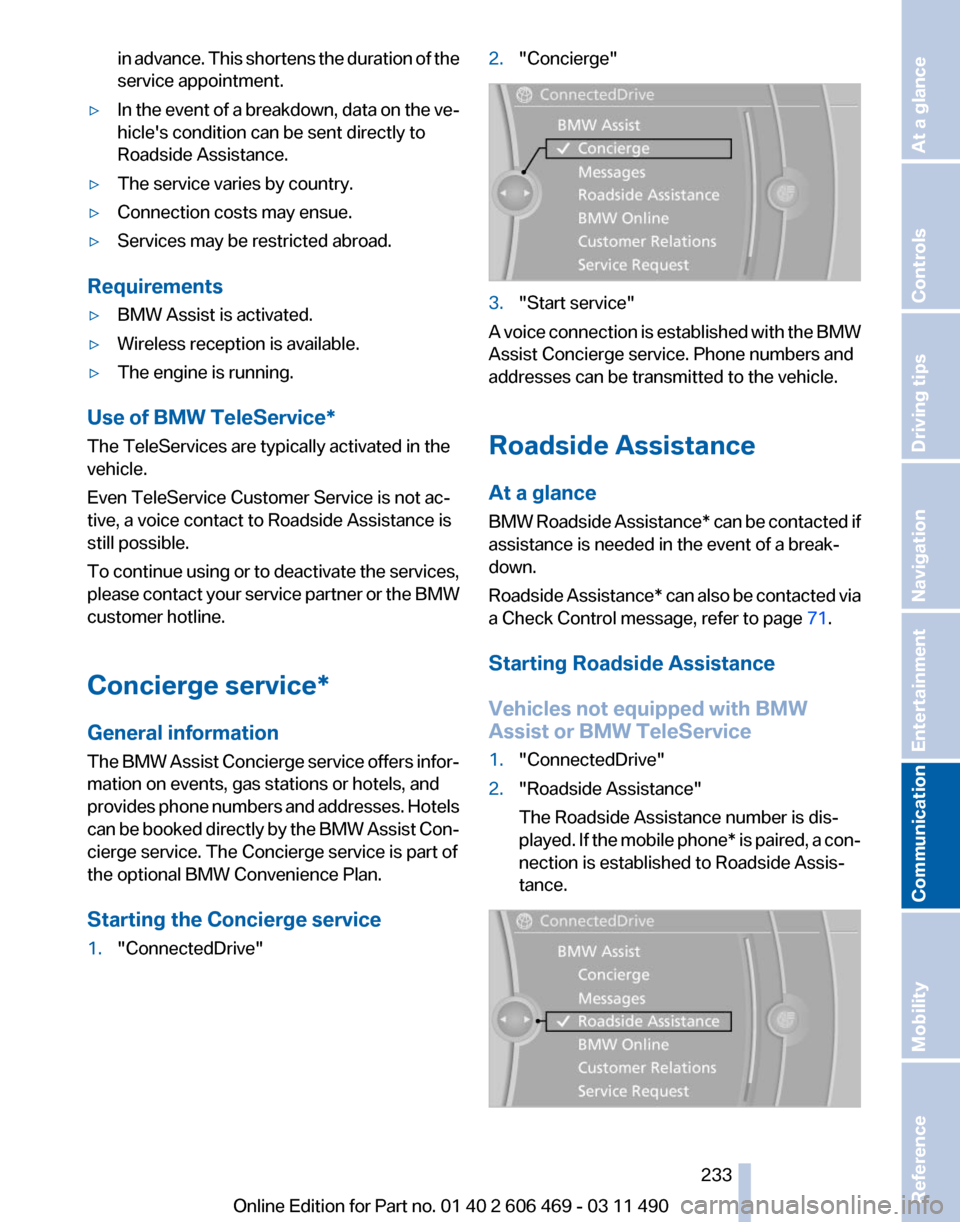
Starting the Concierge service
1. "ConnectedDrive" 2.
"Concierge" 3.
"Start service"
A voice connection is established with the BMW
Assist Concierge service. Phone numbers and
addresses can be transmitted to the vehicle.
Roadside Assistance
At a glance
BMW
Roadside Assistance* can be contacted if
assistance is needed in the event of a break‐
down.
Roadside Assistance* can also be contacted via
a Check Control message, refer to page 71.
Starting Roadside Assistance
Vehicles not equipped with BMW
Assist or BMW TeleService
1. "ConnectedDrive"
2. "Roadside Assistance"
The Roadside Assistance number is dis‐
played.
If the mobile phone* is paired, a con‐
nection is established to Roadside Assis‐
tance. Seite 233
233Online Edition for Part no. 01 40 2 606 469 - 03 11 490
Reference Mobility
Communication Entertainment Navigation Driving tips Controls At a glance
Page 235 of 304

Opening the start page
1.
Open "Options".
2. "Display start page" Loading a new page
1.
Open "Options".
2. "Reload"
Cancel
1. Open "Options".
2. "Cancel loading"
Customer Relations
At a glance
Contact Customer Relations for information on
all aspects of your vehicle.
Calling Customer Relations
Vehicles not equipped with BMW
Assist or BMW TeleService
1. "ConnectedDrive"
2. "Customer Relations"
The Customer Relations phone number is dis‐
played. If the mobile phone* is paired, a con‐
nection is established to Customer Relations. Vehicles equipped with BMW Assist or
BMW TeleService
1.
"ConnectedDrive"
2. "Customer Relations"
3. "Start service"
Service Request*
At a glance
Sends
information to your service partner to re‐
quest the arrangement of a service appoint‐
ment. The TeleService data is transmitted dur‐
ing a Service Request. If possible, your service
partner will establish contact with you.
Starting a Service Request
1. "ConnectedDrive"
2. "Service Request"
3. "Start service" A Service Request can be started via a Check
Control message, refer to page
71.
Seite 235
235Online Edition for Part no. 01 40 2 606 469 - 03 11 490
Reference Mobility
Communication Entertainment Navigation Driving tips Controls At a glance
Page 237 of 304

▷
Use only BMW approved software applica‐
tions; otherwise, it may result in malfunc‐
tions.
Information about suitable cell phones, available
software applications and their installation can
be found at www.bmw.com/connectivity or at
the service center.
Create the entries.
Make entries only when traffic and road
conditions allow. Otherwise, the vehicle occu‐
pants
and other road users may be put in danger
because of the distraction from driving.
For reasons of safety, some software applica‐
tions are usable only while the vehicle is station‐
ary.◀
Operate Apps
1. Connect the cell phone via the snap-in
adapter or via the USB audio interface.
2. "ConnectedDrive"
3. Select the desired software application.
Displaying status
Information about the currently available soft‐
ware applications can be displayed.
1. "ConnectedDrive"
2. "BMW apps"
PlugIn*
Selected functions of the cell phone are dis‐
played on the Control Display. They can be op‐
erated via iDrive.
1. Connect cell phone via the snap-in adapter.
2. "ConnectedDrive"
3. "PlugIn"
4. "Activate PlugIn"
5. Navigate to the displayed functions via the
controller
and select, for example, a desired
category or track.
Press button to switch within the cell
phone functions to a higher level or back. Press button twice to switch back to the
main menu.
Notes
▷ The ranges of Apps that can be displayed on
the Control Display depend on the range of
installed software applications on the cell
phone.
▷ The data transmission of the software ap‐
plications
from the cell phone to the vehicle
can last some time. Some software applica‐
tions depend on the speed of the available
Internet connection of the cell phone.
▷ Some cell phones cannot simultaneously
use
Apps and the Bluetooth hands-free sys‐
tem.
If necessary, restart the software application
on the cell phone after a phone conversa‐
tion.
TeleService Report*
Transmits
technical data that is evaluated for the
ongoing development of BMW products from
your vehicle to BMW in regular intervals if nec‐
essary.
TeleService Report is activated in vehicles that
meet certain technical requirements and have a
valid Assist contract; this feature is free of
charge.
Neither personal data nor position data is trans‐
mitted.
Indicate when the last Teleservice Report was
transmitted:
1. "Vehicle Info"
2. "Vehicle status"
3. Open "Options".
4. "Last Teleservice Info" Seite 237
237Online Edition for Part no. 01 40 2 606 469 - 03 11 490
Reference Mobility
Communication Entertainment Navigation Driving tips Controls At a glance