External devices
174
USB audio interface*/
extended connectivity of
the music player in the
mobile phone*
It is possible to connect external audio devices/
mobile phones. They can be operated via iDrive.
Sound is output on the vehicle loudspeakers.
Options for connecting external
devices
>Connection via USB audio interface: Apple
iPod / iPhone, USB devices, e. g. MP3
player, USB flash drive, or mobile phones
that are supported by the USB audio inter-
face.
>Connection via snap-in adapter
*, refer to
page180, when equipped with additional
connection of music player in the mobile
phone: Apple iPhone / mobile phones. Play-
back is possible only if no audio device/
mobile phone is connected to the USB
audio interface.
Due to the large number of different audio
devices/mobile phones available on the market,
it cannot be ensured that every audio device/
mobile phone is operable on the vehicle.
Ask about suitable audio devices/mobile
phones at your BMW center.
Audio files
The system can play standard audio formats,
e.g. MP3, WMA, WAV (PCM), and AAC, as well
as playlists in the M3U format.
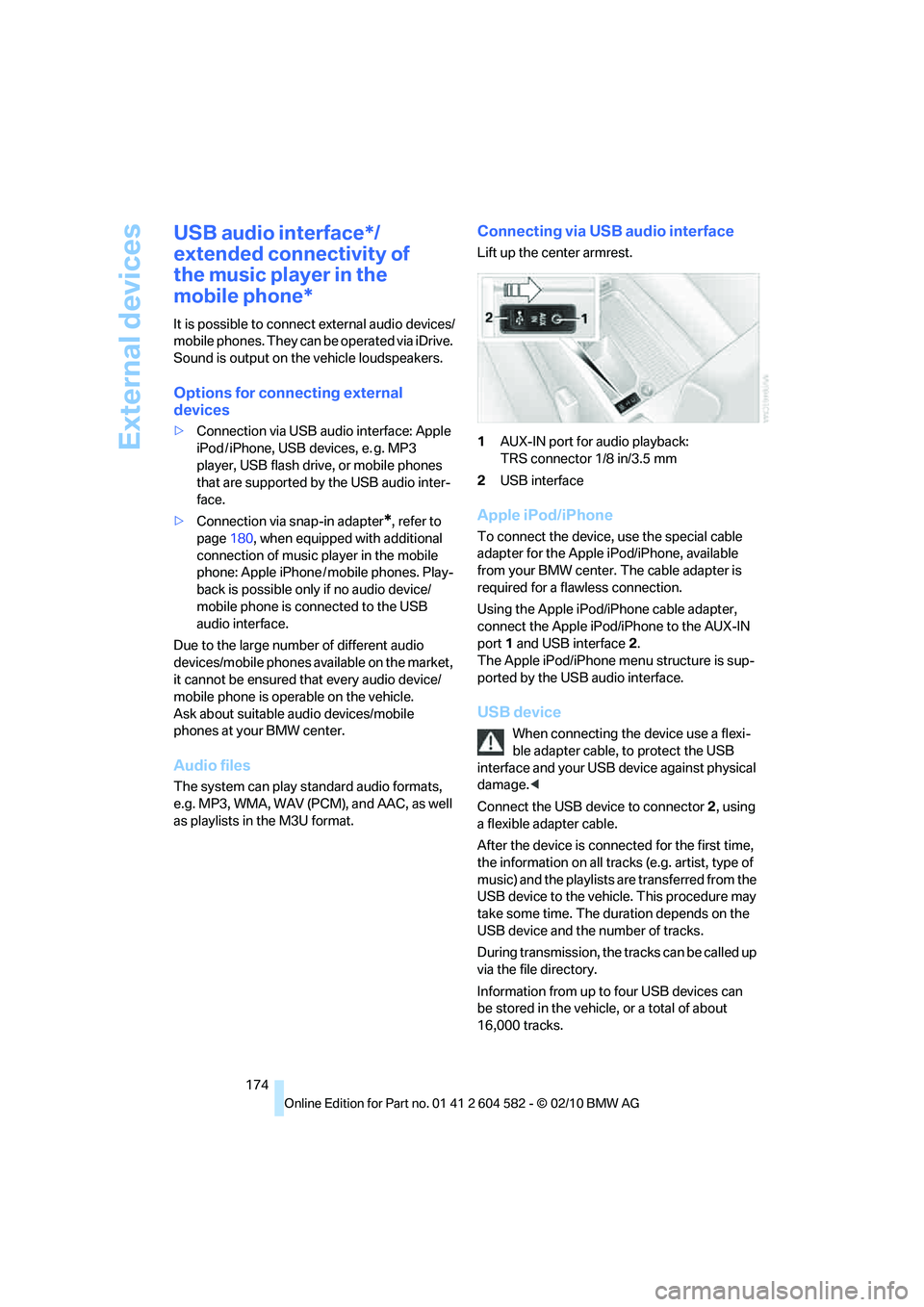
Connecting via USB audio interface
Lift up the center armrest.
1AUX-IN port for audio playback:
TRS connector 1/8 in/3.5 mm
2USB interface
Apple iPod/iPhone
To connect the device, use the special cable
adapter for the Apple iPod/iPhone, available
from your BMW center. The cable adapter is
required for a flawless connection.
Using the Apple iPod/iPhone cable adapter,
connect the Apple iPod/iPhone to the AUX-IN
port1 and USB interface2.
The Apple iPod/iPhone menu structure is sup-
ported by the USB audio interface.
USB device
When connecting the device use a flexi-
ble adapter cable, to protect the USB
interface and your USB device against physical
damage.<
Connect the USB device to connector 2, using
a flexible adapter cable.
After the device is connected for the first time,
the information on all tracks (e.g. artist, type of
music) and the playlists are transferred from the
USB device to the vehicle. This procedure may
take some time. The duration depends on the
USB device and the number of tracks.
During transmission, the tracks can be called up
via the file directory.
Information from up to four USB devices can
be stored in the vehicle, or a total of about
16,000 tracks.
External devices
176
Restarting a track search
"New search"
Playback lists
To open playback lists.
1."CD/Multimedia"
2."External devices"
3.Select the symbol.
4."Playlists"
Current playback
List of tracks currently being played.
1."CD/Multimedia"
2."External devices"
3.Select the symbol.
4."Current playback"
Random play sequence
You can play the tracks in the selected list in
random order, e.g. all tracks of a single artist.
1."CD/Multimedia"
2."External devices"
3.Open "Options".
4."Random"
Fast forward/reverse
Press and hold the button for the corre-
sponding direction.
Notes
Do not expose the audio device to
extreme environmental conditions, e.g.
very high temperatures, refer to the operating
instructions of the audio device. Otherwise, the
audio device may become damaged, which
could compromise safety while driving.<
Depending on the configuration of the audio
files, e.g. bit rates greater than 256 KBit/s, the
files may not play back correctly in every case.
Notes on connecting
>The connected audio device is supplied
with a maximum current of 500 mA, if the
device supports this. Therefore, do not con-
nect the device to the power socket in the
vehicle.
>Do not forcibly connect the plug to the
USB interface.
>Do not connect devices such as fans or
lamps to the USB audio interface.
>Do not connect USB hard drives.
>Do not use the USB audio interface to
charge external devices.