2011 BMW 323I open
[x] Cancel search: openPage 185 of 286

183
Entertainment
Reference
At a glance
Controls
Driving tips Communications
Navigation
Mobility
Unpairing the mobile phone from
the vehicle
1."Telephone"
2."Bluetooth (telephone)"
3.Highlight the mobile phone that is to be
unpaired.
4.Open "Options".
5."Remove phone from list"
The unpaired mobile phone is deleted from
the list.
The phone book entries and the lists of
stored phone numbers are deleted as well.
Activating/deactivating the
Bluetooth link
The use of Bluetooth technology is not
permitted in all countries. Observe all
applicable local regulations. Temporarily deac-
tivate the Bluetooth link between the vehicle
and the mobile phone, if necessary.
If the Bluetooth link is deactivated, you can no
longer operate the mobile phone via the vehicle,
and other devices with a Bluetooth interface
can be used in combination with the mobile
phone, e.g. a laptop.<
To temporarily deactivate the Bluetooth link
between the vehicle and your mobile phone:
1."Telephone"
2.Open "Options".3."Bluetooth"
Adapting volumes
Turn the knob until the desired volume is set.
Adjusting the volume for:
>Ring volume
>Call volume
These volumes are maintained for the hands-
free system, even if you set the other audio
sources to minimum volume.
The setting is stored for the remote control
currently in use.
Page 186 of 286

Telephone
184
Operation via iDrive
You can operate the following functions using
iDrive:
>Accepting/rejecting calls
>dialing phone numbers
>Selecting phone numbers from the phone
book
>Selecting stored phone numbers, e.g. from
the list of received calls
>Ending a call
When the ignition is switched off or in radio
readiness, e.g. after taking the remote control
out of the ignition lock, you can continue an
ongoing call via the hands-free system for sev-
eral minutes.
Voice quality
If the person you are talking to is having difficul-
ties understanding you, this may be due to
excessive background noise. The full prepara-
tion package mobile phone can compensate for
these noises to a certain extent. To optimize
voice quality during a call, we recommend that
you:
>Reduce background noise, e.g. by closing
the windows, reducing air flow from the
automatic climate control or pointing the
open front air vents downward.
>Reduce the volume of the hands-free sys-
tem.
Requirements
>The mobile phone's pairing data are stored
by the vehicle and the mobile phone is oper-
ational.
>The engine is running or the ignition is
switched on.
>The mobile phone is recognized by the
vehicle.
Receiving calls
If you have the phone number of the caller
stored in the phone book and the phone num-
ber has been transmitted, the name of the entry
is displayed.
Accepting a call
Press the button on the steering wheel
or
"Accept"
Rejecting a call
"Reject"
The caller is diverted to your mailbox if the mail-
box was activated.
Ending a call
Press the button on the steering wheel
or
1."Telephone"
2."Active calls"
3.Select an active call.
Page 188 of 286

Telephone
186
Phone book
The phone book accesses the contacts* and
shows all contacts for which a phone number
has been stored. The entries can be selected to
make a call.
1."Telephone"
2."Phone book"
All contacts with a phone number are displayed.
A symbol indicates the storage location of the
contacts.
Calling a contact
1.Select the desired contact.
A connection is established immediately if
calling contacts with one phone number.
For contacts with several phone numbers:
2.Select the desired phone number.
The connection is established.
Editing a contact
The entries in the contacts can be changed.
When a contact from the mobile phone is
changed, the changes are not stored on the
mobile phone. A copy of the entry is stored in
the vehicle.
1.Highlight the contact.
2.Open "Options".
3."Edit entry"
The contact can be edited.SymbolStorage location
No symbol In the vehicle; the address
has not been checked as a
destination.
In the vehicle; the address
has been checked as a des-
tination.
Mobile phone
SymbolMeaning
Contact with one phone
number.
Contact with more than one
phone number.
Call not possible. Mobile
phone has no reception or
network or does not have
Teleservice Call
* activated.
Page 189 of 286

187
Entertainment
Reference
At a glance
Controls
Driving tips Communications
Navigation
Mobility
Redialing
The eight phone numbers dialed last are stored.
Dialing the number via iDrive
1."Telephone"
2."Redial"
3.Select the desired entry.
The connection is established.
Deleting entries individually or deleting
all entries
1.Highlight an entry.
2.Open "Options".
3."Delete entry" or "Delete list".
Saving an entry in the contacts
1.Highlight an entry.
2.Open "Options".
3."Store as new contact" or "Add to existing
contact".
4.Select the type of number: "Home", "Busi-
ness", "Mobile" or "Other".
5.Complete the entries if necessary.
6."Store contact in vehicle"
Received calls
The 20 calls that were last received are
displayed.
1."Telephone"
2."Received calls"
Calling a number from the list
Select an entry.
The connection is established.
Deleting entries individually or deleting
all entries
1.Highlight an entry.
2.Open "Options".
3."Delete entry" or "Delete list".
Saving an entry in the contacts
1.Highlight an entry.
2.Open "Options".
3."Store as new contact" or "Add to existing
contact".
4.Select the type of number: "Home", "Busi-
ness", "Mobile" or "Other".
5.Complete the entries if necessary.
6."Store contact"
Messages
Various types of messages can be displayed:
>Messages from My info
>Messages from the BMW Concierge
service
Page 190 of 286

Telephone
188
Displaying messages
1."Telephone"
2."Messages"
3.Select the desired message.
My Info
To start destination guidance:
1.Select the message that contains the
desired destination.
2. "Start guidance" or "Add as another
dest.".
To dial the number in the message:
1.Select the message that contains the
desired number.
2. "Call"
Messages from the concierge service
To use the address in destination guidance*:
1.Select the message.
2. "Start guidance" or "Add as another
dest.".
3.Start destination guidance, if necessary.
To dial a phone number:
1.Select the message.
2. "Call"
To save an address:
1.Select the message.
2.Open "Options".
3."Store contact in vehicle"
Deleting messages
1.Select the message to be deleted.
2.Open "Options".
3."Delete message" or "Delete all messages"
Switching between mobile
phone and hands-free system
From mobile phone to hands-free
system*
You can continue ongoing calls outside of the
vehicle's Bluetooth range via the hands-free
system as long as the engine is running or the
ignition is switched on. Depending on your
mobile phone, the system automatically
switches to hands-free mode.
With mobile phones that do not automatically
switch to hands-free mode:
Depending on the type of mobile phone you are
using, it may be possible to continue the con-
versation via the hands-free system. Refer to
the display on your mobile phone and/or your
mobile phone's operating instructions.
From hands-free system to mobile
phone
If you are making a call via the hands-free sys-
tem, it may be possible to continue the call via
the mobile phone, depending on your mobile
phone model. Refer to the display on your
mobile phone and/or your mobile phone's oper-
ating instructions.
Alternatively, you can deactivate the Bluetooth
link, refer to page183.
Depending on the type of mobile phone you are
using, it may occur that calls are switched from
the hands-free system to the mobile phone if
reception of the wireless network is poor.
Page 192 of 286
Telephone
190
Adjusting the volume of the
instructions
You can adjust the volume for the instructions
from the system:
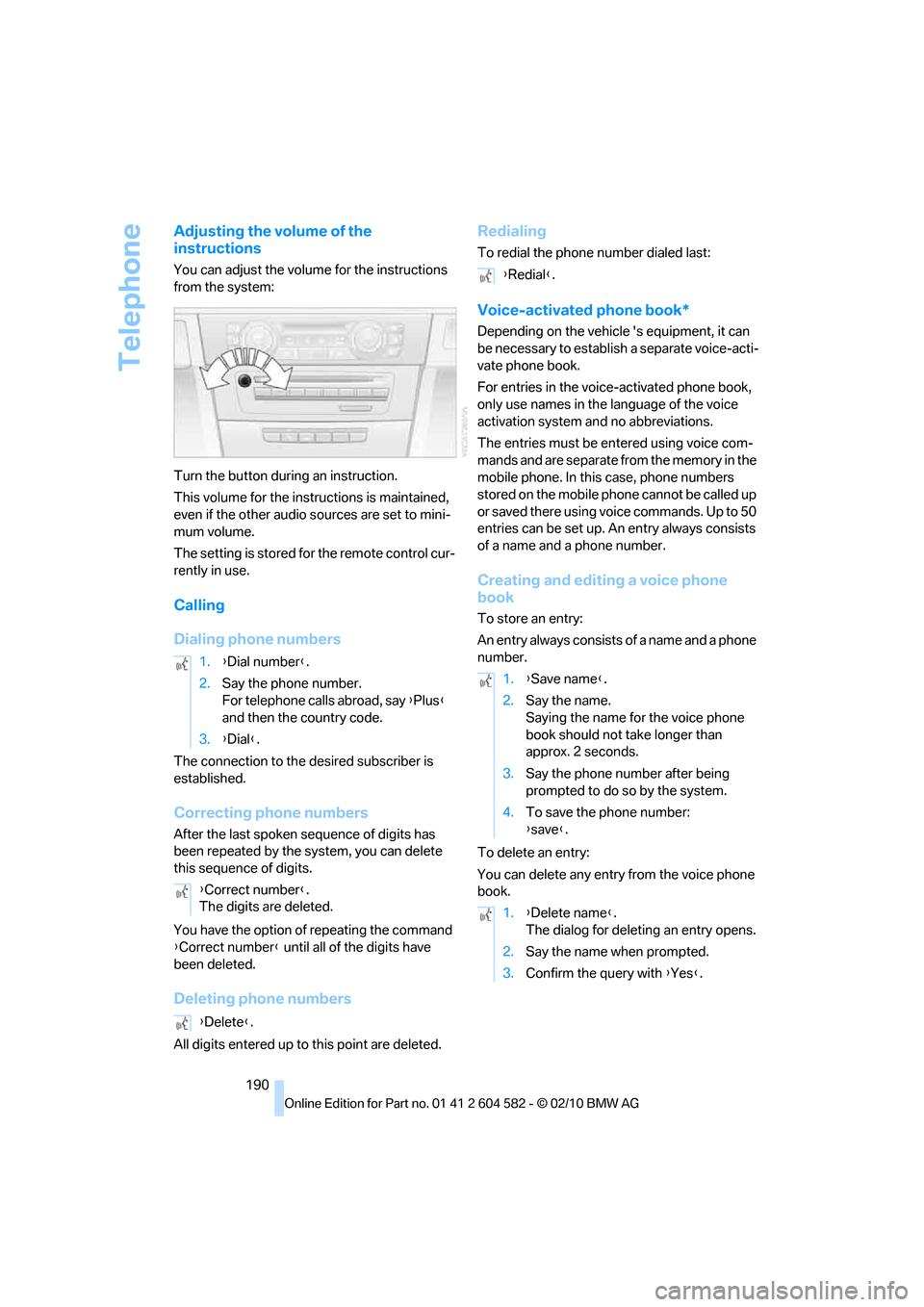
Turn the button during an instruction.
This volume for the instructions is maintained,
even if the other audio sources are set to mini-
mum volume.
The setting is stored for the remote control cur-
rently in use.
Calling
Dialing phone numbers
The connection to the desired subscriber is
established.
Correcting phone numbers
After the last spoken sequence of digits has
been repeated by the system, you can delete
this sequence of digits.
You have the option of repeating the command
{Correct number} until all of the digits have
been deleted.
Deleting phone numbers
All digits entered up to this point are deleted.
Redialing
To redial the phone number dialed last:
Voice-activated phone book*
Depending on the vehicle 's equipment, it can
be necessary to establish a separate voice-acti-
vate phone book.
For entries in the voice-activated phone book,
only use names in the language of the voice
activation system and no abbreviations.
The entries must be entered using voice com-
mands and are separate from the memory in the
mobile phone. In this case, phone numbers
stored on the mobile phone cannot be called up
or saved there using voice commands. Up to 50
entries can be set up. An entry always consists
of a name and a phone number.
Creating and editing a voice phone
book
To store an entry:
An entry always consists of a name and a phone
number.
To delete an entry:
You can delete any entry from the voice phone
book. 1.{Dial number}.
2.Say the phone number.
For telephone calls abroad, say {Plus}
and then the country code.
3.{Dial}.
{Correct number}.
The digits are deleted.
{Delete}.
{Redial}.
1.{Save name}.
2.Say the name.
Saying the name for the voice phone
book should not take longer than
approx. 2 seconds.
3.Say the phone number after being
prompted to do so by the system.
4.To save the phone number:
{save}.
1.{Delete name}.
The dialog for deleting an entry opens.
2.Say the name when prompted.
3.Confirm the query with {Yes}.
Page 193 of 286

191
Entertainment
Reference
At a glance
Controls
Driving tips Communications
Navigation
Mobility
To delete all entries:
{Delete phonebook} deletes all entries in the
phone book.
To listen to and select the entries:
You can have all entries in your voice phone
book read aloud in the order in which they were
entered and select a specific entry to establish a
connection:
Selecting an entry
The connection to the phone number of the
selected entry is established.
Notes
Notes on Emergency Requests
Do not use the voice activation system to ini-
tiate an Emergency Request. In stressful situa-
tions, the voice and vocal pitch can change.
This can unnecessarily delay the establishment
of a telephone connection. Use the SOS but-
ton
* instead, refer to page247.
Important for voice commands
For voice commands, bear in mind the follow-
ing:
>Say the commands, numbers and letters
smoothly and with normal volume, empha-
sis and speed.
>Always say commands in the language of
the voice activation system.
>Keep the doors, windows and glass roof
*/
panorama glass roof
* closed to prevent
interference from outside noise.
>Avoid ambient noise in the vehicle while
speaking. 1.{Delete phonebook}.
The dialog for deleting the phone book
opens.
2.Confirm the query with {Yes}.
3.Confirm the query again with {Yes}.
1.{Read phonebook}.
The dialog for reading the phone book
opens.
2.Say {Dial number} when the desired
entry is read.
1.{Dial name}.
The dialog for selecting an entry is
opened.
2.Say the name when prompted.
3.Confirm the query with {Yes}.
Page 196 of 286

Contacts
194
Selecting name display
Names can be displayed in different sequences.
1."My contacts"
2.Highlight the contact.
3.Open "Options".
4."Display: last, first name" or "Display: first,
last name"
Depending on how the contacts were stored in
your mobile phone, the name display can differ
from the selected display.
Selecting a contact as the navigation
destination
1."My contacts"
2.Select the desired contact.
3.Select the desired address.
Contacts from the mobile phone
* may contain
addresses that do not match the navigation
data contained in the vehicle and thus cannot
be used for destination guidance. In this case:
Manually correct the address.
Checking the address as a destination*
An address that is to be used for destination
guidance must match the navigation data con-
tained in the vehicle. An address that is stored
on the mobile phone can be matched to the
navigation data.
1.Select the desired contact and highlight the
address.
2.Open "Options".
3."Check as destination"
4.Correct and store the address, if necessary.
If the address is corrected and stored, then a
copy is created in the vehicle. The address is
not changed on the mobile phone.
Dialing a phone number*
1."My contacts"
2.Select the desired contact.
3.Select the desired phone number.
The connection is established.
Editing a contact
1."My contacts"
2.Select the desired contact.
3."Edit contact"
4.Change the entries.
5.Move the controller to the left.
6."Yes"
If a contact from the mobile phone
* is edited,
the changes are not stored on the mobile
phone. A copy of the entry is stored in the vehi-
cle, and only this copy is displayed. When cer-
tain prerequisites are met, a specifically identi-
cal contact entry is established.
Deleting contacts
Only contacts that are stored in the vehicle are
deleted. The contacts on the mobile phone
*
cannot be deleted.
1."My contacts"
2.Highlight the contact.
3.Open "Options".
4."Delete contact" or "Delete all contacts".