2011 Acura MDX hdd
[x] Cancel search: hddPage 184 of 609

The climate control system in your
vehicle provides a comfortable driving
environment in all weather conditions.
The standard audio system has many
features. This section describes those
features and how to use them.
Your vehicle has an anti-theft audio
system that requires a code number to
enable it.
The security system helps do
discourage vandalism and theft to
your vehicle.
Climate Control System
...............
180
Rear Climate Controls
..............
185
Audio System
..............................
190
Playing the AM/FM Radio (Models without navigation
system)
................................
191
Playing the XM
®Radio (Models
without navigation system)
......
195 Playing Discs (Models without
navigation system)
...................
200
Disc Changer Error Message (Models without navigation
system)
................................
208
Audio System (Models with navigation system)
...................
209
Playing the AM/FM Radio (Models with navigationsystem)
................................
210
Playing the XM
®Radio (Models
with navigation system)
...........
223
Playing a Disc (Models with
navigation system)
...................
232
Disc Player Error Messages (Models with navigation
system)
................................
243
Protecting Your Discs
..................
244
Playing Hard Disc Drive (HDD)
Audio (Models with navigationsystem)
................................
247
Playing an iPod
®(Models with
navigation system)
...................
275
iPod
®Error Messages (Models
with navigation system)
...........
283 Playing a USB Flash Memory
Device (Models with navigationsystem)
................................
284
USB Flash Memory Device Error
Messages (Models withnavigation system)
...............
294
Bluetooth
®Audio System (Models
with navigation system)
...........
295
AM/FM Radio Reception
.............
300
Remote Audio Controls
................
302
Auxiliary Input Jack
.....................
304
Radio Theft Protection
.................
305
Setting the Clock and Calendar
....
306
Rear Entertainment System
..........
307
Security System
...........................
337
Compass
......................................
338
Cruise Control
.............................
342
Adaptive Cruise Control (ACC)
....
345
HomeLink
®Universal
Transceiver
.............................
360
Bluetooth
®HandsFreeLink
®.........
362
AcuraLink
®(U.S. models only)
.....
398
Rearview Mirror with Rearview Camera Display
.......................
414
Features
179
Features
10/06/29 11:59:04 11 ACURA MDX MMC North America Owner's M 50 31STX640 enu
Page 226 of 609

CENTER-Adjusts the strength of
sound from the center speaker.
SUBWOOFER -To adjust the
strength of the sound from the
subwoofer speaker, select it and
press ENTER on the interface
selector. Turn the interface dial to
the desired level, and enter your
selection by pressing ENTER on the
interface selector.
Speed-sensitive Volume Compensation (SVC)The SVC mode controls the volume
based on vehicle speed. The faster
you go, the louder the audio volume
becomes. As you slow down, the
audio volume decreases.
The SVC has four modes: OFF,
LOW, MID, and HIGH. The default
setting is MID. To change the SVC
mode, select SVC, then press
ENTER on the interface selector.
The current setting is shown on the
screen. Turn the interface dial to the
desired level, and enter your
selection by pressing ENTER on the
interface selector. If you feel the
sound is too loud, choose low. If you
feel the sound is too quiet, choose
high. Dolby PL (ProLogic) II
-Dolby
PL (ProLogic) II signal processing
creates multi-channel surround
sound from 2 channel stereo audio
sources. Dolby ProLogic II can only
be activated when listening to DISC
(CD-DA, MP3, WMA, AAC), XM
Radio, AUX (USB, iPod
®, AUX,
Bluetooth
®Audio), and HDD Audio.
When ProLogic II is available, ‘‘PL II’’
is shown in the audio display.
When ProLogic II is not available in
the selected audio source, ‘‘PL II N/
A ’’ is shown on the center display.
ProLogic ON/OFF settings are
independently controlled for DISC,
XM, HDD Audio, and AUX sources.
CONTINUED
Playing the AM/FM Radio (Models with navigation system)
221
Features
10/06/29 11:59:04 11 ACURA MDX MMC North America Owner's M 50 31STX640 enu
Page 243 of 609

To Stop Playing a Disc
To take the system out of disc mode,
press the AM/FM button, thebutton, or the HDD button. To return
to disc mode, press the DISC button.
If you turn the system off while a disc
is playing, either with the VOL/knob or the ignition switch, the disc
will stay in the drive. When you turn
the system back on, the disc will
begin playing where it left off.Playing an MP3/WMA/AAC Disc
This audio system plays CD-ROM,
CD-R/RW, DVD-ROM, and
DVD-R/RW compressed in MP3,
WMA, or AAC formats. You can
select up to 255 folders or tracks.
Disc
Maximum
folders
ꭧ
Maximum
Files
Maximum
layers
ꭧ
CD-ROM
CD-R
CD-RW 255 999 8
DVD-ROM
DVD-R
DVD-RW 255 3500 8ꭧ
Including Root folder
NOTE:
Combining a low sampling frequency
with a low bitrate may result in
extremely degraded sound quality.
To play an MP3/WMA/AAC disc,
use the disc controls previously
described, along with the following
information. Depending on the software the files
were made with, it may not be
possible to play some files, or display
some text data.
Playing a Disc (Models with navigation system)23810/06/29 11:59:04 11 ACURA MDX MMC North America Owner's M 50 31STX640 enu
Page 252 of 609

VOL/ꂻ
(VOLUME/POWER)
KNOB
SCAN BUTTON AUDIO DISPLAY
Without rear entertainment system
With rear entertainment system
AUDIO DISPLAY
SCAN
BUTTON VOL/ ꂻ
(VOLUME/
POWER)
KNOB NAVIGATION SCREEN
INTERFACE DIAL
HDD BUTTON SKIP BUTTONS
REPEAT BUTTON
INTERFACE DIAL
REPEAT
BUTTON
RANDOM
BUTTON
HDD BUTTONSKIP BUTTONS
RANDOM BUTTON
INFO BUTTON
INFO BUTTON
CONTINUED
Playing Hard Disc Drive (HDD) Audio (Models with navigation system)
247
Features
10/06/29 11:59:04 11 ACURA MDX MMC North America Owner's M 50 31STX640 enu
Page 253 of 609
The Hard Disc Drive (HDD) Audio
function can record tracks from
music CDs to the navigation system's
hard disc. This function also allows
for various playing methods, such as
playing recorded tracks on an artist-
by-artist or genre-by-genre basis. For
example, you can play the tracks that
you want to listen to in any order that
you like for each playlist.
NOTE:●
Only recordings from a standard
CD-DA (44.1 kHz, 16 bit stereo
PCM digital sound data) to HDD
are supported.
●
Digital music files, such as MP3,
WMA, AAC etc., in CD-R, DVD-R
and USB flash memory devices
cannot be copied to HDD.
Likewise, digital music files
recorded to HDD cannot be copied
to CD-R, DVD-R and USB devices.
●
Music data recorded on HDD can
only be used for personal
enjoyment.
●
Data is recorded using ultra-
efficient compression technology,
therefore, sound quality may vary
slightly from the original.
●
Title information will be displayed
when the information is found in
the Gracenote
®Album Info
(Gracenote
®Media Database) on
the built-in hard disk drive. See
page 272.
●
Recording function from following
media is not supported.
– CD-DA which prohibits the copy
by SCMS
– CD-DA with copy control
– SACD (Super Audio CD)
– DTS-CD
– DVD-A
– CD-R/RW
– DVD-R/RW
– Copy controlled CDs (Playback
cannot be guaranteed)
– DTS-CDs (Only enabled for
playback)
If the HDD is ever replaced, all data
will be lost and stored music will not
be recovered.
Playing Hard Disc Drive (HDD) Audio (Models with navigation system)24810/06/29 11:59:04 11 ACURA MDX MMC North America Owner's M 50 31STX640 enu
Page 254 of 609
Playlists
Playlists are track lists in a certain
playback group.
Original Playlist
This playlist is automatically
generated when the music CD is
recorded. The maximum number of
original playlists that can be stored to
the HDD is 999, with 99 songs on
each playlist. Each album name on
the music CD is counted as a playlist.User Playlist
The HDD has six playlist folders for
user customizing. Each playlist can
be edited by the user, and will store
up to 999 songs. For more
information of how to edit the user
playlist, see page 260.
Track Search Methods
Songs that have been recorded on
the HDD are categorized in groups
for easy searching.
There are six categories:
Ripped date: Album titles are
arranged by date of recording.
Album
: Album names are arranged
in alphabetical order.
Artist : Artist names are arranged in
alphabetical order.
Genre : Songs are arranged by
genre.
Playlist : Any of six playlists that are
arranged by the user
Track : Track titles are arranged in
alphabetical order.
For more information of how to
search a music, see page 255.
CONTINUED
Playing Hard Disc Drive (HDD) Audio (Models with navigation system)
249
Features
10/06/29 11:59:04 11 ACURA MDX MMC North America Owner's M 50 31STX640 enu
Page 255 of 609
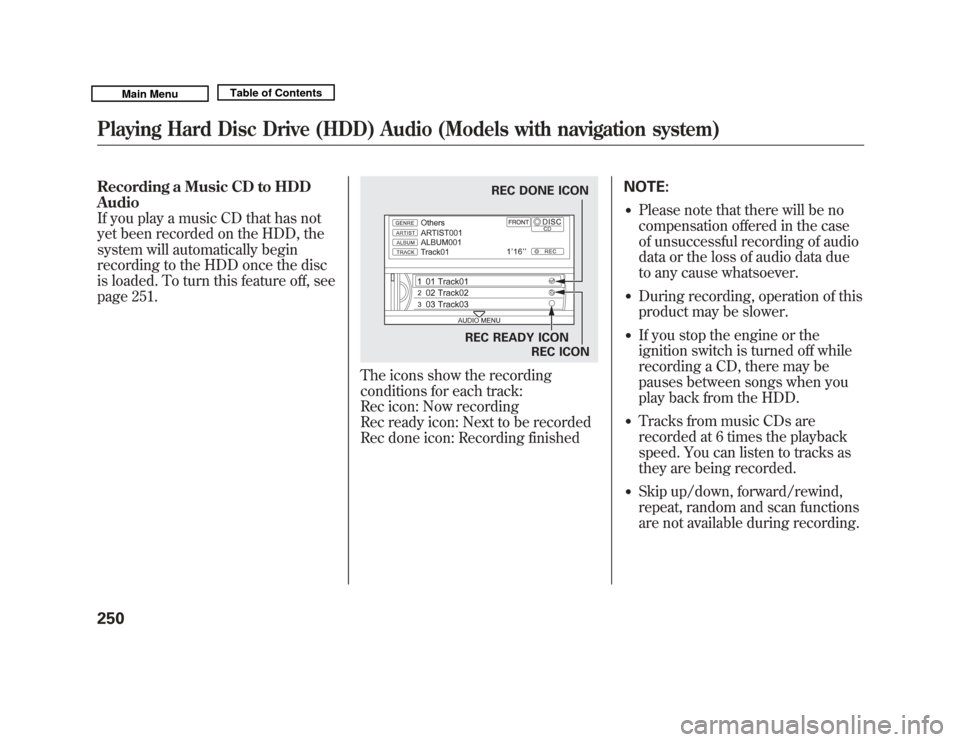
Recording a Music CD to HDD
Audio
If you play a music CD that has not
yet been recorded on the HDD, the
system will automatically begin
recording to the HDD once the disc
is loaded. To turn this feature off, see
page 251.
The icons show the recording
conditions for each track:
Rec icon: Now recording
Rec ready icon: Next to be recorded
Rec done icon: Recording finishedNOTE:
●
Please note that there will be no
compensation offered in the case
of unsuccessful recording of audio
data or the loss of audio data due
to any cause whatsoever.
●
During recording, operation of this
product may be slower.
●
If you stop the engine or the
ignition switch is turned off while
recording a CD, there may be
pauses between songs when you
play back from the HDD.
●
Tracks from music CDs are
recorded at 6 times the playback
speed. You can listen to tracks as
they are being recorded.
●
Skip up/down, forward/rewind,
repeat, random and scan functions
are not available during recording.
REC DONE ICON
REC READY ICON REC ICON
Playing Hard Disc Drive (HDD) Audio (Models with navigation system)25010/06/29 11:59:04 11 ACURA MDX MMC North America Owner's M 50 31STX640 enu
Page 256 of 609
●
You can listen to tracks from other
playlists that have already been
recorded while recording. Press
the HDD button and switch over to
HDD Audio.
●
With the factory settings, all of the
songs on a music CD are
automatically recorded.
●
Recording settings cannot be
changed during recording.
●
If the number of songs in the
playlist exceeds 999, the oldest
song will be overwritten each time
you add a new song.To Cancel Recording a Music CD
to HDD
In order to suspend recording, push
the interface selector down, select
Cancel Rec to HDD, and press
ENTER on the interface selector.
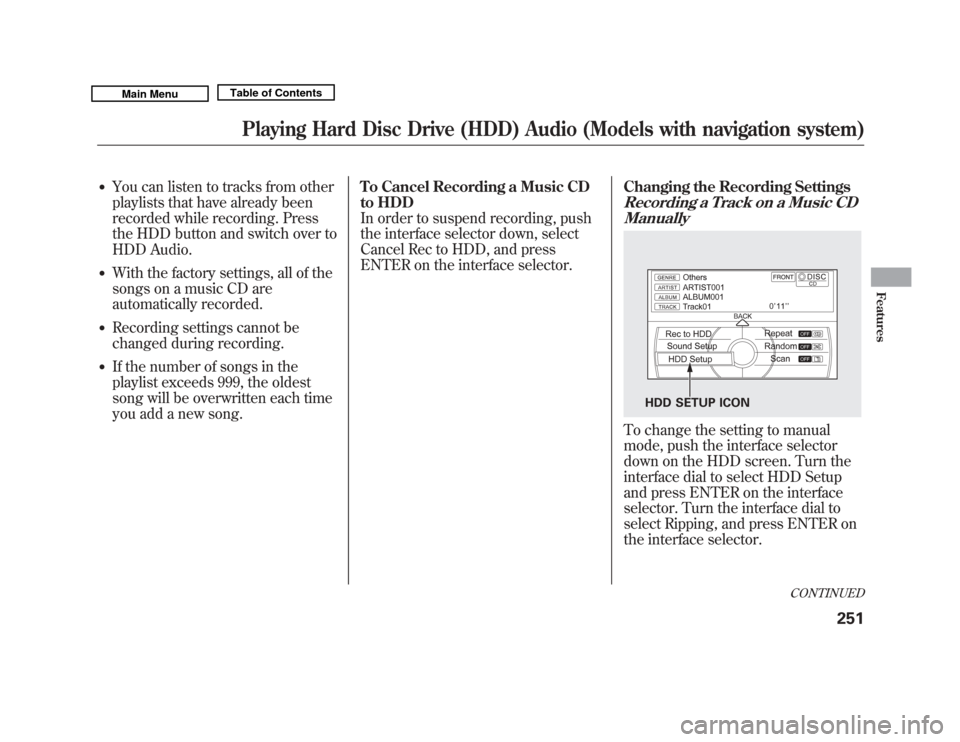
Changing the Recording Settings
Recording a Track on a Music CD
ManuallyTo change the setting to manual
mode, push the interface selector
down on the HDD screen. Turn the
interface dial to select HDD Setup
and press ENTER on the interface
selector. Turn the interface dial to
select Ripping, and press ENTER on
the interface selector.
HDD SETUP ICON
CONTINUED
Playing Hard Disc Drive (HDD) Audio (Models with navigation system)
251
Features
10/06/29 11:59:04 11 ACURA MDX MMC North America Owner's M 50 31STX640 enu