Page 156 of 609

Active Head RestraintsThe driver's and front passenger's
seats have active head restraints. If
the vehicle is struck severely from
the rear, the occupant properly
secured with the seat belt will be
pushed against the seat-back and the
head restraint will automatically
move forward.This reduces the distance between
the restraint and the occupant's
head. It also helps protect the
occupants against the likelihood of
whiplash and injuries to the neck and
upper spine.
After a collision, the activated
restraint should return to its normal
position.
If the restraints do not return to their
normal position, or in the event of a
severe collision, have the vehicle
inspected by an Acura dealer.
For a head restraint system to work
properly:
●
Do not hang any items on the head
restraints, or from the restraint
legs.
●
Do not place any object between
an occupant and the seat-back.
●
Install each restraint in its proper
location.
●
Only use genuine Acura
replacement head restraints.
CONTINUED
Seats
151
Instruments and Controls
10/06/29 11:59:04 11 ACURA MDX MMC North America Owner's M 50 31STX640 enu
Page 157 of 609

Adjusting the Second Row SeatsTo change the seat-back angle of the
seats in the second row, pull up on
the handle on the outside of the seat-
back, and push the seat-back.
Overall, the seat-back has six
different positions.Folding the Second Row Seats
The left and right halves can be
folded separately.
1. To unlatch the detachable anchor
before folding the seat-back, insert
the latch plate into the slot on the
side of the anchor buckle (see
page 154) and allow the seat belt to
retract. Store the detachable
anchor and seat belt latch plates in
the retractor housing.
2. Lower the head restraints to their lowest positions.
3. Pull up the handle on the outside of the seat-back.
4. Fold the seat-back forward.
Reverse this procedure to return the
seat to the upright position. Make
sure the seat is locked securely
before driving. Make sure that the folded seat-back
does not press against the front
passenger's seat, as this could cause
the weight sensors to work
improperly.
HANDLE
Seats15210/06/29 11:59:04 11 ACURA MDX MMC North America Owner's M 50 31STX640 enu
Page 159 of 609

Reverse this procedure to return the
seat to the upright position. Make
sure the seat is locked securely
before driving. Reconnect the seat
belts to the detachable anchors.
Make sure all items in the cargo area
are secured. Loose items can fly
forward and cause injury if you have
to brake hard (SeeCarrying Cargo
on page 428). Detachable Anchor
The seat belts in the second row
center seat and the third row seats
are equipped with detachable
anchors.
To unlatch the detachable anchor,
insert the latch plate into the slot on
the side of the anchor buckle. Store
the detachable anchor and seat belt
latch plates in the retractor housing.When the seats are returned to the
upright position, these detachable
anchors should be latched back
properly.
Using the seat belt with the
detachable anchor unlatched
increases the chance of serious
injury or death in a crash.
Before using the seat belt,
make sure the detachable
anchor is correctly latched.
LATCH PLATE
Seats15410/06/29 11:59:04 11 ACURA MDX MMC North America Owner's M 50 31STX640 enu
Page 160 of 609
Pull out the small latch plate and the
latch plate from each holding slot in
the ceiling, and pull out the seat belt
to extend it.
Pull out the outer shoulder belts
from the hook. Both of the third-row
hooks should only be used when the
seat belt is detached.
Line up the triangle marks on the
small latch plate and anchor buckle
when reattaching the belt and
buckle.
Tug on the seat belt to verify that the
detachable anchor is securely
latched. Make sure the seat belt is
not twisted.
SECOND ROW CENTER SEATLATCH PLATE
SMALL LATCH PLATE
THIRD ROW SEATS HOOK
SMALL LATCH PLATE
ANCHOR BUCKLE TRIANGLE
MARKS
Seats
155
Instruments and Controls
10/06/29 11:59:04 11 ACURA MDX MMC North America Owner's M 50 31STX640 enu
Page 184 of 609

The climate control system in your
vehicle provides a comfortable driving
environment in all weather conditions.
The standard audio system has many
features. This section describes those
features and how to use them.
Your vehicle has an anti-theft audio
system that requires a code number to
enable it.
The security system helps do
discourage vandalism and theft to
your vehicle.
Climate Control System
...............
180
Rear Climate Controls
..............
185
Audio System
..............................
190
Playing the AM/FM Radio (Models without navigation
system)
................................
191
Playing the XM
®Radio (Models
without navigation system)
......
195 Playing Discs (Models without
navigation system)
...................
200
Disc Changer Error Message (Models without navigation
system)
................................
208
Audio System (Models with navigation system)
...................
209
Playing the AM/FM Radio (Models with navigationsystem)
................................
210
Playing the XM
®Radio (Models
with navigation system)
...........
223
Playing a Disc (Models with
navigation system)
...................
232
Disc Player Error Messages (Models with navigation
system)
................................
243
Protecting Your Discs
..................
244
Playing Hard Disc Drive (HDD)
Audio (Models with navigationsystem)
................................
247
Playing an iPod
®(Models with
navigation system)
...................
275
iPod
®Error Messages (Models
with navigation system)
...........
283 Playing a USB Flash Memory
Device (Models with navigationsystem)
................................
284
USB Flash Memory Device Error
Messages (Models withnavigation system)
...............
294
Bluetooth
®Audio System (Models
with navigation system)
...........
295
AM/FM Radio Reception
.............
300
Remote Audio Controls
................
302
Auxiliary Input Jack
.....................
304
Radio Theft Protection
.................
305
Setting the Clock and Calendar
....
306
Rear Entertainment System
..........
307
Security System
...........................
337
Compass
......................................
338
Cruise Control
.............................
342
Adaptive Cruise Control (ACC)
....
345
HomeLink
®Universal
Transceiver
.............................
360
Bluetooth
®HandsFreeLink
®.........
362
AcuraLink
®(U.S. models only)
.....
398
Rearview Mirror with Rearview Camera Display
.......................
414
Features
179
Features
10/06/29 11:59:04 11 ACURA MDX MMC North America Owner's M 50 31STX640 enu
Page 282 of 609

Use only compatible iPods with the
latest software. iPods that are not
compatible will not work in this audio
unit.
NOTE:●
Do not connect your iPod using a
hub.
●
Do not keep the iPod and dock
connector cable in the vehicle.
Direct sunlight and high heat will
damage it.
●
Do not use an extension cable
between the USB adapter cable
equipped with your vehicle and
your dock connector.
●
We recommend backing up your
data before playing it.
●
Some devices cannot be powered
or charged via the USB adapter, if
this is the case use the accessory
adapter to supply power to your
device.
Connecting an iPod1. Unclip the USB connector bypulling it up, and pull out the USB
adapter cable in the console
compartment.
2. Connect your dock connector tothe iPod correctly and securely.
3. Install the dock connector to the USB adapter cable securely.
USB CONNECTOR
USB ADAPTER CABLE
DOCK CONNECTOR USB ADAPTER CABLE
CONTINUED
Playing an iPod
®
(Models with navigation system)
277
Features
10/06/29 11:59:04 11 ACURA MDX MMC North America Owner's M 50 31STX640 enu
Page 290 of 609
To Play a USB Flash Memory
Device
This audio system can select and
play the audio files on a USB flash
memory device with the same
controls used for the disc player. To
play a USB flash memory device,
connect it to the USB adapter cable
in the console compartment, then
press the USB/AUX button until you
see‘‘USB’’ in the display. The
ignition switch must be in
ACCESSORY (I) or ON (II) position. The audio system reads and plays
the audio files on the USB flash
memory device in MP3, WMA or
ACC
ꭧ
formats. The USB flash
memory device limit is up to 700
folders or up to 15000 files.
ꭧ : Only AAC format files recorded
with iTunes are playable on this
audio unit.
The recommended USB flash
memory devices are 256 MB or
higher, and formatted with the FAT
file system. Some digital audio
players may be compatible as well.
Some USB flash memory devices
(such as devices with security
lockout features, etc.) will not work
in this audio unit.
NOTE:
●
Do not use a device such as a card
reader or hard drive as it or your
files may be damaged.
●
Do not connect your USB flash
memory device using a hub.
●
Do not use an extension cable to
the USB adapter cable equipped
with your vehicle.
●
Do not keep a USB flash memory
device in the vehicle. Direct
sunlight and high heat will damage
it.
●
We recommend backing up your
data before playing a USB flash
memory device.
●
Some devices cannot be powered
or charged via the USB adapter, if
this is the case use the accessory
adapter to supply power to your
device.
●
Depending on the type and
number of files, it may take some
time before they begin to play.
CONTINUED
Playing a USB Flash Memory Device (Models with navigation system)
285
Features
10/06/29 11:59:04 11 ACURA MDX MMC North America Owner's M 50 31STX640 enu
Page 292 of 609
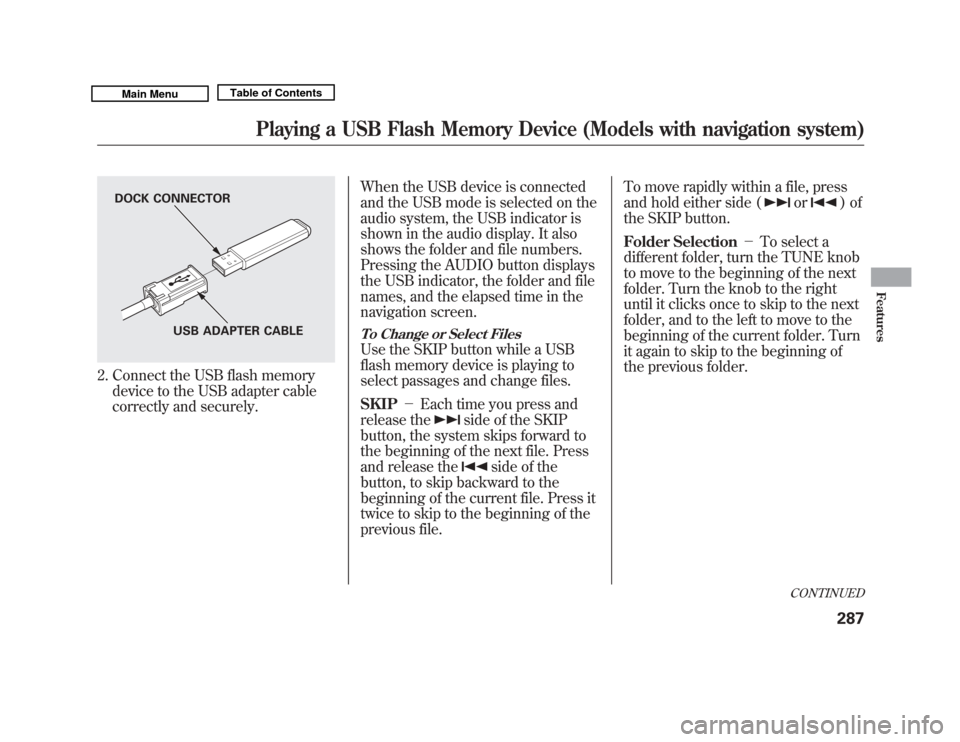
2. Connect the USB flash memorydevice to the USB adapter cable
correctly and securely. When the USB device is connected
and the USB mode is selected on the
audio system, the USB indicator is
shown in the audio display. It also
shows the folder and file numbers.
Pressing the AUDIO button displays
the USB indicator, the folder and file
names, and the elapsed time in the
navigation screen.
To Change or Select FilesUse the SKIP button while a USB
flash memory device is playing to
select passages and change files.
SKIP
-Each time you press and
release the
side of the SKIP
button, the system skips forward to
the beginning of the next file. Press
and release the
side of the
button, to skip backward to the
beginning of the current file. Press it
twice to skip to the beginning of the
previous file. To move rapidly within a file, press
and hold either side (
or
)of
the SKIP button.
Folder Selection -To select a
different folder, turn the TUNE knob
to move to the beginning of the next
folder. Turn the knob to the right
until it clicks once to skip to the next
folder, and to the left to move to the
beginning of the current folder. Turn
it again to skip to the beginning of
the previous folder.
DOCK CONNECTOR
USB ADAPTER CABLE
CONTINUED
Playing a USB Flash Memory Device (Models with navigation system)
287
Features
10/06/29 11:59:04 11 ACURA MDX MMC North America Owner's M 50 31STX640 enu
