Page 193 of 609

Push AUTO or
. The selected
temperatures appear in the display.
When the indicator in the DUAL
button is off, you can adjust both
sides to the same temperature by
adjusting the driver's temperature
control buttons.
To set the driver's side temperature
to a different value than the
passenger's side, press the DUAL
button, then press either of the
driver's temperature control button
(▲ or▼ ). To set the passenger's side
to a different value than the driver's
side, press either of the front
passenger's temperature control
button (▲ or▼ ). You can adjust the
passenger's side without pressing
the DUAL button first. When the indicator in the REAR
button is off, the temperature of the
rear passenger compartment is
synchronized to the driver's side set
temperature. You will see AUTO
SYNC on the system display of the
rear control panel.
To set the temperature of the rear
passenger compartment to a different
value than the driver's side, press the
REAR button, then press either
temperature control buttons on the
back of the center console. The word
‘‘
SYNC ’’in the display goes out. You
can also adjust the rear temperature
without pressing the REAR button
first. Pressing either button causes
the indicator of the REAR button to
turn on.
When you set each temperature to its
lower limit or its upper limit, it will be
displayed as ‘‘
’’or ‘‘
’’.
Climate Control System18810/06/29 11:59:04 11 ACURA MDX MMC North America Owner's M 50 31STX640 enu
Page 281 of 609

To Play an iPod
ꭂ
This audio system can select and
play the audio files on the iPod
ꭂ
with
the same controls used for the in-
dash disc player. To play an iPod,
connect it to the USB adapter cable
in the console compartment by using
your dock connector, then press the
USB/AUX button. The ignition
switch must be in the ACCESSORY
(I) or the ON (II) position. The iPod
will also be charged with the ignition
switch in these settings. The audio system reads and plays
sound files to be playable on the
iPod. The system cannot operate an
iPod as a mass storage device. The
system will only play songs stored on
the iPod with iTunes.
iPod and iTunes are registered
trademarks owned by Apple Inc.
Voice Control SystemYou can select the AUX mode by
using the navigation system voice
control buttons, but cannot operate
the play mode functions.
The voice command music search
feature, Song By Voice
™, is also
available. Refer to the navigation
system manual for complete details. iPods compatible with your audio
system using the USB adapter cable
are:
Model
Software
ꭧ
iPod
5th and 6th
generations Ver.1.3 or greater
iPod classic Ver.1.1.2 or greater
iPod nano
1st generation Ver.1.3.1 or greater
iPod nano
2nd generation Ver.1.1.2 or greater
iPod nano
3rd generation Ver.1.1.3 or greater
iPod nano
4th generation Ver.1.0.3 or greater
iPod touch
1st generation Ver.1.1.1 or greater
iPod touch
2nd generation Ver.2.1.1 or greater
iPhone Ver.2.1.0 or greater
iPhone 3G Ver.2.1.0 or greaterꭧ : Use the latest software.
Playing an iPod
®
(Models with navigation system)
27610/06/29 11:59:04 11 ACURA MDX MMC North America Owner's M 50 31STX640 enu
Page 282 of 609

Use only compatible iPods with the
latest software. iPods that are not
compatible will not work in this audio
unit.
NOTE:●
Do not connect your iPod using a
hub.
●
Do not keep the iPod and dock
connector cable in the vehicle.
Direct sunlight and high heat will
damage it.
●
Do not use an extension cable
between the USB adapter cable
equipped with your vehicle and
your dock connector.
●
We recommend backing up your
data before playing it.
●
Some devices cannot be powered
or charged via the USB adapter, if
this is the case use the accessory
adapter to supply power to your
device.
Connecting an iPod1. Unclip the USB connector bypulling it up, and pull out the USB
adapter cable in the console
compartment.
2. Connect your dock connector tothe iPod correctly and securely.
3. Install the dock connector to the USB adapter cable securely.
USB CONNECTOR
USB ADAPTER CABLE
DOCK CONNECTOR USB ADAPTER CABLE
CONTINUED
Playing an iPod
®
(Models with navigation system)
277
Features
10/06/29 11:59:04 11 ACURA MDX MMC North America Owner's M 50 31STX640 enu
Page 290 of 609
To Play a USB Flash Memory
Device
This audio system can select and
play the audio files on a USB flash
memory device with the same
controls used for the disc player. To
play a USB flash memory device,
connect it to the USB adapter cable
in the console compartment, then
press the USB/AUX button until you
see‘‘USB’’ in the display. The
ignition switch must be in
ACCESSORY (I) or ON (II) position. The audio system reads and plays
the audio files on the USB flash
memory device in MP3, WMA or
ACC
ꭧ
formats. The USB flash
memory device limit is up to 700
folders or up to 15000 files.
ꭧ : Only AAC format files recorded
with iTunes are playable on this
audio unit.
The recommended USB flash
memory devices are 256 MB or
higher, and formatted with the FAT
file system. Some digital audio
players may be compatible as well.
Some USB flash memory devices
(such as devices with security
lockout features, etc.) will not work
in this audio unit.
NOTE:
●
Do not use a device such as a card
reader or hard drive as it or your
files may be damaged.
●
Do not connect your USB flash
memory device using a hub.
●
Do not use an extension cable to
the USB adapter cable equipped
with your vehicle.
●
Do not keep a USB flash memory
device in the vehicle. Direct
sunlight and high heat will damage
it.
●
We recommend backing up your
data before playing a USB flash
memory device.
●
Some devices cannot be powered
or charged via the USB adapter, if
this is the case use the accessory
adapter to supply power to your
device.
●
Depending on the type and
number of files, it may take some
time before they begin to play.
CONTINUED
Playing a USB Flash Memory Device (Models with navigation system)
285
Features
10/06/29 11:59:04 11 ACURA MDX MMC North America Owner's M 50 31STX640 enu
Page 291 of 609
●
Depending on the software the
files were made with, it may not be
possible to play some files, or
display some text data.
●
Depending on the type of
encoding and writing software
used, there may be cases where
character information does not
display properly.
●
The order of files in USB playback
may be different from the order of
files displayed in PC or other
devices etc. Files are played in the
order stored in USB flash memory
device.
Voice Control SystemYou can select the AUX mode by
using the voice control buttons, but
cannot operate the play mode
functions.Even if recorded in MP3, WMA or
AAC format, a file with unsupported
version cannot be played. If the
system finds it, the audio unit
displays UNSUPPORTED, and then
skips to the next file.
Combining a low sampling frequency
with a low bitrate may result in
extremely degraded sound quality.
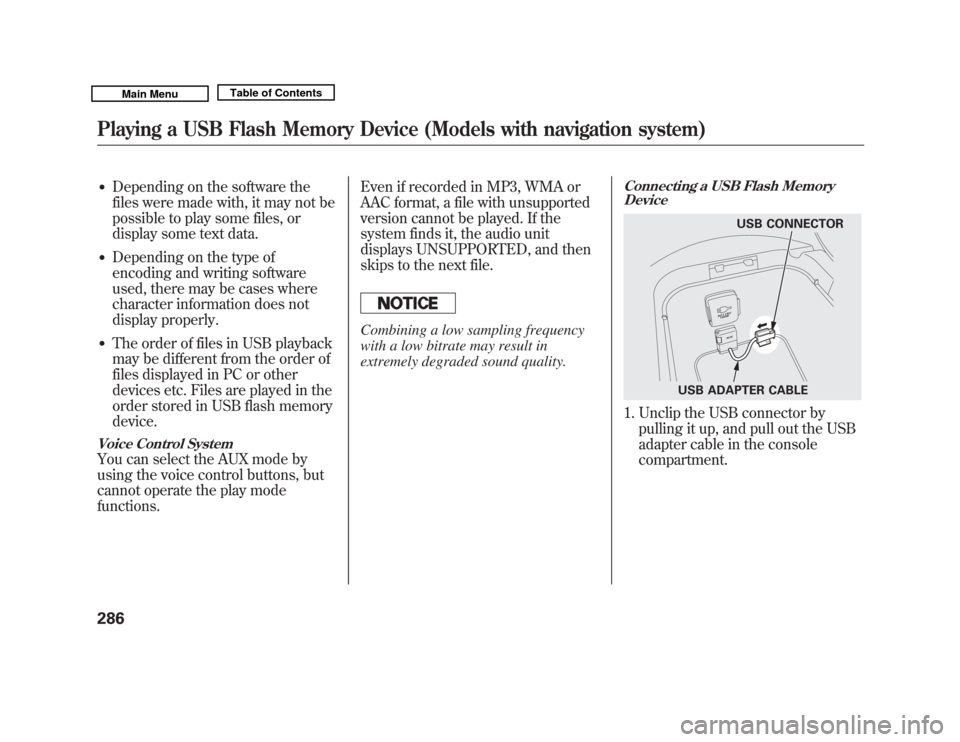
Connecting a USB Flash Memory
Device1. Unclip the USB connector by
pulling it up, and pull out the USB
adapter cable in the console
compartment.
USB CONNECTOR
USB ADAPTER CABLE
Playing a USB Flash Memory Device (Models with navigation system)28610/06/29 11:59:04 11 ACURA MDX MMC North America Owner's M 50 31STX640 enu
Page 309 of 609
Auxiliary Input JackThe auxiliary input jack is inside the
console compartment. The system
will accept auxiliary input from
standard audio accessories using a
1/8 inch (3.5 mm) stereo miniplug.
When a compatible audio unit is
connected to the jack, press the
USB/AUX button (DISC/AUX
button on models without navigation
system) to select it.
On models with Rear EntertainmentSystemAuxiliary input jacks and headphone
connectors for the rear
entertainment system are on the
back of the center console
compartment.
For more information, see page 336.
Auxiliary Input Jack30410/06/29 11:59:04 11 ACURA MDX MMC North America Owner's M 50 31STX640 enu
Page 341 of 609
Replacing BatteriesEach headphone uses one AAA
battery. The battery is under the
cover on the left earpiece. To remove
the cover, insert a coin in the slot and
twist it slightly to pry the cover away
from the earpiece. Pull the cover
outward, and pivot it out of the way.
Remove the battery. Install the new
battery in the earpiece as shown in
the diagram next to the battery slot.
Slide the cover back into place on the
earpiece, then press down on the
back edge to lock it in place.Auxiliary Input Jacks
Auxiliary input jacks and headphone
connectors for the rear
entertainment system are on the
back of the center console
compartment.
TAB
COVER
BATTERY
Rear Entertainment System33610/06/29 11:59:04 11 ACURA MDX MMC North America Owner's M 50 31STX640 enu
Page 433 of 609
Your vehicle has several convenient
storage areas:●
Glove box
●
Door and seat-back pockets
●
Rear cargo area, including the
second and third row seats when
folded flat
●
Console compartment
●
Storage compartment
●
Rear compartment
●
Roof-rack (if equipped)
However, carrying too much cargo,
or improperly storing it, can affect
your vehicle's handling, stability,
stopping distance, and tires, and
make it unsafe. Before carrying any
type of cargo, be sure to read the
following pages.
STORAGE COMPARTMENT SEAT-BACK POCKETS
CARGO AREA
REAR COMPARTMENT
DOOR POCKETS
CONSOLE COMPARTMENT
GLOVE BOX
Carrying Cargo42810/06/29 11:59:04 11 ACURA MDX MMC North America Owner's M 50 31STX640 enu


