Page 414 of 724
414 3-5. Using the hands-free phone system (for cellular phone)
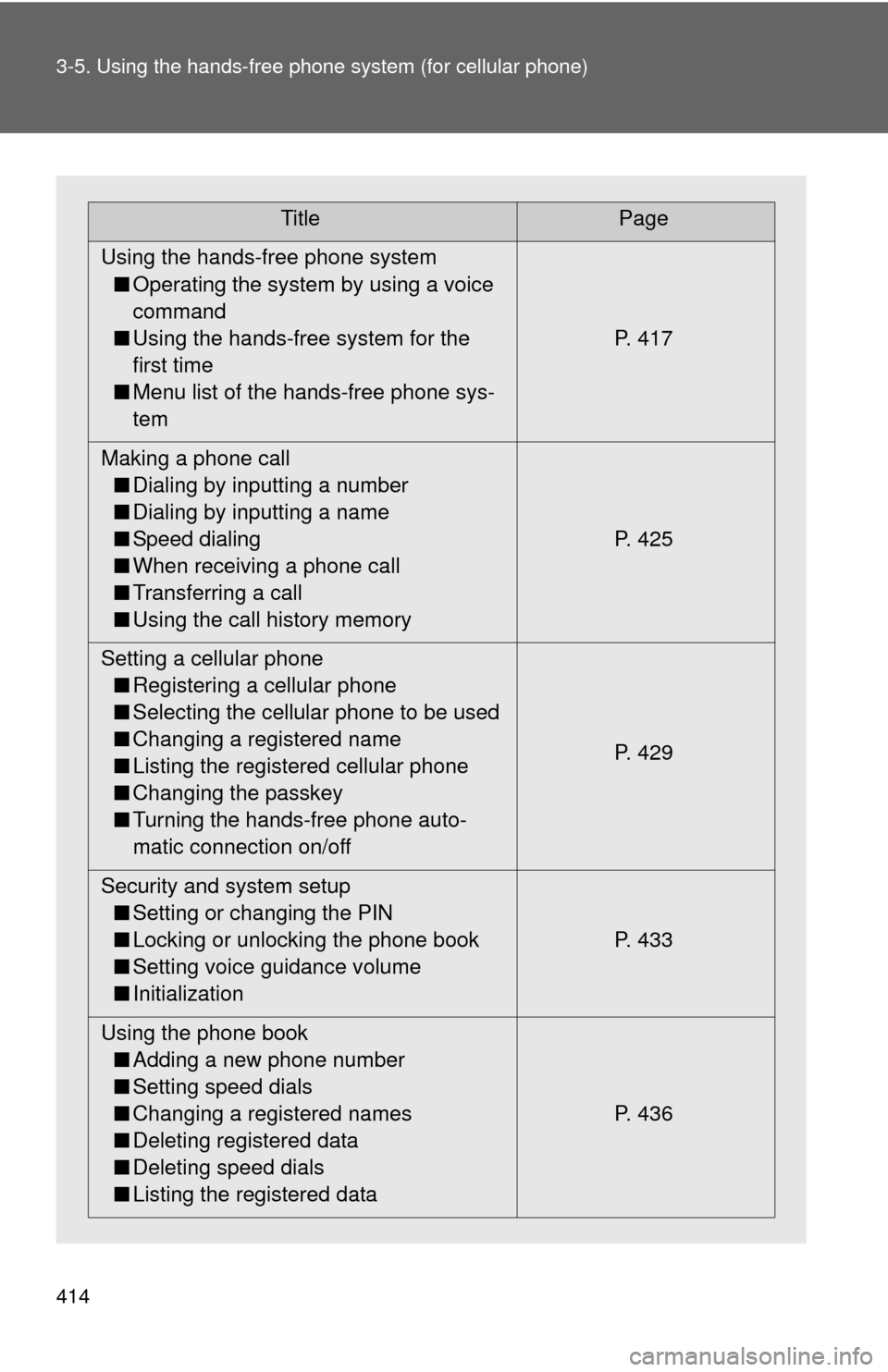
TitlePage
Using the hands-free phone system ■ Operating the system by using a voice
command
■ Using the hands-free system for the
first time
■ Menu list of the hands-free phone sys-
tem P. 417
Making a phone call ■ Dialing by inputting a number
■ Dialing by inputting a name
■ Speed dialing
■ When receiving a phone call
■ Transferring a call
■ Using the call history memory P. 425
Setting a cellular phone ■ Registering a cellular phone
■ Selecting the cellular phone to be used
■ Changing a registered name
■ Listing the registered cellular phone
■ Changing the passkey
■ Turning the hands-free phone auto-
matic connection on/off P. 429
Security and system setup ■ Setting or changing the PIN
■ Locking or unlocking the phone book
■ Setting voice guidance volume
■ Initialization P. 433
Using the phone book ■ Adding a new phone number
■ Setting speed dials
■ Changing a registered names
■ Deleting registered data
■ Deleting speed dials
■ Listing the registered data P. 436
Page 420 of 724
420 3-5. Using the hands-free phone system (for cellular phone)
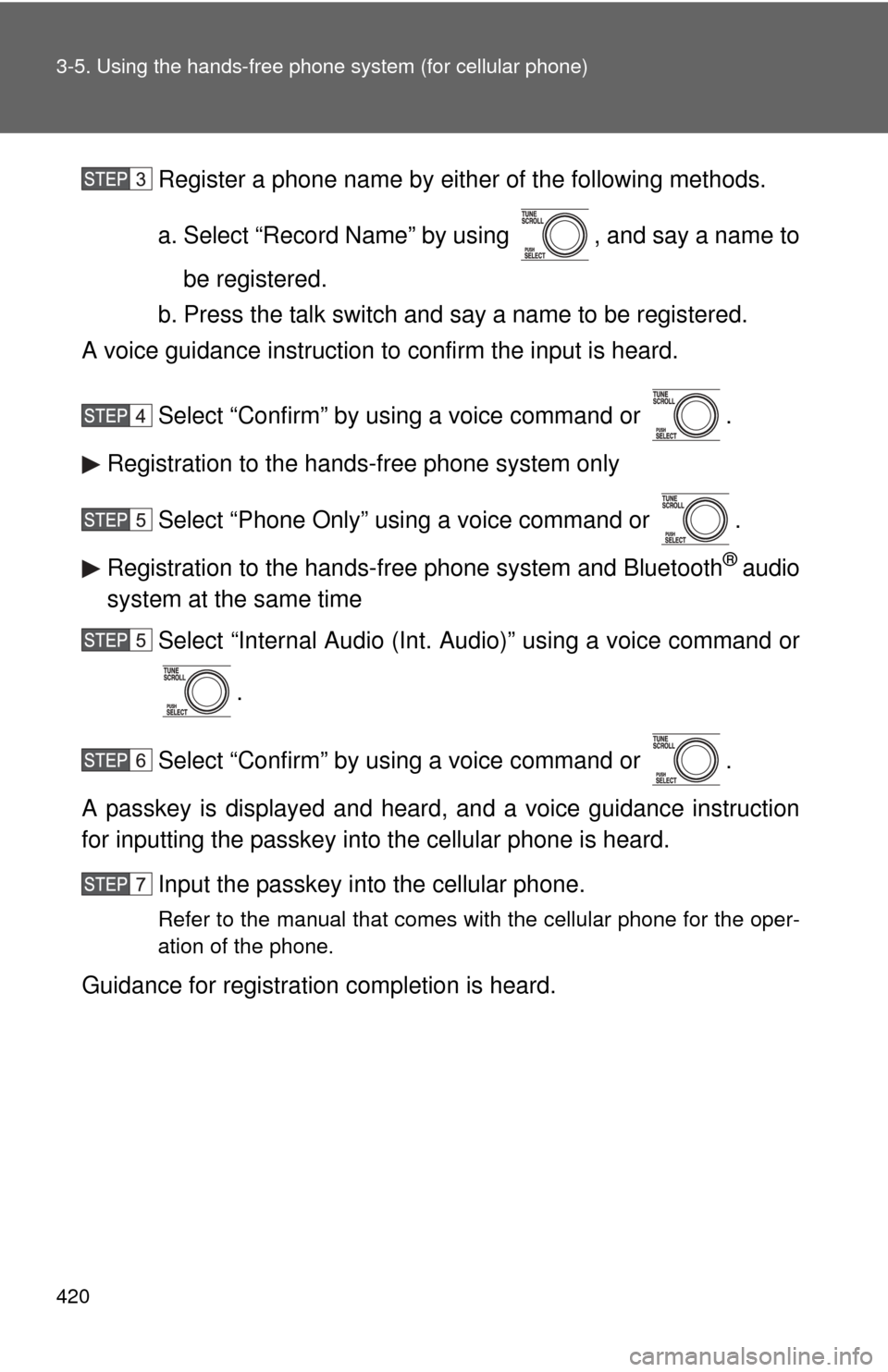
Register a phone name by either of the following methods.
a. Select “Record Name” by using , and say a name to
be registered.
b. Press the talk switch and say a name to be registered.
A voice guidance instruction to confirm the input is heard.
Select “Confirm” by using a voice command or .
Registration to the hands-free phone system only
Select “Phone Only” using a voice command or .
Registration to the hands-free phone system and Bluetooth
® audio
system at the same time
Select “Internal Audio (Int. Audio)” using a voice command or
.
Select “Confirm” by using a voice command or .
A passkey is displayed and heard, and a voice guidance instruction
for inputting the passkey into the cellular phone is heard. Input the passkey into the cellular phone.
Refer to the manual that comes with the cellular phone for the oper-
ation of the phone.
Guidance for registration completion is heard.
Page 422 of 724
422 3-5. Using the hands-free phone system (for cellular phone)
“Setup”“Security”
“Set PIN” Setting a PIN code
“Phone-
book Lock”
Locking the phone book
“Phone-
book
Unlock” Unlocking the phone book
“Phone
Setup” “Pair
Phone”
Registering the cellular phone
to be used
“Change
Name” Changing a registered name of
a cellular phone
“Delete
Phone” Deleting a registered cellular
phone
“List
phones” Listing the registered cellular
phones
“Select
phone” Selecting a cellular phone to be
used
“Set Pass-
key” Changing the passkey
“Hands-free
power” Setting the hands-free power
on/off
“System
Setup” “Guidance
Vo l u m e ”
Setting voice guidance volume
“Device
Name” Displaying device information
“Initialize” Initialization
First menuSecond menuThird menuOperation detail
Page 423 of 724
423
3-5. Using the hand
s-free phone system (for cellular phone)
3
Interior and exterior features
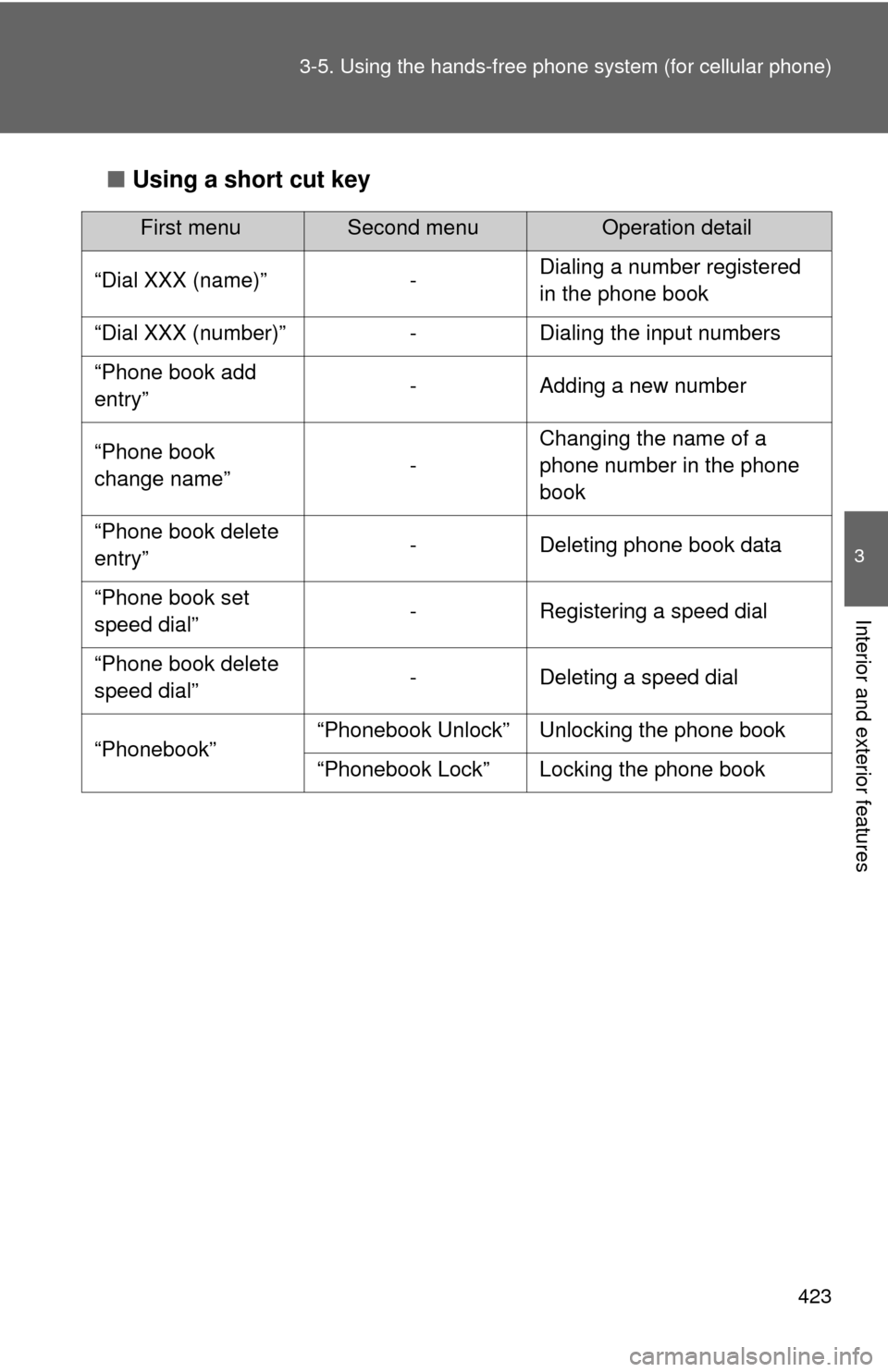
■Using a short cut key
First menuSecond menuOperation detail
“Dial XXX (name)” - Dialing a number registered
in the phone book
“Dial XXX (number)” - Dialing the input numbers
“Phone book add
entry” - Adding a new number
“Phone book
change name” -Changing the name of a
phone number in the phone
book
“Phone book delete
entry” - Deleting phone book data
“Phone book set
speed dial” - Registering a speed dial
“Phone book delete
speed dial” - Deleting a speed dial
“Phonebook” “Phonebook Unlock” Unlocking the phone book
“Phonebook Lock” Locking the phone book
Page 424 of 724
424 3-5. Using the hands-free phone system (for cellular phone)
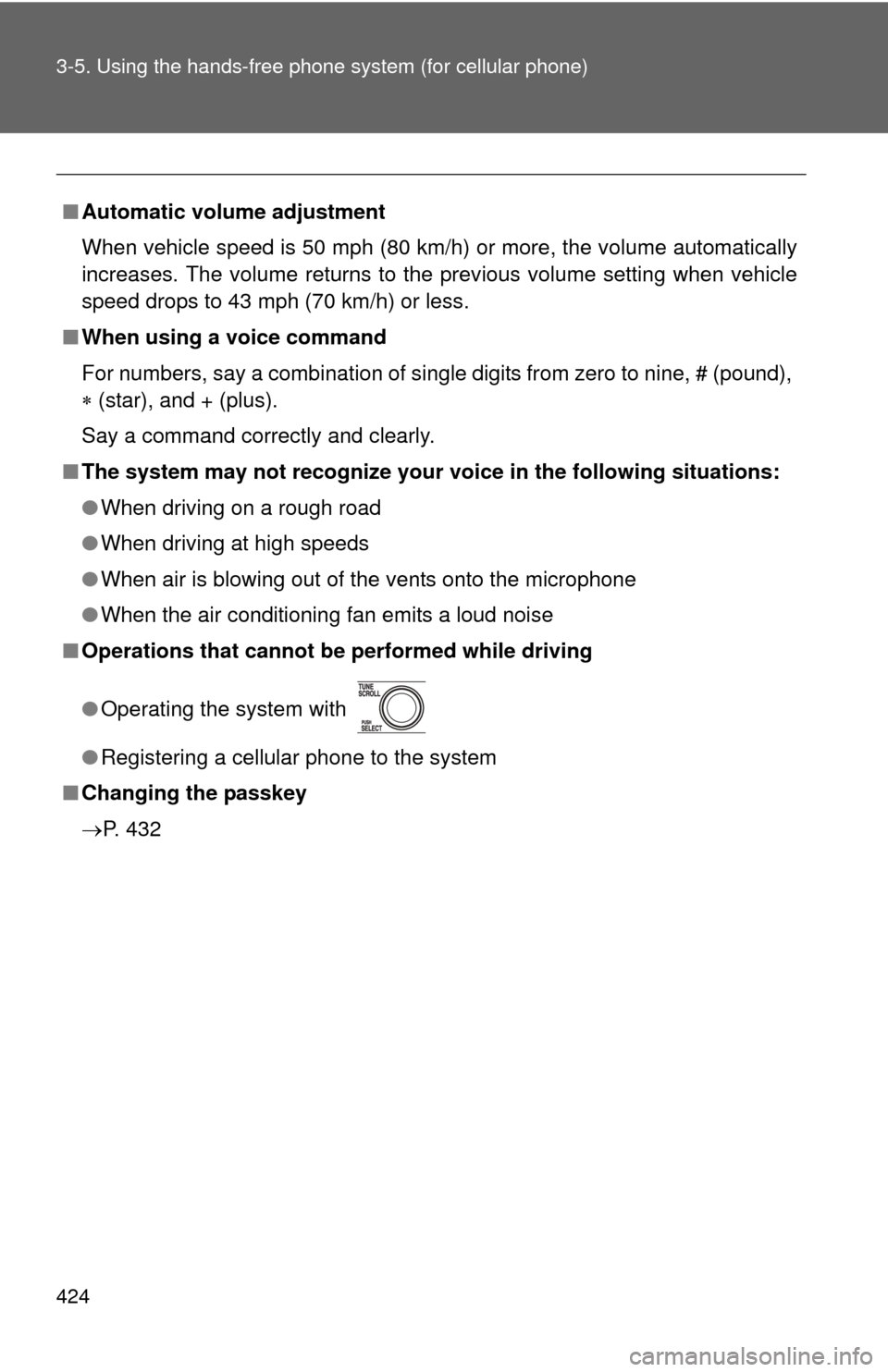
■Automatic volume adjustment
When vehicle speed is 50 mph (80 km/h) or more, the volume automatically
increases. The volume returns to the previous volume setting when vehicle
speed drops to 43 mph (70 km/h) or less.
■ When using a voice command
For numbers, say a combination of single digits from zero to nine, # (pound),
(star), and + (plus).
Say a command correctly and clearly.
■ The system may not recognize your voice in the following situations:
●When driving on a rough road
● When driving at high speeds
● When air is blowing out of the vents onto the microphone
● When the air conditioning fan emits a loud noise
■ Operations that cannot be performed while driving
● Operating the system with
● Registering a cellular phone to the system
■ Changing the passkey
P. 432
Page 429 of 724
429
3-5. Using the hands-free phone system (for cellular phone)
3
Interior and exterior features
Setting a cellular phone
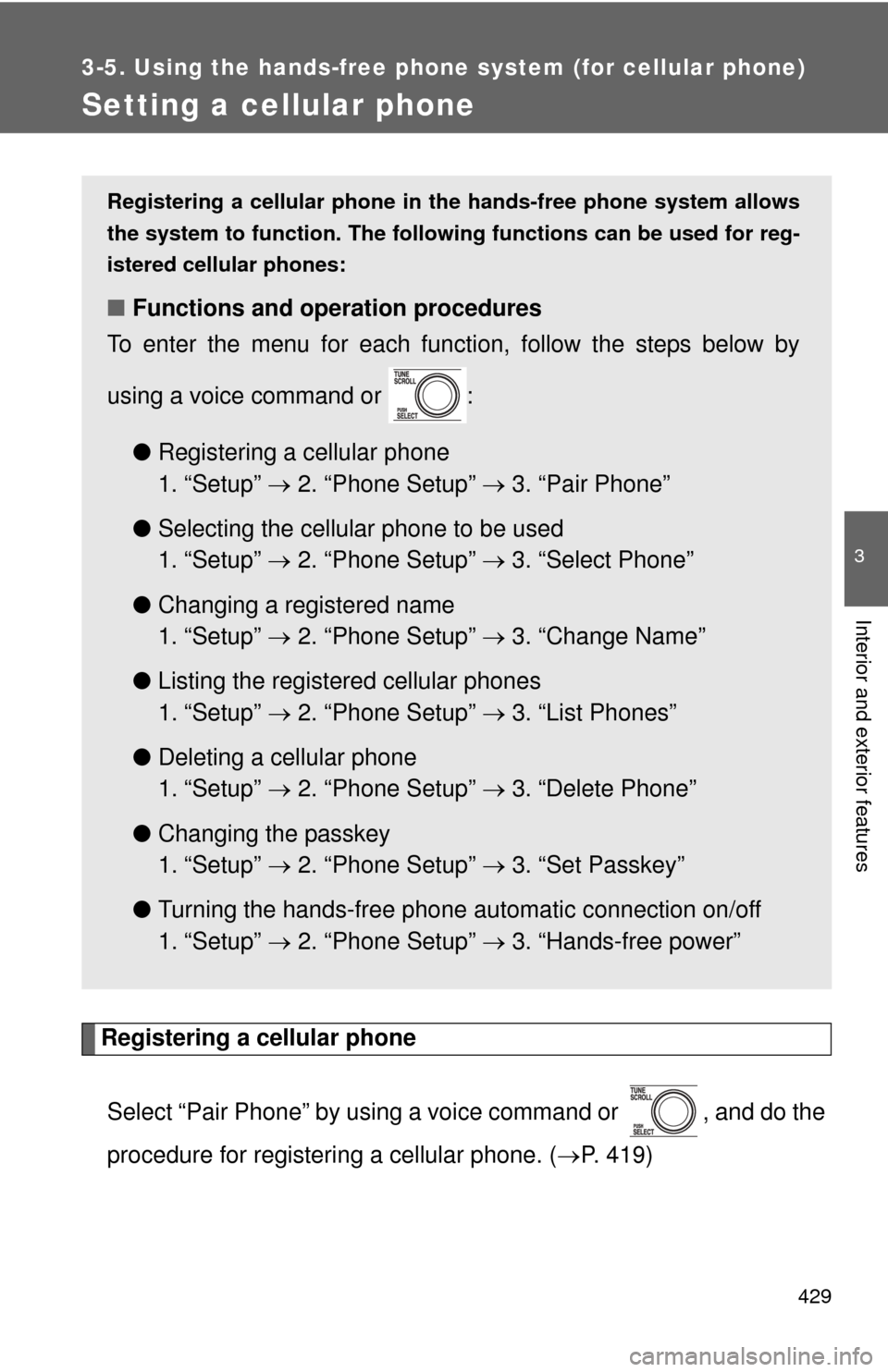
Registering a cellular phoneSelect “Pair Phone” by using a voice command or , and do the
procedure for registering a cellular phone. ( P. 419)
Registering a cellular phone in the hands-free phone system allows
the system to function. The following functions can be used for reg-
istered cellular phones:
■ Functions and operation procedures
To enter the menu for each function, follow the steps below by
using a voice command or :
●Registering a cellular phone
1. “Setup” 2. “Phone Setup” 3. “Pair Phone”
● Selecting the cellular phone to be used
1. “Setup” 2. “Phone Setup” 3. “Select Phone”
● Changing a registered name
1. “Setup” 2. “Phone Setup” 3. “Change Name”
● Listing the registered cellular phones
1. “Setup” 2. “Phone Setup” 3. “List Phones”
● Deleting a cellular phone
1. “Setup” 2. “Phone Setup” 3. “Delete Phone”
● Changing the passkey
1. “Setup” 2. “Phone Setup” 3. “Set Passkey”
● Turning the hands-free phone automatic connection on/off
1. “Setup” 2. “Phone Setup” 3. “Hands-free power”
Page 432 of 724
432 3-5. Using the hands-free phone system (for cellular phone)
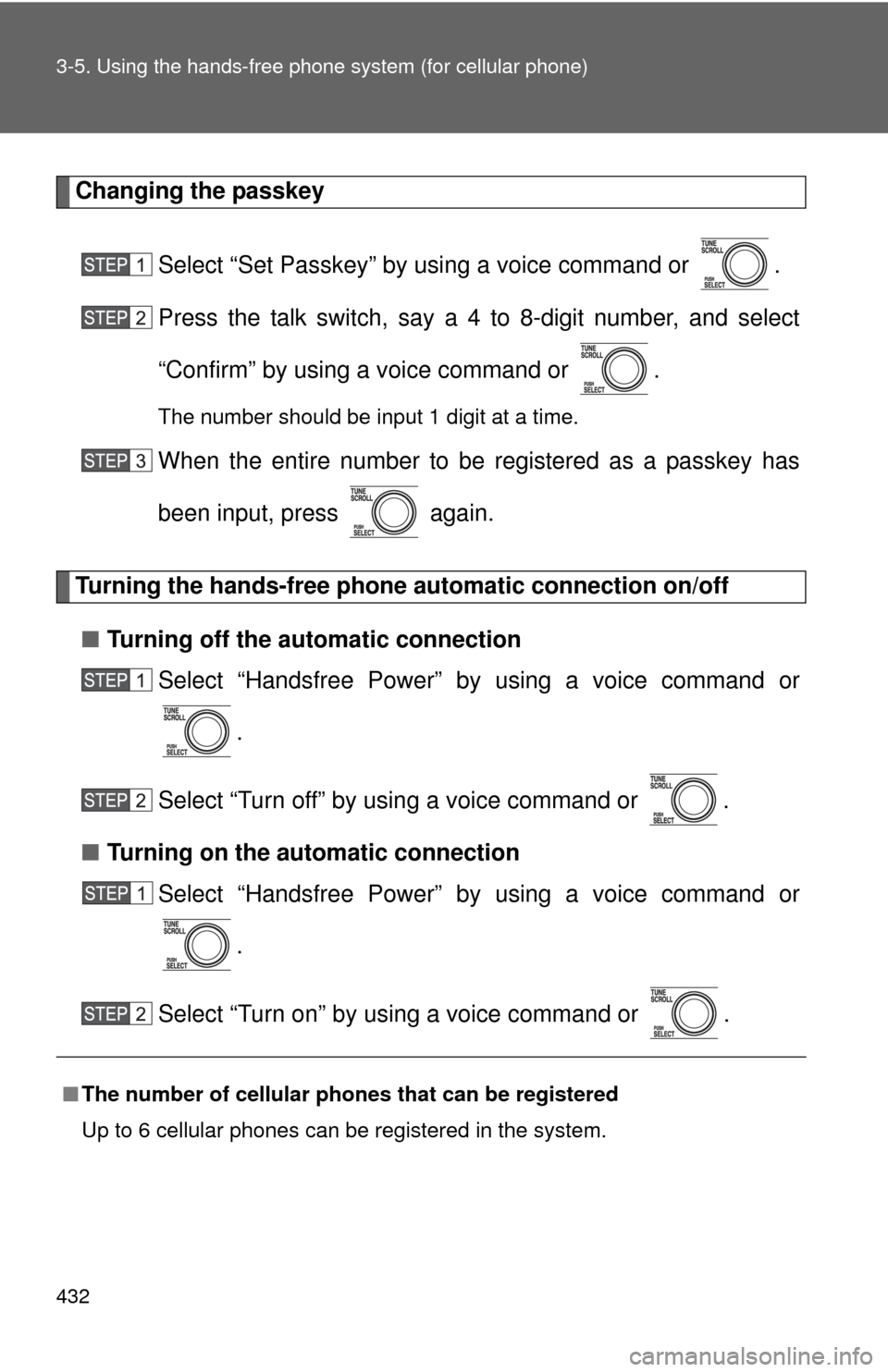
Changing the passkey
Select “Set Passkey” by using a voice command or .
Press the talk switch, say a 4 to 8-digit number, and select
“Confirm” by using a voice command or .
The number should be input 1 digit at a time.
When the entire number to be registered as a passkey has
been input, press again.
Turning the hands-free phone automatic connection on/off
■ Turning off the automatic connection
Select “Handsfree Power” by using a voice command or
.
Select “Turn off” by using a voice command or .
■ Turning on the automatic connection
Select “Handsfree Power” by using a voice command or
.
Select “Turn on” by using a voice command or .
■ The number of cellular phon es that can be registered
Up to 6 cellular phones can be registered in the system.
Page 449 of 724
449
3-7. Using the
storage features
3
Interior and exterior features
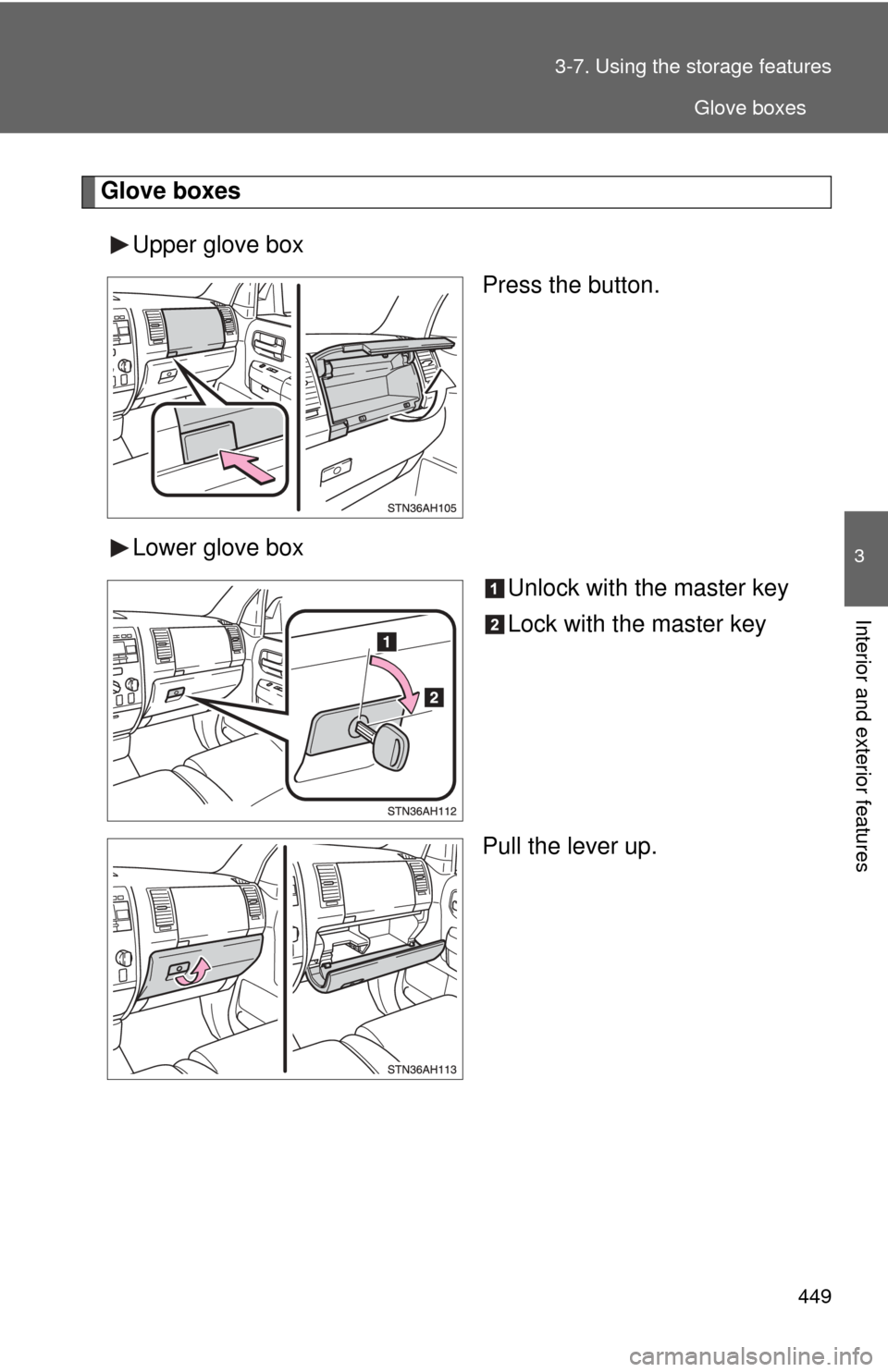
Glove boxes
Upper glove box Press the button.
Lower glove box Unlock with the master key
Lock with the master key
Pull the lever up.
Glove boxes