Page 276 of 513
275
3-3. Using the hand
s-free phone system (for cellular phone)
3
Interior features
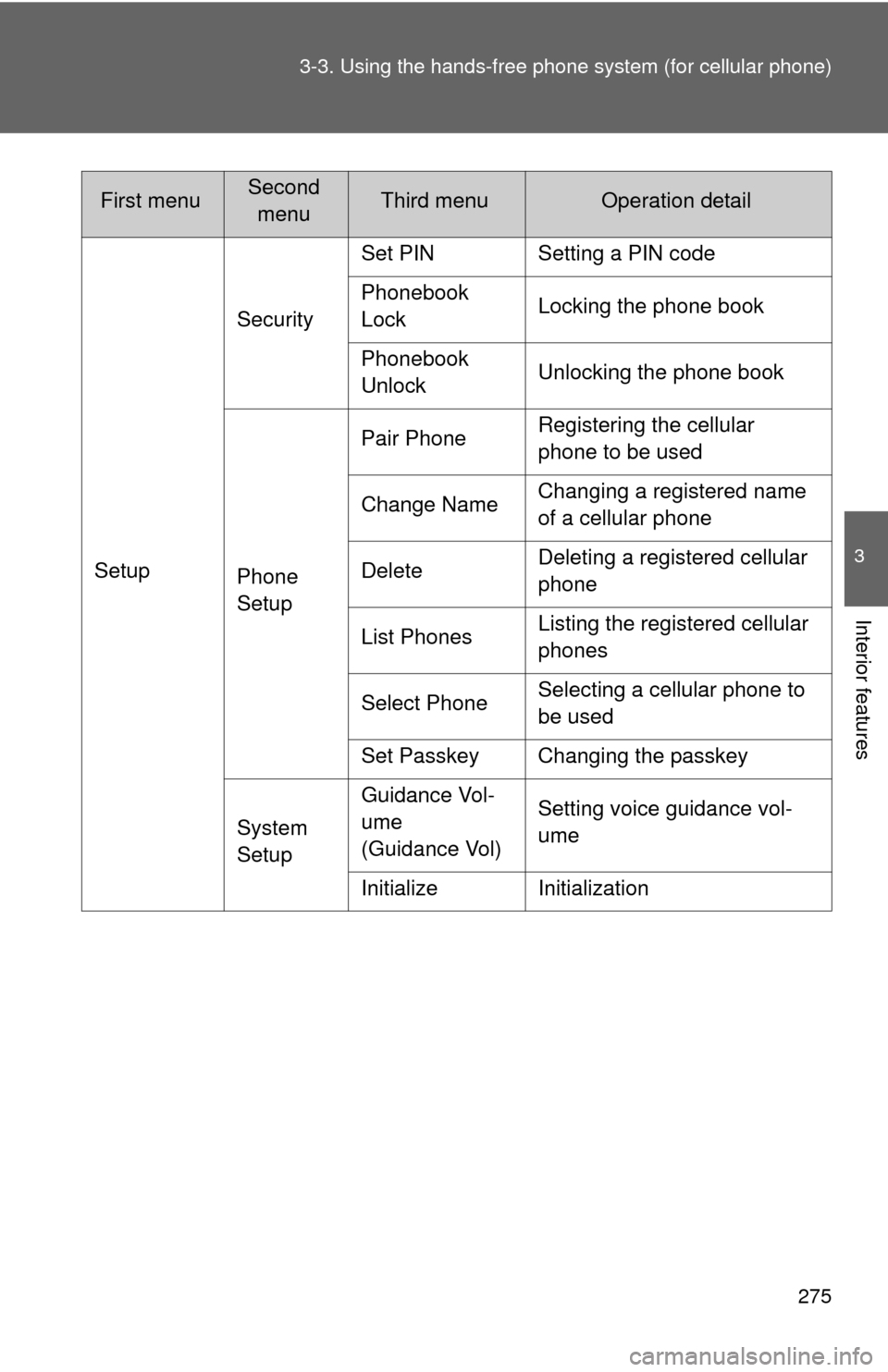
SetupSecurity
Set PIN Setting a PIN code
Phonebook
Lock
Locking the phone book
Phonebook
Unlock Unlocking the phone book
Phone
Setup Pair Phone
Registering the cellular
phone to be used
Change Name Changing a registered name
of a cellular phone
Delete Deleting a registered cellular
phone
List Phones Listing the registered cellular
phones
Select Phone Selecting a cellular phone to
be used
Set Passkey Changing the passkey
System
Setup Guidance Vol-
ume
(Guidance Vol)
Setting voice guidance vol-
ume
Initialize Initialization
First menuSecond menuThird menuOperation detail
Page 277 of 513
276 3-3. Using the hands-free phone system (for cellular phone)
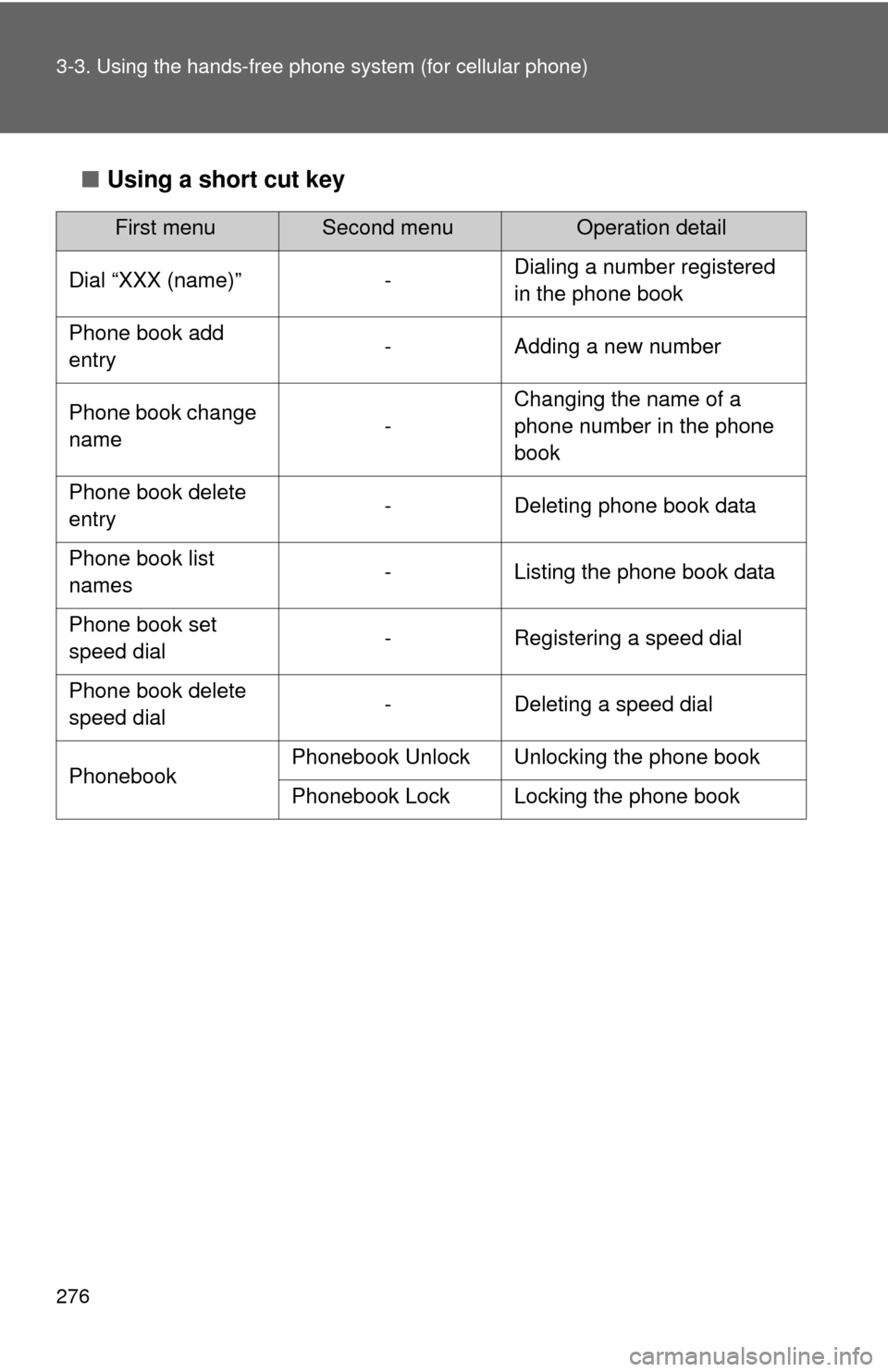
■Using a short cut key
First menuSecond menuOperation detail
Dial “XXX (name)” - Dialing a number registered
in the phone book
Phone book add
entry - Adding a new number
Phone book change
name -Changing the name of a
phone number in the phone
book
Phone book delete
entry - Deleting phone book data
Phone book list
names - Listing the phone book data
Phone book set
speed dial - Registering a speed dial
Phone book delete
speed dial - Deleting a speed dial
Phonebook Phonebook Unlock Unlocking the phone book
Phonebook Lock Locking the phone book
Page 290 of 513
289
3-3. Using the hands-free phone system (for cellular phone)
3
Interior features
Security and system setup
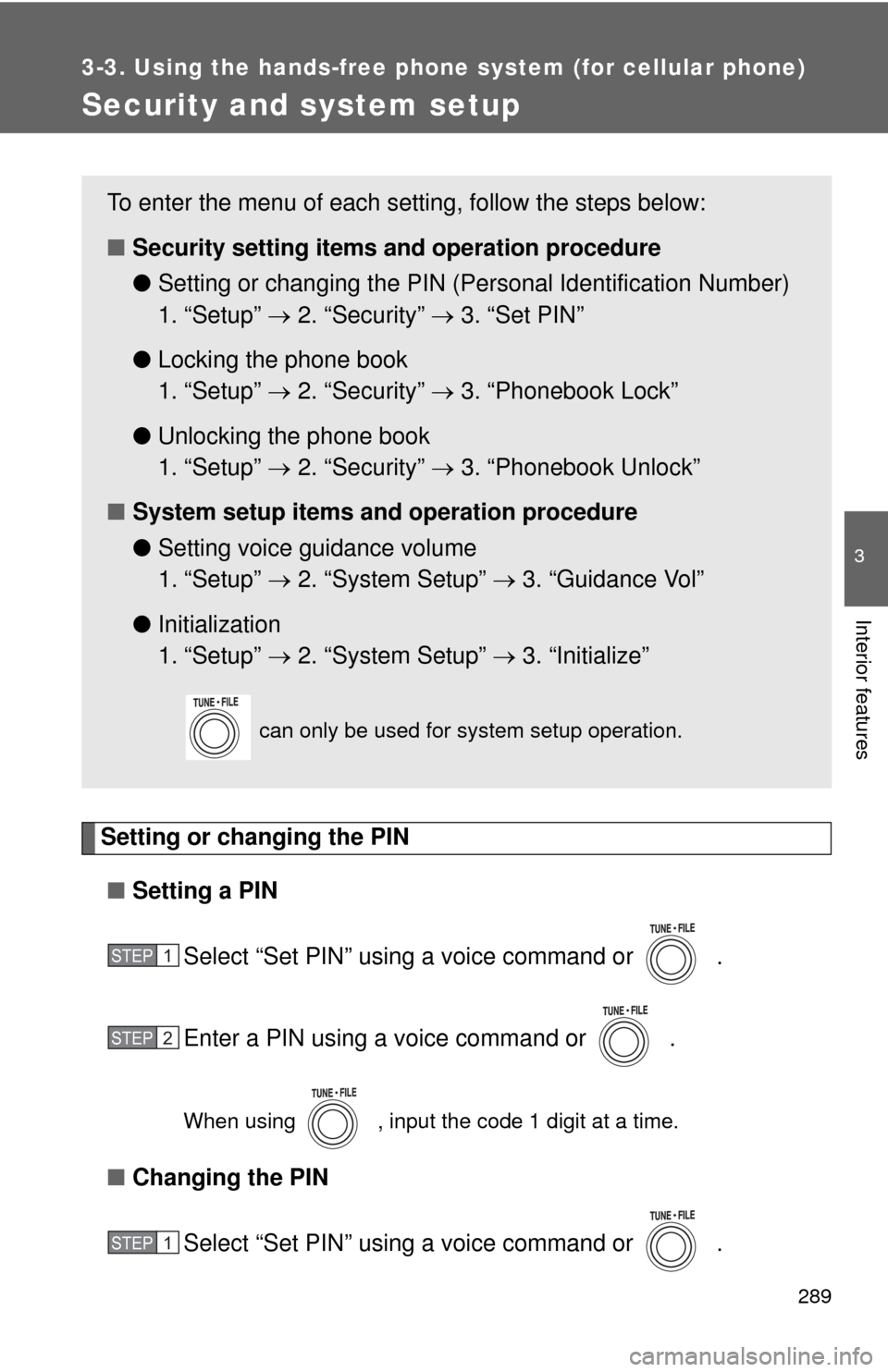
Setting or changing the PIN■ Setting a PIN
Select “Set PIN” using a voice command or .
Enter a PIN using a voice command or .
When using , input the code 1 digit at a time.
■Changing the PIN
Select “Set PIN” using a voice command or .
To enter the menu of each setting, follow the steps below:
■Security setting items and operation procedure
● Setting or changing t he PIN (Personal Identification Number)
1. “Setup” 2. “Security” 3. “Set PIN”
● Locking the phone book
1. “Setup” 2. “Security” 3. “Phonebook Lock”
● Unlocking the phone book
1. “Setup” 2. “Security” 3. “Phonebook Unlock”
■ System setup items and operation procedure
●Setting voice guidance volume
1. “Setup” 2. “System Setup” 3. “Guidance Vol”
● Initialization
1. “Setup” 2. “System Setup” 3. “Initialize”
can only be used for system setup operation.
STEP 1
STEP 2
STEP 1
Page 291 of 513
290 3-3. Using the hands-free phone system (for cellular phone)
Enter the registered PIN using a voice command or .
Enter a new PIN using a voice command or .
When using , input the code 1 digit at a time.
Locking or unlocking the phone book
Select “Phonebook lock (Phbk Lock)” or “Phonebook unlock
(Phbk Unlock)” using a voice command or .
Input the PIN by either of the following methods and select
“Confirm” using a voice command or :
a. Press and say the registered PIN.
b. Input a registered PIN using .
Setting voice guidance volume
Select “Guidance Vol” using .
Change the voice guidance volume.
To decrease the volume: Turn counterclockwise.
To increase the volume: Turn clockwise.
STEP 2
STEP 3
STEP 1
STEP 2
STEP 1
STEP 2
Page 292 of 513
291
3-3. Using the hand
s-free phone system (for cellular phone)
3
Interior features
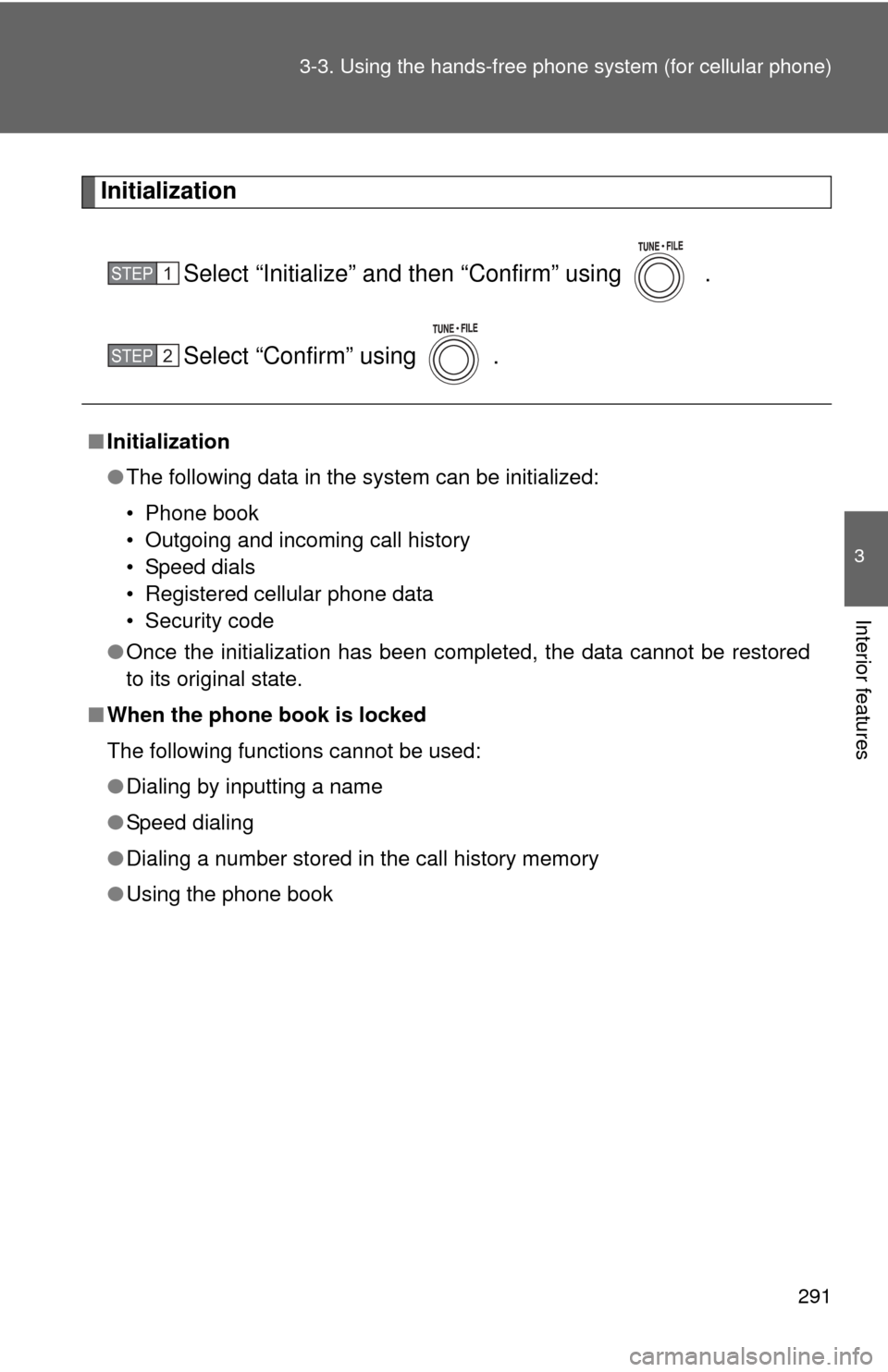
Initialization
Select “Initialize” and then “Confirm” using .
Select “Confirm” using .
■Initialization
●The following data in the system can be initialized:
• Phone book
• Outgoing and incoming call history
• Speed dials
• Registered cellular phone data
• Security code
● Once the initialization has been completed, the data cannot be restored
to its original state.
■ When the phone book is locked
The following functions cannot be used:
●Dialing by inputting a name
● Speed dialing
● Dialing a number stored in the call history memory
● Using the phone book
STEP 1
STEP 2
Page 301 of 513
300
3-4. Using the interior lights
Interior lights list
Your Toyota is equipped with the illuminated entry system to assist
in entering the vehicle. Owing to the function of the system, the
lights shown in the following illu stration (except the luggage com-
partment light) automatically turn on/off according to the presence
of the electronic key (vehicles with smart key system), whether the
doors are locked/unlocked, whethe r the doors are opened/closed,
and the “ENGINE START STOP” switch mode or the engine switch
position.
The luggage compartment light tu rns on/off according to whether
the back door is opened/closed.
Interior light ( P. 302)
Personal/interior lights ( P. 301)
Engine switch light
Foot lights (if equipped)
Luggage compartment light (turns on/off according to whether
the back door is opened/closed)
Page 306 of 513
305
3-5. Using the
storage features
3
Interior features
Glove box
Unlock with the master key
(vehicles without smart key
system) or mechanical key
(vehicles with smart key sys-
tem)
Lock with the master key
(vehicles without smart key
system) or mechanical key
(vehicles with smart key sys-
tem)
Open (pull lever)
CAUTION
■ Caution while driving
Keep the glove box closed.
Injuries may result in the event of an accident or sudden braking.
Glove box
Page 315 of 513
314
3-6. Other interior features
Clock
■The clock is displayed when
Vehicles without smart key system
The engine switch is in the “ACC” or “ON” position. Vehicles with smart key system
The “ENGINE START STOP” switch is in ACCESSORY or IGNITION ON
mode.
■ When disconnecting and reco nnecting battery terminals
The time display will automatically be set to 1:00.
Vehicles with a manual air conditioning system
Adjusts the hours.
Adjusts the minutes.
Rounds to the nearest
hour.*
*: e.g. 1:00 to 1:29 1:00
1:30 to 1:59 2:00
Vehicles with an automatic air conditioning system
Adjusts the hours.
Adjusts the minutes.
Rounds to the nearest
hour.*
*: e.g. 1:00 to 1:29 1:00
1:30 to 1:59 2:00