Page 308 of 616

308 3-2. Using the audio system
PRIUS_U (OM47668U) U.S.A.
■Canceling random, repeat and scan playback
Press
(RAND), (RPT) or again.
■ Error messages
“ERROR”: This indicates a trouble either in the CD or inside the player.
The CD may be dirty, damaged or inserted up-side down.
“WAIT”: Operation has stopped due to a high temperature inside the player. Wait for a while and then press . Contact your
Toyota dealer if the CD still cannot be played back.
■ Discs that can be used
Discs with the marks shown below can be used.
Playback may not be possible depending on recording format or disc fea-
tures, or due to scratches, dirt or deterioration.
CDs with copy-protect features may not play correctly.
■ CD player protection feature
To protect the internal components, playback is automatically stopped when
a problem is detected while the CD player is being used.
■ If CDs are left inside the CD pla yer or in the ejected position for
extended periods
CDs may be damaged and may not play properly.
■ Lens cleaners
Do not use lens cleaners. Doing so may damage the CD player.
Page 309 of 616
309
3-2. Using the audio system
3
Interior features
PRIUS_U (OM47668U) U.S.A.
NOTICE
■
CDs and adapters that cannot be used
Do not use the following types of CDs, 3 in. (8 cm) CD adapters or Dual
Disc.
Doing so may damage the player and/or the CD insert/eject function.
●CDs that have a diameter that is not 4.7
in. (12 cm).
● Low-quality and deformed CDs.
● CDs with a transparent or translucent
recording area.
● CDs that have tape, stickers or CD-R
labels attached to them, or that have
the label peeled off.
Page 310 of 616
310 3-2. Using the audio system
PRIUS_U (OM47668U) U.S.A.
NOTICE
■Player precautions
Failure to follow the precautions below may result in damage to the CDs or
the player itself.
● Do not insert anything other than CDs into the CD slot.
● Do not apply oil to the player.
● Store CDs away from direct sunlight.
● Never try to disassemble any part of the player.
●Do not insert more than one CD at a
time.
ITO32P105
Page 311 of 616
311
3-2. Using the audio system
3
Interior features
PRIUS_U (OM47668U) U.S.A.
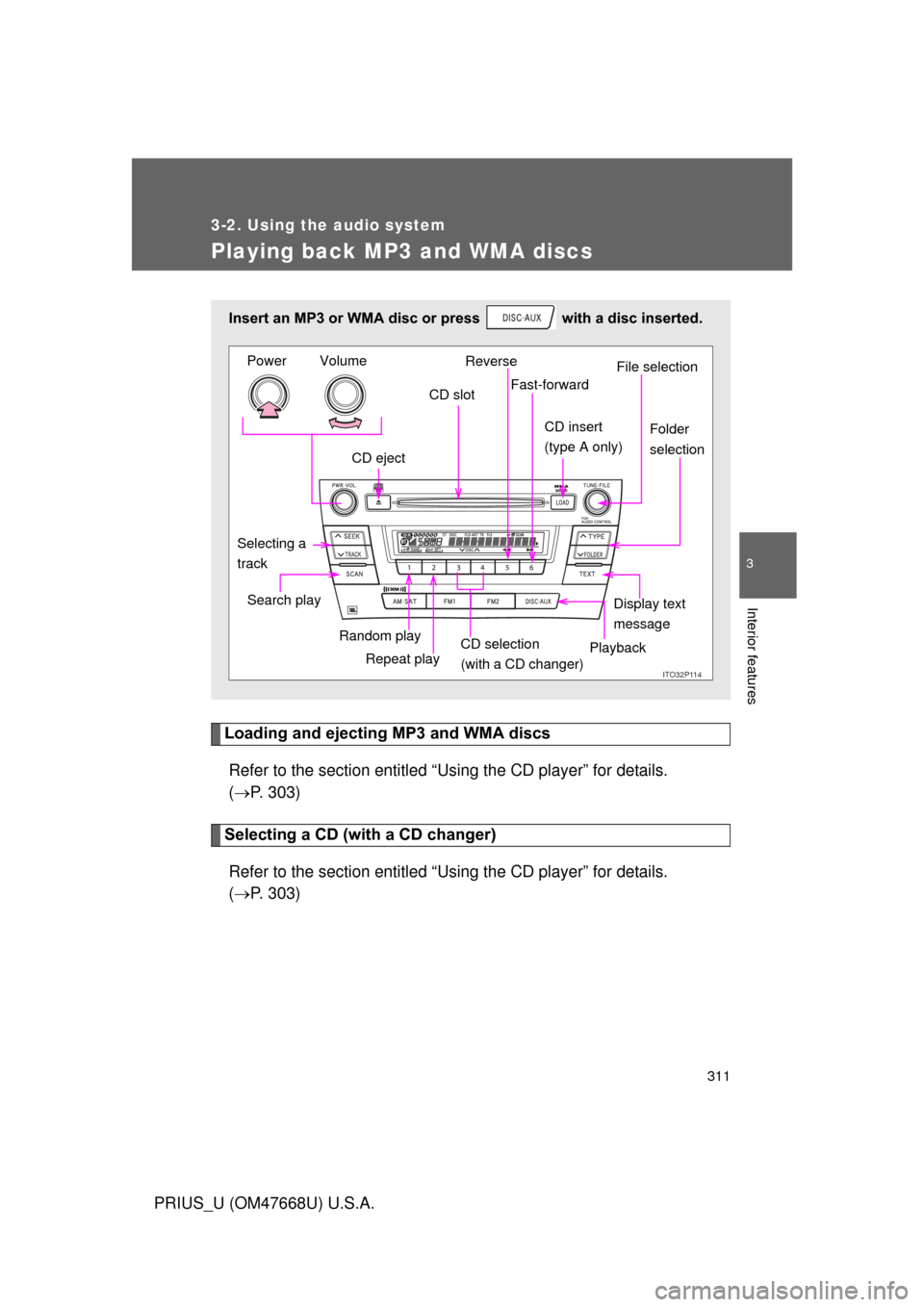
Playing back MP3 and WMA discs
Loading and ejecting MP3 and WMA discsRefer to the section entitled “Using the CD player” for details.
( P. 303)
Selecting a CD (with a CD changer)
Refer to the section entitled “Using the CD player” for details.
( P. 303)
Insert an MP3 or WMA disc or press with a disc inserted.
ITO32P11Q
CD eject CD slot
CD insert
(type A onlyF
Display text
message
Search play
Repeat play
Selecting a
track
Reverse
Fast-forward
Playback
CD selection
(with a CD changer)
Random playFile selection
Folder
selection
Volume
Power
Page 314 of 616
314 3-2. Using the audio system
PRIUS_U (OM47668U) U.S.A.
■Display
P. 307
■ Canceling random, repeat and scan playback
P. 308
■ Error messages
“ERROR”: This indicates a trouble either in the CD or inside the player.
The CD may be dirty, damaged or inserted up-side down.
“WAIT”: Operation has stopped due to a high temperature inside the player. Wait for a while and then press . Contact your
Toyota dealer if the CD still cannot be played.
“NO MUSIC”: This indicates that the MP3/WMA file is not included in the CD.
■ Discs that can be used
Discs with the marks shown below can be used.
Playback may not be possible depending on recording format or disc fea-
tures, or due to scratches, dirt or deterioration.
■ CD player protection feature
P. 308
■ If CDs are left inside the CD pla yer or in the ejected position for
extended periods
P. 308
Page 318 of 616

318 3-2. Using the audio system
PRIUS_U (OM47668U) U.S.A.
●Extensions
If the file extensions .mp3 and .wma are used for files other than MP3 and
WMA files, they will be mistakenly recognized and played as MP3 and
WMA files. This may result in large amounts of interference and damage
to the speakers.
● Playback
• To play MP3 file with steady sound quality, we recommend a fixed bit
rate of 128 kbps and a sampling frequency of 44.1 kHz.
• CD-R or CD-RW playback may not be possible in some instances, depending on the characteristics of the disc.
• There is a wide variety of freeware and other encoding software for MP3 and WMA files on the market, and depending on the status of the
encoding and the file format, poor sound quality or noise at the start of
playback may result. In some cases, playback may not be possible at
all.
• When files other than MP3 or WMA files are recorded on a disc, it may take more time to recognize the disc and in some cases, playback may
not be possible at all.
• Microsoft, Windows, and Windows Media are the registered trade- marks of Microsoft Corporation in the U.S. and other countries.
NOTICE
■CDs and adapters that cannot be used
P. 309
■ Player precautions
P. 310
Page 323 of 616
323
3-2. Using the audio system
3
Interior features
PRIUS_U (OM47668U) U.S.A.
Using the steering switches
Turning on the powerPress when the audio system is turned off.
The audio system can be turned off by holding the switch down for 1 sec-
ond or more.
Changing the audio sourcePress when the audio system is turned on. The audio source
changes as follows each time the bu tton is pressed. If a CD is not
inserted, that mode will be skipped.
FM (1, 2) CD player AM SAT (1, 2, 3)
Some audio features can be cont rolled using the switches on the
steering wheel.
Vo l u m e
Power on, select audio
source
Radio: Select radio stations
CD: Select tracks, discs and folder
ITO32P108
Page 324 of 616
324 3-2. Using the audio system
PRIUS_U (OM47668U) U.S.A.
Adjusting the volumePress “+” on to increase the volume and “-” to decrease the
volume.
Hold down the button to continue increasing or decreasing the volume.
Selecting a radio station Press to select the radio mode.
Press or on to select a radio station.
To scan for receivable stations, press and hold the switch until you
hear a beep.
Selecting a track
Press to select the CD mode.
Press or on to select the desired track.
Selecting a disc or folder in th e CD player (Folder selection is
available only when MP3/WMA disc is in use.)
Press to select the CD player.
Press and hold or on until you hear a beep.
STEP1
STEP2
STEP1
STEP2
STEP1
STEP2