Page 203 of 439

Interior features3
203
3-1. Using the air conditioning
system and defogger
Air conditioning system .... 204
Rear window defogger ..... 210
3-2. Using the audio system
Audio system types .......... 211
Using the radio ................. 214
Using the CD player ......... 220
Playing back MP3 and
WMA discs ..................... 227
Optimal use of the audio
system ........................... 235
Operating the sub
woofer ............................ 238
Changing display color
(type B only)................... 239
Using the AUX adapter .... 240
Using the steering wheel
audio switches ............... 242
3-3. Using the interior lights
Interior lights list ............... 244
• Interior lights .................. 245
• Personal lights ............... 2463-4. Using the storage features
List of storage features .... 247
• Glove box....................... 247
• Cup holders (front) ......... 248
• Cup holders (rear) .......... 251
• Bottle holders ................. 252
• Auxiliary box .................. 253
3-5. Other interior features
Sun visors ........................ 254
Vanity mirrors ................... 255
Clock ................................ 256
Outside temperature
display............................ 257
Power outlet (12V DC) ..... 258
Power outlet (115V AC) ... 259
Armrest ............................ 265
Floor mat .......................... 266
Luggage storage box
(vehicles without sub
woofer) ........................... 267
Luggage compartment
features .......................... 268
Compass .......................... 271
Page 211 of 439
211
3
Interior features
3-2. Using the audio system
Audio system types
Type A: CD player with external CD changer controller and AM/FM
radio
Type B: CD player with changer and AM/FM radio
Ty p e A
Ty p e B
Page 212 of 439
212 3-2. Using the audio system
■Welcome function (type B only)
When you turn the engine switch to the ACC or ON position, “FJ CRUISER”
will appear scrolling on the display. And then “FJammer” will appear for 6
seconds.
While this function is operating, the display is illuminated with full intensity
and the instrument panel light control dial is disabled. However, you can turn
off the display illumination by pushing the .
■Using cellular phones
Interference may be heard through the audio system's speakers if a cellular
phone is being used inside or close to the vehicle while the audio system is
operating.
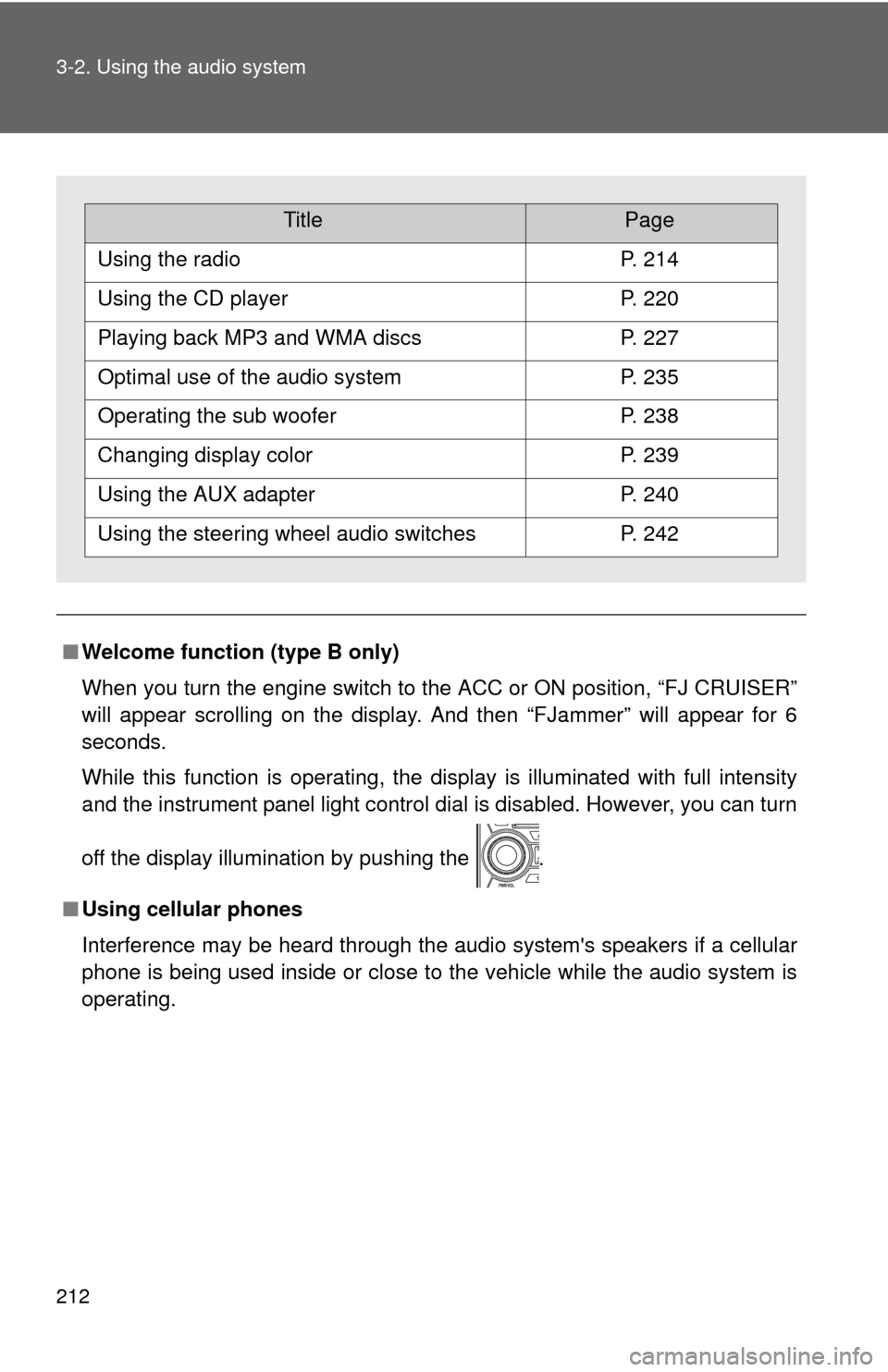
TitlePage
Using the radioP. 214
Using the CD playerP. 220
Playing back MP3 and WMA discsP. 227
Optimal use of the audio systemP. 235
Operating the sub wooferP. 238
Changing display colorP. 239
Using the AUX adapterP. 240
Using the steering wheel audio switchesP. 242
Page 214 of 439
214
3-2. Using the audio system
Using the radio
Ty p e A
Ty p e B
Vo l u m e
Station selector
Seeking the frequencyAdjusting the
frequency
AM/FM mode buttons Scanning for receivable stationsPower
Vo lu m e
Scanning for receivable stations
Station selector
Seeking the frequencyAdjusting the frequency
(AM, FM mode) or
channel (SAT mode)
AM·SAT/FM mode buttonsPower
Display text message
(SAT mode)
Page 215 of 439
215 3-2. Using the audio system
3
Interior features
Setting station presets (excluding XM® Satellite Radio)
Search for desired stations by turning or or
pressing “
”or “” on or .
Press and hold the button (from or
to or
) that the station is to be set to until you hear a beep.
Scanning radio stations (excluding XM® Satellite Radio)
■Scanning the preset radio stations
Press and hold or until you hear a beep.
Preset stations will be played for 5 seconds each.
When the desired station is reached, press the button once
again.
■Scanning all radio stations within range
Press or .
All stations with reception will be played for 5 seconds each.
When the desired station is reached, press the button once
again.
XM® Satellite Radio for type B (if equipped)
■Receiving XM
® Satellite Radio
Press and select the XM
® band.
The display changes as follows each time is
pressed.
AM SAT1 SAT2 SAT3
Page 216 of 439
216 3-2. Using the audio system
Turn to select the desired channel in the all catego-
ries or press “
”or “” on to select the desired
channel in the current category.
■Setting XM
® Satellite Radio channel presets
Select the desired channel. Press and hold the button (from
to ) that the channel is to be set to until you hear a beep.
■Changing the channel category
Press “
”or “” on the .
■Scanning XM
® Satellite Radio channels
●Scanning channels in the current category
Press .
When the desired channel is reached, press
again.
●Scanning preset channels
Press and hold until you hear a beep.
When the desired channel is reached, press
again.
■Displaying text information
Press .
The display will show up to 10 characters.
The display changes as follows each time the button is pressed.
●CH NAME
●TITLE (SONG/PROGRAM TITLE)
●NAME (ARTIST NAME/FEATURE)
●CH NUMBER
Page 217 of 439

217 3-2. Using the audio system
3
Interior features
■When the battery is disconnected
Stations presets are erased.
■Reception sensitivity
●Cargo loaded on the roof luggage carrier, especially metal objects, may
adversely affect the reception of XM
® Satellite Radio.
●Maintaining perfect radio reception at all times is difficult due to the con-
tinually changing position of the antenna, differences in signal strength
and surrounding objects, such as trains, transmitters, etc.
●The radio antenna is mounted on the right-side front fender. The antenna
can be removed from the base by turning it.
■XM
® Satellite Radio
An XM
® Satellite Radio is a tuner designed exclusively to receive broadcasts
provided under a separate subscription. Availability is limited to the 48 con-
tiguous U.S. states and 10 Canadian provinces.
●XM
® subscriptions
For detailed information about XM® Satellite Radio or to subscribe:
U.S.A.—
Visit on the web at www.xmradio.com
or call 1-800-967-2346.
Canada—
Visit on the web at www.xmradio.ca
or call 1-877-438-9677.
●Radio ID
You will need the radio ID when activating XM
® service or reporting a
problem. Select “CH000” using , and the receiver's 8-character ID
number will appear.
●Satellite tuner
The tuner supports only Audio Services (Music and Talk) and the accom-
panying Text Information of XM
® Satellite Radio.
Page 218 of 439

218 3-2. Using the audio system
■If the satellite radio does not operate normally
If a problem occurs with the XM
® tuner, a message will appear on the dis-
play. Refer to the table below to identify the problem, and take the suggested
corrective action.
ANTENNAThe XM
® antenna is not connected. Check
whether the XM® antenna cable is attached
securely.
There is a short-circuit in the antenna or the sur-
rounding antenna cable. See a Toyota certified
dealer.
UPDATINGYou have not subscribed to the XM
® Satellite
Radio. The radio is being updated with the latest
encryption code. Contact the XM
® Satellite Radio
for subscription information. When a contract is
canceled, you can choose the “CH000” and all
free-to-air channels.
The premium channel you selected is not autho-
rized. Wait for about 2 seconds until the radio
returns to the previous channel or “CH001”. If it
does not change automatically, select another
channel. If you want to listen to the premium chan-
nel, contact the XM
® Satellite Radio.
NO SIGNALThe XM
® signal is too weak at the current location.
Wait until your vehicle reaches a location with a
stronger signal.
LOADINGThe unit is acquiring audio or program information.
Wait until the unit has received the information.
OFF AIRThe channel you selected is not broadcasting any
programming. Select another channel.
-----There is no song/program title or artist name/fea-
ture associated with the channel at that time. No
action needed.