Page 187 of 476
Interior features3
187
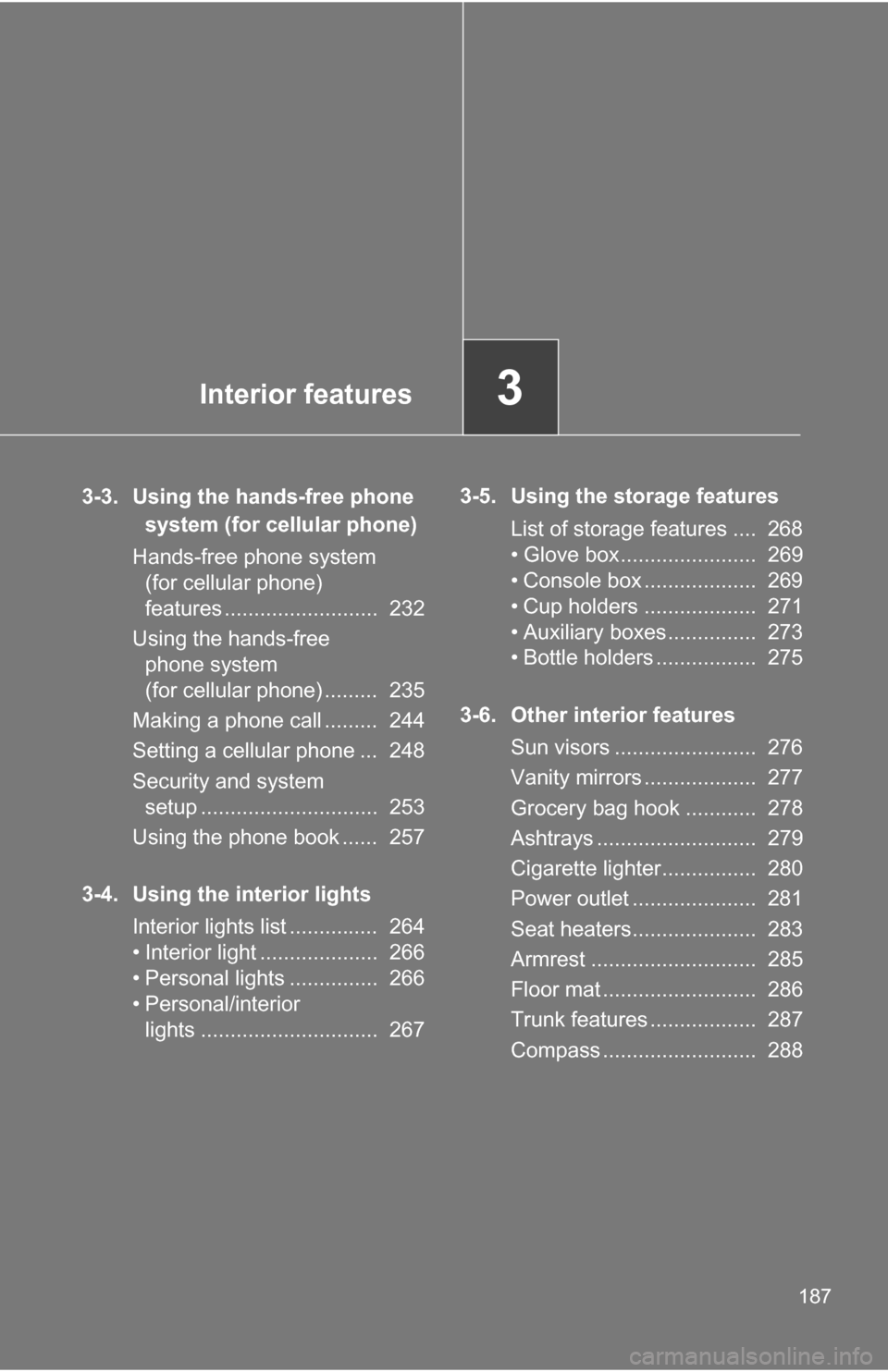
3-3. Using the hands-free phone system (for cellular phone)
Hands-free phone system (for cellular phone)
features .......................... 232
Using the hands-free phone system
(for cellular phone) ......... 235
Making a phone call ......... 244
Setting a cellular phone ... 248
Security and system setup .............................. 253
Using the phone book ...... 257
3-4. Using the interior lights Interior lights list ............... 264
• Interior light .................... 266
• Personal lights ............... 266
• Personal/interior lights .............................. 267 3-5. Using the storage features
List of storage features .... 268
• Glove box....................... 269
• Console box ................... 269
• Cup holders ................... 271
• Auxiliary boxes ............... 273
• Bottle holders ................. 275
3-6. Other interior features Sun visors ........................ 276
Vanity mirrors ................... 277
Grocery bag hook ............ 278
Ashtrays ........................... 279
Cigarette lighter................ 280
Power outlet ..................... 281
Seat heaters..................... 283
Armrest ............................ 285
Floor mat .......................... 286
Trunk features .................. 287
Compass .......................... 288
Page 209 of 476
209
3-2. Using the audio system
3
Interior features
■
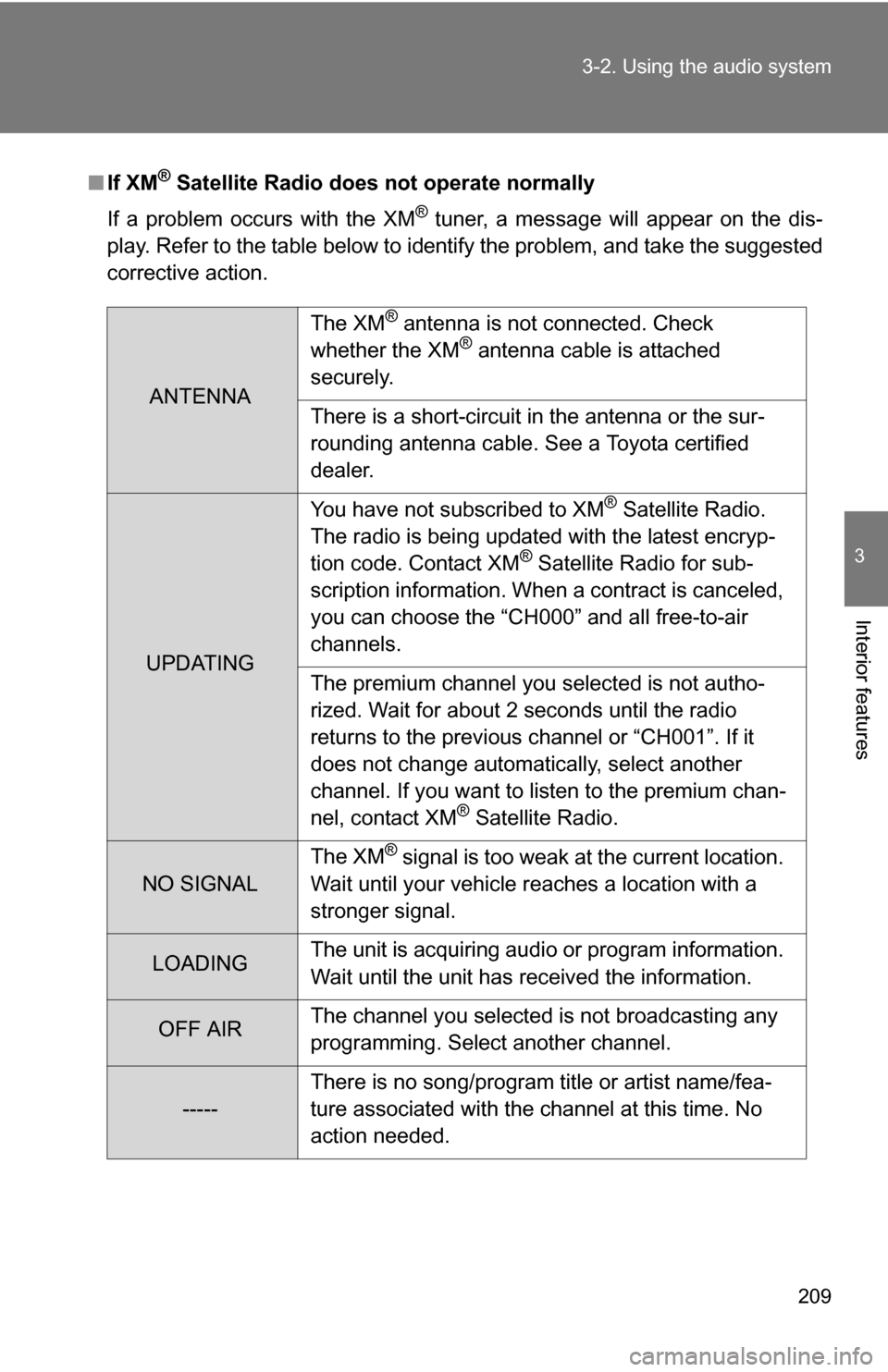
If XM® Satellite Radio does not operate normally
If a problem occurs with the XM
® tuner, a message will appear on the dis-
play. Refer to the table below to identify the problem, and take the suggested
corrective action.
ANTENNA The XM
® antenna is not connected. Check
whether the XM® antenna cable is attached
securely.
There is a short-circuit in the antenna or the sur-
rounding antenna cable. See a Toyota certified
dealer.
UPDATING You have not subscribed to XM
® Satellite Radio.
The radio is being updated with the latest encryp-
tion code. Contact XM
® Satellite Radio for sub-
scription information. When a contract is canceled,
you can choose the “CH000” and all free-to-air
channels.
The premium channel you selected is not autho-
rized. Wait for about 2 seconds until the radio
returns to the previous channel or “CH001”. If it
does not change automatically, select another
channel. If you want to listen to the premium chan-
nel, contact XM
® Satellite Radio.
NO SIGNAL The XM
® signal is too weak at the current location.
Wait until your vehicle reaches a location with a
stronger signal.
LOADING The unit is acquiring audio or program information.
Wait until the unit has received the information.
OFF AIRThe channel you selected is not broadcasting any
programming. Select another channel.
-----There is no song/program title or artist name/fea-
ture associated with the channel at this time. No
action needed.
Page 232 of 476
232
3-3. Using the hands-free phone system (for cellular phone)
Hands-free phone system (for cellular phone) features
■Conditions affecting operation
The hands-free phone system may not operate normally in the following situ-
ations:
●The cellular phone is turned off, or located outside the service area.
● The cellular phone has a low battery.
● The cellular phone is not connected to the system.
● The cellular phone is behind the seat or in the glove box, or metal mate-
rial covers or touches the phone.
■ When transferring ownership of the vehicle
Be sure to initialize the system to prevent personal data from being improp-
erly accessed.
■ Required profiles for the cellular phone
●HFP (Hands Free Profile) Ver. 1.0
● OPP (Object Push Profile) Ver. 1.1
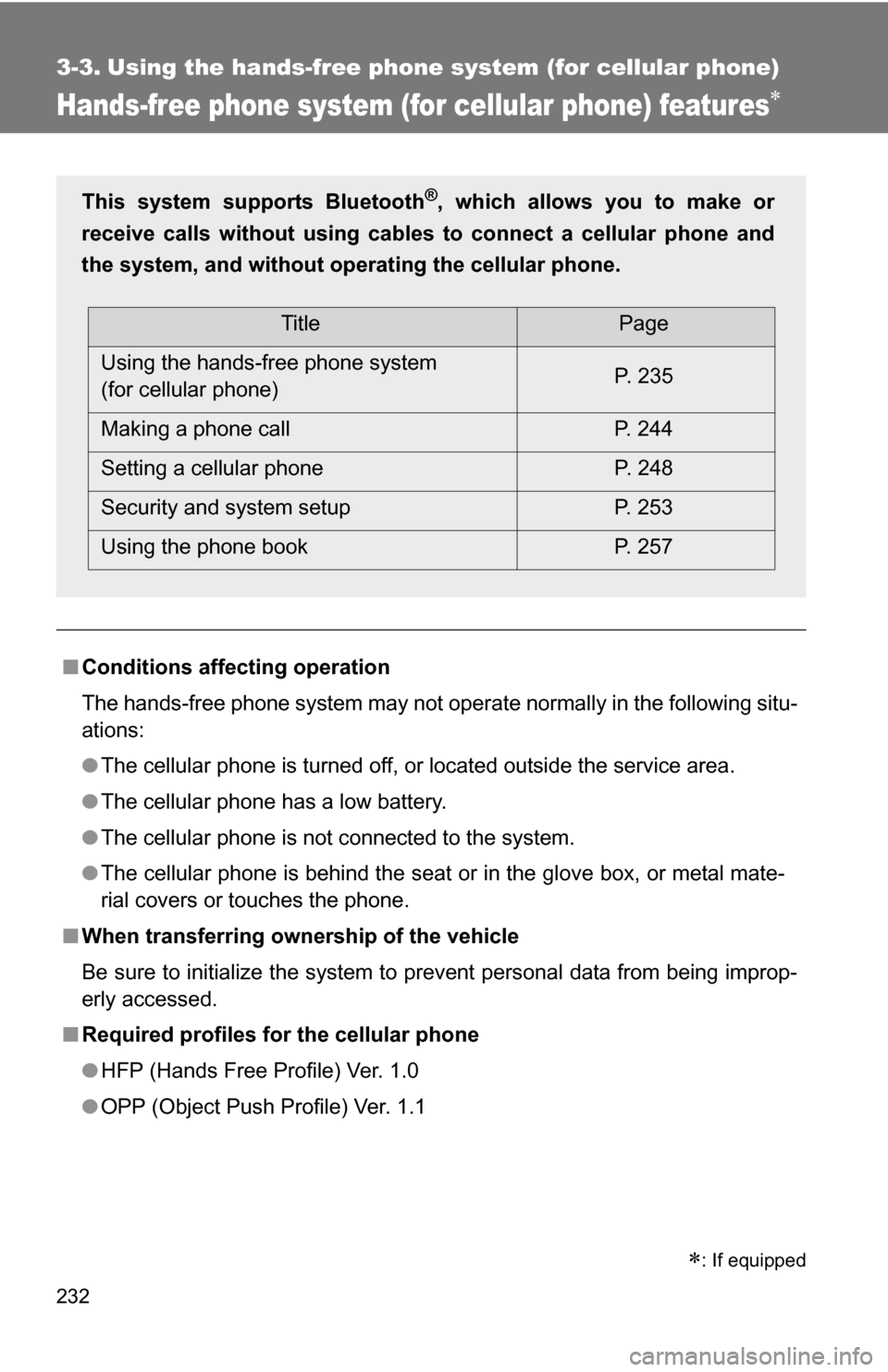
This system supports Bluetooth®, which allows you to make or
receive calls without using cables to connect a cellular phone and
the system, and without oper ating the cellular phone.
TitlePage
Using the hands-free phone system
(for cellular phone) P. 235
Making a phone call P. 244
Setting a cellular phone P. 248
Security and system setup P. 253
Using the phone book P. 257
: If equipped
Page 241 of 476
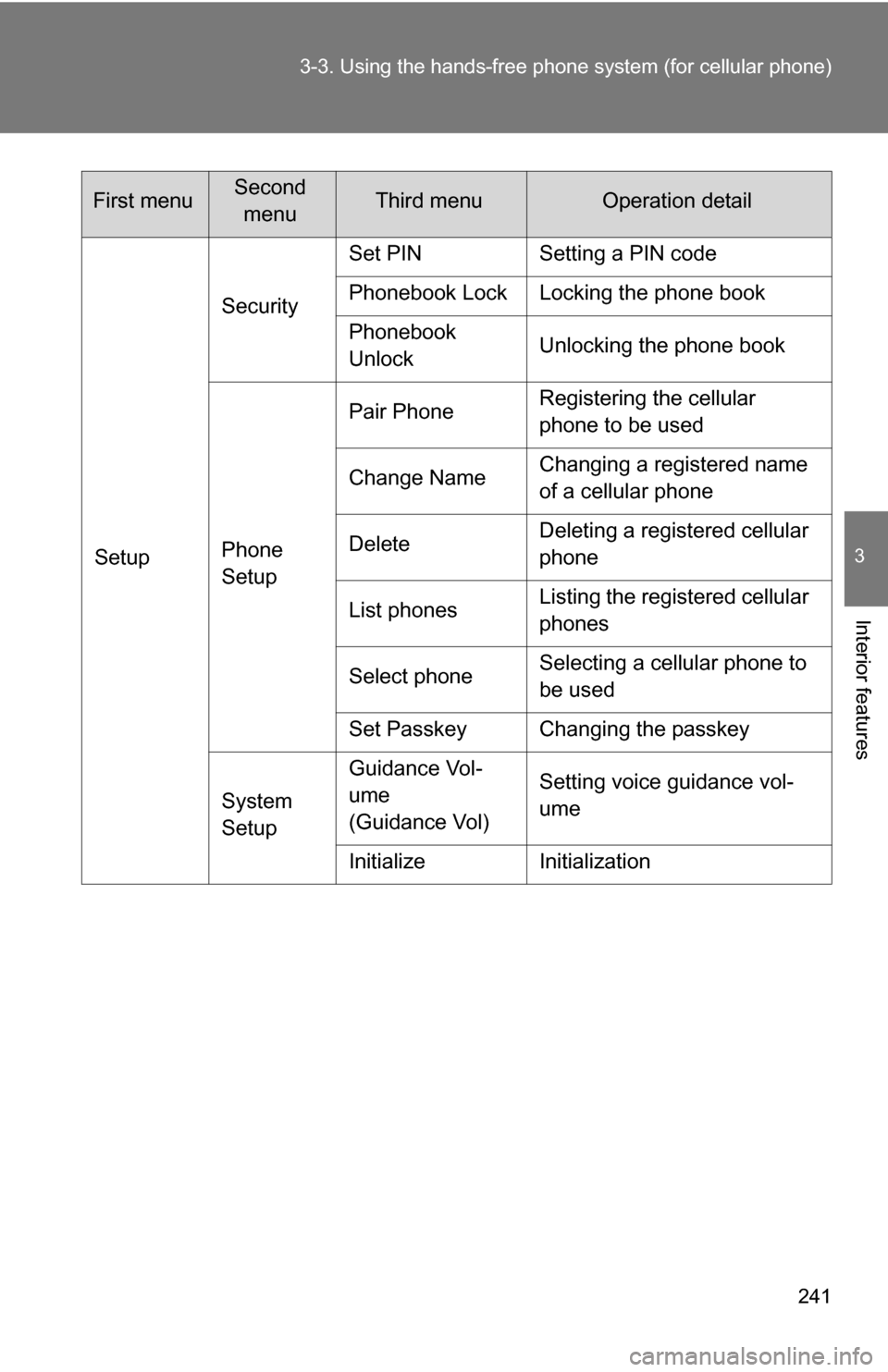
241
3-3. Using the hand
s-free phone system (for cellular phone)
3
Interior features
SetupSecurity
Set PIN Setting a PIN code
Phonebook Lock Locking the phone book
Phonebook
Unlock
Unlocking the phone book
Phone
Setup Pair Phone
Registering the cellular
phone to be used
Change Name Changing a registered name
of a cellular phone
Delete Deleting a registered cellular
phone
List phones Listing the registered cellular
phones
Select phone Selecting a cellular phone to
be used
Set Passkey Changing the passkey
System
Setup Guidance Vol-
ume
(Guidance Vol)
Setting voice guidance vol-
ume
Initialize Initialization
First menuSecond menuThird menuOperation detail
Page 253 of 476
253
3-3. Using the hands-free phone system (for cellular phone)
3
Interior features
Security and system setup
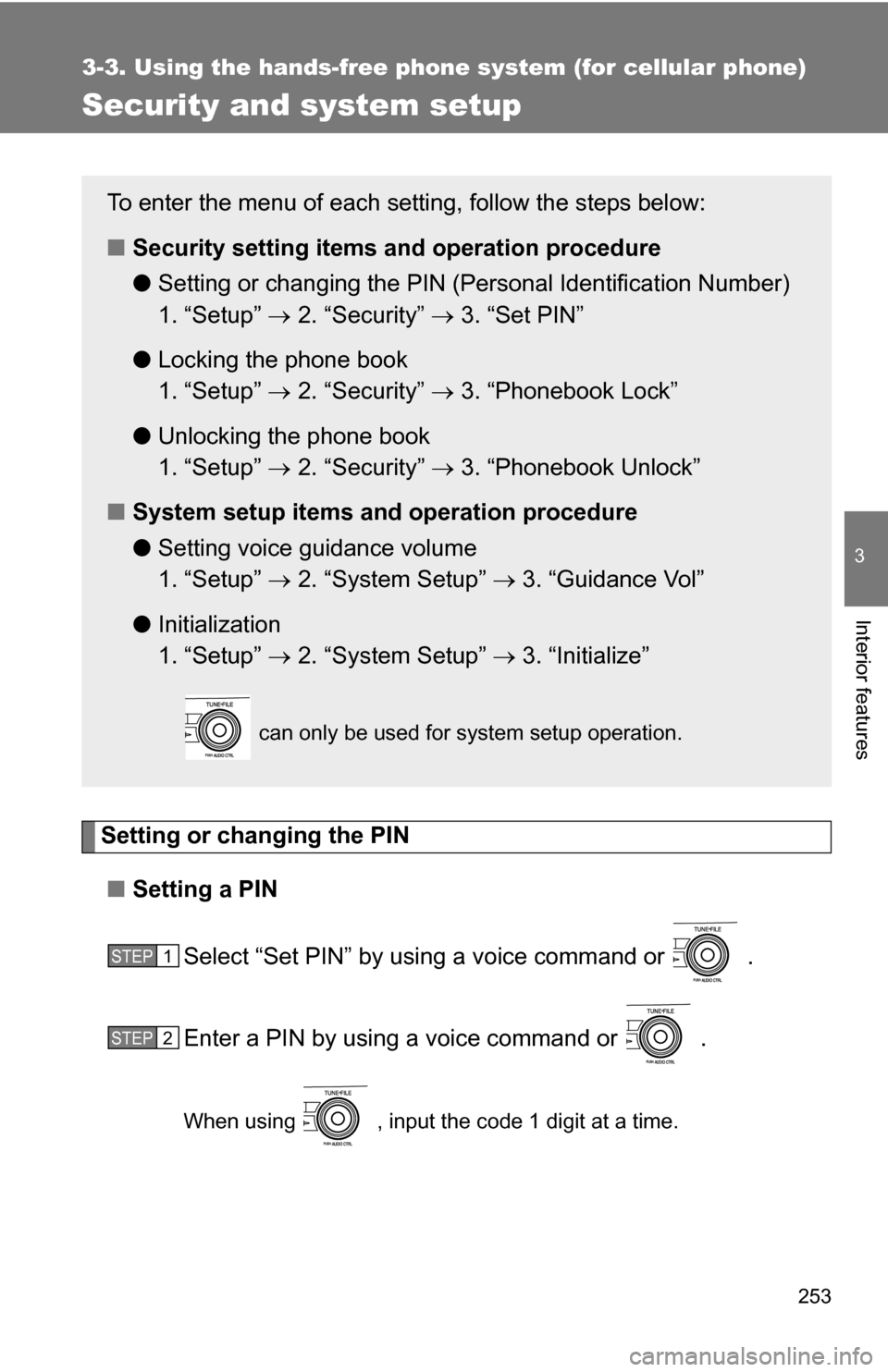
Setting or changing the PIN■ Setting a PIN
Select “Set PIN” by using a voice command or .
Enter a PIN by using a voice command or .
When using , input the code 1 digit at a time.
To enter the menu of each setting, follow the steps below:
■Security setting items and operation procedure
● Setting or changing t he PIN (Personal Identification Number)
1. “Setup” 2. “Security” 3. “Set PIN”
● Locking the phone book
1. “Setup” 2. “Security” 3. “Phonebook Lock”
● Unlocking the phone book
1. “Setup” 2. “Security” 3. “Phonebook Unlock”
■ System setup items and operation procedure
●Setting voice guidance volume
1. “Setup” 2. “System Setup” 3. “Guidance Vol”
● Initialization
1. “Setup” 2. “System Setup” 3. “Initialize”
can only be used for system setup operation.
STEP 1
STEP 2
Page 256 of 476
256 3-3. Using the hands-free phone system (for cellular phone)
■Initialization
●The following data in the system can be initialized:
• Phone book
• Outgoing and incoming call history
• Speed dials
• Registered cellular phone data
• Security code
● Once the initialization has been completed, the data cannot be restored
to its original state.
■ When the phone book is locked
The following functions cannot be used:
●Dialing by inputting a name
● Speed dialing
● Dialing a number stored in the call history memory
● Using the phone book
Page 286 of 476
286
3-6. Other interior features
Floor mat
CAUTION
■When inserting the floor mat
Observe the following precautions.
Failure to do so may result in the floor mat slipping and interfering wi\
th the
movement of the pedals during driving, resulting in an accident.
●Make sure the floor mat is properly placed on the vehicle carpet and the
correct side faces upward.
● Do not place floor mats on top of existing mats.
Securely place a mat that matches the size of the space on the car-
pet.
Secure the driver's floor mat
using the hooks provided.
Page 287 of 476
287
3-6. Other interior features
3
Interior features
Trunk features
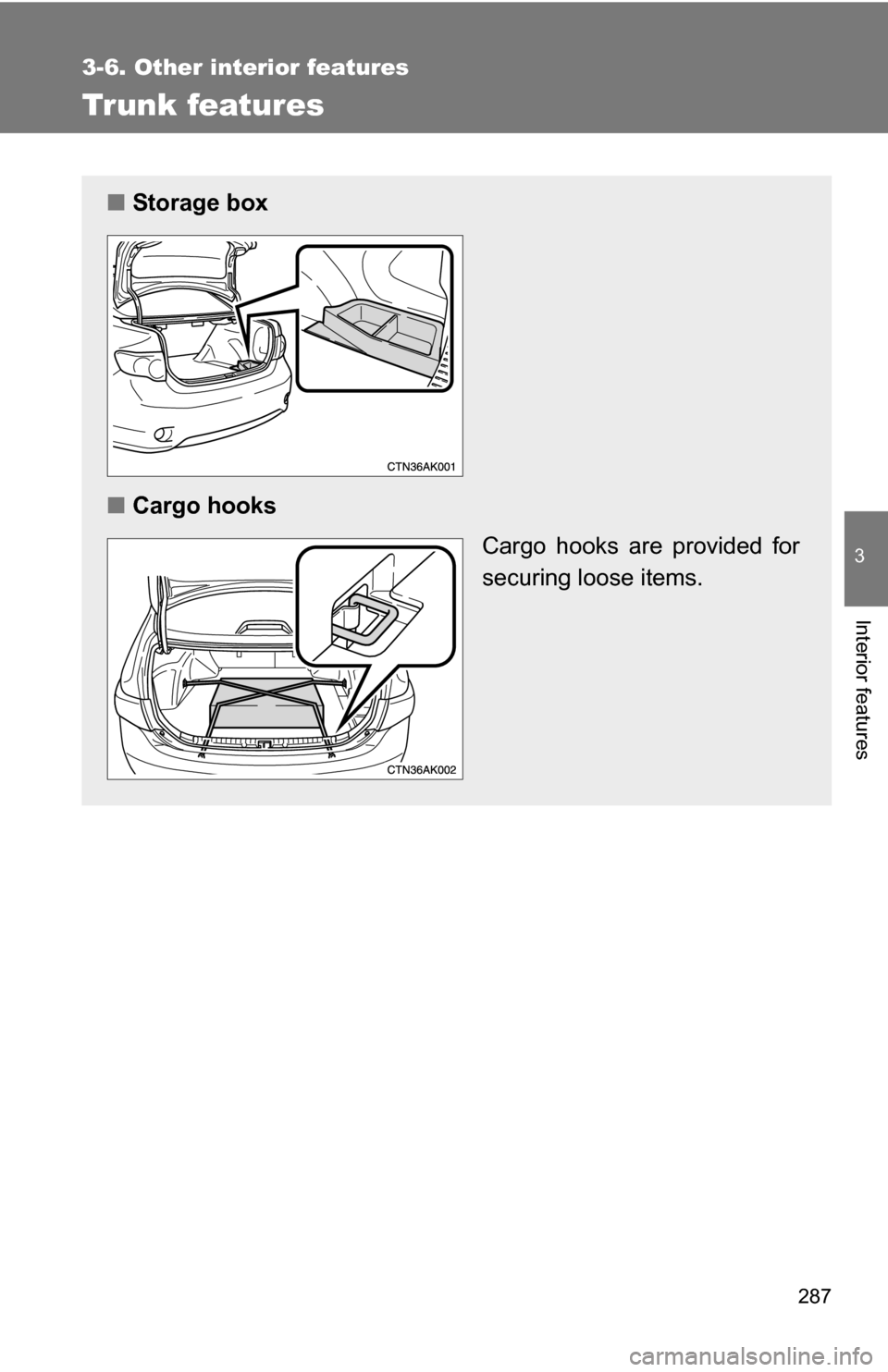
■Storage box
■ Cargo hooks
Cargo hooks are provided for
securing loose items.