Page 149 of 476
149
2-2. Instrument cluster
2
When driving
■
Indicators
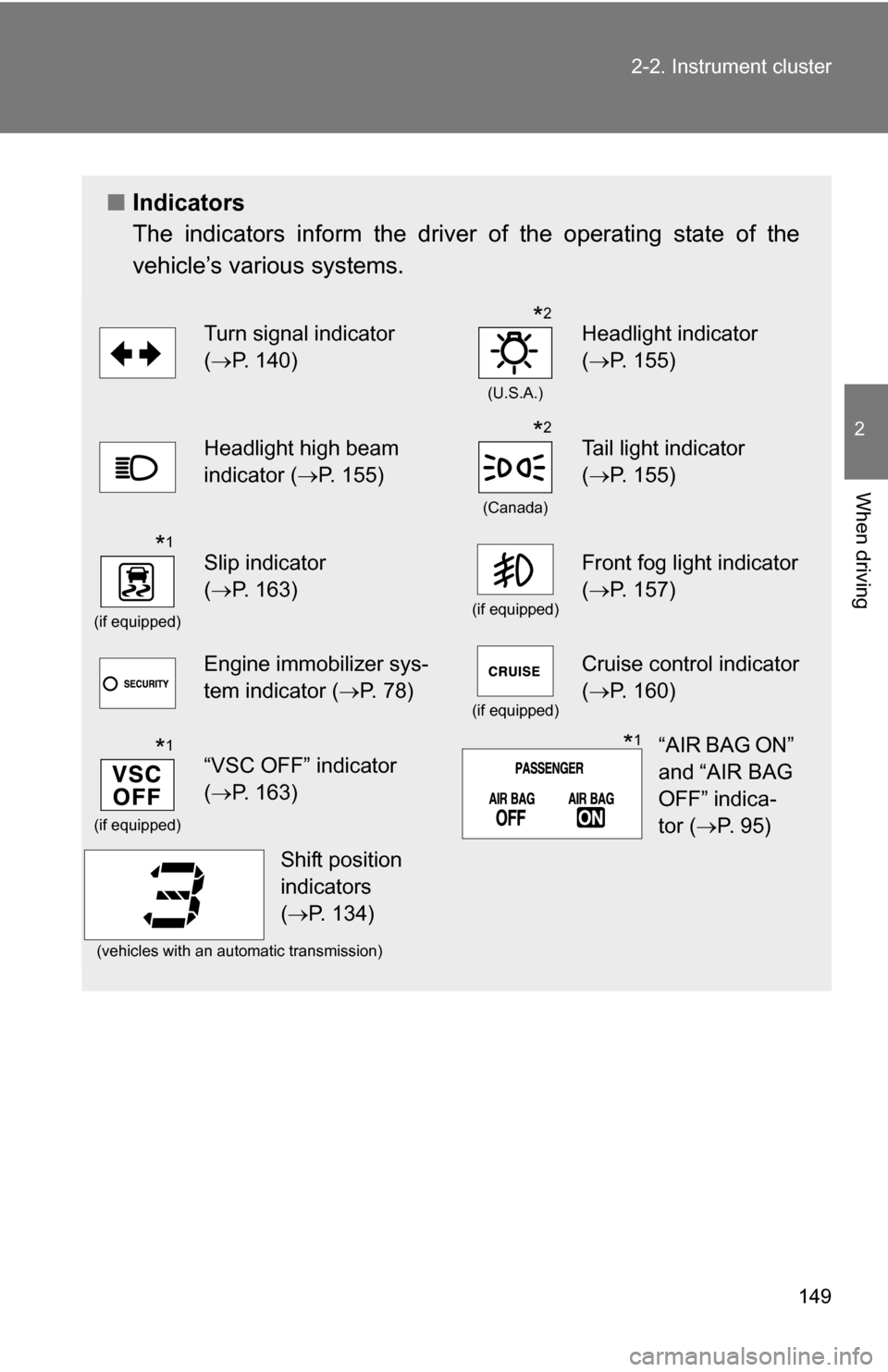
The indicators inform the driver of the operating state of the
vehicle’s various systems.
Turn signal indicator
(P. 140)
(U.S.A.)
Headlight indicator
( P. 155)
Headlight high beam
indicator ( P. 155)
(Canada)
Tail light indicator
(P. 155)
(if equipped)
Slip indicator
(P. 163)
(if equipped)
Front fog light indicator
( P. 157)
Engine immobilizer sys-
tem indicator ( P. 78)
(if equipped)
Cruise control indicator
(P. 160)
(if equipped)
“VSC OFF” indicator
(P. 163)
(vehicles with an automatic transmission)
*2
*2
*1
*1“AIR BAG ON”
and “AIR BAG
OFF” indica-
tor ( P. 9 5 )*1
Shift position
indicators
(P. 134)
Page 150 of 476
150 2-2. Instrument cluster
CAUTION
■If a safety system warning light does not come on
Should a safety system light such as the ABS or the SRS airbag warning
light not come on when you start the engine, this could mean that these sys-
tems are not available to help protect you in an accident, which could result
in death or serious injury. Have the vehicle inspected by your Toyota dealer
immediately if this occurs.
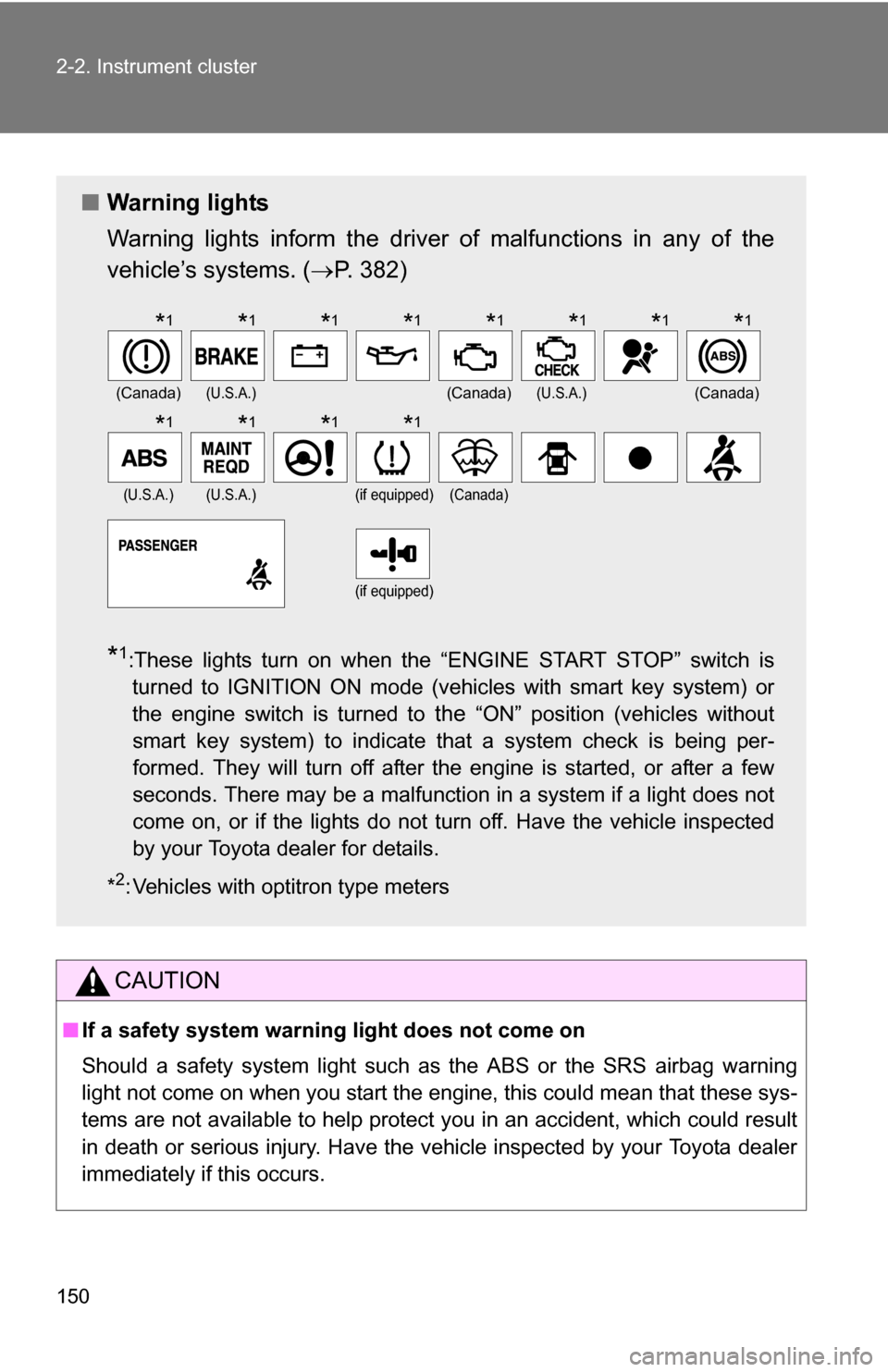
■ Warning lights
Warning lights inform the driver of malfunctions in any of the
vehicle’s systems. ( P. 382)
*1:These lights turn on when the “ENGINE START STOP” switch is
turned to IGNITION ON mode (vehicles with smart key system) or
the engine switch is turned to
the “ON” position (vehicles without
smart key system) to indicate that a system check is being per-
formed. They will turn off after the engine is started, or after a few
seconds. There may be a malfunction in a system if a light does not
come on, or if the lights do not turn off. Have the vehicle inspected
by your Toyota dealer for details.
*
2: Vehicles with optitron type meters
(Canada)(U.S.A.)(Canada)(U.S.A.)(Canada)
(U.S.A.)(U.S.A.)(if equipped)(Canada)
(if equipped)
*1*1*1*1*1*1*1*1
*1*1*1*1
Page 151 of 476
151
2-2. Instrument cluster
2
When driving
Multi-information display
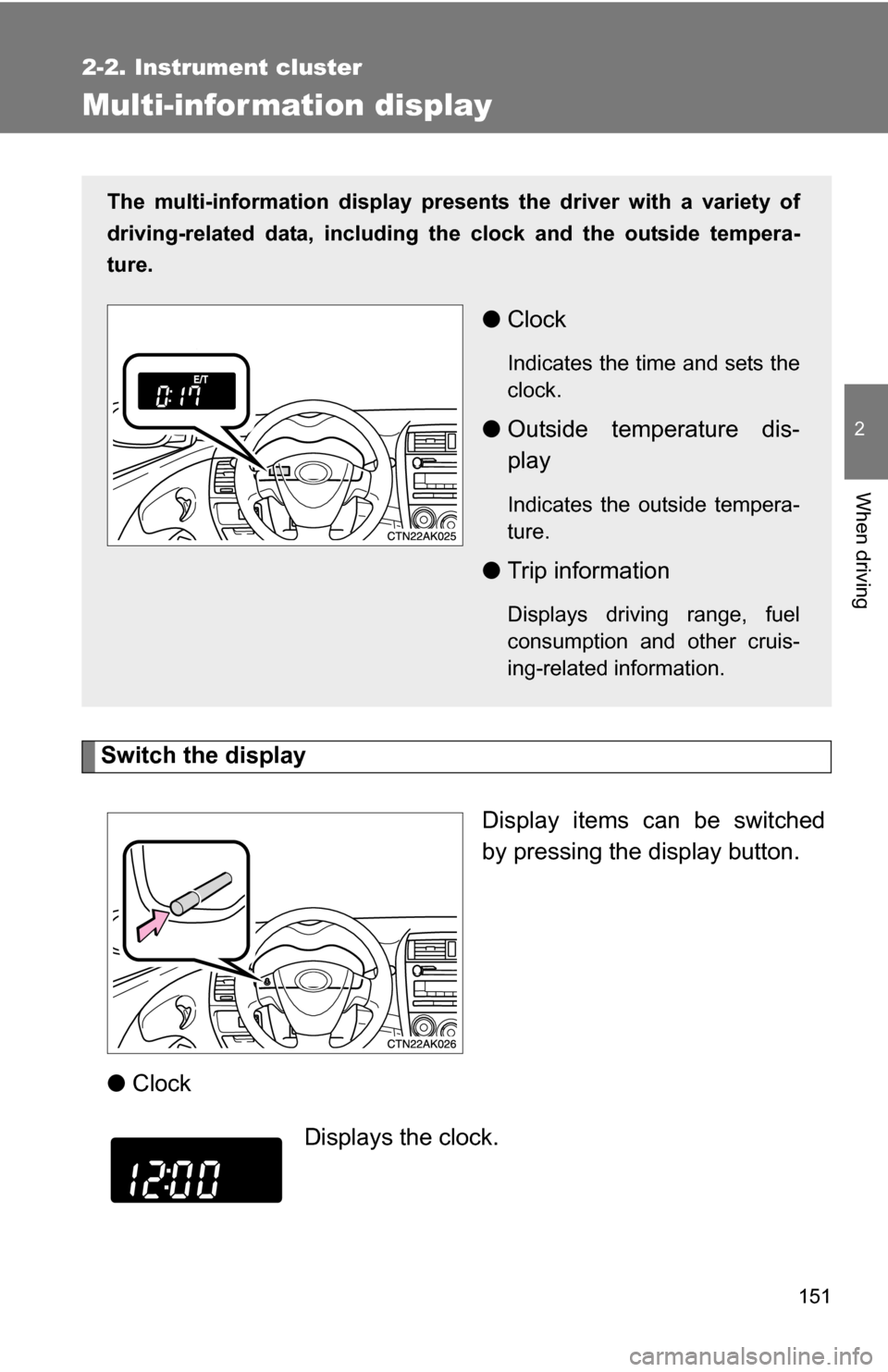
Switch the displayDisplay items can be switched
by pressing the display button.
● Clock
The multi-information display presen ts the driver with a variety of
driving-related data, including the clock and the outside tempera-
ture.
● Clock
Indicates the time and sets the
clock.
●Outside temperature dis-
play
Indicates the outside tempera-
ture.
●Trip information
Displays driving range, fuel
consumption and other cruis-
ing-related information.
Displays the clock.
Page 152 of 476
152 2-2. Instrument cluster
●Outside temperature
● Instantaneous fuel consumption
● Average fuel consumption
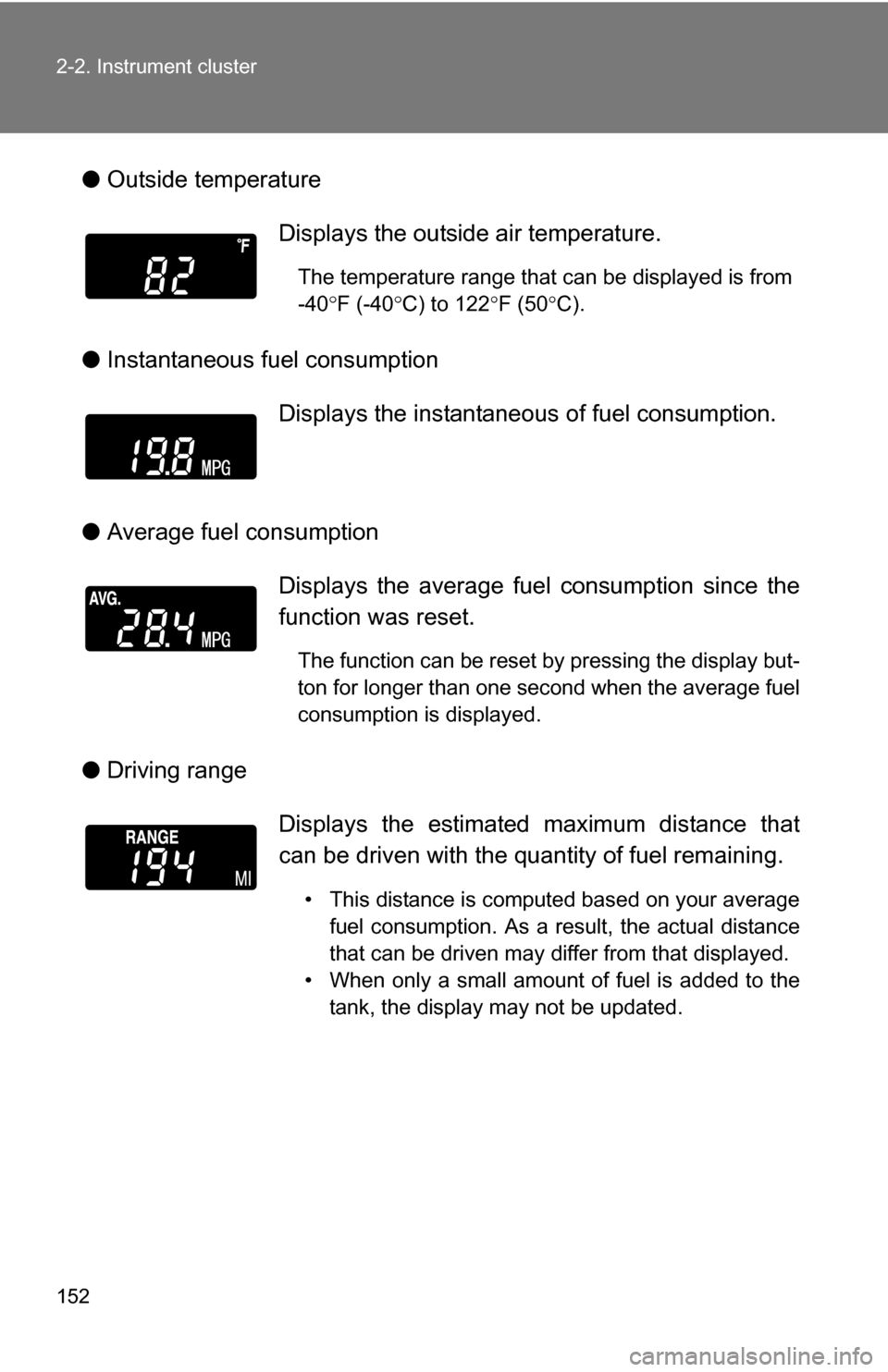
● Driving range Displays the outside air temperature.
The temperature range that can be displayed is from
-40
F (-40 C) to 122 F (50 C).
Displays the instantaneous of fuel consumption.
Displays the average fuel consumption since the
function was reset.
The function can be reset by pressing the display but-
ton for longer than one second when the average fuel
consumption is displayed.
Displays the estimated maximum distance that
can be driven with the quantity of fuel remaining.
• This distance is computed based on your average fuel consumption. As a result, the actual distance
that can be driven may differ from that displayed.
• When only a small amount of fuel is added to the tank, the display may not be updated.
Page 153 of 476
153
2-2. Instrument cluster
2
When driving
●
Average vehicle speed
● Elapsed time
Setting the clock
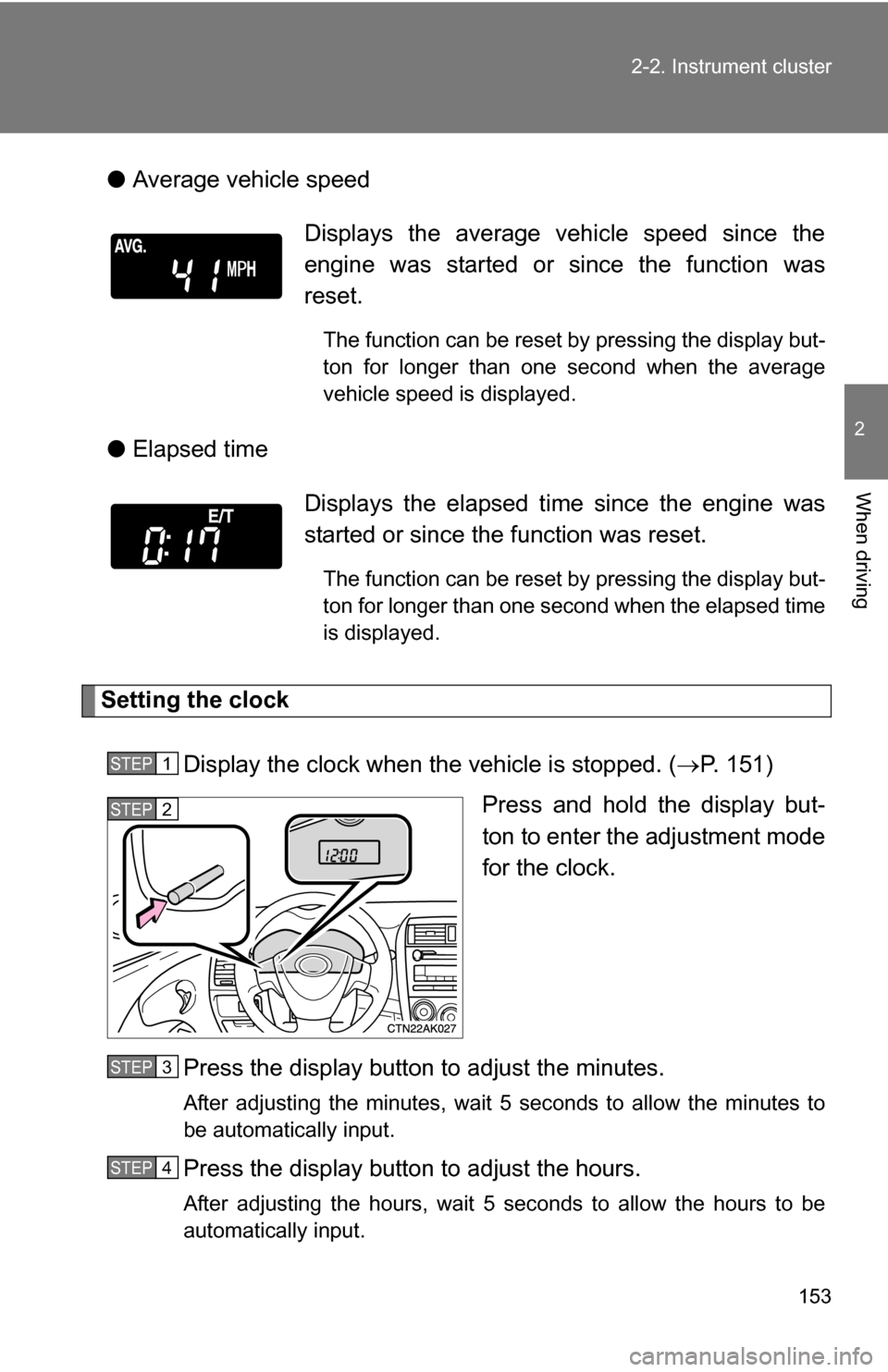
Display the clock when the vehicle is stopped. ( P. 151)
Press and hold the display but-
ton to enter the adjustment mode
for the clock.
Press the display button to adjust the minutes.
After adjusting the minutes, wait 5 seconds to allow the minutes to
be automatically input.
Press the display button to adjust the hours.
After adjusting the hours, wait 5 seconds to allow the hours to be
automatically input.
Displays the average vehicle speed since the
engine was started or since the function was
reset.
The function can be reset by pressing the display but-
ton for longer than one second when the average
vehicle speed is displayed.
Displays the elapsed ti me since the engine was
started or since the function was reset.
The function can be reset by pressing the display but-
ton for longer than one second when the elapsed time
is displayed.
STEP 1
STEP 2
STEP 3
STEP 4
Page 154 of 476
154 2-2. Instrument cluster
■When disconnecting and reco nnecting battery terminals
The following information data will be reset.
● Clock
● Average fuel consumption
● Driving range
● Average vehicle speed
● Elapsed time
■ Display
In the following situations, the correct outside temperature may not be dis-
played, or the display may take longer than normal to change.
●When stopped, or driving at low speeds (less than 12 mph [20 km/h])
● When the outside temperature has changed suddenly (at the entrance/
exit of a garage, tunnel, etc.)
NOTICE
■The multi-information disp lay at low temperatures
Allow the interior of the vehicle to warm up before using the liquid crystal
information display. At extremely low temperatures, the information display
monitor may respond slowly, and display changes may be delayed.
Page 258 of 476
258 3-3. Using the hands-free phone system (for cellular phone)
■Adding procedure
Select “Add Entry” by using a voice command or .
Use one of the following methods to input a telephone num-
ber:
Inputting a telephone number by using a voice command
STEP2-1 Select “By Voice” by using a voice command or
.
STEP2-2 Press the talk switch, say the desired number, and select “Confirm” by using a voice command.
Transferring data from the cellular phone
STEP2-1 Select “By Phone” and then “Confirm” by using a
voice command or .
STEP2-2 Transfer the data from the cellular phone.
Refer to the manual that comes with the cellular phone for
the details of transferring data.
STEP2-3 Select the data to be registered by either of the fol- lowing methods:
a. Say “Previous” or “Next” until the desired data isdisplayed, and select “Confirm” by using a voice
command.
b. Select the desired data by using .
STEP 1
STEP 2
Page 259 of 476
259
3-3. Using the hand
s-free phone system (for cellular phone)
3
Interior features
Inputting a phone number by using
STEP2-1 Select “Manual Input” by using .
STEP2-2 Input a phone number by using , and press once again.
Input the phone number 1 digit at a time.
Selecting a phone number from outgoing or incoming call history STEP2-1 Select “Call History” by using a voice command or
.
STEP2-2 Select “Outgoing” or “Incoming” by using a voice
command or .
STEP2-3 Select the data to be registered by either of the fol- lowing methods:
a. Say “Previous” or “Go back” until the desired datais displayed, and select “Confirm” by using a
voice command.
b. Select the desired data by using .