Page 220 of 538
218 3-2. Using the audio system
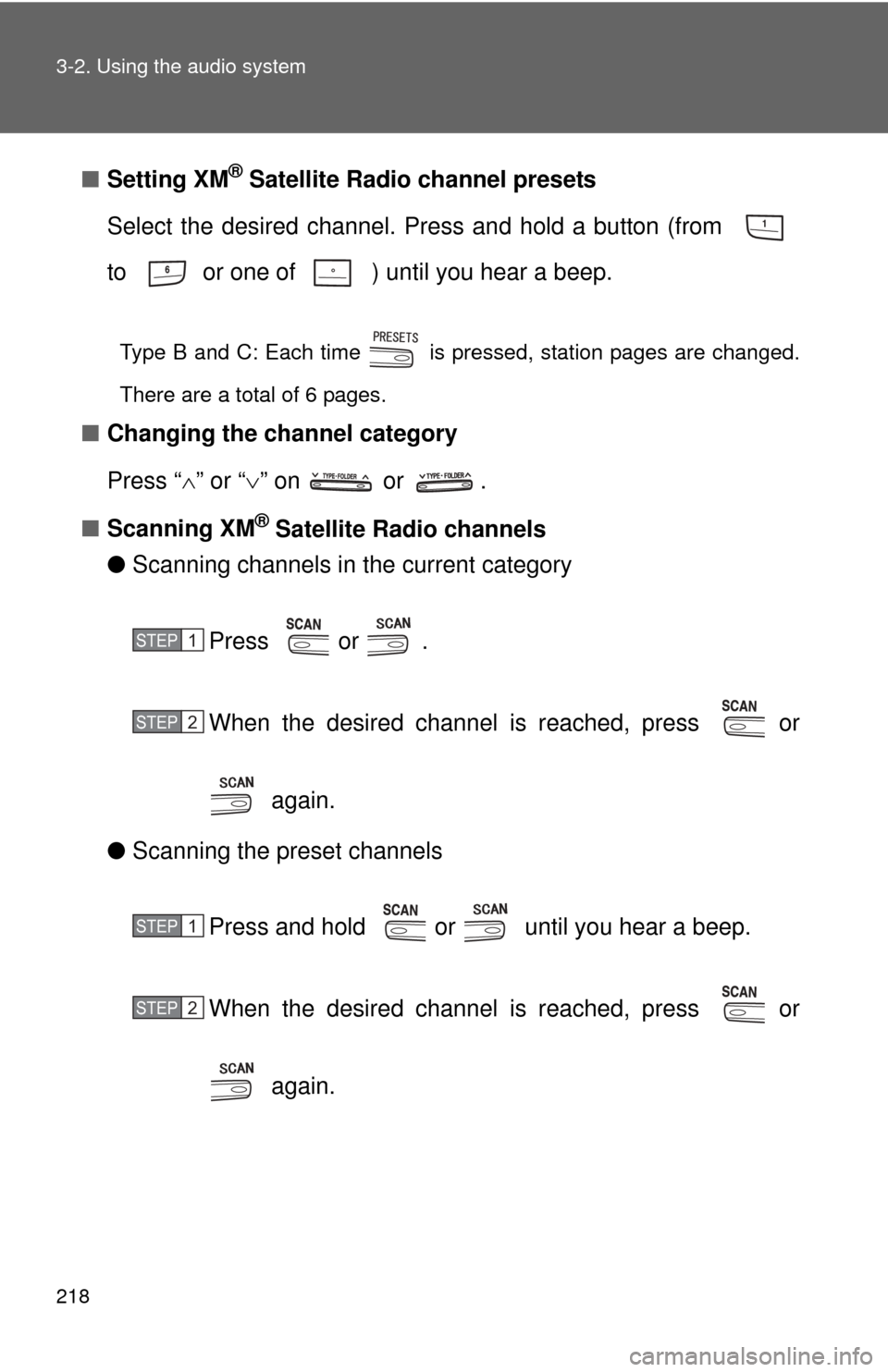
■Setting XM® Satellite Radio channel presets
Select the desired channel. Press and hold a button (from
to or one of ) until you hear a beep.
Type B and C: Each time is pressed, station pages are changed.
There are a total of 6 pages.
■ Changing the channel category
Press “ ” or “ ” on or .
■ Scanning XM
® Satellite Radio channels
● Scanning channels in the current category
Press or .
When the desired channel is reached, press or
again.
● Scanning the preset channels
Press and hold or until you hear a beep.
When the desired channel is reached, press or
again.
STEP1
STEP2
STEP1
STEP2
Page 222 of 538
220 3-2. Using the audio system
■When the battery is disconnected
All preset stations are erased. (type A only)
■ Reception sensitivity
●Maintaining perfect radio reception at all times is difficult due to the con-
tinually changing position of the antenna, differences in signal strength
and surrounding objects, such as trains, transmitters, etc.
● The radio antenna is mounted inside the rear window. To maintain clear
radio reception, do not attach metallic window tinting or other metallic
objects to the antenna wire mounted inside the rear window.
■ XM
® Satellite Radio
An XM
® Satellite Radio is a tuner designed exclusively to receive broadcasts
provided under a separate subscription. Availability is limited to the 48 con-
tiguous states and 10 Canadian provinces.
● XM
® subscriptions
For detailed information about XM® Satellite Radio or to subscribe:
U.S.A.
Visit on the web at www.xmradio.com
or call 1-800-967-2346.
Canada
Visit on the web at www.xmradio.ca
or call 1-877-438-9677.
● Radio ID
You will need the radio ID when activating XM
® service or reporting a
problem. Select “CH000” using or , and the receiver's 8-
character ID number will appear.
● Satellite tuner
The tuner supports only Audio Services (Music and Talk) and the accom-
panying Text Information of XM
® Satellite Radio.
Page 223 of 538
221
3-2. Using the audio system
3
Interior features
■
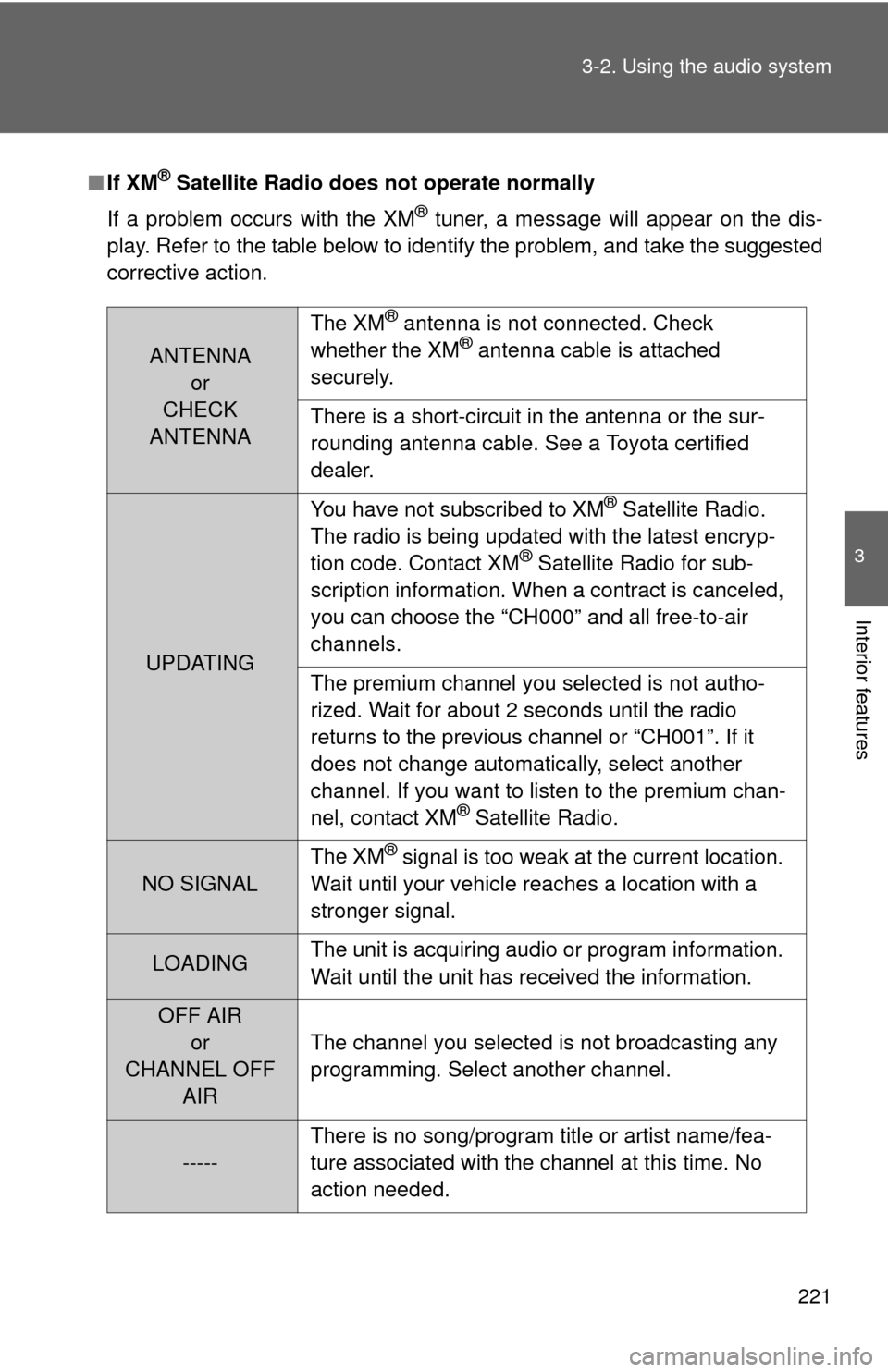
If XM® Satellite Radio does not operate normally
If a problem occurs with the XM
® tuner, a message will appear on the dis-
play. Refer to the table below to identify the problem, and take the suggested
corrective action.
ANTENNA or
CHECK
ANTENNA The XM
® antenna is not connected. Check
whether the XM® antenna cable is attached
securely.
There is a short-circuit in the antenna or the sur-
rounding antenna cable. See a Toyota certified
dealer.
UPDATING You have not subscribed to XM
® Satellite Radio.
The radio is being updated with the latest encryp-
tion code. Contact XM
® Satellite Radio for sub-
scription information. When a contract is canceled,
you can choose the “CH000” and all free-to-air
channels.
The premium channel you selected is not autho-
rized. Wait for about 2 seconds until the radio
returns to the previous channel or “CH001”. If it
does not change automatically, select another
channel. If you want to listen to the premium chan-
nel, contact XM
® Satellite Radio.
NO SIGNAL The XM
® signal is too weak at the current location.
Wait until your vehicle reaches a location with a
stronger signal.
LOADING The unit is acquiring audio or program information.
Wait until the unit has received the information.
OFF AIR
or
CHANNEL OFF AIR The channel you selected is not broadcasting any
programming. Select another channel.
-----
There is no song/program title or artist name/fea-
ture associated with the channel at this time. No
action needed.
Page 224 of 538
222 3-2. Using the audio system
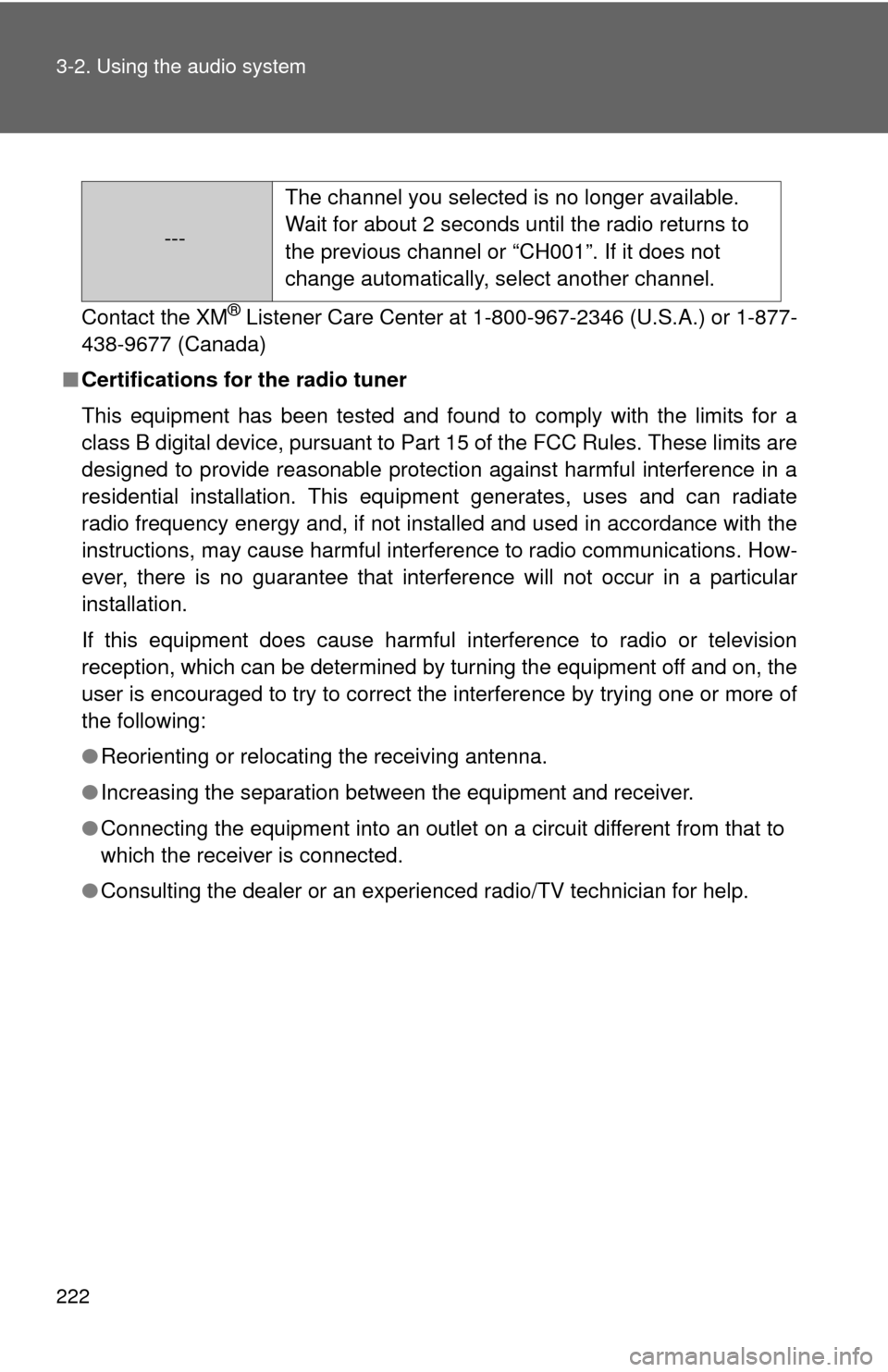
Contact the XM® Listener Care Center at 1-800-967-2346 (U.S.A.) or 1-877-
438-9677 (Canada)
■ Certifications for the radio tuner
This equipment has been tested and found to comply with the limits for a
class B digital device, pursuant to Part 15 of the FCC Rules. These limits are
designed to provide reasonable protection against harmful interference in a
residential installation. This equipment generates, uses and can radiate
radio frequency energy and, if not installed and used in accordance with the
instructions, may cause harmful interference to radio communications. How-
ever, there is no guarantee that interference will not occur in a particular
installation.
If this equipment does cause harmful interference to radio or television
reception, which can be determined by turning the equipment off and on, the
user is encouraged to try to correct the interference by trying one or more of
the following:
●Reorienting or relocating the receiving antenna.
● Increasing the separation between the equipment and receiver.
● Connecting the equipment into an outlet on a circuit different from that to
which the receiver is connected.
● Consulting the dealer or an experienc ed radio/TV technician for help.
---The channel you selected is no longer available.
Wait for about 2 seconds until the radio returns to
the previous channel or “CH001”. If it does not
change automatically, select another channel.
Page 232 of 538
230 3-2. Using the audio system
NOTICE
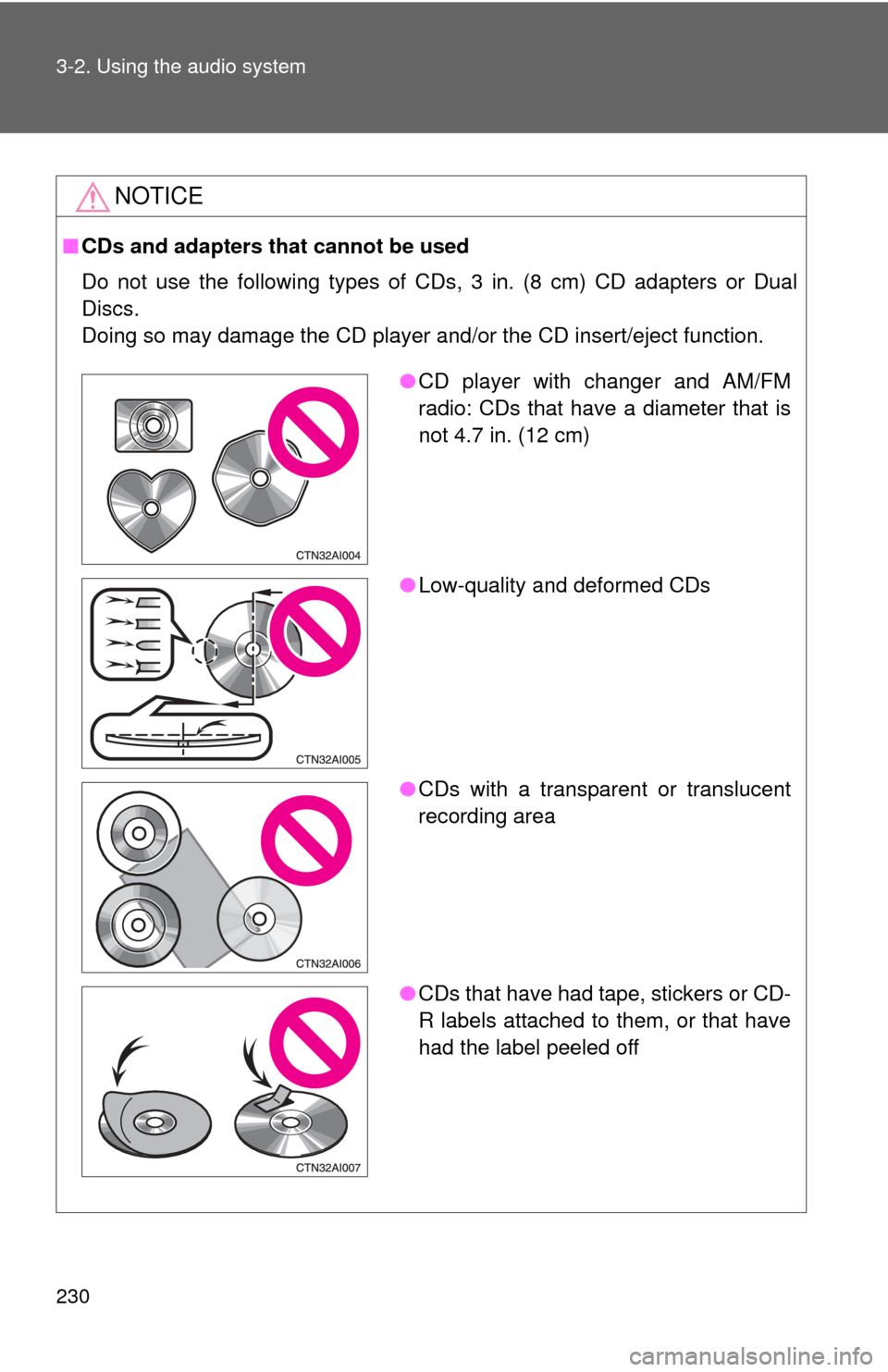
■CDs and adapters that cannot be used
Do not use the following types of CDs, 3 in. (8 cm) CD adapters or Dual
Discs.
Doing so may damage the CD player and/or the CD insert/eject function.
●CD player with changer and AM/FM
radio: CDs that have a diameter that is
not 4.7 in. (12 cm)
● Low-quality and deformed CDs
● CDs with a transparent or translucent
recording area
● CDs that have had tape, stickers or CD-
R labels attached to them, or that have
had the label peeled off
Page 256 of 538
254 3-2. Using the audio system
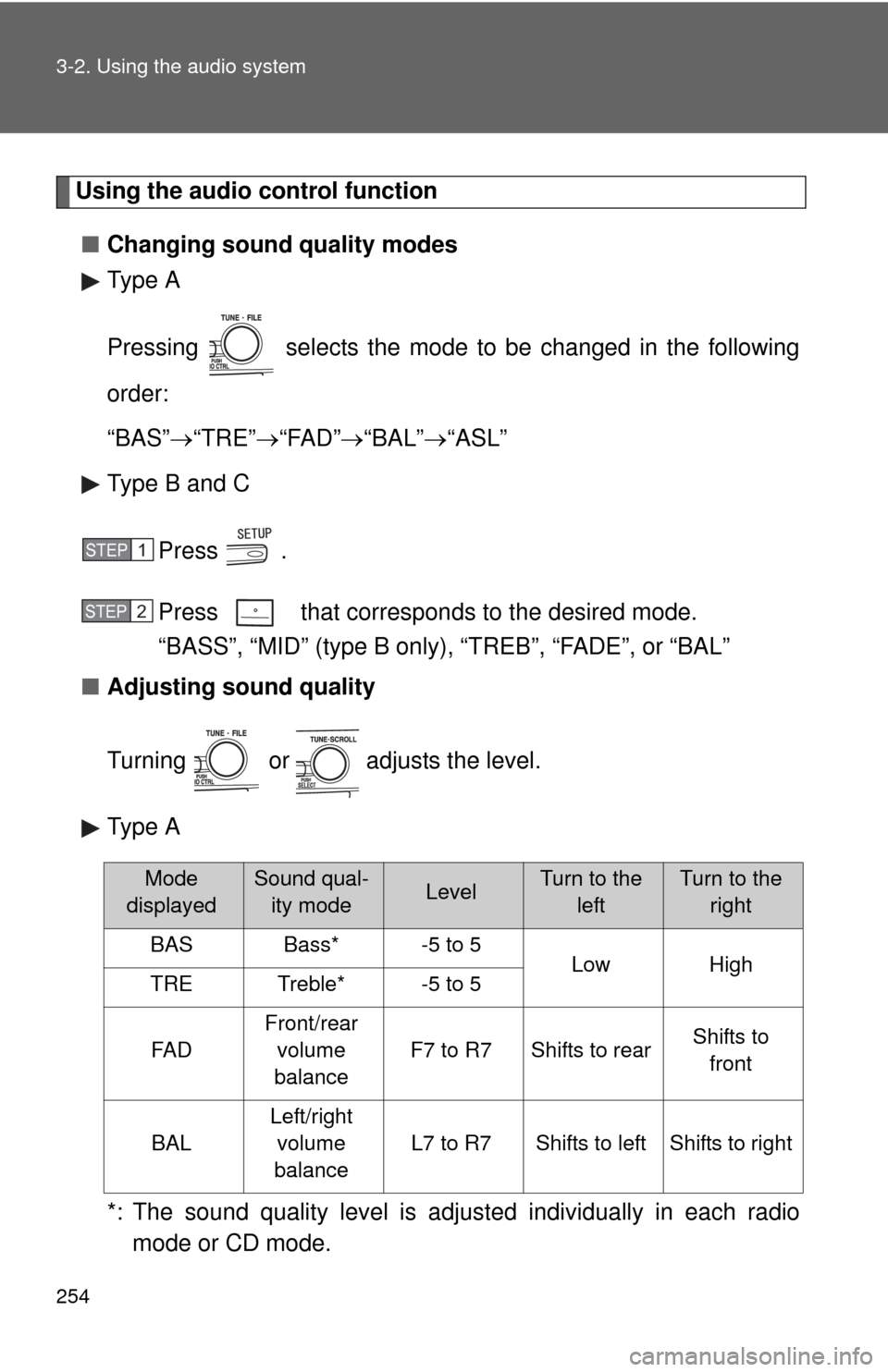
Using the audio control function■ Changing sound quality modes
Type A
Pressing selects the mode to be changed in the following
order:
“BAS” “TRE” “FAD” “BAL” “ASL”
Type B and C
Press .
Press that corresponds to the desired mode.
“BASS”, “MID” (type B only), “TREB”, “FADE”, or “BAL”
■ Adjusting sound quality
Turning or adjusts the level.
Type A
*: The sound quality level is adjusted individually in each radio
mode or CD mode.
STEP1
STEP2
Mode
displayedSound qual- ity modeLevelTurn to the leftTurn to the right
BASBass*-5 to 5LowHighTRETreble*-5 to 5
FA D
Front/rear volume
balance
F7 to R7Shifts to rearShifts to front
BAL
Left/right volume
balance
L7 to R7Shifts to leftShifts to right
Page 259 of 538
257
3-2. Using the audio system
3
Interior features
■
Trademark owned by SRS Labs, Inc. (type A only)
The audio systems utilize SRS FOCUS
and SRS TruBass audio
enhancement technologies, under license from SRS Labs, Inc., in all modes
except AM radio mode.
FOCUS, TruBass, SRS and
symbols are trademarks of SRS Labs,
Inc.
FOCUS and TruBass technologies are incorporated under license from
SRS Labs, Inc.
Page 262 of 538
260
3-2. Using the audio system
Using the steering wheel audio switches
Some audio features can be controlled using the switches on the
steering wheel.
4-spoke steering wheel
Increases/decreases vol-
ume
Radio mode: Select radio
stations
CD mode: Select tracks,
files (MP3 and WMA) and
discs
iPod
® player mode:
Selects a song
USB memory player mode: Selects a file and
folder
Bluetooth
® audio mode:
Selects a track and
album
Turn the power on, selects
an audio source
3-spoke steering wheel