Page 194 of 538

194
3-1. Using the air conditioning system and defogger
Automatic air conditioning system ........................... 196
Manual air conditioning system ........................... 204
Rear window and outside rear view mirror
defoggers ....................... 209
3-2. Using the audio system Audio system types .......... 211
Using the radio ................. 215
Using the CD player ......... 223
Playing MP3 and WMA discs............................... 232
Operating an iPod
®
player ............................. 240
Operating a USB memory player ............................. 246
Optimal use of the audio system ........................... 253
Using the AUX adapter .... 258
Using the steering wheel audio switches ............... 260 3-3. Using the Bluetooth
®
audio system
Bluetooth
® audio
system ........................... 263
Using the Bluetooth
®
audio system.................. 266
Operating a Bluetooth
®
enabled portable
player ............................. 271
Setting up a Bluetooth
®
enabled portable
player ............................. 273
Bluetooth
® audio system
setup .............................. 278
Interior features3
Page 195 of 538

Interior features3
195
3-4. Using the hands-free phone system
(for cellular phone)
Hands-free phone system (for cellular phone)
features .......................... 279
Using the hands-free phone system
(for cellular phone) ......... 283
Making a phone call ......... 292
Setting a cellular phone ............................. 296
Security and system setup .............................. 301
Using the phone book ...... 305
3-5. Using the interior lights Interior lights list ............... 313
• Interior light ..................... 314
• Personal lights ................ 315
3-6. Using the storage features List of storage features .... 316
• Glove box........................ 317
• Console box .................... 317
• Cup holders .................... 319
• Auxiliary boxes................ 321 3-7. Other interior features
Sun visors ........................ 324
Vanity mirrors ................... 325
Clock ................................ 326
Ashtray ............................. 327
Power outlets ................... 328
Seat heaters..................... 330
Armrest ............................ 332
Rear sunshade................. 333
Trunk storage extension ....................... 334
Floor mat .......................... 335
Trunk features .................. 336
Garage door opener......... 338
Compass .......................... 343
Page 214 of 538
212 3-2. Using the audio system
Type C: CD player with changer controller and AM/FM radio
TitlePage
Using the radioP. 215
Using the CD playerP. 223
Playing MP3 and WMA discsP. 232
Operating an iPod® playerP. 240
Operating a USB memory playerP. 246
Optimal use of the audio systemP. 253
Using the AUX adapterP. 258
Using the steering wheel audio switchesP. 260
Page 260 of 538
258
3-2. Using the audio system
Using the AUX adapter
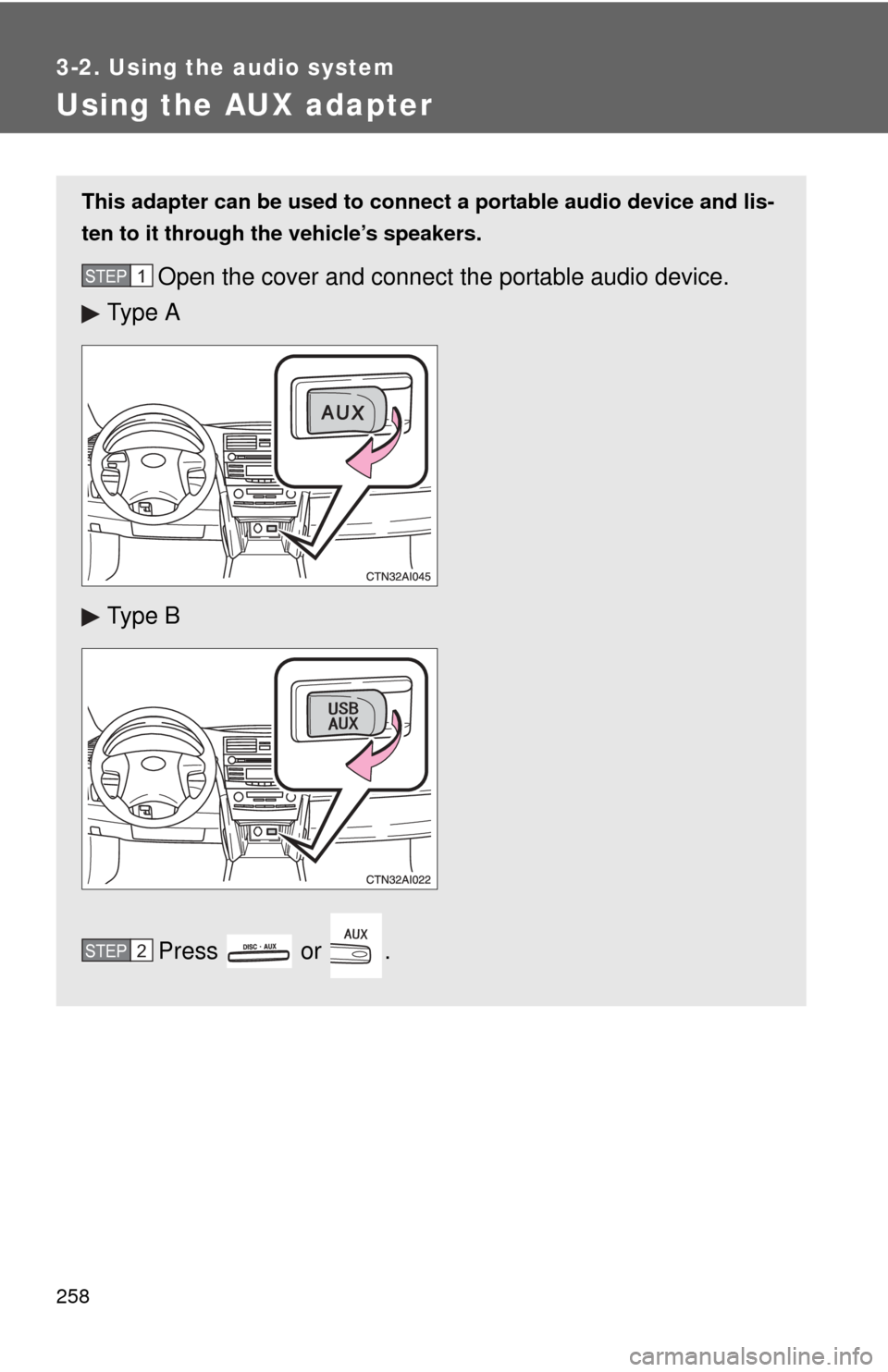
This adapter can be used to connect a portable audio device and lis-
ten to it through the vehicle’s speakers.
Open the cover and connect the portable audio device.
Ty p e A
Ty p e B
Press or .STEP1
STEP2
Page 263 of 538
261
3-2. Using the audio system
3
Interior features
Turning the power on
Press or when the audio system is turned off.
The audio system can be turned off by holding the switch down until you
hear a beep.
Changing the audio sourcePress or when the audio system is turned on. The
audio source changes as follows each time the switch is pressed.
If no discs are inserted in the player, that mode will be skipped.
Type A:
FM1 FM2 CD AUXAM SAT1 SAT2SAT3
Type B and C:
FMSAT CDCD changer (type B only) Bluetooth® AudioAUX
USB/iPod®AM
Adjusting the volume
Press “+” on or to increase the volume and “-” to
decrease the volume.
Press and hold the switch to continue increasing or decreasing the vol-
ume.
Selecting a radio station Press or to select the radio mode.
Press “” or “ ” on or to select a radio station.
To scan for receivable stations, press and hold “ ” or “ ” on
or until you hear a beep.
STEP1
STEP2
Page 269 of 538
267
3-3. Using the Bluetooth
® audio system
3
Interior features
Operating the system using voice commands
By following voice guidance inst ructions output from the speaker,
voice commands enable to the operation of the Bluetooth
® audio sys-
tem without the need to check the display or operate .
■ Operation procedure when using voice commands
Press the talk switch and follo w voice guidance instructions.
■ Auxiliary commands when using voice commands
The following auxiliary commands can be used when operating the
system using a voice command:
“Cancel”: Exits the Bluetooth
® audio system
“Repeat”: Repeats the previous voice guidance instruction
“Go back”: Returns to the previous procedure
“Help”: Reads aloud the function summary if a help comment is
registered for the selected function
Page 288 of 538
286 3-4. Using the hands-free phone system (for cellular phone)
Operating the system by using a voice command
By following voice gui dance instructions output from the speaker,
voice commands enable to the operation of the hands-free phone
system without the need to check the display or operate .
■ Operation procedure when using a voice command
Press the talk switch and follo w voice guidance instructions.
■ Auxiliary commands when using a voice command
The following auxiliary commands can be used when operating the
system using a voice command:
Cancel: Exits the hands-free phone system
Repeat: Repeats the previous voice guidance instruction
Go back: Returns to the previous procedure
Help: Reads aloud the function summary if a help comment is
registered for the selected function
Using the hands-free phone system for the first time
Before using the hands-free phone system, it is necessary to register
a cellular phone in the system. Th e phone registration mode will be
entered automatically when starting the system with no cellular
phone registered. Follow the procedure below to register a cellular
phone:
Press the off-hook switch or the talk switch.
The introductory guidance and phone name registration instructions
are heard.
STEP1
Page 318 of 538
316
3-6. Using the storage features
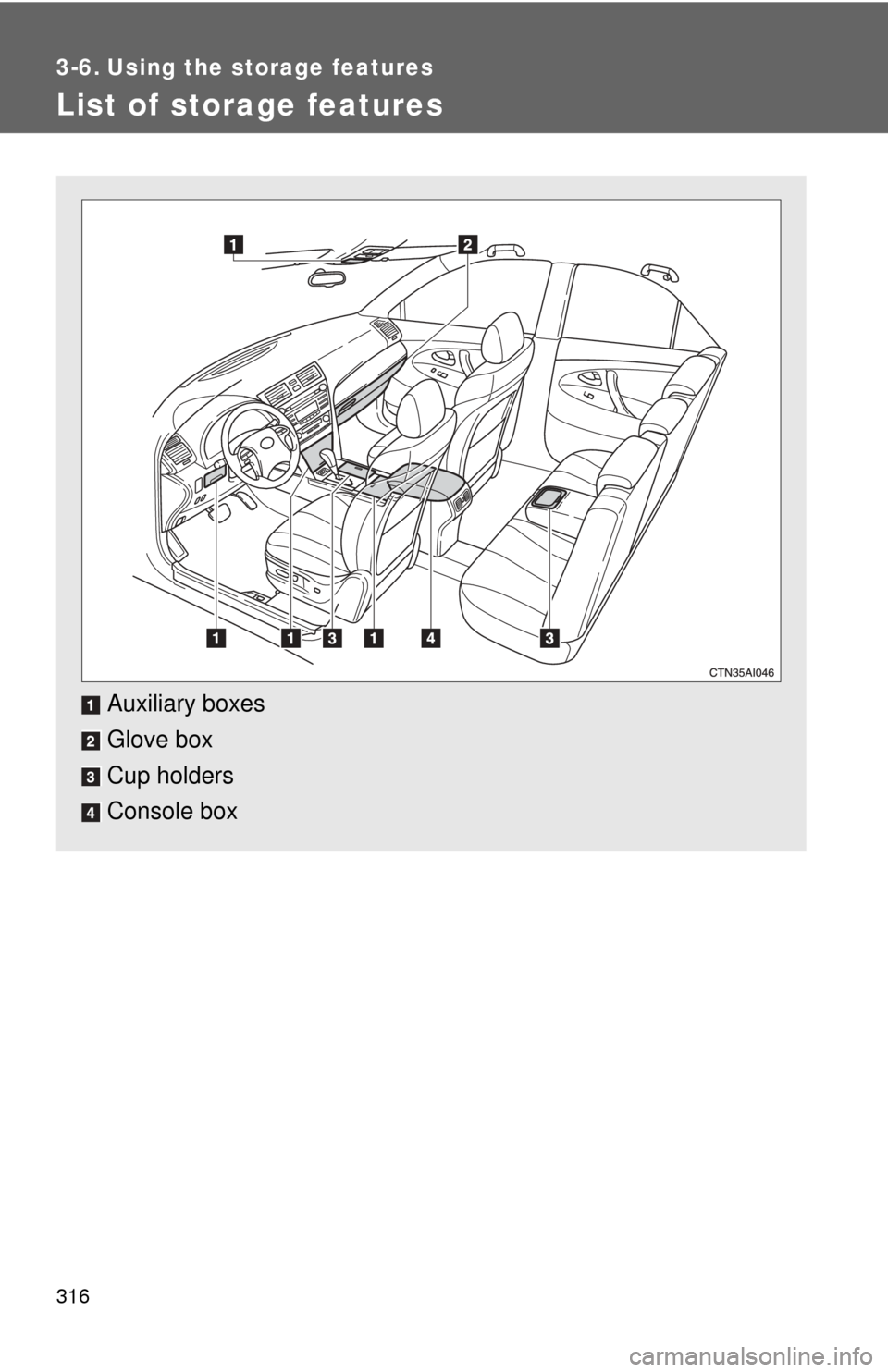
List of storage features
Auxiliary boxes
Glove box
Cup holders
Console box