2010 SUZUKI KIZASHI audio
[x] Cancel search: audioPage 231 of 388

5-52
OTHER CONTROLS AND EQUIPMENT
57L20-03E
Selection of audio device (Select
Audio)
The audio device to be used can be
selected.
1) Press the Off Hook button (6).
The Bluetooth
® main menu appears.
2) Turn the TUNE FOLDER PUSH
SOUND knob (2) to select “Setup”,
and press the TUNE FOLDER PUSH
SOUND knob (2) to determine the
selection.
3) Turn the TUNE FOLDER PUSH
SOUND knob (2) to select “BT.A
Setup”, and press the TUNE FOLDER
PUSH SOUND knob (2) to determine
the selection.
4) Turn the TUNE FOLDER PUSH
SOUND knob (2) to select “Select
Audio”, and press the TUNE FOLDER
PUSH SOUND knob (2) to determine
the selection.
5) Turn the TUNE FOLDER PUSH
SOUND knob (2) to select an audio
device to be paired, and press the
TUNE FOLDER PUSH SOUND knob
(2) to determine the selection.
6) Turn the TUNE FOLDER PUSH
SOUND knob (2) to select “Confirm”,
and press the TUNE FOLDER PUSH
SOUND knob (2) to determine the
selection.7) Turn the TUNE FOLDER PUSH
SOUND knob (2) to select “From Car”
or “From Audio”, and press the TUNE
FOLDER PUSH SOUND knob (2) to
determine the selection.
"From Car": Makes a pairing from the
unit.
"From Audio": Makes a pairing from
the audio device.
8) Turn the TUNE FOLDER PUSH
SOUND knob (2) to select “Confirm”,
and press the TUNE FOLDER PUSH
SOUND knob (2) to determine the
selection.
NOTE:
Selection of “Go Back” displays the pre-
vious menu.
The phone will be disconnected when
the Bluetooth
®-ready audio device is
selected.Change of audio device name (Change
Name)
The registered name of audio devices are
changed.
1) Press the Off Hook button (6).
The Bluetooth
® main menu appears.
2) Turn the TUNE FOLDER PUSH
SOUND knob (2) to select “Setup”,
and press the TUNE FOLDER PUSH
SOUND knob (2) to determine the
selection.
3) Turn the TUNE FOLDER PUSH
SOUND knob (2) to select “BT.A
Setup”, and press the TUNE FOLDER
PUSH SOUND knob (2) to determine
the selection.
4) Turn the TUNE FOLDER PUSH
SOUND knob (2) to select “Change
Name”, and press the TUNE FOLDER
PUSH SOUND knob (2) to determine
the selection.
5) Turn the TUNE FOLDER PUSH
SOUND knob (2) to select an audio
device to be changed, and press the
TUNE FOLDER PUSH SOUND knob
(2) to determine the selection.
6) Turn the TUNE FOLDER PUSH
SOUND knob (2) to select “Record
Name”, and press the TUNE FOLDER
PUSH SOUND knob (2) to determine
the selection.
Page 232 of 388

5-53OTHER CONTROLS AND EQUIPMENT
57L20-03E
7) Pronounce the name to be used at
voice recognition.
8) Turn the TUNE FOLDER PUSH
SOUND knob (2) to select “Confirm”,
and press the TUNE FOLDER PUSH
SOUND knob (2) to determine the
selection.
NOTE:
Selection of “Go Back” displays the previ-
ous menu.List of audio devices (List Audio)
The registered name of audio devices are
displayed in sequence.
1) Press the Off Hook button (6).
The Bluetooth
® main menu appears.
2) Turn the TUNE FOLDER PUSH
SOUND knob (2) to select “Setup”,
and press the TUNE FOLDER PUSH
SOUND knob (2) to determine the
selection.
3) Turn the TUNE FOLDER PUSH
SOUND knob (2) to select “BT.A
Setup”, and press the TUNE FOLDER
PUSH SOUND knob (2) to determine
the selection.
4) Turn the TUNE FOLDER PUSH
SOUND knob (2) to select “List
Audios”, and press the TUNE
FOLDER PUSH SOUND knob (2) to
determine the selection.
The names of registered phones are
displayed in sequence.
NOTE:
Selection of “Go Back” displays the previ-
ous menu.Passkey setting (Set Passkey)
The security number (Passkey) is speci-
fied.
1) Press the Off Hook button (6).
The Bluetooth
® main menu appears.
2) Turn the TUNE FOLDER PUSH
SOUND knob (2) to select “Setup”,
and press the TUNE FOLDER PUSH
SOUND knob (2) to determine the
selection.
3) Turn the TUNE FOLDER PUSH
SOUND knob (2) to select “BT.A
Setup”, and press the TUNE FOLDER
PUSH SOUND knob (2) to determine
the selection.
4) Turn the TUNE FOLDER PUSH
SOUND knob (2) to select “Set Pass-
key”, and press the TUNE FOLDER
PUSH SOUND knob (2) to determine
the selection.
5) Turn the TUNE FOLDER PUSH
SOUND knob (2) to select a number
for ones digit, and press the TUNE
FOLDER PUSH SOUND knob (2) to
determine the selection. Determine the
tens, hundreds, and thousands digits
in the same manner.
NOTE:
Selection of “Go Back” displays the previ-
ous menu.
Page 233 of 388

5-54
OTHER CONTROLS AND EQUIPMENT
57L20-03E
Deletion of connection data (Delete
Audio)
The registered information of audio device
is deleted.
1) Press the Off Hook button (6).
The Bluetooth
® main menu appears.
2) Turn the TUNE FOLDER PUSH
SOUND knob (2) to select “Setup”,
and press the TUNE FOLDER PUSH
SOUND knob (2) to determine the
selection.
3) Turn the TUNE FOLDER PUSH
SOUND knob (2) to select “BT.A
Setup”, and press the TUNE FOLDER
PUSH SOUND knob (2) to determine
the selection.
4) Turn the TUNE FOLDER PUSH
SOUND knob (2) to select “Delete
Audio”, and press the TUNE FOLDER
PUSH SOUND knob (2) to determine
the selection.
5) Turn the TUNE FOLDER PUSH
SOUND knob (2) to select an audio
device to be deleted, and press the
TUNE FOLDER PUSH SOUND knob
(2) to determine the selection.
6) Turn the TUNE FOLDER PUSH
SOUND knob (2) to select “Confirm”,
and press the TUNE FOLDER PUSH
SOUND knob (2) to determine the
selection.NOTE:
Selection of “Go Back” displays the previ-
ous menu.
Page 234 of 388
5-55OTHER CONTROLS AND EQUIPMENT
57L20-03E
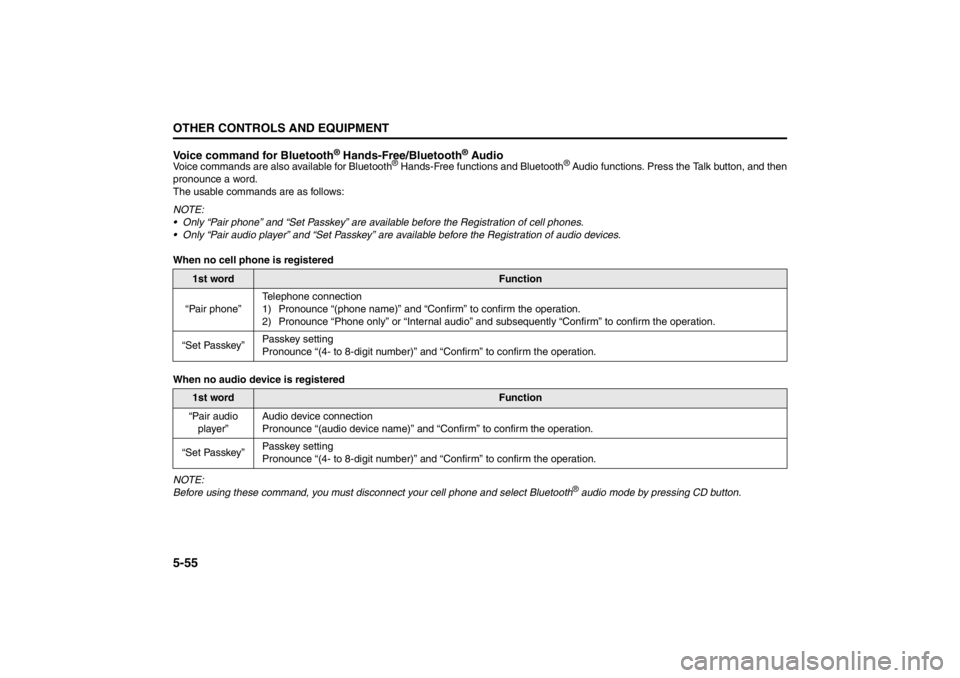
Voice command for Bluetooth
® Hands-Free/Bluetooth
® Audio
Voice commands are also available for Bluetooth
® Hands-Free functions and Bluetooth
® Audio functions. Press the Talk button, and then
pronounce a word.
The usable commands are as follows:
NOTE:
Only “Pair phone” and “Set Passkey” are available before the Registration of cell phones.
Only “Pair audio player” and “Set Passkey” are available before the Registration of audio devices.
When no cell phone is registered
When no audio device is registered
NOTE:
Before using these command, you must disconnect your cell phone and select Bluetooth® audio mode by pressing CD button.
1st word
Function
“Pair phone”Telephone connection
1) Pronounce “(phone name)” and “Confirm” to confirm the operation.
2) Pronounce “Phone only” or “Internal audio” and subsequently “Confirm” to confirm the operation.
“Set Passkey”Passkey setting
Pronounce “(4- to 8-digit number)” and “Confirm” to confirm the operation.
1st word
Function
“Pair audio
player”Audio device connection
Pronounce “(audio device name)” and “Confirm” to confirm the operation.
“Set Passkey”Passkey setting
Pronounce “(4- to 8-digit number)” and “Confirm” to confirm the operation.
Page 240 of 388
5-61OTHER CONTROLS AND EQUIPMENT
57L20-03E
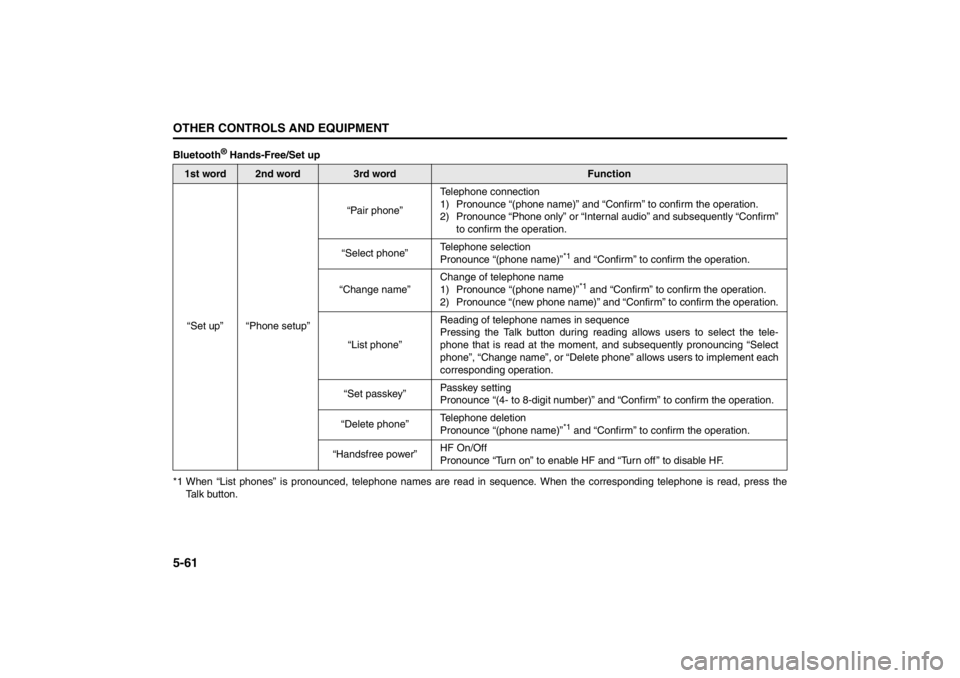
Bluetooth
® Hands-Free/Set up
*1 When “List phones” is pronounced, telephone names are read in sequence. When the corresponding telephone is read, press the
Talk button.
1st word
2nd word
3rd word
Function
“Set up” “Phone setup”“Pair phone”Telephone connection
1) Pronounce “(phone name)” and “Confirm” to confirm the operation.
2) Pronounce “Phone only” or “Internal audio” and subsequently “Confirm”
to confirm the operation.
“Select phone”Telephone selection
Pronounce “(phone name)”
*1 and “Confirm” to confirm the operation.
“Change name”Change of telephone name
1) Pronounce “(phone name)”*1 and “Confirm” to confirm the operation.
2) Pronounce “(new phone name)” and “Confirm” to confirm the operation.
“List phone”Reading of telephone names in sequence
Pressing the Talk button during reading allows users to select the tele-
phone that is read at the moment, and subsequently pronouncing “Select
phone”, “Change name”, or “Delete phone” allows users to implement each
corresponding operation.
“Set passkey”Passkey setting
Pronounce “(4- to 8-digit number)” and “Confirm” to confirm the operation.
“Delete phone”Telephone deletion
Pronounce “(phone name)”
*1 and “Confirm” to confirm the operation.
“Handsfree power”HF On/Off
Pronounce “Turn on” to enable HF and “Turn off ” to disable HF.
Page 241 of 388
5-62
OTHER CONTROLS AND EQUIPMENT
57L20-03E
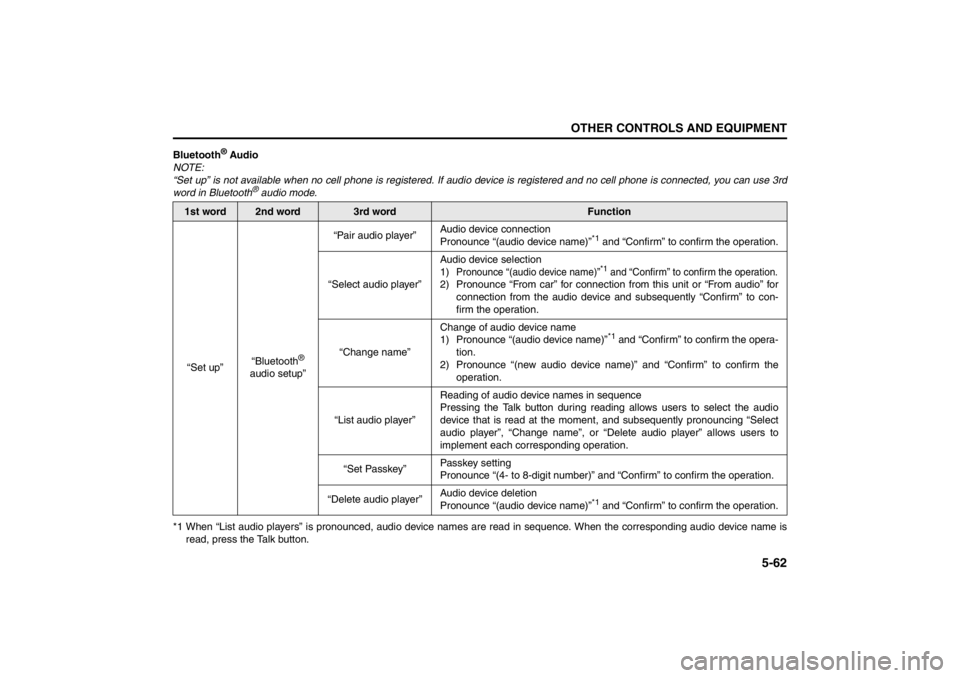
Bluetooth
® Audio
NOTE:
“Set up” is not available when no cell phone is registered. If audio device is registered and no cell phone is connected, you can use 3rd
word in Bluetooth
® audio mode.
*1 When “List audio players” is pronounced, audio device names are read in sequence. When the corresponding audio device name is
read, press the Talk button.
1st word
2nd word
3rd word
Function
“Set up”“Bluetooth
®
audio setup”“Pair audio player”Audio device connection
Pronounce “(audio device name)”
*1 and “Confirm” to confirm the operation.
“Select audio player”Audio device selection
1)
Pronounce “(audio device name)”
*1 and “Confirm” to confirm the operation.
2) Pronounce “From car” for connection from this unit or “From audio” for
connection from the audio device and subsequently “Confirm” to con-
firm the operation.
“Change name”Change of audio device name
1) Pronounce “(audio device name)”
*1 and “Confirm” to confirm the opera-
tion.
2) Pronounce “(new audio device name)” and “Confirm” to confirm the
operation.
“List audio player”Reading of audio device names in sequence
Pressing the Talk button during reading allows users to select the audio
device that is read at the moment, and subsequently pronouncing “Select
audio player”, “Change name”, or “Delete audio player” allows users to
implement each corresponding operation.
“Set Passkey”Passkey setting
Pronounce “(4- to 8-digit number)” and “Confirm” to confirm the operation.
“Delete audio player”Audio device deletion
Pronounce “(audio device name)”
*1 and “Confirm” to confirm the operation.
Page 243 of 388

5-64
OTHER CONTROLS AND EQUIPMENT
57L20-03E
Remote Audio ControlsYou can control basic functions of the
audio system with the switches on the
steering wheel.Adjusting the volume
To increase the volume, lean the VOL
switch (1) to the upper side. The volume
continues to increase until you release
the switch.
To decrease the volume, lean the VOL
switch (1) to the lower side. The volume
continues to decrease until you release
the switch.
To mute, press the switch (2).Selecting the mode
Press the switch (3).
Each time the button is pressed, the mode
is switched as follows:
You can also turn on the audio system by
pushing the switch (3).
(2)
(1)
(4)
(3)
FM1 (Radio)
FM2 (Radio)
CD
Bluetooth
® audio
USB (iPod®)
AM (Radio)
XM1 (if equipped)
XM2 (if equipped)
XM3 (if equipped)
Page 244 of 388

5-65OTHER CONTROLS AND EQUIPMENT
57L20-03E
Selecting the radio station (FM1, FM2,
AM mode)
To select the next preset station, lean
the SEEK switch (4) to the upper side
briefly.
To select the previous preset station,
lean the SEEK switch (4) to the lower
side briefly.
To scan to a higher frequency radio sta-
tion, lean the SEEK switch (4) to the
upper side for 1 sec. or longer.
To scan to a lower frequency radio sta-
tion, lean the SEEK switch (4) to the
lower side for 1 sec. or longer.Selecting the channel (XM1, XM2, XM3
mode)
To select the next preset channel, lean
the SEEK switch (4) to the upper side
briefly.
To select the previous preset channel,
lean the SEEK switch (4) to the lower
side briefly.
To select the next channel in the same
category, lean the SEEK switch (4) to
the upper side for 1 sec. or longer.
To select the previous channel in the
same category, lean the SEEK switch
(4) to the lower side for 1 sec. or longer.Selecting the track (CD, USB (iPod
®),
Bluetooth
® audio mode)
To advance to the next track, lean the
SEEK switch (4) to the upper side
briefly.
To select the previous track, lean the
SEEK switch (4) to the lower side briefly.
Fast forwarding/Rewinding a track
To advance a track rapidly, lean the
SEEK switch (4) to the upper side for 1
sec. or longer
To rewind a track, lean the SEEK switch
(4) to the lower side for 1 sec. or longer.