2010 SUBARU OUTBACK reset
[x] Cancel search: resetPage 155 of 448

button, the compass display is toggled on
or off. When the compass is on, an
illuminated compass reading will appear
in the lower part of the mirror.
Even with the mirror in anti-glare mode,
the mirror surface turns bright if the
transmission is shifted into reverse. This
is to ensure good rearward visibility duringreversing. !Photosensors
The mirror has a photosensor attached on
both the front and back sides. If the glare
from the headlights of vehicles behind you
strikes the mirror, these sensors detect it
and make the reflection surface of the
mirror dimmer to help prevent you from
being blinded. For this reason, use care
not to cover the sensors with stickers, or other similar items. Periodically wipe the
sensors clean using a piece of dry soft
cotton cloth or an applicator. !
Compass calibration
1. For optimum calibration, switch off all
nonessential electrical accessories (rear
window defogger, heater/air conditioning
system, spotlight, etc.) and ensure all
doors are shut.
2. Drive to an open, level area away from
large metallic objects or structures and
make certain the ignition switch is in the“ ON ”position.
3. Press and hold the left button for 3
seconds then release, and the compass
will enter the calibration mode. “CAL ”and
direction will be displayed.
4. Drive slowly in a circle until “CAL ”
disappears from the display (approxi-
mately two or three circles). The compass
is now calibrated.
5. Further calibration may be necessary
should outside influences cause the mirror
to read inaccurately. You will know that
this has occurred if your compass begins
to read in only limited directions. Should
you encounter this situation, return to step
one of the above procedure and recali-
brate the mirror. !
Compass zone adjustment
1. The zone setting is factory preset to
Zone 8. Refer to the “Compass calibration
zone ”map attached to the end of this
manual to verify that the compass zone
setting is correct for your geographical location.
2. Press and hold the right button for 3
seconds then release, and the word“ ZONE ”will briefly appear and then the
zone number will be displayed.
3. Press the right-hand button repeatedly
to cycle the display through all possible
zone settings. Stop cycling when the
correct zone setting for your location isdisplayed.
4. Releasing the button for 3 seconds will
exit the zone setting mode. Instruments and controls
3-37
– CONTINUED –
Page 177 of 448

Antenna system.................................................. 5-2
Printed antenna ................................................... 5-2
FM reception ....................................................... 5-2
XM
TMsatellite radio reception (if equipped) ...... 5-2
Installation of accessories .................................. 5-4
Audio set ............................................................. 5-4
Type A audio set (if equipped) ............................. 5-5
Type B audio set (if equipped) ............................. 5-6
Power and sound controls ................................. 5-7
Power switch and volume control ........................ 5-7
Sound control ..................................................... 5-7
Adjustable level of each mode ............................. 5-9
FM/AM radio operation ...................................... 5-10
FM selection ...................................................... 5-10
AM selection ...................................................... 5-10
Tuning ............................................................... 5-10
RDS text display ................................................ 5-12
Station preset .................................................... 5-13
Satellite radio operation (if equipped) .............. 5-14
XM
TMsatellite radio ............................................ 5-14
Sirius satellite radio ........................................... 5-14
Satellite radio reception ...................................... 5-15
Displaying satellite radio ID of tuner ................... 5-15
Band selection ................................................... 5-15
Channel and category selection .......................... 5-15
Channel preset ................................................... 5-17
Display selection ................................................ 5-18 CD player operation
.......................................... 5-18
How to insert a CD (type A) ................................ 5-18
How to insert a CD(s) (type B) .. .......................... 5-18
How to play back a CD ...................................... 5-20
To select a track from its beginning. ................... 5-21
Fast-forwarding and fast-reversing ..................... 5-22
Repeating .......................................................... 5-22
Random playback .............................................. 5-23
Scan ................................................................. 5-24
Display selection ............................................... 5-25
Folder selection ................................................. 5-25
How to eject a CD from the player (type A) .... ..... 5-26
How to eject CDs from the player (type B) ..... ..... 5-26
When the following messages are displayed. . ..... 5-27
AUX unit operation ............................................ 5-28
Precautions to observe when handling a compact disc ................................................... 5-29
Audio control buttons (if equipped) ................. 5-30
MODE button ..................................................... 5-31
“” and “”switch .......................................... 5-31
Volume control switch ....................................... 5-31
MUTE button (if equipped) ................................. 5-32
Hands-free system (if equipped) ...................... 5-32
Tips for the Hands-free system .......................... 5-32
Certification for the Hands-free system ............... 5-33
Safety precautions ............................................. 5-33
Using the Hands-free system ... .......................... 5-34Audio
5
Page 189 of 448

&Station preset
Preset buttons
! How to preset stations
1. Press the “FM ”or “AM ”button to select
FM1, FM2, FM3 or AM reception.
2. Press the “
”or “”side of the
“ SEEK ”button or tune the radio manually
until the desired station frequency is displayed.
3. Press one of the preset buttons for
more than 1.5 seconds to store the
frequency. If the button is pressed for less
than 1.5 seconds, the preceding selection
will remain in memory. NOTE .
If the connection between the radio
and battery is broken for any reason
such as vehicle maintenance or radio
removal, all stations stored in the
preset buttons are cleared. If this
occurs, it is necessary to reset the
preset stations.. If a cell phone is placed near the
radio, it may cause the radio to emit
noise when the phone receives calls.
This noise does not indicate a radiofault. ! Selecting preset stations
Presetting a station with a preset button
allows you to select that station in a single
operation. Up to six AM, FM1, FM2 and
FM3 stations each may be preset. !
Auto-store
Using the Auto-store function, you can
automatically store 6 stations on the
current waveband by pressing the “A.S ”
button for more than 2 seconds. Use Auto-
store to quickly find the strongest stations,
for example when traveling through differ-
ent reception areas.
NOTE . When you use Auto-store, the new
stations replace any stations pre-
viously stored.. Interrupting Auto-store: If you acci-
dentally press the “A.S ”(Auto-store)
button, you can cancel the Auto-store
function before it has been completed
as follows.
–Switching to the other source Audio
5-13
– CONTINUED –
Page 190 of 448

5-14Audio
mode –Switching to the other band
– Press the “A.S ”button
– Press the “SCAN ”button
– Press the “SEEK ”button
– Press any of the preset buttons
– Turn the “TUNE/TRACK/CH ”dial
– Turn off the audio system
– Turn off the ignition switch
. When you use the Auto-store func-
tion while selecting the FM mode, even
if you have selected the FM1 or FM2
station, the new stations are stored in
the FM3 station. . If it is only possible to receive less
than 6 stations, the available stations
are stored from preset 1 in order by
frequency and the unused preset but-
tons are not registered to a station.
Also, the previously registered station
memories of the unused preset buttons
are cleared. . If no stations can be received, the
previously stored stations are not re- placed. . After pressing the “A.S ”button, if
more than 1 station is stored, the radio
receives the station stored in preset 1. . After pressing the “A.S ”button, if no
stations are stored, the radio receives
the band and station that the radio received before pressing the button.
Satellite radio operation (if
equipped)
To receive satellite radio, it is necessary to
install the SUBARU genuine satellite
receiver (dealer option) and to enter into
a contract. For details, please contact your
SUBARU dealer. &XM
TMsatellite radio
XMTMis a continental U.S. based satellite
radio service, including music, news,
sports, talk and children ’s programming.
XM
TMprovides digital quality audio and
text information, including song title and
artist name. A service fee is required to
receive the XM
TMservice. For more
information, contact XMTMatwww.xmradio.com or call 1-800-XM-
RADIO (1-800-967-2346) for U.S.,
www.xmradio.ca or 1-877-GET-XMSR (1-
877-438-9677) for Canada. & Sirius satellite radio
Sirius satellite radio is a recent innovation
that allows the listener to experience
digital sound quality and to have a greater
variety of channels.
Use of satellite radio (Sirius) requires a
tuner, antenna and a service contract. For
details, please contact your SUBARU
Page 193 of 448

pressing the“FOLDER ”button “”
changes the category up by one step. Pressing “
”changes the category down
by one step.
When a category is selected, pressing the “ SEEK ”button selects channels only with-
in the selected category.
The control function returns to the normal
mode after approximately 10 seconds. ! Channel scan
If you press the “SCAN ”button while the
radio is in the category search mode, the
radio turns to the category SCAN mode. In
the category SCAN mode, the radio scans
only channels in the selected category.
If you press the “SCAN ”button while the
radio is not in the category search mode,
the radio turns to the ALL SCAN mode. In the ALL SCAN mode, the radio scans allchannels.
In both SCAN modes, the radio will stop at
the station for 5 seconds while displaying
the channel number, after which scanning
will continue until the entire channel has
been scanned from the low end to the highend.
Press the
“SCAN ”button again to cancel
the SCAN mode and to stop on any
displayed channel.
& Channel preset
Preset buttons !
How to preset channels
1. Press the “SAT ”button to select SAT1,
SAT2 and SAT3 reception.
2. Select the desired channel.
3. Press one of the preset buttons for
more than 1.5 seconds to store the
channel. If the button is pressed for less
than 1.5 seconds, the preceding selection
will remain in memory.
NOTE
If the connection between the radio and
battery is broken for any reason such
as vehicle maintenance or radio re-
moval, all channels stored in the preset
buttons are cleared. If this occurs, it is
necessary to reset the preset channels. ! Selecting preset channels
Presetting a channel with a preset button
allows you to select that channel in a
single operation. Up to six SAT1, SAT2
and SAT3 channels each may be preset. Audio
5-17
– CONTINUED –
Page 207 of 448
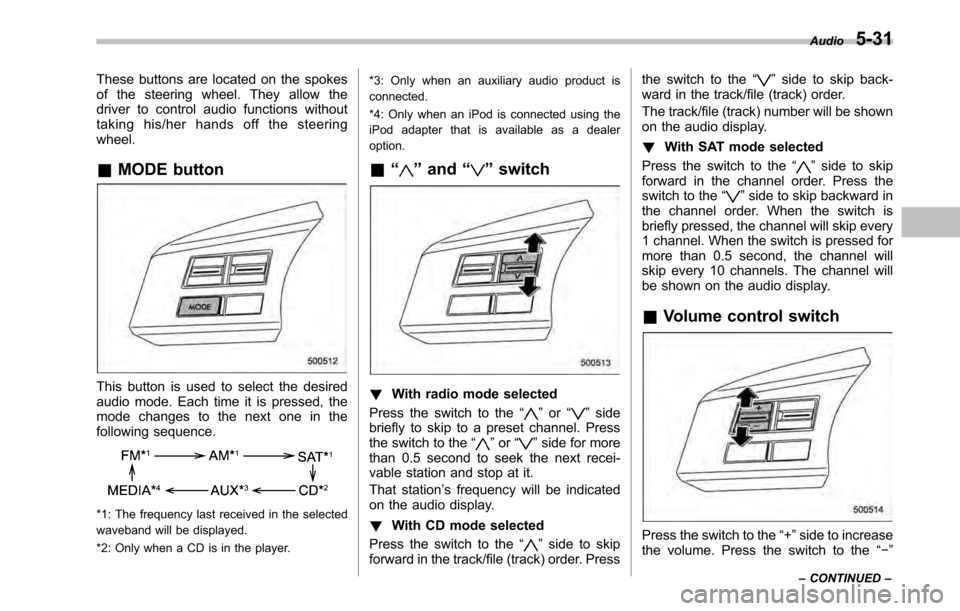
These buttons are located on the spokes
of the steering wheel. They allow the
driver to control audio functions without
taking his/her hands off the steeringwheel. &MODE button
This button is used to select the desired
audio mode. Each time it is pressed, the
mode changes to the next one in the
following sequence.
*1: The frequency last received in the selected
waveband will be displayed.
*2: Only when a CD is in the player. *3: Only when an auxiliary audio product is
connected.
*4: Only when an iPod is connected using the
iPod adapter that is available as a dealeroption.
& “
”and “”switch
! With radio mode selected
Press the switch to the “
”or “”side
briefly to skip to a preset channel. Press
the switch to the “
”or “”side for more
than 0.5 second to seek the next recei-
vable station and stop at it.
That station ’s frequency will be indicated
on the audio display. ! With CD mode selected
Press the switch to the “
”side to skip
forward in the track/file (track) order. Press the switch to the
“
”side to skip back-
ward in the track/file (track) order.
The track/file (track) number will be shown
on the audio display. ! With SAT mode selected
Press the switch to the “
”side to skip
forward in the channel order. Press the
switch to the “
”side to skip backward in
the channel order. When the switch is
briefly pressed, the channel will skip every
1 channel. When the switch is pressed for
more than 0.5 second, the channel will
skip every 10 channels. The channel will
be shown on the audio display.
& Volume control switch
Press the switch to the “+ ”side to increase
the volume. Press the switch to the “ ”
Audio
5-31
– CONTINUED –
Page 211 of 448

“TUNE/TRACK/CH ”dial.
4. Select “Pair phone ”by operating the
“ TUNE/TRACK/CH ”dial.
5. Press the talk switch. Refer to “Voice
command system ”F 5-40.
6. Say the name to be registered.
7. Select “Confirm ”by operating the
“ TUNE/TRACK/CH ”dial or say “Confirm ”.
Then a pass key is displayed.
8. Input the displayed pass key into the
cell phone while “PASS KEY: **** ”is
displayed. If you input the correct pass
key, “Paired ”is displayed and the register-
ing procedure is finished. If you input an
incorrect pass key, “Failed ”is displayed
and the registering procedure was not successful. ! Inputting the phone number
1. Press the OFF hook switch.
2. Select “Phonebook ”by operating the
“ TUNE/TRACK/CH ”dial.
3. Select “Add Entry ”by operating the
“ TUNE/TRACK/CH ”dial.
4. Select “Manual Input ”by operating the
“ TUNE/TRACK/CH ”dial.
5. Input the phone number to be regis- tered. NOTE
While inputting the phone numbers, if “
Go Back ”is chosen using the “TUNE/
TRACK/CH ”dial, the character that was
input last is deleted. ! Registering the phonebook data.
1. Input the phone number to be regis-
tered. Refer to “Inputting the phone
number ”F 5-35.
2. Say the name to be registered. 3. “Confirm ”is displayed.
4. Press the “TUNE/TRACK/CH ”dial.
5. “Stored ”is displayed.
6. Select “Speed Dial ”by operating the
“ TUNE/TRACK/CH ”dial.
7. Select the phone number to be regis- tered.
Preset buttons
8. Press the preset button in which you
want to register the number. The number
is then registered. ! Page scroll
Audio 5-35
– CONTINUED –
Page 212 of 448
5-36Audio
If the registered name or phone number
has more than 12 characters, press the“TEXT ”button for more than 1.5 seconds
to scroll the name or phone number. ! Making a phone call
! Making a phone call from the phone book
It is possible to select a phone number
from the phonebook registered with the in-
vehicle equipment to make a phone call.
1. Press the OFF hook switch.
Preset buttons
2. Press the preset button in which the
desired number is registered.
3. Press the OFF hook switch again. NOTE
When a preset button for which num-
bers are not registered is pressed, an
error message is indicated on the audioscreen. !
Redial
1. Select “Redial ”by operating the
“ TUNE/TRACK/CH ”dial.
2. Press the OFF hook switch. ! Callback
1. Select “Callback ”by operating the
“ TUNE/TRACK/CH ”dial.
2. Press the OFF hook switch. ! Taking a phone call and declining
an incoming call
To take a phone call: Press the OFF
hook switch.
To put an incoming call on hold: Press
the ON hook switch briefly.
To decline an incoming call: Press the
ON hook switch for more than 1.5 sec- onds. !
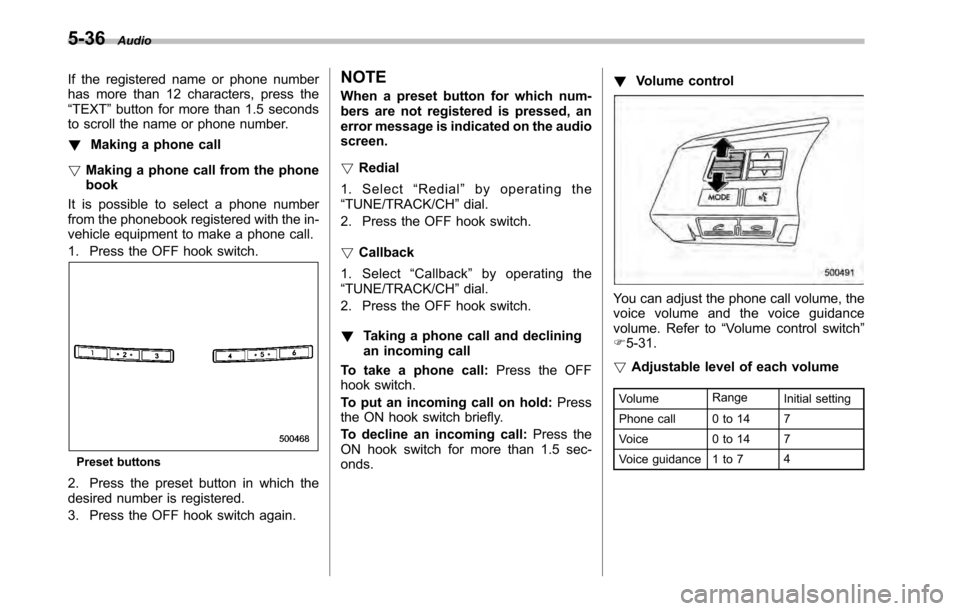
Volume control
You can adjust the phone call volume, the
voice volume and the voice guidance
volume. Refer to “Volume control switch ”
F 5-31.
! Adjustable level of each volume
Volume Range
Initial setting
Phone call 0 to 14 7
Voice 0 to 14 7
Voice guidance 1 to 7 4