2010 NISSAN MAXIMA lock
[x] Cancel search: lockPage 158 of 457

3. Adjust the driver’s seat, steering column,
and outside mirrors to the desired positions
by manually operating each adjusting
switch. For additional information, see
“Seats” in the “Safety—Seats, seat belts and
supplemental restraint system” section and
“Outside mirrors” in this section.
During this step, do not place the ignition
switch in any position other than ON.
4. Push the SET switch and, within 5 seconds,
push the memory switch (1 or 2) .
The indicator light for the pushed memory
switch will come on and stay on for approxi-
mately 5 seconds after pushing the switch.
After the indicator light goes off, the se-
lected positions are stored in the selected
memory (1 or 2) .
If a new memory is stored in the same memory
switch, the previous memory will be deleted.
Linking a keyfob to a stored memory
position
Each keyfob can be linked to a stored memory
position (memory switch 1 or 2) with the follow-
ing procedure.
1. Follow the steps for storing a memory posi-
tion.2. While the indicator light for the memory
switch being set is illuminated for 5 sec-
onds, press the
button on the keyfob.
The indicator light will blink. After the indica-
tor light goes off, the keyfob is linked to that
memory setting.
With the ignition switch placed in the OFF posi-
tion, press the
button on the keyfob. The
driver’s seat and outside mirrors will move to the
memorized position.
NOTE:
If a new memory position is saved to the
memory switch, the keyfob automatically
re-links.
Confirming memory storage
cPlace the ignition switch in the ON position
and push the SET switch. If the main memory
has not been stored, the indicator light will
come on for approximately 0.5 seconds.
When the memory has stored the position,
the indicator light will stay on for approxi-
mately 5 seconds.cIf the battery cable is disconnected, or if the
fuse opens, the memory storage function will
be canceled and must be restarted before a
stored memory position can be set again.
Drive the vehicle over 25 MPH (40 km/h) to
restart the memory storage function. You
can also restart the memory storage function
using the following procedure.
1. Connect the battery cable or replace the
fuse.
2. Open and close the driver’s door more than
2 times with the ignition switch in the LOCK
position.
Once the memory storage function has been
restarted, you can store a memory position.
See “Memory storage function” in this sec-
tion.Selecting the memorized position
Set the shift selector to the P (Park) position,
then:
cWithin 45 seconds of opening the driver’s
door, push the memory switch (1 or 2) or
cPlace the ignition switch in the ON position
and push the memory switch (1 or 2) .
3-30Pre-driving checks and adjustments
Page 159 of 457

The driver’s seat, steering column, and outside
mirrors will move to the memorized position with
the indicator light blinking, and then the light will
stay on for approximately 5 seconds.
ENTRY/EXIT FUNCTION
This system is designed so that the driver’s seat
and automatic operation steering column will au-
tomatically move when the shift selector is in the
P (Park) position. This allows the driver to get into
and out of the driver’s seat more easily.
The driver’s seat will slide backward and the
steering wheel will move up when the driver’s
door is opened and the ignition switch is in the
LOCK position.
The driver’s seat and steering wheel will return to
the previous position when the driver’s door is
closed and the ignition switch is pushed.
The entry/exit function can be adjusted or can-
celed. See “Comfort & Convenience settings” in
the “Monitor, climate, audio, phone and voice
recognition systems” section of this manual.
Restarting the entry/exit function
If the battery cable is disconnected or if the fuse
opens, the entry/exit function will be disabled.
Drive the vehicle over 25 MPH (40 km/h) to
restart the entry/exit function. You can also restart
the entry/exit function using the following proce-
dure.
1. Connect the battery cable or replace the
fuse.
2. Open and close the driver’s door more than
2 times with the ignition switch in the LOCK
position.
The entry/exit function should now work properly.
SYSTEM OPERATION
The automatic drive positioner system will not
work or will stop operating under the following
conditions:
cWhen the vehicle speed is above 4 MPH (7
km/h) .
cWhen any of the memory switches are
pushed while the automatic drive positioner
is operating.cWhen the adjusting switch for the driver’s
seat is turned on while the automatic drive
positioner is operating.
cWhen the seat has been already moved to
the memorized position.
cWhen no seat position is stored in the
memory switch.
cWhen the shift selector is moved from P
(Park) to any other position.
cWhen the driver’s door remains open more
than 45 seconds and the ignition switch is
not in the ON position.
The automatic drive positioner system can be
adjusted and canceled for vehicles with naviga-
tion system. See “Comfort & Convenience set-
tings” in the “Monitor, climate, audio, phone and
voice recognition systems” section of this
manual.
Pre-driving checks and adjustments3-31
Page 166 of 457

If you press the BACK buttons4during setup,
the setup will be canceled and/or the display will
return to the previous screen.
cFinish setup.
In some screens pressing the BACK button
s4
accepts the changes made during setup.
HOW TO SELECT MENUS ON THE
SCREEN
Vehicle functions are viewed on the center dis-
play screen in menus. Whenever a menu selec-
tion is made or menu item is highlighted, different
areas on the screen provide you with important
information. See the following for details:
1. Header:
Shows the path used to get to the current
screen (for example, press the SETTING
button > then select the “Clock” key, then
select the “Time Zone” key) .2. Menu Selections:
Shows the options to choose within that
menu screen (for example, Pacific time zone,
Mountain time zone, etc.) .
3. UP/DOWN Movement Indicator:
Shows that the NISSAN controller may be
used to move UP/DOWN on the screen and
select more options.
4. Screen Count:
Shows the number of menu selections avail-
able for that screen (for example, 1/9) .
5. Footer/Information Line:
Provides more information (if available)
about the menu selection currently high-
lighted (for example, Manually set the time
zone) .HOW TO USE THE STATUS
BUTTON
To display the status of the audio, climate control
system and fuel consumption, press the STATUS
button.
The following information will appear when the
STATUS button is pressed multiple times:
Audio!Audio and climate control system!
Audio and fuel consumption!Audio
LHA1300
4-6Monitor, climate, audio, phone and voice recognition systems
Page 172 of 457

Clock
The following display will appear after pressing
the SETTING button, then selecting the “Clock”
key using the NISSAN controller.
On-screen Clock:
When this item is enabled (indicator light illumi-
nated) , a clock is always displayed in the upper
right corner of the screen.
Clock Format:
Choose either the 12h (12-hour) clock display or
the 24h (24-hour) clock display.Daylight Savings Time:
When this item is enabled (indicator light illumi-
nated) , daylight savings time is on. To turn off the
daylight savings time, touch the “ON” key; the
amber indicator light will go out.
Time Zone:
Select the “Time Zone” key; the Time Zone
screen will appear.
Select one of the following zones, depending on
the current location, by selecting the correct time
zone key to enable that time zone (indicator light
will illuminate for that location) .
cPacific
cMountain
cCentral
cEastern
cAtlantic
LHA1307LHA0933
4-12Monitor, climate, audio, phone and voice recognition systems
Page 173 of 457

cNewfoundland
cAleutian
cHawaii
cAlaska
Adjust Clock:
To adjust the time, select the + or - key for the
hour until the desired number is reached. Repeat
the process for the minutes on the line below.
To accept the changes made and return to the
Clocks Settings screen, select the OK key.
Comfort & Convenience settings
Select the “Comfort & Conv.” key by using the
NISSAN controller. The comfort and conve-
nience option screen will be displayed.
You can set the following operating conditions by
highlighting the desired item using the NISSAN
controller. The amber indicator (box at the right of
the selected item) alternately turns on and off
each time the ENTER button is pressed.
Indicator light is illuminated — ON
Indicator light is not illuminated — OFF
LHA1308WHA1151
Monitor, climate, audio, phone and voice recognition systems4-13
Page 174 of 457

Auto Interior Illumination:Select to turn on or
turn off the illumination of the interior lights when
any door is unlocked.
Auto Headlights Sensitivity:Select to adjust
the sensitivity of the automatic headlights higher
(right) or lower (left) .
Auto Headlights Off Delay:Select to change
the duration of the automatic headlight off timer
from 0-, 30-, 45-, 60-, 90-, 120-, 150- and
180-second periods.
Speed Sensing Wiper Interval:Select to turn
on or turn off the wiper interval adjusted automati-
cally according to the vehicle speed.Selective Door Unlock:When this item is
turned on, only the driver’s door is unlocked first
after the door unlock operation. When the door
handle request switch on the driver’s or front
passenger’s side door is pushed to be unlocked,
only the corresponding door is unlocked first. All
the doors can be unlocked if the door unlock
operation is performed again within 1 minute.
When this item is turned to off, all the doors will
be unlocked after the door unlock operation is
performed once.
Intelligent Key Lock / Unlock:Select to turn
on or turn off the door lock/unlock function by
pushing the door handle request switch.
Lift Steering Wheel on Exit:Select to turn on
or turn off the steering wheel moving upward for
easy exit when the ignition switch is in the OFF
position and the driver’s door is opened. After
getting into the vehicle and pushing the ignition
switch to the ACC position, the steering wheel
moves to the previous position.
Slide Driver Seat Back on Exit:Select to turn
on or turn off the driver’s seat moving backward
for easy exit when the ignition switch is in the OFF
position and the driver’s door is opened. After
getting into the vehicle and pushing the ignition
switch to the ACC position, the driver’s seat
moves to the previous position.Return All Settings to Default:Select to
change all the comfort and convenience systems
to their default settings.
WHA1152
4-14Monitor, climate, audio, phone and voice recognition systems
Page 180 of 457
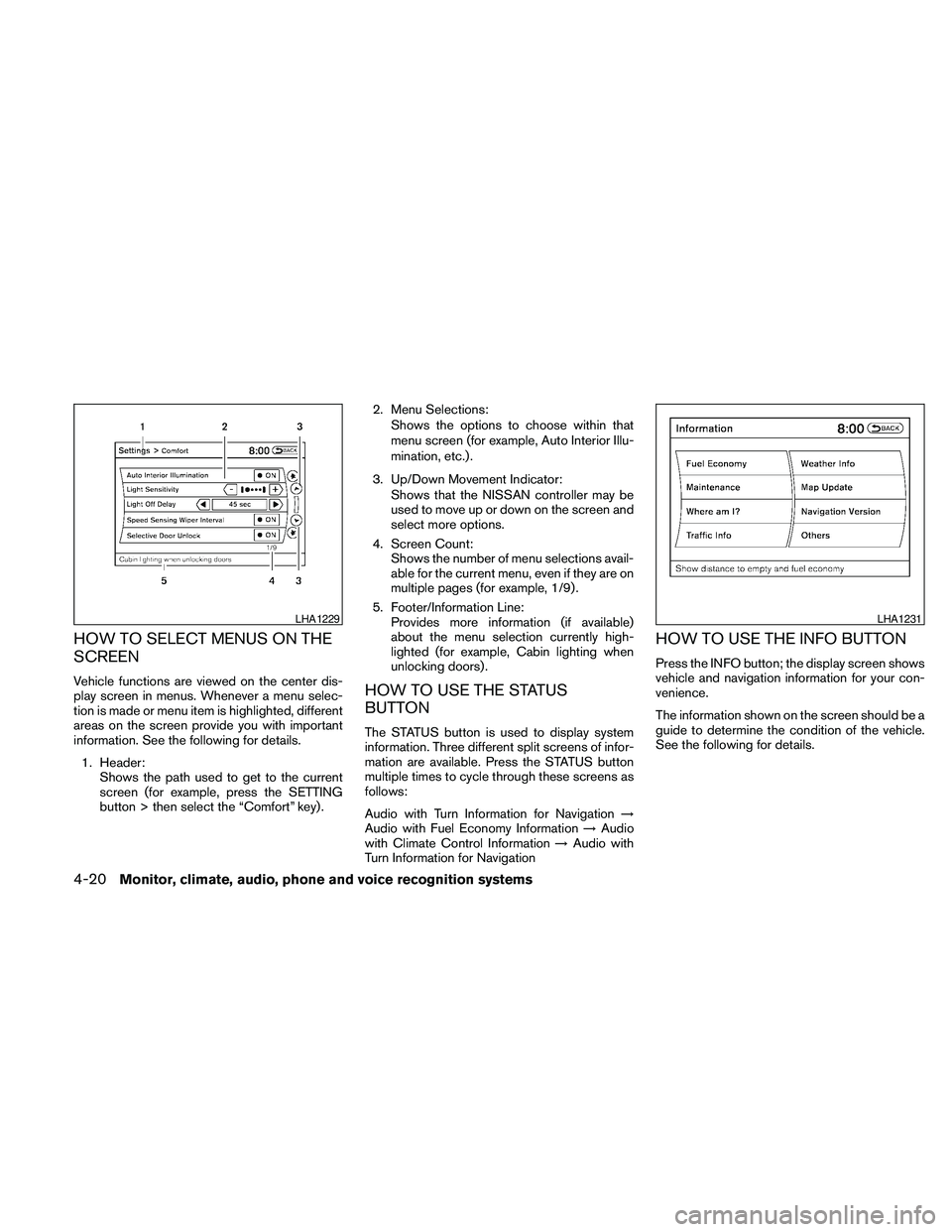
HOW TO SELECT MENUS ON THE
SCREEN
Vehicle functions are viewed on the center dis-
play screen in menus. Whenever a menu selec-
tion is made or menu item is highlighted, different
areas on the screen provide you with important
information. See the following for details.
1. Header:
Shows the path used to get to the current
screen (for example, press the SETTING
button > then select the “Comfort” key) .2. Menu Selections:
Shows the options to choose within that
menu screen (for example, Auto Interior Illu-
mination, etc.) .
3. Up/Down Movement Indicator:
Shows that the NISSAN controller may be
used to move up or down on the screen and
select more options.
4. Screen Count:
Shows the number of menu selections avail-
able for the current menu, even if they are on
multiple pages (for example, 1/9) .
5. Footer/Information Line:
Provides more information (if available)
about the menu selection currently high-
lighted (for example, Cabin lighting when
unlocking doors) .HOW TO USE THE STATUS
BUTTON
The STATUS button is used to display system
information. Three different split screens of infor-
mation are available. Press the STATUS button
multiple times to cycle through these screens as
follows:
Audio with Turn Information for Navigation!
Audio with Fuel Economy Information!Audio
with Climate Control Information!Audio with
Turn Information for Navigation
HOW TO USE THE INFO BUTTON
Press the INFO button; the display screen shows
vehicle and navigation information for your con-
venience.
The information shown on the screen should be a
guide to determine the condition of the vehicle.
See the following for details.
LHA1229LHA1231
4-20Monitor, climate, audio, phone and voice recognition systems
Page 186 of 457
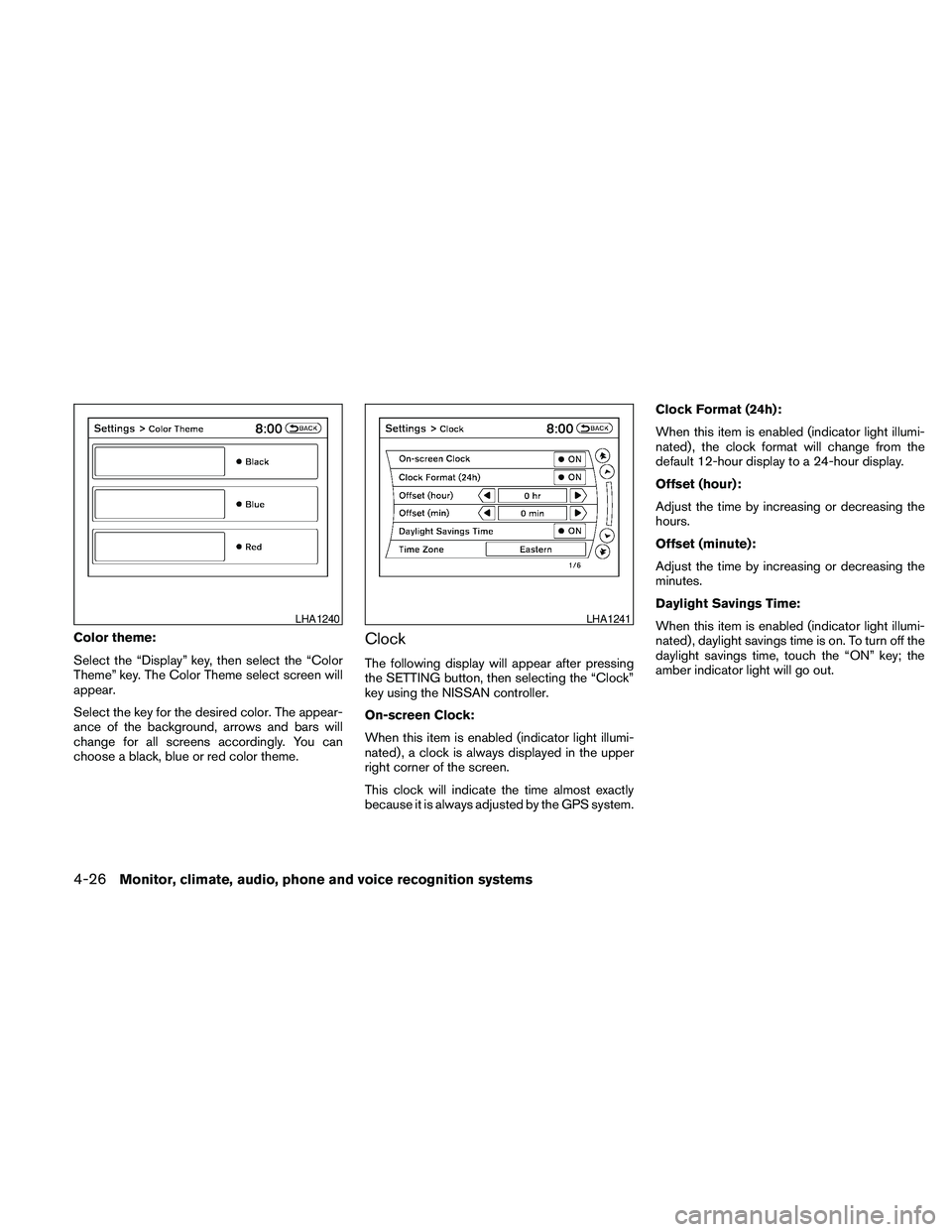
Color theme:
Select the “Display” key, then select the “Color
Theme” key. The Color Theme select screen will
appear.
Select the key for the desired color. The appear-
ance of the background, arrows and bars will
change for all screens accordingly. You can
choose a black, blue or red color theme.Clock
The following display will appear after pressing
the SETTING button, then selecting the “Clock”
key using the NISSAN controller.
On-screen Clock:
When this item is enabled (indicator light illumi-
nated) , a clock is always displayed in the upper
right corner of the screen.
This clock will indicate the time almost exactly
because it is always adjusted by the GPS system.Clock Format (24h):
When this item is enabled (indicator light illumi-
nated) , the clock format will change from the
default 12-hour display to a 24-hour display.
Offset (hour):
Adjust the time by increasing or decreasing the
hours.
Offset (minute):
Adjust the time by increasing or decreasing the
minutes.
Daylight Savings Time:
When this item is enabled (indicator light illumi-
nated) , daylight savings time is on. To turn off the
daylight savings time, touch the “ON” key; the
amber indicator light will go out.
LHA1240LHA1241
4-26Monitor, climate, audio, phone and voice recognition systems