2010 NISSAN MAXIMA USB
[x] Cancel search: USBPage 249 of 457

SEEK/CAT and TRACK
(Reverse or Fast Forward)
buttons:
Press and hold the SEEK/CAT
(rewind)
button or TRACK
(fast forward) button for
1.5 seconds while an audio file on the USB
device is playing to reverse or fast forward the
track being played. The track plays at an in-
creased speed while reversing or fast forwarding.
When the button is released, the audio file re-
turns to normal play speed.
SEEK/CAT and TRACK
buttons:
Press the SEEK/CAT button
while an au-
dio file on the USB device is playing to return to
the beginning of the current track. Press the
SEEK/CAT button
several times to skip
backward several tracks.
Press the TRACK button
while an audio
file on the USB device is playing to advance one
track. Press the TRACK button
several
times to skip forward several tracks. If the last
track in a folder on the USB device is skipped, the
first track of the next folder is played.Folder selection:
To change to another folder in the USB memory,
turn the TUNE/FOLDER knob or choose a folder
displayed on the screen using the NISSAN con-
troller.
RPT/RDM button:
When the RPT/RDM button is pressed while the
USB memory is playing, the play pattern can be
changed as follows:
Normal!1 Folder Repeat!1 Track Repeat!
All Random!1 Folder Random!Normal
Menu:
There are some options available during play-
back. Select one of the following that are dis-
played on the screen, if necessary. Refer to the
following information for each item.
cMovie Playback
Switch to the movie playback mode. This
item is displayed only when the USB
memory contains movie files.
cFolder List/Track List
Displays the folder or track list. The “Movie
Playback” key is also displayed in this list
screen and enables you to switch to the
movie playback mode.
LHA1294
Monitor, climate, audio, phone and voice recognition systems4-89
Page 250 of 457

cPlay Mode
Choose the preferred play mode using the
NISSAN controller or the touchscreen.
Movie file operation
Park the vehicle in a safe location for the
front seat occupants to operate the USB
memory while watching the images.
DISC-AUX button:
When the DISC-AUX button is pushed with the
system off and the USB memory inserted, the
system will turn on. If another audio source is
playing and the USB memory is inserted, press
the DISC-AUX button repeatedly until the center
display changes to the USB memory mode.Operation keys:
To operate the USB memory, select the desired
key displayed on the display screen.
c
Pause:
Select the
key to pause the movie file.
To resume playing the movie file, use
the
key.
c
Play:
Select the
key to start playing the
movie file or resume the movie file if it has
been paused.
c
Stop:
Select the
key to stop playing the
movie file.
c
Next Chapter/Fast Forward:
Select the
key to skip the chapter(s)
of the disc forward. The chapters will ad-
vance the number of times the key is se-
lected. Press and hold the key to fast for-
ward the chapter.
LHA1379
4-90Monitor, climate, audio, phone and voice recognition systems
Page 251 of 457

cPrevious Chapter/Rewind:
Select the
key to skip the chapter(s)
of the disc backward. The chapters will go
back the number of times the key is selected.
Press and hold the key to rewind the chap-
ter.
List:
Select the “List” key on the movie file operation
screen to display the file list.
Settings:
Select the “Settings” key to adjust the following
settings:
cAudio File Playback
Switch to the audio playback mode. This
item is displayed only when the USB
memory contains audio files.
cPlay Mode
Choose between the “Normal” or “1 Track
Repeat” play modes.c10 Key Search
Select the “10 Key Search” key to open the
number entry screen. Input the number you
want to search for and the specified file or
folder will be played.
cDisplay
Adjust the image quality of the screen.
cDRC
DRC (Dynamic Range Compression) auto-
matically adjusts the soundtrack volume
level to maintain a more even sound to the
speakers.
cAudio
Choose the preferred language of the audio.
cSubtitle
Choose the preferred language of the sub-
titles.
cDisplay Mode
Choose between the “Normal”, “Wide”,
“Cinema” or “Full” display modes.
LHA1380
Monitor, climate, audio, phone and voice recognition systems4-91
Page 252 of 457

iPodT* PLAYER OPERATION
WITHOUT NAVIGATION SYSTEM (if
so equipped)
Connecting iPodT
To connect an iPodTto the vehicle so that the
iPodTcan be controlled with the audio system
controls and display screen, use the USB jack
located in the center console. Open the protec-
tive cover
s1on the USB jack in the center
console. Then connect the iPodT-specific end of
the cable to the iPodTand the USB end of the
cable to the USB jack on the vehicle. When the
ignition switch is in the ACC or ON position, thebattery of your iPodT(if compatible) is charged
during the connection to the vehicle.
While connected to the vehicle, the iPodTcan
only be operated by the vehicle audio controls.
To disconnect the iPodTfrom the vehicle, remove
the USB end of the cable from the USB jack on
the vehicle, then remove the cable from the
iPodT.
*iPodTis a trademark of Apple Inc., registered in
the U.S. and other countries.
Compatibility
The following models are available:
ciPodTClassic - 1st through 6th generation
ciPodTMini - 1st and 2nd generation
ciPodTNano - 1st through 3rd generation
ciPodTTouch - 1st generation
ciPhoneT- 1st generation
Make sure that your iPodTfirmware is updated.
Audio main operation
Place the ignition switch in the ACC or ON
position. Press the AUX button repeatedly to
switch to the iPodTmode.
If the system has been turned off while the iPodT
was playing, pressing the VOL/ON·OFF control
knob will start the iPodT.
AUX button:
When the AUX button is pressed with the system
off and the iPodTconnected, the system will turn
on. If another audio source is playing and the
iPodTis connected, press the AUX button re-
peatedly until the center display changes to the
iPodTmode.
WHA1366LHA1395
4-92Monitor, climate, audio, phone and voice recognition systems
Page 253 of 457
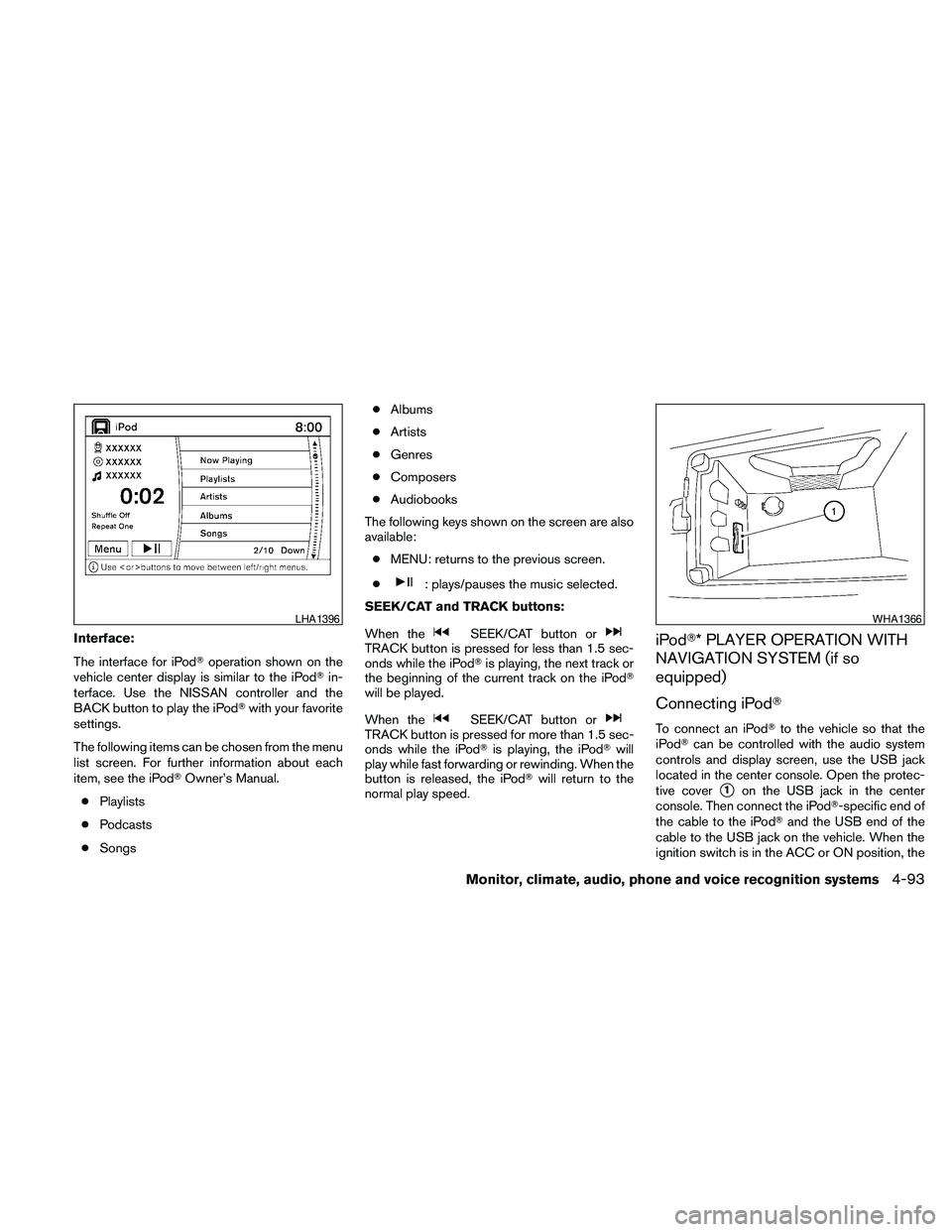
Interface:
The interface for iPodToperation shown on the
vehicle center display is similar to the iPodTin-
terface. Use the NISSAN controller and the
BACK button to play the iPodTwith your favorite
settings.
The following items can be chosen from the menu
list screen. For further information about each
item, see the iPodTOwner’s Manual.
cPlaylists
cPodcasts
cSongscAlbums
cArtists
cGenres
cComposers
cAudiobooks
The following keys shown on the screen are also
available:
cMENU: returns to the previous screen.
c
: plays/pauses the music selected.
SEEK/CAT and TRACK buttons:
When the
SEEK/CAT button orTRACK button is pressed for less than 1.5 sec-
onds while the iPodTis playing, the next track or
the beginning of the current track on the iPodT
will be played.
When the
SEEK/CAT button orTRACK button is pressed for more than 1.5 sec-
onds while the iPodTis playing, the iPodTwill
play while fast forwarding or rewinding. When the
button is released, the iPodTwill return to the
normal play speed.
iPodT* PLAYER OPERATION WITH
NAVIGATION SYSTEM (if so
equipped)
Connecting iPodT
To connect an iPodTto the vehicle so that the
iPodTcan be controlled with the audio system
controls and display screen, use the USB jack
located in the center console. Open the protec-
tive cover
s1on the USB jack in the center
console. Then connect the iPodT-specific end of
the cable to the iPodTand the USB end of the
cable to the USB jack on the vehicle. When the
ignition switch is in the ACC or ON position, the
LHA1396WHA1366
Monitor, climate, audio, phone and voice recognition systems4-93
Page 254 of 457

battery of your iPodT(if compatible) is charged
during the connection to the vehicle.
While connected to the vehicle, the iPodTcan
only be operated by the vehicle audio controls.
To disconnect the iPodTfrom the vehicle, remove
the USB end of the cable from the USB jack on
the vehicle, then remove the cable from the
iPodT.
*iPodTis a trademark of Apple Inc., registered in
the U.S. and other countries.
Compatibility
The following models are available:
ciPodTClassic - 1st through 6th generation
ciPodTMini - 1st and 2nd generation
ciPodTNano - 1st through 3rd generation
ciPodTTouch - 1st generation
ciPhoneT- 1st generation
Make sure that your iPodTfirmware is updated.
Audio main operation
Place the ignition switch in the ACC or ON
position. Press the DISC·AUX button repeatedly
to switch to the iPodTmode.
If the system has been turned off while the iPodT
was playing, pressing the VOL/ON·OFF control
knob will start the iPodT.DISC·AUX button:
When the DISC·AUX button is pressed with the
system off and the iPodTconnected, the system
will turn on. If another audio source is playing and
the iPodTis connected, press the DISC·AUX
button repeatedly until the center display
changes to the iPodTmode.
LHA1397
4-94Monitor, climate, audio, phone and voice recognition systems
Page 258 of 457

The Music Box audio system cannot perform
recording under the following conditions:
cThere is not enough space in the Music Box.
cThe number of albums reaches the maximum
of 99.
cThe number of tracks reaches the maximum
of 2,000.
Automatic recording:
If the “Automatic Recording” function is turned to
ON, recording starts when a CD is inserted and
any previous CD “converting” is finished. For
more information, see “Music Box settings” in this
section.
Stopping recording:
To stop the recording, select the “Stop REC” key
on the screen. If the CD is ejected, the audio
system is turned off or the ignition switch is
placed in the OFF position, the recording also
stops.
Playing recorded songs
Select the Music Box audio system by using one
of the following methods:
cPress the SOURCE select switch on the
steering wheel.
For information, see “Steering wheel switch
for audio control” in this section.
cPress the DISC button repeatedly until the
center display changes to the Music Box
mode.Stopping playback:
The system stops playing when:
cAnother mode (radio, CD, USB memory,
iPodTor AUX) is selected.
cThe audio system is turned off.
cThe ignition switch is placed in the OFF
position.
SEEK/CAT and TRACK buttons:
Press the
SEEK/CAT button while a track
is playing to return to the beginning of the current
track. Press the
TRACK button while a
track is playing to skip to the beginning of the next
track.
If you press and hold the
SEEK/CAT (re-
wind) button or the
TRACK (fast forward)
button for more than approximately 1.5 seconds;
the track will play while rewinding or fast forward-
ing. When the
SEEK/CAT (rewind) button
or the
TRACK (fast forward) button is re-
leased, the track will return to the normal playing
speed.
The NISSAN controller can also be used to se-
lect tracks.
WHA1369
4-98Monitor, climate, audio, phone and voice recognition systems
Page 260 of 457

cTransfer Titles from USB
Update the in-vehicle GracenoteTDatabase
using a USB memory device. Search the title
from information acquired on the Internet.
Visit www.nissanusa.com/gracenote/ for
details.
cTransfer Missing Titles to USB
Transfer the information of an album re-
corded without titles to the USB memory.
Visit www.nissanusa.com/gracenote/ for
details.
cUpdate Missing Titles
Search the title using the database in the
hard-disk.Music Box settings
To set up the Music Box Hard Drive audio system
to your preferred settings, select the “Menu” key
with the NISSAN controller during playback.
Then select the “Music Box Settings” key with the
NISSAN controller.
cMusic Box Used/Free Space:
Information about “Saved Album”, “Saved
Track” and “Remaining Time” is displayed.
cDelete Songs from the Music Box:
Delete the current song, selected songs or
albums by choosing from the list, or all
songs/albums in the Music Box.cAutomatic Recording:
When this item is turned to ON, the Music
Box Hard Drive audio system automatically
starts recording when a CD is inserted.
cRecording Quality:
Set the recording quality of 105 kbps or 132
kbps. The default is set to 105 kbps.
cGracenote Database Version:
The version of the built-in GracenoteTData-
base is displayed.
GracenoteT
NOTE:
cThe information contained in the
GracenoteTDatabase is not fully guaran-
teed.
cThe service of the GracenoteTDatabase on
the Internet may be stopped without prior
notice for maintenance.WHA1372WHA1373
4-100Monitor, climate, audio, phone and voice recognition systems