2010 NISSAN 370Z ROADSTER AUX
[x] Cancel search: AUXPage 197 of 409
Black plate (197,1)
Model "Z34-D" EDITED: 2009/ 9/ 10
SAA2495
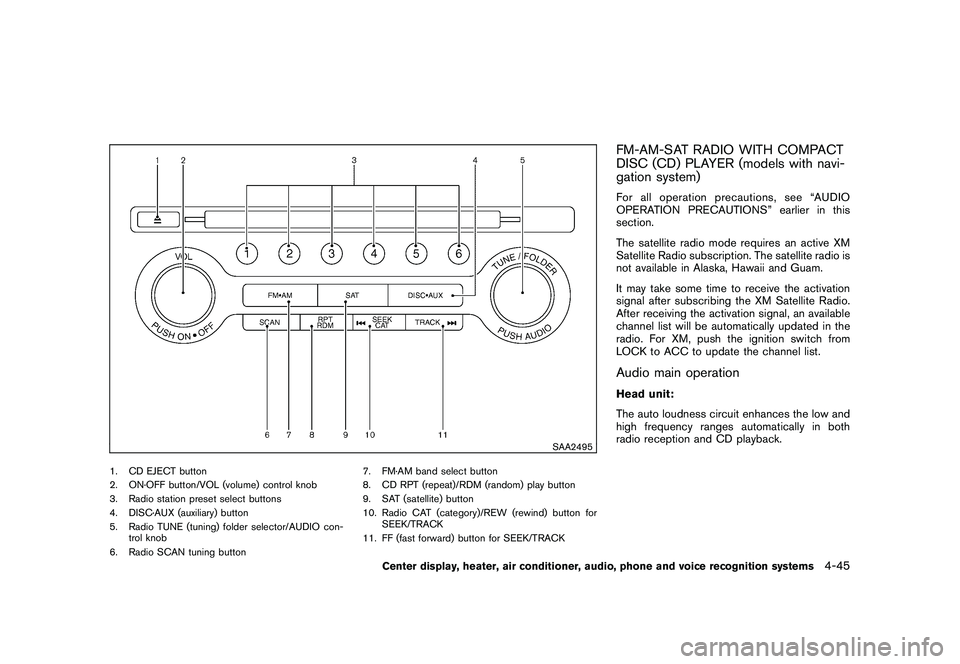
1. CD EJECT button
2. ON·OFF button/VOL (volume) control knob
3. Radio station preset select buttons
4. DISC·AUX (auxiliary) button
5. Radio TUNE (tuning) folder selector/AUDIO con-trol knob
6. Radio SCAN tuning button 7. FM·AM band select button
8. CD RPT (repeat)/RDM (random) play button
9. SAT (satellite) button
10. Radio CAT (category)/REW (rewind) button for
SEEK/TRACK
11. FF (fast forward) button for SEEK/TRACK
FM-AM-SAT RADIO WITH COMPACT
DISC (CD) PLAYER (models with navi-
gation system)For all operation precautions, see “AUDIO
OPERATION PRECAUTIONS” earlier in this
section.
The satellite radio mode requires an active XM
Satellite Radio subscription. The satellite radio is
not available in Alaska, Hawaii and Guam.
It may take some time to receive the activation
signal after subscribing the XM Satellite Radio.
After receiving the activation signal, an available
channel list will be automatically updated in the
radio. For XM, push the ignition switch from
LOCK to ACC to update the channel list.Audio main operationHead unit:
The auto loudness circuit enhances the low and
high frequency ranges automatically in both
radio reception and CD playback.
Center display, heater, air conditioner, audio, phone and voice recognition systems
4-45
Page 198 of 409
Black plate (198,1)
Model "Z34-D" EDITED: 2009/ 9/ 10
ON·OFF/Volume control:
Push the ignition switch to the ACC or ON
position, and then push the ON·OFF button
while the system is off to turn on the last audio
source (i.e. FM or CD) , which was playing
immediately before the system was turned off.
While the system is on, pushing the ON·OFF
button turns the system off.
Turn the VOL control knob to adjust the volume.
Adjusting tone quality and speaker bal-
ance:
To adjust Bass, Treble, Balance and Fade, push
the Audio control knob. When the display shows
the setting you want to change (Bass, Treble,
Balance and Fade) , rotate the Audio control
knob to set the desired setting. For the other
setting methods, see “HOW TO USE SETTING
BUTTON” earlier in this section.
This vehicle has some sound effect functions as
follows:
.Speed Sensitive Vol.
For more details, see “VEHICLE INFORMATION
AND SETTINGS (models with navigation sys-
tem)” earlier in this section. Switching the display:
Pushing the DISC·AUX button will switch the
displays as follows:
iPod
®/USB
?CD/DVD ?Music Box ?
Bluetooth
®Audio ?AUX ?iPod
®/USB
FM-AM-SAT radio operation
radio (FM/AM) band select:
Pushing the radio band select button will
change the band as follows:
AM ?FM1 ?FM2 ?AMradio (SAT) band select:
Pushing the radio band select button will
change the band as follows:
XM1 ?XM2 ?XM3 ?XM1
When the radio band select button is pushed
while the ignition switch is in the ACC or ON
position, the radio will come on at the channel
last played.
The last channel played will also come on when
the ON·OFF button is pushed to ON.
The satellite radio is not available in Alaska,
Hawaii and Guam. If another audio source is playing when the radio
band select button is turned to ON, the audio
source will automatically be turned off and the
last radio channel played will come on.
When the stereo broadcast signal is weak, the
radio will automatically change from stereo to
monaural reception.
TUNE (Tuning):
.
For AM and FM radio
Turn the radio TUNE knob for manual tuning.
. For XM Satellite Radio
Turn the radio TUNE knob to seek channels
from all of the categories when any category
is not selected.
SEEK tuning/CATEGORY
(CAT):
. For AM and FM radio
Push the SEEK button
or
to tune
from low to high or high to low frequencies
and to stop at the next broadcasting station.
. For XM Satellite Radio
Push the SEEK button
or
to tune
to the first channel of the next or previous
category.
4-46
Center display, heater, air conditioner, audio, phone and voice recognition systems
Page 200 of 409
Black plate (200,1)
Model "Z34-D" EDITED: 2009/ 9/ 10
.Direct Tune
Inputs the channel number by using a
keypad.Compact Disc (CD) player operationPush the ignition switch to the ACC or ON
position and insert the Compact Disc (CD) into
the slot with the label side facing up. The CD will
be guided automatically into the slot and start
playing.
After loading the CD, the number of tracks on
the CD and the play time will appear on the
display.
If the radio is already operating, it will auto-
matically turn off and the CD will play.
If the system has been turned off while the CD
was playing, pushing the ON·OFF button will
start the CD.
Do not use 3.1 in (8 cm) discs.
PLAY:
When the DISC·AUX (CD play) button is
pushed with the system off and the CD loaded,
the system will turn on and the CD will start to
play.
When the DISC·AUX button is pushed with the
CD loaded and the radio playing, the radio will
automatically be turned off and the CD will start to play.
Menu:
When the “Menu” key on the display is selected
while the CD is being played, the menu screen
will be displayed. The following menu options
are available.
.
Folder List (for CD with compressed audio
files)
Displays the folder list.
. Track List
Displays the track list.
. Play Mode
Select a play mode from the following items.
— Normal
— 1 Folder Repeat (for CD with compressed audio files)
— 1 Track Repeat
— 1 Disc Random
— 1 Folder Random (for CD with com- pressed audio files)
. Record to Music Box (for CD)
Select to choose specific songs on the CD
to record to the Music Box. .
Title Text Priority (for CD)
Set the priority to CDDB (Compact Disc
Data Base) to acquire track information from
the Gracenote Database, or set the priority
to CD-TEXT to acquire the information from
CDs.
. Automatic Recording (for CD)
When this item is turned to ON, the Music
Box hard drive automatically starts recording
when a CD is inserted.
. Recording Quality (for CD)
The larger number (132) will increase the
recorded sound quality while taking up more
space on the Music Box leaving less room
for more songs.
For the details of Music Box, see “MUSIC BOX
HARD-DISK DRIVE (models with navigation
system)” later in this section.
Next/Previous Track and Fast
Forward/Rewind:
When the(fast forward) or
(rewind)
button is pushed for more than 1.5 seconds
while the CD is being played, the CD will play
while fast forwarding or rewinding. When the
button is released, the CD will return to normal
play speed.
4-48
Center display, heater, air conditioner, audio, phone and voice recognition systems
Page 202 of 409
Black plate (202,1)
Model "Z34-D" EDITED: 2009/ 9/ 10
SAA2497
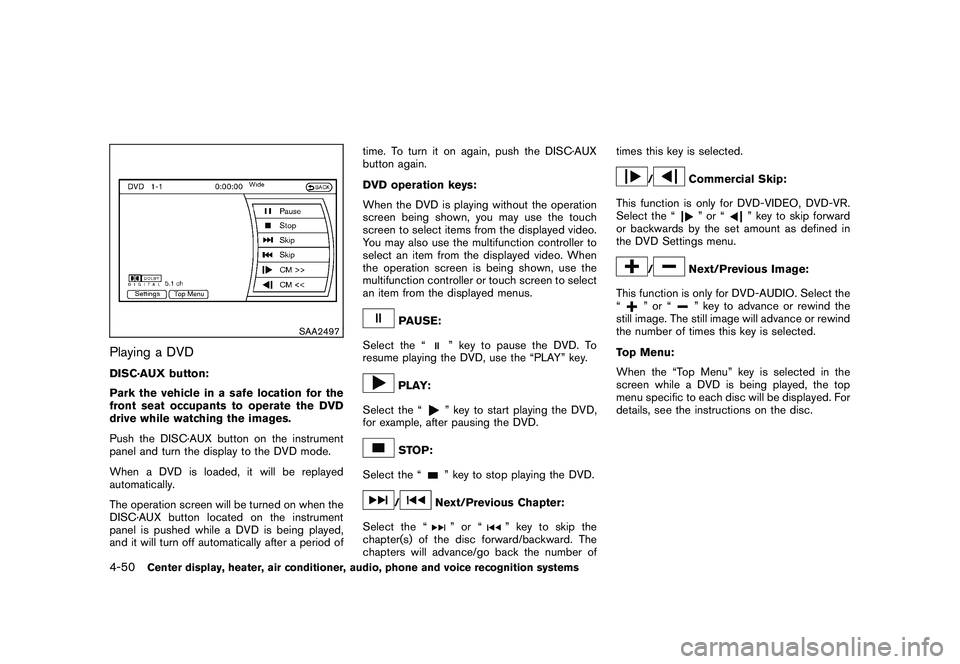
Playing a DVDDISC·AUX button:
Park the vehicle in a safe location for the
front seat occupants to operate the DVD
drive while watching the images.
Push the DISC·AUX button on the instrument
panel and turn the display to the DVD mode.
When a DVD is loaded, it will be replayed
automatically.
The operation screen will be turned on when the
DISC·AUX button located on the instrument
panel is pushed while a DVD is being played,
and it will turn off automatically after a period oftime. To turn it on again, push the DISC·AUX
button again.
DVD operation keys:
When the DVD is playing without the operation
screen being shown, you may use the touch
screen to select items from the displayed video.
You may also use the multifunction controller to
select an item from the displayed video. When
the operation screen is being shown, use the
multifunction controller or touch screen to select
an item from the displayed menus.
PAUSE:
Select the “
” key to pause the DVD. To
resume playing the DVD, use the “PLAY” key.
PLAY:
Select the “
” key to start playing the DVD,
for example, after pausing the DVD.
STOP:
Select the “
” key to stop playing the DVD.
/
Next/Previous Chapter:
Select the “
”or“
” key to skip the
chapter(s) of the disc forward/backward. The
chapters will advance/go back the number of times this key is selected.
/
Commercial Skip:
This function is only for DVD-VIDEO, DVD-VR.
Select the “”or“
” key to skip forward
or backwards by the set amount as defined in
the DVD Settings menu.
/
Next/Previous Image:
This function is only for DVD-AUDIO. Select the
“
”or“
” key to advance or rewind the
still image. The still image will advance or rewind
the number of times this key is selected.
Top Menu:
When the “Top Menu” key is selected in the
screen while a DVD is being played, the top
menu specific to each disc will be displayed. For
details, see the instructions on the disc.
4-50
Center display, heater, air conditioner, audio, phone and voice recognition systems
Page 204 of 409
Black plate (204,1)
Model "Z34-D" EDITED: 2009/ 9/ 10
be changed to the one specified.
Display:
To adjust the image quality of the screen, select
the preferred adjustment items.
Audio:
Select the preferred language for audio.
Subtitle (DVD-VIDEO, DVD-VR):
Select the preferred language for subtitles.
Display Mode (DVD-VIDEO, VIDEO-CD,
DVD-VR):
Select from the “Full”, “Wide”, “Normal” or
“Cinema” modes.
Title List (DVD-VR):
Select the preferred title from the list.
Play Mode:
Select the preferred play mode.
PG/PL Mode (DVD-VR):
Select the “PG” or “PL” mode.
SAA2499
USB MEMORY OPERATION (models
with navigation system)
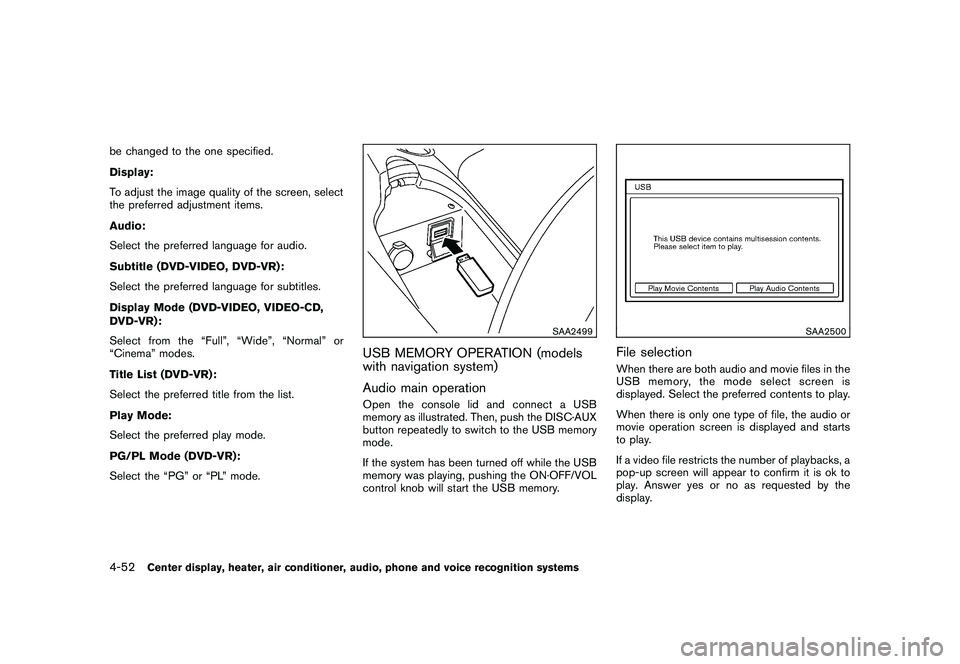
Audio main operationOpen the console lid and connect a USB
memory as illustrated. Then, push the DISC·AUX
button repeatedly to switch to the USB memory
mode.
If the system has been turned off while the USB
memory was playing, pushing the ON·OFF/VOL
control knob will start the USB memory.
SAA2500
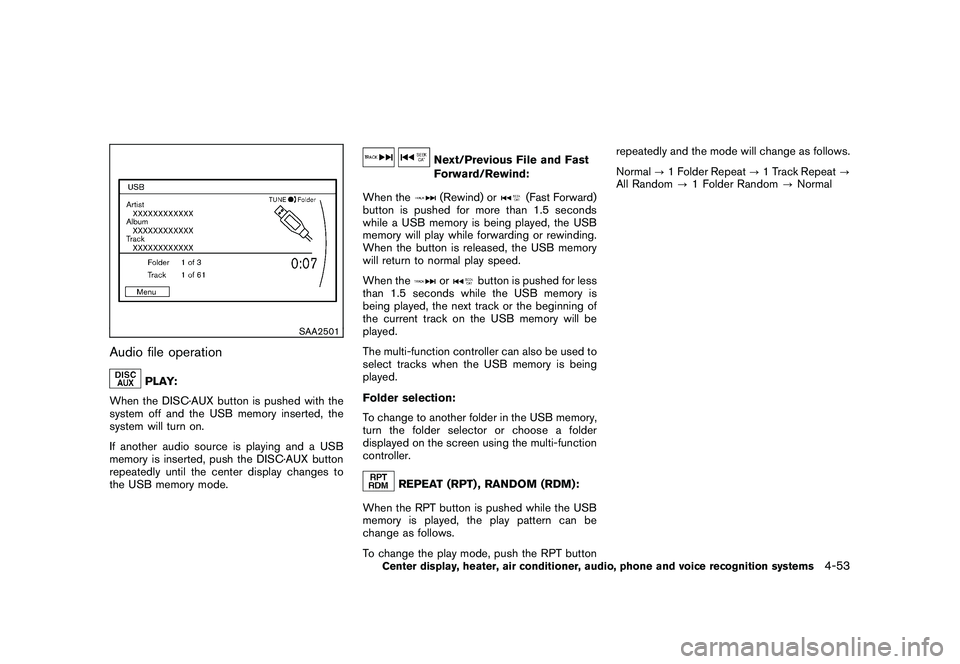
File selectionWhen there are both audio and movie files in the
USB memory, the mode select screen is
displayed. Select the preferred contents to play.
When there is only one type of file, the audio or
movie operation screen is displayed and starts
to play.
If a video file restricts the number of playbacks, a
pop-up screen will appear to confirm it is ok to
play. Answer yes or no as requested by the
display.
4-52
Center display, heater, air conditioner, audio, phone and voice recognition systems
Page 205 of 409
Black plate (205,1)
Model "Z34-D" EDITED: 2009/ 9/ 10
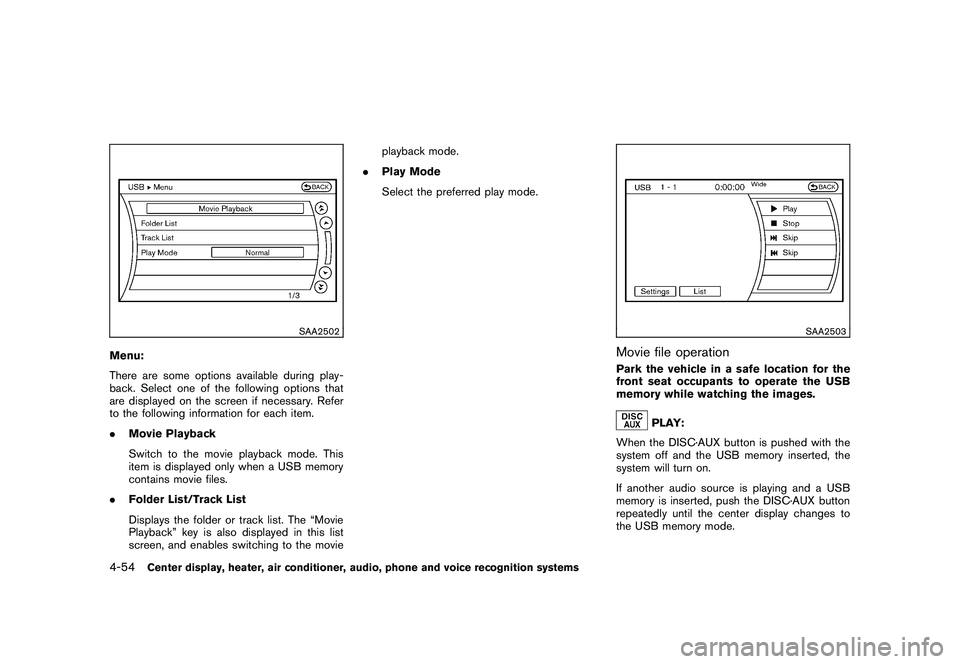
SAA2501
Audio file operation
PLAY:
When the DISC·AUX button is pushed with the
system off and the USB memory inserted, the
system will turn on.
If another audio source is playing and a USB
memory is inserted, push the DISC·AUX button
repeatedly until the center display changes to
the USB memory mode.
Next/Previous File and Fast
Forward/Rewind:
When the(Rewind) or
(Fast Forward)
button is pushed for more than 1.5 seconds
while a USB memory is being played, the USB
memory will play while forwarding or rewinding.
When the button is released, the USB memory
will return to normal play speed.
When the
or
button is pushed for less
than 1.5 seconds while the USB memory is
being played, the next track or the beginning of
the current track on the USB memory will be
played.
The multi-function controller can also be used to
select tracks when the USB memory is being
played.
Folder selection:
To change to another folder in the USB memory,
turn the folder selector or choose a folder
displayed on the screen using the multi-function
controller.
REPEAT (RPT) , RANDOM (RDM):
When the RPT button is pushed while the USB
memory is played, the play pattern can be
change as follows.
To change the play mode, push the RPT button repeatedly and the mode will change as follows.
Normal
?1 Folder Repeat ?1 Track Repeat ?
All Random ?1 Folder Random ?Normal
Center display, heater, air conditioner, audio, phone and voice recognition systems
4-53
Page 206 of 409
Black plate (206,1)
Model "Z34-D" EDITED: 2009/ 9/ 10
SAA2502
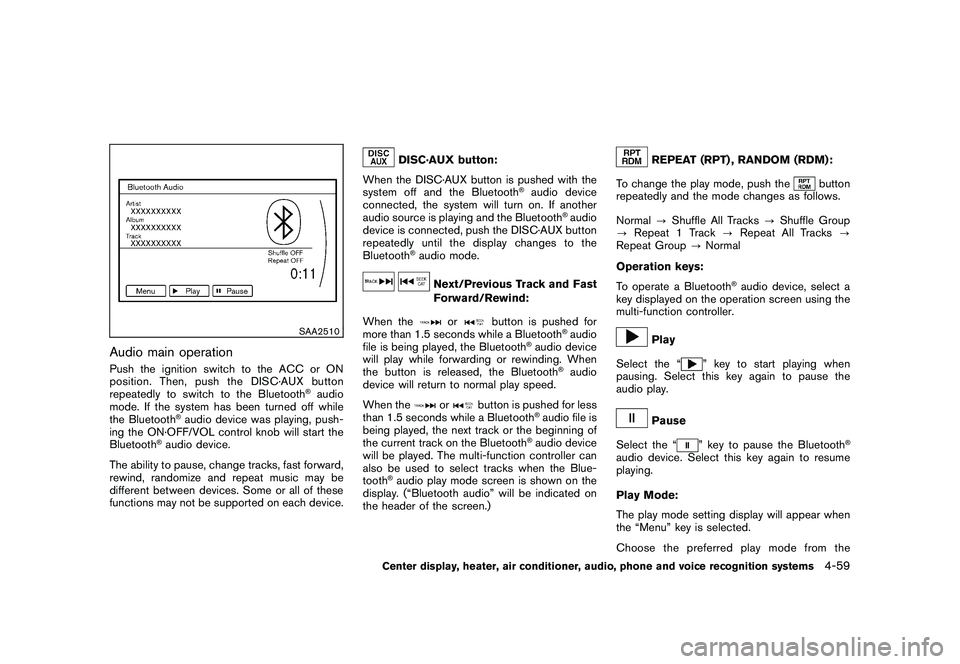
Menu:
There are some options available during play-
back. Select one of the following options that
are displayed on the screen if necessary. Refer
to the following information for each item.
.Movie Playback
Switch to the movie playback mode. This
item is displayed only when a USB memory
contains movie files.
. Folder List/Track List
Displays the folder or track list. The “Movie
Playback” key is also displayed in this list
screen, and enables switching to the movie playback mode.
. Play Mode
Select the preferred play mode.
SAA2503
Movie file operationPark the vehicle in a safe location for the
front seat occupants to operate the USB
memory while watching the images.
PLAY:
When the DISC·AUX button is pushed with the
system off and the USB memory inserted, the
system will turn on.
If another audio source is playing and a USB
memory is inserted, push the DISC·AUX button
repeatedly until the center display changes to
the USB memory mode.
4-54
Center display, heater, air conditioner, audio, phone and voice recognition systems
Page 211 of 409
Black plate (211,1)
Model "Z34-D" EDITED: 2009/ 9/ 10
SAA2510
Audio main operationPush the ignition switch to the ACC or ON
position. Then, push the DISC·AUX button
repeatedly to switch to the Bluetooth
®audio
mode. If the system has been turned off while
the Bluetooth
®audio device was playing, push-
ing the ON·OFF/VOL control knob will start the
Bluetooth
®audio device.
The ability to pause, change tracks, fast forward,
rewind, randomize and repeat music may be
different between devices. Some or all of these
functions may not be supported on each device.
DISC·AUX button:
When the DISC·AUX button is pushed with the
system off and the Bluetooth
®audio device
connected, the system will turn on. If another
audio source is playing and the Bluetooth
®audio
device is connected, push the DISC·AUX button
repeatedly until the display changes to the
Bluetooth
®audio mode.
Next/Previous Track and Fast
Forward/Rewind:
When the
or
button is pushed for
more than 1.5 seconds while a Bluetooth
®audio
file is being played, the Bluetooth
®audio device
will play while forwarding or rewinding. When
the button is released, the Bluetooth
®audio
device will return to normal play speed.
When the
or
button is pushed for less
than 1.5 seconds while a Bluetooth
®audio file is
being played, the next track or the beginning of
the current track on the Bluetooth
®audio device
will be played. The multi-function controller can
also be used to select tracks when the Blue-
tooth
®audio play mode screen is shown on the
display. (“Bluetooth audio” will be indicated on
the header of the screen.)
REPEAT (RPT) , RANDOM (RDM):
To change the play mode, push the
button
repeatedly and the mode changes as follows.
Normal ?Shuffle All Tracks ?Shuffle Group
? Repeat 1 Track ?Repeat All Tracks ?
Repeat Group ?Normal
Operation keys:
To operate a Bluetooth
®audio device, select a
key displayed on the operation screen using the
multi-function controller.
Play
Select the “
” key to start playing when
pausing. Select this key again to pause the
audio play.
Pause
Select the “
” key to pause the Bluetooth
®
audio device. Select this key again to resume
playing.
Play Mode:
The play mode setting display will appear when
the “Menu” key is selected.
Choose the preferred play mode from the
Center display, heater, air conditioner, audio, phone and voice recognition systems
4-59