2010 MERCEDES-BENZ S600 Switch
[x] Cancel search: SwitchPage 75 of 548
iUnless you open a door or the trunk within
approximately 40 seconds after unlocking
the vehicle:
R The vehicle will be locked again.
R The anti-theft alarm system will be
rearmed.
Canceling the alarm
To cancel the alarm, do one of the following:
XInsert the SmartKey into the starter switch.XPress button % or & on the
SmartKey.
In vehicles with KEYLESS-GO:
XGrasp an outside door handle.
The SmartKey must be within 3 ft (1 m) of
the vehicle.XPress the KEYLESS-GO start/stop button.
The SmartKey must be inside the vehicle.Anti-theft systems73Safety and security221_AKB; 6; 20, en-USd2ugruen,Version: 2.11.8.12009-09-24T13:28:17+02:00 - Seite 73Z
Page 79 of 548
Switching COMAND on or offXPress shortcut button u in the center
console (Y page 77).
COMAND calls up the last selected menu.
iWhen you switch off COMAND, you also
switch off the currently playing audio
source. During a telephone call, you cannot
switch off COMAND.
COMAND components
COMAND can be used to operate:
RAudio functions
RNavigation system
RTelephone
RExternal audio and video sources
RVideo DVD
RVarious vehicle settings
COMAND consists of the following:
RCOMAND shortcut buttons
RCOMAND display (with SPLITVIEW, if so
equipped)
RTelephone keypad
RCOMAND controller
RBuilt-in USB socket to connect USB storage
devices
ROptional media interface in the glove box
to connect external devices via iPod®
cable, jack plug, or USB cable
The Rear Seat Entertainment System consists
of the following:
Rtwo remote controls
Rtwo wireless headphones
Rtwo screens in rear passenger
compartment
Rone CD/DVD drive in rear passenger
compartment
RAudio and video sockets on each screen
RAudio and video sockets on CD/DVD drive
The Rear Seat Entertainment System
contains the following functions:
RDisc playback (CD audio, MP3, DVD audio
and DVD video)
RAUX playback
RSystem settings
SPLITVIEW contains the following:
Rone remote control for the front passenger
Rone wireless headphone for the front
passenger
Rone 3.5 mm socket in the front passenger
footwell for SPLITVIEW wired headphones
iFor information about cleaning and care
of displays, see (Y page 446).
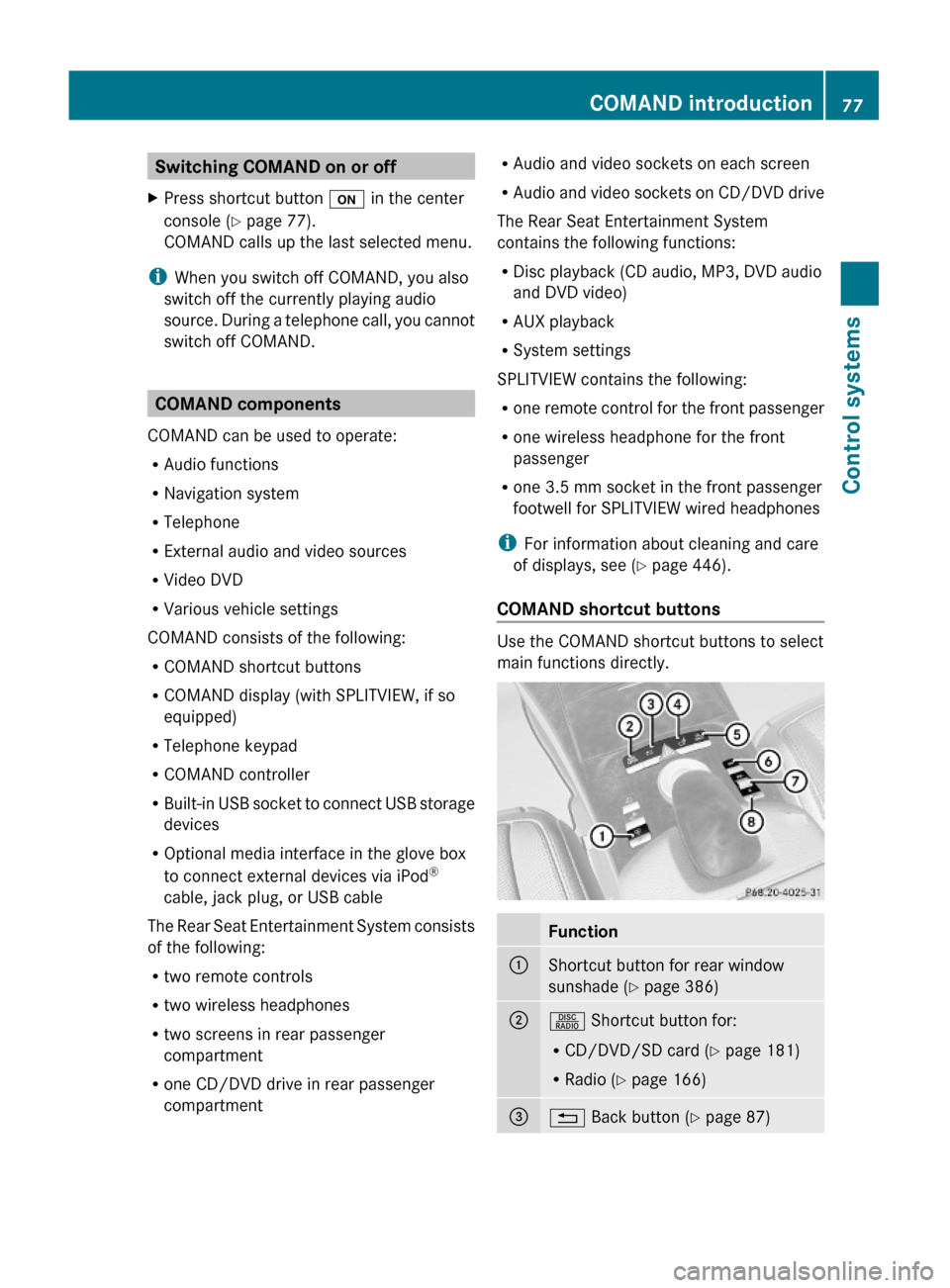
COMAND shortcut buttons
Use the COMAND shortcut buttons to select
main functions directly.
Function:Shortcut button for rear window
sunshade (Y page 386)
;R Shortcut button for:
RCD/DVD/SD card (Y page 181)
RRadio (Y page 166)
=% Back button (Y page 87)COMAND introduction77Control systems221_AKB; 6; 20, en-USd2ugruen,Version: 2.11.8.12009-09-24T13:28:17+02:00 - Seite 77Z
Page 83 of 548
Rear armrest
:Adjusting volume;Selecting next/previous track, scene or
station
Remote control for Rear Seat
Entertainment System and/or
SPLITVIEW
GObserve Safety notes, see page 76.
SPLITVIEW includes one remote control for
the front passenger.
The Rear Seat Entertainment System
includes two remote controls for the rear
passenger compartment.
If your vehicle is equipped with Rear Seat
Entertainment System and SPLITVIEW, the
remote controls are interchangeable.
For information on using SPLITVIEW, see
(Y page 90).
For information on using the Rear Seat
Entertainment System, see (Y page 189).
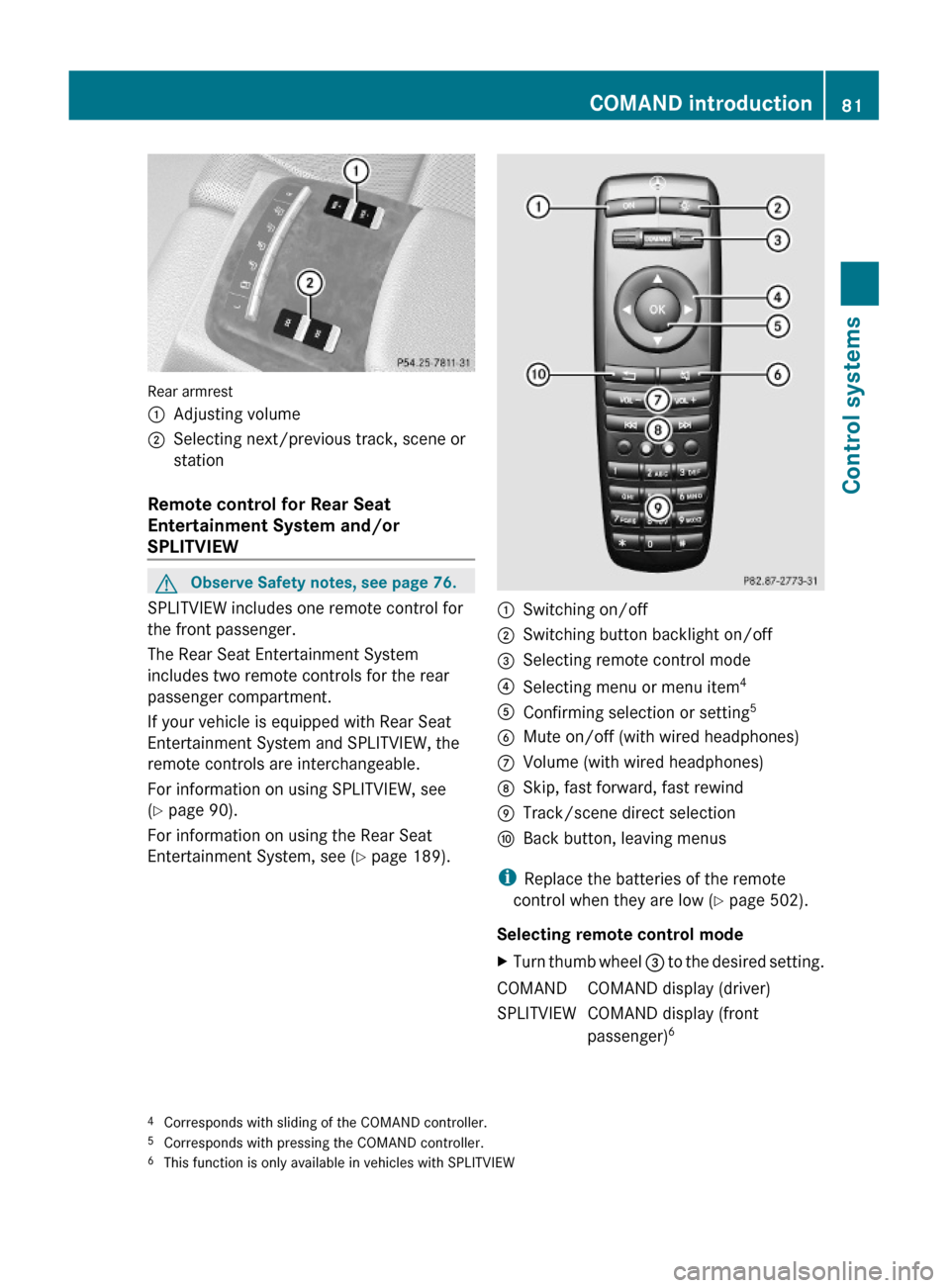
:Switching on/off;Switching button backlight on/off=Selecting remote control mode?Selecting menu or menu item4AConfirming selection or setting5BMute on/off (with wired headphones)CVolume (with wired headphones)DSkip, fast forward, fast rewindETrack/scene direct selectionFBack button, leaving menus
iReplace the batteries of the remote
control when they are low (Y page 502).
Selecting remote control mode
XTurn thumb wheel = to the desired setting.COMANDCOMAND display (driver)SPLITVIEWCOMAND display (front
passenger)64Corresponds with sliding of the COMAND controller.5Corresponds with pressing the COMAND controller.6This function is only available in vehicles with SPLITVIEW
COMAND introduction81Control systems221_AKB; 6; 20, en-USd2ugruen,Version: 2.11.8.12009-09-24T13:28:17+02:00 - Seite 81Z
Page 84 of 548
REAR LLeft screen7REAR RRight screen 7
i
In position COMAND, you can operate
various COMAND functions via remote
control buttons ? and A.
Switching SPLITVIEW or rear screens on/
off
i When the SmartKey is in starter switch
position 0 or 1 or removed from the starter
switch, the rear screens switch off after 30
minutes automatically. A corresponding
message appears on the screens prior to
switching off.
You can switch the screens back on. Keep
in mind however that this will drain the
vehicle battery.
XSwitching on with the COMAND system
already on: Aim the remote control on the
screen.XPress button :.XSwitching off: Aim the remote control on
the screen.XPress button :.
Switching button backlight on/off
XPress button ;.
i
When you do not use the remote control
for approximately 15 seconds, the button
backlight switches off automatically.
Mute on/off (for wired headphones or
COMAND)
XPress button B.Selecting menu or menu item and
confirming selectionXSelecting menu or menu item: Press
arrow buttons ?.XConfirming selection: Press button A.
Headphone
GWarning!
The driver should not wear a headphone while
operating the vehicle under any
circumstances. The use of a headphone while
driving the vehicle could drastically impair the
ability to react to audible traffic conditions
(e.g. emergency sirens from police/fire/
ambulance, another car’s horn, etc.).
GWarning!
When not in use, headphones or external
video sources should be stored in a safe
location (e.g. one of the vehicle’s storage
compartments) so that they are not loose
within the passenger compartment during
braking, vehicle maneuvers or a traffic
accident. Objects moving within the
passenger compartment could cause serious
personal injury to vehicle occupants.
GWarning!
Due to a potential choking hazard, wired
headphone usage by children should only
occur with adult supervision.
For information on using SPLITVIEW, see
( Y page 90).
For information on using the Rear Seat
Entertainment System, see ( Y page 189).
7
This function is only available in vehicles with Rear Seat Entertainment System82COMAND introductionControl systems
221_AKB; 6; 20, en-USd2ugruen,Version: 2.11.8.12009-09-24T13:28:17+02:00 - Seite 82
Page 85 of 548
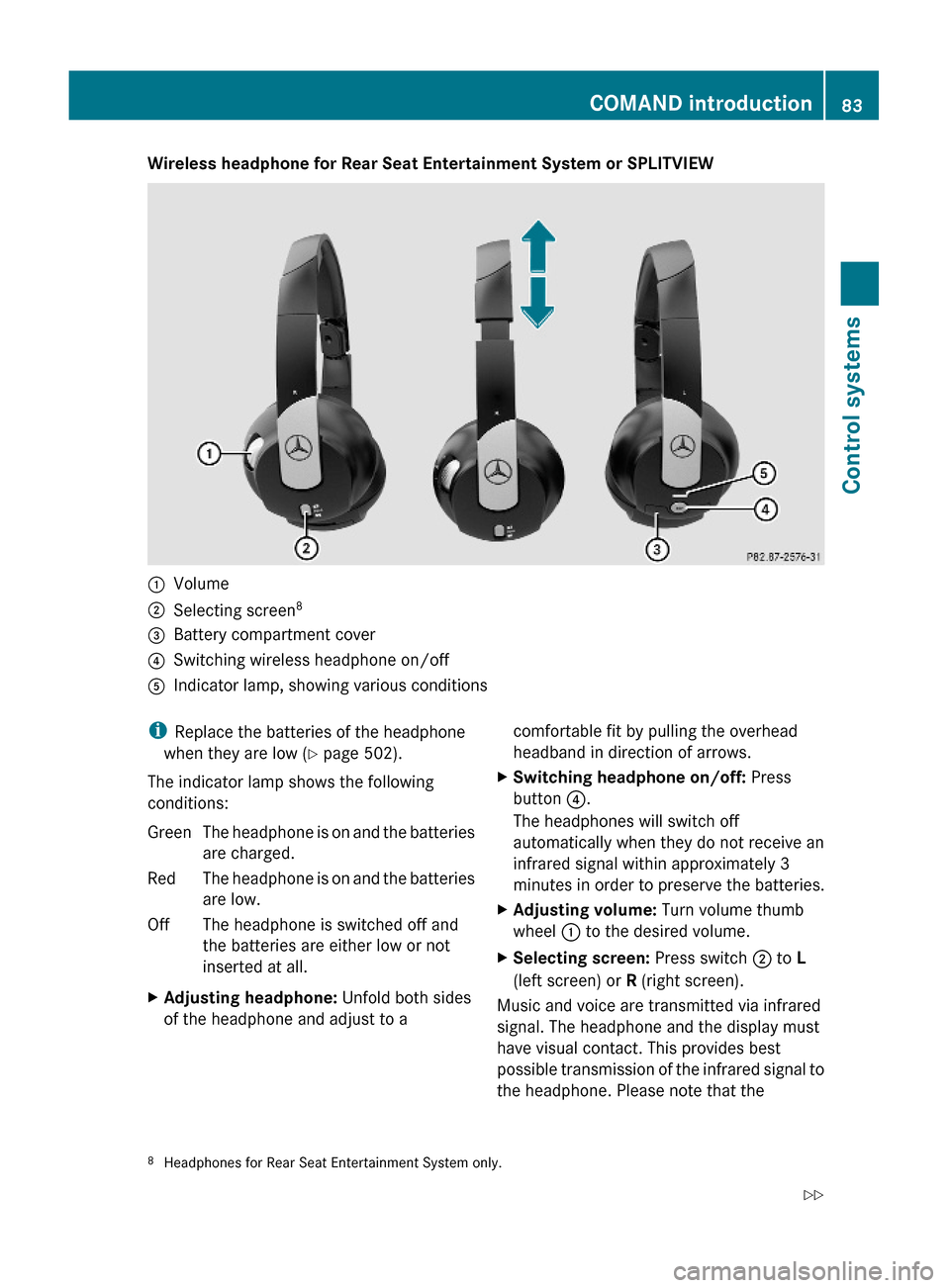
Wireless headphone for Rear Seat Entertainment System or SPLITVIEW:Volume;Selecting screen8=Battery compartment cover?Switching wireless headphone on/offAIndicator lamp, showing various conditionsiReplace the batteries of the headphone
when they are low (Y page 502).
The indicator lamp shows the following
conditions:
GreenThe headphone is on and the batteries
are charged.
RedThe headphone is on and the batteries
are low.
OffThe headphone is switched off and
the batteries are either low or not
inserted at all.
XAdjusting headphone: Unfold both sides
of the headphone and adjust to a
comfortable fit by pulling the overhead
headband in direction of arrows.
XSwitching headphone on/off: Press
button ?.
The headphones will switch off
automatically when they do not receive an
infrared signal within approximately 3
minutes in order to preserve the batteries.
XAdjusting volume: Turn volume thumb
wheel : to the desired volume.
XSelecting screen: Press switch ; to L
(left screen) or R (right screen).
Music and voice are transmitted via infrared
signal. The headphone and the display must
have visual contact. This provides best
possible transmission of the infrared signal to
the headphone. Please note that the
8Headphones for Rear Seat Entertainment System only.COMAND introduction83Control systems221_AKB; 6; 20, en-USd2ugruen,Version: 2.11.8.12009-09-24T13:28:17+02:00 - Seite 83Z
Page 88 of 548
When selecting that main function once
more, the Audio main menu opens.
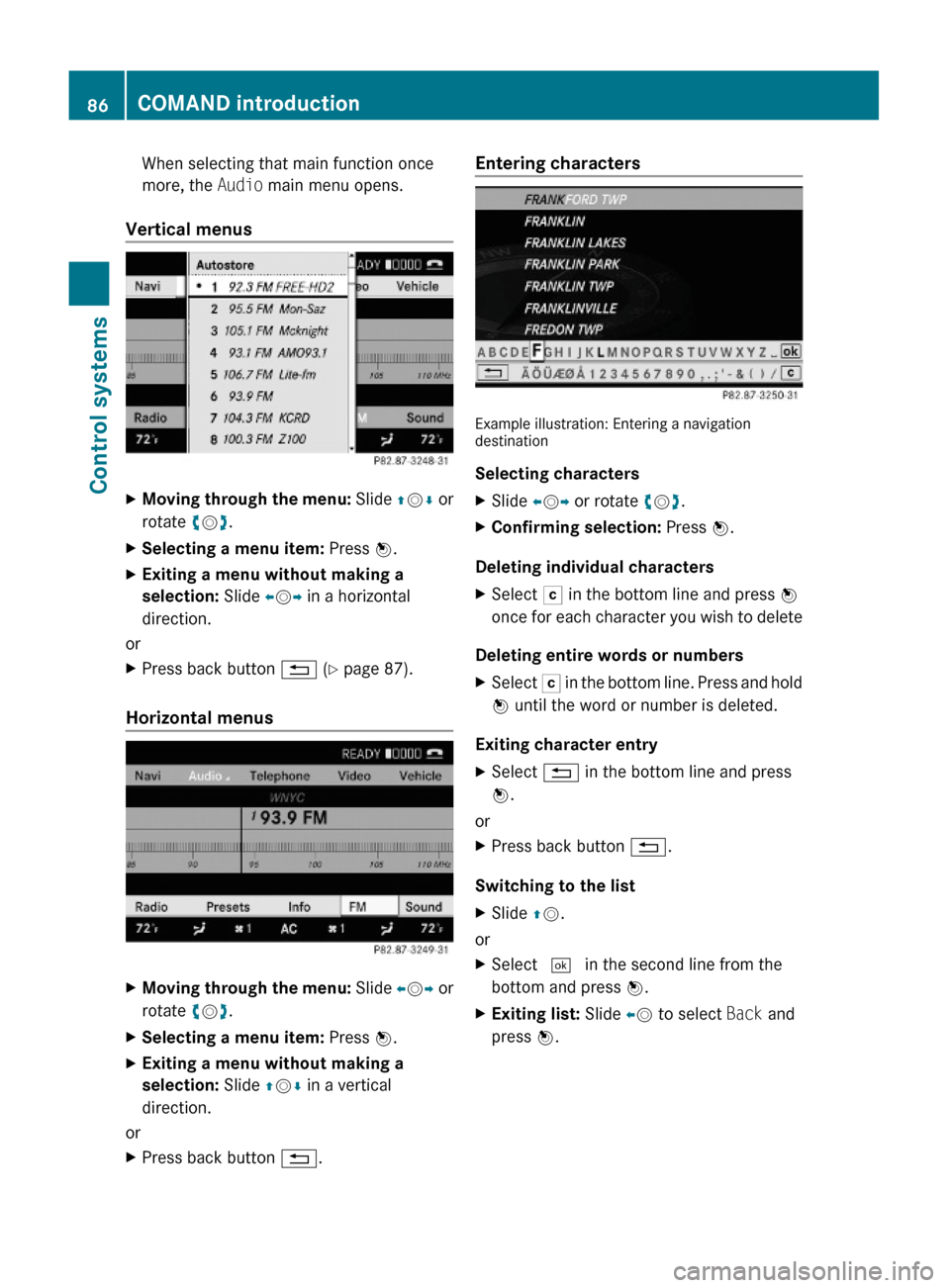
Vertical menus
XMoving through the menu: Slide ZVÆ or
rotate cVd.
XSelecting a menu item: Press W.XExiting a menu without making a
selection: Slide XVY in a horizontal
direction.
or
XPress back button % (Y page 87).
Horizontal menus
XMoving through the menu: Slide XVY or
rotate cVd.
XSelecting a menu item: Press W.XExiting a menu without making a
selection: Slide ZVÆ in a vertical
direction.
or
XPress back button %.Entering characters
Example illustration: Entering a navigationdestination
Selecting characters
XSlide XVY or rotate cVd.XConfirming selection: Press W.
Deleting individual characters
XSelect F in the bottom line and press W
once for each character you wish to delete
Deleting entire words or numbers
XSelect F in the bottom line. Press and hold
W until the word or number is deleted.
Exiting character entry
XSelect % in the bottom line and press
W.
or
XPress back button %.
Switching to the list
XSlide ZV.
or
XSelect ¬ in the second line from the
bottom and press W.
XExiting list: Slide XV to select Back and
press W.
86COMAND introductionControl systems
221_AKB; 6; 20, en-USd2ugruen,Version: 2.11.8.12009-09-24T13:28:17+02:00 - Seite 86
Page 89 of 548
Accepting first entryXPress W until you exit the character entry
window.
COMAND completes your entry as soon as
it can be clearly identified. In this case, you
do not need to switch to the list.
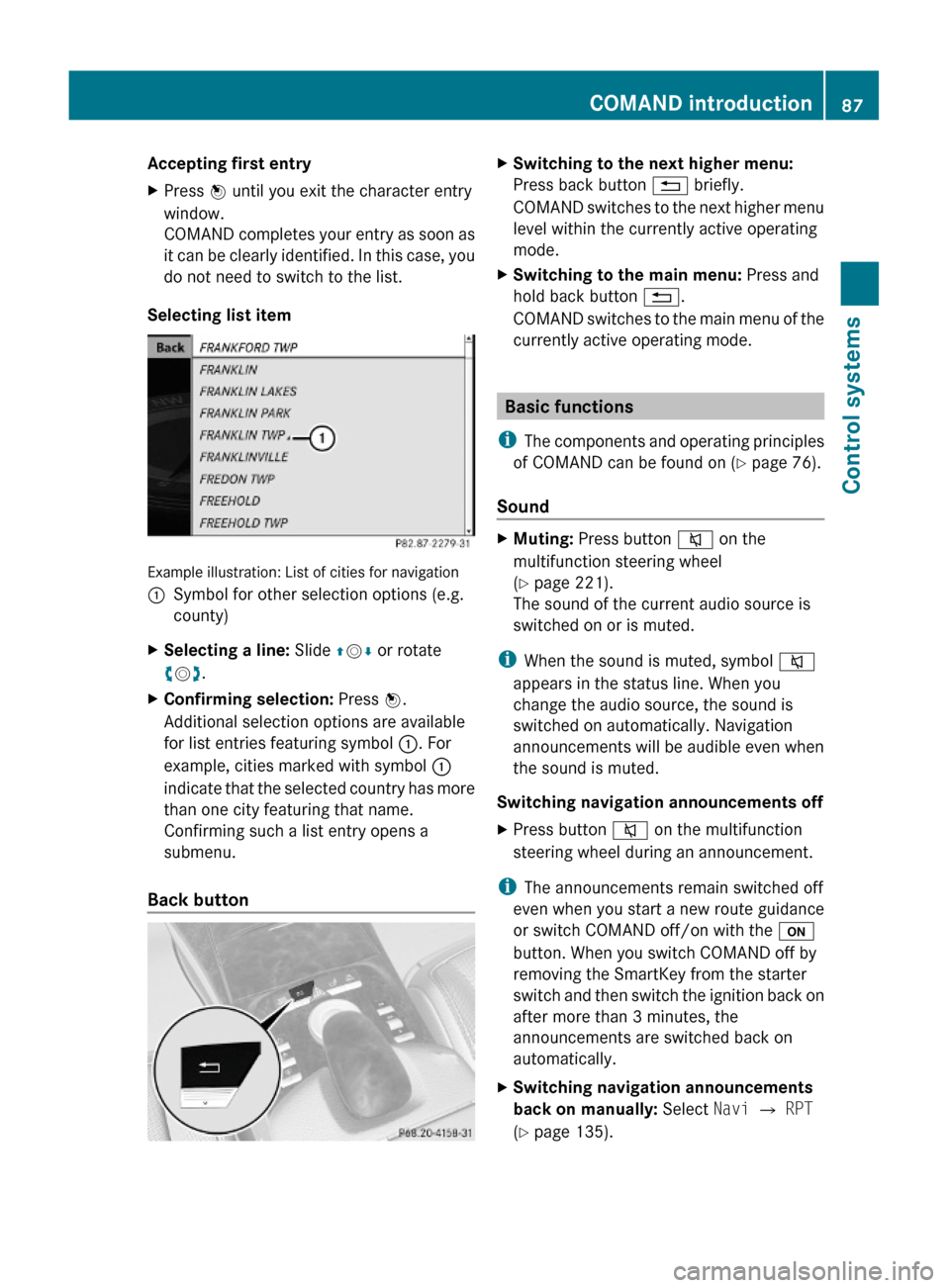
Selecting list item
Example illustration: List of cities for navigation
:Symbol for other selection options (e.g.
county)
XSelecting a line: Slide ZVÆ or rotate
cVd.
XConfirming selection: Press W.
Additional selection options are available
for list entries featuring symbol :. For
example, cities marked with symbol :
indicate that the selected country has more
than one city featuring that name.
Confirming such a list entry opens a
submenu.
Back button
XSwitching to the next higher menu:
Press back button % briefly.
COMAND switches to the next higher menu
level within the currently active operating
mode.
XSwitching to the main menu: Press and
hold back button %.
COMAND switches to the main menu of the
currently active operating mode.
Basic functions
iThe components and operating principles
of COMAND can be found on (Y page 76).
Sound
XMuting: Press button 8 on the
multifunction steering wheel
(Y page 221).
The sound of the current audio source is
switched on or is muted.
iWhen the sound is muted, symbol 8
appears in the status line. When you
change the audio source, the sound is
switched on automatically. Navigation
announcements will be audible even when
the sound is muted.
Switching navigation announcements off
XPress button 8 on the multifunction
steering wheel during an announcement.
iThe announcements remain switched off
even when you start a new route guidance
or switch COMAND off/on with the u
button. When you switch COMAND off by
removing the SmartKey from the starter
switch and then switch the ignition back on
after more than 3 minutes, the
announcements are switched back on
automatically.
XSwitching navigation announcements
back on manually: Select Navi Q RPT
(Y page 135).
COMAND introduction87Control systems221_AKB; 6; 20, en-USd2ugruen,Version: 2.11.8.12009-09-24T13:28:17+02:00 - Seite 87Z
Page 91 of 548
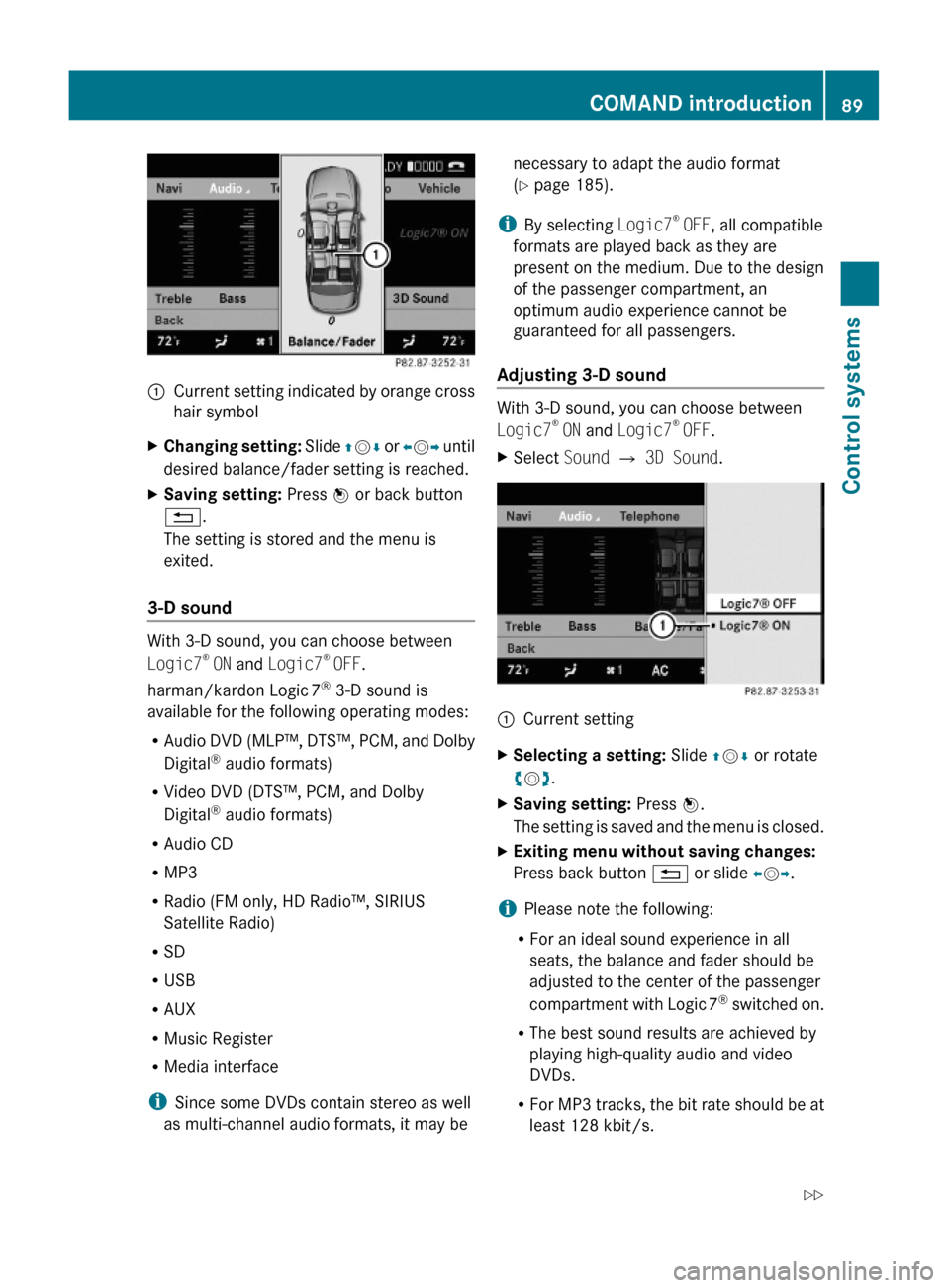
:Current setting indicated by orange cross
hair symbol
XChanging setting: Slide ZVÆ or XVY until
desired balance/fader setting is reached.
XSaving setting: Press W or back button
%.
The setting is stored and the menu is
exited.
3-D sound
With 3-D sound, you can choose between
Logic7® ON and Logic7® OFF.
harman/kardon Logic 7® 3-D sound is
available for the following operating modes:
RAudio DVD (MLP™, DTS™, PCM, and Dolby
Digital® audio formats)
RVideo DVD (DTS™, PCM, and Dolby
Digital® audio formats)
RAudio CD
RMP3
RRadio (FM only, HD Radio™, SIRIUS
Satellite Radio)
RSD
RUSB
RAUX
RMusic Register
RMedia interface
iSince some DVDs contain stereo as well
as multi-channel audio formats, it may be
necessary to adapt the audio format
(Y page 185).
iBy selecting Logic7® OFF, all compatible
formats are played back as they are
present on the medium. Due to the design
of the passenger compartment, an
optimum audio experience cannot be
guaranteed for all passengers.
Adjusting 3-D sound
With 3-D sound, you can choose between
Logic7® ON and Logic7® OFF.
XSelect Sound Q 3D Sound.:Current settingXSelecting a setting: Slide ZVÆ or rotate
cVd.
XSaving setting: Press W.
The setting is saved and the menu is closed.
XExiting menu without saving changes:
Press back button % or slide XVY.
iPlease note the following:
RFor an ideal sound experience in all
seats, the balance and fader should be
adjusted to the center of the passenger
compartment with Logic 7® switched on.
RThe best sound results are achieved by
playing high-quality audio and video
DVDs.
RFor MP3 tracks, the bit rate should be at
least 128 kbit/s.
COMAND introduction89Control systems221_AKB; 6; 20, en-USd2ugruen,Version: 2.11.8.12009-09-24T13:28:17+02:00 - Seite 89Z