2010 MERCEDES-BENZ S550 4MATIC Multifunction
[x] Cancel search: MultifunctionPage 151 of 548
Using the Bluetooth®
interface
COMAND provides telephony via the
Bluetooth ®
interface by connecting a
Bluetooth ®
-compatible mobile phone. The
following functions can be used when a
suitable mobile phone is connected to the
Bluetooth ®
interface:
R Hands-free phone operation
R Phone book
R Reception of electronic business cards
(vCards 10
)
i For further information on suitable mobile
phones and connecting Bluetooth ®
-
enabled mobile phones to COMAND
R visit www.mbusa-mobile.com
R call the Mercedes-Benz Customer
Assistance Center at
1-800-FOR-MERCedes
(1-800-367-6372) (in the USA)
R call Customer Service at
1-800-387-0100 (in Canada)
Calls disconnected while the vehicle is
in motion
A call may be disconnected if
R there is insufficient network coverage
R you move from one transmitter/receiver
area (cell) into another and no channels are
free or the cell is full
Operating options
i The components and operating principles
of COMAND can be found on ( Y page 76).
You can operate the mobile phone using the
following:
R the keys on the mobile phone
R the COMAND telephone keypad in the
center console
R the COMAND controller
R the multifunction steering wheel
R the Voice Control System ( Y page 237)
Unless otherwise specified, the descriptions
and illustrations in this section apply to
COMAND or the telephone keypad in the
center console. Thus, in order to use the
described functions you always have to call
up the Telephone menu. The fastest way to
get to the Telephone menu is pressing
shortcut button S.
You can control other functions of the mobile
phone via the COMAND, instrument cluster
control system (Y page 230) or Voice Control
System ( Y page 237).
Caller ID
COMAND can display the telephone number
and the name of the caller, e.g. for an
incoming call and also in other menus or
displays.
For the telephone number to be displayed,
the caller must transmit his telephone
number.
This is also the case for name displays. For
this, the telephone number and the name of
the caller must also be saved in the mobile
phone book.
Functional restrictions
You will not be able to use the telephone, or
you may have to wait a while, in the following
situations:
R If the Bluetooth function in COMAND or
on the mobile phone is switched off.
R If the telephone has not yet logged into the
network.
The telephone tries to log into a network
automatically. If no network is available,
you will also not be able to make a “911”
emergency call. If you attempt to make an
10 vCards are electronic business cards used by e-mail applications, mobile phones, PDAs, etc. to exchange
contact information.COMAND telephone149Control systems221_AKB; 6; 20, en-USd2ugruen,Version: 2.11.8.12009-09-24T13:28:17+02:00 - Seite 149Z
Page 158 of 548
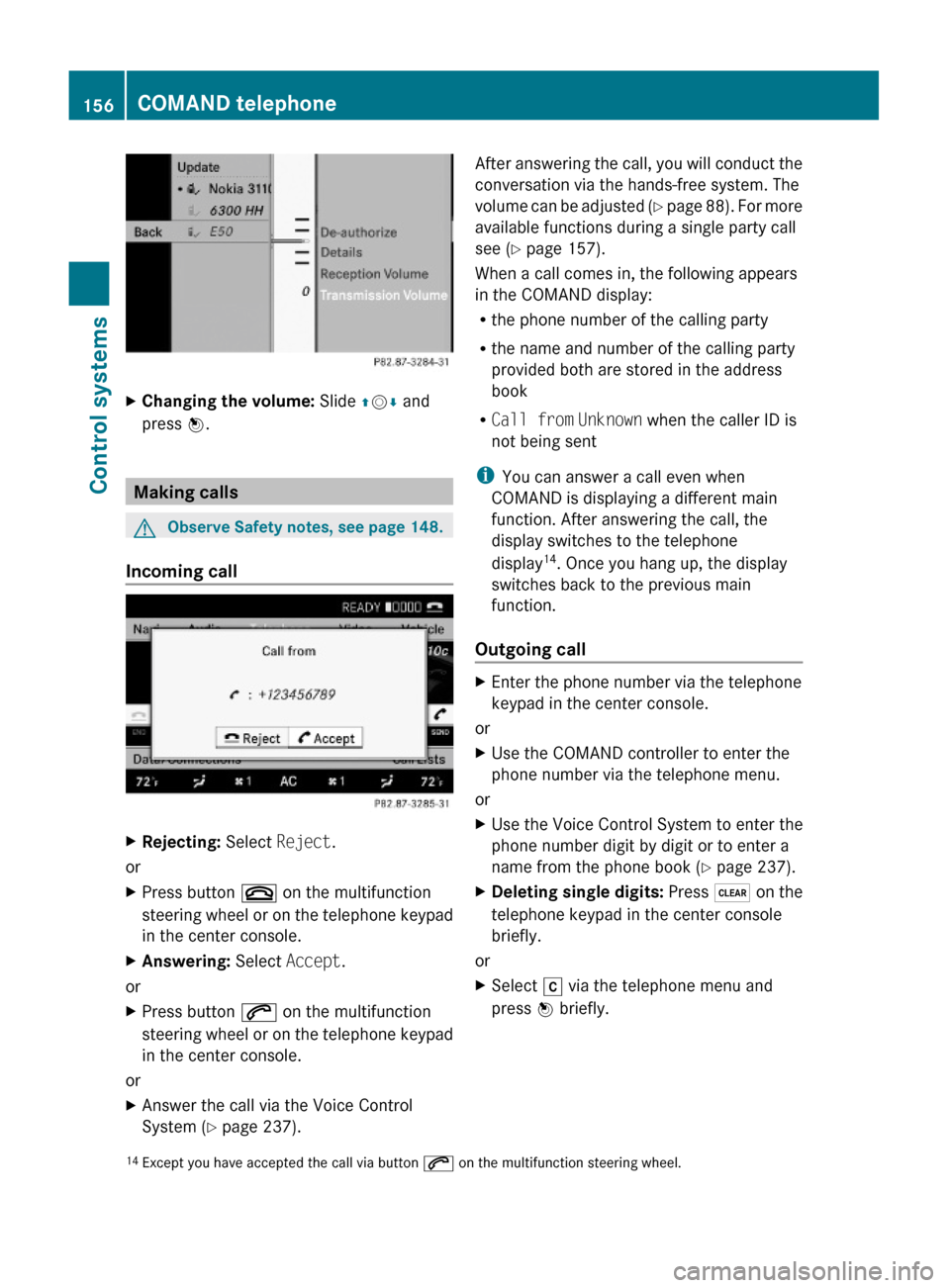
XChanging the volume: Slide ZVÆ and
press W.
Making calls
GObserve Safety notes, see page 148.
Incoming call
XRejecting: Select Reject.
or
XPress button ~ on the multifunction
steering wheel or on the telephone keypad
in the center console.
XAnswering: Select Accept.
or
XPress button 6 on the multifunction
steering wheel or on the telephone keypad
in the center console.
or
XAnswer the call via the Voice Control
System (Y page 237).
After answering the call, you will conduct the
conversation via the hands-free system. The
volume can be adjusted (Y page 88). For more
available functions during a single party call
see (Y page 157).
When a call comes in, the following appears
in the COMAND display:
Rthe phone number of the calling party
Rthe name and number of the calling party
provided both are stored in the address
book
RCall from Unknown when the caller ID is
not being sent
iYou can answer a call even when
COMAND is displaying a different main
function. After answering the call, the
display switches to the telephone
display14. Once you hang up, the display
switches back to the previous main
function.
Outgoing call
XEnter the phone number via the telephone
keypad in the center console.
or
XUse the COMAND controller to enter the
phone number via the telephone menu.
or
XUse the Voice Control System to enter the
phone number digit by digit or to enter a
name from the phone book (Y page 237).
XDeleting single digits: Press $ on the
telephone keypad in the center console
briefly.
or
XSelect r via the telephone menu and
press W briefly.14Except you have accepted the call via button 6 on the multifunction steering wheel.156COMAND telephoneControl systems
221_AKB; 6; 20, en-USd2ugruen,Version: 2.11.8.12009-09-24T13:28:17+02:00 - Seite 156
Page 159 of 548

XDeleting entire number: Press and hold
$ on the telephone keypad in the center
console until the number is deleted.
or
XSelect r via the telephone menu and
press and hold W until the number is
deleted.
XConnecting call: Press button 6 on the
multifunction steering wheel or on the
telephone keypad in the center console.
or
XSelect 6 via the telephone menu
Redial
XGo to the telephone menu.XPress 6 on the telephone keypad in the
center console.
or
XSelect SEND from the telephone menu and
press W.
The list of previously dialed number
appears. The last number you have called
at the top of the list.
XSelecting number and connecting call:
Slide ZVÆ and press W to select a number
or press 6 on the telephone keypad in
the center console.
Calling voice mail15
Your voice mail number must be stored on the
SIM card of your mobile phone and be
assigned to key 4 on the mobile phone
keypad.
XPress and hold ´ on the telephone
keypad in the center console.
Functions during a single party call
(non-conference calls) :Called or calling party;6 Active call=NEW Connect to more parties16?Switching hands-free microphone on/offAEnable touch-tone dialing17BEnding call
Switching hands-free microphone on or
off
This function is available during an active call.
XSwitching off: Select Mike OFF in the
telephone menu.
Symbol Q appears and the message The
microphone is turned OFF. is displayed
briefly.
XSwitching on: Select Mike ON in the
telephone menu.
Symbol Q goes out. The message The
microphone is turned ON. appears
briefly.
Touch-tone dialing17
You can use touch-tone dialing to control
answering machines and other devices for
remote inquiry.
When you want to check your answering
machine for example, dial the respective
number.
15Function only available when supported by the respective network provider.16Function only available when the mobile phone supports HFP 1.5 or higher.17Not available on all mobile phones.
COMAND telephone157Control systems221_AKB; 6; 20, en-USd2ugruen,Version: 2.11.8.12009-09-24T13:28:17+02:00 - Seite 157Z
Page 160 of 548
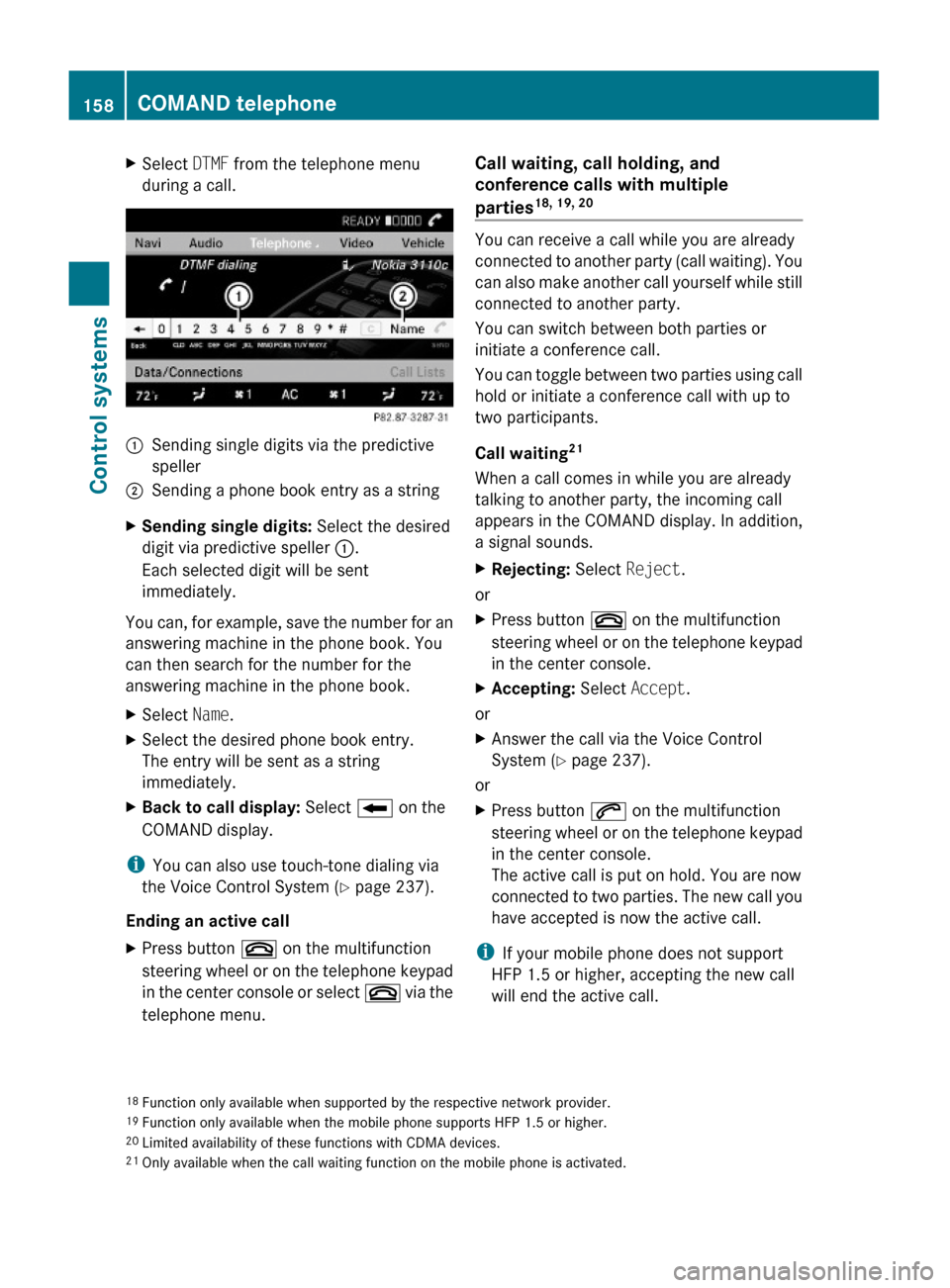
XSelect DTMF from the telephone menu
during a call.:Sending single digits via the predictive
speller
;Sending a phone book entry as a stringXSending single digits: Select the desired
digit via predictive speller :.
Each selected digit will be sent
immediately.
You can, for example, save the number for an
answering machine in the phone book. You
can then search for the number for the
answering machine in the phone book.
XSelect Name.XSelect the desired phone book entry.
The entry will be sent as a string
immediately.
XBack to call display: Select B on the
COMAND display.
iYou can also use touch-tone dialing via
the Voice Control System (Y page 237).
Ending an active call
XPress button ~ on the multifunction
steering wheel or on the telephone keypad
in the center console or select ~ via the
telephone menu.
Call waiting, call holding, and
conference calls with multiple
parties18, 19, 20
You can receive a call while you are already
connected to another party (call waiting). You
can also make another call yourself while still
connected to another party.
You can switch between both parties or
initiate a conference call.
You can toggle between two parties using call
hold or initiate a conference call with up to
two participants.
Call waiting21
When a call comes in while you are already
talking to another party, the incoming call
appears in the COMAND display. In addition,
a signal sounds.
XRejecting: Select Reject.
or
XPress button ~ on the multifunction
steering wheel or on the telephone keypad
in the center console.
XAccepting: Select Accept.
or
XAnswer the call via the Voice Control
System (Y page 237).
or
XPress button 6 on the multifunction
steering wheel or on the telephone keypad
in the center console.
The active call is put on hold. You are now
connected to two parties. The new call you
have accepted is now the active call.
iIf your mobile phone does not support
HFP 1.5 or higher, accepting the new call
will end the active call.
18Function only available when supported by the respective network provider.19Function only available when the mobile phone supports HFP 1.5 or higher.20Limited availability of these functions with CDMA devices.21Only available when the call waiting function on the mobile phone is activated.
158COMAND telephoneControl systems
221_AKB; 6; 20, en-USd2ugruen,Version: 2.11.8.12009-09-24T13:28:17+02:00 - Seite 158
Page 161 of 548
Calling an additional party
You can call another party during an active
call. The active call is put on hold.
XSelect NEW from the telephone menu and
press W.
or
XPress button 6 on the telephone
keypad in the center console.
XEnter the number to call manually
(Y page 156) or from the phone book
(Y page 162).
Switching between two parties (call hold)
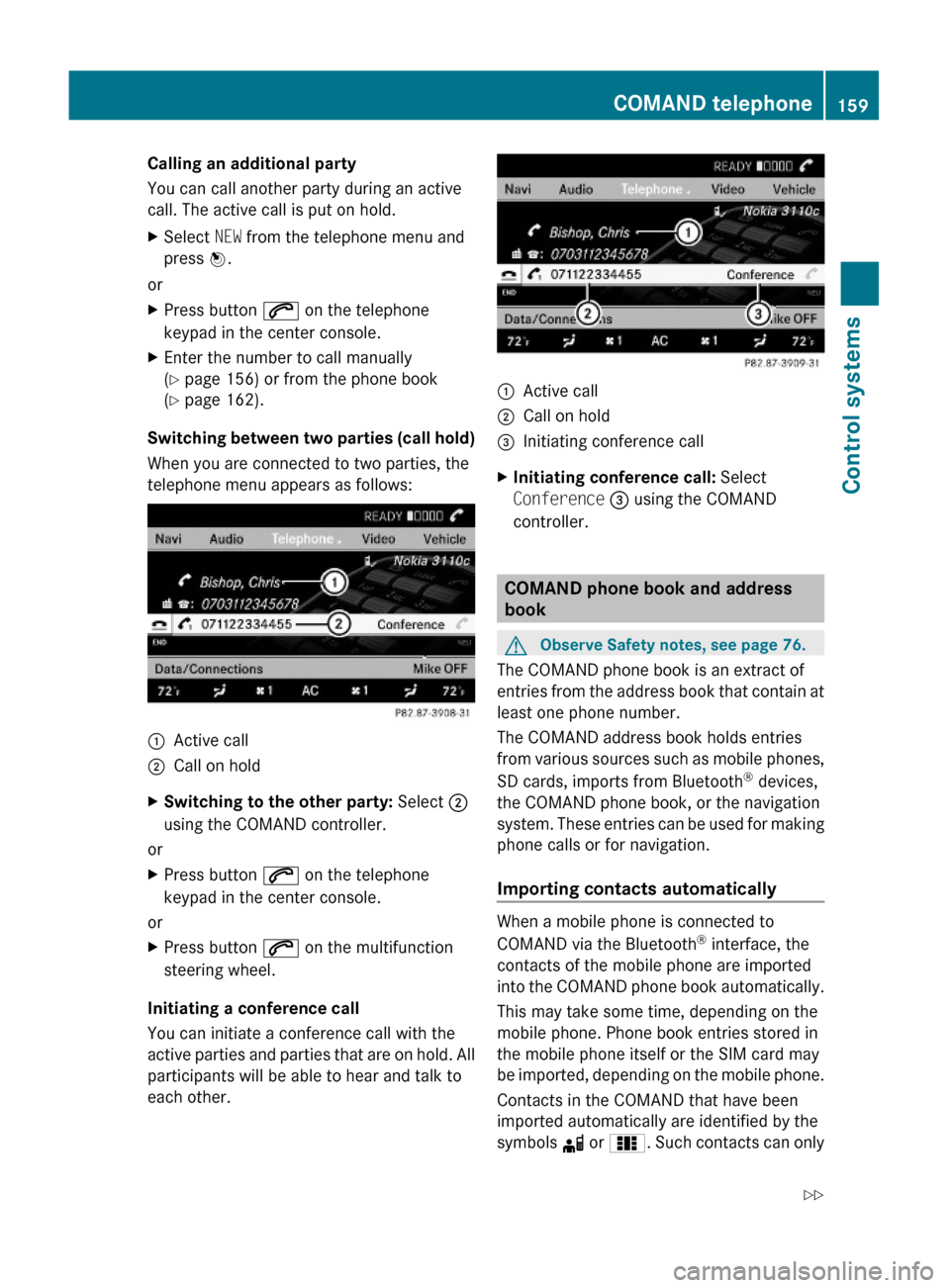
When you are connected to two parties, the
telephone menu appears as follows:
:Active call;Call on holdXSwitching to the other party: Select ;
using the COMAND controller.
or
XPress button 6 on the telephone
keypad in the center console.
or
XPress button 6 on the multifunction
steering wheel.
Initiating a conference call
You can initiate a conference call with the
active parties and parties that are on hold. All
participants will be able to hear and talk to
each other.
:Active call;Call on hold=Initiating conference callXInitiating conference call: Select
Conference = using the COMAND
controller.
COMAND phone book and address
book
GObserve Safety notes, see page 76.
The COMAND phone book is an extract of
entries from the address book that contain at
least one phone number.
The COMAND address book holds entries
from various sources such as mobile phones,
SD cards, imports from Bluetooth® devices,
the COMAND phone book, or the navigation
system. These entries can be used for making
phone calls or for navigation.
Importing contacts automatically
When a mobile phone is connected to
COMAND via the Bluetooth® interface, the
contacts of the mobile phone are imported
into the COMAND phone book automatically.
This may take some time, depending on the
mobile phone. Phone book entries stored in
the mobile phone itself or the SIM card may
be imported, depending on the mobile phone.
Contacts in the COMAND that have been
imported automatically are identified by the
symbols d or 0. Such contacts can only
COMAND telephone159Control systems221_AKB; 6; 20, en-USd2ugruen,Version: 2.11.8.12009-09-24T13:28:17+02:00 - Seite 159Z
Page 170 of 548
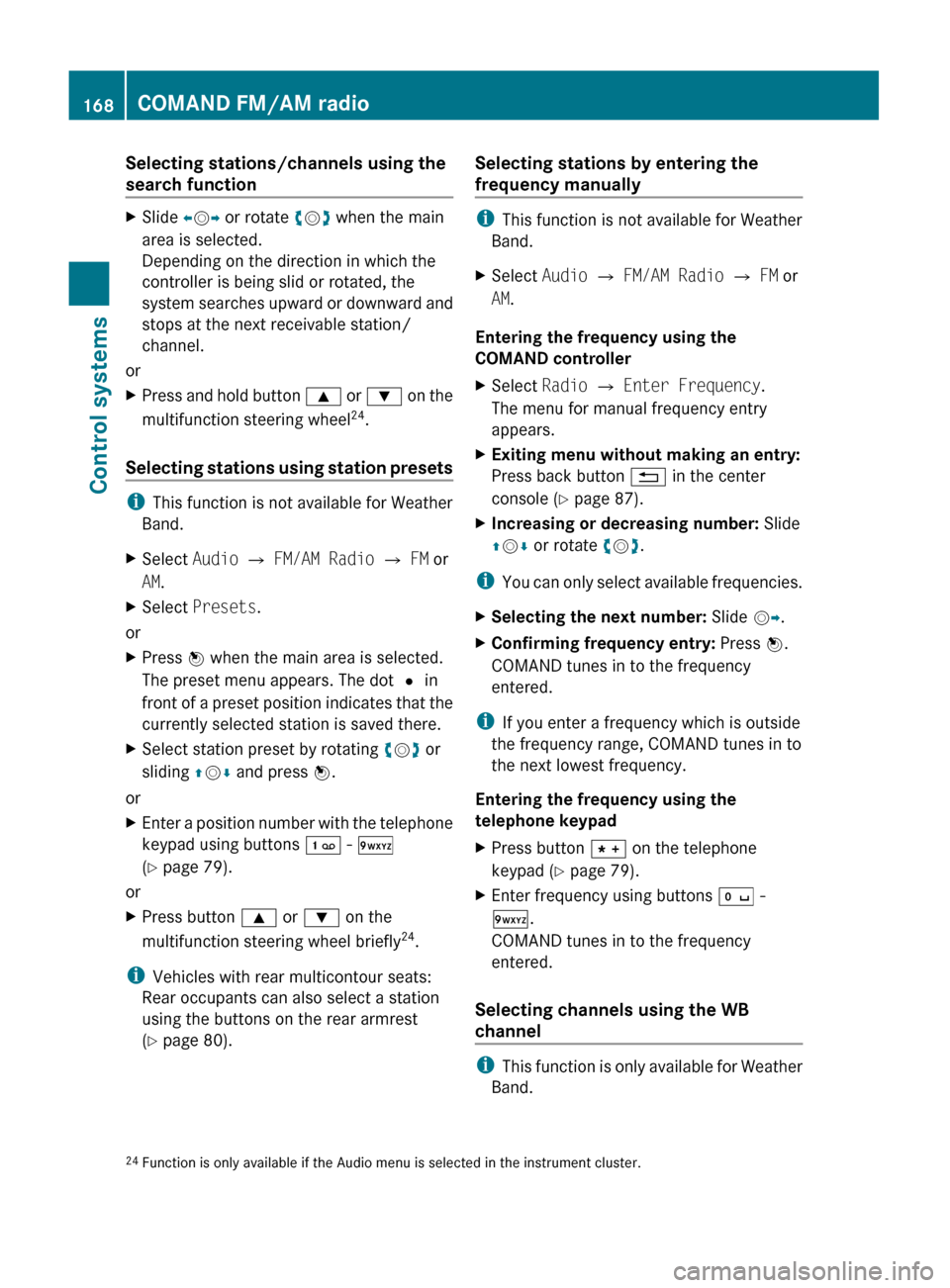
Selecting stations/channels using the
search functionXSlide XV Y or rotate cV d when the main
area is selected.
Depending on the direction in which the
controller is being slid or rotated, the
system searches upward or downward and
stops at the next receivable station/
channel.
or
XPress and hold button 9 or : on the
multifunction steering wheel 24
.
Selecting stations using station presets
i This function is not available for Weather
Band.
XSelect Audio Q FM/AM Radio Q FM or
AM .XSelect Presets .
or
XPress W when the main area is selected.
The preset menu appears. The dot # in
front of a preset position indicates that the
currently selected station is saved there.XSelect station preset by rotating cV d or
sliding ZV Æ and press W.
or
XEnter a position number with the telephone
keypad using buttons ´ - Ã
( Y page 79).
or
XPress button 9 or : on the
multifunction steering wheel briefly 24
.
i Vehicles with rear multicontour seats:
Rear occupants can also select a station
using the buttons on the rear armrest
( Y page 80).
Selecting stations by entering the
frequency manually
i This function is not available for Weather
Band.
XSelect Audio Q FM/AM Radio Q FM or
AM .
Entering the frequency using the
COMAND controller
XSelect Radio Q Enter Frequency .
The menu for manual frequency entry
appears.XExiting menu without making an entry:
Press back button % in the center
console ( Y page 87).XIncreasing or decreasing number: Slide
Z V Æ or rotate cV d.
i
You can only select available frequencies.
XSelecting the next number: Slide VY.XConfirming frequency entry: Press W.
COMAND tunes in to the frequency
entered.
i If you enter a frequency which is outside
the frequency range, COMAND tunes in to
the next lowest frequency.
Entering the frequency using the
telephone keypad
XPress button à on the telephone
keypad ( Y page 79).XEnter frequency using buttons Å -
à .
COMAND tunes in to the frequency
entered.
Selecting channels using the WB
channel
i This function is only available for Weather
Band.
24 Function is only available if the Audio menu is selected in the instrument cluster.168COMAND FM/AM radioControl systems
221_AKB; 6; 20, en-USd2ugruen,Version: 2.11.8.12009-09-24T13:28:17+02:00 - Seite 168
Page 185 of 548
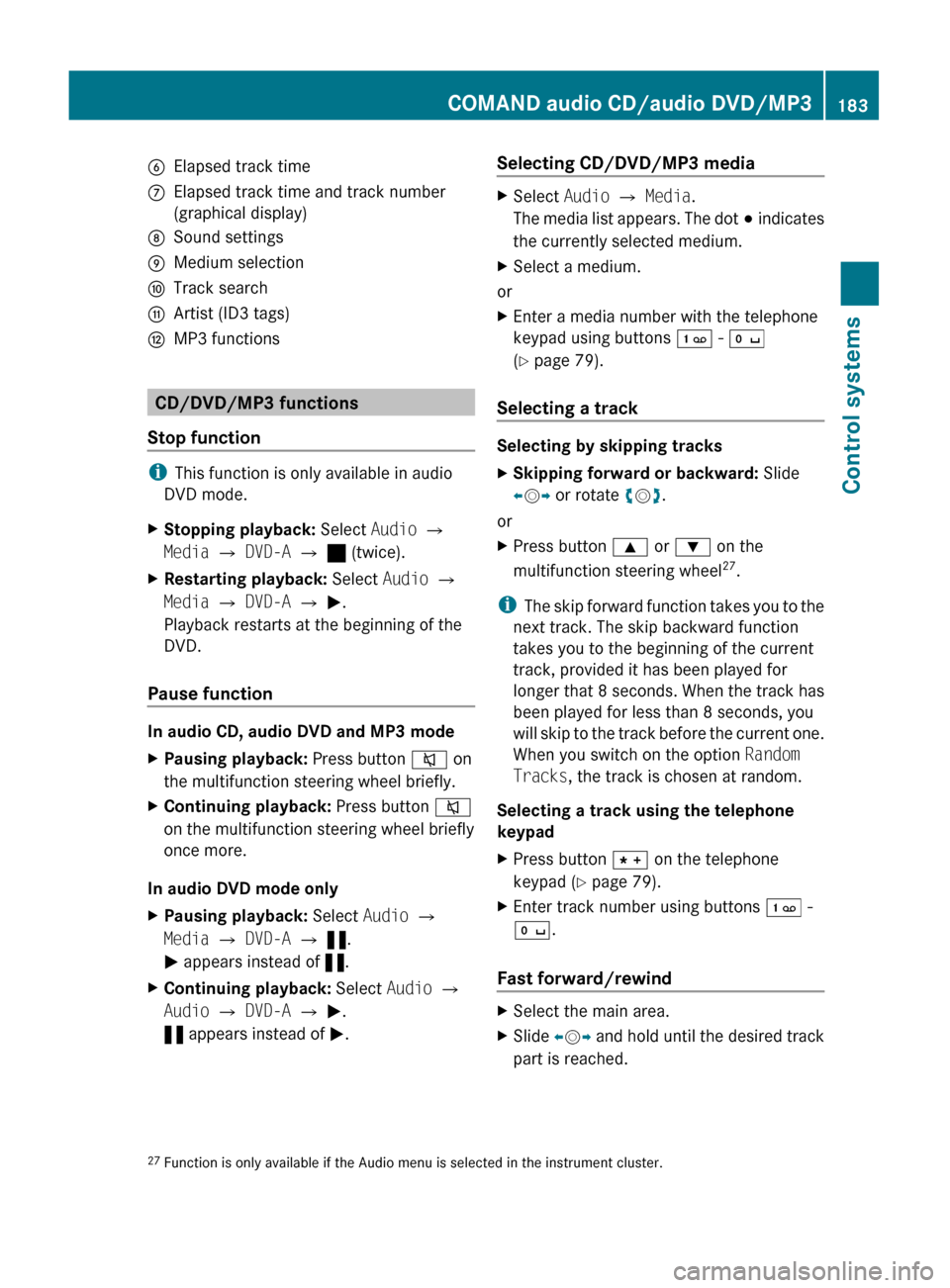
BElapsed track timeCElapsed track time and track number
(graphical display)DSound settingsEMedium selectionFTrack searchGArtist (ID3 tags)HMP3 functions
CD/DVD/MP3 functions
Stop function
i This function is only available in audio
DVD mode.
XStopping playback: Select Audio Q
Media Q DVD-A Q ± (twice).XRestarting playback: Select Audio Q
Media Q DVD-A Q M .
Playback restarts at the beginning of the
DVD.
Pause function
In audio CD, audio DVD and MP3 mode
XPausing playback: Press button 8 on
the multifunction steering wheel briefly.XContinuing playback: Press button 8
on the multifunction steering wheel briefly
once more.
In audio DVD mode only
XPausing playback: Select Audio Q
Media Q DVD-A Q « .
M appears instead of «.XContinuing playback: Select Audio Q
Audio Q DVD-A Q M .
« appears instead of M.Selecting CD/DVD/MP3 media XSelect Audio Q Media .
The media list appears. The dot # indicates
the currently selected medium.XSelect a medium.
or
XEnter a media number with the telephone
keypad using buttons ´ - Å
( Y page 79).
Selecting a track
Selecting by skipping tracks
XSkipping forward or backward: Slide
X V Y or rotate cV d.
or
XPress button 9 or : on the
multifunction steering wheel 27
.
i The skip forward function takes you to the
next track. The skip backward function
takes you to the beginning of the current
track, provided it has been played for
longer that 8 seconds. When the track has
been played for less than 8 seconds, you
will skip to the track before the current one.
When you switch on the option Random
Tracks , the track is chosen at random.
Selecting a track using the telephone
keypad
XPress button à on the telephone
keypad ( Y page 79).XEnter track number using buttons ´ -
Å .
Fast forward/rewind
XSelect the main area.XSlide XV Y and hold until the desired track
part is reached.27 Function is only available if the Audio menu is selected in the instrument cluster.COMAND audio CD/audio DVD/MP3183Control systems221_AKB; 6; 20, en-USd2ugruen,Version: 2.11.8.12009-09-24T13:28:17+02:00 - Seite 183Z
Page 196 of 548
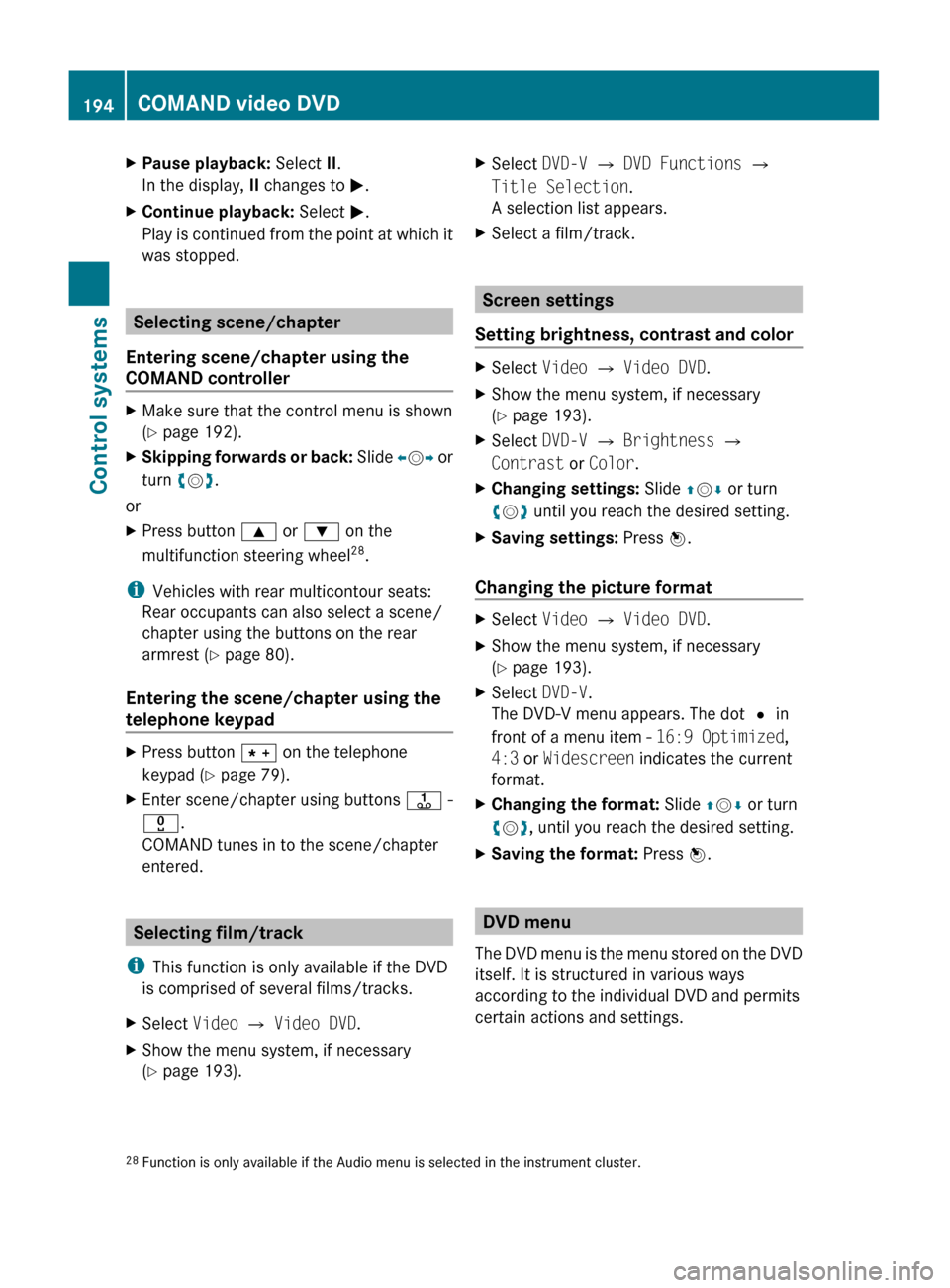
XPause playback: Select II.
In the display, II changes to M.XContinue playback: Select M.
Play is continued from the point at which it
was stopped.
Selecting scene/chapter
Entering scene/chapter using the
COMAND controller
XMake sure that the control menu is shown
( Y page 192).XSkipping forwards or back: Slide XV Y or
turn cV d.
or
XPress button 9 or : on the
multifunction steering wheel 28
.
i Vehicles with rear multicontour seats:
Rear occupants can also select a scene/
chapter using the buttons on the rear
armrest ( Y page 80).
Entering the scene/chapter using the
telephone keypad
XPress button à on the telephone
keypad ( Y page 79).XEnter scene/chapter using buttons j -
x .
COMAND tunes in to the scene/chapter
entered.
Selecting film/track
i This function is only available if the DVD
is comprised of several films/tracks.
XSelect Video Q Video DVD .XShow the menu system, if necessary
( Y page 193).XSelect DVD-V Q DVD Functions Q
Title Selection .
A selection list appears.XSelect a film/track.
Screen settings
Setting brightness, contrast and color
XSelect Video Q Video DVD .XShow the menu system, if necessary
( Y page 193).XSelect DVD-V Q Brightness Q
Contrast or Color .XChanging settings: Slide ZV Æ or turn
c V d until you reach the desired setting.XSaving settings: Press W.
Changing the picture format
XSelect Video Q Video DVD .XShow the menu system, if necessary
( Y page 193).XSelect DVD-V.
The DVD-V menu appears. The dot # in
front of a menu item - 16:9 Optimized,
4:3 or Widescreen indicates the current
format.XChanging the format: Slide ZV Æ or turn
c V d, until you reach the desired setting.XSaving the format: Press W.
DVD menu
The DVD menu is the menu stored on the DVD
itself. It is structured in various ways
according to the individual DVD and permits
certain actions and settings.
28 Function is only available if the Audio menu is selected in the instrument cluster.194COMAND video DVDControl systems
221_AKB; 6; 20, en-USd2ugruen,Version: 2.11.8.12009-09-24T13:28:17+02:00 - Seite 194