2010 MERCEDES-BENZ E-Class SEDAN Side
[x] Cancel search: SidePage 85 of 224

Traffic Lane Recommendations
On multi-lane roads, COMAND may display
traffic lane recommendations. For this there
must be corresponding data available on the
digital map.
With respect to the next two driving
maneuvers, COMAND displays the traffic lane
recommendations 6, 7 and 8.1Point of the next driving maneuver2Point of the second driving maneuver.3Next driving maneuver, exit on right here4Visual distance indicator to the next
driving maneuver5Distance information to the next driving
maneuver6Recommended lane7Possible lane8Lane not recommended9Current vehicle location, tip of the triangle
points in the vehicle’s direction of travel
Explanation of the Traffic Lane
Recommendations
R Recommended lane 6:
From this lane it is possible to carry out the
next two driving maneuvers without
changing lanes.
R Possible lane 7:
From this lane it is only possible to carry
out the next driving maneuver without
changing lanes.
R Lane not recommended 8:
From this lane it is not possible to carry out
the next driving maneuver without
changing lanes.
Depiction of the Traffic Lane
Recommendations
The color depiction of the traffic lane
recommendations differs depending on
whether the display is set to day or night
design.
LaneDay
designNight
designRecommended lane
6Dark
blueLight
bluePossible lane
7Light
blueDark
blueLane not
recommended
8GreyGrey
Destination or Destination Region
Reached
Once you have reached your destination, a
checkered flag is displayed and route
guidance is ended automatically.
Off-road and Off-map
GWarning
The COMAND navigation system may direct
you to off-road routes that your vehicle may
not be capable of traversing through without
damaging your tires, wheels or vehicle. It is
the driver’s sole responsibility to determine
the suitability of the route. Off-road routes
may be of varying conditions and their
appropriateness for use may be affected by
various factors such as time of day, time of
year and immediate weather conditions that
cannot be judged or taken into consideration
by the COMAND system.
Route Guidance83NavigationZ
Page 86 of 224

Route Guidance to an Off-road
Destination
COMAND can also guide you to destinations
that are within the area covered by the digital
map, but are not themselves included on the
map. Such destinations are off-road
destinations, which you can enter, for
example, by entering the destination via the
map.
In this case, COMAND guides you on roads
known to the system for as long as possible
using navigation announcements and route
guidance displays.
1Off-road destination2Off-road route segment (dashed line)3Current vehicle location, tip of the triangle
points in the vehicle’s direction of travel4Road name, if available
When the vehicle is entering the area that is
not covered by the digital map, the screen is
split. On the right half of the screen an arrow
appears that points to the off-road
destination 1 and the system announces:
You have reached your destination
area. Please follow the arrow on the
display . When the vehicle comes close to
the destination the message You have
reached your destination is given.
Route Guidance from an Off-road
Location to a Destination
If the vehicle location is within the area
covered by the digital map, but the map itself
does not contain any information on the
location, the vehicle is in an off-road position.
COMAND can guide you from such a position
to a destination.
At the start of route guidance you will see the
message Off Mapped Road , an arrow and
the distance to the destination. The arrow
indicates the direction of the actual
destination.
The blue marking for the route on the map
starts from the nearest road known to the
system.
As soon as the vehicle is travelling again on a
road known to the system, route guidance
continues in the usual manner.
Route Guidance from an Off-map
Location to a Destination
If the vehicle location is outside the area
covered by the digital map, then the vehicle
is in an off-map position. COMAND can guide
you from such a position to a destination.
At the start of route guidance you will see the
message Off Map, an arrow and the distance
to the destination. The arrow indicates the
direction of the actual destination.
The blue marking for the route on the map
starts from the nearest road known to the
system.
As soon as the vehicle is travelling again on a
road known to the system, route guidance
continues in the usual manner.
Off-road During Route Guidance
The actual path of the road may deviate from
the data in the digital map due to road work.
In cases like this, the system is temporarily
not able to locate the vehicle location on the
digital map; the vehicle is thus in an off-road
position.
The display then shows the message Off
Mapped Road , an arrow and the distance to
the destination. The arrow indicates the
direction of the actual destination.
84Route GuidanceNavigation
Page 88 of 224

segment and the route segment to which
the block goes.XTo cancel the function: Select Back.XTo start route calculation: Select Start,
see also ( Y page 70).XTo delete block: In map view with the
menu system displayed, select Route
£ Detour £Delete .
Alternative Route
i You can have other routes calculated for
the original route guidance using the
Alternative Route function.
XIn the map display with the menu system
displayed ( Y page 54) select Route
£ Alternative Route .
The display is split into two halves. On the
left is the map, which displays one or more
alternative routes between the start and
the destination. The current route is
highlighted in dark blue, other alternative
routes are light blue (day mode). If the
display is in night mode, the representation
is inverse.
The right side of the display shows
information on the active alternative route,
e.g. length of the segment and the
estimated time of arrival.XTo select next or previous alternative
route: Select Next or Previous .
The selected route is now highlighted in
dark blue.XTo return to the original route guidance:
Select Back.XTo start route guidance with the
selected alternative route guidance:
Select Start.
Route Browser
i The route browser provides an overview
of the route. You can move along the route
segment by segment using the route
browser and view information and details
about the route segments.XIn the map display with the menu system
displayed, select Route£Route
Browser .
The route browser is in the display.
The top of the display shows information on
the highlighted route segment, e.g. the
road name or number and the segment
length of the road to be driven.
The highlighted route segment is identified
on the map by its white color and red edge.XTo display next or previous route
segment: Select Next or Previous .XTo enlarge or reduce the map display:
Select ; or :.XTo close route browser: Select Back.
Displaying Destination Information
XIn the map display with the menu system
( Y page 54) shown, select Route
£ Destination Information .
The destination information is given in the
display.
Example display with main destination and
stopover destination
1Distance/estimated time of arrival/
estimated journey time to the stopover
destination2Stopover destination =86Route GuidanceNavigation
Page 89 of 224

3Main destination4Distance/estimated time of arrival/
estimated journey time to the main
destination <
i
When calculating the estimated time of
arrival, COMAND uses the time set on the
COMAND as its basis. For this reason, the
time on COMAND must be set correctly
( Y page 41). The calculation of the
estimated time of arrival does not
specifically take into consideration
whether it is summer time or standard time
at the destination. It is not taken into
consideration whether or not the
destination is in a different time zone. The
distance to the destination, the estimated
time of arrival and the estimated remaining
journey time 1, 4 are not displayed until
the route calculation is complete.
XTo close the destination information:
Slide om p.
or
XPress the k button.
Traffic Messages
i Optional satellite radio equipment and a
subscription to SIRIUS XM Satellite Radio
service provider are required for the
satellite radio reception referred to here.
You can find more information on SatRadio
in chapter “Satellite Radio” ( Y page 127).
COMAND can receive and incorporate traffic
messages via satellite radio into the
navigation system. Traffic report messages
and map symbols can then be viewed in the
COMAND display.
Real-Time Traffic Notifications in the
Map
COMAND can display certain traffic events in
the map. The notifications are shown in the
map scale range from 0.05 mi to 20 mi.
XRotate ym z until the required map scale is
set when the menu system is hidden (map
in full-screen mode) ( Y page 54).1Marker symbols for the extension of the
affected route section2Symbol for event on the route (speed and
flow)3Destination4Map scaleTraffic Messages87NavigationZ
Page 90 of 224

Real-Time Traffic Notification SymbolsSymbolDescriptionTraffic Notifications in Map DisplayTraffic
Report
ListsTraffic
Report
MessageWarning
(red)Appears at the beginning of the
affected road section if route guidance
is active and route goes through the
event area.Appears
with
warning
entry typeAppears
with
warning
entry typeIncident
(yellow)Appears at the beginning of the
affected road section if route guidance
is active and route goes through the
incident area.Appears
with
incident
entry typeAppears
with
incident
entry typeTraffic jam
on route
(Speed and
flow)Appears at the beginning of traffic
congestion (average speed
25 – 45 mph ) if route guidance is active
and route goes through congested
area.
Yellow car symbols could appear in
combination with this symbol.Appears
with traffic
jam on
route (stop
and go)
entry typeAppears
with
traffic jam
on route
(stop and
go) entry
typeTraffic jam
on route
(Speed and
flow)Appears at the beginning of traffic
congestion (average speed 5 – 20 mph)
if route guidance is active and route
goes through congested area.
Red car symbols could appear in
combination with this symbol.Appears
with Traffic
jam on
route entry
typeAppears
with
Traffic
jam on
route
entry typeBlocked
section on
routeAppears at the beginning of a blocked
area if route guidance is active and
route goes through blocked area.
XX XX symbols could appear in
combination with this symbol.Appears
with
Blocked
section
entry typeAppears
with
Blocked
section
entry typeYellow
line with
arrowsIncidentsPossible obstacles for traffic flow (e.g.
road work)
Appears on the affected side
(direction) of the road(Not
possible)(Not
possible)Green
line with
arrowsFree flowNo obstacles for traffic flow
Appears only on the free-flow side
(direction) of the road(Not
possible)(Not
possible)Red line
with
arrowsWarning
messageEvent on the road
Appears on the affected side
(direction) of the road(Not
possible)(Not
possible)88Traffic MessagesNavigation
Page 112 of 224

XTo delete individual digits: Press briefly
the CLR button on the COMAND control
unit.XTo delete an entire phone number: Press
and hold the CLR button until the number
is deleted.XTo place a call: Press the 6 button on
the COMAND control panel or press the
6 button on the multifunction steering
wheel.
Entering a Phone Number from the
COMAND Controller
XOpen the phone main menu ( Y page 102).XTo enter digits: Select the required digits
in sequence.XTo delete individual digits: Select õ
and briefly press the n button.
or
XPress the 2 button next to the
COMAND controller.XTo delete an entire phone number:
Select õ and press n until the phone
number has been deleted.
or
XPress and hold down the 2 button next
to the COMAND controller until the entire
entry is deleted.XTo connect a call: Select ° at the bottom
right-hand side of the input speller.
or
XPress the 6 button on the COMAND
control panel or the 6 button on the
multifunction steering wheel. Redialing XOpen the phone main menu ( Y page 102).XSelect ° at the bottom right-hand side of
the input speller.
or
XPress the 6 button on the COMAND
control unit when the phone main menu is
displayed.
The dialed calls list appears. The call dialed
last will be at the top of the list.XTo select a call: Rotate ym z or slide qm rXTo initiate call: Press n.
Initiating a Call to a Call List Entry or
COMAND Phone Book Entry
XCall up a call list and select an entry
( Y page 106).
or
XOpen the COMAND phone book and select
an entry ( Y page 103).XTo initiate call: Press n.
Functions During a Single Call
Phone mode with a single call
1Other party2Symbol for active phone connection3Switches the hands-free microphone off
or on4Sends DTMF tones (not possible with all
mobile phones)110Making CallsTelephone
Page 127 of 224

Tuning to a Station
You can tune to a station via station search,
by manual frequency input or via the station
memory.
Tuning to a Station via Station SearchXRotate ym z or slide om p when the main
area is highlighted.
or
XPress E or F on the COMAND
control unit.
The search proceeds upwards or
downwards and stops at the next
receivable station.
Tuning to a Station via Manual
Frequency Input
XSelect Radio£Enter Frequency in the
radio display.
An input menu appears.
or
XPress õ on the control unit.XTo enter a frequency: Press number
buttons on the control unit.
i You can only select numbers that are
currently permissible.
COMAND will tune to the frequency entered.
i If in the FM or AM wavebands you enter a
frequency outside the frequency sub-
range, COMAND will select the next
frequency down.
Tuning to a Station via the Station
Memory
XSelect Presets in the radio display.
or
XPress n when the main area is highlighted.
The station memory appears. The dot R in
front of a preset indicates that the currently
tuned station is stored there.XTo select a station: Rotate ym z or slide
q m r.XTo tune to a station: Press n.
or
XPress a number key, e.g. 4, on the control
unit.WavebandsFrequencyAM (MF)530 - 1700 kHzFM (VHF)87.7 - 107.9 MHzWB (Weather Band)Weather channels
Storing Stations
There are 10 presets available for FM, AM and
SatRadio wavebands.
Storing Stations Manually
XPress n when the main area is highlighted.
or
XSelect Presets in the radio display.
In both cases, the station memory will
appear. The dot R in front of a preset
station indicates the station the radio is
currently tuned to.
Station memory
Radio125AudioZ
Page 136 of 224
There may be playback problems with
userburned CDs with a storage capacity of
more than 700 MB. These CDs do not meet
current valid standards.
i When playing a DVD Audio, it may be the
case with numerous albums that the last
track does not contain any music and
COMAND switches to the next track. This
is due to the production method and does
not imply a fault with the unit.
! Do not attach stickers or labels of any
kind to discs. They may come loose and
damage COMAND.
COMAND has been designed for discs
meeting the requirements of standard
EN 60908. Therefore, only discs with a
maximum thickness of 1.3 mm can be
used.
If a thicker disc is inserted, e.g. one which
stores data on both sides, (DVD on one
side, audio data on the other side), this
cannot be ejected and COMAND will be
damaged.
Do not use 8 cm diameter discs, not even
with an adapter. Only use round discs with
a diameter of 12 cm.
i COMAND can play CD Audio with the high
resolution surround format.
Notes on the Care of CD/DVD Discs
R Only touch the discs at the edges.
R Handle discs with care in order to prevent
malfunctions during playback.
R Avoid scratching, leaving fingerprints and
dust on the discs.
R Clean the discs occasionally with a
commercially available cleaning cloth.
Always wipe in a straight line from the
inside outwards, never in a circular motion.
R The discs must only be labelled using pens
specially designed for this purpose.
R After use, put the discs back into the box.
R Protect the discs from heat and direct
sunlight.
Loading CDs and DVDs
GWarning
Only load a CD or DVD when the vehicle is
stationary. There is a risk of accident by being
distracted from road and traffic conditions if
you load a CD/DVD while the vehicle is in
motion.
Bear in mind that at a speed of just 30 mph
(appr. 50 km/h), your vehicle is covering a
distance of 44 feet (appr. 14 m) every second.
i If the CD/DVD is printed on one side, this
side must face upwards when loaded. If
neither side is printed, the side to be played
must face downwards.
The system may not be able to play copy-
protected CDs/DVDs.
Loading the DVD Changer
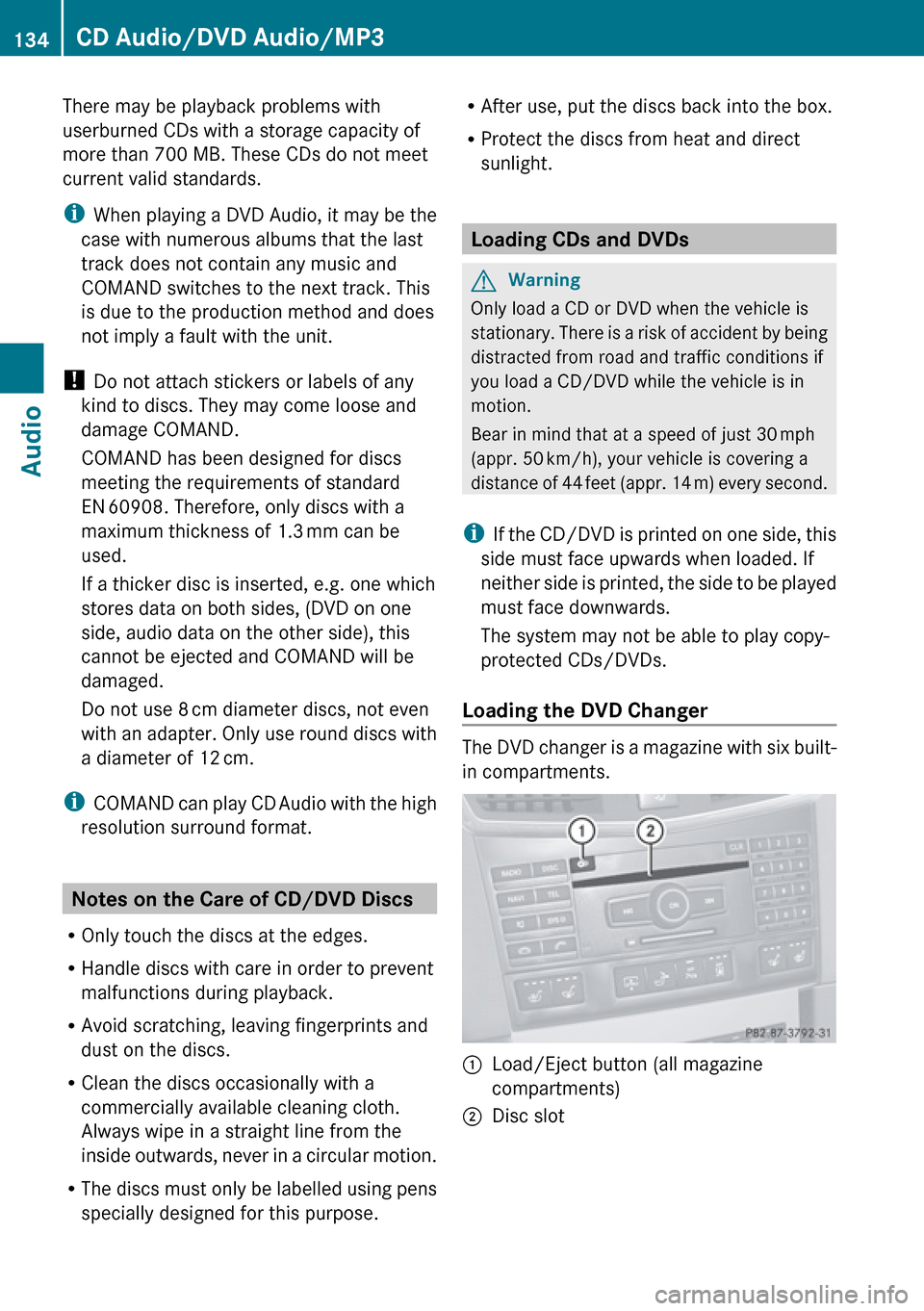
The DVD changer is a magazine with six built-
in compartments.
1Load/Eject button (all magazine
compartments)2Disc slot134CD Audio/DVD Audio/MP3Audio