2010 INFINITI M AUX
[x] Cancel search: AUXPage 210 of 445

CD EJECT :
When the CD EJECT button is pushed with the
CD loaded, the CD will be ejected.
To eject the discs selected by the CD select
button, push the EJECT button for less than 1.5
seconds.
To eject all the discs (if so equipped), push the
EJECT button for more than 1.5 seconds.
When this button is pushed while the CD is
being played, the CD will come out and the
system will turn off.
If the CD comes out and is not removed, it will be
pulled back into the slot to protect it.
COMPACTFLASH (CF) PLAYER
OPERATION (if so equipped)
Audio main operation
Push the ignition switch to the ACC or ON
position, remove the cover
s1and insert a CF
card
s2into the slot. Then, push thebutton repeatedly to switch to the Compact-
Flash mode.
If the system has been turned off while the
CompactFlash card was playing, pushing the
ON´OFF/VOL control knob will start the Com-
pactFlash card.
PLAY :
When the DISC´AUXbutton is pushed with the
system off and the CF card inserted, the system
will turn on.
If another audio source is playing and a CF card
is inserted, push the DISC´AUXbutton repeat-
edly until the center display changes to the
CompactFlash mode.
Text :
When the ªTextº key is selected on the screen
using the INFINITI controller and then the ENTER
button is pushed while the CF is being played,
the music information below will be displayed
on the screen.
c Folder title
c Song title
c Track title
c Album Title
c Artist
FF (Fast Forward), REW
(Rewind)/APS (Automatic
Program Search) FF, APS
REW :
When the
(fast forward) or(re-
wind) button is pushed for more than 1.5 sec-
SAA1822
Monitor, climate, audio, phone and voice recognition systems4-47
wÐ
Ð
05/14/09Ðpattie
X
Page 212 of 445

While connecting the iPodTto the vehicle, the
iPodT can only be operated by the vehicle audio
controls.
To disconnect the cable from the vehicle outlet,
fully depress the center connector button to
unlatch the connector and pull the connector
straight out of the outlet. To disconnect the
cable from the iPodT, fully depress the side
connector buttons and pull the iPod Tconnector
straight out of the iPodT.
* iPodT is a trademark of Apple Inc., registered
in the U.S. and other countries.
Compatibility
The following models are available:
c Third generation iPod T(Firmware version 2.3
or later) (Audiobook and Podcast are not
available)
c Fourth generation iPod T(Firmware version
3.1.1 or later)
c Fifth generation iPodT (Firmware version
1.1.2 or later)
c iPodT mini (Firmware version 1.41 or later)
c iPodT photo (Firmware version 1.2.1 or later)
c iPodT nano (Firmware version 1.2 or later)
Make sure that your iPod Tfirmware is updated.
Audio main operation
Push the ignition switch to the ACC or ON
position. Then, push the DISC´AUXbutton re-
peatedly to switch to the iPodT mode.
If the system has been turned off while the
iPodT was playing, pushing the ON´OFF/VOL
control knob will start the iPodT.
DISC´AUX button :
When the DISC´AUXbutton is pushed with the
system off and the iPod Tconnected, the system
will turn on. If another audio source is playing
and the iPod Tis connected, push the DISC´AUX
button repeatedly until the center display
changes to the iPodT mode.
Interface :
The interface for iPod Toperation shown on the
vehicle center display is similar to the iPod T
interface. Use the INFINITI controller and the
ENTER orBACK button to play the iPod Twith
your favorite settings.
The following items can be chosen from the
menu list screen. For further information about
each item, see the iPodT Owner's Manual.
c Playlists
c Artists
c Albums c
Songs
c Podcasts
c Genres
c Composers
c Audiobooks
The following touch-panel buttons shown on
the screen are also available:
c
: returns to the previous screen.
c
: plays/pauses the music selected.
FF (Fast Forward), REW (Rewind)/APS (Automatic
Program Search) FF, APS REW :
When the
orbutton is pushed for
more than 1.5 seconds while the iPod Tis play-
ing, the iPod Twill play while fast forwarding or
rewinding. When the button is released, the
iPodT will return to the normal play speed.
When the
orbutton is pushed for
less than 1.5 seconds while the iPod Tis play-
ing, the next track or the beginning of the
current track on the iPodT will be played.
The INFINITI controller can also be used to
select tracks when the iPodT is playing.
Monitor, climate, audio, phone and voice recognition systems4-49
wÐ
Ð
05/14/09Ðpattie
X
Page 215 of 445

Playing recorded songs
Select the ªMusic Boxº audio system by using
one of the following methods.
cPush the source select switch on the steer-
ing wheel repeatedly until the center display
changes to the Music Box mode. (See
ªSTEERING-WHEEL-MOUNTED CONTROLS
FOR AUDIOº later in this section.)
c Push the AUX´DISC button repeatedly until
the center display changes to the Music Box
mode.
c Give voice commands. (See ªINFINITI VOICE
RECOGNITION SYSTEM (models with naviga-
tion system)º later in this section.) Stopping playback :
The system stops playing when:
a. another mode (radio, CD, CompactFlash orAUX) is selected.
b. the audio system is turned off.
c. the ignition switch is pushed to the LOCK position.
FF (Fast Forward), REW
(Rewind)/APS (Automatic
Program Search) FF, APS
REW :
When the
(fast forward) or(re-
wind) button is pushed for more than 1.5 sec-
onds while a track is being played, the track will
play while fast forwarding or rewinding. When
the button is released, the track will return to
the normal play speed.
When the
orbutton is pushed for
less than 1.5 seconds while a track is being
played, the next track or the beginning of the
current track will be played.
The INFINITI controller can also be used to
select tracks when a track is being played. Play mode selection :
To change to another album or artist, turn the
MP3/WMA folder selector.
REPEAT (RPT) :
When the SCAN´RPT button is pushed while a
track is being played, the play pattern can be
changed as follows:
SAA1615
4-52Monitor, climate, audio, phone and voice recognition systems
wÐ
Ð
05/14/09Ðpattie
X
Page 222 of 445

CD
cPushing DOWN ª
º/UP ªº shorter
Next track or the beginning of the current
track
c Pushing DOWN ª
º/UP ªº longer
(CD changer - if so equipped)
Disc change (When only one disc is loaded,
the 1st track of the disc will be selected.)
CD/CF (if so equipped) with MP3/WMA
c Pushing DOWN ª
º/UP ªº shorter
Next track or the beginning of the current
track
c Pushing DOWN ª
º/UP ªº longer
Folder change (When the last folder on a disc
is playing, the next disc will be selected.)
DVD (if so equipped)
c Pushing DOWN ª
º/UP ªº shorter
Next track/chapter or the beginning of the
current track/chapter
c Pushing DOWN ª
º/UP ªº longer
Next group/title or the beginning of the
current group/title iPodT
(if so equipped)
c Pushing DOWN ª
º/UP ªº shorter
Previous or next track (Start/Pause or Menu
can be selected when the ENTER button is
pushed.)
c Pushing DOWN ª
º/UP ªº longer
Rewind or fast forward search
ªMusic Boxº hard-disk drive audio system (if so
equipped)
c Pushing DOWN ª
º/UP ªº shorter
Next track or the beginning of the current
track
c Pushing DOWN ª
º/UP ªº longer
Playlist change (When the last playlist is
playing, the next playlist will be selected.)
ENTER switch operation :
You can also use the ENTER switch to select the
items on the usual setting menu screen.
After selecting an MP3 folder using the up and
down switch, push the ENTER switch to com-
plete the selection.
While the display is in the NAVI, STATUS or
Audio setting screen, some audio functions can
also be controlled using the ENTER switch. The function varies depending on if you push the
switch shorter (less than 1.5 seconds) or longer
(more than 1.5 seconds).
BACK switch
Push this switch to go back to the previous
screen or cancel the selection if it is not com-
pleted.
Volume control switches
Push the upper (+) or lower (2) side switch to
increase or decrease the volume.
SOURCE select switch
Push the source select switch to change the
mode, Preset A, Preset B, Preset C, ªMusic Boxº
(if so equipped), CD, CompactFlash (if so
equipped), DVD (if so equipped), AUX and iPodT
(if equipped).
Monitor, climate, audio, phone and voice recognition systems4-59
wÐ
Ð
05/14/09Ðpattie
X
Page 224 of 445

cPushing DOWN (rear) ªº/UP (front)
ª
º longer
Next group/title or the beginning of the
current group/title
iPodT (if so equipped) :
c Pushing DOWN (rear) ª
º/UP (front)
ª
º shorter
Previous or next track (Start/Pause or Menu
can be selected when the ENTER button is
pushed.)
c Pushing DOWN (rear) ª
º/UP (front)
ª
º longer
Rewind or fast forward search
ªMusic Boxº hard-disk drive audio system (if so
equipped) :
c Pushing DOWN (rear) ª
º/UP (front)
ª
º shorter
Next track or the beginning of the current
track
c Pushing DOWN (rear) ª
º/UP (front)
ª
º longer
Playlist change (When the last playlist is
playing, the next playlist will be selected.)
ªON/OFFº switch
With the ignition switch pushed to the ACC or
ON position, push the ª ON/OFFº switch to turn
the audio system ON or OFF.
Source select switch
Push the ªSRC º select switch to change the
audio mode.
ANTENNA
Window antenna
The antenna pattern is printed inside the rear
window.
CAUTION
c Do not place metalized film near the rear
window glass or attach any metal parts to it.
This may cause poor reception or noise.
c When cleaning the inside of the rear window,
be careful not to scratch or damage the rear
window antenna. Lightly wipe along the an-
tenna with a dampened soft cloth.
AUXILIARY INPUT JACKS
The auxiliary input jacks are located in the
center console. NTSC compatible devices such
as video games, camcorders and portable video
players can be connected to the auxiliary jacks.
The auxiliary jacks are color coded for identifi-
cation purposes.
c Yellow - video input
c White - left channel audio input
c Red - right channel audio input
Before connecting a device to a jack, turn off the
power of the portable device and the audio
system.
SIC2773
Monitor, climate, audio, phone and voice recognition systems4-61
wÐ
Ð
05/14/09Ðpattie
X
Page 226 of 445

CAUTION
cDo not force a DVD into the slot. This could
cause damage the player.
c Do not use 8 cm (3.1 in) discs.
Displays
WARNING
Park the vehicle in a safe location and apply the
parking brake to view the images on the front
center display screen using the DVD drive or
other devices connected to the auxiliary input
jacks.
CAUTION
cThe glass screen on the liquid crystal display
may break if hit with a hard or sharp object. If
the glass breaks, do not touch the liquid
crystalline material, which contains a small
amount of mercury. In case of contact with
skin, wash immediately with soap and
water.
c Use soft, damp cloth when cleaning the Mo-
bile Entertainment System components. Do
not use solvents or cleaning solutions.
c Be sure to stow the rear display when it is not
used. Use the remote controller to operate the motor-
ized flip-down rear display screen.1. Push the REAR DISPLAY OPEN/CLOSE but-
ton on the remote controller to open or
close the display.
2. Adjust the display angle by pushing the DISPLAY TILT button
or.
The screen can also be opened using the
INFINITI controller. (See ªHOW TO USE SETTING
BUTTONº earlier in this section.) Do not block the range of the wireless remote
controller receiver and wireless headphones
transmitter
s1.
CAUTION
Do not touch the display when it is opening or
closing.
Flip-down screen (rear)
SAA0719B
Monitor, climate, audio, phone and voice recognition systems4-63
wÐ
Ð
05/14/09Ðpattie
X
Page 227 of 445
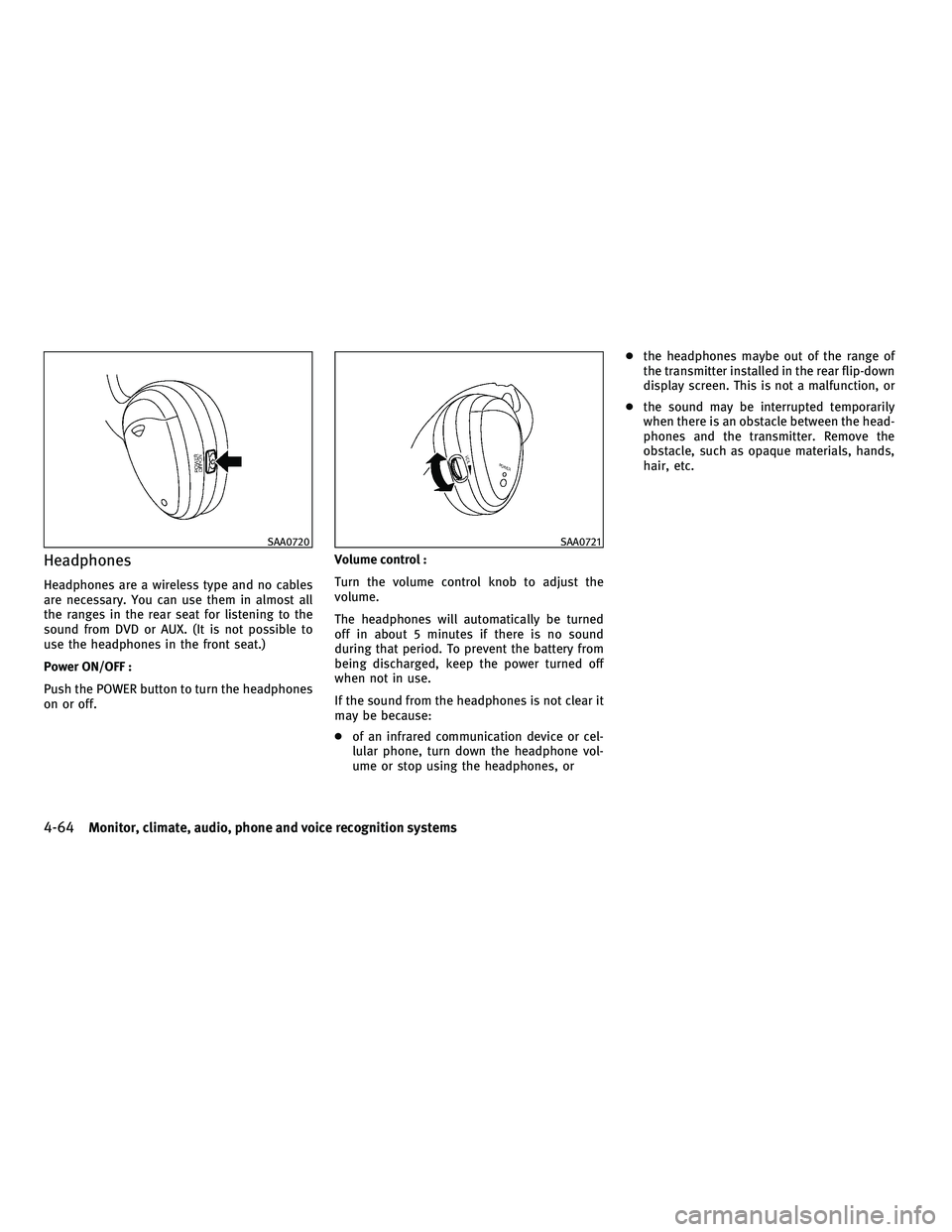
Headphones
Headphones are a wireless type and no cables
are necessary. You can use them in almost all
the ranges in the rear seat for listening to the
sound from DVD or AUX. (It is not possible to
use the headphones in the front seat.)
Power ON/OFF :
Push the POWER button to turn the headphones
on or off.Volume control :
Turn the volume control knob to adjust the
volume.
The headphones will automatically be turned
off in about 5 minutes if there is no sound
during that period. To prevent the battery from
being discharged, keep the power turned off
when not in use.
If the sound from the headphones is not clear it
may be because:
c
of an infrared communication device or cel-
lular phone, turn down the headphone vol-
ume or stop using the headphones, or c
the headphones maybe out of the range of
the transmitter installed in the rear flip-down
display screen. This is not a malfunction, or
c the sound may be interrupted temporarily
when there is an obstacle between the head-
phones and the transmitter. Remove the
obstacle, such as opaque materials, hands,
hair, etc.
SAA0720SAA0721
4-64Monitor, climate, audio, phone and voice recognition systems
wÐ
Ð
05/14/09Ðpattie
X
Page 228 of 445

Remote controller
The remote controller has the following
controls:
1. REAR DISPLAY OPEN/CLOSE button
2. DVD button3. Joystick
4. AUX button
5. ENTER button
6. DISP button
7. VOLUME CONTROL button
(
or)
8. Headphones button
9. TRACK/CHANNEL button (
or)
10. DISPLAY TILT button (
or)
11. BACK button
12. ASPECT button
13. SOUND button
14. Keypad
See ªPLAYING A DVDº later in this section for
the function of each buttons.
SAA1828
Remote controller
SAA0978
Headphones
SAA0723
Monitor, climate, audio, phone and voice recognition systems4-65
wÐ
Ð
05/14/09Ðpattie
X