2010 HYUNDAI TUCSON ESP
[x] Cancel search: ESPPage 132 of 382
449
Features of your vehicle
REARVIEW CAMERA (IF EQUIPPED)
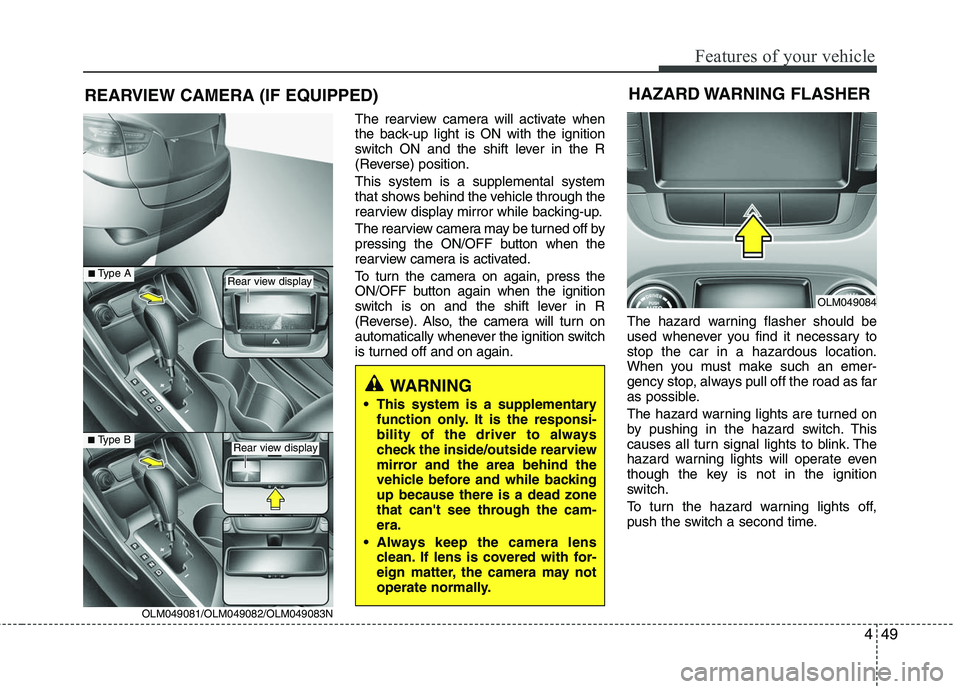
The rearview camera will activate when
the back-up light is ON with the ignition
switch ON and the shift lever in the R
(Reverse) position.
This system is a supplemental system
that shows behind the vehicle through the
rearview display mirror while backing-up.
The rearview camera may be turned off by
pressing the ON/OFF button when the
rearview camera is activated.
To turn the camera on again, press the
ON/OFF button again when the ignition
switch is on and the shift lever in R
(Reverse). Also, the camera will turn on
automatically whenever the ignition switch
is turned off and on again.The hazard warning flasher should be
used whenever you find it necessary to
stop the car in a hazardous location.
When you must make such an emer-
gency stop, always pull off the road as far
as possible.
The hazard warning lights are turned on
by pushing in the hazard switch. This
causes all turn signal lights to blink. The
hazard warning lights will operate even
though the key is not in the ignition
switch.
To turn the hazard warning lights off,
push the switch a second time.
WARNING
This system is a supplementary
function only. It is the responsi-
bility of the driver to always
check the inside/outside rearview
mirror and the area behind the
vehicle before and while backing
up because there is a dead zone
that can't see through the cam-
era.
Always keep the camera lens clean. If lens is covered with for-
eign matter, the camera may not
operate normally.
HAZARD WARNING FLASHER
OLM049084
OLM049081/OLM049082/OLM049083N
■Type B
■Type ARear view display
Rear view display
Page 161 of 382
Features of your vehicle
78
4
For maximum defrosting, set the tem-
perature control to the extreme
right/hot position and the fan speed
control to the highest speed.
If warm air to the floor is desired while defrosting or defogging, set the mode
to the floor-defrost position.
Before driving, clear all snow and ice from the windshield, rear window, out-
side rear view mirrors, and all side win-
dows.
Clear all snow and ice from the hood and air inlet in the cowl grill to improve
heater and defroster efficiency and to
reduce the probability of fogging up the
inside of the windshield.
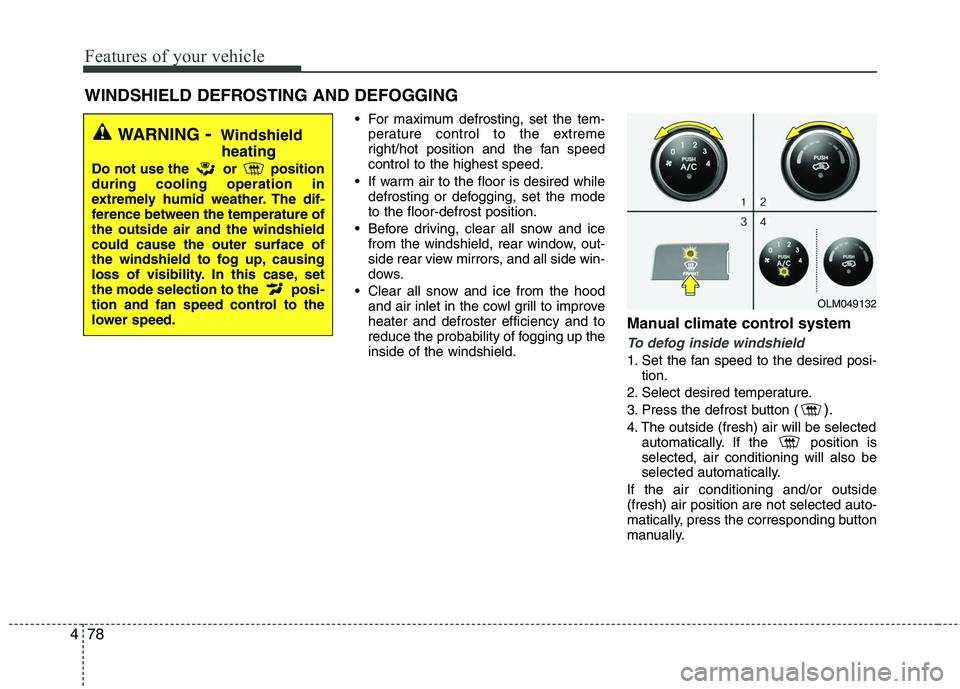
Manual climate control system
To defog inside windshield
1. Set the fan speed to the desired posi- tion.
2. Select desired temperature.
3. Press the defrost button (
).
4. The outside (fresh) air will be selected automatically. If the position is
selected, air conditioning will also be
selected automatically.
If the air conditioning and/or outside
(fresh) air position are not selected auto-
matically, press the corresponding button
manually.
WINDSHIELD DEFROSTING AND DEFOGGING
WARNING- Windshield heating
Do not use the or position
during cooling operation in
extremely humid weather. The dif-
ference between the temperature of
the outside air and the windshield
could cause the outer surface of
the windshield to fog up, causing
loss of visibility. In this case, set
the mode selection to the posi-
tion and fan speed control to the
lower speed.
OLM049132
Page 162 of 382
479
Features of your vehicle
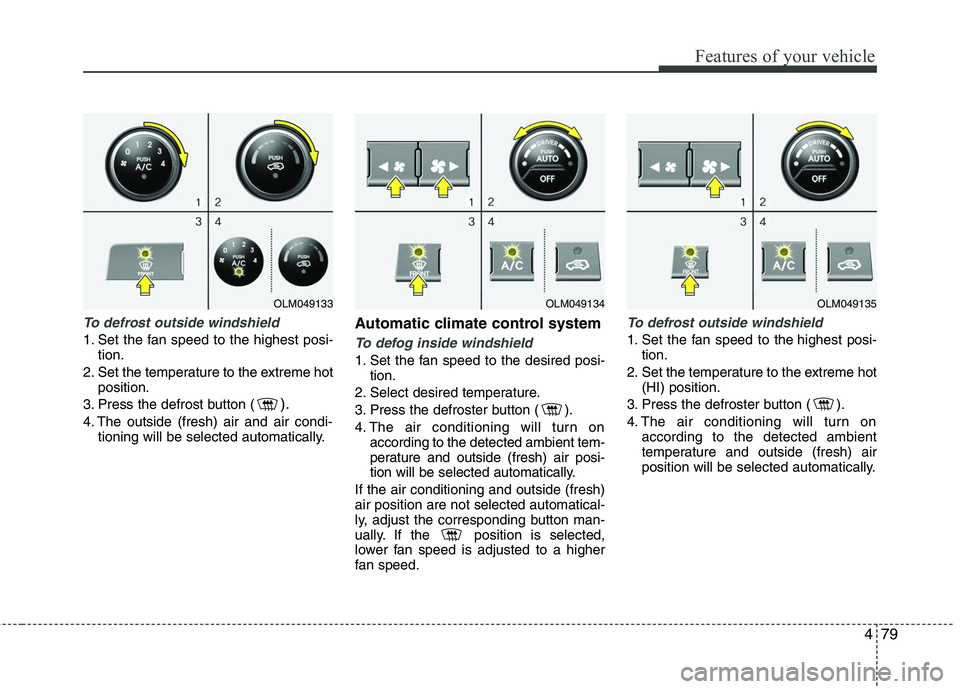
To defrost outside windshield
1. Set the fan speed to the highest posi-tion.
2. Set the temperature to the extreme hot position.
3. Press the defrost button (
).
4. The outside (fresh) air and air condi- tioning will be selected automatically.
Automatic climate control system
To defog inside windshield
1. Set the fan speed to the desired posi-tion.
2. Select desired temperature.
3. Press the defroster button ( ).
4. The air conditioning will turn on according to the detected ambient tem-
perature and outside (fresh) air posi-
tion will be selected automatically.
If the air conditioning and outside (fresh)
air position are not selected automatical-
ly, adjust the corresponding button man-
ually. If the position is selected,
lower fan speed is adjusted to a higher
fan speed.
To defrost outside windshield
1. Set the fan speed to the highest posi- tion.
2. Set the temperature to the extreme hot (HI) position.
3. Press the defroster button ( ).
4. The air conditioning will turn on according to the detected ambient
temperature and outside (fresh) air
position will be selected automatically.
OLM049134
OLM049135
OLM049133
Page 172 of 382
489
Features of your vehicle
EXTERIOR FEATURES
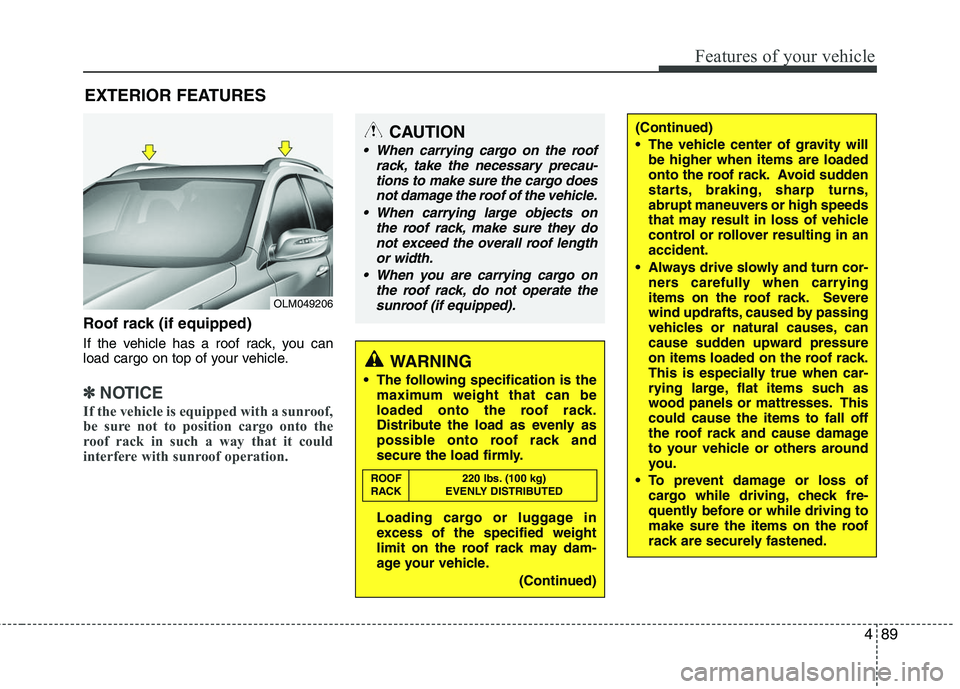
Roof rack (if equipped)
If the vehicle has a roof rack, you can
load cargo on top of your vehicle.
✽ ✽NOTICE
If the vehicle is equipped with a sunroof,
be sure not to position cargo onto the
roof rack in such a way that it could
interfere with sunroof operation.
CAUTION
When carrying cargo on the roof
rack, take the necessary precau-tions to make sure the cargo doesnot damage the roof of the vehicle.
When carrying large objects on the roof rack, make sure they donot exceed the overall roof length or width.
When you are carrying cargo on the roof rack, do not operate thesunroof (if equipped).
OLM049206
WARNING
The following specification is the maximum weight that can be
loaded onto the roof rack.
Distribute the load as evenly as
possible onto roof rack and
secure the load firmly.
Loading cargo or luggage in
excess of the specified weight
limit on the roof rack may dam-
age your vehicle.
(Continued)
(Continued)
The vehicle center of gravity willbe higher when items are loaded
onto the roof rack. Avoid sudden
starts, braking, sharp turns,
abrupt maneuvers or high speeds
that may result in loss of vehicle
control or rollover resulting in an
accident.
Always drive slowly and turn cor- ners carefully when carrying
items on the roof rack. Severe
wind updrafts, caused by passing
vehicles or natural causes, can
cause sudden upward pressure
on items loaded on the roof rack.
This is especially true when car-
rying large, flat items such as
wood panels or mattresses. This
could cause the items to fall off
the roof rack and cause damage
to your vehicle or others around
you.
To prevent damage or loss of cargo while driving, check fre-
quently before or while driving to
make sure the items on the roof
rack are securely fastened.
ROOF 220 lbs. (100 kg)
RACK EVENLY DISTRIBUTED
Page 180 of 382
![HYUNDAI TUCSON 2010 Owners Manual
497
Features of your vehicle
Using RADIO, SETUP, VOLUME
and AUDIO CONTROL
1. AM Selection Button
Pressing the [AM] button selects the AM
band. AM Mode is displayed on the LCD.
2. FM Selection Button](/manual-img/35/56207/w960_56207-179.png "HYUNDAI TUCSON 2010 Owners Manual
497
Features of your vehicle
Using RADIO, SETUP, VOLUME
and AUDIO CONTROL
1. AM Selection Button
Pressing the [AM] button selects the AM
band. AM Mode is displayed on the LCD.
2. FM Selection Button")
497
Features of your vehicle
Using RADIO, SETUP, VOLUME
and AUDIO CONTROL
1. AM Selection Button
Pressing the [AM] button selects the AM
band. AM Mode is displayed on the LCD.
2. FM Selection Button Turns to FM mode and toggles FM1 and
FM2 when the button is pressed each
time.
3. Automatic Station Seek Button
When the [SEEK ] is pressed, it willautomatically tune to the next lower
station.
When the [SEEK ] is pressed, it will automatically tune to the next higher
station.
4. Power ON/OFF Button & Volume Control Knob
Turns the audio system on/off when
the ignition switch is on ACC or ON.
If the knob is turned clockwise/counter- clockwise, the volume will increase
/decrease.
5. Preset Selection Button
Press [1]~[6] buttons less than 0.8 sec-ond to play the station saved in each
button.
Press [1]~[6] b utton more than 0.8 sec-
ond or longer to save the current station
to the respective button with a beep.
6. SCAN Button
When the button is pressed, it auto- matically scans the radio stations
upwards.
The SCAN feature steps through each station, starting from the initial station,
for ten seconds.
Press the [SCAN] button again to stop the scan feature and to listen to the
currently selected channel.
7. DISP Button
Turn the LCD Display & Backlight on/off
when [DISP] button press.
8. SETUP Button
Press this Button to enter SETUP mode,
If no action is taken for 8 seconds, it will
return to previous mode.
In “SETUP” mode, rotate the TUNE knob
to move the cursor between items, and
push the TUNE knob to select.
Select whether long file names are
scrolled continuously (“ON”) or just once
(“OFF”).
Select this item to turn the SDVC(Speed
Dependent Volume Control) feature ON
or OFF. If it is turned ON, volume level is
adjusted automatically according to the
vehicle speed.
This function creates virtual sound
effects and allows adjustments to the
BASS level.
HIGH
➟MID ➟LOW ➟OFF
Select default display of XM mode.
“Category/Channel name” or “Artist/Song
Title” can be selected.
Page 193 of 382
![HYUNDAI TUCSON 2010 Owners Manual
Features of your vehicle
110
4
3. Preset Selection Button
Push [1]~[6] buttons less than 0.8 sec-
ond to play the channel saved in each
button. Push Preset button for 0.8 sec-
ond or longer to save c](/manual-img/35/56207/w960_56207-192.png "HYUNDAI TUCSON 2010 Owners Manual
Features of your vehicle
110
4
3. Preset Selection Button
Push [1]~[6] buttons less than 0.8 sec-
ond to play the channel saved in each
button. Push Preset button for 0.8 sec-
ond or longer to save c")
Features of your vehicle
110
4
3. Preset Selection Button
Push [1]~[6] buttons less than 0.8 sec-
ond to play the channel saved in each
button. Push Preset button for 0.8 sec-
ond or longer to save current channel to
the respective button with a beep.
4. SCAN Selection Button
Press to hear a brief sampling of all
channels. To cancel the scan mode,
press the button once again.
5. INFO Button
Displays the information of the current
channel in the order of Artist/Song title➟Category/Channel name➟Current Play
Channel➟Artist/Song title➟Category/
Channel name... when the button is
pressed each time.
If can not display the whole text informa-
tion, rotate the tune button to see the
next page.
6. CATEGORY Search Button
Push [FOLDER ] button to search
previous category.
Push [CAT ] button to search next category. To listen to the displayed cat-
egory, press the TUNE/SETUP button.
To scan channel in displayed category,
press the scan button. To search chan-
nel in displayed category, press seek
buttons or turn the tune button clock-
wise/counterclockwise.(CATEGORY
icon is will be turned on in Category
mode)
7. Manual Channel Selection Button
While listening to XM broadcast, rotate
this control to the right or left to search
other channels while listening to current
channel. (Turn to the right to searchhigh-
er channels and left, lower channels)
Page 196 of 382
4113
Features of your vehicle
■Voice Recognition Activation
in the Bluetooth System can be activat-
ed in the following conditions:
- Button Activation The voice recognition system will be
active when the button is
pressed and after the sound of a
Beep.
- Active Listening The voice recognition system will be
active for a period of time when the
Voice Recognition system has asked
for a customer response.
from zero to nine while number greater
than ten will not be recognized.
system will announce "Pardon" or No
input voice signal from microphone. (No
response)
tion mode in following cases : When
pressing the button and saying
cancel following the beep. When not
making a call and pressing the but-
ton. When voice recognition has failed 3
consecutive times. At any time if you say “help”, the sys-
tem will announce what commands are
available.
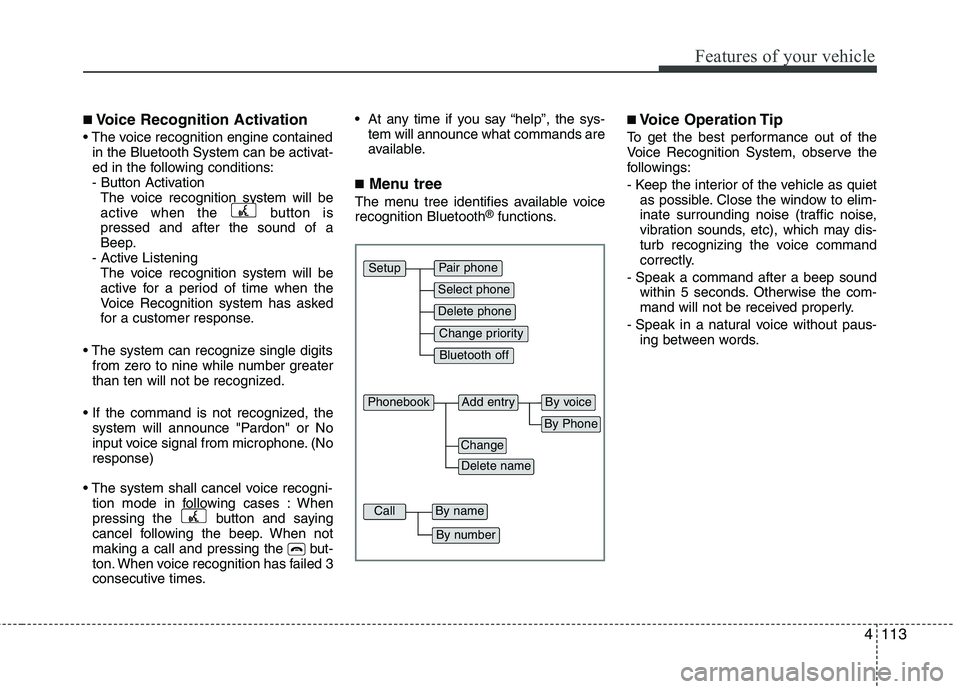
■Menu tree
The menu tree identifies available voice
recognition Bluetooth®functions.
■Voice Operation Tip
To get the best performance out of the
Voice Recognition System, observe the
followings:
- Keep the interior of the vehicle as quietas possible. Close the window to elim-
inate surrounding noise (traffic noise,
vibration sounds, etc), which may dis-
turb recognizing the voice command
correctly.
- Speak a command after a beep sound within 5 seconds. Otherwise the com-
mand will not be received properly.
- Speak in a natural voice without paus- ing between words.
Pair phone
Select phone
Change priority
Delete phone
Bluetooth off
Setup
Add entry
Phonebook
Change
Delete name
By Phone
By voice
Call
By name
By number
Page 200 of 382
4117
Features of your vehicle
®Volume
Bluetooth®system volume can be
adjusted separately from main volume of
the audio system. Volume control is avail-
able by manual operation only.
- Select “BT VOL” in PHONE menu,adjust volume to desired level by turn-
ing the TUNE knob, then press the
knob again to confirm.
Bluetooth® ON/OFF
Bluetooth® system can be enabled (ON)
or disabled (OFF) by this menu.
- If Bluetooth® is disabled, all the com- mands related to Bluetooth
®system
prompts whether you wish to turn
Bluetooth® ON or not.
1. Press button.
2. Say “Set Up”
3. Say “Bluetooth Off ” after prompt.
4. Say “Yes” to confirm.
5. By manual operation:
- Select “BT Off ” in PHONE menu, then after announcement, say “YES”
to confirm.
■Phone Book (In-Vehicle)
Phone numbers and voice tags can be
registered. Entries registered in the
phone can also be transferred.
1. Press button.
2. Say "Phonebook".
- The system replies with all availablecommands.
- To skip the information message, press again and then a beep is
heard.
3. Say "Add Entry".
4. Say "By Voice" to proceed.
5. Say the name of the entry when prompted.
6. Say “Yes” to confirm.
7. Say the phone number of that entry when prompted.
8. Say “Store” if phone number input is finished.
9. Say a phone number type. “Home”, “Work”, “Mobile”, “Other” or “Default” is
available.
10. Say “Yes” to complete adding entry.
11. Say “Yes” to store additional location for this contact, or say “Cancel” to fin-
ish the process.
✽ ✽NOTICE
- The system can recognize single digits
from zero to nine. Numbers that are
ten or greater cannot be recognized.
- You can enter each digit individually or group digits together in preferred
string lengths.
- To speed up input, it is a good idea to group all digits into a continuous
string.
- The display corresponding to each operation appears on the screen as fol-
lows:
- Input operation example: 1. Say: “Nine, nine, five”
➟ Display: “995”
2. And say: “Seven, three, four”
➟ Display: “995734”