Page 241 of 441
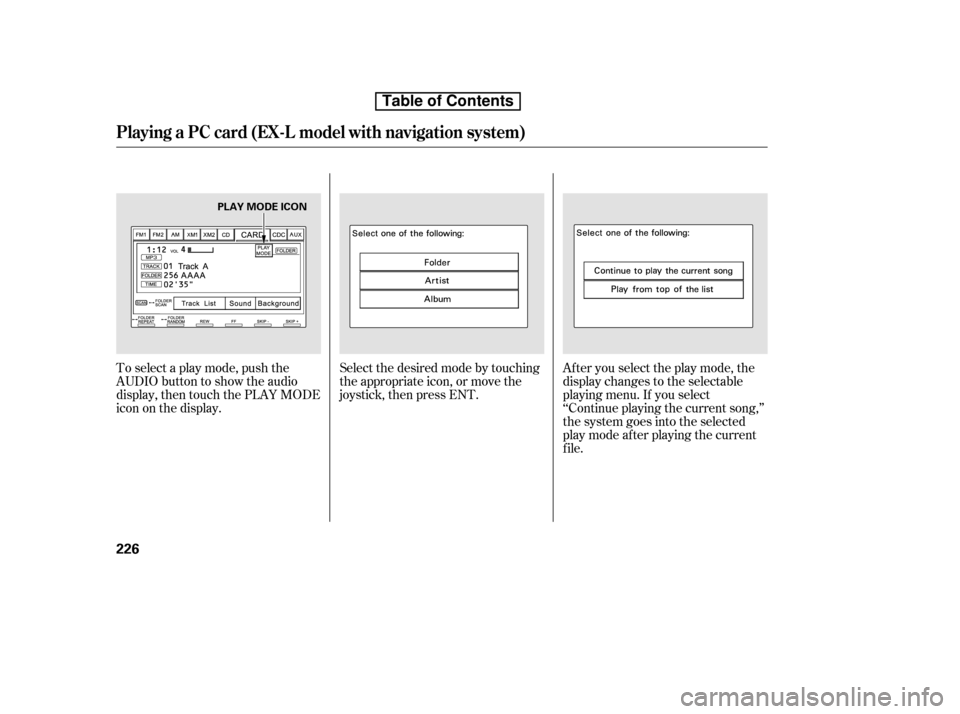
To select a play mode, push the
AUDIO button to show the audio
display, then touch the PLAY MODE
icon on the display.Select the desired mode by touching
the appropriate icon, or move the
joystick, then press ENT.
After you select the play mode, the
display changes to the selectable
playing menu. If you select
‘‘Continue playing the current song,’’
the system goes into the selected
play mode af ter playing the current
f ile.
Playing a PC card (EX-L model with navigation system)
226
PLAY MODE ICON
Table of Contents
Page 242 of 441
To go back to the previous screen,
presstheCANCELbuttononthe
rightsideofthescreen.Toexitthe
play mode screens, press the AUDIO
button.You can use the preset buttons while
a card is playing to select or change
f iles. Each preset button’s f unction is
shownonthebottomof thescreen.Iconsonthescreencanalsobe
selected with the joystick. Move the
joystick lef t or right and up or down
until the icon is highlighted, then
press ENT on the top of the joystick
to select the icon.
If you select ‘‘Play a new track list,’’
the system goes into the selected
play mode immediately and begins to
play the new track list.
CONT INUED
T o Change or Select T racks/Files
Playing a PC card (EX-L model with navigation system)
Features
227
PRESET BUTTON’S FUNCTION
PRESET BUTTONS
Table of Contents
Page 245 of 441
�Û�Ý
You can also select a f ile directly
f rom a track list on the audio display.
Press the AUDIO button to show the
audio display, then touch the Track
List icon. The track list menu
appears on the display. To scroll through the display, touch
the or icononthesideof the
screen.Togobacktotheprevious
display, touch the Return icon.
To play a f ile, touch its icon on the
screen. In f older mode, touch the
f older icon on the upper lef t of the
screen to move to the parent folder.
The current f older is highlighted in
blue.In artist mode, the artist name is also
displayed on the right side of each
selectable icon. Select the desired
f ile.
Using a T rack L ist
Playing a PC card (EX-L model with navigation system)
230
RETURN ICON
FOLDER ICON
ARTIST NAME
TRACK LIST ICON
Table of Contents
Page 248 of 441
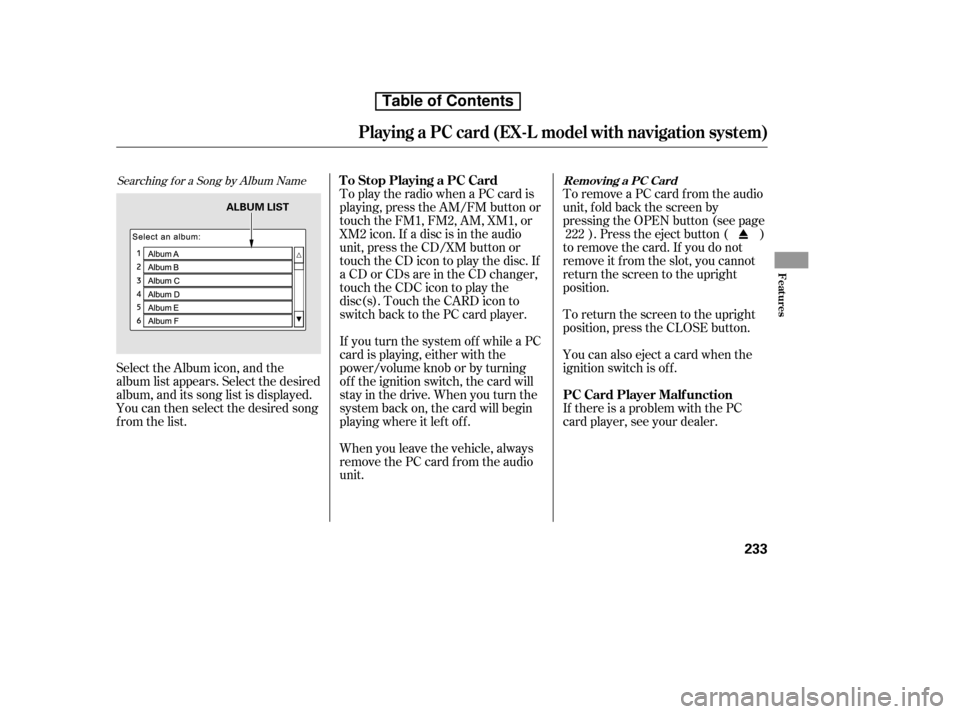
Searching f or a Song by Album Name
Select the Album icon, and the
album list appears. Select the desired
album, and its song list is displayed.
You can then select the desired song
from the list.To remove a PC card f rom the audio
unit, f old back the screen by
pressing the OPEN button (see page
). Press the eject button ( )
to remove the card. If you do not
remove it f rom the slot, you cannot
return the screen to the upright
position.
To return the screen to the upright
position, press the CLOSE button.
You can also eject a card when the
ignition switch is of f .
If there is a problem with the PC
card player, see your dealer.
To play the radio when a PC card is
playing, press the AM/FM button or
touch the FM1, FM2, AM, XM1, or
XM2 icon. If a disc is in the audio
unit, press the CD/XM button or
touch the CD icon to play the disc. If
a CD or CDs are in the CD changer,
touch the CDC icon to play the
disc(s). Touch the CARD icon to
switch back to the PC card player.
If you turn the system of f while a PC
card is playing, either with the
power/volume knob or by turning
of f the ignition switch, the card will
stay in the drive. When you turn the
system back on, the card will begin
playing where it lef t of f .
When you leave the vehicle, always
remove the PC card f rom the audio
unit. 222
T o Stop Playing a PC Card
PC Card Player Malf unction
Removing a PC Card
Playing a PC card (EX-L model with navigation system)
Features
233
ALBUM LIST
Table of Contents
Page 250 of 441
�´
�µ
Playing an iPod(EX-L model with navigation system)
Features
235
SKIP BUTTON
FAST FORWARD BUTTON
REWIND BUTTON
RANDOM BUTTON JOYSTICK
U.S. model is shown. AUX ICON
SKIP BUTTON
REPEAT BUTTON
POWER/VOLUME KNOB
iPod INDICATOR
AUDIO BUTTON
CD/XM BUTTON
OPEN BUTTON
Table of Contents
Page 251 of 441

You can select the AUX mode by
using the navigation system voice
control buttons, but cannot operate
theplaymodefunctions.
iPods compatible with your audio
system using the USB adapter cable
are:
This audio system can select and
play the audio f iles on the iPod
with
the same controls used f or the in-
dash disc player. To play an iPod,
connect it to the USB adapter cable
in the upper glove box by using your
dock connector. Press the AUDIO
button beside the screen to show the
audio display and touch the AUX
icon. The ignition switch must be in
the ACCESSORY (I) or ON (II)
position. The iPod will also be
recharged with the ignition switch in
these positions.
iPod and iTunes are registered
trademarks owned by Apple Inc.
The audio system reads and plays
playable sound f iles on the iPod. The
system cannot operate an iPod as a
mass storage device. The system will
only play songs stored on the iPod
with iTunes. Do not use an extension cable
between the USB adapter cable
equipped with your vehicle and
your dock connector.
DonotkeeptheiPodinthe
vehicle. Direct sunlight and high
heat will damage it.
Do not connect your iPod using ahub.
UseonlycompatibleiPodswiththe
latest sof tware. iPods that are not
compatible will not work in this audio
unit.
We recommend backing up your
data bef ore playing it.
Some devices cannot be powered
or charged via the USB adapter. If
this is the case, use the accessory
adapter to supply power to your
device.
Model
iPod classic
iPod with video
(iPod 5th
generation)
iPod nano
iPod nano
2nd generation
iPod nano
3rd generation
iPod nano
4th generation
iPod touch
iPod touch
2nd generation Sof tware
Ver. 1.0 or more
Ver. 1.2 or more
Ver. 1.2 or more
Ver. 1.1.2 or more
Ver. 1.0 or more
Ver. 1.0.2 or more
Ver. 1.1.1 or more
Ver. 2.1.1 or more
To Play an iPodVoice Cont rol Syst em
Playing an iPod(EX-L model with navigation system)
236
NOTE:
Table of Contents
Page 252 of 441
CONT INUED
If the audio system still does not
recognize the iPod, the iPod may
need to be reset. Follow the
instructions that came with your
iPod, or you can f ind reset
instructions online atInstall the dock connector to the
USB adapter cable securely.
Connect your dock connector to
the iPod correctly and securely.
Push the release button to release
the USB adapter cable.
Open the upper glove box.
In AAC f ormat, DRM (digital rights
management) f iles cannot be played.
If the system finds a DRM file, the
audio unit displays UNPLAYABLE,
andthenskipstothenextfile.
1. 2. 3.4.
www.apple.com/
ipod.
Playing an iPod(EX-L model with navigation system)
Connect ing an iPod
Features
237
DOCK CONNECTOR
USB ADAPTER CABLE
USB CONNECTOR
RELEASE BUTTON
Table of Contents
Page 253 of 441

�µ
�µ Select the desired mode by touching
the appropriate icon, or move the
joystick, then press ENT.
PresstheAUDIObuttontogoback
to the normal audio playing display.
Pressing the CANCEL button goes
back to the previous screen, and
pressing the MAP button cancels the
audio control display on the screen.
If you select ‘‘ALL’’ on either the
artists or albums list, all available
f iles on the selected list are played.
To move rapidly within
a f ile, press and hold (preset 4)
or (preset 3).
You can also select a file from any
list on the iPod menu: playlists,
artists, albums and songs. Press the
AUDIO button to display the screen,
then touch the iPod MENU icon.
The current f ile number and total of
the selected playable f iles are
displayed on the screen. It also
shows the artist, album and track
(f ile) names on the screen.
Use the SKIP button while an iPod is
playing to change f iles.
Each time you press and
release (preset 6), the player
skips forward to the beginning of the
next f ile. Press and release (preset 5), to skip backward to
the beginning of the current f ile.
Press it again to skip to the
beginning of the previous f ile. FF/REW
SK IP
T o Select a File f rom iPod Menu
T o Change or Select Files
Playing an iPod(EX-L model with navigation system)
238
Table of Contents