Page 143 of 387

�µ
�µ
Each time you press and release the
SCAN button, the mode changes
f rom f ile scan to f older scan, then to
normal play. Press the eject button ( ) to
remove the disc. If you eject the disc,
but do not remove it f rom the slot,
the system will automatically reload
it af ter 10 seconds and put it in pause
mode. To begin playing, press the
CD button.
You can also eject the disc when the
ignition switch is of f .
This
feature, when activated, samples the
f irst f ile in each f older on the disc.
To activate folder scan, press the
SCAN button twice. You will see
F-SCAN in the display.
The system plays the f irst f ile in the
f irst f older f or about 10 seconds. If
you do nothing, the system will then
play the f irst f iles in the next f olders
for 10 seconds. After playing the first
file in the last folder, the system
plays normally.
Pressing either side of the SEEK/
SKIP button, selecting a dif f erent
folder with the TUNE knob, or
pressing the SCAN button, also turns
of f the f older scan.
The scan f unction samples all tracks
(f iles in MP3 or WMA) on the disc in
the order they are recorded on the
disc. To activate scan, press the
SCAN button. In MP3 or WMA
mode, press the SCAN button
repeatedly to select SCAN. You will
see SCAN in the display. You will get
a10secondsamplingof eachtrack/
f ile on the disc. Press and hold the
SCAN button again to get out of scan
mode and play the last track/f ile
sampled.
Pressing either side of the SEEK/
SKIP button also turns of f the scan
feature.
To play the radio when a disc is
playing, press the AM/FM button.
Press the CD button again to switch
back to the CD player. Press the
AUX button to switch to an
appropriate audio unit.
In MP3 or WMA mode
CONT INUED
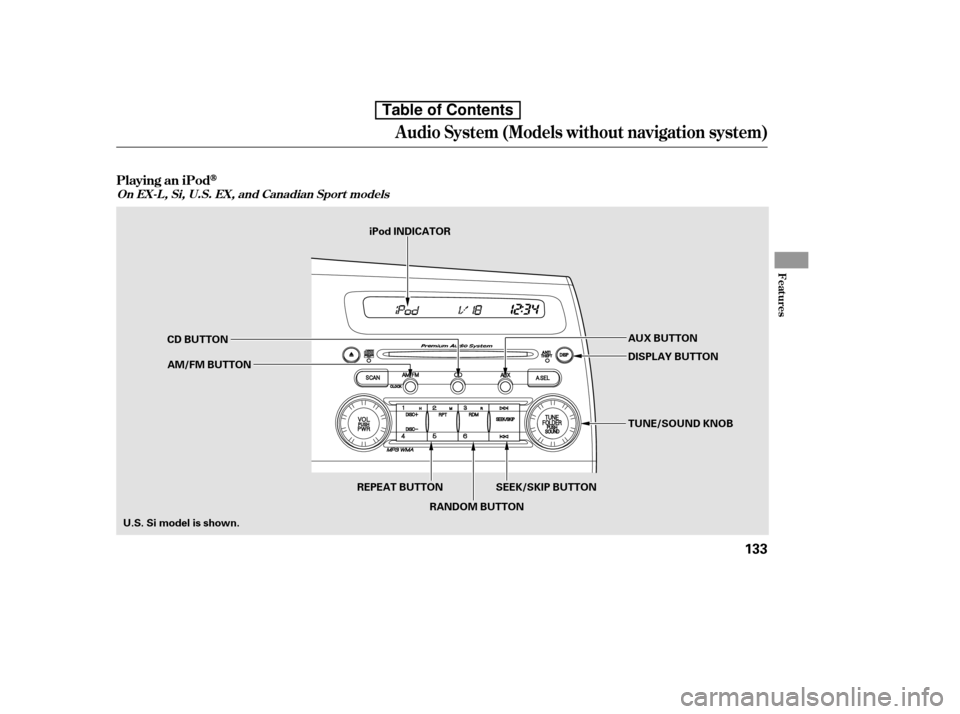
To Stop Playing a Disc
F-SCAN (FOLDER SCAN)
SCA N (T RA CK /FIL E SCA N)
Audio System (Models without navigation system)
Features
129
Table of Contents
Page 147 of 387
Audio System (Models without navigation system)
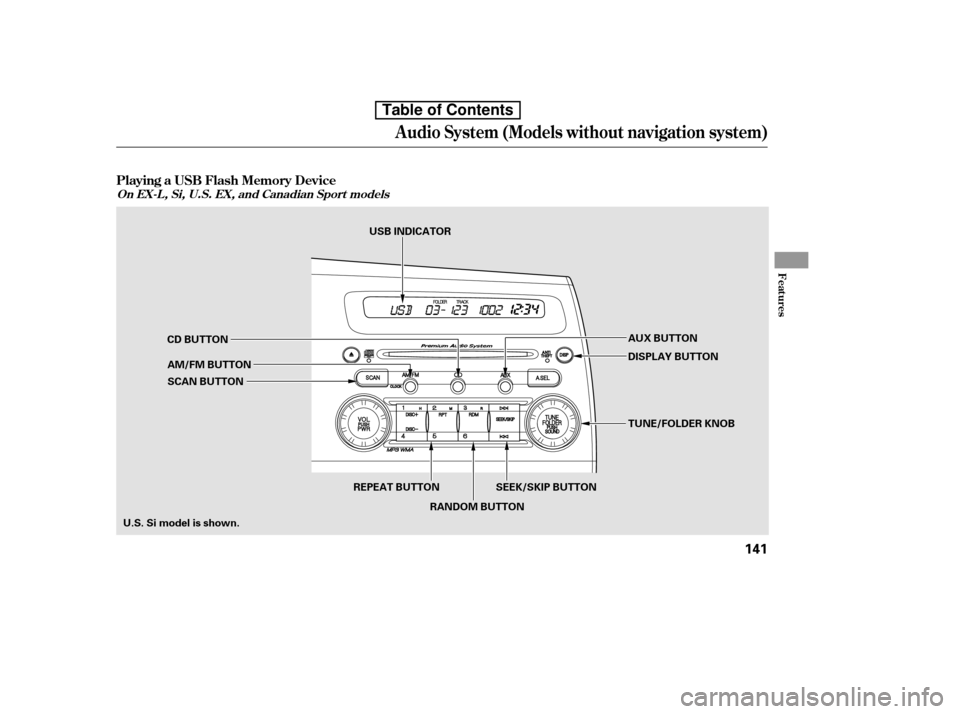
Playing an iPod
Features
On EX-L , Si, U.S. EX, and Canadian Sport models
133
AUX BUTTON
SEEK/SKIP BUTTON TUNE/SOUND KNOB
DISPLAY BUTTON
CD BUTTON
AM/FM BUTTON
U.S. Si model is shown. iPod INDICATOR
REPEAT BUTTON RANDOM BUTTON
Table of Contents
Page 148 of 387

This audio system can select and
play the audio f iles on the iPod
with
the same controls used f or the disc
player. To play an iPod, connect it to
the USB adapter cable in the console
compartment by using your dock
connector, then press the AUX
button. The ignition switch must be
in the ACCESSORY (I) or ON (II)
position. The iPod will also be
charged with the ignition switch in
these positions. The audio system reads and plays
playable sound f iles on the iPod. The
system cannot operate an iPod as a
mass storage device. The system will
only play songs stored on the iPod
with iTunes.
iPod and iTunes are registered
trademarks owned by Apple Inc.
iPods compatible with your audio
system using the USB adapter cable
are:
UseonlycompatibleiPodswiththe
latest sof tware. iPods that are not
compatible will not work in this audio
unit.
Sof tware
Ver. 1.0 or more
Ver. 1.2 or more
Ver. 1.2 or more
Ver. 1.1.2 or more
Ver. 1.0 or more
Ver. 1.0.2 or more
Ver. 1.1.1 or more
Ver. 2.1.1 or more
Model
iPod classic
iPod with video
(iPod 5th
generation)
iPod nano
iPod nano 2nd
generation
iPod nano 3rd
generation
iPod nano 4th
generation
iPod touch
iPod touch 2nd
generation
To Play an iPod
Audio System (Models without navigation system)
134
Table of Contents
Page 153 of 387
�Î
�Î
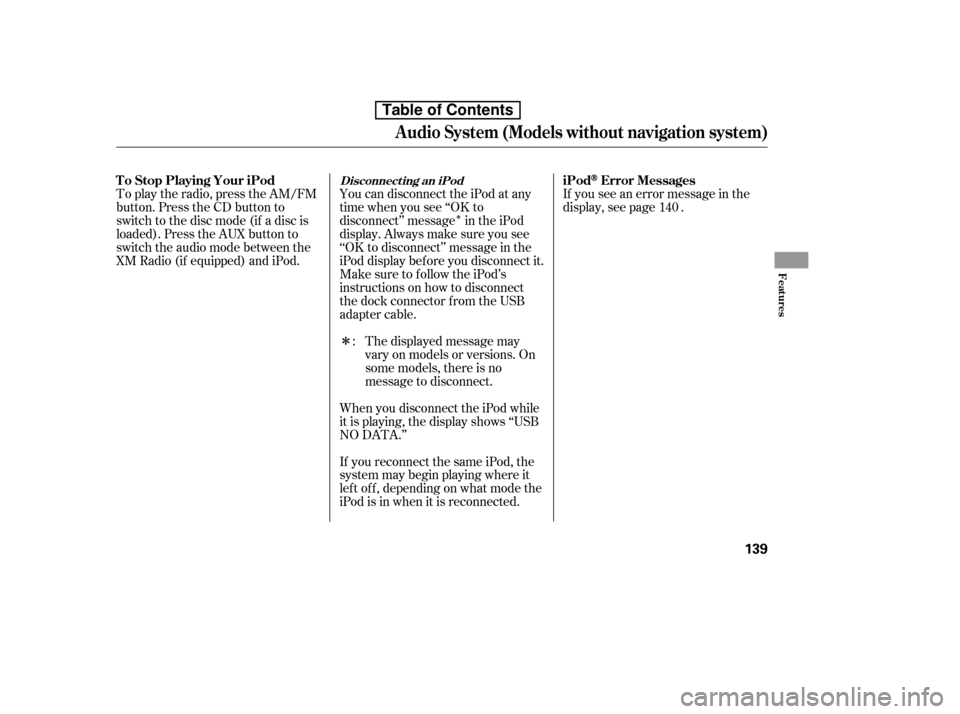
To play the radio, press the AM/FM
button. Press the CD button to
switch to the disc mode (if a disc is
loaded). Press the AUX button to
switch the audio mode between the
XM Radio (if equipped) and iPod.
If you see an error message in the
display, see page .
You can disconnect the iPod at any
time when you see ‘‘OK to
disconnect’’ message in the iPod
display. Always make sure you see
‘‘OK to disconnect’’ message in the
iPod display bef ore you disconnect it.
Make sure to f ollow the iPod’s
instructions on how to disconnect
the dock connector f rom the USB
adapter cable.
The displayed message may
vary on models or versions. On
some models, there is no
message to disconnect.
When you disconnect the iPod while
it is playing, the display shows ‘‘USB
NO DATA.’’
If you reconnect the same iPod, the
system may begin playing where it
lef t of f , depending on what mode the
iPod is in when it is reconnected. :
140
Audio System (Models without navigation system)
Disconnect ing an iPodiPodError Messages
T o Stop Playing Your iPod
Features
139
Table of Contents
Page 155 of 387
Audio System (Models without navigation system)
Playing a USB Flash Memory Device
Features
On EX-L , Si, U.S. EX, and Canadian Sport models
141
AUX BUTTON
SEEK/SKIP BUTTON DISPLAY BUTTON
CD BUTTON
AM/FM BUTTON
U.S. Si model is shown. USB INDICATOR
SCAN BUTTON TUNE/FOLDER KNOB
REPEAT BUTTON RANDOM BUTTON
Table of Contents
Page 156 of 387

�Î
�Î
This audio system can select and
play the audio f iles on a USB f lash
memory device with the same
controls used f or the disc player. To
play a USB f lash memory device,
connect it to the USB adapter cable
in the console compartment, then
press the AUX button. The ignition
switch must be in the ACCESSORY
(I) or ON (II) position.
The audio system reads and plays
the audio f iles on the USB f lash
memory device in MP3, WMA or
AAC f ormats. Depending on the
f ormat, the display shows MP3,
WMA or AAC when a USB flash
memory device is playing. The USB
f lash memory device limit is up to
700 f olders or up to 65535 f iles.
Only AAC f ormat f iles recorded
with iTunes are playable on this
audio unit. The recommended USB f lash
memory devices are 256 MB or
higher, and f ormatted with the FAT
f ile system. Some digital audio
players may be compatible as well.
Depending on the type of
encoding and writing sof tware
used, there may be cases where
character inf ormation does not
display properly.
Depending on the sof tware the
f iles were made with, it may not be
possibletoplaysomefiles,or
display some text data.
Depending on the type and
number of f iles, it may take some
time bef ore they begin to play.
Some devices cannot be powered
or charged via the USB adapter. If
this is the case, use the accessory
adapter to supply power to your
device.
We recommend backing up your
data bef ore playing a USB f lash
memory device.
Do not keep a USB f lash memory
device in the vehicle. Direct
sunlight and high heat will damage it.
Do not use an extension cable to
the USB adapter cable equipped
with your vehicle.
Do not connect your USB f lash
memory device using a hub.
Do not use a device such as a card
reader or hard drive as the device
or your f iles may be damaged.
Some USB f lash memory devices
(such as devices with security lock-
out f eatures, etc.) will not work in
this audio unit.
:
To Play a USB Flash Memory
Device
Audio System (Models without navigation system)
142
NOTE:
Table of Contents
Page 161 of 387
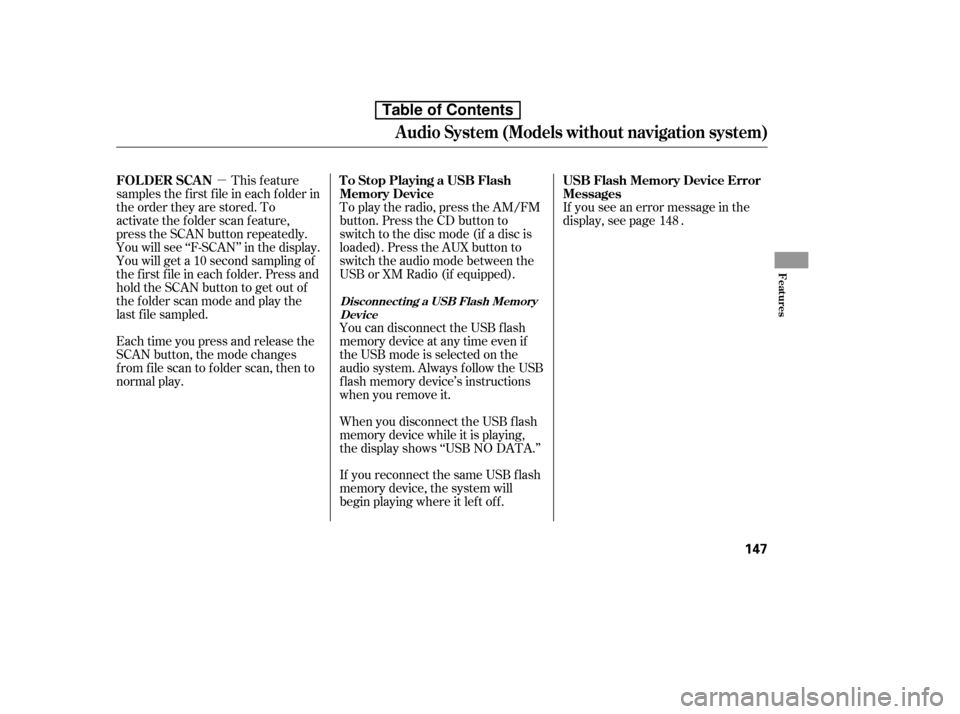
�µThis feature
samples the f irst f ile in each f older in
the order they are stored. To
activate the folder scan feature,
press the SCAN button repeatedly.
You will see ‘‘F-SCAN’’ in the display.
You will get a 10 second sampling of
the f irst f ile in each f older. Press and
hold the SCAN button to get out of
the f older scan mode and play the
last f ile sampled.
Each time you press and release the
SCAN button, the mode changes
from file scan to folder scan, then to
normal play. To play the radio, press the AM/FM
button. Press the CD button to
switch to the disc mode (if a disc is
loaded). Press the AUX button to
switch the audio mode between the
USB or XM Radio (if equipped).
When you disconnect the USB f lash
memory device while it is playing,
the display shows ‘‘USB NO DATA.’’
If you reconnect the same USB f lash
memory device, the system will
begin playing where it lef t of f .If you see an error message in the
display, see page .
You can disconnect the USB f lash
memory device at any time even if
the USB mode is selected on the
audio system. Always f ollow the USB
f lash memory device’s instructions
when you remove it. 148
Audio System (Models without navigation system)
FOL DER SCAN T o Stop Playing a USB Flash
Memory DeviceUSB Flash Memory Device Error
Messages
Disconnect ing a USB Flash Memory
Device
Features
147
Table of Contents
Page 199 of 387
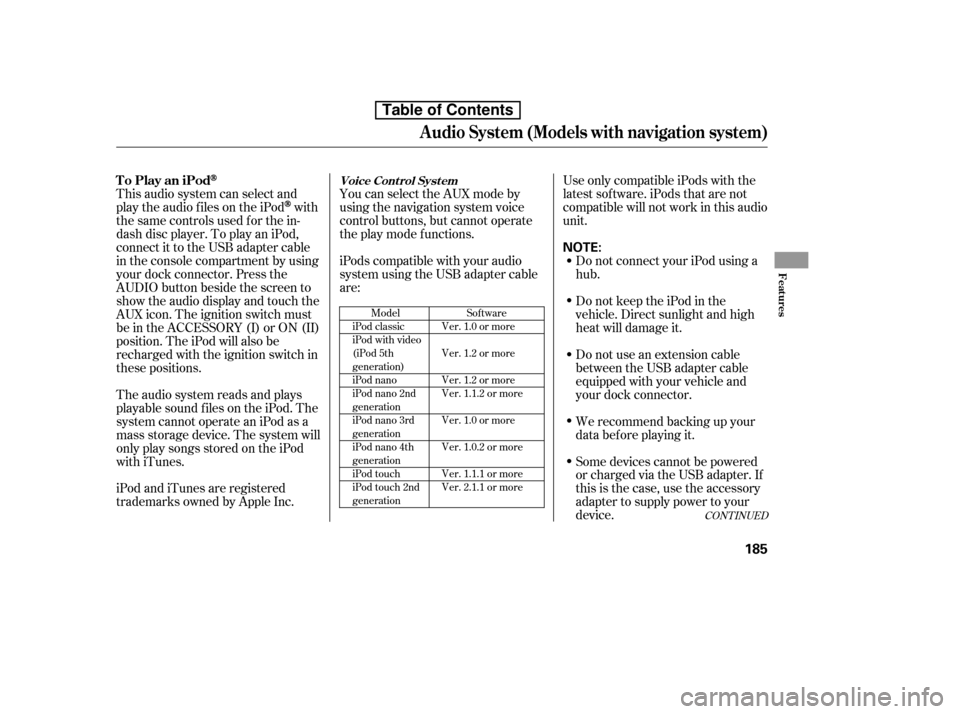
This audio system can select and
play the audio f iles on the iPod
with
the same controls used f or the in-
dash disc player. To play an iPod,
connect it to the USB adapter cable
in the console compartment by using
your dock connector. Press the
AUDIO button beside the screen to
show the audio display and touch the
AUX icon. The ignition switch must
be in the ACCESSORY (I) or ON (II)
position. The iPod will also be
recharged with the ignition switch in
these positions.
The audio system reads and plays
playable sound f iles on the iPod. The
system cannot operate an iPod as a
mass storage device. The system will
only play songs stored on the iPod
with iTunes.
iPod and iTunes are registered
trademarks owned by Apple Inc. You can select the AUX mode by
using the navigation system voice
control buttons, but cannot operate
theplaymodefunctions.
iPods compatible with your audio
system using the USB adapter cable
are:
Some devices cannot be powered
or charged via the USB adapter. If
this is the case, use the accessory
adapter to supply power to your
device.
We recommend backing up your
data bef ore playing it.
Do not use an extension cable
between the USB adapter cable
equipped with your vehicle and
your dock connector.
DonotkeeptheiPodinthe
vehicle. Direct sunlight and high
heat will damage it.
Do not connect your iPod using ahub.
UseonlycompatibleiPodswiththe
latest sof tware. iPods that are not
compatible will not work in this audio
unit.
CONT INUED
Sof tware
Ver. 1.0 or more
Ver. 1.2 or more
Ver. 1.2 or more
Ver. 1.1.2 or more
Ver. 1.0 or more
Ver. 1.0.2 or more
Ver. 1.1.1 or more
Ver. 2.1.1 or more
Model
iPod classic
iPod with video
(iPod 5th
generation)
iPod nano
iPod nano 2nd
generation
iPod nano 3rd
generation
iPod nano 4th
generation
iPod touch
iPod touch 2nd
generation
To Play an iPodVoice Cont rol Syst em
Audio System (Models with navigation system)
Features
185
NOTE:
Table of Contents