Page 7 of 368
�Î
�Î �Î
�Î
�Î
�Î
�Î
�Î
�Î
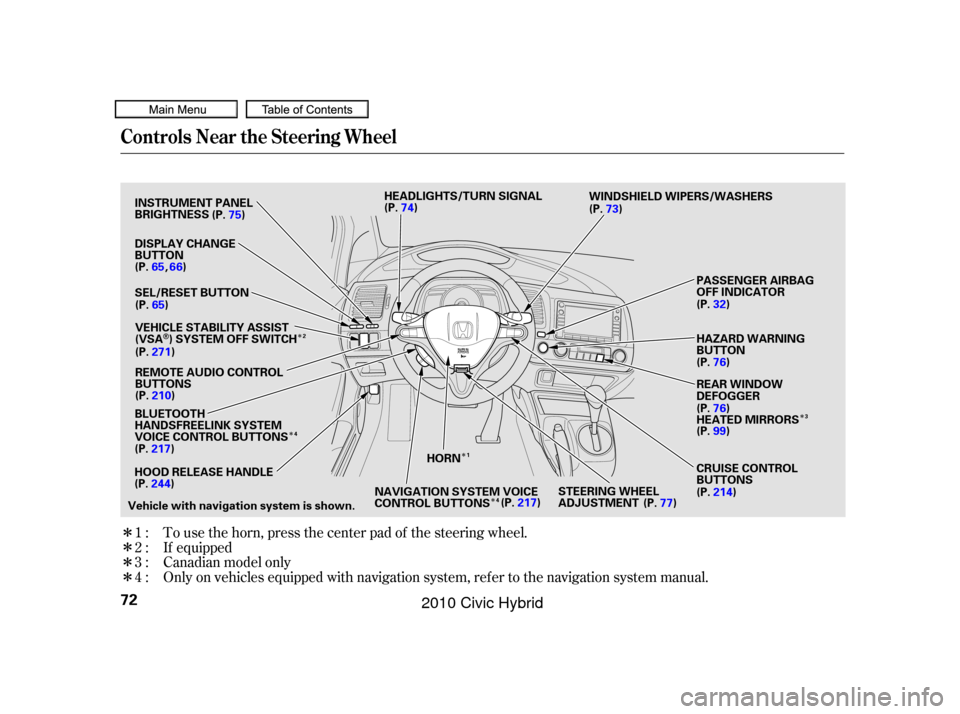
Only on vehicles equipped with navigation system. Ref er to the navigation system manual. To use the horn, press the center pad of the steering wheel.
Canadian model only
1:
2:
3:
4: If equipped
Your Vehicle at a Glance
4
INSTRUMENT PANEL
BRIGHTNESS BUTTONS
PASSENGER AIRBAG OFF
INDICATOR
HAZARD WARNING BUTTON
REAR WINDOW DEFOGGER
Vehicle with navigation system is shown DISPLAY CHANGE
BUTTON
SEL/RESET
BUTTON HORN
CRUISE CONTROL
BUTTONS
HEADLIGHTS/TURN SIGNAL
WINDSHIELD WIPERS/WASHERS
REMOTE AUDIO CONTROLS STEERING WHEEL
ADJUSTMENT
(P.
75)
VEHICLE STABILITY ASSIST
(VSA
) SYSTEM OFF SWITCH
(P. 210)
(P.77)
(P.
74) (P.
73)
(P.76)
(P. 76)
HEATED MIRRORS
(P. 214)
HOOD RELEASE HANDLE
NAVIGATION SYSTEM VOICE
CONTROL BUTTONS
(P.
66)
(P. 65)
(P. 271)
(P. 244)
(P.217) (P.
99)
(P.
32)
(P. 217)
BLUETOOTH
HANDSFREELINK SYSTEM
VOICE CONTROL BUTTONS
1
2 3
4
4
09/07/15 10:30:06 31SNC640_009
2010 Civic Hybrid
Page 75 of 368
�Î
�Î
�Î
�Î
�Î
�Î
�Î
�Î
�Î
Only on vehicles equipped with navigation system, ref er to the navigation system manual. To use the horn, press the center pad of the steering wheel.
1:
2:
3:
4: If equipped
Canadian model only
Controls Near the Steering Wheel
72
REAR WINDOW
DEFOGGER PASSENGER AIRBAG
OFF INDICATOR
HAZARD WARNING
BUTTON
HOOD RELEASE HANDLE HORN
Vehicle with navigation system is shown. CRUISE CONTROL
BUTTONS
WINDSHIELD WIPERS/WASHERS
(P. 75)
(P. 65)
VEHICLE STABILITY ASSIST
(VSA
) SYSTEM OFF SWITCH
(P. 210) (P.
74)
(P.73)
(P.76)
HEATED MIRRORS
(P. 214)
NAVIGATION SYSTEM VOICE
CONTROL BUTTONS
(P.
271)
(P. 244)
(P.
217)
(P.217 ) (P.
76)
(P.
32)
INSTRUMENT PANEL
BRIGHTNESS
DISPLAY CHANGE
BUTTON
(P.
65, 66)
SEL/RESET BUTTON
(P.99)
HEADLIGHTS/TURN SIGNAL
STEERING WHEEL
ADJUSTMENT (P.77)
REMOTE AUDIO CONTROL
BUTTONS
BLUETOOTH
HANDSFREELINK SYSTEM
VOICE CONTROL BUTTONS
1
2
3
4
4
09/07/15 10:39:23 31SNC640_077
2010 Civic Hybrid
Page 106 of 368

The climate control system in your
vehicle provides a comfortable
driving environment in all weather
conditions.
The standard audio system has
many f eatures. This section
describes those f eatures and how to
use them. (If you have an optional
audio system, ref er to the operating
instructions that came with it.)
Your vehicle has an anti-theft audio
system that requires a code number
to enable it.
The security system helps to dis-
courage vandalism and thef t of your
vehicle..............................
Climate Control .104
................................
Audio System .110
Audio System (Models without ...................
navigation system) . 112
..........
Playing the AM/FM Radio . 113
.....................
Adjusting the Sound .115
................
Playing the XM
Radio . 116
................................
Playing a Disc .121
.......
Disc Player Error Messages . 128
Optional Disc Changer Error ...................................
Messages .129
............................
PlayinganiPod
. 130
.................
iPod
Error Messages . 138
Playing a USB Flash Memory ........................................
Device .139
USB Flash Memory Device ........................
Error Messages .146
Audio System (Models with ...................
navigation system) . 147
..........
Playing the AM/FM Radio . 148
................
Playing the XM
Radio . 151
.....................
Adjusting the Sound .158
................................
Playing a Disc .160
.......
Disc Player Error Messages . 169
.........................
Playing a PC Card .170
.............
PC Card Error Messages . 182............................
PlayinganiPod
. 183
.................
iPod
Error Messages . 192
Playing a USB Flash Memory ........................................
Device .193
USB Flash Memory Device ........................
Error Messages .203
............
AM/FM Radio Reception . 204
..................
Protecting Your Discs . 206
.................
Radio Thef t Protection . 209
................
Remote Audio Controls . 210
......................
Auxiliary Input Jack .211
..........................
Setting the Clock .212
............................
Security System .213
...............................
Cruise Control .214
........
HandsFreeLink
. 217Bluetooth
Features
Features
103
09/07/15 10:43:30 31SNC640_108
2010 Civic Hybrid
Page 176 of 368
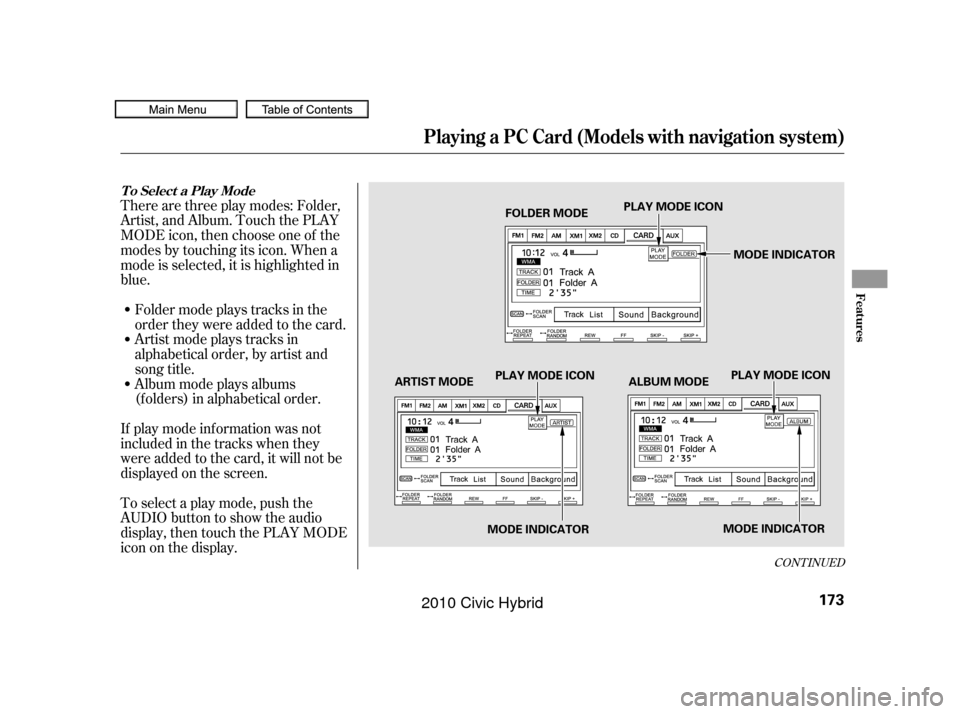
Artistmodeplaystracksin
alphabetical order, by artist and
song title.
Therearethreeplaymodes:Folder,
Artist, and Album. Touch the PLAY
MODE icon, then choose one of the
modes by touching its icon. When a
mode is selected, it is highlighted in
blue.
Foldermodeplaystracksinthe
order they were added to the card.
Album mode plays albums
(f olders) in alphabetical order.
If play mode information was not
includedinthetrackswhenthey
were added to the card, it will not be
displayed on the screen.
To select a play mode, push the
AUDIO button to show the audio
display, then touch the PLAY MODE
icon on the display.
CONT INUED
T o Select a Play Mode
Playing a PC Card (Models with navigation system)
Features
173
MODE INDICATOR
PLAY MODE ICON
PLAY MODE ICON PLAY MODE ICON
MODE INDICATOR MODE INDICATOR
FOLDER MODE
ARTIST MODE ALBUM MODE
09/07/15 10:52:43 31SNC640_178
2010 Civic Hybrid
Page 180 of 368
�Û�Ý
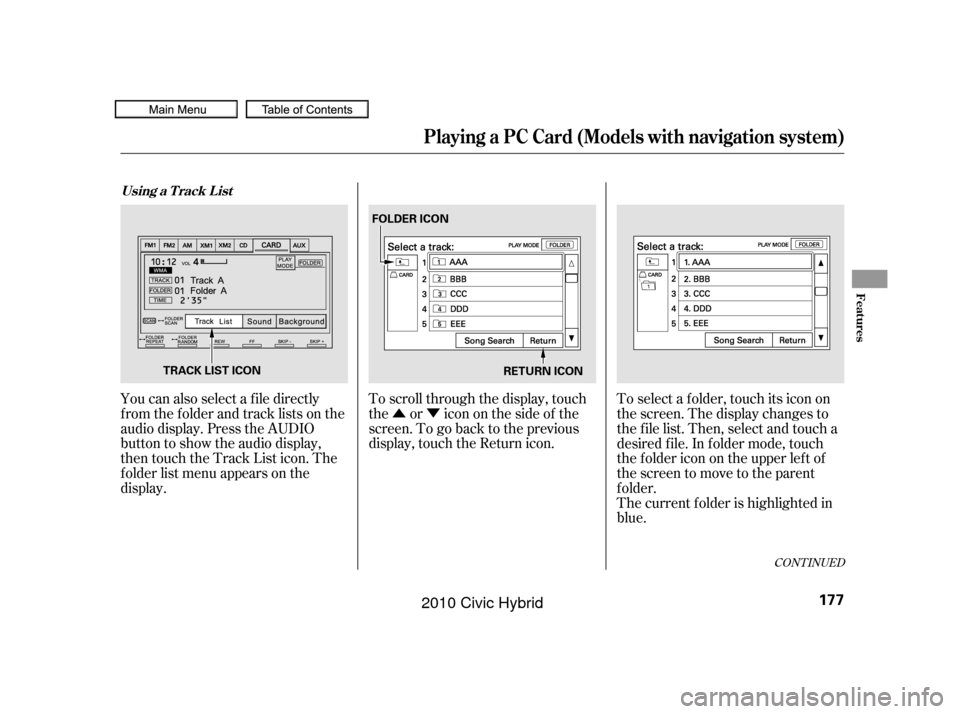
To scroll through the display, touch
the or icononthesideof the
screen.Togobacktotheprevious
display, touch the Return icon.
You can also select a f ile directly
from the folder and track lists on the
audio display. Press the AUDIO
button to show the audio display,
then touch the Track List icon. The
f older list menu appears on the
display. To select a f older, touch its icon on
the screen. The display changes to
the f ile list. Then, select and touch a
desired f ile. In f older mode, touch
the f older icon on the upper lef t of
the screen to move to the parent
f older.
The current f older is highlighted in
blue.
CONT INUED
Using a T rack L ist
Playing a PC Card (Models with navigation system)
Features
177
RETURN ICON
FOLDER ICON
TRACK LIST ICON
09/07/15 10:53:13 31SNC640_182
2010 Civic Hybrid
Page 220 of 368
�µ�µ
Bluetooth
handsf reelink.honda.
com
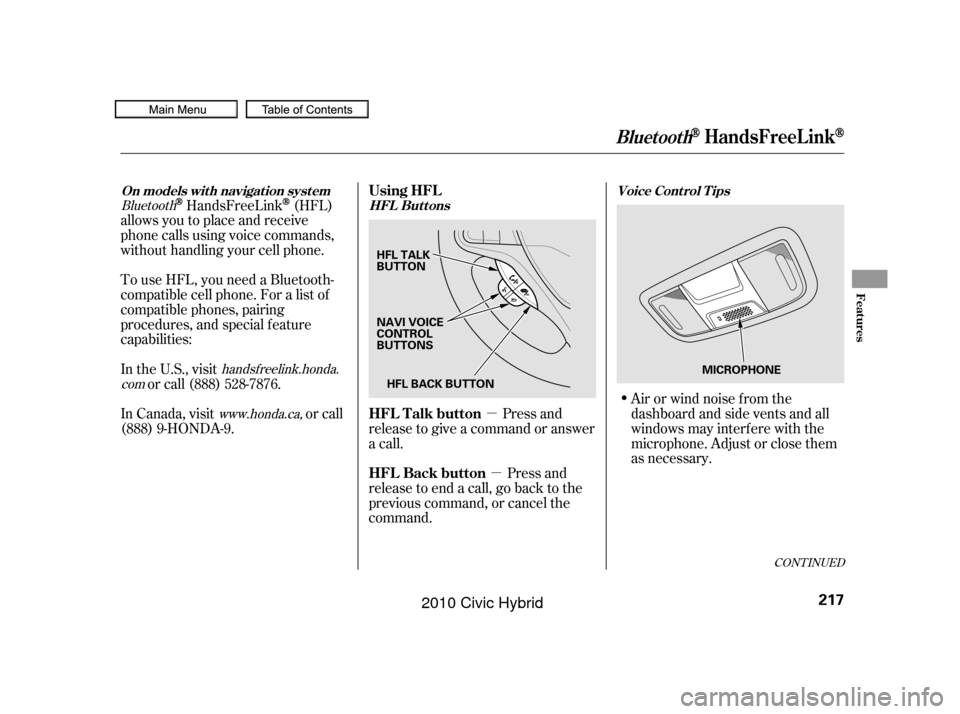
www.honda.ca,HandsFreeLink(HFL)
allows you to place and receive
phone calls using voice commands,
without handling your cell phone.
To use HFL, you need a Bluetooth-
compatible cell phone. For a list of
compatible phones, pairing
procedures, and special f eature
capabilities:
In the U.S., visit or call (888) 528-7876.
In Canada, visit or call
(888) 9-HONDA-9. Press and
release to give a command or answer
a call.
Press and
release to end a call, go back to the
previous command, or cancel the
command. Airorwindnoisefromthe
dashboard and side vents and all
windows may interfere with the
microphone. Adjust or close them
as necessary.
CONT INUED
On models wit h navigat ion syst em
HFL ButtonsVoice Cont rol T ips
BluetoothHandsFreeL ink
Using HFL
HFL Talk button
HFL Back button
Features
217
HFL BACK BUTTON
NAVI VOICE
CONTROL
BUTTONS HFL TALK
BUTTON
MICROPHONE
09/07/15 10:58:22 31SNC640_222
2010 Civic Hybrid
Page 221 of 368
�Ì�Ì�Ì�Ì
Press and release the HFL Talk
button each time you want to
make a command. Af ter the beep,
speak in a clear, natural tone.
Try to reduce all background
noise. If the microphone picks up
voices other than yours,
commands may be misinterpreted. Many commands can be spoken
together. For example, you can
say ‘‘Call 123-456- ’’ or
‘‘Dial Peter.’’
When HFL is in use, navigation
voice commands cannot be
recognized.
Tochangethevolumelevelof
HFL, use the audio system volume
knob or the steering wheel volume
controls.To hear general HFL inf ormation,
including help on pairing a phone
or setting up the system, say
‘‘Tutorial.’’
For help at any time, including a
list of available commands, say
‘‘Hands f ree help.’’
BluetoothHandsFreeL ink
Help Feat ures
218
09/07/15 10:58:29 31SNC640_223
2010 Civic Hybrid
Page 222 of 368
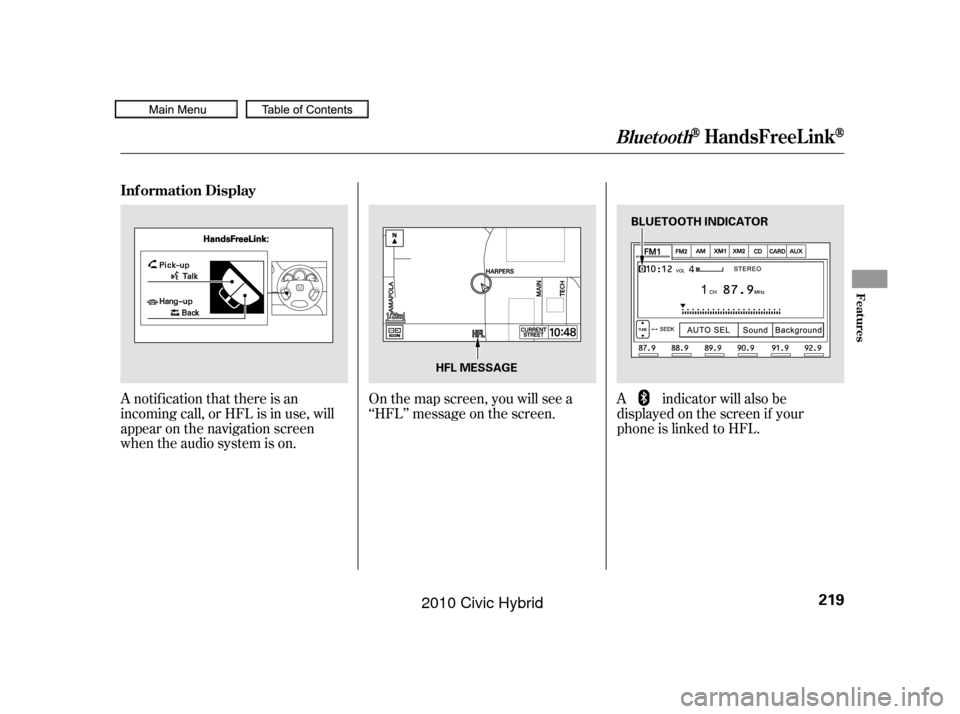
A notif ication that there is an
incoming call, or HFL is in use, will
appear on the navigation screen
when the audio system is on.On the map screen, you will see a
‘‘HFL’’ message on the screen.
A indicator will also be
displayed on the screen if your
phone is linked to HFL.
BluetoothHandsFreeL ink
Inf ormation Display
Features
219
BLUETOOTH INDICATOR
HFL MESSAGE
09/07/15 10:58:36 31SNC640_224
2010 Civic Hybrid