2010 FORD KUGA navigation
[x] Cancel search: navigationPage 206 of 226

Press the SCAN button to scan the
current playlist if it is in operation, or the
complete USB device or folder.
Press the
INFObutton to display the
following:
• filename
• title
• artist
• album
• track number and playing time.
DVD Navigation units
Operation
Select the USB device as the audio
source by pressing the CD/AUXbutton
until the USB button appears to the left of
the display. Select USB from the available
device list.
Note:Some devices may be shown but
not selectable, depending if the device is connected or not.
After first connecting the USB device, the
first track within the first folder will start to
play automatically. Subsequently, following
audio source switching, the position of
playback on the USB device is
remembered.
To browse the device contents, press the
scroll up or down arrow button.
The display will show the track
information, together with other important
information described below:
• A vertical scroll bar on the right side of
the display shows the current position
of the folder view.
• ">" after an entry indicates a further
level down is readable (for example a
folder named after an album, with
individual album tracks within that
folder). •
"<" to the left hand side of the display
indicates that a further level up is
readable.
• Icons to the left of track/folder text
indicate the type of file/folder. Refer
to the list for an explanation of these
icons.
To navigate the USB device contents, use
the scroll buttons to browse through lists.
Push the button to expand the contents
within the highlighted playlist or folder, or
to commence playback of a particular
track. Press the left arrow key to go up
one level.
Audio control
Press the SEEKup and down keys to
skip backwards and forwards through
tracks.
Press and hold the SEEKkeys to enable
fast rewind/fast forward through track
content.
Press the scroll bar arrow keys to browse
the device contents.
Press SHUFFLE or REPEAT buttons to
enable shuffle and repeat functions with
respect to folders and playlists.
Press the SCAN button to scan the
current playlist if it is in operation, or the
complete USB device or folder.
Press the INFObutton to display the
following:
• filename
• title
• artist
• album
• track number and playing time.
USING AN IPOD
Various icons are used to identify types
of audio file, folders etc.
204
Connectivity
Page 207 of 226
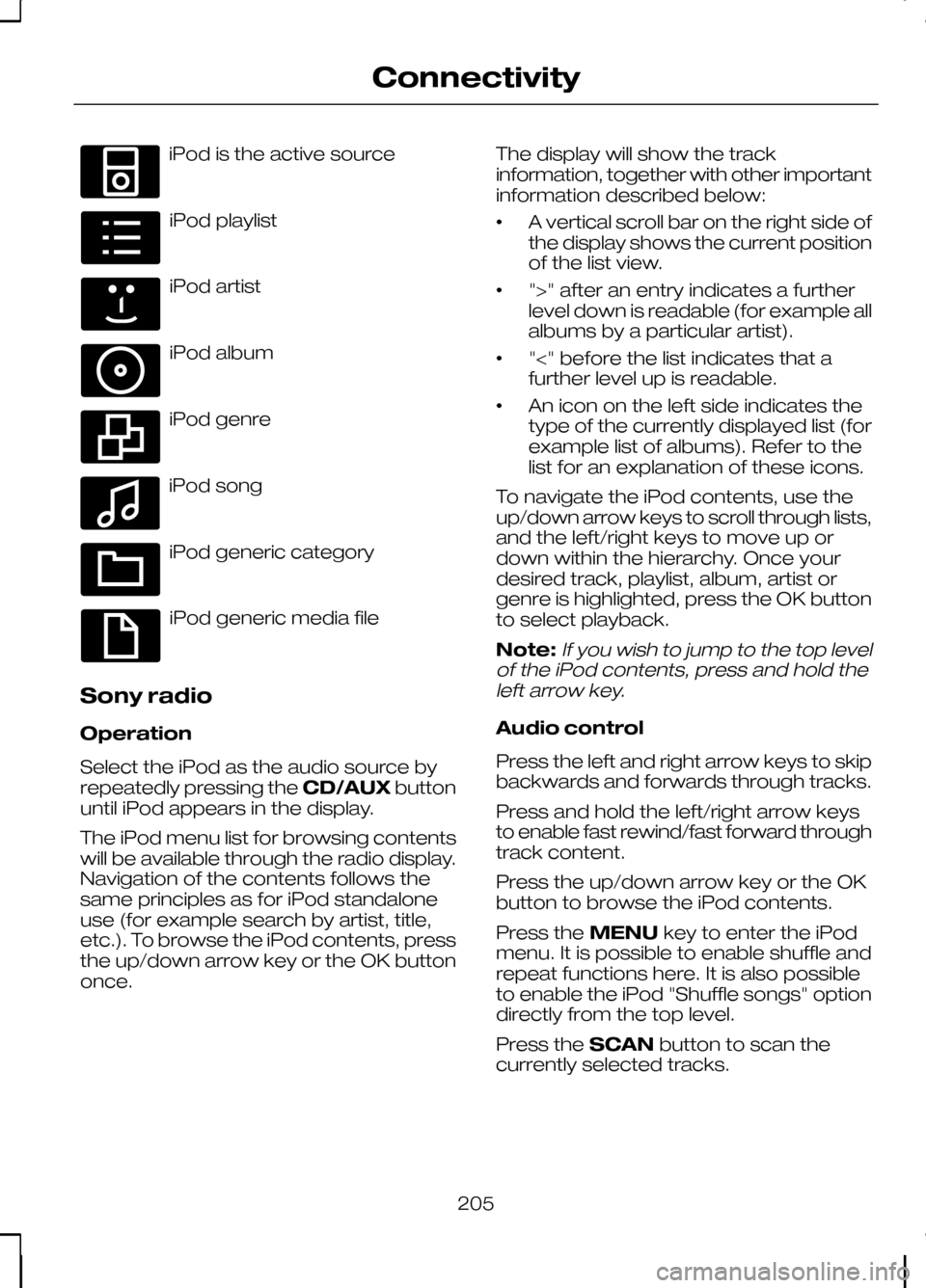
iPod is the active source
iPod playlist
iPod artist
iPod album
iPod genre
iPod song
iPod generic category
iPod generic media file
Sony radio
Operation
Select the iPod as the audio source by
repeatedly pressing the CD/AUXbutton
until iPod appears in the display.
The iPod menu list for browsing contents
will be available through the radio display.
Navigation of the contents follows the
same principles as for iPod standalone
use (for example search by artist, title,
etc.). To browse the iPod contents, press
the up/down arrow key or the OK button
once. The display will show the track
information, together with other important
information described below:
•
A vertical scroll bar on the right side of
the display shows the current position
of the list view.
• ">" after an entry indicates a further
level down is readable (for example all
albums by a particular artist).
• "<" before the list indicates that a
further level up is readable.
• An icon on the left side indicates the
type of the currently displayed list (for
example list of albums). Refer to the
list for an explanation of these icons.
To navigate the iPod contents, use the
up/down arrow keys to scroll through lists,
and the left/right keys to move up or
down within the hierarchy. Once your
desired track, playlist, album, artist or
genre is highlighted, press the OK button
to select playback.
Note:If you wish to jump to the top level
of the iPod contents, press and hold the left arrow key.
Audio control
Press the left and right arrow keys to skip
backwards and forwards through tracks.
Press and hold the left/right arrow keys
to enable fast rewind/fast forward through
track content.
Press the up/down arrow key or the OK
button to browse the iPod contents.
Press the MENUkey to enter the iPod
menu. It is possible to enable shuffle and
repeat functions here. It is also possible
to enable the iPod "Shuffle songs" option
directly from the top level.
Press the SCANbutton to scan the
currently selected tracks.
205
ConnectivityE100030 E100031 E100032 E100033 E100034 E100035 E100036 E100037
Page 208 of 226
Press the
INFObutton to display the
following:
• title
• artist
• track number and playing time.
Repeated button presses will scroll
through these displays.
CD Navigation units
Operation
Select the iPod as the audio source by
pressing the CD/AUXbutton until
DEVICES appears in the display. Select
DEVICES and then select iPod from the
available device list.
The iPod menu list for browsing contents
will be available through the display.
Navigation of the contents follows the
same principles as for iPod standalone
use (for example search by artist, title,
etc.). To browse the iPod contents, press
the SELECT button once.
The display will show the track
information, together with other important
information described below:
• A vertical scroll bar on the right side of
the display shows the current position
of the list view.
• ">" after an entry indicates a further
level down is readable (for example all
albums by a particular artist).
• "<" before the list indicates that a
further level up is readable.
• An icon on the left side indicates the
type of the currently displayed list (for
example list of albums). Refer to the
list for an explanation of these icons. To navigate the iPod contents, use the
rotary scroll/select button to browse
through lists. Push the button to expand
the contents within the highlighted playlist,
album, artist, genre or to commence
playback of a particular track. Press
ESC
to go up one level.
Audio control
Press the SEEKup and down keys to
skip backwards and forwards through
tracks.
Press and hold the SEEKkeys to enable
fast rewind/fast forward through track
content.
Rotate or press the SELECT button to
browse the iPod contents.
Press the MENU key to enter the iPod
menu. It is possible to enable shuffle and
repeat functions here. It is also possible
to enable the iPod "Shuffle songs" option
directly from the top level.
Press the SCAN button to scan the
currently selected tracks.
Press the INFObutton to display the
following:
• title
• artist
• track number and playing time.
DVD Navigation units
Operation
Select the iPod as the audio source by
pressing the CD/AUXbutton until the
iPod button appears to the left of the
display. Select iPod from the available
device list.
Note:Some devices may be shown but
not selectable, depending if the device is connected or not.
206
Connectivity
Page 209 of 226
The iPod menu list for browsing contents
will be available through the display.
Navigation of the contents follows the
same principles as for iPod standalone
use (for example search by artist, title,
etc.). To browse the iPod contents, press
the scroll up or down arrow button.
The display will show the track
information, together with other important
information described below:
•
A vertical scroll bar on the right side of
the display shows the current position
of the list view.
• ">" after an entry indicates a further
level down is readable (for example all
albums by a particular artist).
• "<" before the list indicates that a
further level up is readable.
• An icon on the left side indicates the
type of the currently displayed list (for
example list of albums). Refer to the
list for an explanation of these icons.
To navigate the iPod contents, use the
scroll buttons to browse through lists.
Push the button to expand the contents
within the highlighted playlist, album, artist,
genre or to commence playback of a
particular track. Press the left arrow key
to go up one level.
Audio control
Press the SEEKup and down keys to
skip backwards and forwards through
tracks.
Press and hold the SEEKkeys to enable
fast rewind/fast forward through track
content.
Press the scroll bar arrow keys to browse
the iPod contents.
Press the MENU key to enter the iPod
menu. It is possible to enable shuffle and
repeat functions here. It is also possible
to enable the iPod "Shuffle songs" option
directly from the top level. Press the SCAN button to scan the
currently selected tracks.
Press the
INFObutton to display the
following:
• title
• artist
• track number and playing time.
207
Connectivity
Page 210 of 226
ROAD SAFETY
WARNINGS
The system provides you with
information designed to help you
reach your destination quickly and
safely. For reasons of safety, the driver
should only program the system
when the vehicle is stationary.
The system provides no assistance
with respect to stop signs, traffic
lights, areas under construction or
other important safety information. Do not use the system until you
have familiarised yourself with its
operation.
Only view the system display when
driving conditions permit.
Safety information
Read and follow all stated safety
precautions. Failure to do so may increase
your risk of collision and personal injury.
Ford Motor Company shall not be liable
for any damages of any type arising from
failure to follow these guidelines.
If detailed viewing of route instructions is
necessary, pull off the road when it is safe
to do so and park your vehicle.
Do not use the navigation system to
locate emergency services.
To use the system as effectively and
safely as possible, always use the latest
navigation information. Your dealer will be
able to assist with this.
208
Navigation introduction
Page 211 of 226

GETTING STARTED
CAUTION
Using the system with the engine off
will drain the battery.
Note:You will be charged when sending
and receiving text messages.
Note:Refer to your phone handbook for
all phone functions and operation.
Note:Keep the activation code (printed
on the installation guide) in a safe place.
Note:Retain the activation text message
in your mobile phone inbox.
Compatibility of phones CAUTION
As no common agreement exists,
mobile phone manufacturers are able
to implement a variety of profiles in
their Bluetooth devices. Because of this,
an incompatibility can occur between the
phone and hands-free system, which in
some cases may significantly degrade the
system performance. To avoid this
situation, only recommended phones
should be used. Please visit the website
www.ford-mobile-connectivity.com for
full details. Installing the micro SD card 1. Remove the micro SD card from the
adaptor.
2. Insert the micro SD card into the mobile phone.
Activating the mobile phone
navigation system
Note:
The radio must be switched on
before connecting the mobile phone to the in-car GPS receiver.
Note:The Ford Mobile Navigation must
be installed and activated on your mobile phone.
Note:It is possible to activate up to a
maximum of three phones.
Note:Detailed instructions are available
on the micro SD card and at www.ford-mobile-connectivity.com.
1. Switch the radio on.
209
Navigation system12E114212
Page 212 of 226
2.
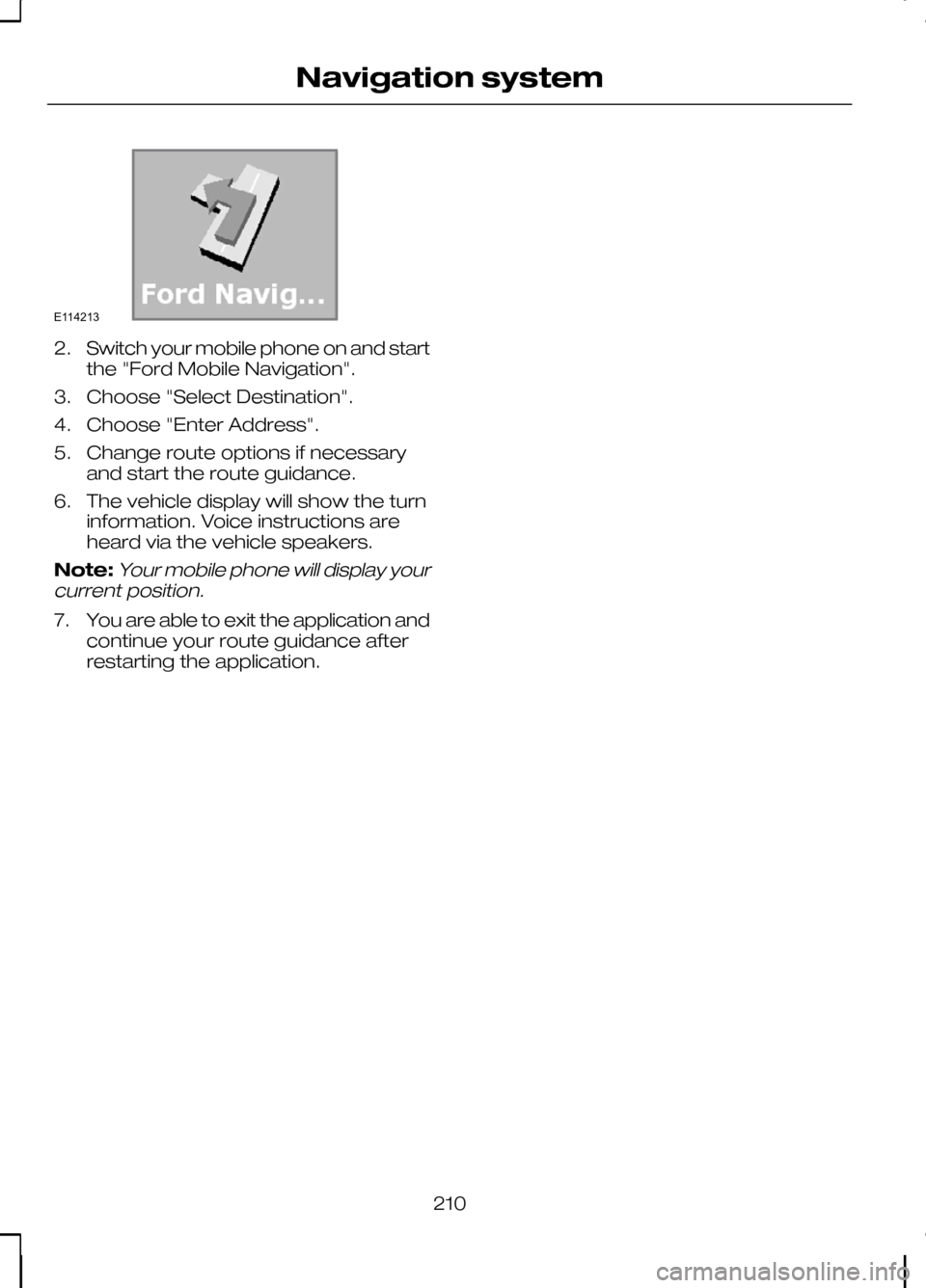
Switch your mobile phone on and start
the "Ford Mobile Navigation".
3. Choose "Select Destination".
4. Choose "Enter Address".
5. Change route options if necessary and start the route guidance.
6. The vehicle display will show the turn information. Voice instructions are
heard via the vehicle speakers.
Note:Your mobile phone will display your
current position.
7. You are able to exit the application and
continue your route guidance after
restarting the application.
210
Navigation systemE114213
Page 220 of 226

G
Gauges.....................................................63
Engine coolant temperature gauge..........63
Fuel gauge.....................................................64
Gearbox See: Transmission.......................................108
General information on radio frequencies............................................27
Getting started......................................209 Activating the mobile phone navigation
system..................................................... 209
Compatibility of phones............................209
Installing the micro SD card......................209
Glasses holder.........................................99
Global opening and closing...................34 Global closing................................................34
Global opening.............................................34
H
Handbrake See: Parking brake......................................112
Hazard warning flashers........................48
Headlamp levelling..................................47 Recommended headlamp levelling control
positions.................................................... 48
Headlamp washers................................43
Head restraints........................................90 Adjusting the head restraint.......................90
Removing the head restraint......................90
Heated seats...........................................94
Heated windows and mirrors...............86 Heated exterior mirrors...............................86
Heated windows..........................................86
Heating See: Climate control....................................80
Hints on driving with ABS......................112
I
Immobiliser See: Engine immobiliser..............................36
Information displays................................68 General information.....................................68 Information messages...........................73
All wheel drive...............................................74
Doors open....................................................75
Keyless system.............................................75
Lighting........................................................... 76
Maintenance................................................. 76
Message indicator........................................74
Message symbols........................................74
Power steering..............................................77
Stability control (ESP)...................................77
Transmission................................................. 78
Tyre pressure monitoring system..............79
Viewing current messages.........................74
Instrument lighting dimmer...................96
Instruments..............................................63
Interior lamps...........................................50 Courtesy lamp..............................................50
Reading lamps..............................................50
Vanity mirror lamps.......................................51
Introduction................................................5
ISOFIX anchor points..............................20 Attaching a child restraint with a top
tether.......................................................... 20
J
Jump starting See: Using booster cables........................154
K
Keyless entry............................................31 Disabled keys................................................33
General information......................................31
Locking and unlocking the doors with the
key blade...................................................34
Locking the vehicle......................................32
Passive key...................................................32
Unlocking the vehicle...................................33
Keyless starting......................................101 Failure to start..............................................102
Ignition on.....................................................101
Starting a diesel engine..............................101
Starting with automatic transmission.......101
Starting with manual transmission............101
Stopping the engine...................................102
Keys and remote controls.....................27
218
Index