Page 119 of 484
•The selected phone will be used for the next phone
call. If the selected phone is not available, the
Uconnect™ Phone will return to using the highest
priority phone present in or near (approximately
within 30 ft (9 m)) the vehicle.
Delete Uconnect™ Phone Paired Cellular Phones
•
Press thebutton to begin.
•After the�Ready�prompt and the following beep, say
�Setup Phone Pairing.�
•At the next prompt, say �Delete�and follow the
prompts.
•You can also press thebutton at any time while
the list is being played, and then choose the phone you
wish to delete.
Things You Should Know About Your Uconnect™
Phone
Uconnect™ Phone Tutorial
To hear a brief tutorial of the system features, press the
button and say “Uconnect™ Tutorial.”
Voice Training
For users experiencing difficulty with the system recog-
nizing their voice commands or numbers, the Uconnect™
Phone Voice Training feature may be used. To enter this
training mode, follow one of the two following proce-
dures:
From outside the Uconnect™ Phone mode (e.g., from
radio mode):
•Press and hold thebutton for five seconds until
the session begins, or,
•Press thebutton and say the �Setup, Voice
Training� command.
118 UNDERSTANDING THE FEATURES OF YOUR VEHICLE
Page 122 of 484
•Performance, such as audio clarity, echo, and loudness
to a large degree rely on the phone and network, and
not the Uconnect™ Phone.
•Echo at the phone far end can sometimes be reduced
by lowering the in-vehicle audio volume.
•In a convertible vehicle, system performance may be
compromised with the convertible top down.
Bluetooth�Communication Link
Cellular phones have been found to lose connection to
the Uconnect™ Phone. When this happens, the connec-
tion can generally be reestablished by switching the
phone off/on. Your cellular phone is recommended to
remain in Bluetooth� ON mode.
Power-Up
After switching the ignition key from OFF to either the
ON or ACC position, or after a language change, you
must wait at least five seconds prior to using the system.
3
UNDERSTANDING THE FEATURES OF YOUR VEHICLE 121
Page 130 of 484
Commands
The Voice Command system understands two types of
commands. Universal commands are available at all
times. Local commands are available if the supported
radio mode is active.
Changing the Volume
1. Start a dialogue by pressing the Voice Command
button.
2. Say a command (e.g., “Help”).
3. Use the ON/OFF VOLUME rotary knob to adjust the
volume to a comfortable level while the Voice Command
system is speaking. Please note the volume setting for
Voice Command is different than the audio system.
Main Menu
Start a dialogue by pressing the Voice Command
button. You may say “Main Menu” to switch to the main
menu. In this mode, you can say the following commands:
•“Radio” (to switch to the radio mode)
•“Disc” (to switch to the disc mode)
•“Memo” (to switch to the memo recorder)
•“System Setup” (to switch to system setup)
Radio AM (or Radio Long Wave or Radio Medium
Wave — If Equipped)
To switch to the AM band, say “AM” or “Radio AM”. In
this mode, you may say the following commands:
•“Frequency” (to change the frequency)
•“Next Station” (to select the next station)
•“Previous Station” (to select the previous station)
•“Radio Menu” (to switch to the radio menu)
•“Main Menu” (to switch to the main menu)
3
UNDERSTANDING THE FEATURES OF YOUR VEHICLE 129
Page 132 of 484
Memo
To switch to the voice recorder mode, say “Memo”. In
this mode, you may say the following commands:
•“New Memo” (to record a new memo) — During the
recording, you may press the Voice Command
button to stop recording. You proceed by saying one of
the following commands:
“Save” (to save the memo)
“Continue” (to continue recording)
“Delete” (to delete the recording)
•“Play Memos” (to play previously recorded memos)
— During the playback you may press the Voice
Command
button to stop playing memos. You
proceed by saying one of the following commands:
“Repeat” (to repeat a memo)
“Next” (to play the next memo)
“Previous” (to play the previous memo)
“Delete” (to delete a memo)
•“Delete All” (to delete all memos)
System Setup
To switch to system setup, say “Setup”. In this mode, you
may say the following commands:
•“Language German”
•“Language Dutch”
•“Language Italian”
•“Language English”
•“Language French”
•“Language Spanish”
•“Tutorial”
•“Voice Training”
3
UNDERSTANDING THE FEATURES OF YOUR VEHICLE 131
Page 186 of 484
UNDERSTANDING YOUR INSTRUMENT PANEL
CONTENTS
�Instrument Panel Features ............... 189
� Instrument Cluster – Base ............... 190
� Instrument Cluster – Premium ............ 191
� Instrument Cluster Descriptions ........... 192
� Electronic Vehicle Information Center (EVIC) —
If Equipped .......................... 206
▫ Oil Change Required — If Equipped ...... 208
▫ EVIC Functions ..................... 209
▫ Compass/Temperature/Audio ........... 210▫
Average Fuel Economy ................ 210
▫ Distance To Empty (DTE) .............. 210
▫ Elapsed Time ....................... 211
▫ Tire Pressure Monitor (TPM) ............ 211
▫ Personal Settings (Customer-Programmable
Features) .......................... 211
� Media Center 230 (REQ) — AM/FM Stereo
Radio And 6–Disc CD/DVD Changer
(MP3/WMA AUX Jack) .................. 217
▫ Operating Instructions - Radio Mode ...... 217
4
Page 200 of 484

12 seconds after a single chime has sounded to indicate
the next scheduled oil change interval. The engine oil
change indicator system is duty cycle based, which
means the engine oil change interval may fluctuate
dependent upon your personal driving style.
Unless reset, this message will continue to display each
time you turn the ignition switch to the ON/RUN
position. To turn off the message temporarily, press and
release the Trip Odometer button on the instrument
cluster. To reset the oil change indicator system (after
performing the scheduled maintenance), refer to the
following procedure:1. Turn the ignition switch to the ON position. Do not
start the engine.
2. Fully depress the accelerator pedal slowly three
times within 10 seconds.
3. Turn the ignition switch to the OFF/LOCK position. NOTE:
If the indicator message illuminates when you
start the vehicle, the oil change indicator system did not
reset. If necessary, repeat this procedure.
15. Cruise Indicator — If Equipped This indicator shows that the Speed Control
system is ON.
16. Trip/Odometer Display Reset Button
Press this button to change the display from odometer to
either of the two trip odometer settings. Trip A or Trip B
will appear when in the trip odometer mode. Push in and
hold the button for two seconds to reset the trip odometer
to 0 miles (0 km). The odometer must be in Trip mode to
reset.
17. Electronic Throttle Control (ETC) Light This light informs you of a problem with the
Electronic Throttle Control (ETC) system. If a
problem is detected, the light will come on
while the engine is running. Cycle the ignition
4
UNDERSTANDING YOUR INSTRUMENT PANEL 199
Page 217 of 484

Manual Compass Calibration
If the compass appears erratic or inaccurate, and the
variance has been properly set, you may wish to manu-
ally recalibrate the compass. To manually calibrate the
compass:
1. Start the engine and leave the transmission in the
PARK position.
2. Using a quick button press (less than one second),
press and release the EVIC button several times until the
EVIC displays the “Personal Settings (Customer-
Programmable Features)” menu.
3. Once in the “Personal Settings (Customer-
Programmable Features)” menu, press and release (less
than one second) the EVIC button several times until
“Calibrate Compass (Yes)” is displayed.4. Using a long button press (more than one second)
press the EVIC button, this will place the Compass in
calibration mode. The CAL indicator will come on con-
tinuously in the EVIC display to indicate that the com-
pass is now in the calibration mode, and that the vehicle
can now be driven to calibrate.
5. To complete the compass calibration, drive the vehicle
in one or more complete 360–degree circle under 5 mph
(8 km/h) in an area free from power lines and large
metallic objects, until the “CAL” indicator turns off. The
compass will now function normally.
NOTE:
A short EVIC button press from the �Calibrate
Compass (Yes)� screen will exit the EVIC Customer-
Programmable Features, and return it to its normal
operating mode.
216 UNDERSTANDING YOUR INSTRUMENT PANEL
Page 218 of 484
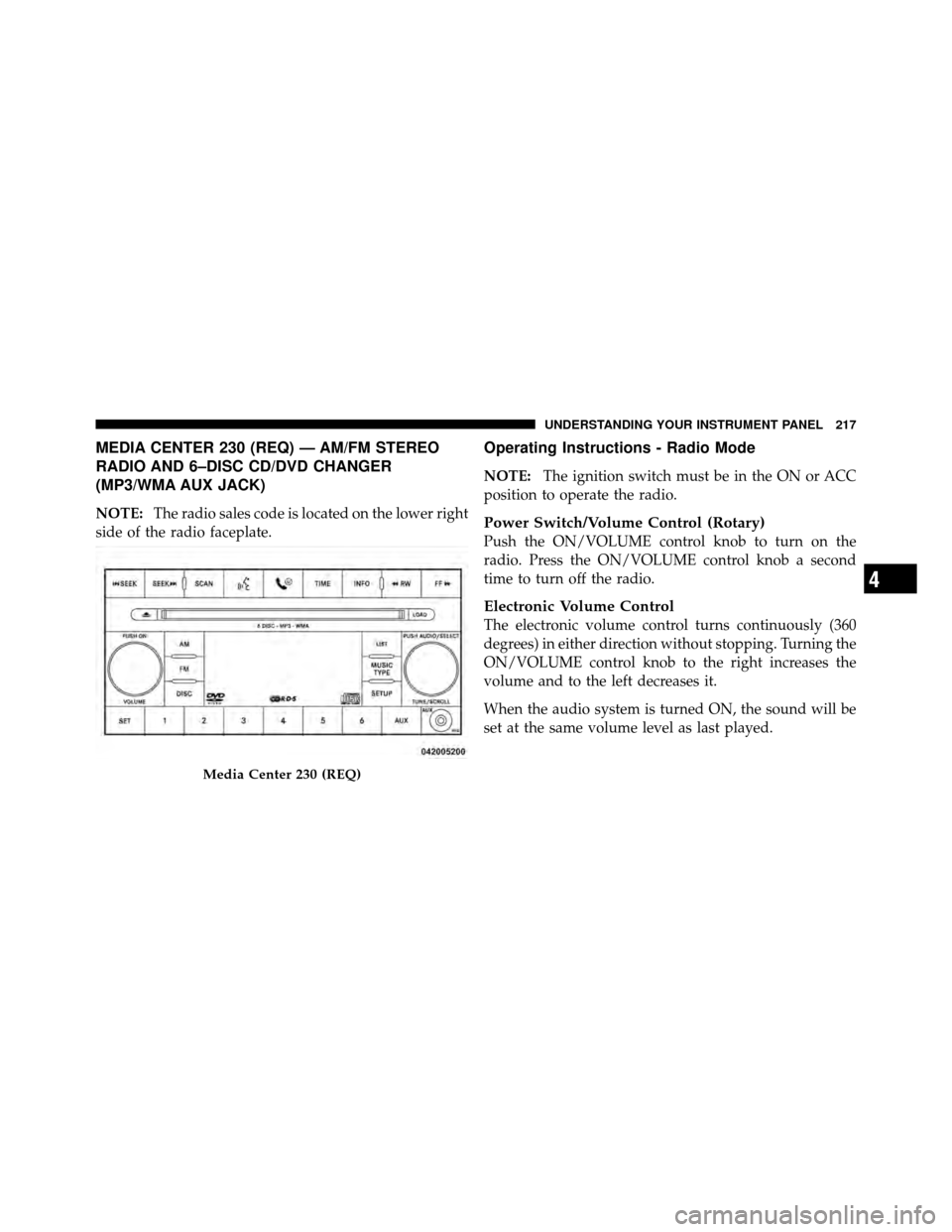
MEDIA CENTER 230 (REQ) — AM/FM STEREO
RADIO AND 6–DISC CD/DVD CHANGER
(MP3/WMA AUX JACK)
NOTE:The radio sales code is located on the lower right
side of the radio faceplate.
Operating Instructions - Radio Mode
NOTE: The ignition switch must be in the ON or ACC
position to operate the radio.
Power Switch/Volume Control (Rotary)
Push the ON/VOLUME control knob to turn on the
radio. Press the ON/VOLUME control knob a second
time to turn off the radio.
Electronic Volume Control
The electronic volume control turns continuously (360
degrees) in either direction without stopping. Turning the
ON/VOLUME control knob to the right increases the
volume and to the left decreases it.
When the audio system is turned ON, the sound will be
set at the same volume level as last played.
Media Center 230 (REQ)
4
UNDERSTANDING YOUR INSTRUMENT PANEL 217