Page 254 of 465
information, call the toll-free number 888-539-7474, or
visit the Sirius web site at www.sirius.com, or at www-
.siriuscanada.ca for Canadian residents.
Electronic Serial Number/Sirius Identification
Number (ESN/SID)
Please have the following information available when
calling:
1. The Electronic Serial Number/Sirius Identification
Number (ESN/SID).
2. Your Vehicle Identification Number.
To access the ESN/SID, refer to the following steps:
ESN/SID Access With RES Radios
With the ignition switch in the ON/RUN or ACC posi-
tion and the radio on, press the SETUP button and scroll
using the TUNE/SCROLL control knob until Sirius ID is
selected. Press the TUNE/SCROLL control knob and theSirius ID number will display. The Sirius ID number
display will time out in two minutes. Press any button on
the radio to exit this screen.
ESN/SID Access With REN/RER Radios
While in SAT mode, press the MENU button on the radio
faceplate.
Next, touch the SUBSCRIPTION tab on the touch screen.
All the ESNs that apply to your vehicle will display.
Selecting Uconnect™ Multimedia (Satellite) Mode
Press the SAT button until
�SAT�appears in the display. A
CD may remain in the radio while in the Satellite radio
mode.
Satellite Antenna
To ensure optimum reception, do not place items on the
roof around the rooftop antenna location. Metal objects
placed within the line of sight of the antenna will cause
decreased performance. Larger luggage items such as
4
UNDERSTANDING YOUR INSTRUMENT PANEL 253
Page 256 of 465
INFO Button
Pressing the INFO button will cycle the display informa-
tion between Artist, Song Title, and Composer (if avail-
able). Also, pressing and holding the INFO button for an
additional three seconds will make the radio display the
Song Title all of the time (press and hold again to return
to normal display).
RW/FF
Pressing the RW (Rewind) or FF (Fast Forward) buttons
causes the tuner to search for the next channel in the
direction of the arrows.
TUNE Control (Rotary)
Turn the rotary TUNE/SCROLL control knob clockwise
to increase or counterclockwise to decrease the channel.
MUSIC TYPE Button
Pressing this button once will turn on the Music Type
mode for five seconds. Pressing the MUSIC TYPE button
or turning the TUNE/SCROLL control knob within five
seconds will allow the program format type to be se-
lected.
Toggle the MUSIC TYPE button again to select the music
type.
By pressing the SEEK button when the Music Type
function is active, the radio will be tuned to the next
channel with the same selected Music Type name.
If a preset button is activated while in the Music Type
(Program Type) mode, the Music Type mode will be
exited and the radio will tune to the preset channel.
4
UNDERSTANDING YOUR INSTRUMENT PANEL 255
Page 257 of 465
SETUP Button
Pressing the SETUP button allows you to select the
following items:
•Display Sirius ID number — Press the AUDIO/
SELECT button to display the Sirius ID number. This
number is used to activate, deactivate, or change the
Sirius subscription.
SET Button – To Set the Pushbutton Memory
When you are receiving a channel that you wish to
commit to pushbutton memory, press the SET button.
The symbol SET 1 will now show in the display window.
Select the button (1-6) you wish to lock onto this channel
and press and release that button. If a button is not
selected within five seconds after pressing the SET but-
ton, the channel will continue to play but will not be
stored into pushbutton memory.
You may add a second channel to each pushbutton by
repeating the above procedure with this exception: Pressthe SET button twice and SET 2 will show in the display
window. Each button can be set for SET 1 and SET 2. This
allows a total of 12 Satellite channels to be stored into
pushbutton memory. The channels stored in SET 2
memory can be selected by pressing the pushbutton
twice.
Every time a preset button is used, a corresponding
button number will display.Buttons 1 - 6
These buttons tune the radio to the channels that you
commit to pushbutton memory (12 Satellite stations).
Operating Instructions - Uconnect™ Phone (If
Equipped)
Refer to “Uconnect™ Phone” in “Understanding The
Features Of Your Vehicle”.
256 UNDERSTANDING YOUR INSTRUMENT PANEL
Page 259 of 465
media sources (DVDs, Video CDs, or other video media
supported by the radio). Some audio will sound better in
DSS modes, others in Stereo mode.
When in “Audio Surround” mode, balance is set auto-
matically. Fader control is available to add more sur-
round audio if desired.
VIDEO ENTERTAINMENT SYSTEM (VES)™ — IF
EQUIPPED
The optional Video Entertainment System (VES)™ in-
cludes the following components for rear seat entertain-
ment:
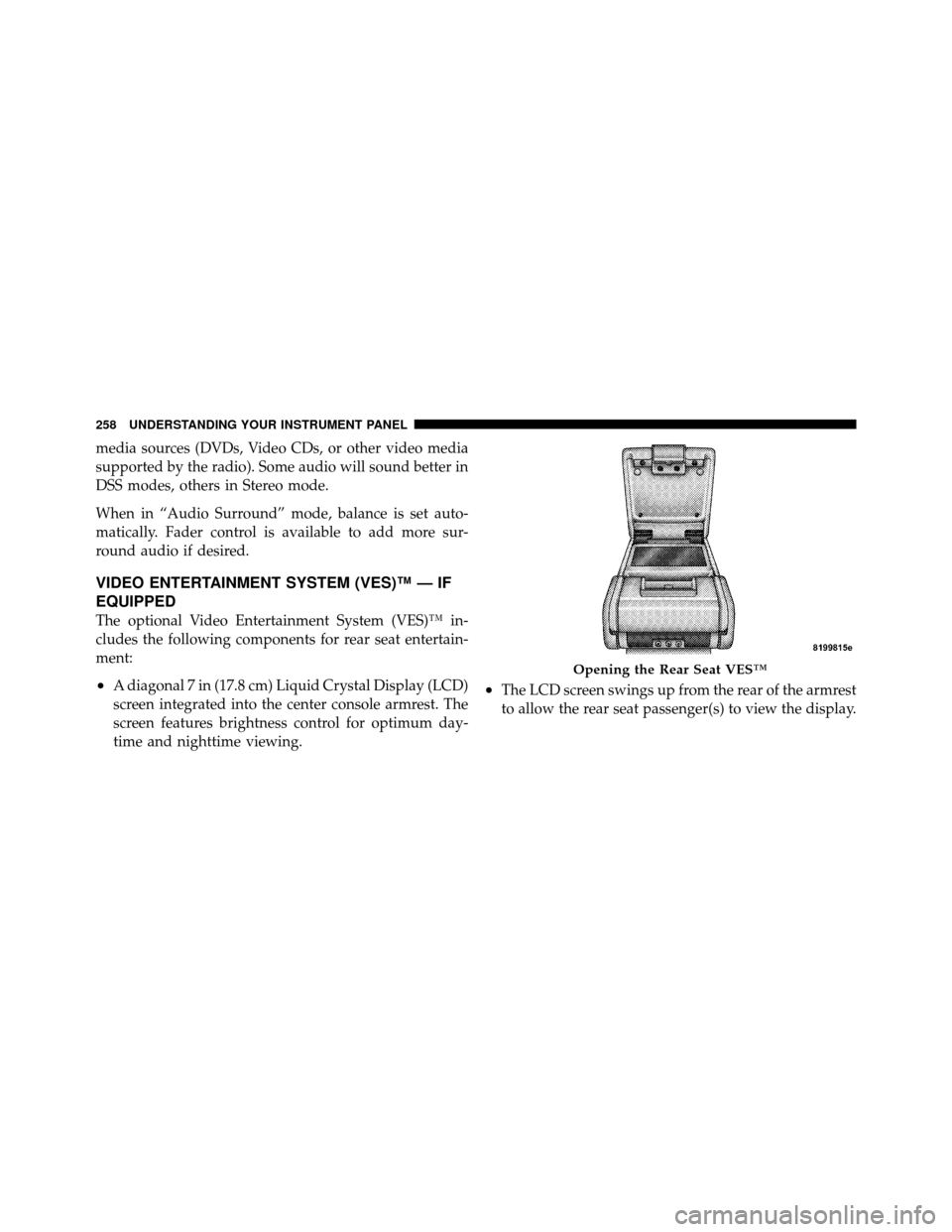
•A diagonal 7 in (17.8 cm) Liquid Crystal Display (LCD)
screen integrated into the center console armrest. The
screen features brightness control for optimum day-
time and nighttime viewing.•The LCD screen swings up from the rear of the armrest
to allow the rear seat passenger(s) to view the display.
Opening the Rear Seat VES™
258 UNDERSTANDING YOUR INSTRUMENT PANEL
Page 261 of 465
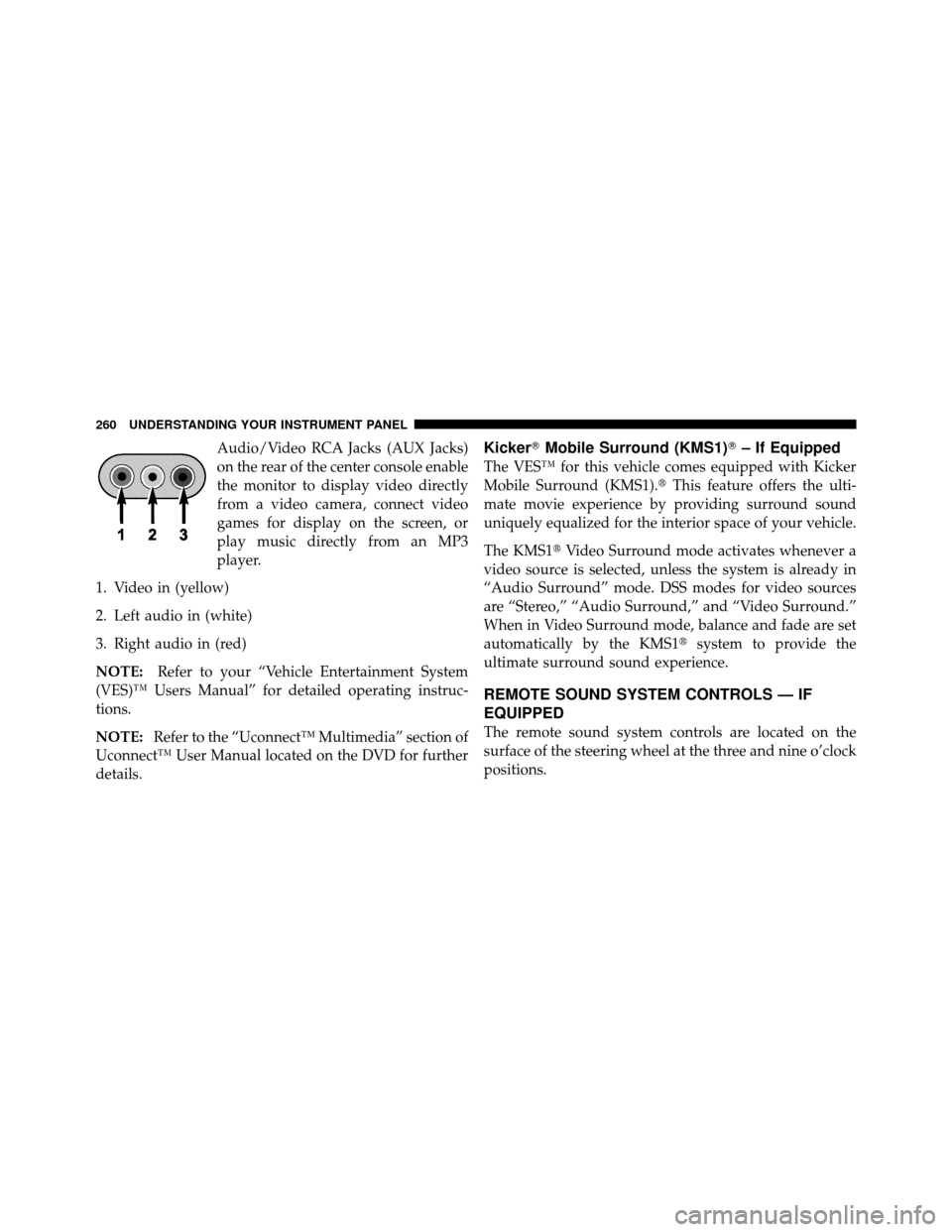
Audio/Video RCA Jacks (AUX Jacks)
on the rear of the center console enable
the monitor to display video directly
from a video camera, connect video
games for display on the screen, or
play music directly from an MP3
player.
1. Video in (yellow)
2. Left audio in (white)
3. Right audio in (red)
NOTE: Refer to your “Vehicle Entertainment System
(VES)™ Users Manual” for detailed operating instruc-
tions.
NOTE: Refer to the “Uconnect™ Multimedia” section of
Uconnect™ User Manual located on the DVD for further
details.Kicker� Mobile Surround (KMS1)� – If Equipped
The VES™ for this vehicle comes equipped with Kicker
Mobile Surround (KMS1).� This feature offers the ulti-
mate movie experience by providing surround sound
uniquely equalized for the interior space of your vehicle.
The KMS1� Video Surround mode activates whenever a
video source is selected, unless the system is already in
“Audio Surround” mode. DSS modes for video sources
are “Stereo,” “Audio Surround,” and “Video Surround.”
When in Video Surround mode, balance and fade are set
automatically by the KMS1� system to provide the
ultimate surround sound experience.
REMOTE SOUND SYSTEM CONTROLS — IF
EQUIPPED
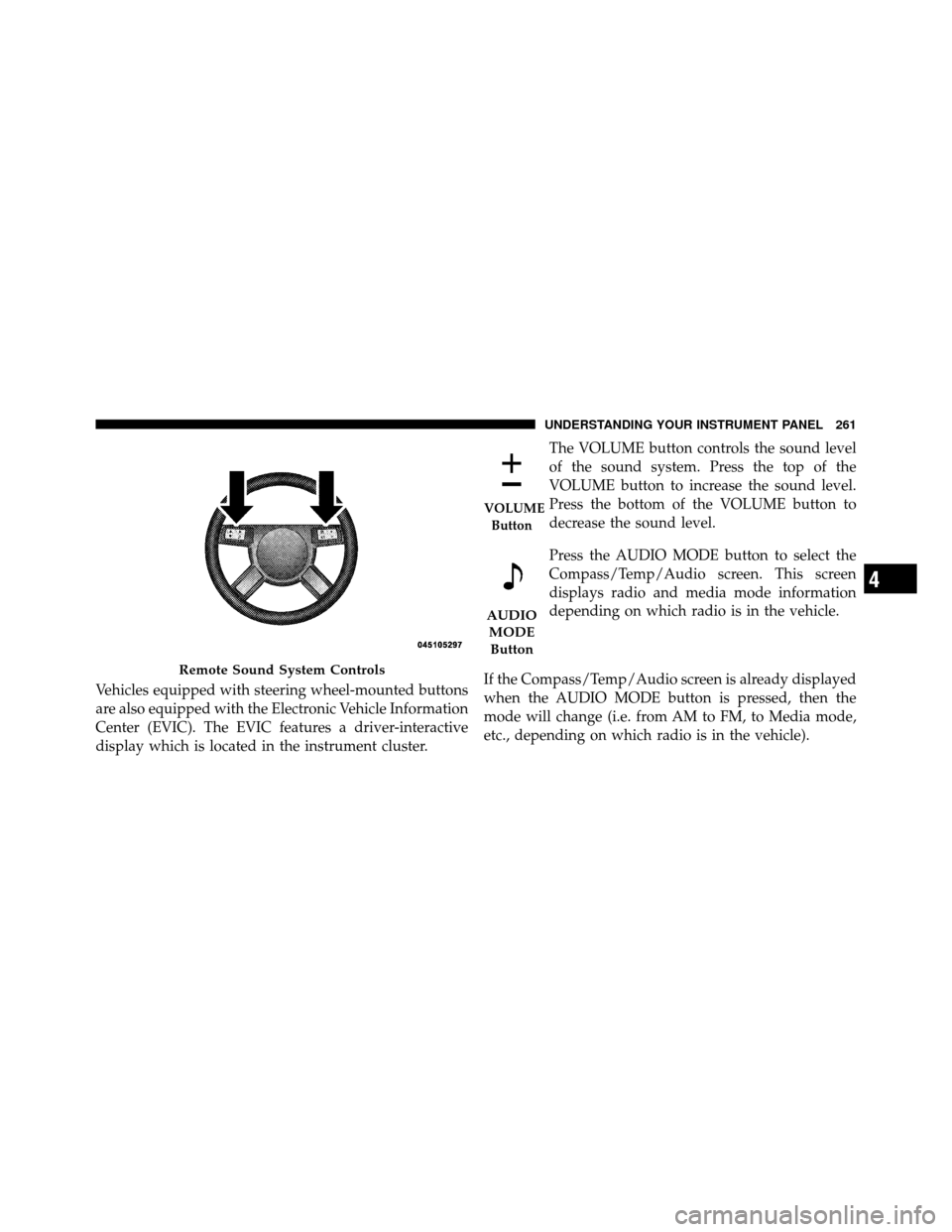
The remote sound system controls are located on the
surface of the steering wheel at the three and nine o’clock
positions.
260 UNDERSTANDING YOUR INSTRUMENT PANEL
Page 262 of 465
Vehicles equipped with steering wheel-mounted buttons
are also equipped with the Electronic Vehicle Information
Center (EVIC). The EVIC features a driver-interactive
display which is located in the instrument cluster.The VOLUME button controls the sound level
of the sound system. Press the top of the
VOLUME button to increase the sound level.
Press the bottom of the VOLUME button to
decrease the sound level.
Press the AUDIO MODE button to select the
Compass/Temp/Audio screen. This screen
displays radio and media mode information
depending on which radio is in the vehicle.
If the Compass/Temp/Audio screen is already displayed
when the AUDIO MODE button is pressed, then the
mode will change (i.e. from AM to FM, to Media mode,
etc., depending on which radio is in the vehicle).
Remote Sound System Controls
VOLUME Button
AUDIOMODEButton
4
UNDERSTANDING YOUR INSTRUMENT PANEL 261
Page 278 of 465
NOTE:The ENGINE START/STOP button should only
be removed or inserted with the ignition in the LOCK
position (OFF position for Keyless Go™).
Normal Starting
Using the ENGINE START/STOP Button
NOTE: Normal starting of either a cold or a warm
engine is obtained without pumping or pressing the
accelerator pedal.
To start the engine, the transmission must be in PARK or
NEUTRAL. Press and hold the brake pedal while press-
ing the ENGINE START/STOP button once. The system
takes over and attempts to start the vehicle. If the vehicle
fails to start, the starter will disengage automatically after
10 seconds. If you wish to stop the cranking of the engine
prior to the engine starting, press the button again.
To Turn Off the Engine Using ENGINE
START/STOP Button
1. Place the shift lever in PARK, then press and release
the ENGINE START/STOP button.
2. The ignition switch will return to the OFF position.
3. If the shift lever is not in PARK, the ENGINE START/
STOP button must be held for two seconds and vehicle
speed must be above 5 mph (8 km/h) before the engine
will shut off. The ignition switch position will remain in
the ACC position until the shift lever is in PARK and the
button is pressed twice to the OFF position. If the shift
lever is not in PARK and the ENGINE START/STOP
button is pressed once, the EVIC (if equipped) will
display a “Vehicle Not In Park” message and the engine
will remain running. Never leave a vehicle out of the
PARK position, or it could roll.
5
STARTING AND OPERATING 277
Page 279 of 465
NOTE:If the ignition switch is left in the ACC or RUN
(engine not running) position and the transmission is in
PARK, the system will automatically time out after
60 minutes of inactivity and the ignition will switch to the
OFF position.
Keyless Go™ Functions – With Driver ’s Foot OFF
the Brake Pedal Pedal (In PARK or NEUTRAL
Position)
The Keyless Go™ feature operates similar to an ignition
switch. It has four positions, OFF, ACC, RUN and START.
To change the ignition switch positions without starting
the vehicle and use the accessories follow these steps.
•Starting with the ignition switch in the OFF position:
•Press the ENGINE START/STOP button once to
change the ignition switch to the ACC position (EVIC
displays “IGNITION MODE ACCESSORY”),
•Press the ENGINE START/STOP button a second time
to change the ignition switch to the RUN position
(EVIC displays “IGNITION MODE RUN”),
•Press the ENGINE START/STOP button a third time
to return the ignition switch to the OFF position (EVIC
displays “IGNITION MODE OFF”).
Extreme Cold Weather (Below �20°F or�29°C)
To ensure reliable starting at these temperatures, use of
an externally powered electric engine block heater (avail-
able from your authorized dealer) is recommended.
If Engine Fails To Start
WARNING!
•Never pour fuel or other flammable liquids into
the throttle body air inlet opening in an attempt to
start the vehicle. This could result in a flash fire
causing serious personal injury.
(Continued)
278 STARTING AND OPERATING