2010 BMW M3 SEDAN Brightness
[x] Cancel search: BrightnessPage 29 of 274

Controls
27Reference
At a glance
Driving tips
Communications
Navigation
Entertainment
Mobility
>Settings for the display on the Control Dis-
play and in the instrument cluster:
>12h/24h format of the clock, refer to
page76
>Date format, refer to page77
>Brightness of the Control Display, refer
to page80
>Language on the Control Display, refer
to page79
>Units of measure, refer to page73
>Show visual warning for Park Distance Con-
trol PDC
*, refer to page81
>Light settings:
>Welcome lamps, refer to page92
>Pathway lighting, refer to page93
>Daytime running lights, refer to page93
>High-beam assistant, refer to page94
>Automatic climate control: activating/deac-
tivating AUTO program, cooling function
and automatic recirculated-air control, set-
ting temperature, air volume and distribu-
tion, refer to page98 ff
>Entertainment:
>Tone control, refer to page144
>Speed-dependent volume control, refer
to page145
Central locking system
The concept
The central locking system functions when the
driver's door is closed.
The system simultaneously engages and
releases the locks on the following:
>Doors
>Trunk lid/tailgate
>Fuel filler flap
Operating from outside
>Via the remote control
>Via the door lock
*
>In cars with Comfort Access*, via the han-
dles on the driver's and front passenger
doors
In addition, if the remote control is used, the
interior lamps and the door's courtesy lamps
*
are also switched on or off. The alarm system*
is also armed or disarmed.
For further details of the alarm system,
refer to
page33.
Operating from inside
By means of the button for central locking, refer
to page30.
In the event of a sufficiently severe accident, the
central locking system unlocks automatically. In
addition, the hazard warning flashers and inte-
rior lamps come on.
Opening and closing:
Using the remote control
Persons or animals in a parked vehicle
could lock the doors from the inside. You
should therefore take the remote control with
you when you leave the vehicle so that the latter
can be opened from outside.<
Unlocking
Press the button.
The interior lamps, the courtesy lamps
* and the
welcome lamps come on.
Setting unlocking characteristics
You can set whether only the driver's door or
the entire vehicle is to be unlocked when the
button is pressed for the first time.
1."Settings"
2."Door locks"
Page 75 of 274

Controls
73Reference
At a glance
Driving tips
Communications
Navigation
Entertainment
Mobility
2Button for:
>Confirming selected display or set val-
ues
>Calling up computer information71
3When the lights are on: instrument lighting
brightness954Calling up Check Control77
5Checking engine oil level219
6Setting the time75
7Setting the date76
8Viewing service requirement display73
Exiting displays
The outside temperature reading and the time
reappear when you press button2 or if you
make no entries within approx. 15 seconds. If
required, complete the current setting first.
Units of measure
Setting the units of measure
You can change the units for fuel consumption,
route/distance, temperature and pressure.
1."Settings"
2."Language/Units"
3.Select the desired menu item.
4.Select the desired unit.
The settings are stored for the remote control
currently in use.
Service requirements
The remaining driving distance and the date of
the next scheduled service are displayed briefly
immediately after you start the engine or switch
on the ignition.
The extent of service work required can
be read out from the remote control by
your BMW Service Advisor.<
For certain maintenance operations, you can
view the respective distance remaining or due
date individually in the instrument cluster.
1.Switch on the ignition, refer to page54.
2.Push button 1 in the turn indicator lever up
or down repeatedly until the appropriate
symbol appears in the display, accompa-
nied by the words "SERVICE-INFO".
3.Press button 2.
Page 82 of 274

Controls overview
80 3."Language:"
4.Select the desired language.
The setting is stored for the remote control cur-
rently in use.
Setting the voice dialog
Switch between a standard dialog and a short
dialog.
1."Settings"
2."Language/Units"
3."Speech mode:"
4.Select the desired dialog.
The setting is stored for the remote control cur-
rently in use.
Brightness of the Control Display
The brightness is automatically adapted to the
ambient lighting conditions. However, you can
change the basic setting.
1."Settings"
2."Control display"3."Brightness"
4.Turn the controller until the desired setting
is selected.
5.Press the controller.
The setting is stored for the remote control cur-
rently in use. In bright conditions, for example,
the brightness control may not be clearly visi-
ble.
Page 97 of 274

Controls
95Reference
At a glance
Driving tips
Communications
Navigation
Entertainment
Mobility
The system is not fully functional in situations
such as the following, and driver intervention
may be necessary:
>In very unfavorable weather conditions,
such as fog or heavy precipitation
>In detecting poorly-lit road users, such as
pedestrians, cyclists, horseback riders and
wagons; when driving close to train or ship
traffic; and at animal crossings
>In tight curves, on hilltops or in depressions,
in cross traffic or half-obscured oncoming
traffic on highways
>In poorly lit towns and cities and in the pres-
ence of highly reflective signs
>At low speeds
>When the windshield in front of the interior
rearview mirror is fogged over, dirty or cov-
ered with stickers, etc.
>If the sensor is dirty. Clean the sensor on
the front of the interior rearview mirror using
a cloth moistened with a small amount of
glass cleaner.
Switching off via iDrive
1."Settings"
2."Lighting"
3."High beam assistant"
The high-beam assistant is activated and is
stored for the remote control currently in use.
Fog lamps
The parking lamps or low beams must
be switched on for the fog lamps to
operate. The green indicator lamp in
the instrument cluster lights up whenever the
fog lamps are on.
The fog lamps are switched off while you acti-
vate the headlamp flasher or switch on the high
beams.
If the automatic headlamp control is acti-
vated, the low beams will come on auto-
matically when you switch on the fog lamps.<
Instrument lighting
You can adjust the brightness of the instrument
lighting only when the parking lamps or the low
beams are switched on.
1.Push button 1 up or down repeatedly until
the appropriate symbol appears in the dis-
play, accompanied by the brightness set-
ting and scale the word "SET".
2.Press button 2.
Page 98 of 274
Lamps
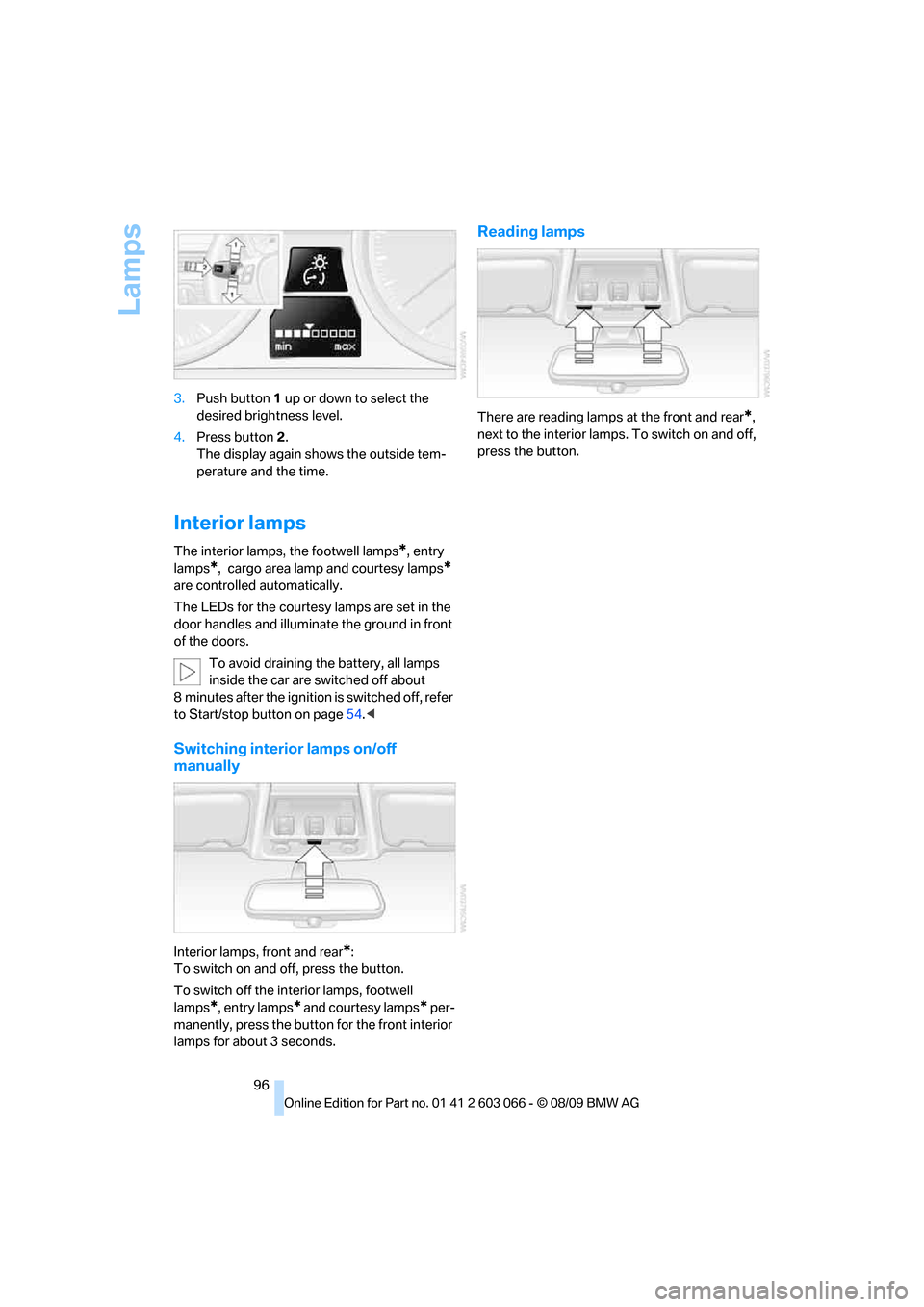
96 3.Push button 1 up or down to select the
desired brightness level.
4.Press button 2.
The display again shows the outside tem-
perature and the time.
Interior lamps
The interior lamps, the footwell lamps*, entry
lamps
*, cargo area lamp and courtesy lamps*
are controlled automatically.
The LEDs for the courtesy lamps
are set in the
door handles and illuminate the ground in front
of the doors.
To avoid draining the battery, all lamps
inside the car are switched off about
8 minutes after the ignition is switched off, refer
to Start/stop button on page54.<
Switching interior lamps on/off
manually
Interior lamps, front and rear*:
To switch on and off, press the button.
To switch off the interior lamps, footwell
lamps
*, entry lamps* and courtesy lamps* per-
manently, press the button for the front interior
lamps for about 3 seconds.
Reading lamps
There are reading lamps at the front and rear*,
next to the interior lamps. To switch on and off,
press the button.
Page 160 of 274
CD/DVD player and CD changer
158
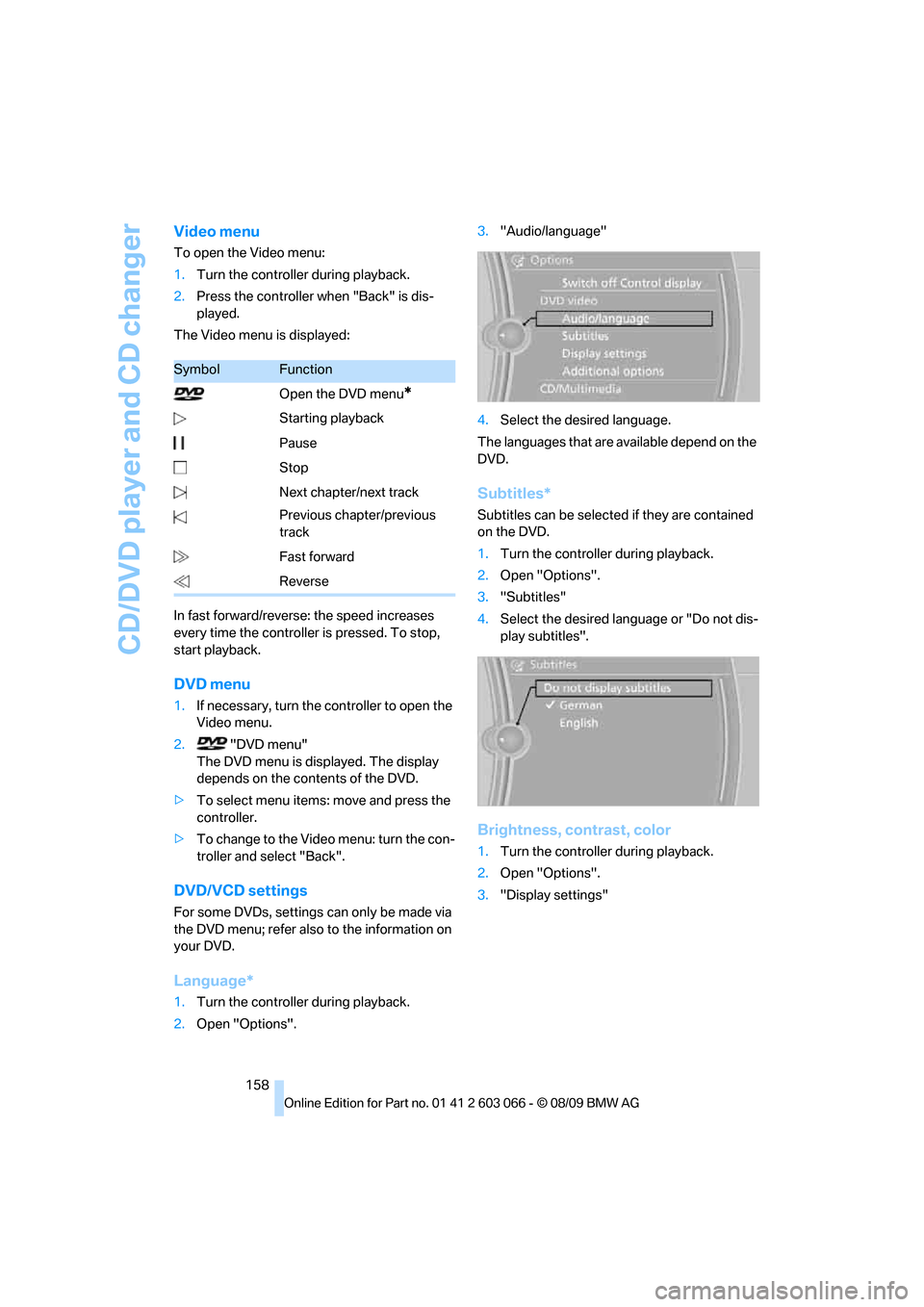
Video menu
To open the Video menu:
1.Turn the controller during playback.
2.Press the controller when "Back" is dis-
played.
The Video menu is displayed:
In fast forward/reverse: the speed increases
every time the controller is pressed. To stop,
start playback.
DVD menu
1.If necessary, turn the controller to open the
Video menu.
2. "DVD menu"
The DVD menu is displayed. The display
depends on the contents of the DVD.
>To select menu items: move and press the
controller.
>To change to the Video menu: turn the con-
troller and select "Back".
DVD/VCD settings
For some DVDs, settings can only be made via
the DVD menu; refer also to the information on
your DVD.
Language*
1.Turn the controller during playback.
2.Open "Options".3."Audio/language"
4.Select the desired language.
The languages that are available depend on the
DVD.
Subtitles*
Subtitles can be selected if they are contained
on the DVD.
1.Turn the controller during playback.
2.Open "Options".
3."Subtitles"
4.Select the desired language or "Do not dis-
play subtitles".
Brightness, contrast, color
1.Turn the controller during playback.
2.Open "Options".
3."Display settings"
SymbolFunction
Open the DVD menu
*
Starting playback
Pause
Stop
Next chapter/next track
Previous chapter/previous
track
Fast forward
Reverse
Page 161 of 274

Navigation
Entertainment
Driving tips
159Reference
At a glance
Controls
Communications
Mobility
4."Brightness", "Contrast" or "Color"
5.Turn the controller until the desired setting
is displayed, and then press the controller.
Zoom
Display the video image on the full screen.
1.Turn the controller during playback.
2.Open "Options".
3."Additional options"
4."Zoom mode"
Selecting track
DVD video:
1.Turn the controller during playback.
2.Open "Options".
3."Additional options"
4."Select title"
5.Select the desired track.
VCD/SVCD:
1. "Select track"
2.Select the desired track.
Camera angle*
The camera angle depends on the DVD.1.Turn the controller during playback.
2.Open "Options".
3."Additional options"
4."Viewing angle"
5.Select the desired camera angle.
Opening the main menu, back
These functions are not contained on every
DVD. Therefore, they may not be available for
use.
CD changer*
The BMW CD changer for six CDs is behind the
left side panel in the cargo area.
Sedan
Sports Wagon
Removing the CD magazine
T o i n s e r t o r r e m o v e C D s f r o m t h e C D m a g a z i n e ,
you must first remove it from the CD changer:
Page 257 of 274

Reference 255
At a glance
Controls
Driving tips
Communications
Navigation
Entertainment
Mobility
Average fuel consumption71
– setting the units73
Average speed71
Avoid highways in
navigation134
Avoiding unintentional
alarms34
Axle loads, refer to
Weights247
B
Backrest contour, refer to
Lumbar support43
Backrests, refer to Seat
adjustment42
Backrest width adjustment43
Back seats
– refer to Rear seats44
Backup lamps
– replacing bulb233,234
Band-aids, refer to First aid
pouch237
Bar, refer to Towing
methods240
Base plate for telephone or
mobile phone
– refer to Snap-in adapter184
– refer to Snap-in adapter in
the center armrest storage
compartment106
Bass, tone setting144
Battery235
– charging235
– disposal35,236
– jump-starting238
– remote control26
– replacing235
– temporary power failure236
Battery for mobile phone185
Battery renewal
– remote control35
– remote control for vehicle35
Being towed240
Belts, refer to Safety belts46
Belt tensioner, refer to Safety
belts46
Beverage holders, refer to
Cupholders107Blower, refer to Air volume98
Bluetooth, activating/
deactivating176
BMW
– car shampoo227
BMW Advanced Diesel198
BMW Assist188
BMW Assist,
activating190,192
BMW Homepage4
BMW Maintenance
System223
BMW Search190
BMW webpage4
Bottle holders, refer to
Cupholders107
Brake Assist, refer to Dynamic
Brake Control DBC82
Brake fluid, refer to Service
requirements73
Brake Force Display89
Brake lamps
– Brake Force Display89
– replacing bulb233,234
Brake pads116
– breaking in116
Brake rotors118
– brakes116
– breaking in116
Brakes
– ABS82
– BMW Maintenance
System223
– Brake Force Display89
– breaking in116
– parking brake56
– service requirements73
Brakes, refer to Braking
safely118
Brake system116
– BMW Maintenance
System223
– breaking in116
– disc brakes118
Breakdown services, refer to
Roadside Assistance237
Breaking in the clutch116Breaking in the differential,
refer to Engine and
differential116
Break-in period116
Brightness of the Control
Display80
Bulb changing, refer to Lamps
and bulbs229
Button for starting the engine,
refer to Start/stop button54
Buttons on the steering
wheel11
C
California Proposition 65
warning5
Call
– accepting177
– ending178
– rejecting178
Calling, refer to Phone
numbers, dialing178
Can holders, refer to
Cupholders107
Capacities248
Capacity of the cargo area247
Car battery, refer to Vehicle
battery235
Car care, refer to Care225