2010 BMW 335I COUPE settings
[x] Cancel search: settingsPage 13 of 266

At a glance
11Reference
Controls
Driving tips
Communications
Navigation
Entertainment
Mobility
9Instrument cluster12
12Ignition lock5513Buttons on the steering wheel
15Horn, entire surface
16Adjusting the steering wheel51
18Releasing the hood212
19Opening the trunk lid31 8
Turn signals59
High beams, headlamp flasher95
High-beam assistant
*95
Roadside parking lamps
*95
Computer70
Settings and information about the
vehicle72
10
Windshield wipers60
Rain sensor
*60
11Switching the ignition on/off and
starting/stopping the engine55
Telephone*:
Accepting and ending a call; dial-
ing
* the selected phone number;
redialing if no phone number is
selected
Volume
Activating/deactivating voice acti-
vation system
*22
Changing the radio station
Interrupting a traffic bulletin
Selecting a music track
Scrolling through the redial list
Next entertainment source
Recirculated-air mode100
14
Steering wheel heating
*51
17
Cruise control
*61
Active cruise control
*63
Page 14 of 266
Cockpit
12
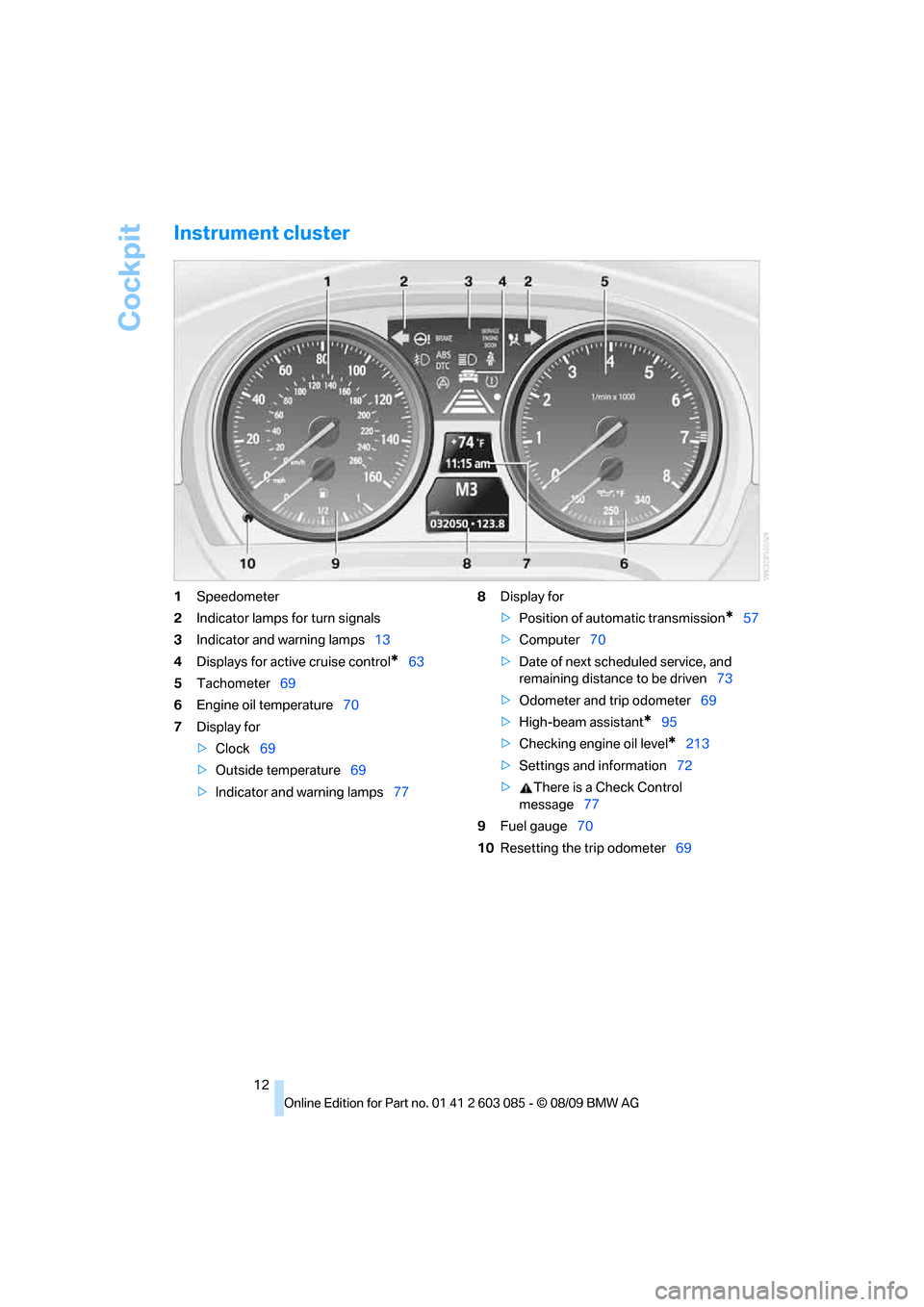
Instrument cluster
1Speedometer
2Indicator lamps for turn signals
3Indicator and warning lamps13
4Displays for active cruise control
*63
5Tachometer69
6Engine oil temperature70
7Display for
>Clock69
>Outside temperature69
>Indicator and warning lamps778Display for
>Position of automatic transmission
*57
>Computer70
>Date of next scheduled service, and
remaining distance to be driven73
>Odometer and trip odometer69
>High-beam assistant
*95
>Checking engine oil level
*213
>Settings and information72
>There is a Check Control
message77
9Fuel gauge70
10Resetting the trip odometer69
Page 18 of 266

iDrive
16
iDrive
iDrive integrates the functions of a large num-
ber of switches. This allows these functions to
be operated from a single central position. The
following section provides an introduction to basic menu navigation. The control of the indi-
vidual functions is described in connection with
the relevant equipment.
Controls
1Control Display
2Controller with buttons
You can use the buttons to open the menus
directly. The controller can be used to
select the menu items and create settings.
>Move in four directions, arrow3
>Turn, arrow 4
>Push, arrow 5
Operate the controller only when traffic
and road conditions allow this, to avoid
endangering the car's occupants and other
road users by being distracted.<
Page 20 of 266
iDrive
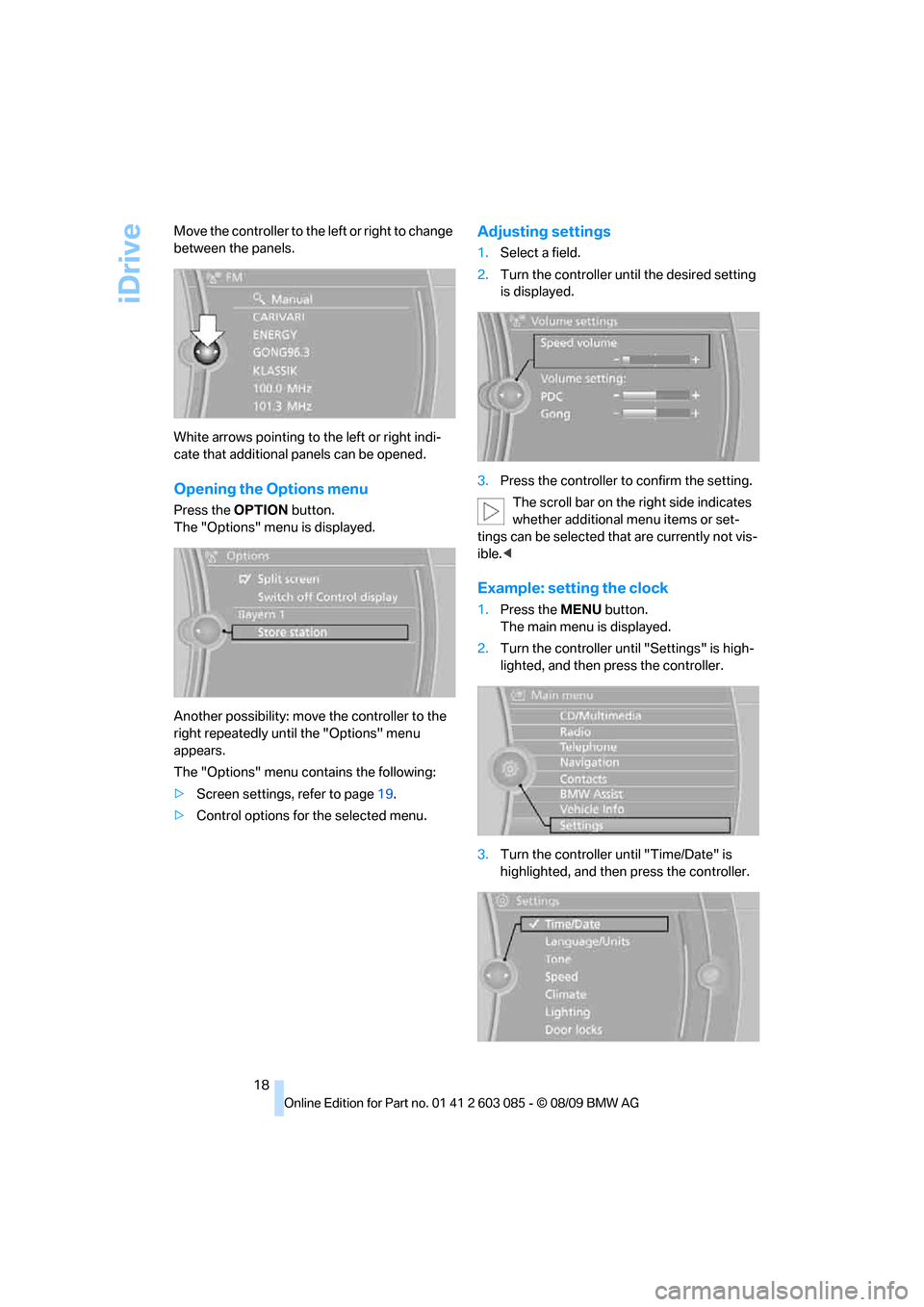
18 Move the controller to the left or right to change
between the panels.
White arrows pointing to the left or right indi-
cate that additional panels can be opened.
Opening the Options menu
Press the OPTION button.
The "Options" menu is displayed.
Another possibility: move the controller to the
right repeatedly until the "Options" menu
appears.
The "Options" menu contains the following:
>Screen settings, refer to page19.
>Control options for the selected menu.
Adjusting settings
1.Select a field.
2.Turn the controller until the desired setting
is displayed.
3.Press the controller to confirm the setting.
The scroll bar on the right side indicates
whether additional menu items or set-
tings can be selected that are currently not vis-
ible.<
Example: setting the clock
1.Press the MENU button.
The main menu is displayed.
2.Turn the controller until "Settings" is high-
lighted, and then press the controller.
3.Turn the controller until "Time/Date" is
highlighted, and then press the controller.
Page 25 of 266

At a glance
23Reference
Controls
Driving tips
Communications
Navigation
Entertainment
Mobility
In dialogs that call for a text of your choice, the
procedure can only be canceled using the but-
ton on the steering wheel.
Possible commands
The commands available in each case depend
on the menu item selected on the Control Dis-
play.
To have the available commands read aloud:
For example, if "CD/DVD" is selected, the com-
mands for operating CD/Multimedia are read
aloud.
Calling up functions immediately via
short commands
Short commands enable you to perform certain
functions immediately, irrespective of which
menu item is selected, refer to page242.
Example: selecting the track of a CD
1.If necessary, switch on entertainment audio
output.
2.Press the button on the steering wheel.
Setting the voice dialog
You can set whether the system should use the
standard dialog or a shorter variant. In the
shorter variant of the voice dialog, the prompts
and responses from the system are abbrevi-
ated.
1."Settings"
2."Language/Units"3."Speech mode:"
4.To select the setting:
>"Default"
>"Short"
Notes
To operate the phone by voice, refer to
page183.<
For voice commands, bear in mind the follow-
ing:
>Do not use the voice activation system to
initiate an Emergency Request. In stressful
situations, the voice and vocal pitch can
change. This can unnecessarily delay the
establishment of a telephone connection.
>Pronounce the commands and digits
smoothly and at normal volume, avoiding
excessive emphases and pauses. This also
applies when spelling out and saying a full
word during destination entry.
>When selecting a radio station, use the
standard pronunciation of the station name.
>For entries in the voice-activated phone
book, only use names in the language of the
voice activation system and no abbrevia-
tions.
>Keep the doors, windows and glass roof
closed to prevent interference from outside
noise.
>Avoid ambient noise in the vehicle while
speaking. {Voice commands}
3.Select the music track, e.g.:
{C D track 4}
System says:
{{Track 4}}
Page 28 of 266
Opening and closing
26
Opening and closing
Remote control
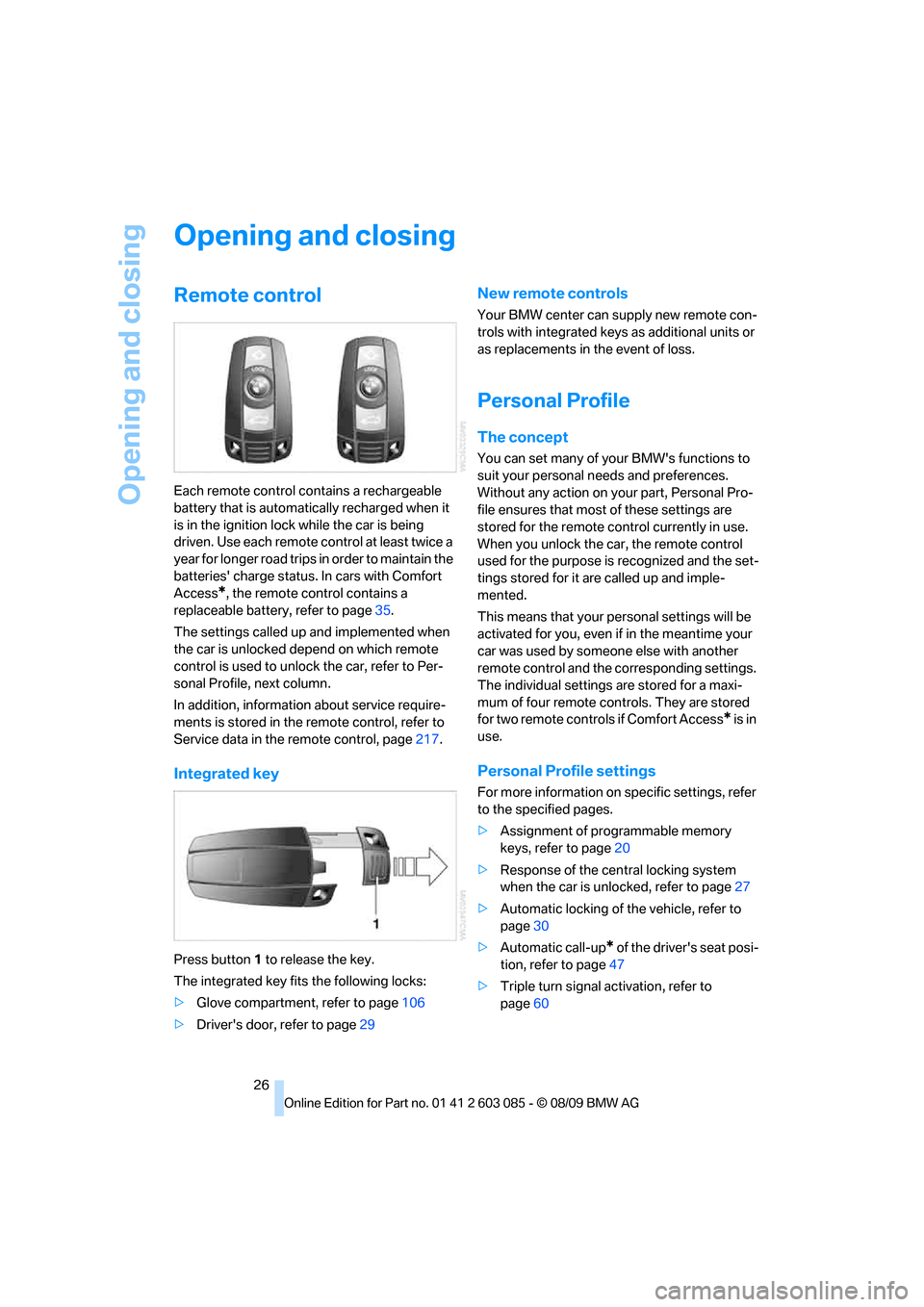
Each remote control contains a rechargeable
battery that is automatically recharged when it
is in the ignition lock while the car is being
driven. Use each remote control at least twice a
year for longer road trips in order to maintain the
batteries' charge status. In cars with Comfort
Access
*, the remote control contains a
replaceable battery, refer to page35.
The settings called up and implemented when
the car is unlocked depend on which remote
control is used to unlock the car, refer to Per-
sonal Profile, next column.
In addition, information about service require-
ments is stored in the remote control, refer to
Service data in the remote control, page217.
Integrated key
Press button1 to release the key.
The integrated key fits the following locks:
>Glove compartment, refer to page106
>Driver's door, refer to page29
New remote controls
Your BMW center can supply new remote con-
trols with integrated keys as additional units or
as replacements in the event of loss.
Personal Profile
The concept
You can set many of your BMW's functions to
suit your personal needs and preferences.
Without any action on your part, Personal Pro-
file ensures that most of these settings are
stored for the remote control currently in use.
When you unlock the car, the remote control
used for the purpose is recognized and the set-
tings stored for it are called up and imple-
mented.
This means that your personal settings will be
activated for you, even if in the meantime your
car was used by someone else with another
remote control and the corresponding settings.
The individual settings are stored for a maxi-
mum of four remote controls. They are stored
for two remote controls if Comfort Access
* is in
use.
Personal Profile settings
For more information on specific settings, refer
to the specified pages.
>Assignment of programmable memory
keys, refer to page20
>Response of the central locking system
when the car is unlocked, refer to page27
>Automatic locking of the vehicle, refer to
page30
>Automatic call-up
* of the driver's seat posi-
tion, refer to page47
>Triple turn signal activation, refer to
page60
Page 29 of 266

Controls
27Reference
At a glance
Driving tips
Communications
Navigation
Entertainment
Mobility
>Settings for the display on the Control Dis-
play and in the instrument cluster:
>12h/24h format of the clock, refer to
page76
>Date format, refer to page77
>Brightness of the Control Display, refer
to page80
>Language on the Control Display, refer
to page79
>Units of measure, refer to page72
>Show visual warning for Park Distance Con-
trol PDC
*, refer to page81
>Light settings:
>Welcome lamps, refer to page93
>Pathway lighting, refer to page94
>Daytime running lights, refer to page94
>High-beam assistant, refer to page95
>Automatic climate control: activating/deac-
tivating AUTO program, cooling function
and automatic recirculated-air control, set-
ting temperature, air volume and distribu-
tion, refer to page99 ff
>Entertainment:
>Tone control, refer to page146
>Speed-dependent volume control, refer
to page147
Central locking system
The concept
The central locking system functions when the
driver's door is closed.
The system simultaneously engages and
releases the locks on the following:
>Doors
>Trunk lid
>Fuel filler flap
>Convertible: glove compartment
Operating from outside
>Via the remote control>Via the door lock
*
>In cars with Comfort Access*, via the han-
dles on the driver's and front passenger
doors
In addition, if the remote control is used, the
welcome lamps, interior lamps and the door's
courtesy lamps
* are switched on or off. The
alarm system
* is also armed or disarmed.
For further details of the alarm system,
refer to
page32.
Operating from inside
By means of the button for central locking, refer
to page30.
In the event of a sufficiently severe accident, the
central locking system unlocks automatically. In
addition, the hazard warning flashers and inte-
rior lamps come on.
Opening and closing:
Using the remote control
Persons or animals in a parked vehicle
could lock the doors from the inside. You
should therefore take the remote control with
you when you leave the vehicle so that the latter
can be opened from outside.<
Convertible: to operate the retractable
hardtop with the remote control, the
doors and trunk lid must be closed and the
cargo area partition must be folded down and
engaged on both sides. Refer also to page38.<
Unlocking
Press the button.
The interior lamps, the courtesy lamps
* and the
welcome lamps come on.
Setting unlocking characteristics
You can set whether only the driver's door or
the entire vehicle is to be unlocked when the
button is pressed for the first time.
1."Settings"
2."Door locks"
Page 31 of 266

Controls
29Reference
At a glance
Driving tips
Communications
Navigation
Entertainment
Mobility
Confirmation signals
You can activate or deactivate the confirmation
signals.
1."Settings"
2."Door locks"
3."Flash when lock/unlock"
4.Press the controller.
Flashing when locking/unlocking the vehi-
cle is switched on.
Malfunctions
The remote control may malfunction due to
local radio waves. If this occurs, unlock and lock
the car at the door lock with the integrated key.
Coupe: in vehicles without an alarm system
* or
Comfort Access
*, only the driver's door can be
locked and unlocked with the integrated key via
the door lock.
Convertible: if hardtop movement via the
remote control is interrupted briefly, the move-
ment will be completed more quickly if you keep
the corresponding button pressed continu-
ously.
If the car can no longer be locked with a remote
control, the battery in the remote control is dis-
charged. Use the remote control on an
extended trip to recharge the battery, refer to
page26. The remote control for Comfort
Access
* contains a battery that may have to be
changed, refer to page35.
For US owners only
The transmitter and receiver units comply with
part 15 of the FCC/Federal Communications
Commission regulations. Operation is gov-
erned by the following:FCC ID:
LX8766S
LX8766E
LX8CAS
Compliance statement:
This device complies with part 15 of the FCC
Rules. Operation is subject to the following two
conditions:
>This device must not cause harmful inter-
ference, and
>this device must accept any interference
received, including interference that may
cause undesired operation.
Any unauthorized modifications or
changes to these devices could void the
user's authority to operate this equipment.<
Opening and closing:
Using the door lock
You can set the way in which the car is
unlocked, refer to page27.
Coupe
In vehicles without an alarm system* or
Comfort Access
*, only the driver's door
can be locked via the door lock.<
To lock all doors, the fuel filler flap and the trunk
lid at once:
1.With the doors closed, lock the vehicle
using the button for the central locking sys-
tem in the interior, refer to page30.
2.Unlock and open the driver's or front pas-
senger door, refer to page30.