2010 BMW 323I SEDAN reverse
[x] Cancel search: reversePage 115 of 274

Controls
113Reference
At a glance
Driving tips
Communications
Navigation
Entertainment
Mobility
Loading
1.Fold down the center armrest.
2.Press the button, reach into the recess and
fold down the cover.
3.Open the Velcro fastener, spread the ski
bag between the front seats and insert the
skis or snowboards.
The zip fastener makes objects in the ski
bag easier to reach.
4.Insert the latch plate of the ski bag's retain-
ing strap in the center belt buckle.
Only place clean skis in the ski bag. Wrap sharp
edges to prevent damage.
Securing cargo
After loading, secure the ski bag and its con-
tents. Tighten the retaining strap on the ten-
sioning buckle for this purpose.Secure the ski bag in the manner
described; otherwise, it could endanger
the car's occupants, e.g. in case of heavy brak-
ing or sudden swerving.<
To store the ski bag, perform the steps
described for loading in reverse order.
Removing the ski bag
The ski bag can be completely removed, e.g. for
faster drying or to allow you to use other inserts.
1.Fold down the center panel in the rear seat
backrest.
2.Pull the handle, arrow1.
3.Pull out the insert, arrow 2.
For more information on the various
inserts available, contact your BMW cen-
ter.<
Page 135 of 274

Navigation
Driving tips
133Reference
At a glance
Controls
Communications
Entertainment
Mobility
The trip is stored in the trip list under the
entered name.
Starting a stored trip
1."Navigation"
2."Stored trips"
3.Select the desired trip.
4."Start guidance"
Changing trips
Changing the trip direction
Intermediate destinations can be displayed in
reverse order after destination guidance is
started.
1."Map"
2."Guidance"
3.Open "Options".
4."Reverse order of trip dest."
Rearranging the intermediate
destinations
1."Map"
2."Guidance"
3."Display all trip dest."
4.Select an intermediate destination.
5."Reposition dest. in the trip"
Deleting an intermediate destination
1."Map"
2."Guidance"
3."Display all trip dest."
4.Select an intermediate destination.
5."Delete dest. in the trip"
Deleting a trip
1."Navigation"
2."Stored trips"
3.Select the desired trip.
4.Open "Options".
5."Delete all trips" or "Delete trip".
Word-matching principle
The system's word-matching principle makes it
easier for you to enter the names of towns or
streets. The system runs ongoing checks, com-
paring your destination entries with the data
stored in the vehicle as the basis for instant
response. The benefits for you include:
>Names of towns entered may differ from the
official versions if you are using a spelling
that is customary in another country.
Example:
Instead of the German spelling "München"
you can also enter the English spelling
"Munich" or the Italian spelling "Monaco".
>When you are entering the names of towns
and streets the system will complete them
automatically as soon as enough letters are
available to ensure unambiguous identifica-
tion.
>The system offers only those letters for
selection of name entries that are stored in
the vehicle. Thus, entry of erroneous or
unregistered names is impossible.
Page 154 of 274

Satellite radio
152
Selecting a category
1."Radio"
2."Satellite radio"
3."Categories"
4.Select the desired category.
Timeshift
Approx. one hour of the program being broad-
cast on the channel currently being listened to
is stored in a buffer. The signal must be avail-
able. The stored audio track can be played with
a delay following the live broadcast. When the
buffer is full, the older tracks are overwritten.
The buffer is cleared when a new channel is
selected.
Opening the timeshift function
1."Radio"
2."Satellite radio"
3.Open "Options".
4."Replay - Time Shift"
A new panel opens.
>The red arrow shows the current playback
position.
>The time difference to the live broadcast is
displayed next to the buffer bar.
>If playback is live, "live" is displayed next to
the buffer bar.
Timeshift menu
Storing favorites
Up to 30 favorites can be stored in the favorites
list. Available favorites are artist, track, game,
league and team.
Storing the artist, track or game
It is only possible to store favorites that are cur-
rently being broadcast. The channel informa-
tion must be available.
1."Radio"
2."Satellite radio"
3.If necessary, select "All Channels" or the
desired category.
4.Select the desired channel.
5.Press the controller again.
6.Select the artist, track or game.
Storing the league or team
Leagues or teams can be added to the favorites
from a selection list.
1."Radio"
2."Satellite radio"
3."Manage favorites"
SymbolFunction
Go to the live broadcast
Playback/pause
Next track
Previous track
Fast forward
Reverse
Page 159 of 274

Navigation
Entertainment
Driving tips
157Reference
At a glance
Controls
Communications
Mobility
5."Random"
CDs/DVDs with compressed audio files: the
directories and the tracks contained therein are
played back in random sequence.
Random mode is switched off when the audio
source is changed or the ignition is switched off.
Fast forward/reverse
Press and hold the button for the corre-
sponding direction.
Automatic repeat*
Selected tracks, directories or CDs/DVDs are
repeated automatically.
Video playback*
Country codes
Only DVDs with the code of the home region
can be played back; also refer to the information
on your DVD.
Starting playback
For your own safety, the video image is only dis-
played up to approx. 2 mph/3 km/h, and in some
market-specific versions only with the parking
brake applied.
DVD video
1."CD/Multimedia"
2."CD/DVD"
3.Select a DVD with video content.
4. "DVD menu"
5.Start the DVD via the DVD menu.
VCD/SVCD
1."CD/Multimedia"
2."CD/DVD"
3.Select a CD/DVD with video content.
4. "Select track"
5.Select the desired track.
The CD/DVD is started.
CodeRegion
1USA, Canada
2 Japan, Europe, Middle East, South
Africa
3Southeast Asia
4 Australia, Central and South Amer-
ica, New Zealand
5Northwest Asia, North Africa
6China
0All regions
Page 160 of 274

CD/DVD player and CD changer
158
Video menu
To open the Video menu:
1.Turn the controller during playback.
2.Press the controller when "Back" is dis-
played.
The Video menu is displayed:
In fast forward/reverse: the speed increases
every time the controller is pressed. To stop,
start playback.
DVD menu
1.If necessary, turn the controller to open the
Video menu.
2. "DVD menu"
The DVD menu is displayed. The display
depends on the contents of the DVD.
>To select menu items: move and press the
controller.
>To change to the Video menu: turn the con-
troller and select "Back".
DVD/VCD settings
For some DVDs, settings can only be made via
the DVD menu; refer also to the information on
your DVD.
Language*
1.Turn the controller during playback.
2.Open "Options".3."Audio/language"
4.Select the desired language.
The languages that are available depend on the
DVD.
Subtitles*
Subtitles can be selected if they are contained
on the DVD.
1.Turn the controller during playback.
2.Open "Options".
3."Subtitles"
4.Select the desired language or "Do not dis-
play subtitles".
Brightness, contrast, color
1.Turn the controller during playback.
2.Open "Options".
3."Display settings"
SymbolFunction
Open the DVD menu
*
Starting playback
Pause
Stop
Next chapter/next track
Previous chapter/previous
track
Fast forward
Reverse
Page 171 of 274

Navigation
Entertainment
Driving tips
169Reference
At a glance
Controls
Communications
Mobility
Track search
You can call up the tracks using the playlists
and information. With USB devices you can also
call up tracks using the file directory.
Selection is possible via:
>Playback lists
>Information: type of music, artist, album,
title
>Additionally for USB devices: file directory,
composer
Track titles are displayed if they have been
stored in the Latin alphabet.
Starting the track search
1."CD/Multimedia"
2."External devices"
3. Select the symbol.
The name of the audio device may appear.
4.Select the desired category, "Genre", "Art-
ist".
All entries are displayed in a list. The "A-Z
search" can be used to find specific entries.
>Open "A-Z search" and enter the
desired entry.
>Select the desired entry from the list.
5.Select additional categories if desired.
The tracks found are listed. Not all catego-
ries need to be selected. For example, to
search for all tracks by a certain artist, call
up that artist only. All of the tracks by that
artist are then displayed.
6."Start play"
Restarting a track search
"New search"
Playback lists
To open playback lists.
1."CD/Multimedia"
2."External devices"
3.Select the symbol.
4."Playlists"
Current playback
List of tracks currently being played.
1."CD/Multimedia"
2."External devices"
3.Select the symbol.
4."Current playback"
Random play sequence
You can play the tracks in the selected list in
random order, e.g. all tracks of a single artist.
1."CD/Multimedia"
2."External devices"
3.Open "Options".
4."Random"
Fast forward/reverse
Press and hold the button for the corre-
sponding direction.
Notes
Do not expose the audio device to
extreme environmental conditions, e.g.
very high temperatures, refer to the operating
instructions of the audio device. Otherwise, the
audio device may become damaged, which
could compromise safety while driving.<
Depending on the configuration of the audio
files, e.g. bit rates greater than 256 KBit/s, the
files may not play back correctly in every case.
Notes on connecting
>The connected audio device is supplied
with a maximum current of 500 mA, if the
Page 233 of 274
Mobility
231Reference
At a glance
Controls
Driving tips
Communications
Navigation
Entertainment
Replacing the corner-illuminating
lamp*
H3 bulb, 55 watts
1.Switch off the lamps and take the remote
control out of the ignition lock.
2.Remove the upper cover from the head-
lamp. To do so, pull the rubber seal up and
off and unscrew the cover using the screw-
driver from the onboard vehicle tool kit, see
arrow.
3.Release the wire bracket from the anchor,
see arrow, and fold it up.
4.Disconnect the plug, change the bulb and
reconnect the plug.
5.Insert the bulb.
6.Fold the wire bracket down and engage it.
7.Reattach the cover.
Be careful when installing the cover; oth-
erwise, leaks could occur and cause dam-
age to the headlamp system.<
Halogen lamps
H7 bulb, 55 watts
Always wear gloves and eye protection;
the atmosphere within the H7 bulb is pressurized. Otherwise, there is a risk of injury if
the bulb is damaged.<
There are separate headlamp covers for low-
beam headlamps and high-beam headlamps.
Be careful when installing the covers; oth-
erwise, leaks could occur and cause dam-
age to the headlamp system.<
For checking and adjusting headlamp
aim, please contact your BMW center.<
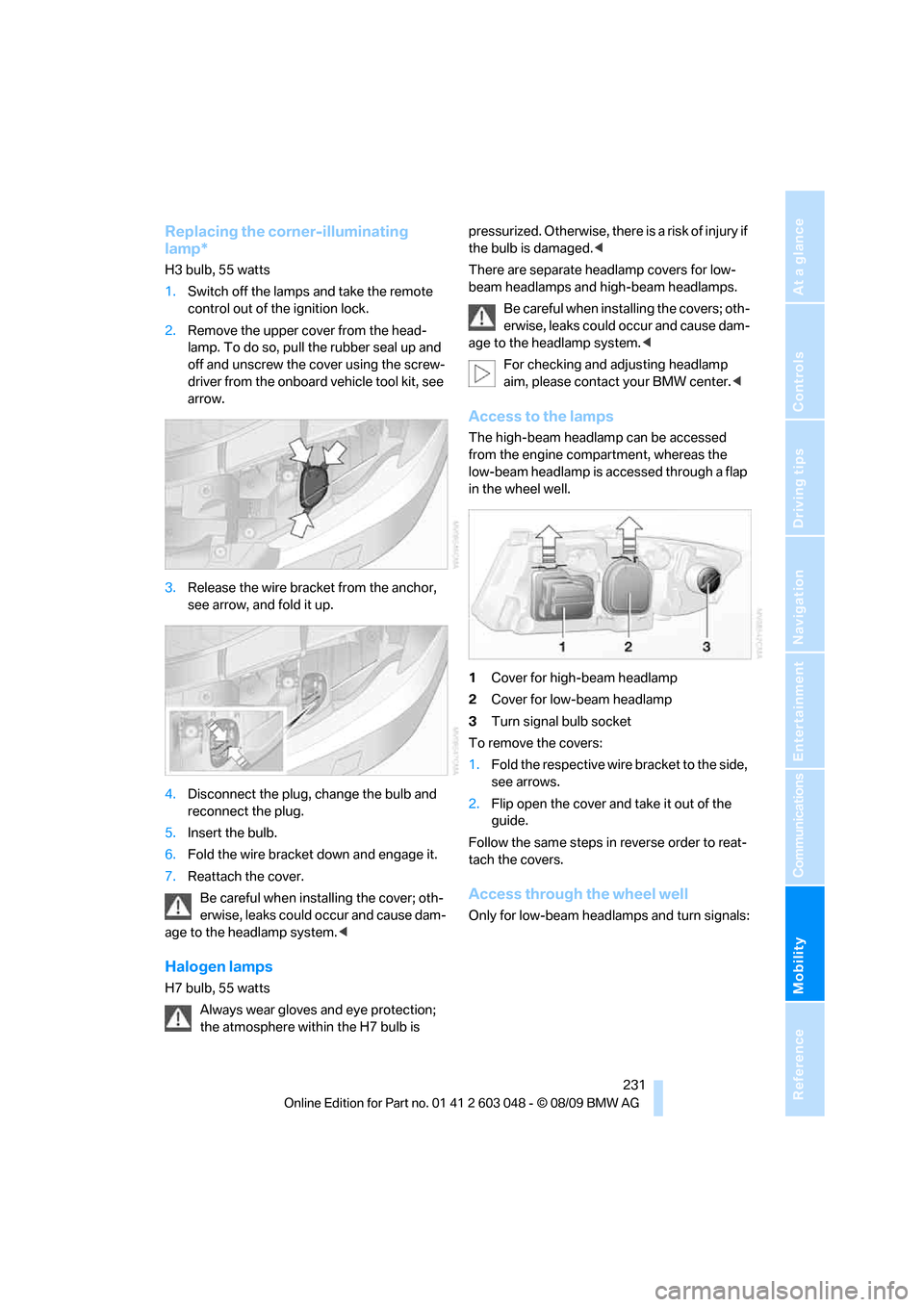
Access to the lamps
The high-beam headlamp can be accessed
from the engine compartment, whereas the
low-beam headlamp is accessed through a flap
in the wheel well.
1Cover for high-beam headlamp
2Cover for low-beam headlamp
3Turn signal bulb socket
To remove the covers:
1.Fold the respective wire bracket to the side,
see arrows.
2.Flip open the cover and take it out of the
guide.
Follow the same steps in reverse order to reat-
tach the covers.
Access through the wheel well
Only for low-beam headlamps and turn signals:
Page 258 of 274

Everything from A - Z
256 Care225
– automatic car washes225
– care products225
– carpets227
– CD/DVD drives228
– chrome parts226
– displays227
– exterior225
– fine wood parts227
– headlamps226
– high-pressure washer225
– interior227
– leather227
– light-alloy wheels226
– paintwork226
– plastic parts227
– rubber seals226
– safety belts227
– sensors and cameras227
– upholstery and cloth
trim227
– washing the car
manually226
– windows226
Cargo, securing120
Cargo area110
– capacity247
– Comfort Access35
– folding up the floor
panel112
– lamp, refer to Interior
lamps96
– opening from inside30
– opening from outside31
– partition net111
– roller cover110
Cargo area lid, refer to Trunk
lid/tailgate30
Cargo area net, refer to
Partition net111
Cargo loading119
– securing cargo120
– stowing cargo119
– vehicle119
Car jack
– jacking points235
Car key, refer to Integrated
key/remote control26Car phone
– installation location, refer to
Center armrest106
– refer to separate Owner's
Manual
Car phone, refer to
Telephone174
Car radio, refer to Radio147
Car shampoo
227
Catalytic converter, refer to
Hot exhaust system117
CD, audio playback155
CD changer155,159
– controls144
– fast forward/reverse157
– filling or emptying the
magazine160
– random play sequence156
– selecting a track155
– switching on/off144
– tone control144
– volume144
CD player155
– controls144
– fast forward/reverse157
– random play sequence156
– selecting a track155
– switching on/off144
– tone control144
– volume144
Center armrest106
Center brake lamp
– replacing bulb235
Center console, refer to
Around the center
console14
Central locking
– from inside30
– from outside27
Central locking system27
– Comfort Access34
– hotel function31
– setting unlocking
characteristics27
Changes, technical, refer to
For your own safety5
Changing bulbs, refer to
Lamps and bulbs229Changing the language on the
Control Display79
Changing the measurement
units on the Control
Display73
Changing wheels235
Chassis number, refer to
Engine compartment219
Check Control77
Check Gas Cap196
Child restraint fixing system
LATCH51
Child restraint systems50
Child safety locks53
Child seats, refer to
Transporting children
safely50
Chrome parts227
Chrome polish227
Cigarette lighter, refer to
Lighter108
Cleaning headlamps60
– washer fluid60
Cleaning your BMW, refer to
Care225
Clock69
– 12h/24h mode76
– setting the time and date76
– setting time75
Closing
– from inside30
– from outside27
Clothes hooks107
Cockpit10
Cold start, refer to Starting the
engine55
Combined instrument, refer to
Instrument cluster12
Comfort Access34
– replacing the battery35
Comfort access, refer to
Comfort Access34
Comfort area, refer to Around
the center console14
Compartment for remote
control, refer to Ignition
lock54
Compass104