2010 ACURA RDX CD changer
[x] Cancel search: CD changerPage 257 of 514

Playing a DVD-A Disc
You can play a DVD-A disc in the CD
changer. The disc controls are same
as previously described.
To Pause a Disc
To pause a disc, press the preset
button which corresponds to the
current disc. To play the disc again,
press the preset button again.To Stop Playing a Disc
If you turn the system off while a disc
is playing, either with the PWR/VOL
knob or by turning off the ignition
switch, the disc will stay in the drive.
When you turn the system back on,
the disc will begin playing where it
left off.
To take the system out of disc mode,
press the AM/FM, or DISC/AUX, or
button to switch to the radio,
or satellite radio, or auxiliary input
while a disc is playing. When you
return to disc mode by pressing the
DISC/AUX button, play will continue
at the same point that it left off. Removing Discs from the Changer
To remove the disc that is currently
playing, press and release the eject
(
) button. You will see
‘‘EJECT ’’
on the upper display. When you
remove the disc from the slot, the
system begins the load sequence so
you can load another disc in that
position. If you do not load another
disc within 10 seconds, the system
selects the previous mode (AM,
FM1, FM2, or XM Radio).
If you do not remove the disc from
the slot, the system will reload the
disc after 10 seconds and put the CD
changer in pause mode. To begin
playing the disc, press the DISC/
AUX button.
CONTINUED
Playing Discs (Models with navigation system)
253
Features
09/07/07 15:02:04 10 ACURA RDX MMC North America Owner's M 50 31STK630 enu
ProCarManuals.com
2010 RDX
Page 258 of 514

To remove a different disc from the
changer, first select it by pressing
the corresponding number on the
preset button or turning the interface
knob, and pressing ENTER on the
interface selector. When that disc
begins playing, press the eject
button.
Press and hold the eject button until
you hear a beep to remove all the
discs from the changer.
You can also eject discs when the
ignition switch is off by pressing the
eject button. The disc that was last
selected is ejected first. You can eject
the rest of the discs one at a time.Protecting Discs
For information on how to handle
and protect compact discs, see page
257.
Disc Changer Error Messages
For information, see page
255.
Adjusting the Sound
For information, see page 224.Playing Discs (Models with navigation system)25409/07/07 15:02:04 10 ACURA RDX MMC North America Owner's M 50 31STK630 enu
ProCarManuals.com
2010 RDX
Page 259 of 514

If you see an error message in the
display while playing a CD, find the
cause in the chart to the right. If you
cannot clear the error message, take
the vehicle to your dealer.Error
Message Cause
Solution
FOCUS Error Press the EJECT button, and pull out the disc.
Check if it is inserted correctly in the disc
changer.
Make sure the disc is not scratched or damaged.
For more information, see page
258.
Mechanical Error Press the EJECT button, and pull out the disc.
Check the disc for damage or deformation. For
more information, see page
258.
If the disc cannot be pulled out, or the error
message does not disappear after the disc is
ejected, see your dealer.
High Temperature Will disappear when the temperature returns to
normal.
Check Disc Press the EJECT button, and pull out the disc.
Make sure a playable disc is in the CD changer
(see page
241).
Check Disc and Changer
Error Press the EJECT button, and pull out the disc.
Check the disc for damage or deformation.
For more information, see page
258.
If the disc cannot be pulled out, or the error
message does not disappear after the disc is
ejected, see your dealer.
CONTINUED
Disc Changer Error Messages (Models with navigation system)
255
Features
09/07/07 15:02:04 10 ACURA RDX MMC North America Owner's M 50 31STK630 enu
ProCarManuals.com
2010 RDX
Page 260 of 514

The chart on the right explains the
error messages you may see in the
display while playing a disc.
If you see an error message in the
display while playing a disc, press
the eject button. After ejecting the
disc, check it for damage or
deformation. If there is no damage,
insert the disc again.
For the additional information on
damaged discs, see page258.
The audio system will try to play the
disc. If there is still a problem, the
error message will reappear. Press
the eject button, and pull out the
disc.
Insert a different disc. If the new disc
plays, there is a problem with the
first disc. If the error message cycle
repeats and you cannot clear it, take
your vehicle to a dealer. Error
Message Cause
Solution
FORMATTrack/File format not
supported Current track will be skipped. The next
supported track or file plays automatically.
BAD DISC
PLEASE CHECK OWNER'SMANUAL
PUSH EJECT Mechanical error
Press the EJECT button, and pull out the disc(s).
Check the disc for serious damage, signs of
deformation, excessive scratches, and/or dirt
(see page
258.)
Insert the disc again. If the code does not
disappear, or the disc(s) cannot be removed,
consult your dealer. Do not try to force the disc
out of the player.
BAD DISC
PLEASE CHECK OWNER'SMANUAL Servo error
Disc Changer Error Messages (Models with navigation system)25609/07/07 15:02:04 10 ACURA RDX MMC North America Owner's M 50 31STK630 enu
ProCarManuals.com
2010 RDX
Page 261 of 514
General Information●When using CD-R/CD-RW discs,
use only high quality CDs labeled
for audio use.●When recording a CD-R/CD-RW,
the recording must be closed for it
to be used by the system.●Play only standard round CDs.
Odd-shaped CDs may jam in the
drive or cause other problems.●Handle your CDs properly to
prevent damage and skipping.
Protecting CDsWhen a CD is not being played, store
it in its case to protect it from dust
and other contamination. To prevent
warpage, keep CDs out of direct
sunlight and extreme heat.
To clean a CD, use a clean soft cloth.
Wipe across the CD from the center
to the outside edge.
A new CD may be rough on the inner
and outer edges. The small plastic
pieces causing this roughness can
flake off and fall on the recording
surface of the CD, causing skipping
or other problems. Remove these
pieces by rubbing the inner and
outer edges with the side of a pencil
or pen.
Never try to insert foreign objects in
the disc changer.
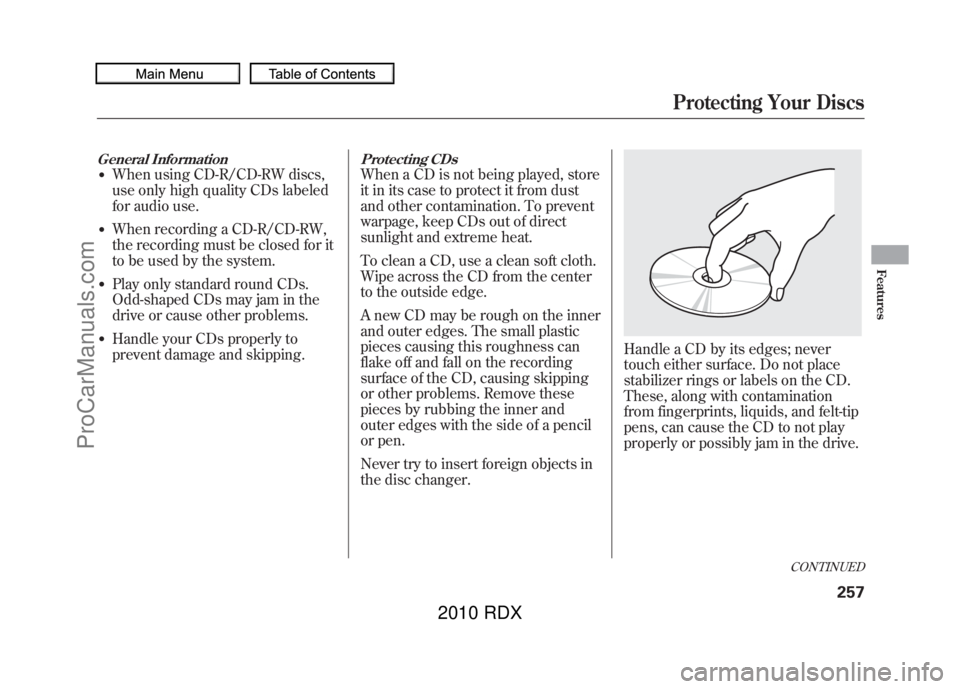
Handle a CD by its edges; never
touch either surface. Do not place
stabilizer rings or labels on the CD.
These, along with contamination
from fingerprints, liquids, and felt-tip
pens, can cause the CD to not play
properly or possibly jam in the drive.
CONTINUED
Protecting Your Discs
257
Features
09/07/07 15:02:04 10 ACURA RDX MMC North America Owner's M 50 31STK630 enu
ProCarManuals.com
2010 RDX
Page 262 of 514

Additional Information on
Recommended Discs
The in-dash disc player/changer has
a sophisticated and delicate
mechanism. If you insert a damaged
disc as indicated in this section, it
may become stuck inside and
damage the audio unit.
Examples of these discs are shown to
the right:1. Bubbled, wrinkled, labeled, and excessively thick discs
2. Damaged discs
3. Poor quality discs
Bubbled/
Wrinkled
With Label/
Sticker Using Printer
Label Kit Sealed With Plastic
RingChipped/
Cracked Warped
Burrs
Protecting Your Discs25809/07/07 15:02:04 10 ACURA RDX MMC North America Owner's M 50 31STK630 enu
ProCarManuals.com
2010 RDX
Page 266 of 514

To Play an iPod
®
This audio system can operate the
audio files on the iPod
®with the
same controls used for the in-dash
disc changer. To play an iPod,
connect it to the USB adapter cable
in the console compartment by using
your dock connector, then press the
DISC/AUX button. The ignition
switch must be in the ACCESSORY
(I) or ON (II) position. The iPod will
also be recharged with the ignition
switch in these positions.
The system will only play songs
stored on the iPod with iTunes.
iPod and iTunes are registered
trademarks owned by Apple Inc.
Voice Control SystemYou can select the AUX mode by
using the navigation system voice
control buttons, but cannot operate
the play mode functions. iPods compatible with your audio
system using the USB adapter cable
are:
Model Software
iPod classic Ver. 1.0 or more
iPod with
video
(iPod 5th
generation) Ver. 1.2 or more
iPod nano Ver. 1.2 or more
iPod nano 2nd
generation Ver. 1.1.2 or more
iPod nano 3rd
generation Ver. 1.0 or more
iPod nano 4th
generation Ver. 1.0.2 or more
iPod touch Ver. 1.1.1 or more
iPod touch
2nd generation Ver. 2.1.1 or more
Use only compatible iPods with the
latest software. iPods that are not
compatible will not work in this audio
unit. NOTE:
●Do not connect your iPod using a
hub.●Do not keep the iPod in the
vehicle. Direct sunlight and high
heat will damage it.●Do not use an extension cable
between the USB adapter cable
equipped with your vehicle and
your dock connector.●We recommend backing up your
data before playing it.●Some devices cannot be powered
or charged via the USB adapter, if
this is the case use the accessory
adapter to supply power to your
device.
Playing an iPod (Models with navigation system)26209/07/07 15:02:04 10 ACURA RDX MMC North America Owner's M 50 31STK630 enu
ProCarManuals.com
2010 RDX
Page 276 of 514

To Play a USB Flash Memory
Device
This audio system can operate the
audio files on a USB flash memory
device with the same controls used
for the in-dash disc changer. To play
a USB flash memory device, connect
it to the USB adapter cable in the
console compartment, then press the
DISC/AUX button. The ignition
switch must be in the ACCESSORY
(I) or ON (II) position.
The audio system reads and plays
the audio files on the USB flash
memory device in MP3, WMA or
AAC
ꭧformats. Depending on the
format, the audio control display
shows MP3, WMA or AAC when a
USB flash memory device is playing.
The USB flash memory device limit
is up to 700 folders or up to 65535
files.
ꭧ : Only AAC format files recorded
with iTunes are playable on this
audio unit. The recommended USB flash
memory devices are 256 MB or
higher, and formatted with the FAT
file system. Some digital audio
players may be compatible as well.
Some USB flash memory devices
(such as devices with security lock-
out features, etc.) will not work in
this audio unit.
NOTE:
●Do not use a device such as a card
reader or hard drive as the device
or your files may be damaged.●Do not connect your USB flash
memory device using a hub.●Do not use an extension cable to
the USB adapter cable equipped
with your vehicle.●Do not keep a USB flash memory
device in the vehicle. Direct
sunlight and high heat will damage
it.
●We recommend backing up your
data before playing a USB flash
memory device.●Depending on the type and
number of files, it may take some
time before they begin to play.●Depending on the software the
files were made with, it may not be
possible to play some files, or
display some text data.●Some devices cannot be powered
or charged via the USB adapter, if
this is the case use the accessory
adapter to supply power to your
device.Voice Control SystemYou can select the AUX mode by
using the navigation system voice
control buttons, but cannot operate
the play mode functions.
Playing a USB Flash Memory Device (Models with navigation system)27209/07/07 15:02:04 10 ACURA RDX MMC North America Owner's M 50 31STK630 enu
ProCarManuals.com
2010 RDX