2009 VOLVO XC60 center console
[x] Cancel search: center consolePage 153 of 297

04 Comfort and driving pleasure
Bluetooth® hands-free connection04
}}
151
Searching for contactsThe easiest way to search for a contact in the
phone book is to press and hold any of the
buttons 2–9 (see the illustration on page 147).
This starts a search based on the first letter on
the button that has been pressed.
The phone book can also be accessed by
pressing the navigation buttons / on the
center console or by pressing / on the
steering wheel keypad. A search can also be
made in the phone book’s search menu in
Phone book Search:
1.
Enter the first letter of the contact’s name and press ENTER or simply press ENTER.
2. Select the desired contact and press ENTER to make a call to that person.
Voice controlIf the cell phone that is currently connected
allows calls to be made via voice commands,
this function can be used by pressing and hold-
ing ENTER.
Voice mail numberThe phone number to your voice mail can be
changed in the menu Phone settings Call
options Voice mail number. If no number
has been stored, this menu can be accessed
by a prolonged press on button 1. Once a phone number has been stored, press and hold
1 to dial this number.
Call listsLists of calls in a particular cell phone are cop-
ied to the hands-free system each time that
phone is connected. These lists are then upda-
ted while the phone is connected. Press
ENTER to show the most recently dialed num-
bers. Other call lists can be found under Call
register.
NOTE
Certain cell phones display the list of the
most recently dialed numbers in reverse
order.
Entering textText is entered by using the number buttons in
the center console. Press a button once to
enter the first letter on the button, twice to enter
the second letter, etc. Continue to press the
button to display other characters.
–
Press EXIT briefly to erase a character.
– Press and hold EXIT to erase all of the
characters that have been entered.
Use the / buttons on the center console
to navigate among the characters. Button Function
Space .1-? ! , : " \f ( )
A B C 2 \b Å À Æ Ç
D E F 3 È É
G H I 4 Ì
J K L 5
M N O 6 Ñ Ö Ò Ø
P Q R S 7 ß
T U V 8 Ü Ù
W X Y Z 9
Press briefly if two characters are
to be entered in succession from
the same button.
+ 0 @ * # & $ £ / %
Shift between uppercase and
lowercase letters
Page 159 of 297
04 Comfort and driving pleasure
Active chassis system–Four C04
* Option/accessory, for more information, see Introduction. 157
Active chassis (Four C)*
Active chassis, Four-C (Continuously Con-
trolled Chassis Concept), regulates the cha-
racteristics of the shock absorbers so that the
car\fs driving characteristics can be adjusted.
There are three settings: Comfort, Sport and
Advanced.
ComfortComfort mode offers a somewhat softer ride
and the transmission shifts gears at lower rpm.
This mode is particularly suitable for long-dis-
tance highway driving. The indicator light in the
button will be on when this mode is selected.
SportIn this mode, the vehicle\fs body sway is
reduced during cornering and steering
response is more immediate. The transmission
shifts up at higher rpm for sportier driving. The
indicator light in the button will be on to indi-
cate that Sport mode has been selected.
AdvancedIn this mode, body sway in curves is minimal
and steering response is very direct. Gear shift-
ing is done at high rpm in each gear for
dynamic and active driving.
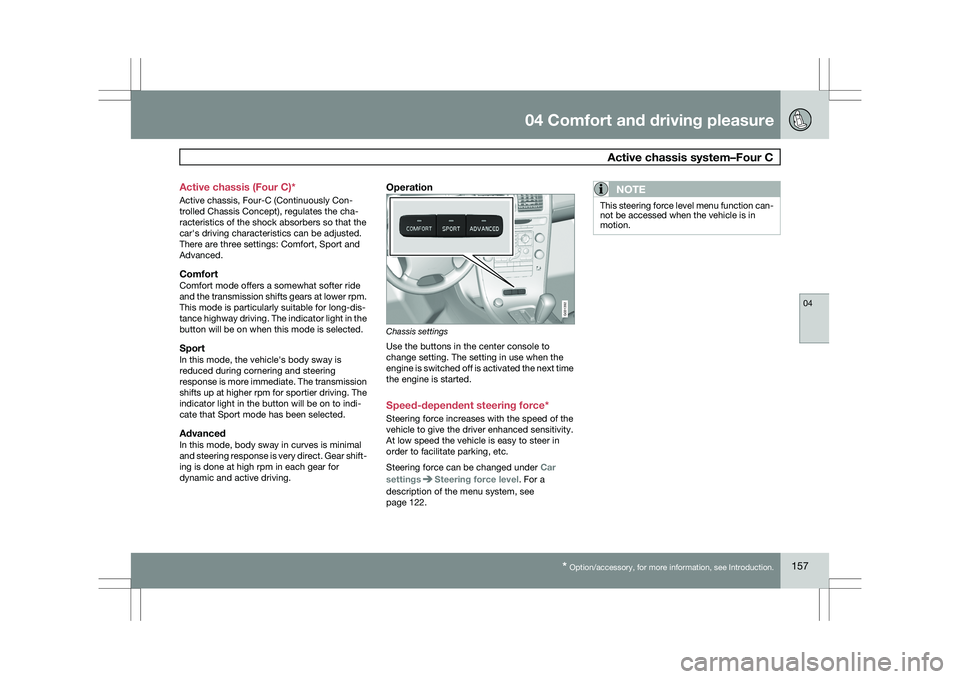
Operation
Chassis settings
Use the buttons in the center console to
change setting. The setting in use when the
engine is switched off is activated the next time
the engine is started.
Speed-dependent steering force*
Steering force increases with the speed of the
vehicle to give the driver enhanced sensitivity.
At low speed the vehicle is easy to steer in
order to facilitate parking, etc.
Steering force can be changed under
Car
settings Steering force level. For a
description of the menu system, see
page 122.NOTE This steering force level menu function can-
not be accessed when the vehicle is in
motion. G031392
Page 163 of 297

04 Comfort and driving pleasure
Collision warning with Auto-brake*04
}}
* Option/accessory, for more information, see Introduction. 161
support is activated. Brake support prepares
the brake system to react quickly, and the
brakes are applied slightly. This may be expe-
rienced as a light tug.
If the brakes are applied quickly, full braking
effect will be provided, even if pressure on the
brake pedal is light.
Auto-brakeIf a collision is imminent and the driver has not
applied the brakes, the auto-brake function is
activated without the driver pressing the brake
pedal. Limited brake force is applied to reduce
the vehicle’s speed when the collision occurs.
WARNING
The auto-brake function connot prevent a
collision but instead is intended to reduce
speed at the moment of impact. For full
braking effect, driver must apply the brakes.
NOTE
The auto-brake function is always on and
cannot be turned off.
Operation
Some settings are controlled from the center
console via a menu system. For information on
how the menu system is used, see page 122.
On and offTo switch Collision Warning on or off, go into
the menu Car settings Collision warning
settings and select On or Off. When the engine
is started, the setting that was selected when
it was switched off will be used.
Activating/deactivating warning signalsThe collision warning system’s audible and vis-
ual signals are activated automatically when
the engine is started if the collision warning
system is activated.
The audible warning signal can be activated/
deactivated by selecting the alternative On or
Off in Car settings Collision warning
settings Warning sound.
Setting a warning distanceThis setting determines the distance at which
the visual and audible warnings are triggered.
Select Long, Normal or Short under Car
settings Collision warning settings
Warning distance
The warning distance determines the level of
sensitivity used by the system. The warning
distance Long provides an earlier warning.
Begin by using Long and if the system gives
too many warnings, try changing to
Normal.
WARNING \b
The setting
Short should only be used
in situations where traffic is light and
moving at low speeds.
\b Collision Warning alerts the driver to the
risk of a collision but this function can-
not reduce the driver’s reaction time.
\b For Collision Warning to be as effective
as possible, it is recommended that Dis-
tance Alert be set to 4 or 5, see
page 179.
NOTE \b
When adaptive cruise control is used,
the warning light and signal will be used
by cruise control, even if they have been
deactivated by the driver.
\b In situations where traffic is moving at
considerably different speeds, or if the
vehicle ahead brakes suddenly, warn-
ings may be considered to be late, even
if the setting Long has been selected.
Checking settingsThe current Collision Warning settings can be
checked by going into the menu system at
Car
settings Collision warning settings. See
page 122 for more information on the menu
system.
Page 187 of 297

04 Comfort and driving pleasure
Driver Alert System*04
}}
* Option/accessory, for more information, see Introduction. 185
Lane Departure Warning (LDW)–
general information
This function is designed to help reduce the
risk of accidents in situations where the vehicle
leaves its lane and there is a risk of driving off
the road or into the opposite lane. LDW con-
sists of a camera that monitors the lane’s side
marker lines. The driver is alerted by an audible
signal if the vehicle crosses a side marker line
or the road’s center dividing line. Operation and function
LDW can be switched on or off by pressing the
button on the center console. A light in the but-
ton illuminates when the function is on.
The trip computer display shows Lane Depart
Warn Unavailable when the function is in
standby mode.
When LDW is in standby mode, the function is
activated automatically after the camera has
monitored the road’s side marker lines and the
vehicle’s speed exceeds 40 mph (65 km/h).
Lane Depart Warn Available will be dis-
played.If the camera can no longer monitor the road’s
side marker lines, or if the vehicle’s speed falls
below 37 mph (60 km/h), LDW will return to
standby mode and
Lane Depart Warn
Unavailable will be displayed.
If the vehicle unexpectedly crosses the lane’s
left or right side marker lines, the driver will be
alerted by an audible signal.
No warning signal will be given in the follow-
ing situations:
\b The turn signal is being used
\b The driver’s foot is on the brake pedal 1
\b The throttle pedal is pressed quickly
\b If the steering wheel is moved quickly
\b In sharp turns that cause the vehicle’s
body to sway.
See page 162 for information on the camera’s
limitations.
WARNING The driver will only be warned once for each
time the wheels cross a marker line. No
alarm will be given if a marker line is
between the wheels.
1
A warning will be given even when Increased sensitivity has been selected. G032699 G032014
Page 189 of 297

04 Comfort and driving pleasure
Park assist*04
}}
* Option/accessory, for more information, see Introduction. 187
Introduction
The park assist system is designed to assist
you when driving into parking spaces, garages,
etc. It utilizes four ultrasound sensors located
in one or both bumpers to measure the dis-
tance to a vehicle, object, or a person who may
be close to the front or rear of your vehicle.
This system is available in the rear bumper
only, or in both the front and rear bumpers.
Park assist utilizes four ultrasound sensors in
the bumper(s) to measure the distance to a
vehicle, object, or a person who may be close
to the front or rear of your vehicle. An audible
signal and symbols in the audio system’s dis-
play indicate the distance to the object
WARNING
Park Assist is an information system, NOT a
safety system. This system is designed to
be a supplementary aid when parking the
vehicle. It is not, however, intended to
replace the driver\fs attention and judge-
ment. Function
Park assist button
The system is activated automatically when the
vehicle is started. The indicator light in the but-
ton in the center console illuminates when the
system is on.
\b
The front park assist system is active from
the time the engine is started until the vehi-
cle exceeds a speed of approximately
10 mph (15 km/h). It is also active when the
vehicle is backing up.
\b Rear park assist is active when the engine
is running and reverse gear has been
selected.
Activating/deactivatingThe system is activated automatically when the
vehicle is started.
–
Press the Park assist button on the center
console to temporarily deactivate the sys-
tem(s).
> The indicator light in the button will go
out when the system has been deacti-
vated.
Park assist will be automatically reactivated the
next time the engine is started, or if the button
is pressed (the indicator light in the button will
illuminate).
NOTE \b
Front park assist is disengaged auto-
matically when the parking brake is
applied.
\b If the vehicle is equipped with front and
rear park assist, both systems will be
deactivated by pressing the button. G031399
Page 194 of 297

04 Comfort and driving pleasurePark Assist Camera (PAC)* 04
192
* Option/accessory, for more information, see Introduction. Marker (color) Distance to
object Green > 5 ft (1.5 m)
Yellow 5–1 ft (0.3–1.5)
Red 0–1 ft (0–0.3)
If any of the rear park assist
sensors detect an object that
is less than 1.3 ft (0.4 m) from
the vehicle and which is out-
side of the PAC camera’s field
of view, a “rear-view mirror”
icon will appear on the
screen. Check the mirrors for any objects near
the vehicle.
SettingsTo make PAC system settings, press the
MENU button in the center console control
panel and go to Main menu Car settings
and select one of the following:
Parking camera settings
\b
Mark Park Assist lines to display the side-
lines while backing up.
\b Mark Distance information to display the
intersecting lines while backing up.
Activating the system
\bMark Automatic to activate PAC each
time reverse gear is selected.
\b Mark Off to turn off PAC completely.
Limitations
Even if it appears that a fairly small section of
the screen image is obstructed, this may mean
that a relatively large area behind the vehicle is
hidden and objects there may not be detected
until they are very near the vehicle.
NOTE Bicycle carriers or other accessories moun-
ted on the tailgate may obstruct the cam-
era\fs field of view.
Keep in mind
\b
Keep the camera\fs lens free of dirt, ice and
snow. Remove ice and snow carefully to
avoid scratching the lens.
\b Clean the lens regularly with warm water
and a suitable car washing detergent.
Page 197 of 297
04 Comfort and driving pleasure
Blind Spot Information System*04
}}
* Option/accessory, for more information, see Introduction. 195
LimitationsIn certain situations, the BLIS indicator light(s)
may illuminate even when there are no other
vehicles in the area monitored by the system.
NOTEIf the BLIS indicator lights illuminate occa-
sionally even when there are no other vehi-
cles in the blind area, this does not indicate
a fault in the system.
In the event of a fault, Blind spot syst.
service required will be displayed.
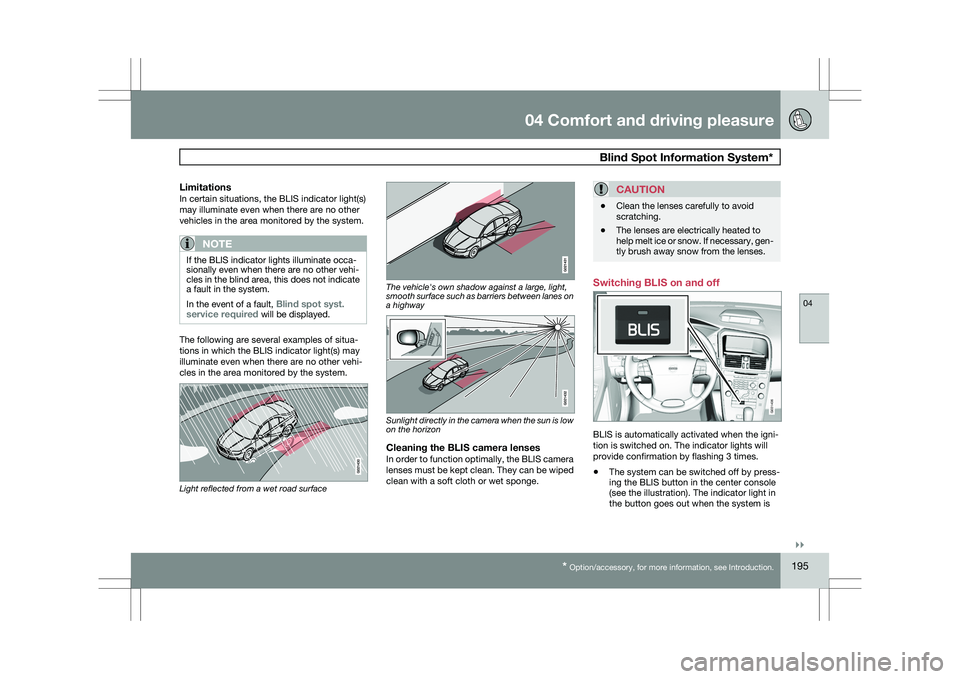
The following are several examples of situa-
tions in which the BLIS indicator light(s) may
illuminate even when there are no other vehi-
cles in the area monitored by the system.
Light reflected from a wet road surface The vehicle's own shadow against a large, light,
smooth surface such as barriers between lanes on
a highway
Sunlight directly in the camera when the sun is low
on the horizon
Cleaning the BLIS camera lensesIn order to function optimally, the BLIS camera
lenses must be kept clean. They can be wiped
clean with a soft cloth or wet sponge.
CAUTION \b
Clean the lenses carefully to avoid
scratching.
\b The lenses are electrically heated to
help melt ice or snow. If necessary, gen-
tly brush away snow from the lenses. Switching BLIS on and off
BLIS is automatically activated when the igni-
tion is switched on. The indicator lights will
provide confirmation by flashing 3 times.
\b
The system can be switched off by press-
ing the BLIS button in the center console
(see the illustration). The indicator light in
the button goes out when the system is BLIS
G031406
Page 201 of 297
04 Comfort and driving pleasure
Passenger compartment convenience04
* Option/accessory, for more information, see Introduction. 199
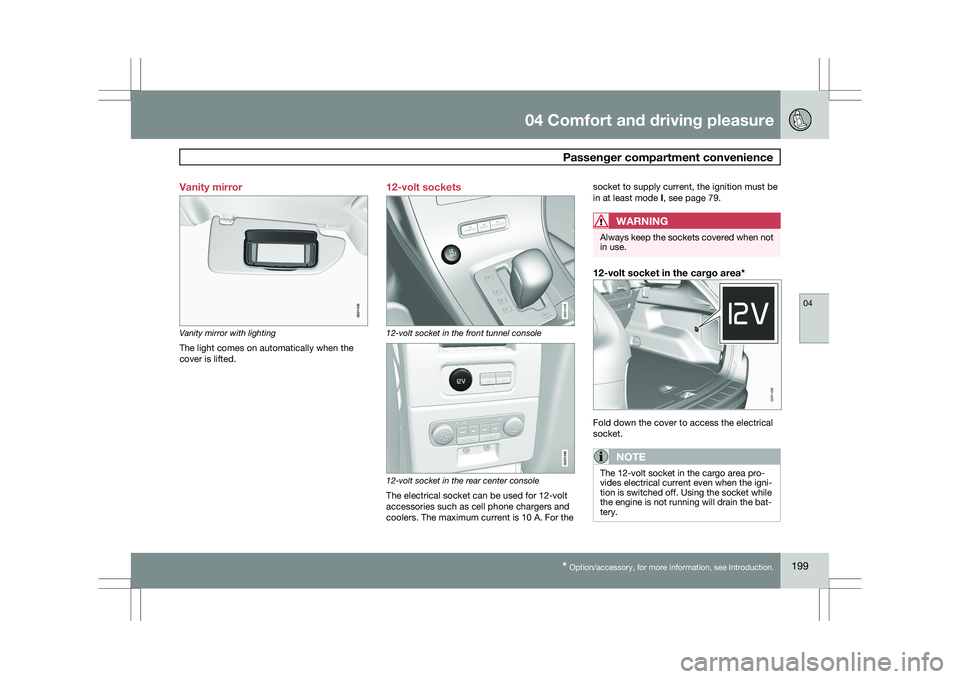
Vanity mirror
Vanity mirror with lighting
The light comes on automatically when the
cover is lifted.
12-volt sockets 12-volt socket in the front tunnel console
12-volt socket in the rear center console
The electrical socket can be used for 12-volt
accessories such as cell phone chargers and
coolers. The maximum current is 10 A. For thesocket to supply current, the ignition must be
in at least mode I, see page 79.
WARNING Always keep the sockets covered when not
in use.
12-volt socket in the cargo area*
Fold down the cover to access the electrical
socket.
NOTE
The 12-volt socket in the cargo area pro-
vides electrical current even when the igni-
tion is switched off. Using the socket while
the engine is not running will drain the bat-
tery. G021438 G031435 G021440 G031436