2009 VOLVO XC60 reset
[x] Cancel search: resetPage 125 of 297

04 Comfort and driving pleasure
Menus and messages04
}}
* Option/accessory, for more information, see Introduction. 123
City Safety
Light settings
Lock settings
Reduced guard
1
Parking camera settings*
Steering force level*
Information
Climate settings Automatic blower adjust
Recirculation timer
Auto. rear defroster
Reset climate settings
Main menu AM
Audio settings 2
Sound stage
Equalizer, front
Equalizer, rear
Auto. volume control
Resets all audio settings.
Main menu FMFM settings Radio text
Advanced radio settings
Audio settings
Main menu CDRandom Off
Folder
Disc
Single disc
All discs
CD settings Disc text*
Audio settings
Main menu AUXVolume, AUX input
Audio settings Main instrument panel
Information display and menu controls
READ – access to the list of messages and
message confirmation.
Thumbwheel – browse among menus and
options in the list of functions.
RESET – reset the active function. Used in
certain cases to select/activate a function,
see the explanation under each respective
function.
The menus shown on the information displays
in the instrument panel are controlled with the
left lever. The menus shown depend on ignition
mode. Press READ to erase a message and
return to the menus. 1
Certain models
2 The menu option for audio settings is available in all audio sources. G022908
Page 127 of 297
04 Comfort and driving pleasure
Menus and messages04
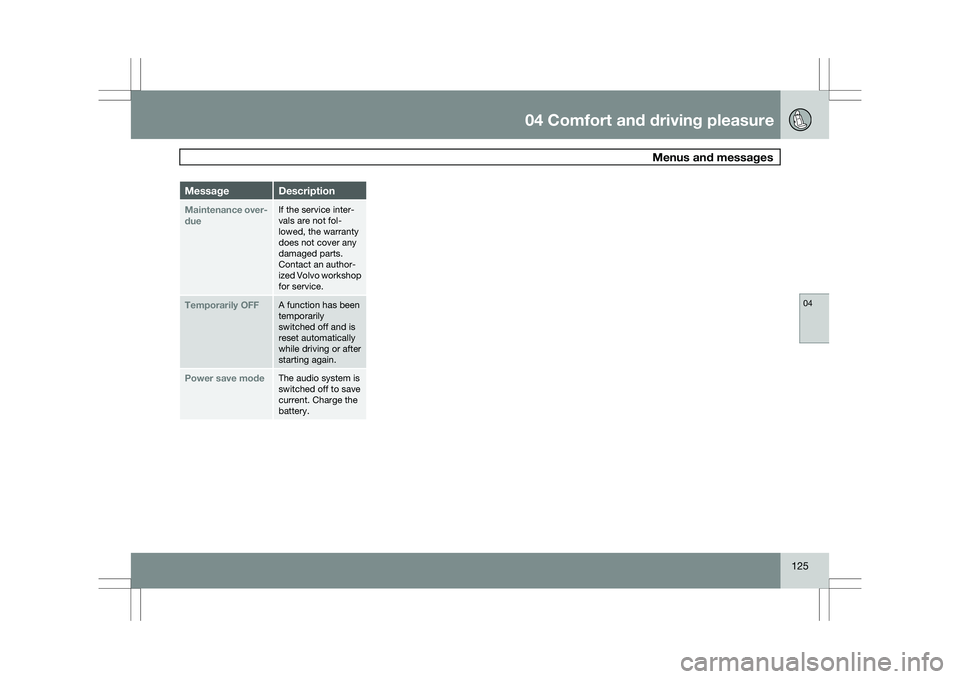
125Message Description
Maintenance over-
due If the service inter-
vals are not fol-
lowed, the warranty
does not cover any
damaged parts.
Contact an author-
ized Volvo workshop
for service.
Temporarily OFF A function has been
temporarily
switched off and is
reset automatically
while driving or after
starting again.
Power save mode The audio system is
switched off to save
current. Charge the
battery.
Page 135 of 297

04 Comfort and driving pleasure
Audio system04
}}
* Option/accessory, for more information, see Introduction. 133
Introduction
The audio system is available in two versions:
High Performance and Premium Sound. The
system version is shown in the display when
the audio system is switched on.
If the audio system is on when the ignition is
switched off, it will come on automatically the
next time the ignition is put in mode
I or higher.
The audio system can be operated without a
key in the ignition slot for 15 minutes at a time
by pressing the POWER button (the driver\fs
door must be closed on vehicles with the
optional keyless drive).
Some functions are controlled from the menu
system in the center console. For more infor-
mation on menus, see page 122.
Dolby Surround Pro Logic II and the sym-
bol are trademarks of Dolby Laboratories
Licensing Corporation. The Dolby Surround
Pro Logic II System is manufactured under
license from Dolby Laboratories Licensing Cor-
poration.
Remote key and ignition modesThe audio system can be used for 15 minutes
at a time if the remote key is not inserted in the
ignition slot.
NOTE To prevent unnecessary drain on the vehi-
cle\fs battery, remove the remote key from
the ignition slot if the audio system is used
when the engine is not running.
If the audio system is playing when the engine
is switched off, it will be on when the engine is
restarted.
Overview
Socket for external audio source (AUX,
USB, iPod®)
Steering wheel keypad
Center console control panel Control panel with headphone socket*
Rear seat control panel
Steering wheel keypad Confirm selection in menu system and
control for a bluetooth-connected cell
phone (see page 148).
Go higher in the menu system, interrupt an
ongoing function and control for a blue-
tooth-connected cell phone.
Volume
A short press scrolls between CD tracks or
preset radio stations. A long press
searches within CD tracks or searches for
the next available radio station. 5G031438 G02139
9
Page 137 of 297

04 Comfort and driving pleasure
Audio system04
}}
* Option/accessory, for more information, see Introduction. 135
tem must be set to USB Removable device/
Mass Storage Device.
iPodAn iPod receives current and its battery is
charged through the connecting cord. How-
ever, if the iPod\fs battery is completely
drained, it should be recharged before the iPod
is connected to the audio system.
NOTE
When an iPod® is used as a sound source,
the vehicle\fs audio system has a menu
structure similar to the one in the iPod
®. See
the iPod\fs manual for detailed information. For further information, refer to the accessory
manual USB/iPod Music Interface.
Rear seat control panel with
headphone sockets
Headphones with an impedance of
16 – 32 ohm and sensitivity of 102 dB or higher
are recommended for best sound reproduc-
tion. Volume control (right/left sides)
Scroll/search forward and back
MODE – select AM, FM, HD Radio™
1
, CD,
AUX, USB/iPod®* and ON/OFF. Headphones sockets (3.5 mm)
Activating/deactivatingThe control panel is activated by pressing
MODE when the audio system is switched on.
It can be switched off by a long press on
MODE.
Scroll/search forward and backwardShort presses on (2) are used to scroll between
CD tracks or preset radio stations. Longpresses are used to fast-wind CD tracks or to
search for the next available radio station.
LimitationsThe audio source (FM, AM, CD, etc.) being
played in the speakers cannot be controlled
from the rear control panel.
Menu control and MY KEY
Certain functions can be controlled from the
menu system in the center console. For more
information on menus, see page 122.
Storing your favorite functions with MY
KEY
1
Available on U.S. models only G031439
Page 140 of 297

04 Comfort and driving pleasureAudio system 04
138 intended to enable the user to adapt sound
reproduction to his/her personal tastes.
Radio functions
Center console, controls for radio functions
Navigation button for automatic tuning
Cancel a menu selection or a selected
function
Manual tuning
Scan the current wave band
Auto store the strongest radio stations in
the area
Station preset buttons
Select wave band AM and FM (FM1 and
FM2)
Automatic tuning1.
Select a wave band using FM or AM.
2. Press / on the navigation button.
3. The tuner will search for the next station.
Manual tuning1. Select a wave band using FM or AM.
2. Turn TUNING to select a frequency.
Preset stationsTen station presets can be stored for each
wave band. FM has two memories for presets:
FM1 and FM2. The stored presets are selected
using the preset buttons.
Preset storage can be carried out manually or
automatically.
Manually storing preset stations1. Tune in a station or frequency.
2. Hold in one of the preset buttons until the
message Channel stored appears on the
display.
Automatically storing preset stationsThe function is especially useful in areas where
the radio stations and their frequencies are
unfamiliar. The ten strongest radio stations are
stored automatically in a separate memory.
1.Select a wave band using FM or AM. 2.
Hold in AUTO until Autostoring…
appears on the display.
Once Autostoring… disappears from the dis-
play, the stations are stored. The radio contin-
ues in Auto mode and Auto appears on the
display. The automatically stored presets can
now be selected using the preset buttons.
Automatic preset storage can be cancelled
using EXIT.
Auto mode is cancelled by pressing AUTO or
FM.
Returning to Auto mode provides access to the
autostored presets:
1. Press AUTO.
>
Auto appears on the display.
2. Press a preset button.
ScanThe function automatically searches the cur-
rent wave band for strong stations. When a
station is found, it is played for approx. eight
seconds before scanning is resumed. While
the station is playing it can be stored as a pre-
set as usual.
NOTE Storing a station interrupts the SCAN func-
tion. G031441
Page 144 of 297

04 Comfort and driving pleasureAudio system 04
142 actions. The SIRIUS ID is sometimes referred
to as the Electronic Serial Number (ESN).
Selecting a channel category1. Select Sirius radio mode as described
above.
2. Press ENTER.
3. Use the up/down arrow keys to scroll through the list of categories.
4. Press ENTER or the right arrow key to
select a category.
> The first channel in the selected cate-
gory will then be played.
NOTE \b
The category
ALL is default, which ena-
bles you to scroll through the entire list
of available satellite channels.
\b The channel categories are automati-
cally updated several times a year. This
takes approximately two minutes and
will interrupt normal broadcasting. A
message will be displayed while updat-
ing is in progress. Information on chan-
nel or feature updates is available at
www.sirius.com.
Selecting a channelThere are three ways of tuning in a channel: \b
Using the left and right arrow keys
\b By turning the tuning control
\b Through direct channel entry.
NOTE \b
The numbers of skipped or locked
channels will not be displayed.
\b If a channel is locked, the access code
must be entered before the channel can
be selected. See "Unlocking a channel"
on page 144.
Direct channel entryThe Sirius satellite channels are in numerical
order throughout all of the categories. To
access a channel directly:
1.
Press MENU and scroll to Direct channel
entry.
2. Use the numerical keypad to enter the channel\fs number.
3. Press ENTER. The radio will tune to this
channel, even if it belongs to a category
other than the currently selected one.
ScanningSCAN automatically searches through the list
of satellite channels. The search will only be
carried out in the selected category, see
page 138 for more detailed information.
Storing a channelA total of 20 satellite channels can be stored;
10 channels each for Sirius 1 and 2, see
page 138 for detailed information on storing
channels.
\bA long press on one of the number keys
stores the currently tuned channel on that
key.
\b A short press on a number key while the
radio is in Sirius 1or 2 mode will tune to the
preset satellite channel stored on that but-
ton, regardless of the currently selected
channel category.
Song Seek and Song Memory
The
Song Seek and Song Memory functions
provide both audio and visual notification when
Sirius is broadcasting your favorite songs.
Song Seek enables you to store the name of
the song for future advance notification when
that song is being played. The Song Memory
feature makes it possible to view all of the cur-
rent songs that are stored in memory.
Song memoryUp to ten songs can be saved in the system\fs
memory.
1. Press MENU.
2. Scroll to Add song to song mem. and
follow the instructions shown in the dis-
play.
Page 155 of 297

04 Comfort and driving pleasure
Trip computer04
153
Introduction
Information display and controls
READ–press to acknowledge/confirm/
erase a message)
Thumb wheel (used to scroll among the trip
computer menus)
RESET–resets certain functions
To scroll through trip computer information,
move the thumb wheel up or down. Continue
turning to return to the starting point. Functions
NOTE If a warning message appears while you are
using the trip computer, this message must
be acknowledged in order to return to the
trip computer function. Acknowledge a
message by pressing READ.
To change the unit of measure specified for
distance and speed, contact an authorized
Volvo workshop.
Average speedThe system calculates the average speed from
the last resetting. Reset using
RESET.
Current speed in mph (Canadian models
only)
This function provides the driver with an instan-
taneous conversion of the car\fs current speed
from km/h to mph.
Current speed in km/h (U.S. models only)This function provides the driver with an instan-
taneous conversion of the car\fs current speed
from mph to km/h.
Current fuel consumption
(Instantaneous)
Current fuel consumption is calculated every
second. The information on the display is updated every few seconds. When the vehicle
is stationary, "----" appears on the display.
Average fuel consumptionThe average fuel consumption since the last
reset. Reset using RESET.
Driving distance on current fuel reserveThis function shows the approximate distance
that can be driven on the fuel remaining in the
tank. The calculation is based on average fuel
consumption during the last 20 miles (30 km)
of driving and the amount of fuel remaining in
the tank when the reading was taken. When the
message ---- miles to empty tank appears in
the display, refuel as soon as possible.
NOTE The actual distance that can be driven on
the usable fuel remaining in the tank may be
influenced by a change in driving style.
Resetting1.
Select Average speed or Average fuel
consumption.
2. Press and hold RESET for approx. 1 sec-
ond to reset the selected function. If
RESET is kept depressed for at 3 three
seconds, Average speed and Average fuel
consumption are reset simultaneously. G022909
Page 157 of 297

04 Comfort and driving pleasure
Stability system04
}}
155
Introduction
The Dynamic Stability and Traction Control
system (DSTC) consists of a number of func-
tions designed help reduce wheel spin, coun-
teract skidding, and to generally help improve
directional stability.
CAUTION
A pulsating sound will be audible when the
system is actively operating and is normal.
Traction control (TC)This function is designed to help reduce wheel
spin by transferring power from a drive wheel
that begins to lose traction to the wheel on the
opposite side of the vehicle (on the same axle).
TC is most active at low speeds.
This is one of DSTC\fs permanent functions and
cannot be switched off.
Active Yaw Control (AYC)This function helps maintain directional stabil-
ity, for example when cornering, by braking
one or more of the wheels if the vehicle shows
a tendency to skid or slide laterally.
This is one of DSTC\fs permanent functions and
cannot be switched off.
Spin control (SC)The spin control function is designed to help
prevent the drive wheels from spinning while
the vehicle is accelerating.
Under certain circumstances, such as when
driving with snow chains, or driving in deep
snow or loose sand, it may be advisable to
temporarily switch off this function for maxi-
mum tractive force.
WARNING
The car\fs handling and stability characteris-
tics will be altered if the spin control function
has been disabled.
Operation
Temporarily switching off Spin control1.
Turn the thumbwheel until the DSTC
menu is shown.
2. Hold down the RESET button to toggle
between DSTC SPIN CONTROL ON or
OFF.
Messages in the information display
DSTC Temporarily OFF – system function
has been temporarily reduced due to high
brake disc temperature. The function is acti-
vated automatically when the brakes have
cooled.
DSTC Service required – the system has
been disabled due to a fault. If this occurs:
1. Stop the vehicle in a safe place and turn off
the engine.
2. Restart the engine.
If the message remains when the engine is
restarted, drive to an authorized Volvo work-
shop to have the system inspected.
Symbols in the instrument panel
If the symbols and are dis-
played at the same time, read the message in
the information display. G02140
9