2009 VOLVO XC60 audio
[x] Cancel search: audioPage 127 of 297
04 Comfort and driving pleasure
Menus and messages04
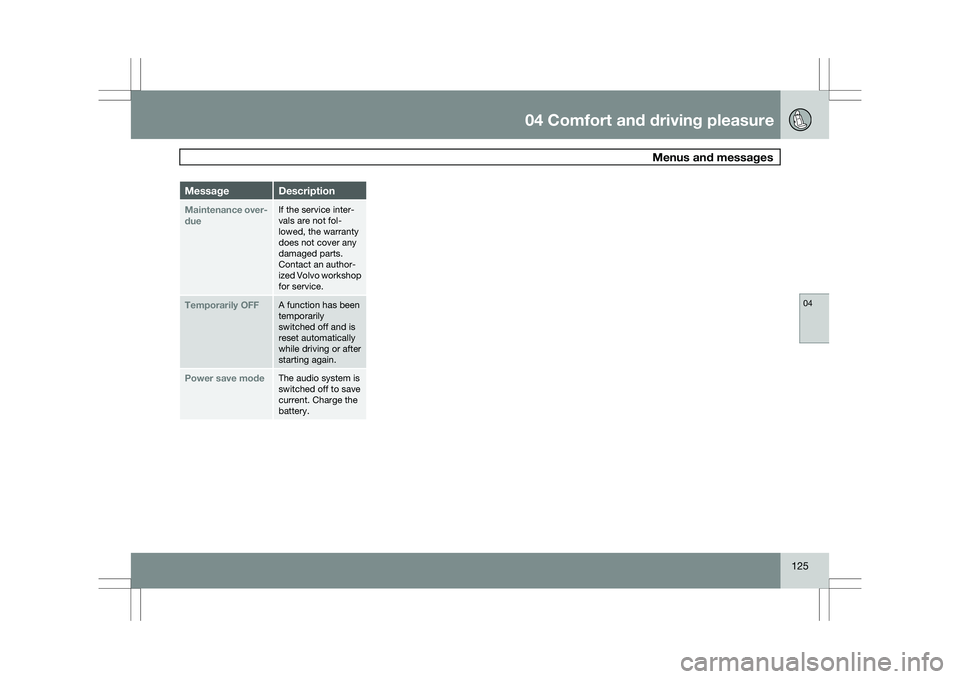
125Message Description
Maintenance over-
due If the service inter-
vals are not fol-
lowed, the warranty
does not cover any
damaged parts.
Contact an author-
ized Volvo workshop
for service.
Temporarily OFF A function has been
temporarily
switched off and is
reset automatically
while driving or after
starting again.
Power save mode The audio system is
switched off to save
current. Charge the
battery.
Page 135 of 297

04 Comfort and driving pleasure
Audio system04
}}
* Option/accessory, for more information, see Introduction. 133
Introduction
The audio system is available in two versions:
High Performance and Premium Sound. The
system version is shown in the display when
the audio system is switched on.
If the audio system is on when the ignition is
switched off, it will come on automatically the
next time the ignition is put in mode
I or higher.
The audio system can be operated without a
key in the ignition slot for 15 minutes at a time
by pressing the POWER button (the driver\fs
door must be closed on vehicles with the
optional keyless drive).
Some functions are controlled from the menu
system in the center console. For more infor-
mation on menus, see page 122.
Dolby Surround Pro Logic II and the sym-
bol are trademarks of Dolby Laboratories
Licensing Corporation. The Dolby Surround
Pro Logic II System is manufactured under
license from Dolby Laboratories Licensing Cor-
poration.
Remote key and ignition modesThe audio system can be used for 15 minutes
at a time if the remote key is not inserted in the
ignition slot.
NOTE To prevent unnecessary drain on the vehi-
cle\fs battery, remove the remote key from
the ignition slot if the audio system is used
when the engine is not running.
If the audio system is playing when the engine
is switched off, it will be on when the engine is
restarted.
Overview
Socket for external audio source (AUX,
USB, iPod®)
Steering wheel keypad
Center console control panel Control panel with headphone socket*
Rear seat control panel
Steering wheel keypad Confirm selection in menu system and
control for a bluetooth-connected cell
phone (see page 148).
Go higher in the menu system, interrupt an
ongoing function and control for a blue-
tooth-connected cell phone.
Volume
A short press scrolls between CD tracks or
preset radio stations. A long press
searches within CD tracks or searches for
the next available radio station. 5G031438 G02139
9
Page 136 of 297

04 Comfort and driving pleasureAudio system 04
134 Please note that these functions are also avail-
able through the audio system controls on cen-
ter console.
USB/iPod connector
An iPod or MP3 player can be connected to the
audio system via the AUX or USB sockets in the
center storage compartment
An auxiliary device, such as an iPod, MP3
player or a USB flash drive can be connected
to the audio system via the sockets in the cen-
ter console storage compartment. A standard
cable from an iPod or MP3 player can be
routed under the cover to the AUX connector
in the storage compartment.
The USB socket provides current to or charges
the device connected (depending on the
device). A sound source must be chosen, depending on
the device that has been connected:
1.
Use MODE to select iPod or USB. The text
CONNECT DEVICE will be displayed.
2. Connect the device to the connector in the
center console storage compartment.
The text LOADING will be displayed while the
system loads the files (folder structure) on the
device. This may take a short time.
When information about the files (the folder
structure) on the device has been loaded, the
resulting list includes information on the artist,
genre and song title if this information is
included on the device.
To navigate in the folder structure, press
ENTER and scroll up and down the folders
using the arrow buttons (on the audio system
control panel or on the steering wheel keypad).
Press the right arrow button to select a folder.
Press the left arrow button to go up a level in
the folder structure. Press ENTER to go down
a level in the folder structure.
Tracks can be selected in two ways:
\b Turn the Tuning knob clockwise or coun-
terclockwise
\b Use the right or left arrow keys on the nav-
igation control to select the desired track. The arrow keys on the steering wheel key-
pad can also be used in the same way.
NOTE The system supports playback of files in the
most common versions of formats such as
mp3, wma, and wav. However, there may be
versions of these formats that the system
does not support.
The system also supports a number of
iPod® models produced in 2005 or later.
iPod® Shuffle is not supported.
USB flash driveTo simplify the use of a USB flash drive, it is
advisable to only store music files on the drive.
It will take considerably longer for the system
to index the files on the drive if it contains any-
thing other than compatible music files.
NOTE
The system supports removable media that
uses the USB 2.0 standard and the FAT32
file system and can index up to 500 folders
and a maximum of 64,000 files. The device
must have at least 256 Mb of memory.
MP3 playerMany mp3 players have a file indexing system
that is not supported by the vehicle\fs audio
system. In order to use an mp3 player, the sys- G031959
Page 137 of 297

04 Comfort and driving pleasure
Audio system04
}}
* Option/accessory, for more information, see Introduction. 135
tem must be set to USB Removable device/
Mass Storage Device.
iPodAn iPod receives current and its battery is
charged through the connecting cord. How-
ever, if the iPod\fs battery is completely
drained, it should be recharged before the iPod
is connected to the audio system.
NOTE
When an iPod® is used as a sound source,
the vehicle\fs audio system has a menu
structure similar to the one in the iPod
®. See
the iPod\fs manual for detailed information. For further information, refer to the accessory
manual USB/iPod Music Interface.
Rear seat control panel with
headphone sockets
Headphones with an impedance of
16 – 32 ohm and sensitivity of 102 dB or higher
are recommended for best sound reproduc-
tion. Volume control (right/left sides)
Scroll/search forward and back
MODE – select AM, FM, HD Radio™
1
, CD,
AUX, USB/iPod®* and ON/OFF. Headphones sockets (3.5 mm)
Activating/deactivatingThe control panel is activated by pressing
MODE when the audio system is switched on.
It can be switched off by a long press on
MODE.
Scroll/search forward and backwardShort presses on (2) are used to scroll between
CD tracks or preset radio stations. Longpresses are used to fast-wind CD tracks or to
search for the next available radio station.
LimitationsThe audio source (FM, AM, CD, etc.) being
played in the speakers cannot be controlled
from the rear control panel.
Menu control and MY KEY
Certain functions can be controlled from the
menu system in the center console. For more
information on menus, see page 122.
Storing your favorite functions with MY
KEY
1
Available on U.S. models only G031439
Page 138 of 297

04 Comfort and driving pleasureAudio system 04
136
* Option/accessory, for more information, see Introduction.
1. Select the function in the menu to be
stored. Only certain functions can be
stored.
2. Press and hold MY KEY for more than two
seconds.
Activate the stored function by pressing MY
KEY briefly.
The following functions can be pro-
grammed using MY KEY:
FM
Radio text on/off
Audio settings Sound stage (front/driver/rear)
Auto. volume control (off/low/medium/
high)
Sirius satellite radio* Add song to memory
Direct channel entry
Song seek (on/off)
Sirius settings – Song memory (show
memory list)
CD/CD changer Random (CD changer)
Disc text (on/off) Track information (on/off)
Car settings Fold mirror when locking
Audio functions Center console, controls for audio functions
Internal audio sources:
AM, FM and CD External audio source or Sirius satellite
radio*. For connection, see page 134
Push button and knob controls for adjust-
ing sound settings
Menu navigation button
Volume and on/off
Audio volume and automatic volume
control
The audio system compensates for disrupting
noises in the passenger compartment by
increasing the volume according to the speed
of the vehicle. The level of sound compensa-
tion can be set at low, medium or high. Select
the level under Audio settings Auto
volume control in the menu system.
External audio source volumeExternal devices such as an MP3 player can be
connected to the AUX input, see page 134. The
volume of the external sound source AUX may
be different from the volume of the internal
sound sources such as the CD player or the
radio. Before connecting an external device, it
may be advisable to adjust the device to
approximately 2/3 of its maximum volume. If
the external sound source\fs volume is too high,
the quality of the sound may be impaired. To
help prevent this, adjust the input volume of the
external audio source:
1. Set the audio system in AUX mode using MODE and use (4) to navigate to Volume,
AUX input.
2. Turn the control (3) or press / the nav-
igation button. G031440
Page 139 of 297

04 Comfort and driving pleasure
Audio system04
}}
* Option/accessory, for more information, see Introduction. 137
Sound settingsPress the control (3) repeatedly to toggles
among the sound settings. Adjustments are
made by turning the control (3).
\b
Bass – Bass level.
\b Treble – Treble level.
\b Fader – Balance between the front and
rear speakers.
\b Balance – Balance between the right and
left speakers.
\b Subwoofer* – Level for the bass speaker.
The subwoofer can be switched off by
turning control (3) counterclockwise to
MIN. The location of the subwoofer is
shown in the illustration. \b
Surround* – Surround settings.
Under Surround, 3 channel stereo or Dolby
Surround Pro logic II can be activated by
selecting 3-ch or Dpl2 respectively. This ena-
bles the following options:
\b Center level 2
– Level for the center
speaker.
\b Surround level 2
– Level for surround
sound.
EqualizerSound levels for different frequency bands can
be adjusted separately using the equalizer 3
. 1.
Go to Audio settings and select
Equalizer Front or Equalizer Rear.
The sound level for the frequency band is
adjusted with / on the navigation but-
ton. Press / to select another fre-
quency band.
2. Use ENTER to save or EXIT to close.
Sound stage 4The sound experience can be optimized for the
driver\fs seat, both front seats or the rear seat.
Select one of the options under
Audio settings Soundstage.
Optimal sound reproductionThe audio system is calibrated for optimal
sound reproduction using digital signal pro-
cessing.
This calibration takes into account factors such
as the speakers, amplifier, cabin acoustics, the
listeners\f seating positions, etc., for each com-
bination of vehicle/audio system.
There is also a dynamic calibration that takes
into consideration the volume level, radio
reception, and the speed of the vehicle.
The settings that are described in this manual,
such as Bass,
Treble, and Equalizer are only2
Premium Sound
3 Certain audio systems
4Certain markets only. G031960
Page 140 of 297

04 Comfort and driving pleasureAudio system 04
138 intended to enable the user to adapt sound
reproduction to his/her personal tastes.
Radio functions
Center console, controls for radio functions
Navigation button for automatic tuning
Cancel a menu selection or a selected
function
Manual tuning
Scan the current wave band
Auto store the strongest radio stations in
the area
Station preset buttons
Select wave band AM and FM (FM1 and
FM2)
Automatic tuning1.
Select a wave band using FM or AM.
2. Press / on the navigation button.
3. The tuner will search for the next station.
Manual tuning1. Select a wave band using FM or AM.
2. Turn TUNING to select a frequency.
Preset stationsTen station presets can be stored for each
wave band. FM has two memories for presets:
FM1 and FM2. The stored presets are selected
using the preset buttons.
Preset storage can be carried out manually or
automatically.
Manually storing preset stations1. Tune in a station or frequency.
2. Hold in one of the preset buttons until the
message Channel stored appears on the
display.
Automatically storing preset stationsThe function is especially useful in areas where
the radio stations and their frequencies are
unfamiliar. The ten strongest radio stations are
stored automatically in a separate memory.
1.Select a wave band using FM or AM. 2.
Hold in AUTO until Autostoring…
appears on the display.
Once Autostoring… disappears from the dis-
play, the stations are stored. The radio contin-
ues in Auto mode and Auto appears on the
display. The automatically stored presets can
now be selected using the preset buttons.
Automatic preset storage can be cancelled
using EXIT.
Auto mode is cancelled by pressing AUTO or
FM.
Returning to Auto mode provides access to the
autostored presets:
1. Press AUTO.
>
Auto appears on the display.
2. Press a preset button.
ScanThe function automatically searches the cur-
rent wave band for strong stations. When a
station is found, it is played for approx. eight
seconds before scanning is resumed. While
the station is playing it can be stored as a pre-
set as usual.
NOTE Storing a station interrupts the SCAN func-
tion. G031441
Page 141 of 297

04 Comfort and driving pleasure
Audio system04
}}
139
1.
Select a wave band using AM or FM.
2. Press SCAN.
>
SCAN appears on the display. Close
using SCAN or EXIT.
Radio textSome stations transmit information on pro-
gram content, artists, etc. This information can
be shown on the display.
Activate/deactivate in FM mode under Radio
text. HD Radio™reception (U.S.
models only) 5
Introduction Display when the radio is receiving an HD Radio
broadcast
Digital HD Radio broadcasts are available in
many areas of the United States. HD Radio
reception is available for both AM and FM
wavebands and provides improved sound
quality. Certain FM frequencies also offer
greater listening choices through “multicast-
ing” (sub-channels) on a given frequency.
When you have tuned to an HD Radio station,
the
symbol will appear in the lower left
corner of the audio system display. However, radio reception will remain analog (“normal”
reception) if you are not within digital range of
a station\fs transmitter. Digital range is slightly
shorter than the station\fs total range. When you
are within digital range of the transmitter, the
radio will automatically switch from analog to
digital reception and ">" will appear to the right
of the station\fs name (see the illustration).
Sound quality improves and in certain cases,
there may be more than one station available
on the same frequency (sub-channels).
NOTE
There will be a slight delay in analog recep-
tion before the radio switches over to digital.
When listening to a main HD Radio station,
digital reception will continue until you have
driven out of range of the digital transmitter.
The radio will then return to analog reception
and will continue to receive programming on
the selected frequency until you have driven
completely out of range of that particular sta-
tion.
5
HD Radio(TM) technology is manufactured under license from iBiquity Di\
gital Corp. U.S. and Foreign Patents. HD Radio(TM) and the HD and HD R\
adio logos are proprietary trademarks of iBiquity
Digital Corp.