Page 81 of 276
ADVANCED FUNCTIONS
101
�
To change “Phone #” (telephone
number)
1. Touch “Phone #” on the “Memory
Point” screen.
2. Enter the number using numeral
keys.
3. Touch “OK”.
The previous screen will be displayed. 1. Push the “MENU” button.
2. Touch “My Places” on the “Menu”
screen.3. Touch “Delete”.
4. Touch
the touch screen button to be
deleted.
“Delete All”: To delete all memory points
in the system.
5. To delete the memory point, touch
“Yes”. To cancel the deletion, touch
“No”.
— Deleting memory points
Page 99 of 276

SECTION 5
OTHER FUNCTIONS
11 9
OTHER FUNCTIONS
��\f�
������ ��
�Maintenance information 120
. . . . . . . . . . . . . . . . . . . . . . . . . . . . .
Maintenance information setting 120 . . . . . . . . . . . . . . . . . . . . . . .
Dealer setting 122 . . . . . . . . . . . . . . . . . . . . . . . . . . . . . . . . . . . . .\
.
� Calendar with memo 124
. . . . . . . . . . . . . . . . . . . . . . . . . . . . . . . . .
Adding a memo 126 . . . . . . . . . . . . . . . . . . . . . . . . . . . . . . . . . . . . .\
Editing a memo 127 . . . . . . . . . . . . . . . . . . . . . . . . . . . . . . . . . . . . .\
Memo list 127 . . . . . . . . . . . . . . . . . . . . . . . . . . . . . . . . . . . . .\
. . . . . .
� Hands −free system (for cellular phone) 129
. . . . . . . . . . . . . . . . . . .
� Speech command system 175
. . . . . . . . . . . . . . . . . . . . . . . . . . . . . .
� Help screen 178
. . . . . . . . . . . . . . . . . . . . . . . . . . . . . . . . . . . . .\
. . . . .
� Screen adjustment 179
. . . . . . . . . . . . . . . . . . . . . . . . . . . . . . . . . . . .
� Screen setting 181
. . . . . . . . . . . . . . . . . . . . . . . . . . . . . . . . . . . . .\
. . .
� Beep setting 184
. . . . . . . . . . . . . . . . . . . . . . . . . . . . . . . . . . . . .\
. . . . .
� Select language 185
. . . . . . . . . . . . . . . . . . . . . . . . . . . . . . . . . . . . .\
. .
Page 102 of 276

OTHER FUNCTIONS
122
It is possible to register a dealer in the sys-
tem. With dealer information registered,
route guidance to the dealer is available.
1. Push the “INFO” button.
2. Touch “Maintenance” on the “Infor-
mation” screen.
3. Touch “Set Dealer” on the “Mainte-
nance” screen.
4. If the dealer has not been registered,
enter the location of the dealer in the
same way as for a destination search.
(See “Destination search” on page 43.)
When “Set Dealer” registration is finished,
the “Edit Dealer” screen will be displayed.
5. Touch the touch screen button to be
edited.
“Dealer”: To enter the name of a dealer.
(See page 123.)
“Contact”: To enter the name of a dealer
member. (See page 123.)
“Location”: To set a location. (See page
123.)
“Phone #”: To set a telephone number.
(See page 124.)
“Delete Dealer”: To delete the dealer in-
formation displayed on the screen.
“Enter
”: To set the displayed dealer as
a destination. (See “Starting route guid-
ance” on page 63.)
— Dealer setting
Page 104 of 276
OTHER FUNCTIONS
124
�
To edit “Phone #” (telephone num-
ber)
1. Touch “Phone #” on the “Edit Deal-
er” screen.
2. Enter the number using numeral
keys.
3. Touch “OK”.
The previous screen will be displayed. It is possible to enter memos for particular
dates on the calendar.
The system informs
you of the memo entry when the system is
turned on. (See page 24.) Memos can also
be used for route guidance if the memo has
been registered with location information.
1. Push the “INFO” button.
2. Touch “Calendar”.
Calendar with memo —
Page 109 of 276

OTHER FUNCTIONS
129
Handsfree system allows you to make
or receive a call without taking your
hands off the steering wheel by con-
necting your cellular phone.
This system supports Bluetooth �.
Bluetooth � is a wireless data system by
which you can call without your cellular
phone being connected with a cable or
placed on a cradle.
If your cellular phone does not support
Bluetooth �, this system can not function.
CAUTION
While you are driving, do not use a
cellular phone or connect the
Bluetooth � phone.
NOTICE
Do not leave your cellular phone in
the car. The temperature indoor may
be high and damage the phone.
INFORMATION
In the following conditions, the sys-
tem may not function.
� The cellular phone is turned OFF.
� The current position is outside the
communication area.
� The cellular phone is not con-
nected.
� The cellular phone has a low bat-
tery.
By pushing the telephone switch
above, you can receive a call or hang up
without taking your hands off the steer-
ing wheel.
� Microphone
You can use the microphone above
when talking on the phone.
The other party’s voice outputs from the
driver’s speaker. When the received calls
or received voice outputs, the audio from
the Audio/video system or voice guidance
from the Navigation system will be muted.
Handsfree system
(for cellular phone)
Page 110 of 276

OTHER FUNCTIONS
130
INFORMATION
�Talk alternately with the other party
on the phone. If you talk at the
same time, the voice may not reach
each other. (It is not a malfunction.)
� Keep the volume of receiving voice
down. Otherwise, echo is coming
up. When you talk on the phone,
speak clearly towards the micro-
phone.
� In the following situations, your
voice may not reach the other
party.
�Driving on unpaved road. (Too
much road noise.)
� Driving at high speed.
� Windows are open.
� If airconditioning vents are
turned towards the microphone.
� The sound of the airconditioning
fan is loud.
1Indicates the condition of
Bluetooth � connection.
“Blue” indicates an excellent connection
to Bluetooth �.
“Yellow” indicates a bad connection to
Bluetooth �, resulting in possible deteriora-
tion of voice quality.
: no connection to Bluetooth �.
2Indicates the amount of battery
charge left.
Empty Full
It is not displayed while the Bluetooth � is
connecting or the phone book data is be-
ing transferred.
The amount left does not always corre-
spond with the one of your cellular phone.
This system doesn’t have a charging func-
tion.
3Indicates the receiving area.
“Rm” is displayed when receiving in
Roaming area.
“Hm” is displayed when receiving in
Home area.
Page 111 of 276

OTHER FUNCTIONS
131
4Indicates the level of reception.
Too bad Excellent
The level of reception does not always cor-
respond with the one of your cellular
phone.
INFORMATION
This system supports the following
service.
� HFP (Hands Free Profile) Ver. 1.0
� OPP (Object Push Profile) Ver. 1.1
If your cellular phone does not
support HFP, you cannot enter the
Bluetooth � phone, and take OPP
service individually.
An antenna for the Bluetooth � connec-
tion is built in the display. The indica-
tion of the Bluetooth� connection may
turn yellow and the system may not
function when you use the Bluetooth �
phone in the following conditions and
places.
�Your cellular phone is hiding behind the
display (behind the seat or in the glove
box and console box).
�Your cellular phone touches or is
covered with metal materials.
Leave the Bluetooth� phone on the
place where “Blue” indication is dis-
played.
Bluetooth is a trademark owned by
Bluetooth SIG, Inc.
When you sell your car:
A lot of personal data is registered
when you use the Handsfree system.
When you sell your car, initialize the
system so your personal information is
no longer recorded. (See “(d) Delete
personal data” on page 183.)
If you initialize it, the former state will never
come back again. Be careful when initializ-
ing data, because once the data is initial-
ized it can not be recovered.
You can initialize the following data in the
system.
�Phone book data
�Dialed numbers and received calls
�Speed dial
�Bluetooth � phone data
�Security code
Page 113 of 276
OTHER FUNCTIONS
133
CAUTION: Radio Frequency Radi-
ation Exposure
This equipment complies with FCC
radiation exposure limits set forth for
uncontrolled equipment and meets the
FCC radio frequency (RF) Exposure
Guidelines in Supplement C to OET65.
This equipment has very low levels of
RF energy that it deemed to comply
without maximum permissive expo-
sure evaluation (MPE). But it is desir-
able that it should be installed and op-
erated with at least 20 cm and more be-
tween the radiator and person’s body
(excluding extremities: hands, wrists,
feet and legs).
Colocation: This transmitter must
not be co −located or operated in con-
junction with any other antenna or
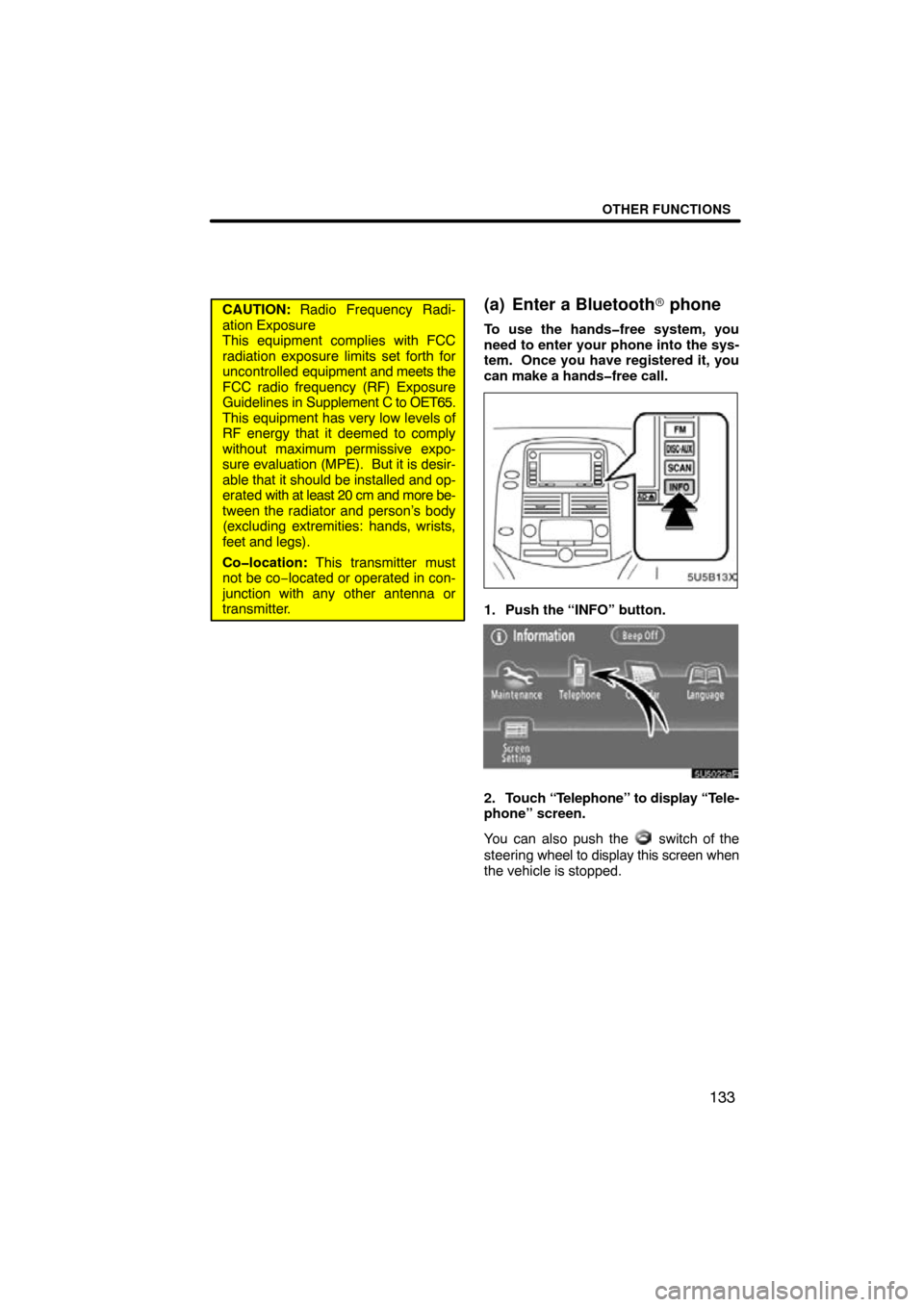
transmitter.(a) Enter a Bluetooth� phone
To use the handsfree system, you
need to enter your phone into the sys-
tem. Once you have registered it, you
can make a handsfree call.
1. Push the “INFO” button.
2. Touch “Telephone” to display “Tele-
phone” screen.
You can also push the
switch of the
steering wheel to display this screen when
the vehicle is stopped.

