Page 325 of 612
325
3-3. Using the rear audio/video system
3
Interior features
Using the DVD player (audio CD/CD text)
Repeat play■ Repeating a track
Select .
Random playback
■ Playing all of the tracks on a CD in random order
Select .
Search playback
■ Scanning tracks
Select .
The first 10 seconds of each track will be played.
Select again when the desired track is reached.
■Canceling repeat play and random playback
Select or once again.
■ Control screen
Press or to dis-
play the control screen.
Repeat play
Random playback
Search playback
Page 326 of 612
326
3-3. Using the rear audio/video system
Using the DVD player (MP3 discs)
Repeat play■ Repeating a file
Select .
■ Repeating all of the files in the folder
Select , and press and hold or .
Random playback
■ Playing files from a particular folder in random order
Select .
■ Playing all of the files on a disc in random order
Select , and press and hold or .
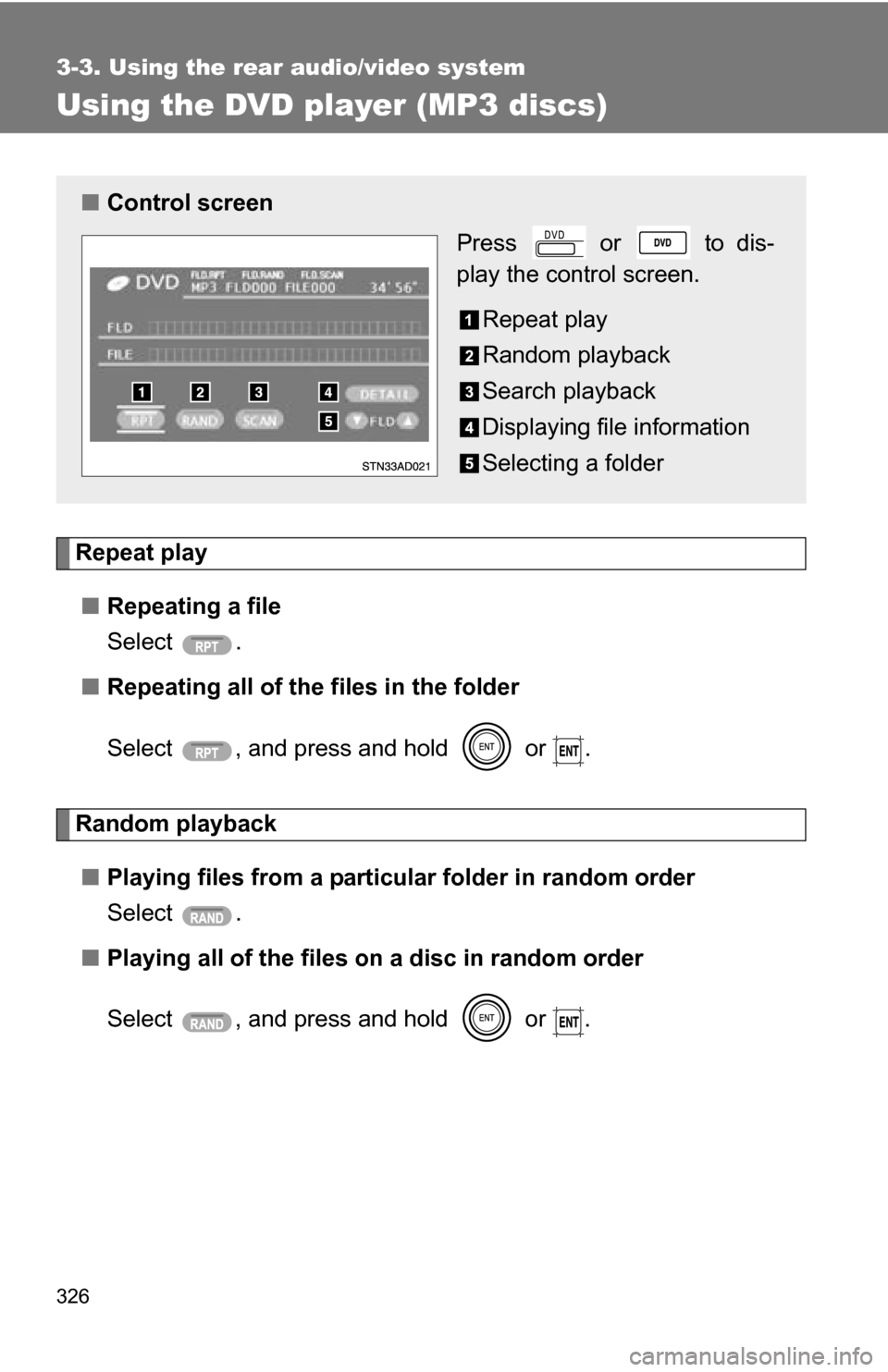
■Control screen
Press or to dis-
play the control screen.
Repeat play
Random playback
Search playback
Displaying file information
Selecting a folder
Page 327 of 612
327
3-3. Using the rear audio/video system
3
Interior features
Selecting and scanning folders
■ Selecting folders one at a time
To select the desired folder, select or .
■ Scanning the desired folder by cueing the first file of each
folder
Select , and press and hold or .
The first 10 seconds of the first file in the each folder will be
played.
When the desired folder is reached, select once
again.
Scanning files■ Scanning the desired file by cueing the files in the folder
Select .
The first 10 seconds of all files in the folder will be played.
When the desired file is reached, select once again.
Displaying file information.
Select .
■ Canceling repeat play and random playback
Select or once again.
Page 328 of 612
328
3-3. Using the rear audio/video system
Using the video mode
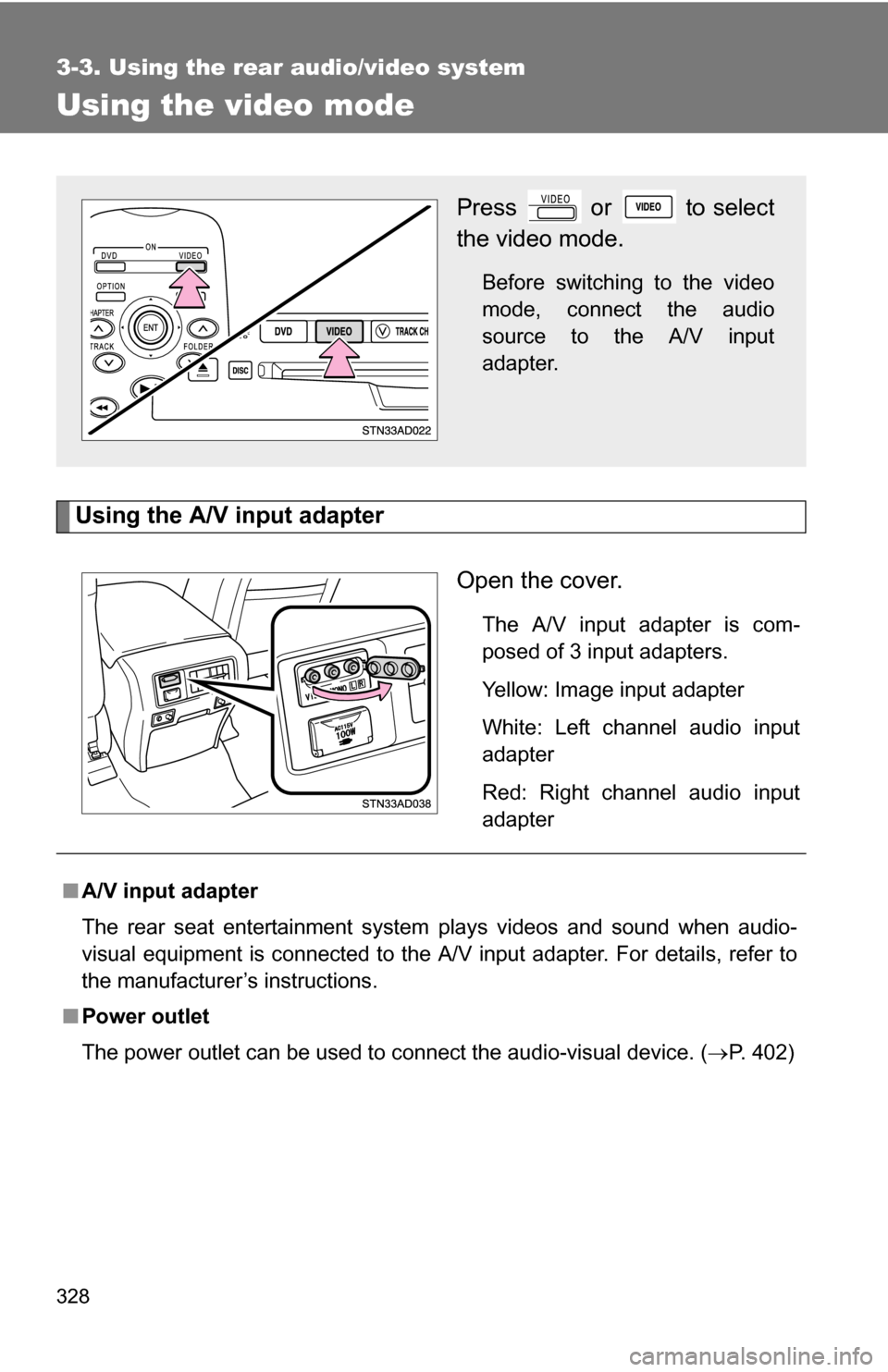
Using the A/V input adapterOpen the cover.
The A/V input adapter is com-
posed of 3 input adapters.
Yellow: Image input adapter
White: Left channel audio input
adapter
Red: Right channel audio input
adapter
Press or to select
the video mode.
Before switching to the video
mode, connect the audio
source to the A/V input
adapter.
■A/V input adapter
The rear seat entertainment system plays videos and sound when audio-
visual equipment is connected to the A/V input adapter. For details, refer to
the manufacturer’s instructions.
■ Power outlet
The power outlet can be used to connect the audio-visual device. ( P. 402)
Page 329 of 612
329
3-3. Using the rear audio/video system
3
Interior features
NOTICE
■
When the A/V input adapter is not in use
Keep the A/V input adapter cover closed.
Inserting anything other than an appropriate plug may cause electrical fail-
ure or a short circuit.
Page 330 of 612
330
3-3. Using the rear audio/video system
Changing the Setup Menu settings
Changing the audio languageSelect . Select the language you want to
hear, and press or to
input it.
Press or select to
display the initial setting
screen.
The following settings can be
customized here.
●Audio language
● Subtitle language
● DVD language
● Angle mark
● Parental lock
Page 331 of 612
331
3-3. Using the rear audio/video system
3
Interior features
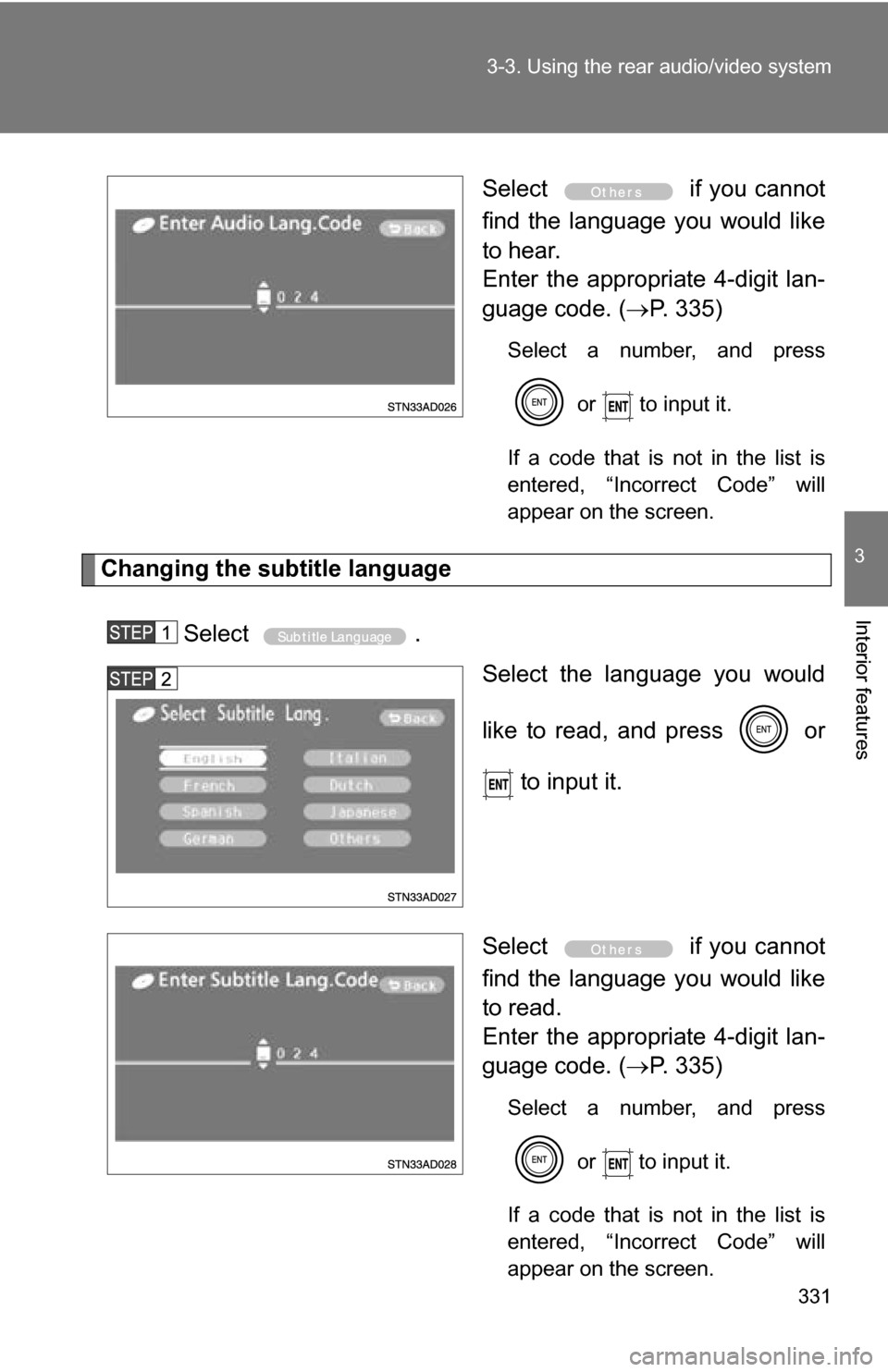
Select
if you cannot
find the language you would like
to hear.
Enter the appropriate 4-digit lan-
guage code. ( P. 335)
Select a number, and press
or to input it.
If a code that is not in the list is
entered, “Incorrect Code” will
appear on the screen.
Changing the subtitle language
Select . Select the language you would
like to read, and press or
to input it.
Select if you cannot
find the language you would like
to read.
Enter the appropriate 4-digit lan-
guage code. ( P. 335)
Select a number, and press
or
to input it.
If a code that is not in the list is
entered, “Incorrect Code” will
appear on the screen.
Page 332 of 612
332 3-3. Using the rear audio/video system
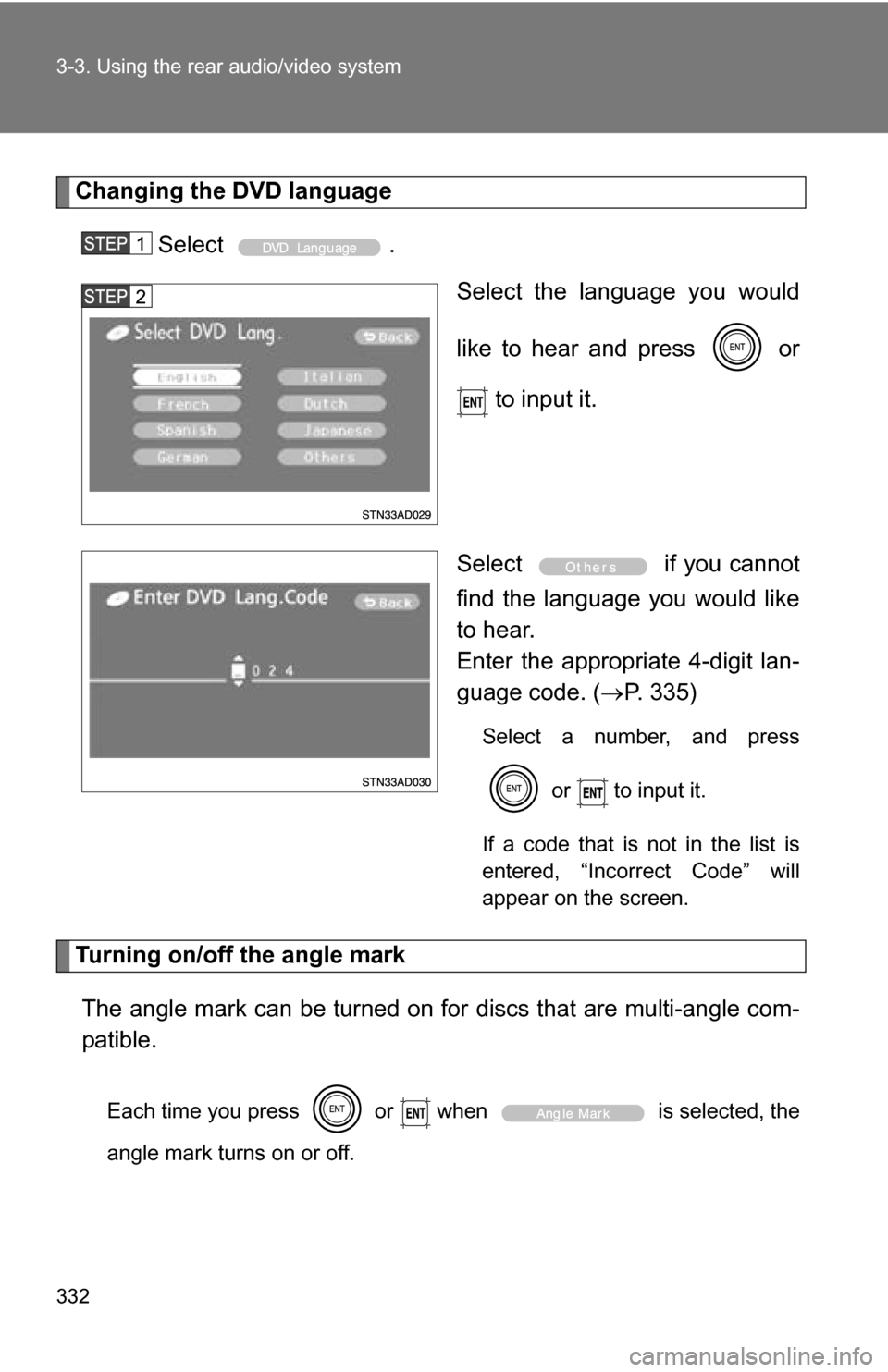
Changing the DVD languageSelect . Select the language you would
like to hear and press or
to input it.
Select if you cannot
find the language you would like
to hear.
Enter the appropriate 4-digit lan-
guage code. ( P. 335)
Select a number, and press
or to input it.
If a code that is not in the list is
entered, “Incorrect Code” will
appear on the screen.
Turning on/off the angle mark The angle mark can be turned on for discs that are multi-angle com-
patible.
Each time you press or when is selected, the
angle mark turns on or off.