Page 128 of 543
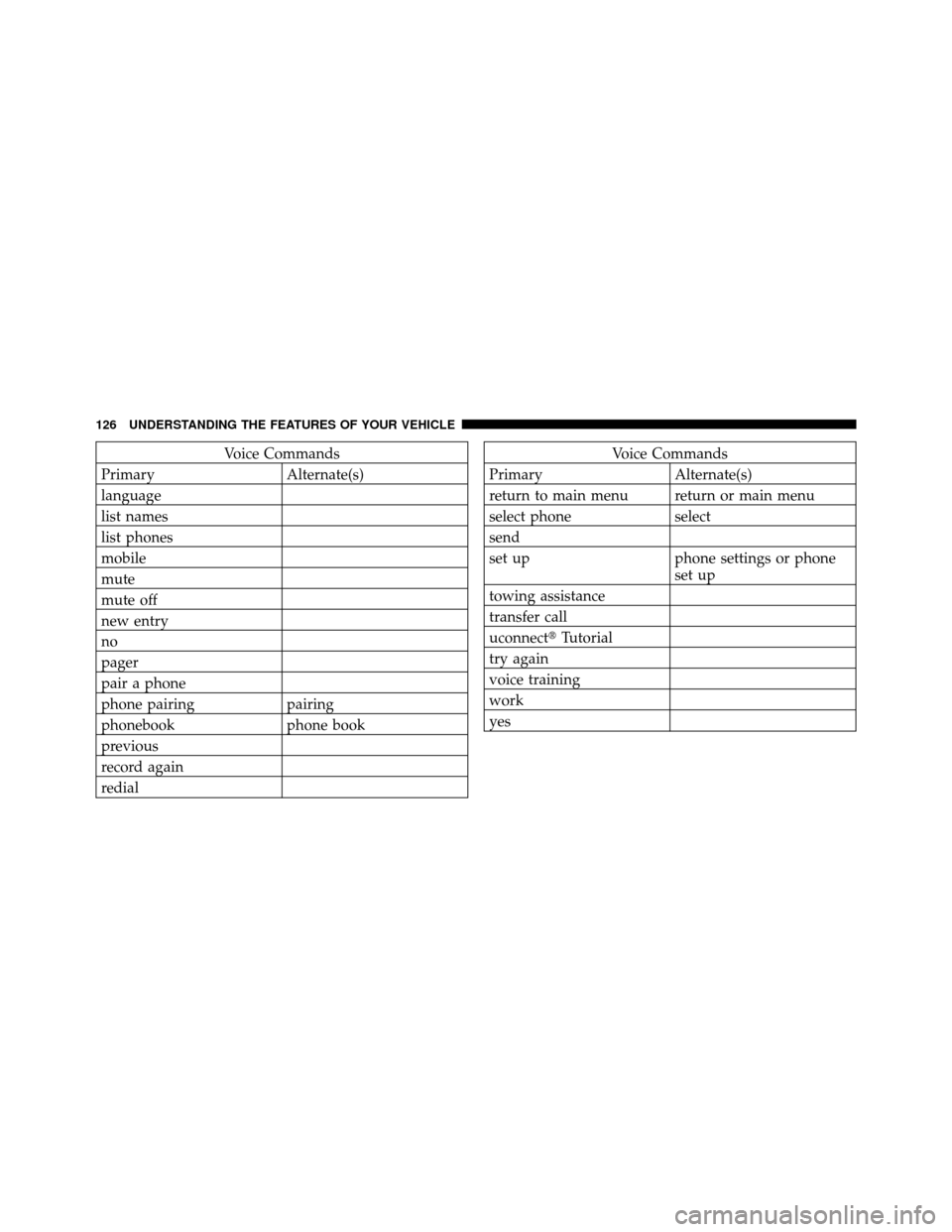
Voice Commands
Primary Alternate(s)
language
list names
list phones
mobile
mute
mute off
new entry
no
pager
pair a phone
phone pairing pairing
phonebook phone book
previous
record again
redialVoice Commands
Primary Alternate(s)
return to main menu return or main menu
select phone select
send
set up phone settings or phone set up
towing assistance
transfer call
uconnect� Tutorial
try again
voice training
work
yes
126 UNDERSTANDING THE FEATURES OF YOUR VEHICLE
Page 134 of 543

NOTE:Keep in mind that you have to press the VR
button first and wait for the beep before speaking the
“Barge In” commands.
Voice Training
For users experiencing difficulty with the system recog-
nizing their voice commands or numbers, uconnect�
phone Voice Training feature may be used.
1. Press the VR button, say “System Setup” and once you
are in that menu then say “Voice Training.” This will train
your own voice to the system and will improve recogni-
tion.
2. Repeat the words and phrases when prompted by
uconnect� phone. For best results, the Voice Training
session should be completed when the vehicle is parked,
engine running, all windows closed, and the blower fan
switched off. This procedure may be repeated with a new
user. The system will adapt to the last trained voice only.
SEATS
Seats are a primary part of the Occupant Restraint System
of the vehicle. They need to be used properly for safe
operation of the vehicle.
WARNING!
•It is extremely dangerous to ride in a cargo area,
inside or outside of a vehicle. In a collision, people
riding in these areas are more likely to be seri-
ously injured or killed.
•Do not allow people to ride in any area of your
vehicle that is not equipped with seats and seat
belts.
•Be sure everyone in your vehicle is in a seat and
using a seat belt properly.
132 UNDERSTANDING THE FEATURES OF YOUR VEHICLE
Page 170 of 543

On vehicles equipped with an Electronic Vehicle Infor-
mation Center (EVIC) the message “Park Assist Dis-
abled” will be displayed on the EVIC when the system
has been disabled. Refer to “Electronic Vehicle Informa-
tion Center (EVIC) — If Equipped” in Section 4.
Service The Rear Park Assist
When the Rear Park Assist is defective, the EVIC will
display the “SERVICE PARK ASSIST SYSTEM” message
along with a single chime once per ignition cycle. The
Park Assist display will also light the red LEDs indicating
a problem. Under this condition the Rear Park Assist will
not operate.
If “SERVICE PARK ASSIST SYSTEM” appears in the
Electronic Vehicle Information Center (EVIC) after mak-
ing sure the rear bumper is clean, please see your
authorized dealer.
Cleaning The Rear Park Assist
Clean the Rear Park Assist sensors with water, car wash
soap and a soft cloth. Do not use rough or hard cloths.
Do not scratch or poke the sensors, you could damage the
sensors.
REAR BACKUP CAMERA — IF EQUIPPED
The Rear Camera system allows you to see an on-screen
image (located in the screen of your uconnect™ tunes
radio) of the rear of your vehicle whenever it is put into
REVERSE. The camera is located next to the tailgate
handle on the rear of the vehicle.
168 UNDERSTANDING THE FEATURES OF YOUR VEHICLE
Page 222 of 543

�Electronic Digital Clock ................. 261
▫ Clock Setting Procedure ............... 261
� Sales Code (RER/REN) — AM/FM/CD/DVD
Radio – If Equipped .................... 261
▫ Operating Instructions — Voice Recognition
System (VR) — If Equipped ............. 262
▫ Operating Instructions — uconnect� phone
— If Equipped ...................... 262
▫ Clock Setting Procedure ............... 262
� Sales Code RES — AM/FM Stereo Radio With
CD Player (MP3 AUX Jack)............... 264
▫ Operating Instructions — Radio Mode ..... 264
▫ Operation Instructions — CD Mode For CD
And MP3 Audio Play ................. 267
▫ Notes On Playing MP3 Files ............ 270▫
Operation Instructions - Auxiliary Mode .... 272
� Sales Code RES/RSC — AM/FM Stereo Radio
With CD Player (MP3 AUX Jack) And Sirius
Radio ............................... 273
▫ Operating Instructions — Radio Mode ..... 273
▫ Operation Instructions — CD Mode For CD
And MP3 Audio Play ................. 278
▫ Notes On Playing MP3 Files ............ 281
▫ List Button (CD Mode For MP3 Play) ...... 283
▫ Info Button (CD Mode For MP3 Play) ...... 284
� uconnect� studios (Satellite Radio) — If
Equipped (REN/RER/RES Radios Only) ...... 285
▫ System Activation .................... 285
▫ Electronic Serial Number/Sirius
Identification Number (ESN/SID) ......... 285
220 UNDERSTANDING YOUR INSTRUMENT PANEL
Page 223 of 543

▫Selecting uconnect� studios (Satellite)
Mode ............................. 286
▫ Satellite Antenna ..................... 286
▫ Reception Quality .................... 287
▫ Operating Instructions - uconnect� studios
(Satellite) Mode ..................... 287
▫ Operating Instructions - uconnect� phone
(If Equipped) ....................... 289
� Video Entertainment System (VES)™ —
If Equipped .......................... 290
� Remote Sound System Controls —
If Equipped .......................... 291
▫ Radio Operation ..................... 291
▫ CD Player ......................... 292 �
CD/DVD Maintenance ................. 292
� Radio Operation And Cellular Phones ....... 293
� Climate Controls ...................... 293
▫ Manual Heating And Air Conditioning
System ............................ 293
▫ Automatic Temperature Control (ATC) —
If Equipped ........................ 297
▫ Summer Operation ................... 302
▫ Winter Operation .................... 302
▫ Vacation/Storage .................... 303
▫ Window Fogging And Frosting .......... 303
▫ Outside Air Intake ................... 303
▫ Operating Tips ...................... 304
4
UNDERSTANDING YOUR INSTRUMENT PANEL 221
Page 264 of 543

The REN and RER radios contain a CD/DVD player, USB
port, and a 30-gigabyte hard drive (HDD). Sirius Satellite
Radio is optional. The 6.5 in (16.5 cm) touch screen allows
for easy menu selection.
The RER radio also contains a Global Positioning System
(GPS)-based Navigation system.
Refer to your uconnect�tunes (REN) or (RER) user’s
manual for detailed operating instructions.
Operating Instructions — Voice Recognition
System (VR) — If Equipped
For the radio, refer to “Voice Recognition System (VR)” in
Section 3.
Operating Instructions — uconnect� phone — If
Equipped
Refer to “uconnect� phone” in Section 3.
Clock Setting Procedure
uconnect�gps — RER only
The GPS receiver used in this system is synchronized to
the time data being transmitted by the GPS satellite. The
satellite clock is Greenwich Mean Time (GMT). This is the
worldwide standard for time. This makes the system’s
clock very accurate once the appropriate time zone and
daylight savings information is set.
To Manually Set the Clock — RER/REN
1. Turn on the radio.
2. Touch the screen where the time is displayed.
3. Touch the screen where “User Clock” is displayed. The
clock setting menu will appear on the screen.
262 UNDERSTANDING YOUR INSTRUMENT PANEL
Page 276 of 543

to seek up and the left switch to seek down. The radio
will remain tuned to the new station until you make
another selection. Holding either button will bypass
stations without stopping until you release it.
Voice Recognition System (Radio) — If Equipped
Refer to “Voice Recognition System (VR)” in Section 3.
Voice Recognition Button uconnect™ phone — If
Equipped
Press this button to operate the uconnect™ phone feature
(if equipped). Refer to “uconnect™ phone” in Section 3.
If your vehicle is not equipped with or this feature is not
available on your vehicle, a “Not Equipped With
UConnect” message will display on the radio screen.
Phone Button uconnect™ phone — If Equipped
Press this button to operate the uconnect™ phone feature
(if equipped). Refer to “uconnect™ phone” in Section 3.If your vehicle is not equipped with or this feature is not
available on your vehicle, a “Not Equipped With
UConnect” message will display on the radio screen.
TIME Button
Press the TIME button to alternate display of the time
and radio frequency.
Clock Setting Procedure
1. Press and hold the TIME button until the hours blink.
2. Adjust the hours by turning the right side TUNE/
SCROLL control knob.
3. After adjusting the hours, press the right side TUNE/
SCROLL control knob to set the minutes. The minutes
will begin to blink.
4. Adjust the minutes using the right side TUNE/
SCROLL control knob. Press the TUNE/SCROLL control
knob to save time change.
274 UNDERSTANDING YOUR INSTRUMENT PANEL
Page 286 of 543

INFO Button (CD Mode for MP3 Play)
Pressing the INFO button repeatedly will scroll through
the following TAG information: Song Title, Artist, File
Name, and Folder Name (if available).
Press the INFO button once more to return to�elapsed
time� priority mode.
Press and hold the INFO button for three seconds or
more and the radio will display song titles for each file.
Press and hold the INFO button again for three seconds
to return to �elapsed time� display.
Operation Instructions - Auxiliary Mode
The auxiliary (AUX) jack is an audio input jack which
allows the user to plug in a portable device such as an
MP3 player or cassette player and utilize the vehicle’s
audio system to amplify the source and play through the
vehicle speakers. Pressing the AUX button will change the mode to auxil-
iary device if the AUX jack is connected.
NOTE:
The AUX device must be turned on and the
device’s volume set to the proper level. If the AUX audio
is not loud enough, turn the device’s volume up. If the
AUX audio sounds distorted, turn the device’s volume
down.
TIME Button (Auxiliary Mode)
Press this button to change the display to time of day. The
time of day will display for five seconds (when the
ignition is OFF).
Operating Instructions - uconnect™ phone (If
Equipped)
Refer to “uconnect™ phone” in Section 3.
284 UNDERSTANDING YOUR INSTRUMENT PANEL