Page 260 of 471

Display settings
Front display:
To adjust the front display mode, press the SET-
TING button while the DVD is being played,
select the “Display” key with the NISSAN control-
ler, and then press the ENTER button. To adjust
the display ON/OFF, brightness, tint, color, con-
trast and black level select each key using the
NISSAN controller and press the ENTER button.
Then you can adjust each item using the NISSAN
controller. After changes have been made press
the BACK button to save the settings.Rear display:
To adjust the rear display mode, press the DISP
(Display) button on the remote controller.
To adjust the display brightness, tint, color and
contrast, select each key using the joystick on the
remote controller and tilt the joystick to the right
or left.
Press the BACK button to apply the settings and
return to the previous display.
PLAYING A DIGITAL VERSATILE
DISC (DVD)
With the DVD player, you can hear DVD videos,
video CDs and CDs using headphones. Passen-
gers in the rear seat can enjoy the sound inde-
pendently of the front seat.
Press the DISC/AUX button located on the front
controls to hear the sound of the DVD play
through the speakers.
Press the REAR CTRL button located on the
front controls to disable or enable rear seat audio
controls. For more information on rear seat audio
controls see, “Rear Audio Controls” earlier in this
section.
WHA0968LHA0972
4-94Monitor, climate, audio, phone and voice recognition systems
ZREVIEW COPYÐ2009 Pathfinder(pat)
Owners ManualÐUSA_English(nna)
05/29/08Ðdebbie
X
Page 262 of 471
SKIP (rewind) key:
Touch the “
” SKIP key to skip the chapter(s)
of the disc backward. The chapters will go back
the number of times the “
” SKIP key is
touched.
Touch and hold the “
” SKIP key for more
than 1.5 seconds to rewind the disc. When the
“
” SKIP key is released the disc will be
played normally.
To skip the chapter(s) backward, it is also pos-
sible to press the
button on the keypad of
the remote controller.
DVD settings
Touch the “Settings” key to adjust the following
settings while playing a DVD.
When all the changes have been made, press
BACK button to save all the settings.
LHA0969LHA0970
4-96Monitor, climate, audio, phone and voice recognition systems
ZREVIEW COPYÐ2009 Pathfinder(pat)
Owners ManualÐUSA_English(nna)
05/29/08Ðdebbie
X
Page 264 of 471

DRC:
DRC (Dynamic Range Compression) allows you
to tune the dynamic range of the sound recorded
in the DolbyTDigital format. Touch the “–” key or
the “+” key to tune the DRC.
DVD auxiliary input jacks
The auxiliary input jacks are located on the front of
the DVD player which is located inside the center
console. NTSC and PAL compatible devices
such as video games, camcorders and portable
video players can be connected to the auxiliary
jacks.
The auxiliary jacks are color coded for identifica-
tion purposes.
cYellow - video input
cWhite - left channel audio input
cRed - right channel audio input
Before connecting a device to a jack, power off
the portable device and turn off the DVD player.
To view something connected to the auxiliary
input jacks, press the DISC/AUX button until the
DVD mode appears, then touch the “Settings”
key. Then touch the “Switch to DVD-AUX” key.
The screen will change to the DVD-AUX mode.DVD-AUX settings
Touch the “Settings” key to adjust the following
settings:
cSwitch to DVD:
Touch this key to switch back to the DVD
mode.
cVideo Format:
If the auxiliary source is in a different video
format, touch the “
” key or the “”
key, the video format will change.cDisplay Mode:
Choose from the Full, Wide, Normal or Cin-
ema mode by touching the “
” key or
the “
” key.
When all the changes have been made, press the
BACK button to save all the settings.
LHA0973LHA0974
4-98Monitor, climate, audio, phone and voice recognition systems
ZREVIEW COPYÐ2009 Pathfinder(pat)
Owners ManualÐUSA_English(nna)
05/30/08Ðbarbara
X
Page 294 of 471
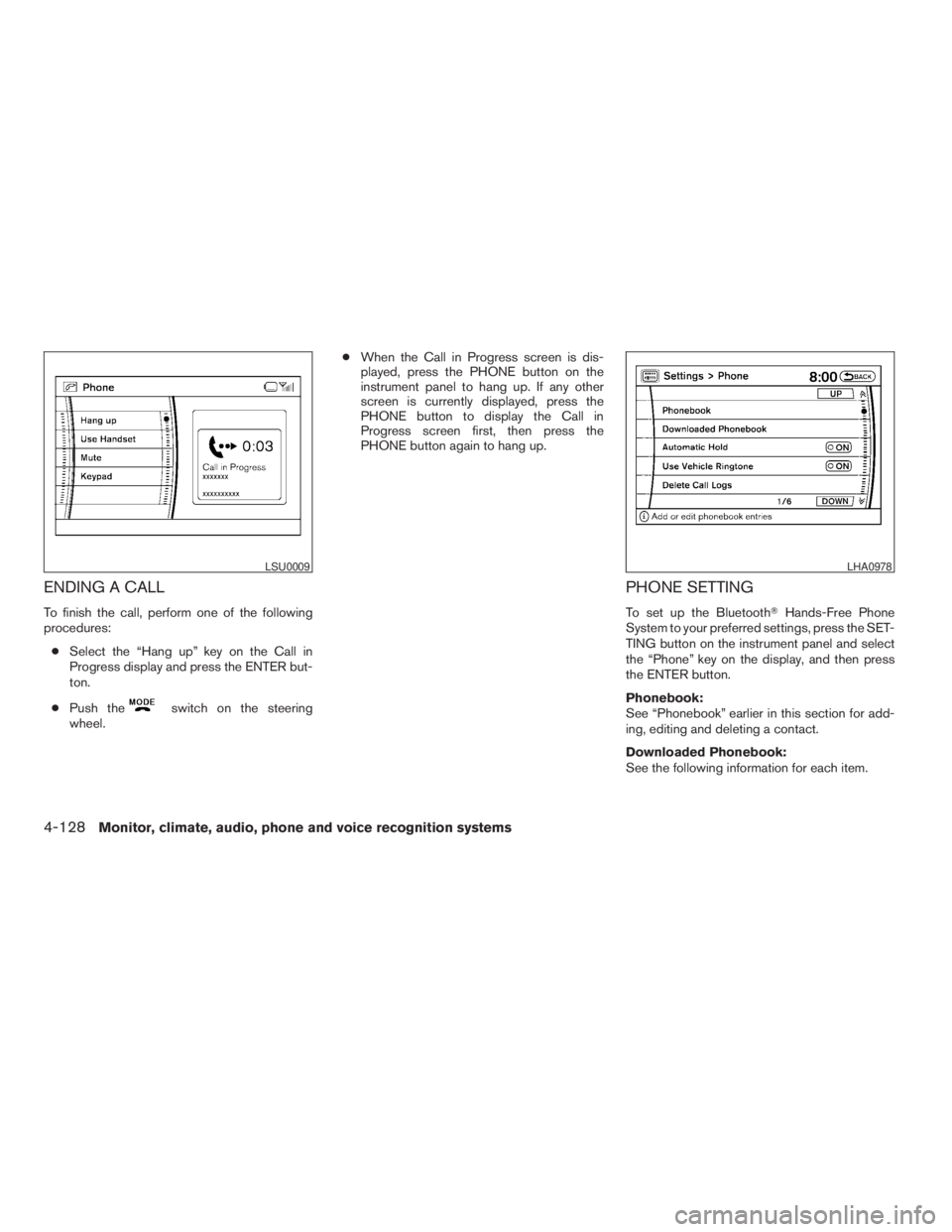
ENDING A CALL
To finish the call, perform one of the following
procedures:
cSelect the “Hang up” key on the Call in
Progress display and press the ENTER but-
ton.
cPush the
switch on the steering
wheel.cWhen the Call in Progress screen is dis-
played, press the PHONE button on the
instrument panel to hang up. If any other
screen is currently displayed, press the
PHONE button to display the Call in
Progress screen first, then press the
PHONE button again to hang up.
PHONE SETTING
To set up the BluetoothTHands-Free Phone
System to your preferred settings, press the SET-
TING button on the instrument panel and select
the “Phone” key on the display, and then press
the ENTER button.
Phonebook:
See “Phonebook” earlier in this section for add-
ing, editing and deleting a contact.
Downloaded Phonebook:
See the following information for each item.
LSU0009LHA0978
4-128Monitor, climate, audio, phone and voice recognition systems
ZREVIEW COPYÐ2009 Pathfinder(pat)
Owners ManualÐUSA_English(nna)
05/29/08Ðdebbie
X
Page 296 of 471

cPriority Change
If multiple phones are registered to the sys-
tem, you can change the priority of the
phones on the shown list. The system shows
the priority level of each phone. Select
phone to change priority. Then, select an-
other phone to swap priority levels.
cRemove Paired Phone:
Delete a registered cellular phone from the
paired list.cPaired Phone List:
Up to 5 registered cellular phones are
shown on the list. If you select a cellular
phone that is different from the one currently
being connected, the newly selected phone
will be connected to the system.
cEdit Phone Name:
If you would like to change the way your
phone’s name is displayed, select this key; a
character input screen will be displayed.CALL VOLUME
Adjusting the incoming or outgoing call volume
may improve clarity if reception between callers is
unclear.
cIncoming call — adjusting this setting allows
youto hear a difference in volume.
cOutgoing call — adjusting this setting allows
the person you are talking withto hear a
difference in volume.
To access the settings, press the SETTING but-
ton, then highlight “Volume and Beeps” using the
NISSAN controller and press the ENTER button.
LHA0989LSU0083
4-130Monitor, climate, audio, phone and voice recognition systems
ZREVIEW COPYÐ2009 Pathfinder(pat)
Owners ManualÐUSA_English(nna)
05/29/08Ðdebbie
X
Page 298 of 471

Displaying user guide
If you use the NISSAN Voice Recognition system
for the first time or you do not know how to
operate it, you can display the User Guide for
confirmation.
You can confirm how to use voice commands by
accessing a simplified User Guide, which con-
tains basic instructions and tutorials for several
voice commands.
1. Press the INFO button on the instrument
panel.
2. Highlight the “Others” key using the
NISSAN controller and press the ENTER
button.
3. Highlight the “Voice Recognition” key using
the NISSAN controller and press the ENTER
button.
NOTE:
You can skip steps 1 to 3 by pressing
the
switch and saying “Help”.4. Highlight the “User Guide” key using the
NISSAN controller and press the ENTER
button.
5. Highlight an item using the NISSAN control-
ler and press the ENTER button.
Available items:
cGetting Started
Describes the basics of how to operate the
Voice Recognition system.
cFinding a Street Address
Tutorial for entering a destination by street
address.
cPlacing Calls
Tutorial for making a phone call by voice
command operation.
cHelp on Speaking
Displays useful tips of speaking for correct
command recognition by the system.
cVoice Recognition Settings
Describes the available Voice Recognition
settings.
LSU0012
4-132Monitor, climate, audio, phone and voice recognition systems
ZREVIEW COPYÐ2009 Pathfinder(pat)
Owners ManualÐUSA_English(nna)
05/29/08Ðdebbie
X
Page 299 of 471

Getting started
Before using the Voice Recognition system for
the first time, you can confirm how to use com-
mands by viewing the Getting Started section of
the User Guide.
1. Highlight “Getting Started” and press the
ENTER button.
2. You can confirm the page by scrolling the
screen using the NISSAN controller.
Tutorials on the operation of the Voice Rec-
ognition system
If you choose “Finding a Street Address” or “Plac-
ing Calls”, you can view tutorials on how to perform
these operations using Voice Recognition.
Useful tips for correct operation
You can display useful speaking tips to help the
system recognize your voice commands cor-
rectly.
1. Highlight “Help on Speaking” and press the
ENTER button.
2. You can confirm the page by scrolling the
screen using the NISSAN controller.
Voice recognition settings
The available settings of the NISSAN Voice Rec-
ognition system are described.
1. Highlight “Voice Recognition Settings” and
press the ENTER button.
2. You can confirm the page by scrolling the
screen using the NISSAN controller.
LSU0014LSU0015LSU0080
Monitor, climate, audio, phone and voice recognition systems4-133
ZREVIEW COPYÐ2009 Pathfinder(pat)
Owners ManualÐUSA_English(nna)
05/29/08Ðdebbie
X
Page 308 of 471

5. Say “011811112223333”. 6. Say “Dial”.
7. The system makes a call to 011-81-111-
222-3333.
NOTE:
Any digit input format is available in the
International Number input process, as
well as the special characters such as star
(*) , pound (#) , and plus (+) .
NISSAN VOICE RECOGNITION
ALTERNATE COMMAND MODE
The Alternate Command Mode enables control
of the Audio, Climate Control and Display sys-
tems as well as additional commands for the
Vehicle Information, Phone and Navigation sys-
tems. With this setting active, the system does
not announce or display the available commands
at each step.
When Alternate Command Mode is activated, an
expanded list of commands can be used after
pushing the TALK
switch. Under this
mode, the screen for Standard Mode commands
is not available on the display. Please review the
expanded command list, available when this
mode is active, as some Standard Mode com-
mands are replaced. Please see examples of
Alternate Command Mode screens.
Please note that in this mode the recognition
success rate may be affected as the number of
available commands and ways of speaking each
command are increased. You can turn this mode
ON or OFF. When this mode is activated, the
Voice Recognition Settings will change to show
more options.
LSU0023LSU0024
4-142Monitor, climate, audio, phone and voice recognition systems
ZREVIEW COPYÐ2009 Pathfinder(pat)
Owners ManualÐUSA_English(nna)
05/29/08Ðdebbie
X
