2009 NISSAN MURANO Transm
[x] Cancel search: TransmPage 196 of 443
Black plate (194,1)
Model "Z51-D" EDITED: 2007/ 10/ 2
Static and flutter: During signal interference from
buildings, large hills or due to antenna position,
usually in conjunction with increased distance
from the station transmitter, static or flutter can
be heard. This can be reduced by lowering the
treble setting to reduce the treble response.
Multipath reception: Because of the reflective
characteristics of FM signals, direct and re-
flected signals reach the receiver at the same
time. The signals may cancel each other,
resulting in momentary flutter or loss of sound.
AM radio reception:
AM signals, because of their low frequency, can
bend around objects and skip along the ground.
In addition, the signals can be bounced off the
ionosphere and bent back to earth. Because of
these characteristics. AM signals are also
subject to interference as they travel from
transmitter to receiver.
Fading: Occurs while the vehicle is passing
through freeway underpasses or in areas with
many tall buildings. It can also occur for several
seconds during ionospheric turbulence even in
areas where no obstacles exist.
Static: Caused by thunderstorms, electrical
power lines, electric signs and even traffic lights.Satellite radio reception:
When the satellite radio is first installed or the
battery has been replaced, the satellite radio
may not work properly. This is not a malfunction.
Wait more than 10 minutes with satellite radio
ON for satellite radio to receive all of the
necessary data.
The satellite radio mode requires an active XM
®
satellite radio service subscription. Satellite
radio is not available in Alaska, Hawaii and
Guam.
Satellite radio performance may be affected if
cargo carried on the roof blocks the satellite
radio signal.
If possible, do not put cargo near the satellite
antenna.
A build up of ice on the satellite radio antenna
can affect satellite radio performance. Remove
the ice to restore satellite radio reception.
SAA0480
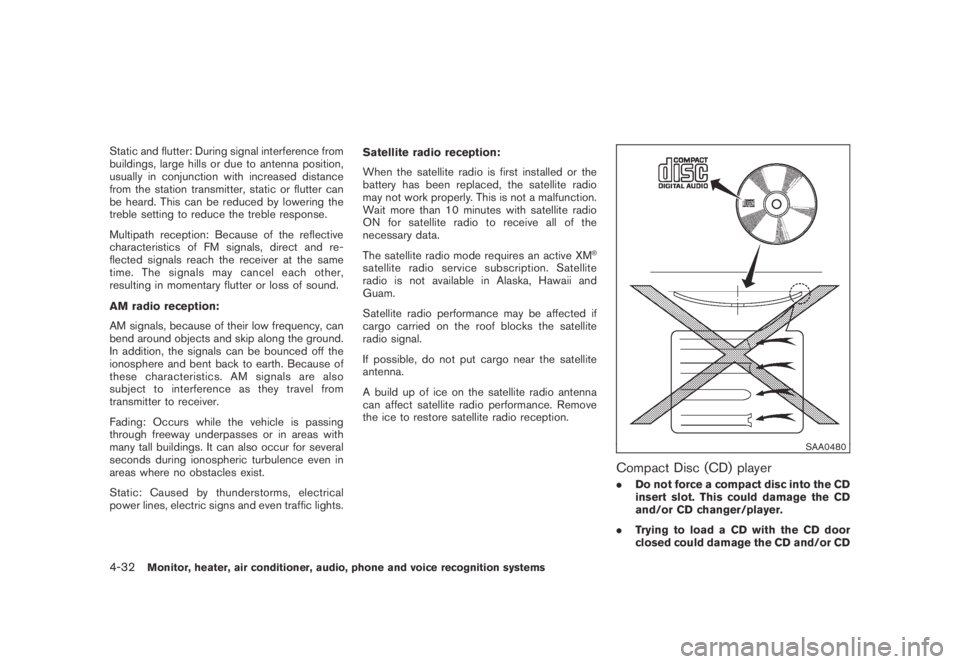
Compact Disc (CD) player
.Do not force a compact disc into the CD
insert slot. This could damage the CD
and/or CD changer/player.
.Trying to load a CD with the CD door
closed could damage the CD and/or CD
4-32Monitor, heater, air conditioner, audio, phone and voice recognition systems
Page 222 of 443
Black plate (220,1)
Model "Z51-D" EDITED: 2007/ 10/ 2
Title Text Priority:
Set the priority to CDDB (Compact Disc Data
Base) to acquire track information from the
Gracenote Database or set to CD TEXT to
acquire the information from CDs.
Delete ALL Music Box Data:
Delete all music data stored on the hard disk.
Gracenote
NOTE:
.The information contained in the
Gracenote Database is not fully guaran-
teed.
.The service of the Gracenote Database
on the Internet may be stopped without
prior notice for maintenance.
End-User License Agreement
USE OF THIS PRODUCT IMPLIES ACCEP-
TANCE OF THE TERMS BELOW.
Gracenote
®MusicID®Terms of Use
This device contains software from Gracenote,
Inc. of Emeryville, California (“Gracenote”) . The
software from Gracenote (the “Gracenote Soft-
ware”) enables this application to do online disc
identification and obtain music-related informa-
tion, including name, artist, track, and titleinformation (“Gracenote Data”) from online
servers (“Gracenote Servers”) and to perform
other functions. You may use Gracenote Data
only by means of the intended End-User
functions of this device.
You agree that you will use Gracenote Data, the
Gracenote Software, and Gracenote Servers for
your own personal non-commercial use only.
You agree not to assign, copy, transfer or
transmit the Gracenote Software or any Grace-
note Data to any third party. YOU AGREE NOT
TO USE OR EXPLOIT GRACENOTE DATA,
THE GRACENOTE SOFTWARE, OR GRACE-
NOTE SERVERS, EXCEPT AS EXPRESSLY
PERMITTED HEREIN.
You agree that your non-exclusive license to use
the Gracenote Data, the Gracenote Software,
and Gracenote Servers will terminate if you
violate these restrictions. If your license termi-
nates, you agree to cease any and all use of the
Gracenote Data, the Gracenote Software, and
Gracenote Servers. Gracenote reserves all
rights in Gracenote Data, the Gracenote Soft-
ware, and the Gracenote Servers, including all
ownership rights. Under no circumstances will
Gracenote become liable for any payment to you
for any information that you provide. You agree
that Gracenote, Inc. may enforce its rights under
this Agreement against you directly in its own
name.
The Gracenote MusicID Service uses a uniqueidentifier to track queries for statistical purposes.
The purpose of a randomly assigned numeric
identifier is to allow the Gracenote MusicID
service to count queries without knowing any-
thing about who you are. For more information,
see the web page for the Gracenote Privacy
Policy for the Gracenote MusicID Service.
The Gracenote Software and each item of
Gracenote Data are licensed to you “AS IS.”
Gracenote makes no representations or warran-
ties, express or implied, regarding the accuracy
of any Gracenote Data from in the Gracenote
Servers. Gracenote reserves the right to delete
data from the Gracenote Servers or to change
data categories for any cause that Gracenote
deems sufficient. No warranty is made that the
Gracenote Software or Gracenote Servers are
error-free or that functioning of Gracenote
Software or Gracenote Servers will be unin-
terrupted. Gracenote is not obligated to provide
you with new enhanced or additional data types
or categories that Gracenote may provide in the
future and is free to discontinue its online
services at any time.
GRACENOTE DISCLAIMS ALL WARRANTIES
EXPRESS OR IMPLIED, INCLUDING, BUT
NOT LIMITED TO, IMPLIED WARRANTIES OF
MERCHANTABILITY, FITNESS FOR A PARTI-
CULAR PURPOSE, TITLE, AND NON-INFRIN-
GEMENT. GRACENOTE DOES NOT
WARRANT THE RESULTS THAT WILL BE
4-58Monitor, heater, air conditioner, audio, phone and voice recognition systems
Page 229 of 443
Black plate (227,1)
Model "Z51-D" EDITED: 2007/ 10/ 2
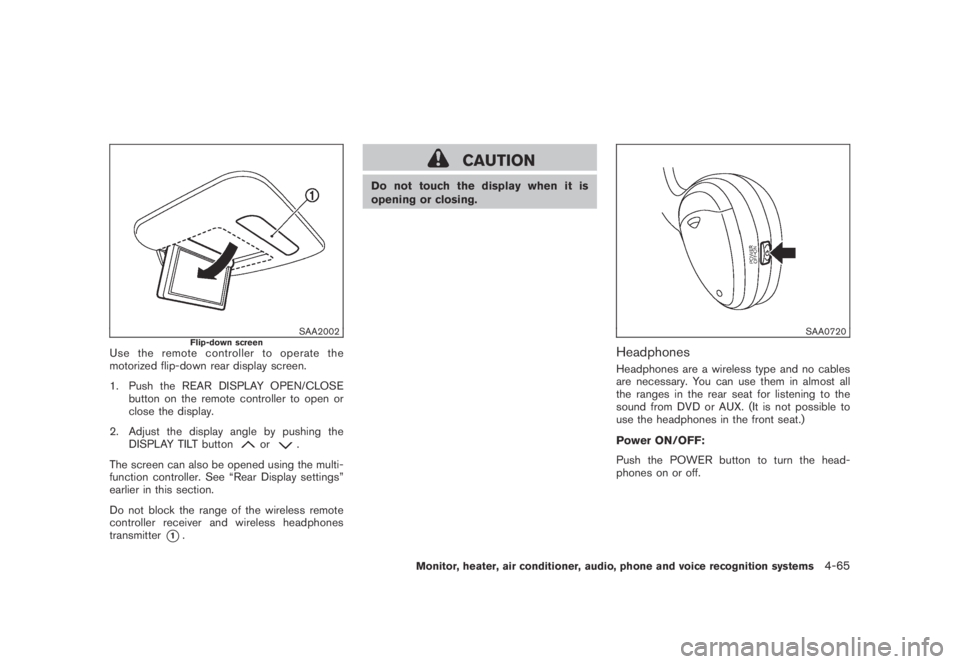
SAA2002Flip-down screenUse the remote controller to operate the
motorized flip-down rear display screen.
1. Push the REAR DISPLAY OPEN/CLOSE
button on the remote controller to open or
close the display.
2. Adjust the display angle by pushing the
DISPLAY TILT button
or.
The screen can also be opened using the multi-
function controller. See “Rear Display settings”
earlier in this section.
Do not block the range of the wireless remote
controller receiver and wireless headphones
transmitter
*1.
CAUTION
Do not touch the display when it is
opening or closing.
SAA0720
Headphones
Headphones are a wireless type and no cables
are necessary. You can use them in almost all
the ranges in the rear seat for listening to the
sound from DVD or AUX. (It is not possible to
use the headphones in the front seat.)
Power ON/OFF:
Push the POWER button to turn the head-
phones on or off.
Monitor, heater, air conditioner, audio, phone and voice recognition systems4-65
Page 230 of 443
Black plate (228,1)
Model "Z51-D" EDITED: 2007/ 10/ 2
SAA0721
Volume control:
Turn the volume control knob to adjust the
volume.
The headphones will automatically be turned off
in about 5 minutes if there is no sound during
that period. To prevent the battery from being
discharged, keep the power turned off when not
in use.
If the sound from the headphones is not clear it
may be because:
.of an infrared communication device or
cellular phone, turn down the headphone
volume or stop using the headphones, or.the headphones maybe out of the range of
the transmitter installed in the rear flip-down
display screen. This is not a malfunction, or
.the sound may be interrupted temporarily
when there is an obstacle between the
headphones and the transmitter. Remove
the obstacle, such as opaque materials,
hands, hair, etc.
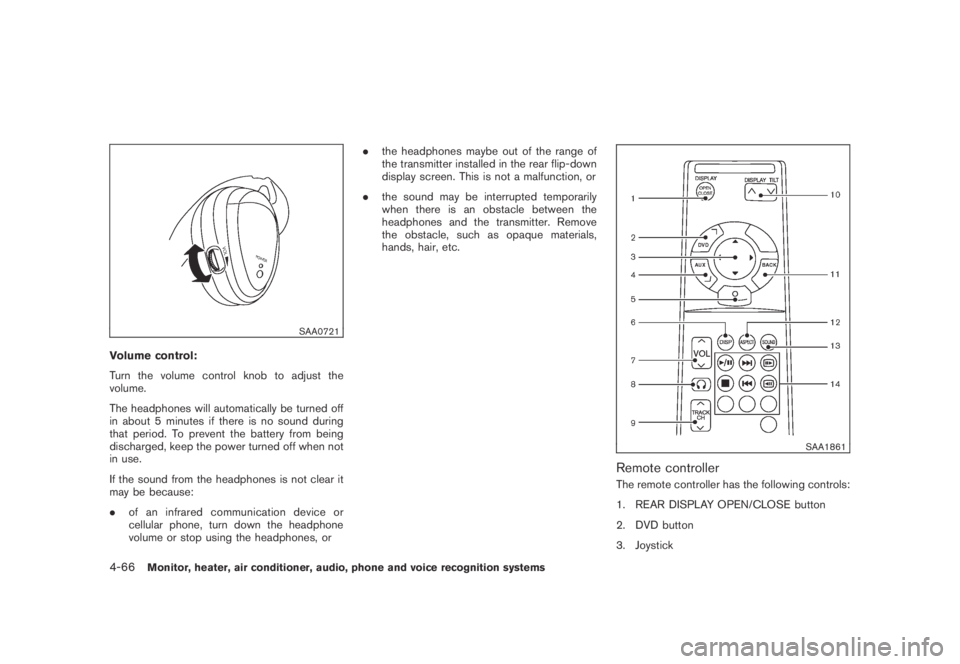
SAA1861
Remote controller
The remote controller has the following controls:
1. REAR DISPLAY OPEN/CLOSE button
2. DVD button
3. Joystick
4-66Monitor, heater, air conditioner, audio, phone and voice recognition systems
Page 240 of 443
Black plate (238,1)
Model "Z51-D" EDITED: 2007/ 10/ 2
www.nissanusa.com/bluetooth for trouble-
shooting help.
.Some cellular phones or other devices may
cause interference or a buzzing noise to
come from the audio system speakers.
Storing the device in a different location
may reduce or eliminate the noise.
.Refer to the cellular phone Owner’s Manual
regarding the telephone pairing procedure
specific to your phone, battery charging,
cellular phone antenna, etc.
.The antenna display on the monitor will not
coincide with the antenna display of some
cellular phones.
.Keep the interior of the vehicle as quiet as
possible to hear the caller’s voice clearly as
well as to minimize its echoes.
.If reception between callers is unclear,
adjusting the incoming or outgoing call
volume may improve the clarity.REGULATORY INFORMATION
FCC Regulatory information
— CAUTION: To maintain compliance with
FCC’s RF exposure guidelines, use only
the supplied antenna. Unauthorized antenna,
modification, or attachments could damage
the transmitter and may violate FCC regula-
tions.
— Operation is subject to the following two
conditions:
1) this device may not cause interference and
2) this device must accept any interference,
including interference that may cause un-
desired operation of the device
IC Regulatory information
— Operation is subject to the following two
conditions: (1) this device may not cause
interference, and (2) this device must accept
any interference, including interference that
may cause undesired operation of the
device.
— This Class B digital apparatus meets all
requirements of the Canadian Interference-
Causing Equipment Regulations.Bluetooth trademark:
BLUETOOTH®is a trademark
owned by Bluetooth SIG, Inc.,
U.S.A.
VOICE COMMANDS
You can use voice commands to operate various
Bluetooth®Hands-Free Phone System features
using the NISSAN Voice Recognition system.
For more details, see “NISSAN VOICE RE-
COGNITION SYSTEM (models with navigation
system)” later in this section; page 4-109.
4-76Monitor, heater, air conditioner, audio, phone and voice recognition systems
Page 250 of 443
Black plate (248,1)
Model "Z51-D" EDITED: 2007/ 10/ 2
www.nissanusa.com/bluetooth for trouble-
shooting help.
.Some cellular phones or other devices may
cause interference or a buzzing noise to
come from the audio system speakers.
Storing the device in a different location
may reduce or eliminate the noise.
.Refer to the cellular phone Owner’s Manual
regarding the telephone charges, cellular
phone antenna and body, etc.
.The antenna display on the monitor will not
coincide with the antenna display of some
cellular phones.
.Keep the interior of the vehicle as quiet as
possible to hear the caller’s voice clearly as
well as to minimize its echoes.
.If reception between callers is unclear,
adjusting the outgoing volume may improve
the clarity.REGULATORY INFORMATION
FCC Regulatory information
— CAUTION: To maintain compliance with
FCC’s RF exposure guidelines, use only
the supplied antenna. Unauthorized antenna,
modification, or attachments could damage
the transmitter and may violate FCC regula-
tions.
— Operation is subject to the following two
conditions:
1) this device may not cause interference and
2) this device must accept any interference,
including interference that may cause un-
desired operation of the device
IC Regulatory information
— Operation is subject to the following two
conditions: (1) this device may not cause
interference, and (2) this device must accept
any interference, including interference that
may cause undesired operation of the
device.
— This Class B digital apparatus meets all
requirements of the Canadian Interference-
Causing Equipment Regulations.Bluetooth trademark:
BLUETOOTH®is a trademark
owned by Bluetooth SIG, Inc.,
U.S.A.
VOICE COMMANDS
You can use voice commands to operate various
Bluetooth®Hands-Free Phone System features
using the NISSAN Voice Recognition system.
For more details, see “NISSAN VOICE RE-
COGNITION SYSTEM (models with navigation
system)” later in this section; page 4-132.
4-86Monitor, heater, air conditioner, audio, phone and voice recognition systems
Page 260 of 443
Black plate (258,1)
Model "Z51-D" EDITED: 2007/ 10/ 2
.Some cellular phones or other devices may
cause interference or a buzzing noise to
come from the audio system speakers.
Storing the device in a different location
may reduce or eliminate the noise.
.Refer to the cellular phone Owner’s Manual
regarding the telephone pairing procedure
specific to your phone, battery charging,
cellular phone antenna, etc.
.The antenna display on the monitor will not
coincide with the antenna display of some
cellular phones.
.Keep the interior of the vehicle as quiet as
possible to hear the caller’s voice clearly as
well as to minimize its echoes.
.If reception between callers is unclear,
adjusting the incoming or outgoing call
volume may improve the clarity.
REGULATORY INFORMATION
FCC Regulatory information
— CAUTION: To maintain compliance with
FCC’s RF exposure guidelines, use only
the supplied antenna. Unauthorized antenna,
modification, or attachments could damage
the transmitter and may violate FCC regula-
tions.
— Operation is subject to the following two
conditions:1) this device may not cause interference and
2) this device must accept any interference,
including interference that may cause un-
desired operation of the device
IC Regulatory information
— Operation is subject to the following two
conditions: (1) this device may not cause
interference, and (2) this device must accept
any interference, including interference that
may cause undesired operation of the
device.
— This Class B digital apparatus meets all
requirements of the Canadian Interference-
Causing Equipment Regulations.
Bluetooth trademark:
BLUETOOTH®is a trademark
owned by Bluetooth SIG, Inc.,
U.S.A.
INITIALIZATION
When the ignition switch is pushed to the ON
position, NISSAN Voice Recognition is initia-
lized, which takes a few seconds. If the
button is pushed before the initialization com-
pletes, the system will announce “Hands-free
phone system not ready” and will not react to
voice commands.
OPERATING TIPS
To get the best performance out of the NISSAN
Voice Recognition system, observe the follow-
ing:
.Keep the interior of the vehicle as quiet as
possible. Close the windows to eliminate
surrounding noises (traffic noises, vibration
sounds, etc.) , which may prevent the system
from recognizing voice commands correctly.
.Wait until the tone sounds before speaking a
command. Otherwise, the command will not
be received properly.
.Start speaking a command within 5 seconds
after the tone sounds.
.Speak in a natural voice without pausing
between words.
GIVING VOICE COMMANDS
To operate NISSAN Voice Recognition, push
and release thebutton located on the
steering wheel. After the tone sounds, speak a
command.
Thecommandgivenispickedupbythe
microphone, and voice feedback is given when
the command is accepted.
.If you need to hear the available commands
for the current menu again, say “Help” and
the system will repeat them.
4-96Monitor, heater, air conditioner, audio, phone and voice recognition systems
Page 270 of 443
Black plate (268,1)
Model "Z51-D" EDITED: 2007/ 10/ 2
SPEAKER ADAPTATION (SA) MODE
Speaker Adaptation allows up to two out-of
dialect users to train the system to improve
recognition accuracy. By repeating a number of
commands, the users can create a voice model
of their own voice that is stored in the system.
The system is capable of storing a different
speaker adaptation model for memory A and
memory B.
If memory A is available, the system will use
memory A to store the model. If memory A is in
use and memory B is available, the system will
use memory B to store the model. If both of the
memory locations are in use, the system will ask
the user to select which memory location should
be overwritten.
Training procedure
The procedure for training a voice is as follows.
1. Position the vehicle in a reasonably quiet
outdoor location.
2. Sit in the driver’s seat with the engine
running, the parking brake on, and the
transmission in the P (Park) position.
3. Press and hold the
button for more
than 5 seconds.
4. The system announces: “Press the PHONE/
SEND (
) button for the hands-free
phone system to enter the speaker adapta-tion mode.
5. Press the
button.
6. Voice memory A or memory B is selected
automatically. If both memory locations are
already in use, the system will prompt you to
overwrite one. Follow the instructions pro-
vided by the system.
7. When preparation is complete and you are
ready to begin, the press the
button.
8. The SA mode will be explained. Follow the
instructions provided by the system.
9. When training is finished, the system will tell
you an adequate number of phrases have
been recorded.
10. The system will ask you to say your name.
Follow the instructions to register your
name.
11. The system will announce that speaker
adaptation has been completed and the
system is ready.
The SA mode will stop if:
.The
button is pressed for more than 5
seconds in SA mode.
.The vehicle is driven during SA mode.
.The ignition switch is pushed to the OFF or
LOCK position.
Training phrases
During the SA mode, the system instructs you to
say the following phrases.
(The system will prompt you for each phrase.)
.phone book new entry
.dial three oh four two nine
.delete call back number
.setup pair phone
.memo pad play
.eight pause nine three two pause seven
.delete all entries
.call seven two four zero nine
.phone book delete entry
.memo pad record
.dial star two one seven oh
.Ye s
.No
.select ringtone
.dial eight five six nine two
.Bluetooth on
.setup change priority
4-106Monitor, heater, air conditioner, audio, phone and voice recognition systems