2009 NISSAN ARMADA key
[x] Cancel search: keyPage 169 of 465
LIFT GATE RELEASE
WARNING
cAlways be sure the lift gate has been
closed securely to prevent it from open-
ing while driving.
cDo not drive with the lift gate open. This
could allow dangerous exhaust gases
to be drawn into the vehicle. See “Ex-
haust gas” in the “Starting and driving”
section of this manual.
CAUTION
cIf the power lift gate does not stay open
or if the lift gate unexpectedly closes at
any time while a continuous warning
chime sounds, do not operate the lift
gate. There may be a pressure loss in
one or both of the lift gate gas stays.
Have the lift gate inspected by a
NISSAN dealer.
cDo not activate the power lift gate if one
or both of the lift gate gas stays are
removed. Damage to the lift gate or
power lift gate mechanisms may occur.
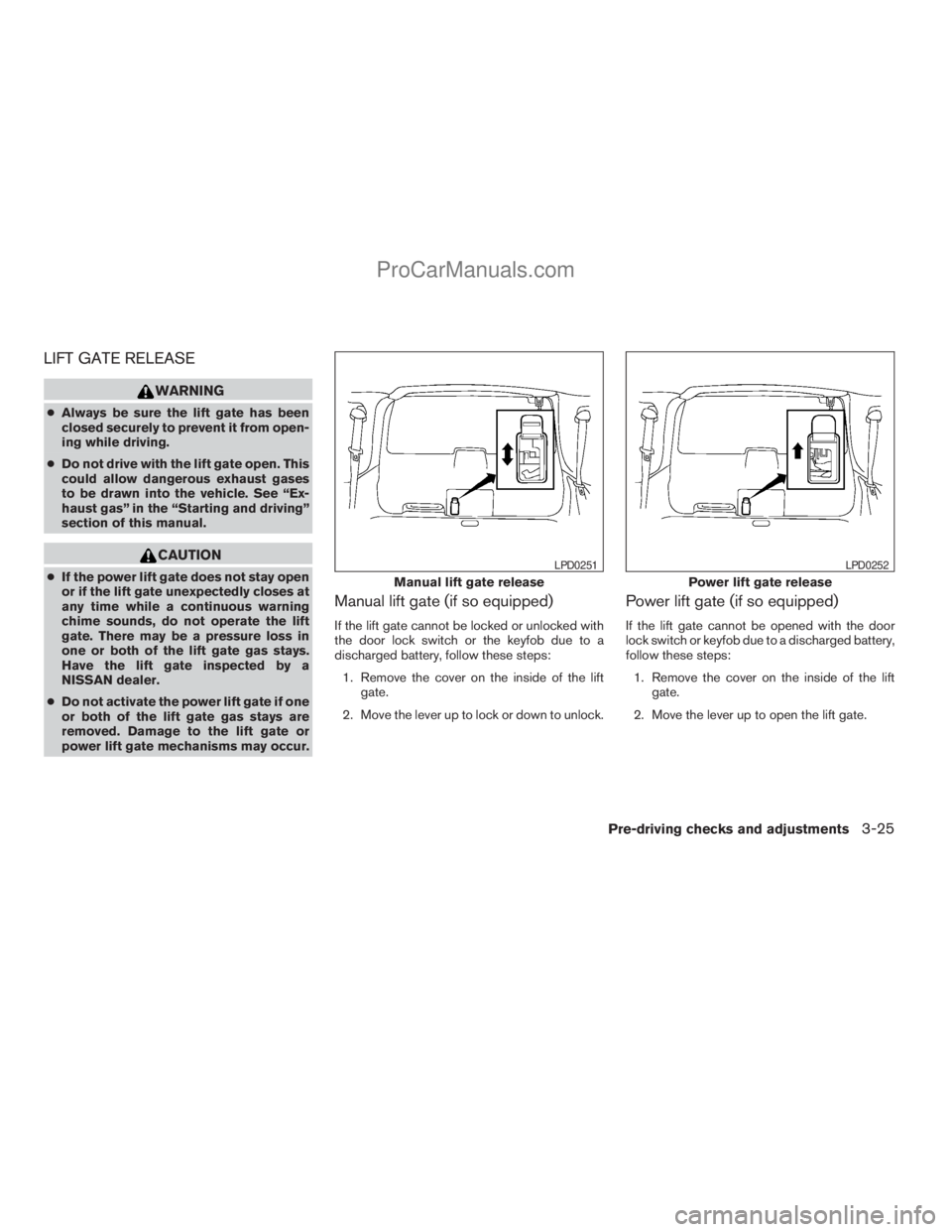
Manual lift gate (if so equipped)
If the lift gate cannot be locked or unlocked with
the door lock switch or the keyfob due to a
discharged battery, follow these steps:
1. Remove the cover on the inside of the lift
gate.
2. Move the lever up to lock or down to unlock.
Power lift gate (if so equipped)
If the lift gate cannot be opened with the door
lock switch or keyfob due to a discharged battery,
follow these steps:
1. Remove the cover on the inside of the lift
gate.
2. Move the lever up to open the lift gate.
Manual lift gate release
LPD0251
Power lift gate release
LPD0252
Pre-driving checks and adjustments3-25
ZREVIEW COPYÐ2009 Armada(wzw)
Owners ManualÐUSA_English(nna)
02/26/08Ðdebbie
X
ProCarManuals.com
Page 177 of 465
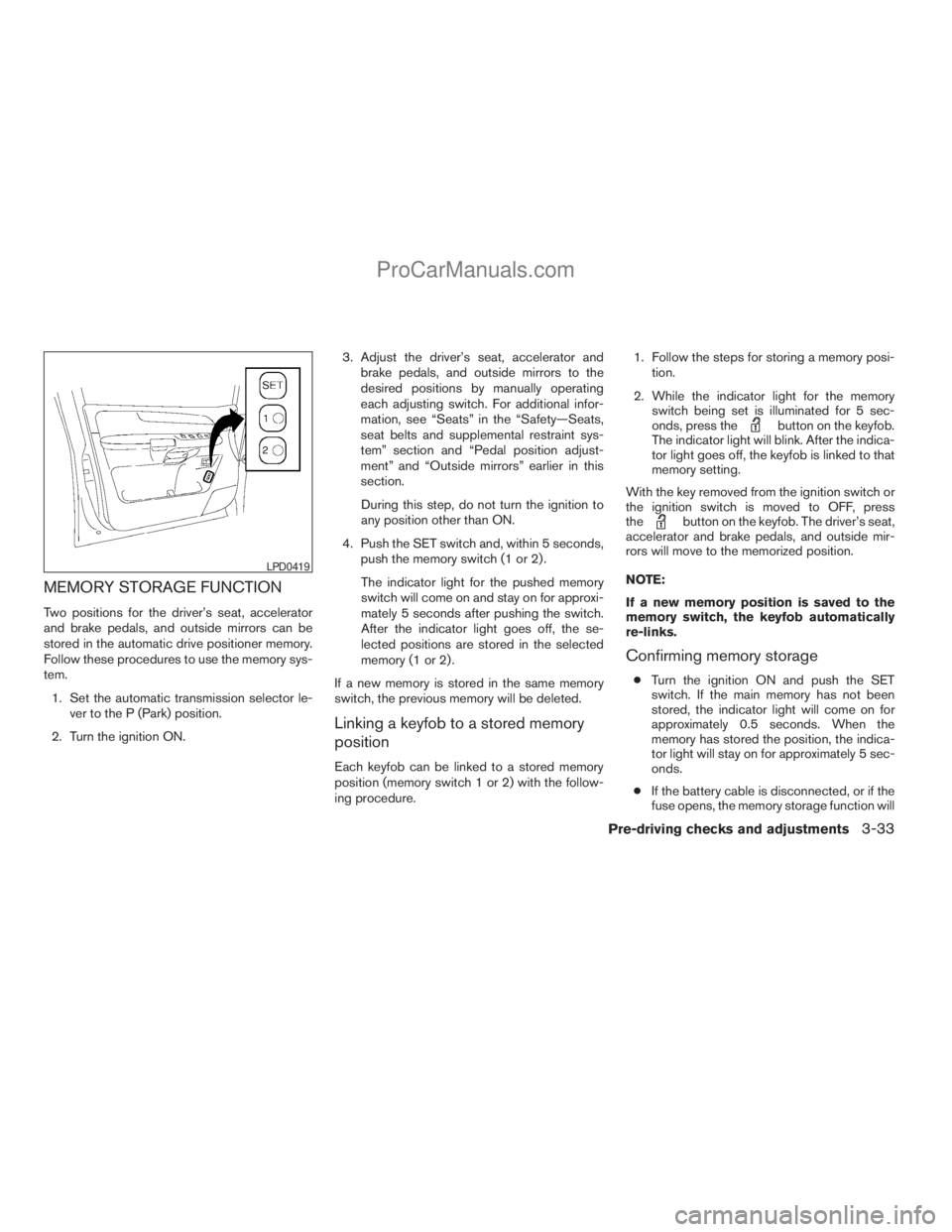
MEMORY STORAGE FUNCTION
Two positions for the driver’s seat, accelerator
and brake pedals, and outside mirrors can be
stored in the automatic drive positioner memory.
Follow these procedures to use the memory sys-
tem.
1. Set the automatic transmission selector le-
ver to the P (Park) position.
2. Turn the ignition ON.3. Adjust the driver’s seat, accelerator and
brake pedals, and outside mirrors to the
desired positions by manually operating
each adjusting switch. For additional infor-
mation, see “Seats” in the “Safety—Seats,
seat belts and supplemental restraint sys-
tem” section and “Pedal position adjust-
ment” and “Outside mirrors” earlier in this
section.
During this step, do not turn the ignition to
any position other than ON.
4. Push the SET switch and, within 5 seconds,
push the memory switch (1 or 2) .
The indicator light for the pushed memory
switch will come on and stay on for approxi-
mately 5 seconds after pushing the switch.
After the indicator light goes off, the se-
lected positions are stored in the selected
memory (1 or 2) .
If a new memory is stored in the same memory
switch, the previous memory will be deleted.
Linking a keyfob to a stored memory
position
Each keyfob can be linked to a stored memory
position (memory switch 1 or 2) with the follow-
ing procedure.1. Follow the steps for storing a memory posi-
tion.
2. While the indicator light for the memory
switch being set is illuminated for 5 sec-
onds, press the
button on the keyfob.
The indicator light will blink. After the indica-
tor light goes off, the keyfob is linked to that
memory setting.
With the key removed from the ignition switch or
the ignition switch is moved to OFF, press
the
button on the keyfob. The driver’s seat,
accelerator and brake pedals, and outside mir-
rors will move to the memorized position.
NOTE:
If a new memory position is saved to the
memory switch, the keyfob automatically
re-links.
Confirming memory storage
cTurn the ignition ON and push the SET
switch. If the main memory has not been
stored, the indicator light will come on for
approximately 0.5 seconds. When the
memory has stored the position, the indica-
tor light will stay on for approximately 5 sec-
onds.
cIf the battery cable is disconnected, or if the
fuse opens, the memory storage function will
LPD0419
Pre-driving checks and adjustments3-33
ZREVIEW COPYÐ2009 Armada(wzw)
Owners ManualÐUSA_English(nna)
02/27/08Ðtbrooks
X
ProCarManuals.com
Page 178 of 465
be canceled and must be restarted before a
stored memory position can be set again.
Drive the vehicle over 25 MPH (40 km/h) to
restart the memory storage function. You
can also restart the memory storage function
using the following procedure.
1. Connect the battery cable or replace the
fuse.
2. Open and close the driver’s door more than
two times with the ignition key in the LOCK
position.
Once the memory storage function has been
restarted, you can store a memory position.
See “Memory storage function” earlier in this
section.
Selecting the memorized position
Set the shift selector lever to the P (Park) posi-
tion, then:
cWithin 45 seconds of opening the driver’s
door, push the memory switch (1 or 2) or
cTurn the ignition switch to the ON position
and push the memory switch (1 or 2) .
The driver’s seat, accelerator and brake pedals,
and outside mirrors will move to the memorized
position with the indicator light blinking, and then
the light will stay on for approximately 5 seconds.
ENTRY/EXIT FUNCTION
This system is designed so that the driver’s seat
will automatically move when the shift selector
lever is in the P (Park) position. This allows the
driver to get into and out of the driver’s seat more
easily.
The driver’s seat will slide backward:
cWhen the key is removed from the ignition
switch and the driver’s door is opened.
cWhen the driver’s door is opened with the
ignition key turned to LOCK.
cWhen the ignition key is turned from ACC to
LOCK with the driver’s door open.
The driver’s seat will return to the previous posi-
tion:
cWhen the key is inserted into the ignition
switch and the driver’s door is closed.
cWhen the driver’s door is closed with the key
turned to LOCK.
cWhen the key is turned from ACC to ON
while the shift selector lever is in the P (Park)
position.
The entry/exit function can be adjusted or can-
celed. For vehicles with navigation system, see
“Comfort & convenience settings” in the “Display
screen, heater, air conditioner, audio and phonesystems” section of this manual. For vehicles
without navigation system, see your NISSAN
dealer.
Restarting the entry/exit function
If the battery cable is disconnected or if the fuse
opens, the entry/exit function will be disabled.
Drive the vehicle over 25 MPH (40 km/h) to
restart the entry/exit function. You can also restart
the entry/exit function using the following proce-
dure.
1. Connect the battery cable or replace the
fuse.
2. Open and close the driver’s door more than
two times with the ignition key in the LOCK
position.
The entry/exit function should now work properly.
SYSTEM OPERATION
The automatic drive positioner system will not
work or will stop operating under the following
conditions:
cWhen the vehicle speed is above 4 MPH
(7 km/h).
cWhen any of the memory switches are
pushed while the automatic drive positioner
is operating.
3-34Pre-driving checks and adjustments
ZREVIEW COPYÐ2009 Armada(wzw)
Owners ManualÐUSA_English(nna)
02/26/08Ðdebbie
X
ProCarManuals.com
Page 183 of 465
When you use this system, make sure the engine
is running.
If you use the system with the engine not
running (ignition ON or ACC) for a long
time, it will discharge the battery, and the
engine will not start.
Reference symbols:
ENTER button — This is a button on the control
panel.
“Display” key — This is a select key on the screen.
By selecting this key, you can proceed to the next
function.
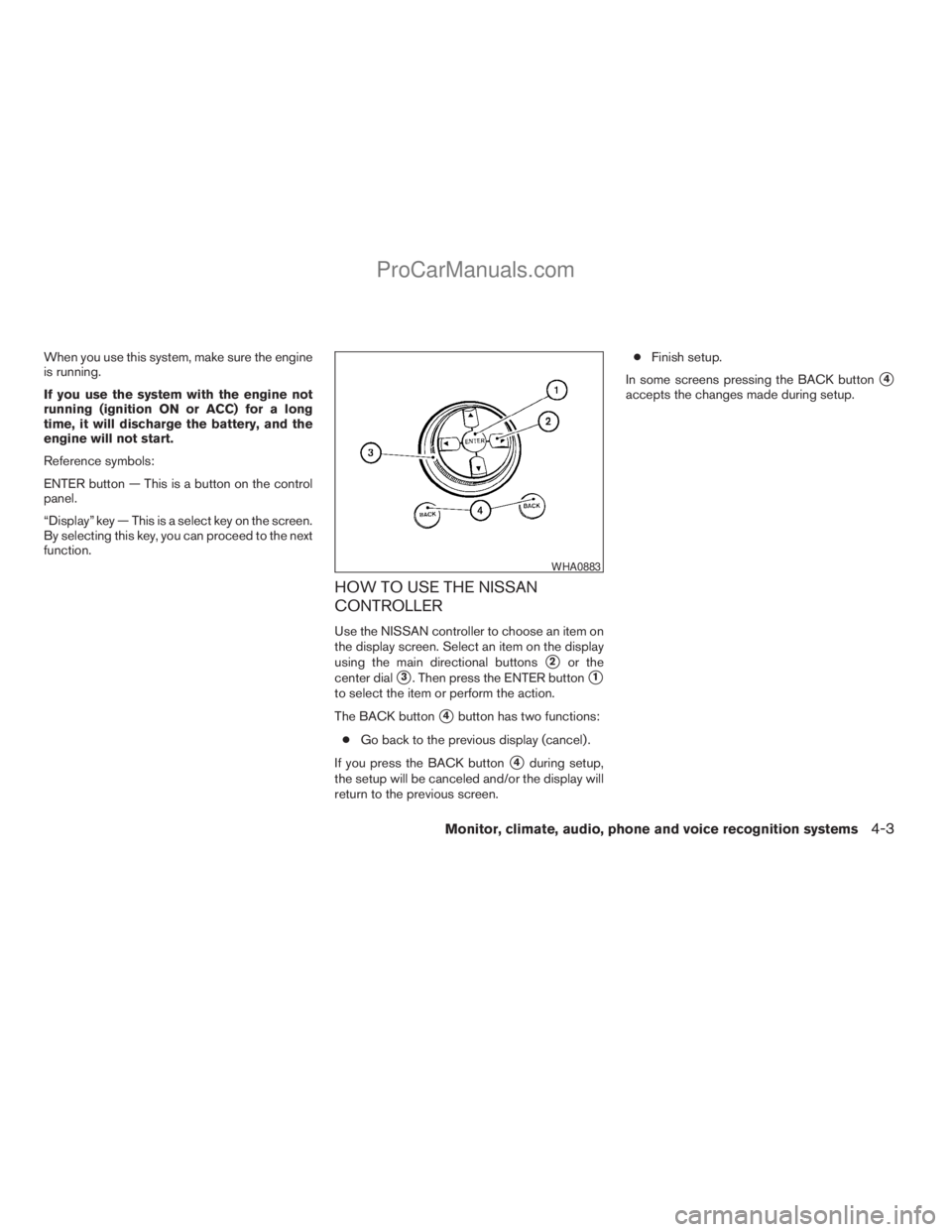
HOW TO USE THE NISSAN
CONTROLLER
Use the NISSAN controller to choose an item on
the display screen. Select an item on the display
using the main directional buttons
s2or the
center dial
s3. Then press the ENTER buttons1
to select the item or perform the action.
The BACK button
s4button has two functions:
cGo back to the previous display (cancel) .
If you press the BACK button
s4during setup,
the setup will be canceled and/or the display will
return to the previous screen.cFinish setup.
In some screens pressing the BACK button
s4
accepts the changes made during setup.
WHA0883
Monitor, climate, audio, phone and voice recognition systems4-3
ZREVIEW COPYÐ2009 Armada(wzw)
Owners ManualÐUSA_English(nna)
02/26/08Ðdebbie
X
ProCarManuals.com
Page 184 of 465
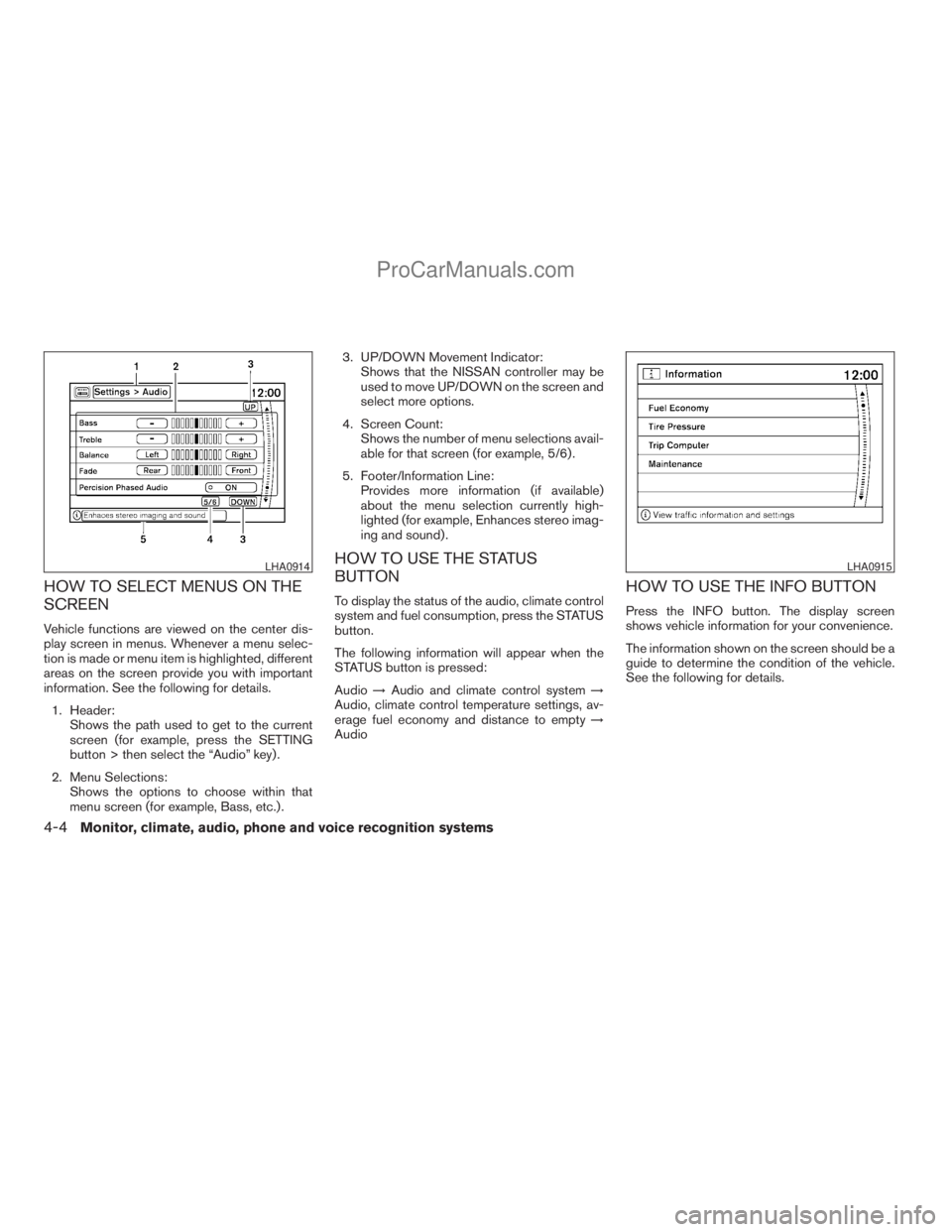
HOW TO SELECT MENUS ON THE
SCREEN
Vehicle functions are viewed on the center dis-
play screen in menus. Whenever a menu selec-
tion is made or menu item is highlighted, different
areas on the screen provide you with important
information. See the following for details.
1. Header:
Shows the path used to get to the current
screen (for example, press the SETTING
button > then select the “Audio” key) .
2. Menu Selections:
Shows the options to choose within that
menu screen (for example, Bass, etc.) .3. UP/DOWN Movement Indicator:
Shows that the NISSAN controller may be
used to move UP/DOWN on the screen and
select more options.
4. Screen Count:
Shows the number of menu selections avail-
able for that screen (for example, 5/6) .
5. Footer/Information Line:
Provides more information (if available)
about the menu selection currently high-
lighted (for example, Enhances stereo imag-
ing and sound) .
HOW TO USE THE STATUS
BUTTON
To display the status of the audio, climate control
system and fuel consumption, press the STATUS
button.
The following information will appear when the
STATUS button is pressed:
Audio!Audio and climate control system!
Audio, climate control temperature settings, av-
erage fuel economy and distance to empty!
AudioHOW TO USE THE INFO BUTTON
Press the INFO button. The display screen
shows vehicle information for your convenience.
The information shown on the screen should be a
guide to determine the condition of the vehicle.
See the following for details.
LHA0914LHA0915
4-4Monitor, climate, audio, phone and voice recognition systems
ZREVIEW COPYÐ2009 Armada(wzw)
Owners ManualÐUSA_English(nna)
02/26/08Ðdebbie
X
ProCarManuals.com
Page 185 of 465
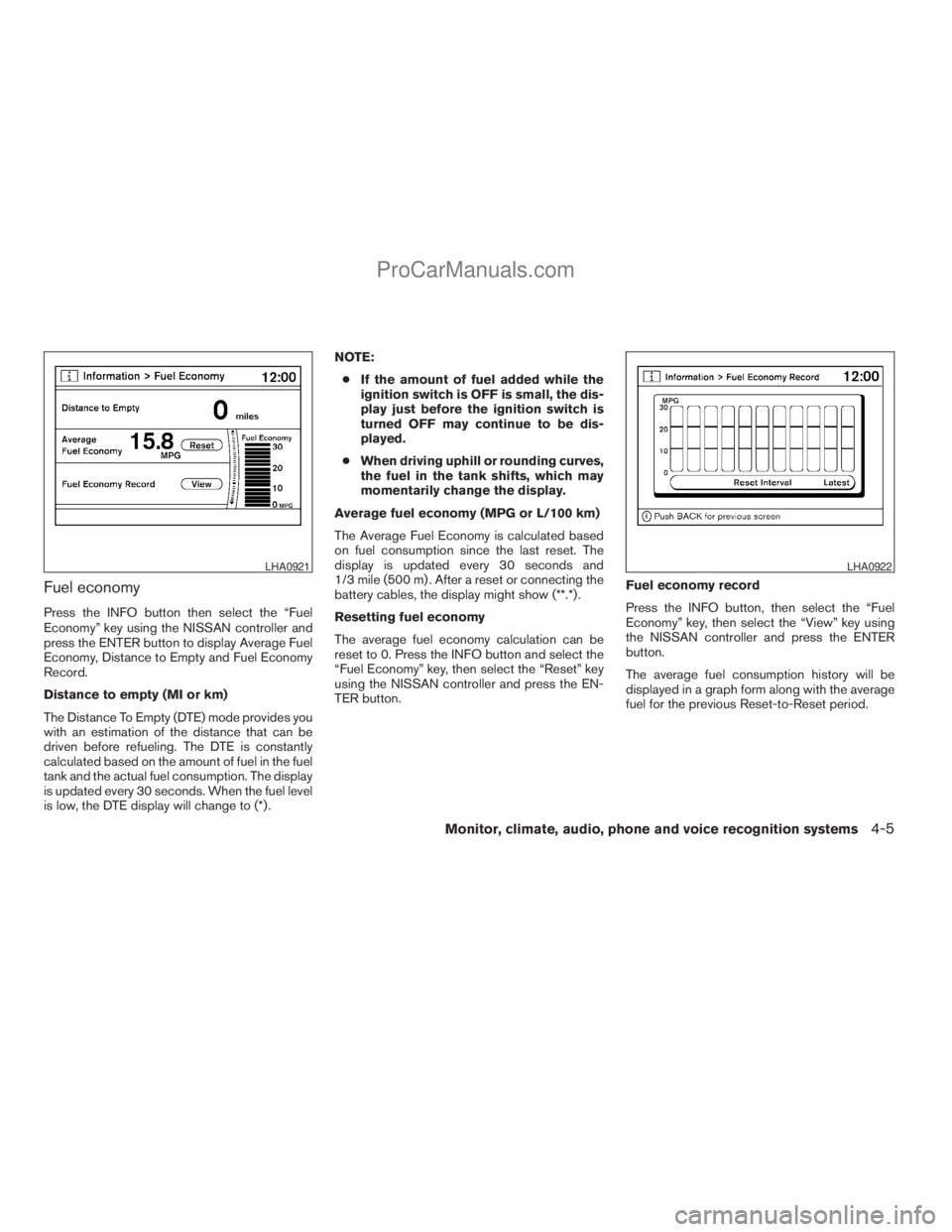
Fuel economy
Press the INFO button then select the “Fuel
Economy” key using the NISSAN controller and
press the ENTER button to display Average Fuel
Economy, Distance to Empty and Fuel Economy
Record.
Distance to empty (MI or km)
The Distance To Empty (DTE) mode provides you
with an estimation of the distance that can be
driven before refueling. The DTE is constantly
calculated based on the amount of fuel in the fuel
tank and the actual fuel consumption. The display
is updated every 30 seconds. When the fuel level
is low, the DTE display will change to (*) .NOTE:
cIf the amount of fuel added while the
ignition switch is OFF is small, the dis-
play just before the ignition switch is
turned OFF may continue to be dis-
played.
cWhen driving uphill or rounding curves,
the fuel in the tank shifts, which may
momentarily change the display.
Average fuel economy (MPG or L/100 km)
The Average Fuel Economy is calculated based
on fuel consumption since the last reset. The
display is updated every 30 seconds and
1/3 mile (500 m) . After a reset or connecting the
battery cables, the display might show (**.*) .
Resetting fuel economy
The average fuel economy calculation can be
reset to 0. Press the INFO button and select the
“Fuel Economy” key, then select the “Reset” key
using the NISSAN controller and press the EN-
TER button.Fuel economy record
Press the INFO button, then select the “Fuel
Economy” key, then select the “View” key using
the NISSAN controller and press the ENTER
button.
The average fuel consumption history will be
displayed in a graph form along with the average
fuel for the previous Reset-to-Reset period.
LHA0921LHA0922
Monitor, climate, audio, phone and voice recognition systems4-5
ZREVIEW COPYÐ2009 Armada(wzw)
Owners ManualÐUSA_English(nna)
02/26/08Ðdebbie
X
ProCarManuals.com
Page 186 of 465
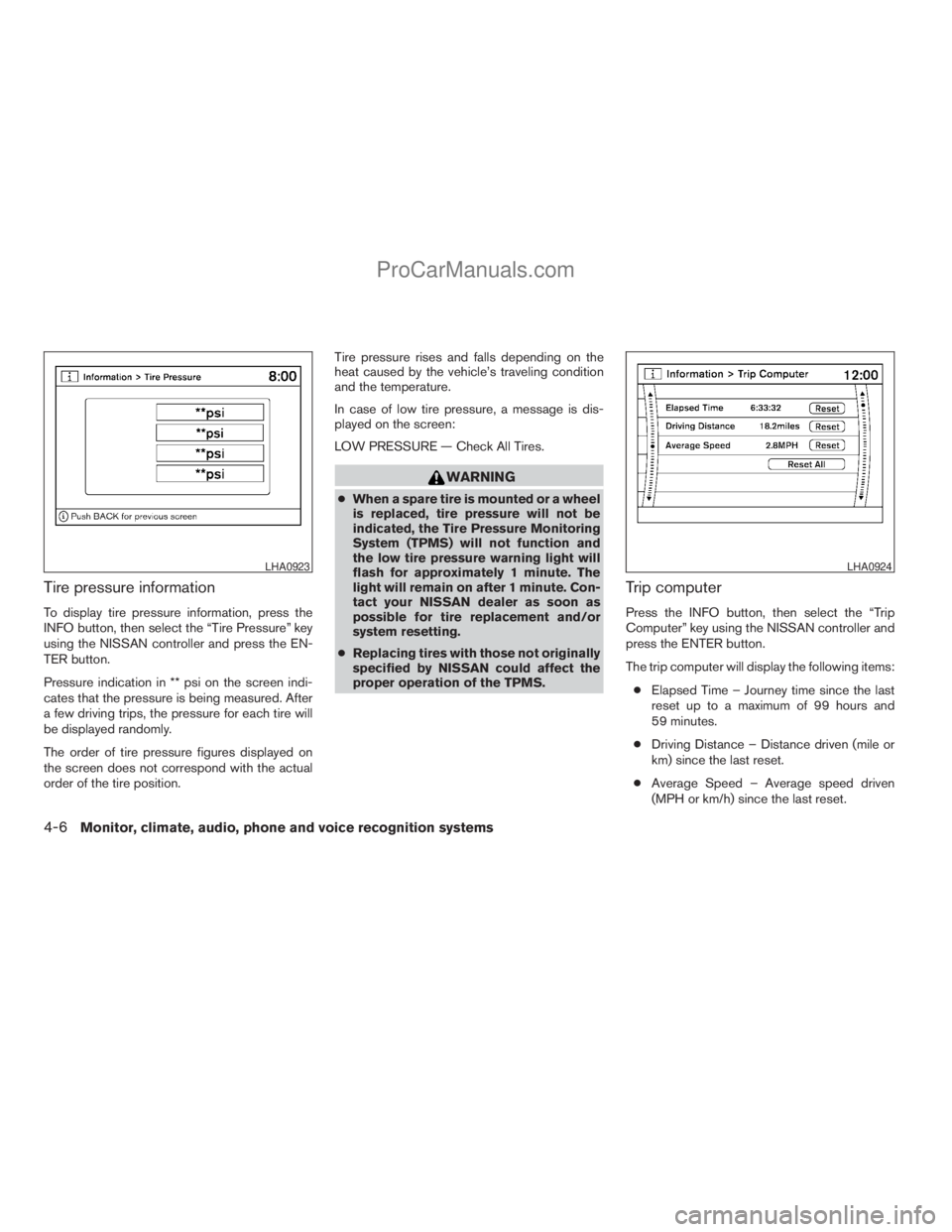
Tire pressure information
To display tire pressure information, press the
INFO button, then select the “Tire Pressure” key
using the NISSAN controller and press the EN-
TER button.
Pressure indication in ** psi on the screen indi-
cates that the pressure is being measured. After
a few driving trips, the pressure for each tire will
be displayed randomly.
The order of tire pressure figures displayed on
the screen does not correspond with the actual
order of the tire position.Tire pressure rises and falls depending on the
heat caused by the vehicle’s traveling condition
and the temperature.
In case of low tire pressure, a message is dis-
played on the screen:
LOW PRESSURE — Check All Tires.
WARNING
cWhen a spare tire is mounted or a wheel
is replaced, tire pressure will not be
indicated, the Tire Pressure Monitoring
System (TPMS) will not function and
the low tire pressure warning light will
flash for approximately 1 minute. The
light will remain on after 1 minute. Con-
tact your NISSAN dealer as soon as
possible for tire replacement and/or
system resetting.
cReplacing tires with those not originally
specified by NISSAN could affect the
proper operation of the TPMS.
Trip computer
Press the INFO button, then select the “Trip
Computer” key using the NISSAN controller and
press the ENTER button.
The trip computer will display the following items:
cElapsed Time – Journey time since the last
reset up to a maximum of 99 hours and
59 minutes.
cDriving Distance – Distance driven (mile or
km) since the last reset.
cAverage Speed – Average speed driven
(MPH or km/h) since the last reset.
LHA0923LHA0924
4-6Monitor, climate, audio, phone and voice recognition systems
ZREVIEW COPYÐ2009 Armada(wzw)
Owners ManualÐUSA_English(nna)
02/26/08Ðdebbie
X
ProCarManuals.com
Page 187 of 465
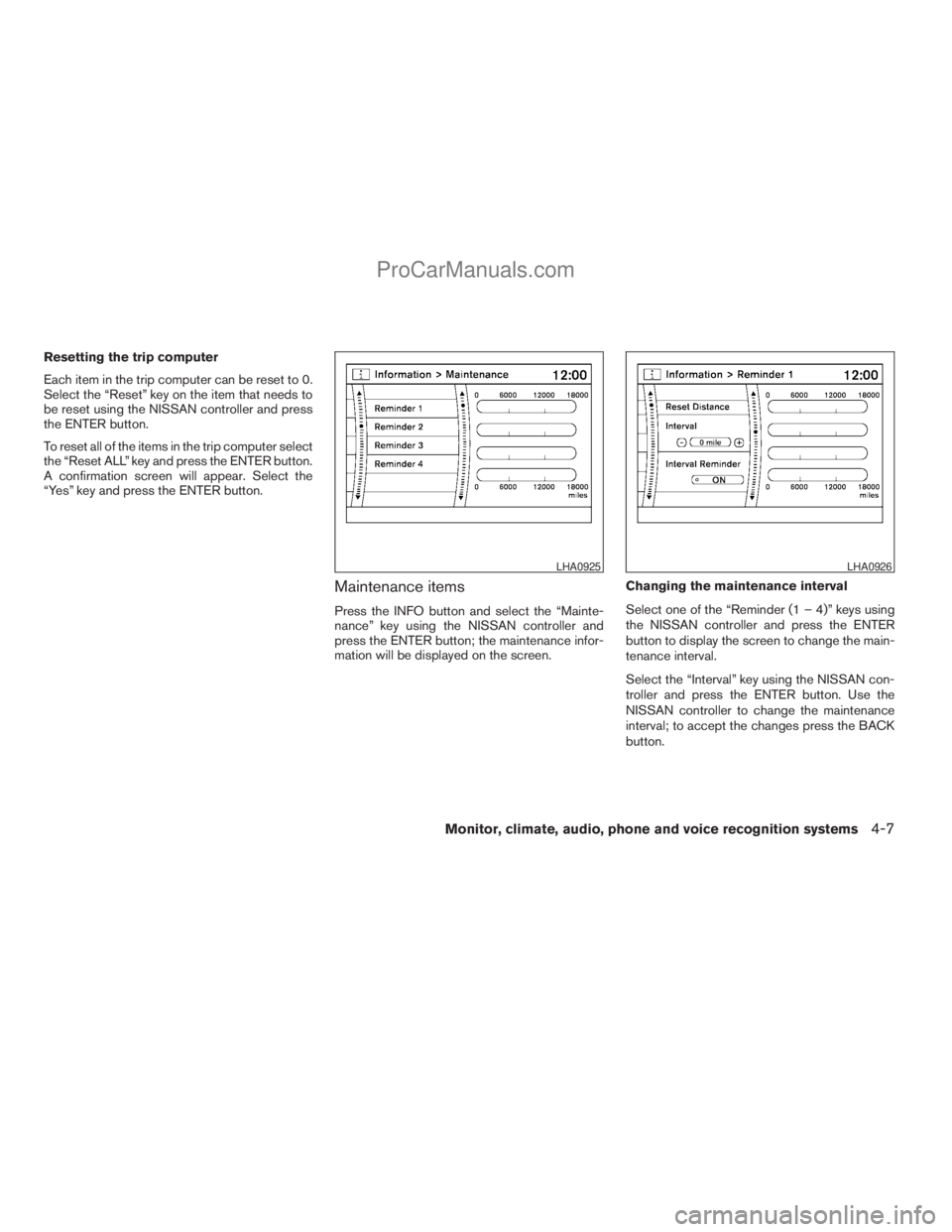
Resetting the trip computer
Each item in the trip computer can be reset to 0.
Select the “Reset” key on the item that needs to
be reset using the NISSAN controller and press
the ENTER button.
To reset all of the items in the trip computer select
the “Reset ALL” key and press the ENTER button.
A confirmation screen will appear. Select the
“Yes” key and press the ENTER button.
Maintenance items
Press the INFO button and select the “Mainte-
nance” key using the NISSAN controller and
press the ENTER button; the maintenance infor-
mation will be displayed on the screen.Changing the maintenance interval
Select one of the “Reminder (1 – 4)” keys using
the NISSAN controller and press the ENTER
button to display the screen to change the main-
tenance interval.
Select the “Interval” key using the NISSAN con-
troller and press the ENTER button. Use the
NISSAN controller to change the maintenance
interval; to accept the changes press the BACK
button.
LHA0925LHA0926
Monitor, climate, audio, phone and voice recognition systems4-7
ZREVIEW COPYÐ2009 Armada(wzw)
Owners ManualÐUSA_English(nna)
02/26/08Ðdebbie
X
ProCarManuals.com