Page 200 of 374
button, then press the slot
number (1 – 6) for the desired disc. The
compact disc will be ejected. If no slot num-
ber (1 – 6) is pressed the current loaded
disc will be ejected. Also, if the ejected disc
is not removed within 15 seconds, the disc
will reload.All discs:
●Press and hold the
button for more
than 1.5 seconds. The compact discs will be
ejected one by one. If a disc is not removed
within 15 seconds, or the button is pressed
again during the eject sequence, the entire
disc eject sequence will be canceled. When
this button is pressed while the compact
disc is being played, the compact disc will
eject and the last source will be played.
CD IN indicator:
A CD icon indicator appears on the display when
a CD is loaded with the system on.
AUX (Auxiliary) button:
The AUX IN jack is located on the CD player. The
AUX IN audio input jack accepts any standard
analog audio input such as from a portable cas-
sette tape/CD player, MP3 player or laptop com-
puters.
Press the AUX button to play a compatible device
when it is plugged into the AUX IN jack.
4-36Monitor, climate, audio, phone and voice recognition systems
�REVIEW COPY—2009 Altima(alt)
Owners Manual—USA_English(nna)
09/08/08—debbie
�
Page 204 of 374
orfor less than 1.5 seconds to tune from high to low
or low to high frequencies and stop at the next
broadcasting station.
“Scan” (tuning) key:
Touch the “Scan” key. SCAN illuminates in the
display window. Scan tuning begins from low to
high frequencies. Scan tuning stops for 5 sec-
onds at each broadcasting station that has suffi-
cient signal strength. Touching the “Scan” key
again during this 5 second period stops scan
tuning and the radio remains tuned to that station.
Station memory operations:
18 stations can be set for the FM, AM or SAT
(Satellite if so equipped) radio to the A, B and C
preset button in any combination of FM, AM or
SAT stations.
1. Press the A·B·C button or the “Preset” key to
select preset channel A, B or C.
2. Press the RADIO button to select the de-
sired FM, AM or SAT station band.
3. Tune to the desired station using manual
tuning, seek tuning or scan tuning. Press
and hold any of the desired station memory(1 – 6) buttons until a beep sound is heard
(the station will now appear in one of the 1 –
6 keys on the screen)
4. The channel indicator will then come on and
the sound will resume. Memorizing is now
complete.
5. Other buttons can be set in the same man-
ner.
If the battery cable is disconnected, or if the fuse
blows, the radio memory will be canceled. In that
case, reset the desired stations.
Radio data system (RDS):
RDS stands for Radio Data System, and is a data
information service transmitted by some radio
stations on the FM band (not AM band) . Cur-
rently, most RDS stations are in large cities, but
many stations are now considering broadcasting
RDS data.
RDS can display:
●Station call sign, such as “WHFR 98.3”.
●Station name, such as “The Groove”.
●Music or programming type such as “Clas-
sical”, “Country” or “Rock”.
If the station broadcasts RDS information, the
RDS icon is displayed.
Compact disc (CD) changer operation
With the ignition switch in the ACC or ON posi-
tion, press one of the CD changer (1 – 6) but-
tons. Once the CD slot has open insert the
compact disc into the slot with the label side
facing up. The compact disc will be guided auto-
matically into the slot and start playing.
If the radio is already operating, it will automati-
cally turn off and the compact disc will play.
If the system has been turned off while the com-
pact disc was playing, pressing the
ON·OFF/VOL control knob will start the compact
disc.
Loading buttons:
1 Disc Load:
●Press one of the CD changer (1 – 6) select
buttons for less than 1.5 seconds, then in-
sert the CD.
●While in CD mode press one of the station
and CD select (1 – 6) buttons on the radio,
then insert the CD.
●While in CD mode press one of the CD (1 –
6) keys on the screen, then insert the CD.
All Disc Load:
●Press and hold one of the CD changer (1 –
6) buttons for more than 1.5 seconds.
4-40Monitor, climate, audio, phone and voice recognition systems
�REVIEW COPY—2009 Altima(alt)
Owners Manual—USA_English(nna)
09/08/08—debbie
�
Page 205 of 374
button is
pressed for less than 1.5 seconds while a com-
pact disc is playing, the track being played re-
turns to its beginning. Press several times to skip
back through tracks. The compact disc will go
back the number of times the button is pressed.
When the SEEK/TRACK
button is
pressed for less than 1.5 seconds while the
compact disc is playing, the next track will start to
play from its beginning. Press several times to
skip through tracks. The compact disc will ad-
vance the number of times the button is pressed.
(When the last track on the compact disc is
skipped through, the first track will be played.)
When pressing the SEEK/TRACK
(fast
forward) or
(rewind) button for more than
1.5 seconds, the CD being played will fast for-
ward or rewind. When the button is released, the
CD will return to normal play speed.
“Track” key:
While playing a CD or an MP3 CD you can select
a track or file on the disc. Touch the “Track” key, alist screen displays. Touch one of the track or file
select keys, the system will start playing that track
or file.
CD select buttons:
To play another CD that has been loaded:
●Touch one of the CD select (1–6) keys on
the touch-screen or
●Press one of the station and CD select (1 –
6) buttons on the radio or
●Press one of the CD changer (1 – 6) select
buttons.
“Scan” key:
While listening to a CD, touch the “Scan” key to
preview the first 10 seconds of each track on the
current CD playing. Touching the “Scan” key
during this 10 second period stops the scan and
the CD remains on that track.
“Repeat” key:
When the “Repeat” key is touched while a com-
pact disc is played, the play pattern can be
changed as follows:
CD:
1 DISC RPT→1 TRACK RPT
Monitor, climate, audio, phone and voice recognition systems4-41
�REVIEW COPY—2009 Altima(alt)
Owners Manual—USA_English(nna)
09/08/08—debbie
�
Page 206 of 374
button. The loaded com-
pact disc will be ejected. Also, if the ejected
disc is not removed within 15 seconds, the
disc will reload.
All discs:
●Press and hold the
button for more
than 1.5 seconds. The compact discs will be
ejected one by one. If a disc is not removed
within 15 seconds, or the
button is
pressed again during the eject sequence,
the entire disc eject sequence will be can-
celed.
When this button is pressed while the compact
disc is being played, the compact disc will eject
and the next compact disc will be loaded. If no
disc is loaded, the system will stay on the com-
pact disc screen.
CD IN indicator:
The slot numbers (1 – 6) will illuminate if CDs
have been loaded into the changer in CD mode
only.CD/AUX (Auxiliary) button:
The AUX jack is located above the CD changer.
The AUX audio input jack accepts any standard
analog audio input such as from a portable cas-
sette tape/CD player, MP3 player or a laptop
computer.
Press the CD/AUX button to play a compatible
device when it is plugged into the AUX jack.
4-42Monitor, climate, audio, phone and voice recognition systems
�REVIEW COPY—2009 Altima(alt)
Owners Manual—USA_English(nna)
09/08/08—debbie
�
Page 210 of 374
WARNING
●Use a phone after stopping your vehicle
in a safe location. If you have to use a
phone while driving, exercise extreme
caution at all times so full attention may
be given to vehicle operation.
●If you are unable to devote full attention
to vehicle operation while talking on
the phone, pull off the road to a safe
location and stop your vehicle.
CAUTION
To avoid discharging the vehicle battery,
use a phone after starting the engine.
BLUETOOTH�HANDS-FREE PHONE
SYSTEM WITHOUT NAVIGATION
SYSTEM (if so equipped)
4-46Monitor, climate, audio, phone and voice recognition systems
�REVIEW COPY—2009 Altima(alt)
Owners Manual—USA_English(nna)
09/08/08—debbie
�
Page 212 of 374
button is
pressed before the initialization completes, the
system will announce “Hands-free phone system
not ready” and will not react to voice commands.
4-48Monitor, climate, audio, phone and voice recognition systems
�REVIEW COPY—2009 Altima(alt)
Owners Manual—USA_English(nna)
09/08/08—debbie
�
Page 213 of 374
button located on the
steering wheel. After the tone sounds, speak a
command.
The command given is picked up by the micro-
phone, and voice feedback is given when the
command is accepted.
●If you need to hear the available commands
for the current menu again, say “Help” and
the system will repeat them.●If a command is not recognized, the system
announces, “Command not recognized.
Please try again.” Repeat the command in a
clear voice.
●If you want to go back to the previous com-
mand, you can say “Go back” or “Correc-
tion” any time the system is waiting for a
response.
●You can cancel a command when the sys-
tem is waiting for a response by saying,
“Cancel” or “Quit.” The system announces
“Cancel” and ends the VR session. You can
also press the
button on the steering
wheel at any time. Whenever the VR session
is cancelled, a double beep sounds to indi-
cate you have exited the system.
●If you want to adjust the volume of the voice
feedback, press the volume control switches
(+ or -) on the steering wheel while being
provided with feedback. You can also use
the radio volume control knob.
●In most cases you can interrupt the voice
feedback to speak the next command by
pressing the
button on the steering
wheel.●To speed the operation you can say multiple
commands. For example, press the
button then say “Phonebook, New entry”
rather than “Phonebook.” Wait for the voice
feedback prompt then say “New entry”.
How to say numbers
NISSAN Voice Recognition requires a certain
way to speak numbers in voice commands. Refer
to the following rules and examples.
●Either “zero” or “oh” can be used for “0”.
Example: 1-800-662-6200
– “One eight oh oh six six two six two oh
oh”, or
– “One eight zero zero six six two six two oh
oh”
●Words can be used for the first 4 digits
places only.
Example: 1-800-662-6200
– “One eight hundred six six two six two oh
oh”,
– NOT “One eight hundred six six two sixty
two hundred, and
– NOT “One eight oh oh six six two sixty two
hundred.
Monitor, climate, audio, phone and voice recognition systems4-49
�REVIEW COPY—2009 Altima(alt)
Owners Manual—USA_English(nna)
09/08/08—debbie
�
Page 214 of 374
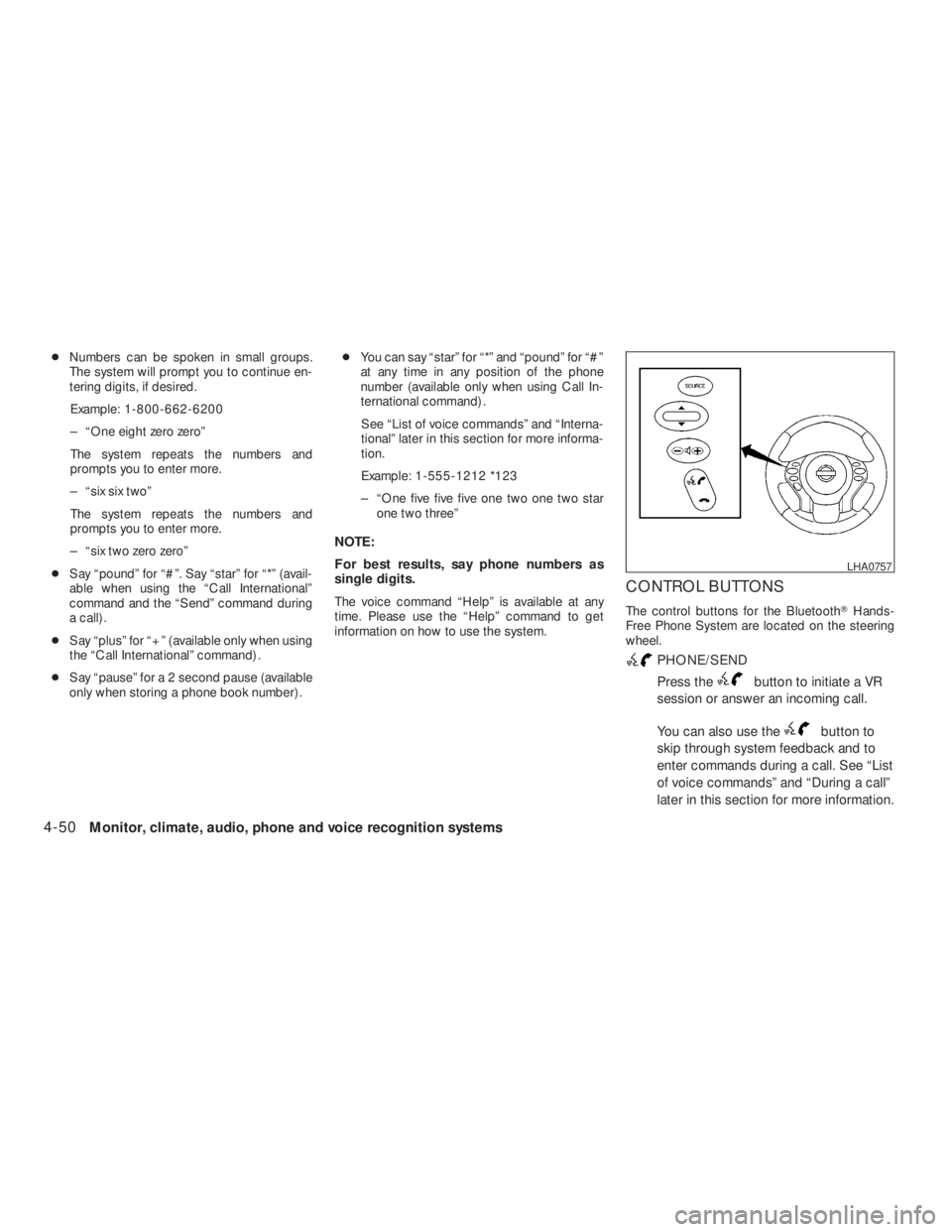
PHONE/SEND
Press the
button to initiate a VR
session or answer an incoming call.
You can also use the
button to
skip through system feedback and to
enter commands during a call. See “List
of voice commands” and “During a call”
later in this section for more information.