2009 MERCEDES-BENZ CL COUPE service
[x] Cancel search: servicePage 102 of 421
i
Never leave external devices in the vehi-
cle as extreme temperatures (e.g. if sub-
jected to direct sunlight or at extremely low
outside temperatures) may prevent them
from functioning correctly (see separate
operating instructions of the respective
device). Mercedes-Benz does not take
responsibility for any damage to external
devices. :
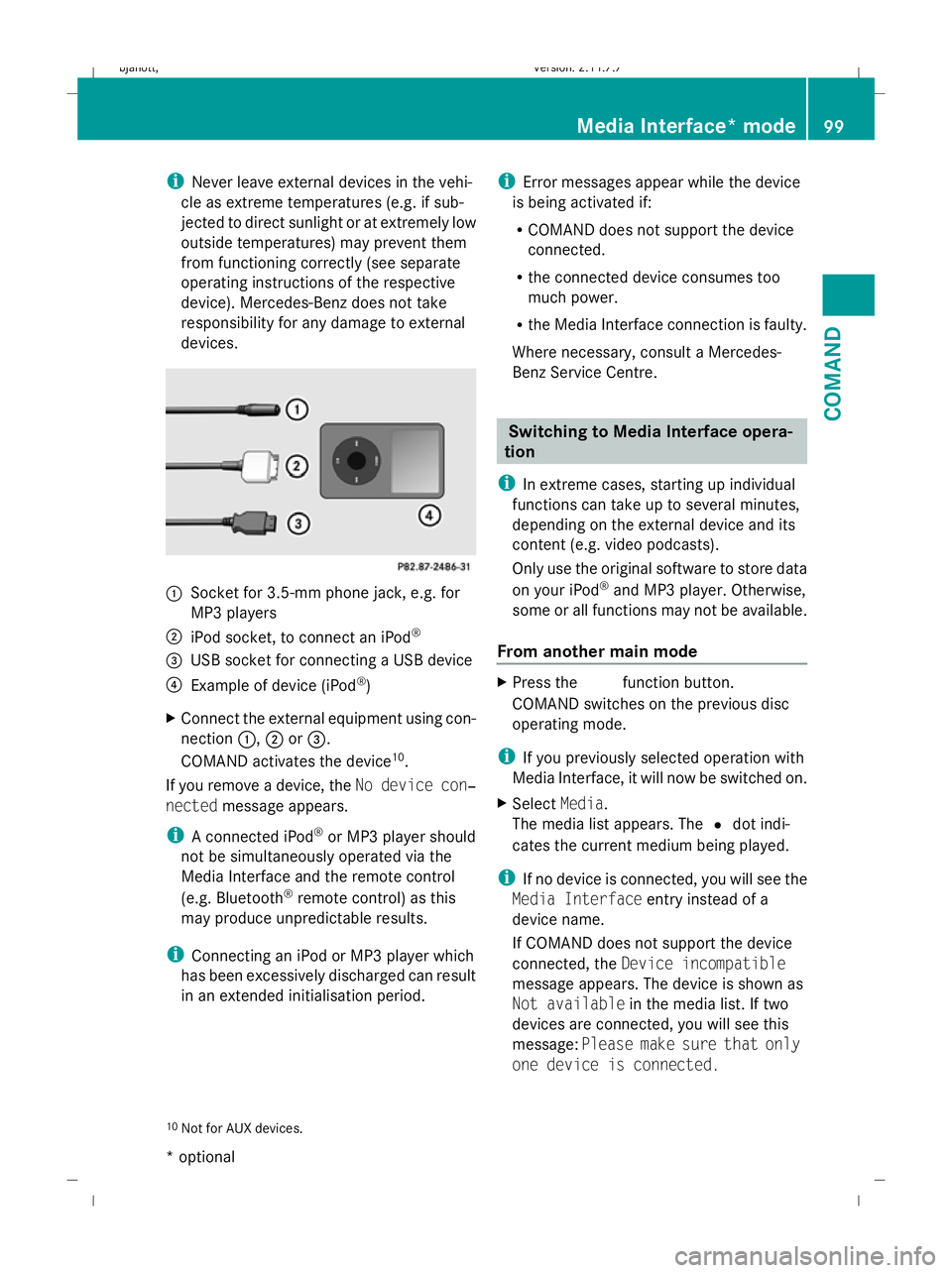
Socket for 3.5-mm phone jack, e.g. for
MP3 players
; iPod socket, to connect an iPod ®
= USB socket for connecting a USB device
? Example of device (iPod ®
)
X Connect the external equipment using con-
nection :,;or=.
COMAND activates the device 10
.
If you remove a device, the No device con‐
nected message appears.
i A connected iPod ®
or MP3 player should
not be simultaneously operated via the
Media Interface and the remote control
(e.g. Bluetooth ®
remote control) as this
may produce unpredictable results.
i Connecting an iPod or MP3 player which
has been excessively discharged can result
in an extended initialisation period. i
Error messages appear while the device
is being activated if:
R COMAND does not support the device
connected.
R the connected device consumes too
much power.
R the Media Interface connection is faulty.
Where necessary, consult a Mercedes-
Benz Service Centre. Switching to Media Interface opera-
tion
i In extreme cases, starting up individual
functions can take up to several minutes,
depending on the external device and its
content (e.g. video podcasts).
Only use the original software to store data
on your iPod ®
and MP3 player. Otherwise,
some or all functions may not be available.
From another main mode X
Press the Rfunction button.
COMAND switches on the previous disc
operating mode.
i If you previously selected operation with
Media Interface, it will now be switched on.
X Select Media.
The media list appears. The #dot indi-
cates the current medium being played.
i If no device is connected, you will see the
Media Interface entry instead of a
device name.
If COMAND does not support the device
connected, the Device incompatible
message appears. The device is shown as
Not available in the media list. If two
devices are connected, you will see this
message: Please make sure that only
one device is connected.
10 Not for AUX devices. Media Interface* mode
99COMAND
* optional
216_AKB; 2; 3, en-GB
bjanott,
Version: 2.11.7.7 2009-02-27T14:54:17+01:00 - Seite 99 Z
Dateiname: 6515230602_buchblock.pdf; erzeugt am 04. Mar 2009 11:15:04; WK
Page 107 of 421

If your vehicle is equipped with convenience
telephony*, you can buy brackets* for spe-
cific mobile phones at your Mercedes-Benz
Service Centre and have them installed in the
armrest.
Your mobile phone battery* is charged in the
bracket and a connection is made to the vehi-
cle's aerial.
With a suitable mobile telephone, the follow-
ing functions are available when using con-
venience telephony*:
R hands-free system
R phone book
R text message (SMS)
i If your vehicle is equipped with conveni-
ence telephony*, you can also connect a
Bluetooth ®
-capable mobile phone to
COMAND via the Bluetooth ®
interface.
You can obtain more detailed information
about suitable mobile phones and about con-
necting Bluetooth ®
-capable mobile phones
with COMAND from your Mercedes-Benz
Service Centre or on the Internet
(www.mercedes-benz.com).
Calls disconnected while the vehicle is
in motion A call may be disconnected if:
R
there is insufficient GSM network coverage
in certain areas.
R you move from one GSM transmitter/
receiver area (GSM cell) into another and
no channels are free.
Operating options You can operate the phone with the following
devices:
R mobile phone keypad
R COMAND/telephone keypad
R COMAND controller R
multi-function steering wheel
R Linguatronic*
Unless otherwise indicated, the descriptions
and illustrations in this section refer to
COMAND and the telephone keypad. This
also means that to carry out the functions
described here, you must always be in the
"Telephone" menu. The fastest way to access
the "Telephone" menu is to press the S
function button.
LINGUATRONIC* operation is described in
separate operating instructions.
Display of telephone numbers and
names COMAND can display the telephone number
and the name of the caller, e.g. for an incom-
ing call and also in other menus or displays.
For the telephone number to be displayed,
the caller must send their telephone number.
This is also the case for name displays. For
this, the telephone number and the name of
the caller must be stored in the phone book.
Function restrictions You will not be able to use the telephone in
the following situations:
R
when the mobile phone is not switched on
R when the "Bluetooth ®
" function on
COMAND or, when telephoning via the
Bluetooth ®
interface, on the mobile phone,
is switched off
R when using convenience telephony* and
the mobile phone is not yet connected to
the bracket*
XConnect the mobile phone
(Y page 110).
R when the mobile phone is not yet connec-
ted to a network
The telephone automatically tries to
log into a network. If no network is availa-
ble, you will not be able to make a "112" 104
Telephone*COMAND
* optional
216_AKB; 2; 3, en-GB
bjanott,
Version: 2.11.7.7 2009-02-27T14:54:17+01:00 - Seite 104
Dateiname: 6515230602_buchblock.pdf; erzeugt am 04. Mar 2009 11:15:05; WK
Page 108 of 421

emergency call. If you attempt to make an
outgoing call, the
No Servicemessage will
appear for a short while.
R If you remove the ignition key from the igni-
tion lock during an active conversation in
hands-free mode, the conversation may be
continued for up to 30 minutes. At this
point, it will be interrupted. You can prevent
this as follows:
XBluetooth ®
interface telephony:
switch the mobile phone to "Private
mode" before switching off COMAND;
see mobile phone operating instruc-
tions.
X Convenience telephony*: remove
the phone from its bracket before
switching off COMAND*.
If you wish to switch off COMAND during an
active conversation in hands-free mode, the
following message will appear: "You cannot
switch off COMAND until the phone call has
been completed."
"999" or "112" emergency call The following conditions must be fulfilled in
order to make a "112" emergency call:
R
the mobile phone must be switched on.
R a network must be available.
R a valid SIM card must be in the phone (not
necessary in all mobile phone networks).
If you cannot make an emergency call, you
must arrange rescue measures yourself.
The "112" emergency call number is a public
service. Any misuse is punishable by law.
Mercedes-Benz Contact Mercedes-Benz Contact can help you when-
ever you have questions relating to your vehi-
cle or when you need help in the event of a
breakdown.
The function will allow you to place a call to
the Mercedes-Benz Customer Centre. All important vehicle data is transferred in order
to ensure optimum support.
The following data is transmitted:
R
the vehicle identification number
R the mileage
R the vehicle's location
You can make use of this function with an
operational mobile phone connected to
COMAND via the Bluetooth ®
interface or con-
venience telephony*.
! Please note: Mercedes-Benz Contact is a
service provided by Mercedes-Benz. In
emergencies, it is vital that you first contact
the standard national emergency services
number.
i Currently (as at June 2009) this service is
available in the following European coun-
tries:
R Belgium
R Germany
R France
R United Kingdom
R Ireland
R Italy
R Luxembourg
R Netherlands
R Austria
R Poland
R Switzerland
R Slovakia
R Spain
R Czech Republic
R Hungary
You will find additional information on
Mercedes Benz Contact in your Service Book-
let. Telephone*
105COMAND
* optional
216_AKB; 2; 3, en-GB
bjanott,
Version: 2.11.7.7 2009-02-27T14:54:17+01:00 - Seite 105 Z
Dateiname: 6515230602_buchblock.pdf; erzeugt am 04. Mar 2009 11:15:05; WK
Page 110 of 421

i
Not all mobile phones available on the
market are equally suitable. You can obtain
more detailed information about suitable
mobile phones and about connecting Blue-
tooth ®
-capable mobile phones to
COMAND from your Mercedes-Benz
Service Centre or on the Internet
(www.mercedes-benz.com).
To avoid malfunctions, the mobile phone's
rechargeable battery must always be suffi-
ciently charged.
In preparation for telephoning via the Blue-
tooth ®
interface you should check the follow-
ing items on your mobile phone (see the
mobile phone operating instructions):
R Hands-Free Profile
The mobile phone must support Hands-
Free Profile 1.0 or above.
i Certain displays (e.g. the field strength
display or the mobile phone network pro-
vider) appear depending on the supported
version of the Hands-Free Profile.
R Bluetooth ®
visibility
On certain mobile phones, the device itself
must be made "visible" for other devices,
as well as activating the Bluetooth ®
func-
tion.
R Bluetooth ®
device name
Every Bluetooth ®
device has a Bluetooth ®
device name. This device name is freely
definable, but can be identical for all devi-
ces from the same manufacturer. It is a
good idea to choose a personalised name
by which you can identify your mobile
phone clearly.
Connecting a mobile phone X
Switch on the mobile phone and enter the
PIN, if necessary – see the mobile phone
operating instructions. X
Activate the Bluetooth ®
functionality on
the mobile phone – see the mobile phone
operating instructions.
Bluetooth ®
is activated on COMAND as
standard. When the "Bluetooth ®
" function is
switched off on COMAND, the following mes-
sage appears: Bluetooth not activated
in system settings. Switch on Blue-
tooth ®
manually on COMAND (Y page 106).
Registering (authorising) the mobile
phone
Before you use your mobile phone with
COMAND for the first time, you must register
(authorise) it.
You can register more than one mobile
phone. A connection is always established to
the most recently connected mobile phone
within range.
If no connection can be made to the most
recently connected mobile phone, the system
searches for the mobile phone which was
connected before that one.
If you authorise a new mobile phone, it will be
automatically connected 12
.
X Select Data/connections QBlue‐
tooth telephonesQ Update.
COMAND looks for Bluetooth ®
devices
within range and adds them to the Blue-
tooth ®
phone list.
The duration of the search depends on the
number of Bluetooth ®
devices within range
and on the mobile phone characteristics
(Hands-Free-Profile version, any "visibility"
requirements).
12 This function is available if it is supported by the mobile phone. Telephone*
107COMAND
* optional
216_AKB; 2; 3, en-GB
bjanott,
Version: 2.11.7.7 2009-02-27T14:54:17+01:00 - Seite 107 Z
Dateiname: 6515230602_buchblock.pdf; erzeugt am 04. Mar 2009 11:15:06; WK
Page 115 of 421

Changing between Bluetooth
®
and
convenience telephony*
If your vehicle is equipped with convenience
telephony*, you can switch between teleph-
ony types. If you want to use another mobile
phone, you will first need to connect it
(Y page 107).
Switching telephony type during opera-
tion During operation, you can switch from one
telephony type to another by connecting
another mobile phone or by making a selec-
tion from the list.
Switching telephony type when switch-
ing on By default, COMAND performs the following
actions when it is switched on:
Mobile phone is inserted in mobile phone
bracket*
COMAND starts convenience telephony*.
If no mobile phone is inserted in the mobile
phone bracket*, the following message
appears: Telephone not inserted . This is
followed by a prompt asking you whether you
wish to switch to Bluetooth ®
telephony. If you
confirm by selecting Yes, theReady for
Bluetooth telephony... message will
appear. COMAND will search for the two
mobile phones last connected via the Blue-
tooth ®
interface. If one of the two mobile
phones is found, the telephone basic menu
for Bluetooth ®
telephony (Y page 109)
appears. If neither of the two mobile phones
is found, the Ready for Bluetooth tel‐
ephony... message remains on the display.
You now have to register your mobile phone
(Y page 107).
If there is a mobile phone in the bracket*, the
telephone basic menu for convenience tel-
ephony* (Y page 111) appears. No mobile phone is inserted in mobile
phone bracket*
COMAND starts telephony via the Blue-
tooth
®
interface and searches for the last two
mobile phones to have been connected via
the Bluetooth ®
interface. If one of the two
mobile phones is found, the telephone basic
menu for Bluetooth ®
telephony
(Y page 109) appears. If neither of the two
mobile phones is found, the Ready for
Bluetooth telephony... message
remains on the display. You now have to reg-
ister your mobile phone (Y page 107).
i The Bluetooth ®
connection to the mobile
phone remains active until the next time
COMAND is switched off if you do not con-
nect a different mobile phone via the phone
list. Reception and transmission volume
The following information is valid for Blue-
tooth ®
interface telephony and convenience
telephony*.
Incorrect reception and transmission volume
settings may result in serious impairment of
speech quality.
You can therefore optimise the settings. Find
out about the optimum setting for your mobile
phone from your Mercedes-Benz Service
Centre or on the Internet at
www.mercedes-benz.com.
X Select Data/connections QBlue‐
tooth telephones.
X Once the desired mobile phone has been
selected:
Select Options QReception volume or
Transmission volume.
i The Reception volume andTransmis‐
sion volume options only appear when
the selected mobile phone is authorised. 112
Telephone*COMAND
* optional
216_AKB; 2; 3, en-GB
bjanott
,V ersion: 2.11.7.7
2009-02-27T14:54:17+01:00 - Seite 112
Dateiname: 6515230602_buchblock.pdf; erzeugt am 04. Mar 2009 11:15:07; WK
Page 129 of 421

X
To install software: (Ypage 132).
i Do not cancel the installation process. If
you cancel the installation process, the
navigation system will not be operational.
GPS reception Amongst other things, correct functioning of
the navigation system depends on GPS recep-
tion. In certain situations, GPS reception may
be impaired, there may be interference or
there may be no reception at all, e.g. in tun-
nels, in multi-storey car parks or due to snow
on the GPS aerial. Remove any snow from the
GPS aerial. The GPS aerial is on the roof at
the rear.
Route guidance after vehicle transpor-
tation or exiting a multi-storey car park COMAND has to redetermine the position of
the vehicle if the vehicle has been transpor-
ted, e.g.:
R by ferry
R by motorail
R after towing
COMAND may also have to redetermine the
vehicle's position after exiting a multi-storey
car park.
Positioning takes place automatically even
when COMAND is switched off. The duration
will vary from one situation to another.
Route guidance may be restricted as follows
during vehicle positioning:
R navigation announcements, route guid-
ance displays and displayed street names
are not consistent with the actual location
of the vehicle.
R COMAND does not generate navigation
announcements.
R instead of the route guidance display, you
see the Street unknown. display and a
directional arrow. The directional arrow shows the compass heading to the desti-
nation.
When positioning is complete, route guidance
is resumed with navigation announcements
and route guidance displays.
Interrupting the journey during route
guidance i
Interrupting the journey means parking
the vehicle and switching off COMAND.
Continuing the journey means switching
COMAND on again and driving on.
The following applies if you interrupt the jour-
ney during route guidance and continue the
journey later on:
R COMAND resumes route guidance auto-
matically if you continue the journey within
2 hours.
R Route guidance is cancelled if you continue
the journey after more than 2 hours. It will
be necessary to resume the cancelled
route guidance manually.
Hard disk errors COMAND has an integrated hard disk on
which the map software is stored.
If an area of the hard disk has a fault,
COMAND can no longer access the map data
in this area, for example when calculating a
route.
The message: Navigation unavailable.
Please observe the Owner's Manual.
appears.
X To delete the message: switch COMAND
off and then on again.
If you switch the navigation system off/on, it
will be operational again until it has to access
the faulty area of the hard disk again.
The message will then appear again. Consult
a Mercedes-Benz Service Centre. 126
Navigation system* (introduction)COMAND
* optional
216_AKB; 2; 3, en-GB
bjanott,
Version: 2.11.7.7 2009-02-27T14:54:17+01:00 - Seite 126
Dateiname: 6515230602_buchblock.pdf; erzeugt am 04. Mar 2009 11:15:11; WK
Page 135 of 421

jam, for example. If a quicker route is deter-
mined due to a received RDS-TMC traffic
announcement, the navigation system
changes the route. If possible, it will bypass
blockages.
R Short route: COMAND calculates a route
with the shortest possible (minimised) dis-
tance regarding distance and driving time.
X Select NaviQMode:
The mode list appears.
The current setting is indicated by a #dot.
X To make a setting: selectFastest
route orDynamic route orShort
route.
X To exit the menu: slideXVY.
i COMAND calculates a new route if you
change the route type setting with route
guidance active. If you change the route
type setting when route guidance is inac-
tive, COMAND uses the new setting for the
next route guidance.
Setting route options This function allows you to set the following
options for route guidance:
R Avoid motorways
R Avoid toll roads
R Avoid routes requiring special
toll sticker
R Avoid tunnels
R Avoid ferries
R Avoid motorail trains
X Select NaviQMode:
The mode list appears.
The selected option is indicated by a O
tick. It is possible to select more than one
option.
X To activate or deactivate an option:
select the desired option.
The option is selected or deselected,
depending on the previous status. X
To exit the menu: slideXVY.
COMAND will verify whether it can imple-
ment the options if you have selected them
with route guidance active. If it can,
COMAND calculates a new route while
implementing the options selected. If it
cannot, you will see and hear a correspond-
ing message.
X Select OK.
COMAND calculates a new route. Only
those options which can be implemented
are considered. Installing map software
The digital maps generated by the map soft-
ware become outdated in the same way as
conventional road maps. Optimum route
guidance can only be provided by the naviga-
tion system in conjunction with the most up-
to-date map software. Information about new
map software versions can be obtained from
a Mercedes-Benz Service Centre.
You can install new map software, which may
consist of one of more DVDs (depending on
the scope), yourself.
The installation process can take between
10 and 120 minutes, depending on the scope
of the map software. If the radio is switched
on before you start the installation process,
you can still adjust the volume. You can also
use COMAND to operate the automatic air-
conditioning system and to cancel the proc-
ess. Other functions are not operational. If
possible, carry out the installation process
when the vehicle is stationary. The DVD read
speed is higher when the vehicle is stationary
than when it is in motion, so less time is
required. If the starter battery is not suffi-
ciently charged, COMAND may end the proc-
ess automatically, in order to protect the bat-
tery. Therefore, let the engine idle during the
installation process. 132
Navigation system* (introduction)COMAND
* optional
216_AKB; 2; 3, en-GB
bjanott,
Version: 2.11.7.7 2009-02-27T14:54:17+01:00 - Seite 132
Dateiname: 6515230602_buchblock.pdf; erzeugt am 04. Mar 2009 11:15:14; WK
Page 136 of 421
G
Risk of poisoning
Never leave the engine running in enclosed
spaces. The exhaust gases contain carbon
monoxide. Inhaling exhaust fumes consti-
tutes a health hazard and could lead to loss
of consciousness or even death.
Displaying information on the currently
used map version X
Select NaviQMap version.
Notes on handling DVDs R
Only hold DVDs by the edge.
R Handle DVDs carefully to prevent reading
errors.
R Avoid getting scratches, fingerprints and
dust on DVDs.
R Use a commercially-available cleaning
cloth to clean discs. Do not wipe them with
a circular motion, but only in straight lines
from the centre outwards.
R Place DVDs back in their cases after use.
R Protect DVDs from heat and direct sunlight.
Map software copy protection Map software for COMAND is subject to a
charge. The map software has just one acti-
vation code which is usable in one vehicle
only, and is not transferable. You can obtain
the six digit activation code from your
Mercedes-Benz Service Centre. If you have
lost the activation code, or if COMAND does
not accept the activation code that you have
received, ask at your Mercedes-Benz Service
Centre.
Your vehicle is supplied with map software at
the factory. Depending on the country, the
map software for your region is either pre-
installed (Europe/USA), or the map software
is provided on a DVD (all other countries). You
do not require an activation code for the map
software that is provided with your vehicle. If the map software on your vehicle has been
installed at the factory and you wish to rein-
stall it, this also does not necessitate entry of
the activation code.
Installation process X
Insert the map software DVD into the single
DVD drive (Y page 77) or the DVD
changer* (Y page 78).
COMAND checks the DVD and shows a
corresponding message in the display.
The map software is not compatible with
the navigation system
You will see a message that the installation of
the map software is not possible.
X To confirm the message: pressW.
COMAND ejects the DVD.
X Take the DVD out of the slot.
X Insert a DVD which is compatible with the
vehicle’s navigation system.
The map software is not compatible with
the current system software
You will see a message that the system soft-
ware and the map software are not compati-
ble.
X To confirm the message: pressW.
COMAND ejects the DVD.
X Take the DVD out of the slot.
X Have the system software updated at a
Mercedes-Benz Service Centre.
The map software cannot be installed until
the system software has been updated.
Map software compatible with the navi-
gation system and the current system
software
COMAND checks whether the map data on
the DVD is already installed.
Map data is already installed
You will see a message that the map data is
already installed and a prompt will appear
asking you whether you wish to continue with
the installation. Navigation system* (introduction)
133COMAND
* optional
216_AKB; 2; 3, en-GB
bjanott,
Version: 2.11.7.7 2009-02-27T14:54:17+01:00 - Seite 133 Z
Dateiname: 6515230602_buchblock.pdf; erzeugt am 04. Mar 2009 11:15:14; WK