Page 328 of 622
327
3-4. Using the hands-free system (for cellular phone)
3
Interior features
GS_HV_U (OM30B44U)
April 27, 2009 10:09 am
CAUTION
■While driving
Do not use the mobile phone or connect the Bluetooth
® system.
NOTICE
■When leaving the vehicle
Do not leave your mobile phone in the vehicle. The inside of the vehicle may
become hot, causing damage to the phone.
GS450h_HV_U.book Page 327 Monday, April 27, 2009 10:10 AM
Page 329 of 622
328
3-4. Using the hands-free system (for cellular phone)
GS_HV_U (OM30B44U)
April 27, 2009 10:09 am
Using the Bluetooth® phone
Registering a Bluetooth® phone
You can register up to 6 phones in the system. Press .
Touch on the “Information” screen.
Touch on the “Telephone” screen.
Telephone screen
To display the screen shown above, press , then touch on the
“Information” screen.
Bluetooth® connection status Display last
person calledMake a call
Character deletion
STEP1
STEP2
STEP3
GS450h_HV_U.book Page 328 Monday, April 27, 2009 10:10 AM
Page 330 of 622
329
3-4. Using the hands-free system (for cellular phone)
3
Interior features
GS_HV_U (OM30B44U)
April 27, 2009 10:09 am
To u c h .
To u c h .
Input the passkey displayed on
screen into your phone.
If the message “Bluetooth* con-
nection successful” is displayed,
registration is complete.
If the message “Bluetooth* con-
nection failed. Please check the
“Passkey” and the settings of the
telephone” is displayed, start again
from the beginning.
*: Bluetooth is a registered trade-mark of Bluetooth SIG. Inc.
STEP4
STEP5
STEP6
GS450h_HV_U.book Page 329 Monday, April 27, 2009 10:10 AM
Page 331 of 622
330
3-4. Using the hands-free system (for cellular phone)
GS_HV_U (OM30B44U)
April 27, 2009 10:09 am
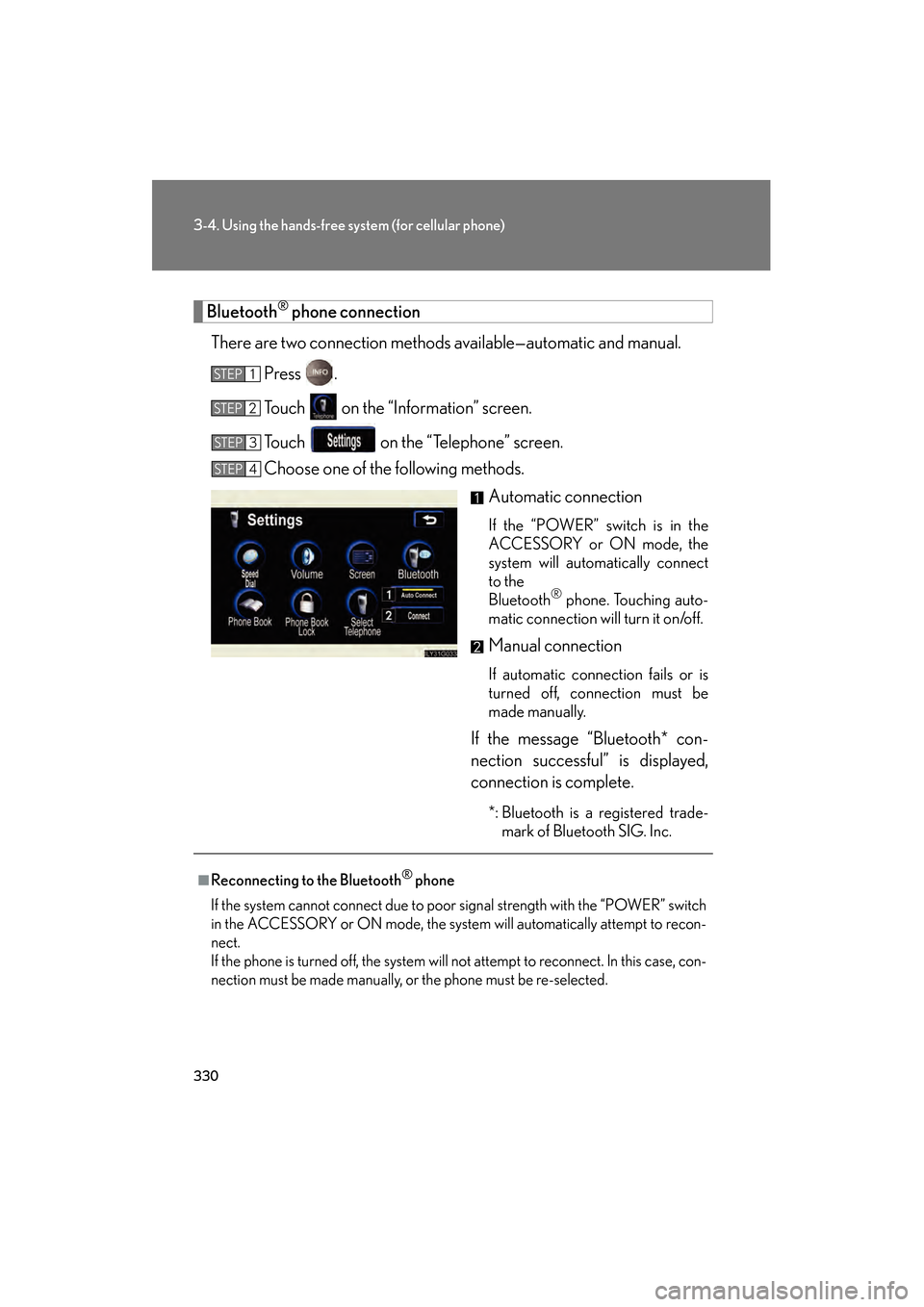
Bluetooth® phone connection
There are two connection methods available—automatic and manual. Press .
Touch on the “Information” screen.
Touch on the “Telephone” screen.
Choose one of the following methods. Automatic connection
If the “POWER” switch is in the
ACCESSORY or ON mode, the
system will automatically connect
to the
Bluetooth
® phone. Touching auto-
matic connection will turn it on/off.
Manual connection
If automatic connection fails or is
turned off, connection must be
made manually.
If the message “Bluetooth* con-
nection successful” is displayed,
connection is complete.
*: Bluetooth is a registered trade- mark of Bluetooth SIG. Inc.
STEP1
STEP2
STEP3
STEP4
■Reconnecting to the Bluetooth® phone
If the system cannot connect due to poor signal strength with the “POWER” switch
in the ACCESSORY or ON mode, the system will automatically attempt to recon-
nect.
If the phone is turned off, the system will not attempt to reconnect. In this case, con-
nection must be made manually, or the phone must be re-selected.
GS450h_HV_U.book Page 330 Monday, April 27, 2009 10:10 AM
Page 332 of 622
331
3-4. Using the hands-free system (for cellular phone)
3
Interior features
GS_HV_U (OM30B44U)
April 27, 2009 10:09 am
Making a callOnce the Bluetooth
® phone is registered, you can make a call using the
following procedure.
■ Dialing
Press .
Touch on the “Information” screen.
Inputting the phone number.
To delete the input phone number,
touch .
To dial the last input phone number,
touch .
Touch or press on the steering wheel.
STEP1
STEP2
STEP3
STEP4
GS450h_HV_U.book Page 331 Monday, April 27, 2009 10:10 AM
Page 344 of 622
343
3-4. Using the hands-free system (for cellular phone)
3
Interior features
GS_HV_U (OM30B44U)
April 27, 2009 10:09 am
Setting the hands-free system
You can speed dial, register in and edit the phone book, and set the
Bluetooth® phone.
To display the screen shown above, press , touch on the
“Information” screen, then touch on the “Telephone” screen.
Connection
method
GS450h_HV_U.book Page 343 Monday, April 27, 2009 10:10 AM
Page 351 of 622
350
3-4. Using the hands-free system (for cellular phone)
GS_HV_U (OM30B44U)
April 27, 2009 10:09 am
Changing the screen settings
Press .
Touch on the “Information” screen.
Touch on the “Telephone” screen.
Touch on the “Settings” screen.
The following settings can be changed.
“Incoming Call Display”The incoming call screen set-
tings can be changed.
“Auto Answer”
When a call is received, the sys-
tem automatically switches to
the talking screen after the set
period of time, meaning you can
speak without pressing any-
thing.
“Show Bluetooth* connection sta-
tus at startup” You can set the system to show
the status confirmation display
when connecting.
*: Bluetooth is a registered trade-mark of Bluetooth SIG. Inc.
STEP1
STEP2
STEP3
STEP4
GS450h_HV_U.book Page 350 Monday, April 27, 2009 10:10 AM
Page 352 of 622
351
3-4. Using the hands-free system (for cellular phone)
3
Interior features
GS_HV_U (OM30B44U)
April 27, 2009 10:09 am
■“Incoming Call Display” settings
Select the desired switch.
: The hands-free screen is displayed when a call isreceived, and you can operate the system from that
screen.
: A message is displayed at the top of the screen, and you can only operate the system with the steering
switches.
■ “Auto Answer” settings
To u c h .
Set the wait time using and . (1 - 60 seconds)
■ “Show Bluetooth* connection status at startup” settings
To u c h / .
*: Bluetooth is a registered trademark of Bluetooth SIG. Inc.
■To set the screen settings to default
To u c h , t h e n .
STEP1
STEP6STEP2
GS450h_HV_U.book Page 351 Monday, April 27, 2009 10:10 AM