Page 139 of 371
Knowing your vehicle130
3
1
2
3
4
5
6
7
8
9
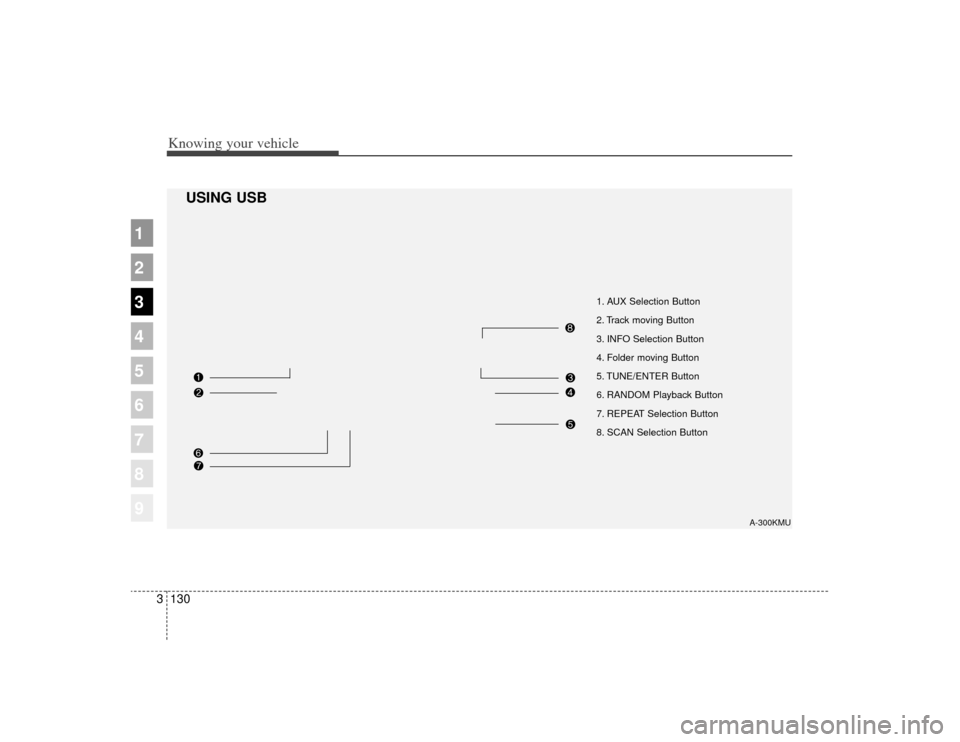
1. AUX Selection Button
2. Track moving Button
3. INFO Selection Button
4. Folder moving Button
5. TUNE/ENTER Button
6. RANDOM Playback Button
7. REPEAT Selection Button
8. SCAN Selection Button
A-300KMU
USING USB
Page 140 of 371
3131
Knowing your vehicle
1
2
3
4
5
6
7
8
9
In case USB is connected to the mul-
tiple terminal inside the console on
the right hand side of the driver’s
seat. When USB is connected, the
‘USB’ icon will be displayed on the
top right corner of the display screen.1. AUX Selection ButtonIf USB is not connected, it switches
to the USB mode from the Radio and
CD mode to play the song files
stored in the USB.
If AUX is not connected, it is invalid
key.2. Track Moving Button Press the [SEEK ] button forless than 0.8 second to play from
the beginning of the song currently
played.
Press the button for less than 0.8
second and press it again within 1
second to move to and play the pre-
vious track.
Press the button for 0.8 second or
longer to play the song in reverse
direction in fast speed. Press the [SEEK ] button for
less
than 0.8 second to move to the
next track.
Press the button for 0.8 second or
longer to play the song in forward
direction in fast speed.
3. INFO Selection ButtonDisplays the information of the file
currently played in the order of FILE
NAME
➟TITLE
➟ARTIST
➟ALBUM
➟
FOLDER
➟TOTAL FILE
➟FILE NAME
➟… (Displays no information if the
file has no song information.)4. Folder moving Button Moves [FLDR ] button child fold- er of the current folder and displays
the first song in the folder. Press
TUNE/ENTER button to move to
the folder displayed. It will play the
first song in the folder.
Moves [FLDR ] button parent folder and displays the first song in
the folder. Press TUNE/ENTER
button to move to the folder dis-
played. It will play the first song in
the folder.
5. TUNE/ENTER ButtonTurn this button clockwise to display
the songs next to the currently
played song.
Turn the button counterclockwise to
display the songs before the current-
ly played song.
Press the button to skip to and play
the selected song.6. RANDOM Playback ButtonPress the button for less than 0.8
second to start or stop the random
playback of the songs in the current
folder.
Press the button for more than 0.8
second to randomly play the entire
songs in the USB device.
Press the button again to cancel the
mode.
Page 141 of 371
Knowing your vehicle132
3
1
2
3
4
5
6
7
8
9
7. REPEAT Selection ButtonPress the button for less than 0.8
second to repeat the song currently
played.
Press the button for more than 0.8
second to repeat the entire songs in
the USB device.8. SCAN Selection ButtonPlays 10 seconds of each song in the
USB device.
Press the button once again to can-
cel scanning.